Preferences
Privacy is important to us, so you have the option of disabling certain types of storage that may not be necessary for the basic functioning of the website. Blocking categories may impact your experience on the website. More information
Privacy is important to us, so you have the option of disabling certain types of storage that may not be necessary for the basic functioning of the website. Blocking categories may impact your experience on the website. More information

Learn what Google Search Live is, how to start it on Android and iPhone, which countries and languages have it, and how to get your site cited in its answers.
In short
Google Search Live is a mode of the Google app where you talk to Search out loud and, if you want, show it your phone camera in real time. It answers by voice, shows web links on screen and accepts follow-up questions. It works on Android and iPhone in every country and language where AI Mode exists.
Want to go further? Ask
Quick quiz
Is SEO right for you, and how should you start?
Sorank matches your answers


Test it for 3 days on your own site and see where you stand on Google, ChatGPT and the other AIs.
Start 3-day free trial3 days free, then stop whenever you want. 90-day results guarantee, conditions apply.
Search Live is a real-time voice and camera conversation with Google Search. You tap a "Live" button, ask a question as you would ask a person, and Google answers out loud. You can interrupt it, ask a follow-up, or turn on the camera so Search sees what you see.
It lives inside AI Mode, Google's conversational search experience. That matters: a Search Live session is not a separate product with its own logic. It is AI Mode with a microphone and a camera plugged in, and every session ends up as a regular AI Mode thread in your history.
Search Live is powered by a voice version of Gemini built on top of Google Search's ranking and quality systems. When Google first launched it in June 2025, it explained that Search Live uses the same "query fan-out" technique as AI Mode: your spoken question is split into many smaller searches, run in parallel, and the results are merged into one answer. If you want the mechanics of that process, our definition of query fan-out walks through it.
The model has changed several times. In March 2026 Google moved Search Live to Gemini 3.1 Flash Live, a model it describes as "inherently multilingual". Then, on 15 September 2026, Google announced in its Gemini 3.8 Live announcement (Tom Ouyang and Malini Jaganathan, Gemini Audio team) that Gemini 3.8 Live was rolling out to everyone in Search Live. Rajan Patel, VP of Engineering for Search, added that the update brings more helpful answers with web links and lets you switch languages in the middle of a conversation.
Google has several features that sound alike. Here is how they differ, so you open the right one.
| Feature | Where you find it | Input | Output | Web links shown | Best for |
|---|---|---|---|---|---|
| Search Live | Google app, "Live" button under the search bar, or Live in Google Lens | Continuous voice, optional live camera | Spoken answer, transcript, links | Yes, on screen during the answer | Hands-busy tasks, things in front of you, quick back-and-forth |
| AI Mode (typed) | Google app, google.com/ai, AI Mode tab | Text, image, file | Written answer with links | Yes | Complex research, comparisons, planning |
| Google Lens | Google app camera icon, Chrome, Android | One photo or screenshot | Visual matches, AI Overview | Yes | Identify a product, plant, landmark, translate text |
| Classic voice search | Microphone icon in the search bar | One spoken query | Normal results page | Yes, as blue links | One short question, no conversation |
| Gemini Live | Gemini app | Voice, camera, screen sharing | Spoken conversation | Not its main focus | Brainstorming, open-ended chat, tasks in Google apps |
The short rule: if you want an answer grounded in web pages that you can then open, use Search Live. If you want a general AI model to chat with, use Gemini Live.
Search Live went from a US-only experiment to a global feature in about nine months. Knowing the steps explains why some guides you read online are out of date (many still say "US only").
Google Search Live, key dates
Sources: Google Search and Gemini blog posts, June 2025 to September 2026; Search Engine Journal, December 2025
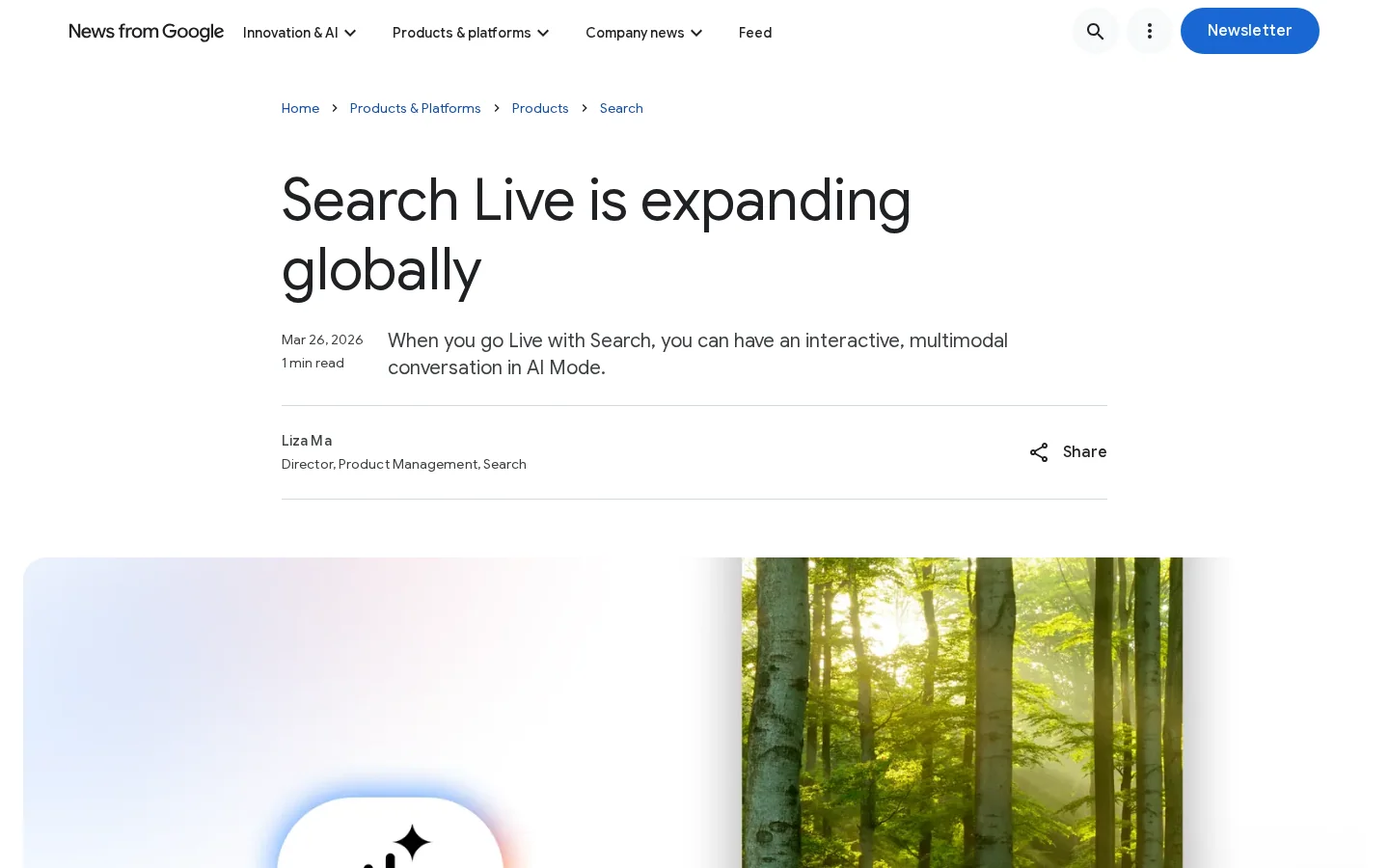
The global step is the one that changes things for most readers. On 26 March 2026, Liza Ma, Director of Product Management for Search, wrote in the Search Live global expansion post that the feature was expanding "to all languages and locations where AI Mode is available", which means more than 200 countries and territories.
Google also changed the look of Search Live during 2026, with a full-screen interface and an animated waveform spotted in the Android app in May. The design may differ slightly on your phone depending on your app version, but the controls described below stay the same.
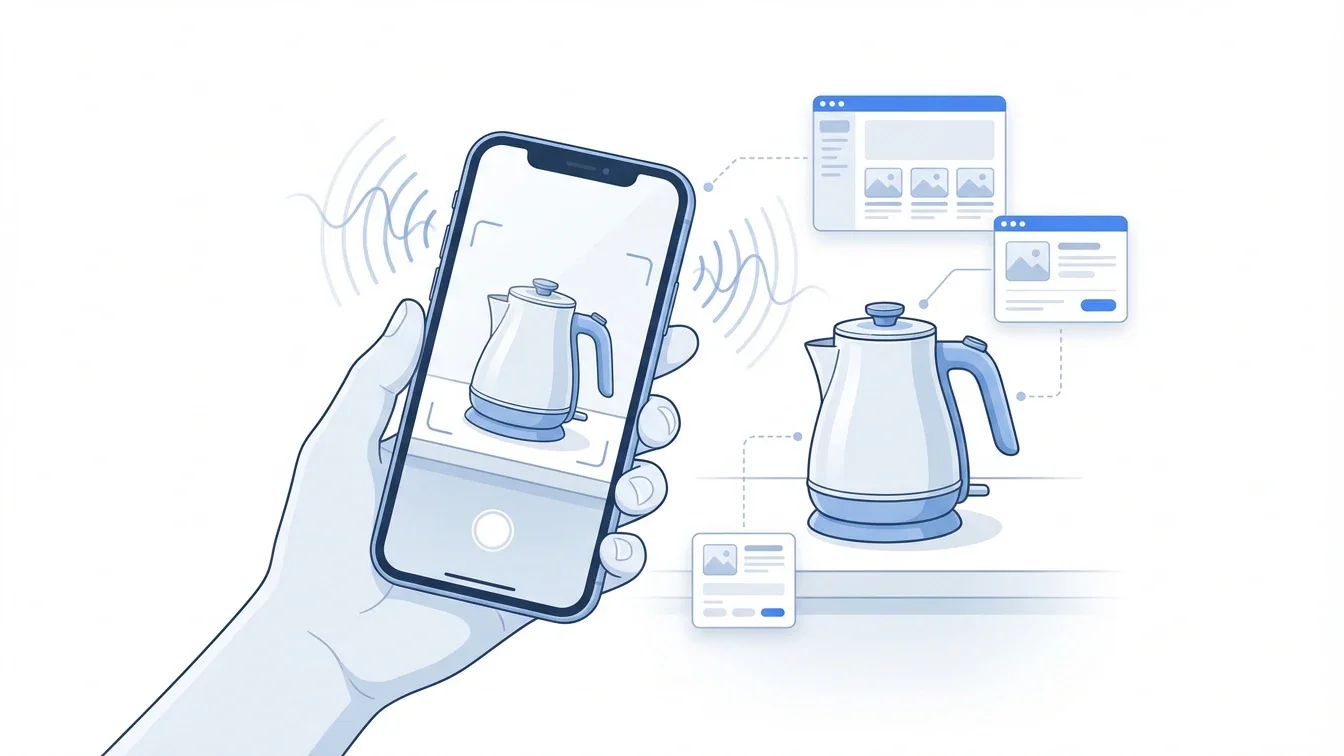
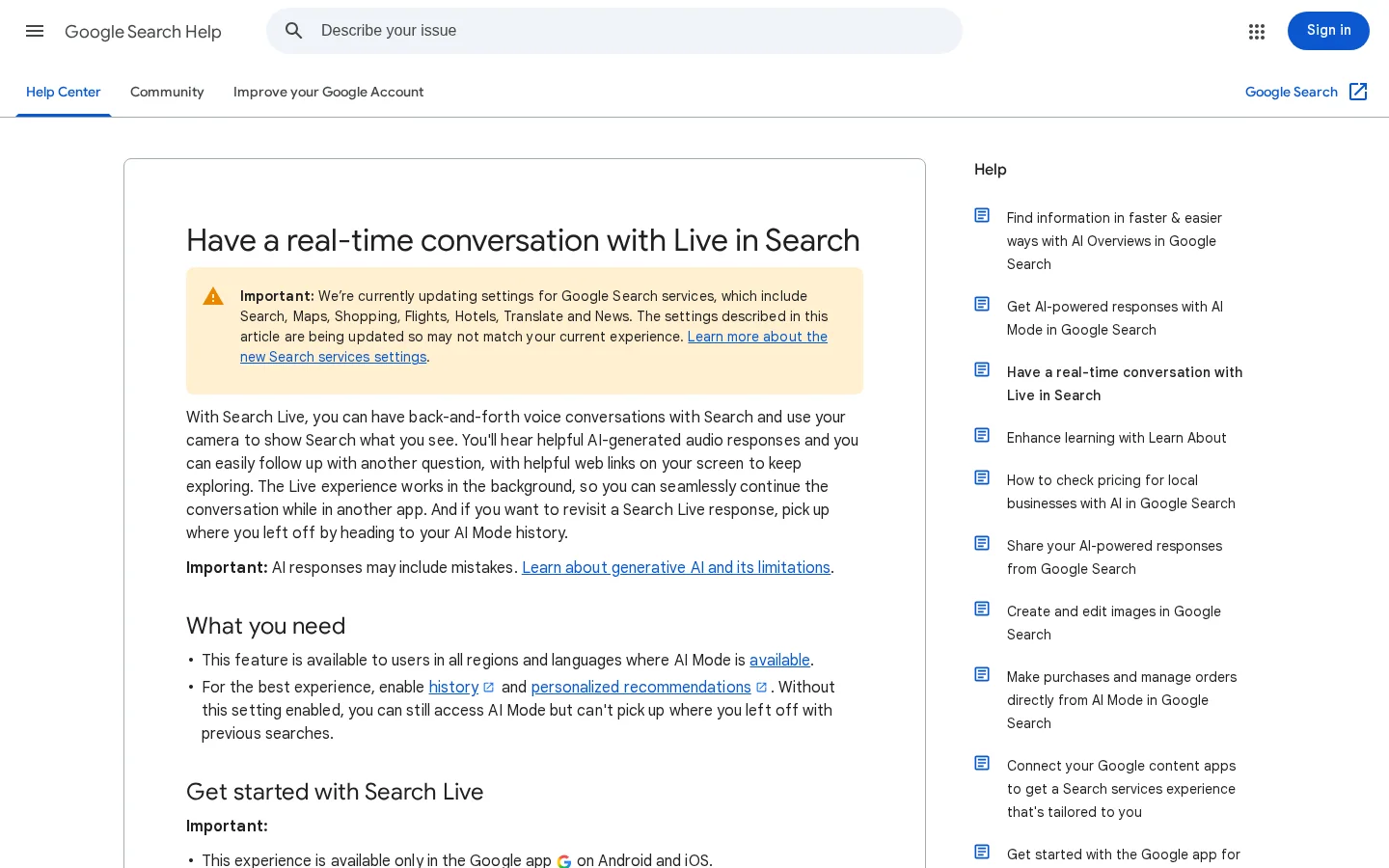
Yes, if AI Mode is available where you are. Google's Search Live help page states it plainly: Search Live is available to users in all regions and languages where AI Mode is available. So the real question is "do I have AI Mode?".
Search Live availability in numbers
Sources: Google Search blog, 26 March 2026; Google Search Help, AI Mode and Search Live pages, read November 2026
The AI Mode help page lists the supported countries region by region. All 27 EU member states are on the list, and so are the United Kingdom, the United States, Canada, India, Brazil and Australia. Countries where Google Search itself is blocked, such as mainland China, are not covered.
Be careful not to confuse AI Mode with some of its premium extras. Certain advanced AI Mode models are reserved for paying Google AI subscribers in a shorter list of countries. Search Live does not depend on them: it is free for everyone in the main AI Mode list.
The same help page lists 98 languages, from English, Spanish, French, German and Portuguese (Brazil) to Hindi, Bengali, Tamil, Telugu, Swahili, Yoruba and Zulu. Because the voice model is multilingual, you do not need to change any setting: speak in your language and Search Live answers in it. Since the Gemini 3.8 Live update, you can even switch language halfway through the conversation.
Before you try Search Live
Google's help page recommends turning on history and personalized recommendations. Without them, you can still use Search Live, but you cannot pick up a previous conversation later.
Open the Google app, tap "Live" under the search bar, and start talking. That is the whole process. The details below cover the first-time setup, the controls, and the settings most people miss.
Start your first Search Live session
Search Live works the same way on iOS, through the Google app from the App Store. There is no Search Live in Safari or in the Chrome app for iOS: you need the Google app itself. Google's help page details the background and notification settings for Android only, so on iPhone, expect the camera to stop as soon as you leave the app, and check that the Google app has microphone and camera access in Settings > Google.
| Control | What it does | Tip |
|---|---|---|
| Mute / Unmute | Turns your microphone off or on | Mute while someone else talks in the room, so Search Live does not pick it up |
| Wave (interrupt) | Stops the answer so you can speak | Use it as soon as the answer goes off track, rather than waiting |
| Video | Starts or stops sharing the camera | Tap it again after a lock screen: the camera does not restart by itself |
| Transcript | Ends the session and opens it as a written AI Mode thread | Useful to copy a list of steps or a product name |
| Exit | Ends the conversation | The session is saved in your AI Mode history if history is on |
Two settings live in the Search Live menu (More > Settings):
On Android, background conversations also need notifications. Google's path is Settings > Notifications > App notifications > Google, then turn on "All Google Notifications" and "Search Live" under "Other".
Tip
Speak in full sentences and give context in the first question ("I'm in a hotel in Lisbon with two kids, where can we eat near the river tonight?"). Search Live splits your question into several searches: the more context you give, the more precise those searches are.
You can open Search Live from three places, and each one starts in a different state. Choosing the right entry saves taps and gives better answers.
Principle: you start a fresh voice conversation, camera off. When to use it: any question you would ask a person, when your hands are busy (cooking, driving as a passenger, getting dressed). Advantages: the fastest path, voice first. Limits: you must tap Video to show something. Example: "What are the best neighborhoods to stay in Seoul for a first trip?"
Principle: you started typing in AI Mode and tap Live to continue by voice. When to use it: you did your research by text and now want to talk it through, or you need your hands free for the next step. Advantages: the context of the typed thread carries over. Limits: only useful if you were already in AI Mode. Example: you compared three espresso machines by text, then switch to Live to be guided while you set up the one you bought.
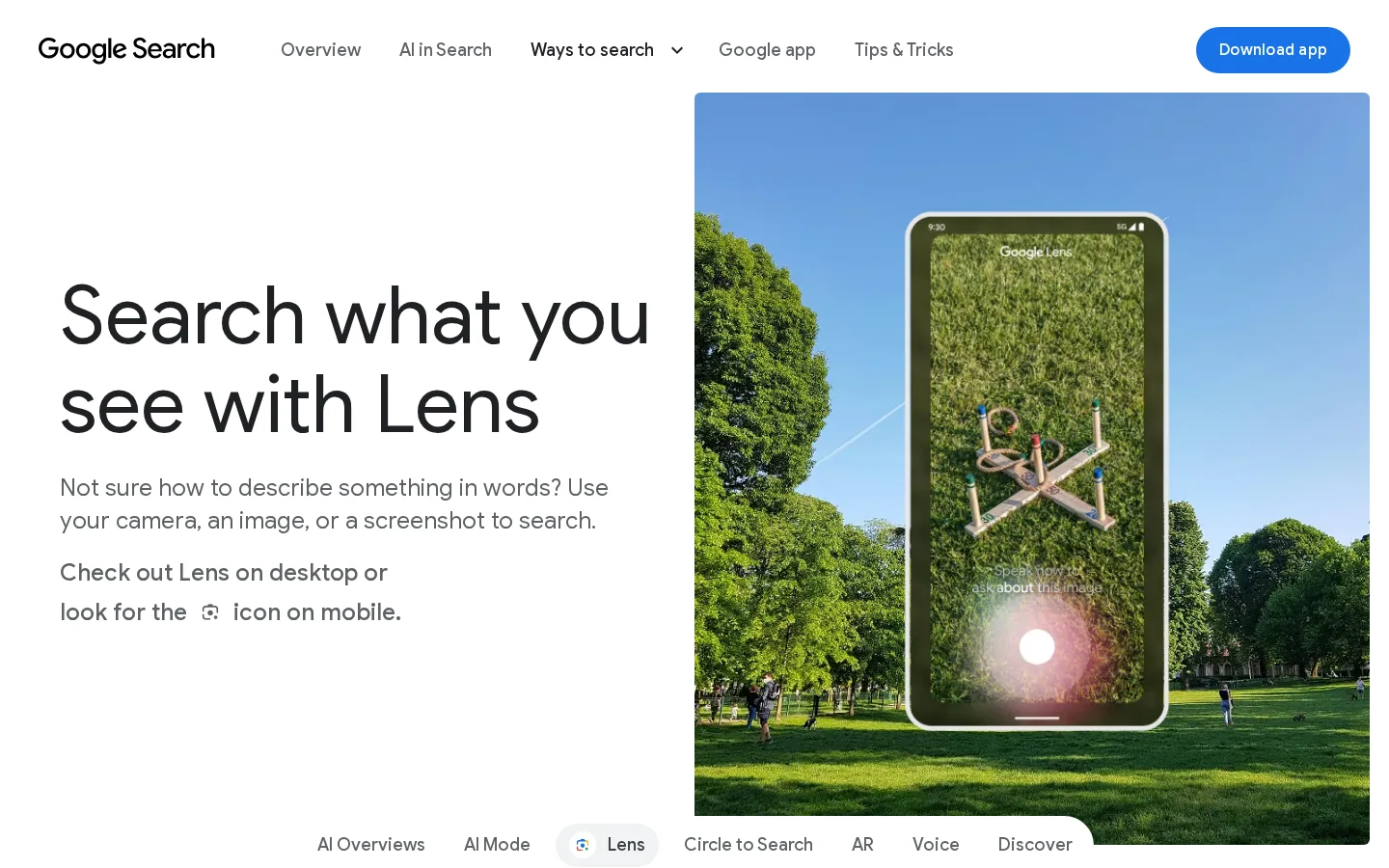
Principle: you open Lens (the camera icon in the search bar) and tap Live at the bottom of the screen. The camera is on from the start. When to use it: the question is about something in front of you. Advantages: no extra tap to show the object, and Lens already knows how to identify billions of objects. Limits: the camera uses more battery and data, and it stops when you leave the app. Example: pointing at the back of a TV and asking which HDMI port to use for a sound bar.
| Entry point | Camera at start | Context carried over | Best for |
|---|---|---|---|
| Live button, Google app | Off | None, new conversation | Spoken questions, planning, hands-free help |
| Live from AI Mode | Off | Yes, the typed thread | Switching from research to guidance |
| Live in Google Lens | On | What the camera sees | Objects, repairs, labels, plants, products |
Typed AI Mode vs Search Live
Search Live is best when the answer depends on what is in front of you or when your hands are busy. Google's own examples from its September 2025 launch post are travel, new hobbies, troubleshooting, school projects and game night. Here is what that looks like in practice.
| Use case | Camera on? | Example question | Who can be cited |
|---|---|---|---|
| Troubleshooting | Yes | "Which cable goes in which port on this TV?" | Brand support pages, how-to guides |
| Shopping | Yes | "Is this cream good for sensitive skin?" | Product pages, reviews, retailers |
| Travel | Optional | "What is this building and can we visit it today?" | Tourism sites, local businesses |
| Learning | Yes | "Why does this experiment foam like that?" | Educational sites, encyclopedias |
| Hobbies | Optional | "What can I use instead of sugar in a matcha latte?" | Recipe and hobby blogs |
This is the strongest case. Point the camera at the back of a router, a dishwasher error code or a furniture kit, and ask what to do next. You do not need to type the brand and model: Search Live reads the label. Since December 2025 you can ask it to slow down when it gives instructions, and the 2026 models follow a conversation for longer, which helps for repairs with many steps.
Show a product on the shelf and ask "is this good for sensitive skin?" or "what's the difference with the one next to it?". Search Live identifies the product, searches reviews and specifications, and shows the pages it used. For retailers and brands, this is the moment where your product page can be the link on screen, or not.
While walking, ask about a building, a dish on a menu or a place to eat nearby. With "Continue in background" on, you can keep a map open and talk at the same time.
Film an experiment, a math exercise or a plant and ask for an explanation. Students use it to understand a step, not only to get the answer.
For people who find typing hard, or who have low vision, a spoken, camera-based search with Live Captions is a real improvement over the classic search page.
Every Search Live session is saved like an AI Mode search, if your history is on. You can read it again, continue it, or delete it.
| What you want | Where to do it | What happens |
|---|---|---|
| Read a past session | AI Mode history, upper right corner of AI Mode | The session opens as a written thread you can continue |
| Delete one session | The thread's menu in AI Mode history | The thread disappears from your history |
| Delete everything | More > Delete all | All AI Mode threads are removed; copies in My Activity go in under 24 hours |
| Stop background listening | More > Settings > Continue in background | The session ends when you leave the app or lock the phone |
| Hide the text of answers | More > Settings > Live Captions | Answers are only spoken |
Warning
Google's help page reminds you that AI answers can contain mistakes. For anything medical, legal, financial or safety-related (electrical repairs, medication doses), open the source link and check it, or ask a professional.
Most problems with Search Live come from the app, the permissions or the background settings, not from the feature itself. Here are the ones we see most often.
| Symptom | Likely cause | Quick fix |
|---|---|---|
| No Live button | Browser instead of the Google app, old app version, AI Mode not available | Install or update the Google app |
| Camera frozen | You left the app or locked the screen | Return to the app and tap Video |
| Session ends on lock | Continue in background is off | Turn it on, allow Search Live notifications |
| No reaction to your voice | Muted, no microphone permission, Bluetooth headset | Unmute, check permissions, disconnect the headset |
| Vague answers | Keyword-style question | Ask a full sentence with context |
What it is: you search for the Live button on google.com in a browser. How to spot it: you see AI Mode but no Live button. How to fix it: install the Google app. Search Live only runs in the Google app on Android and iOS.
What it is: the app is installed but the button is missing. How to spot it: under the search bar you only see Lens and the microphone. How to fix it: update the Google app, then check that AI Mode works for you. If AI Mode is not available in your country or for your account, Search Live will not be either. Rollouts also take a few days to reach every phone.
What it is: you switched to another app or the screen locked, and the video froze. How to spot it: Search Live answers as if it can no longer see anything. How to fix it: this is by design. The camera cannot run in the background and does not restart by itself: go back to the app and tap Video again.
What it is: you lock the screen and Search Live stops. How to spot it: no Search Live notification when you swipe up. How to fix it: turn on "Continue in background" in More > Settings, and on Android allow the "Search Live" notifications of the Google app.
What it is: the waveform stays flat. How to spot it: no reaction when you talk, or the mute icon is crossed out. How to fix it: unmute, then check the microphone permission of the Google app in your phone settings. A Bluetooth headset that is connected but not worn also captures the sound instead of the phone.
What it is: you speak as you would type ("hotel Lisbon cheap"). How to spot it: generic answers and many follow-up questions from Search Live. How to fix it: ask a full question with your constraints. The model is built for conversation, and context makes its sub-searches better.
What it is: you act on the voice answer alone. How to spot it: you cannot say which site the information came from. How to fix it: open the links shown on screen or the transcript. A spoken answer is short by nature and can miss a condition or an exception.
What it is: you film a conversation, a colleague or a customer. How to spot it: other people are in the frame or in the audio. How to fix it: ask before, or point the camera only at objects. Google's own help page asks for this.
Search Live does not have its own index or ranking: it uses AI Mode, which uses Google Search. So the pages it shows are pages that rank and that Google's AI chooses to cite. What changes is the question people ask, the way they ask it, and how few results they see.
How a search looks before and with Search Live
A voice answer cannot read ten results aloud. Search Live shows a handful of links next to the answer. If your page is one of them, you get a qualified visitor at the exact moment of need. If not, you are invisible for that question. This is the same logic as AI Mode, only stronger. Our guide to getting your pages cited in Google AI Mode covers the ranking side in detail.
People speak in full sentences, with their situation: "my dishwasher shows E24 and there's water at the bottom, what do I do?". Your content should answer those exact situations, in plain language, with the answer at the top of the section. The techniques of voice search optimization (direct answers, natural question headings, short paragraphs) apply here, with one difference: Search Live does not read a single featured snippet, it builds an answer from several pages after splitting the question.
With Lens Live, the "query" is a picture of your product, your packaging, your storefront or your error screen. Google needs to connect that image to your page. That means:
Our complete image SEO guide details file names, formats and sitemaps. For the structured data, a minimal Product markup with identifiers looks like this:
<script type="application/ld+json">
{
  "@context": "https://schema.org",
  "@type": "Product",
  "name": "AquaPro 500 Countertop Water Filter",
  "image": [
    "https://www.example.com/img/aquapro-500-front.jpg",
    "https://www.example.com/img/aquapro-500-label.jpg",
    "https://www.example.com/img/aquapro-500-back.jpg"
  ],
  "sku": "AQP-500",
  "gtin13": "0012345678905",
  "mpn": "AQP500-EU",
  "brand": { "@type": "Brand", "name": "AquaPro" },
  "description": "Countertop water filter with a 500 liter cartridge. The red light means the cartridge must be replaced."
}
</script>
Tip
Build this markup without writing code with the free schema markup generator, then check that every product image has a real description with the alt text checker.
"Where can I get this fixed near here?" is a typical Search Live follow-up after a troubleshooting session. The answer leans on Google's local data. A complete and accurate profile, with categories, hours, photos and reviews, is what makes you the place Search Live names. See what to fix first in your Google Business Profile for AI search.
You cannot isolate Search Live traffic. Google's documentation on AI features and your website says that traffic from AI Mode and AI Overviews is included in the Performance report of Search Console, under the "Web" search type, with no separate filter. To appear as a link, your page only needs to be indexed and eligible to show a snippet: there is no special markup for AI features. In practice:
^(how|what|why|where|which|can|is|do)\b);nosnippet, max-snippet:0), since that removes you from AI answers too.Search Console > Performance > Search results
Search type: Web
Query filter: Custom (regex)
^(how|what|why|where|which|can|is|do|does|should)\b.{25,}This regex keeps questions of more than about 30 characters, the closest proxy you have for conversational searches.
To appear in Search Live, you need what appears in AI Mode: indexed pages that answer real, spoken questions better than anyone, with images and data Google can link to the physical world. Here is the plan, in order.
Search Live readiness checklist
Start from your support emails, chat logs and sales calls: they contain the exact sentences people would speak to Search Live. Then look at what AI models really search when they answer them. Sorank's AI prompt research finds the questions your customers ask AI, and its query fan-out tracker shows the sub-searches models run before they answer, so you can cover the angles they look for.
A spoken answer keeps the first two sentences. Put the answer there, in plain words, then the steps, then the exceptions. Use numbered steps for any procedure: they are easy to read aloud and easy to cite.
Photograph what customers will point their camera at: your product from every side, the label, the error screen, the storefront. Name the files and write the alt text for those exact views.
Ranking in the blue links and being cited in an AI answer are two different results. Test your key questions in AI Mode by voice and by text, and note which domains are shown. To follow it over time across Gemini and the other AI models, Sorank's GEO optimization software tracks when your brand is recommended and helps you publish the content that closes the gaps.
Here is what a real session looks like, and what it means for the sites involved.
From one spoken question to one visit
Three businesses could win this conversation: the brand whose support page explains the orange light in plain text, the retailer whose product page clearly names the compatible descaler, and the local shop with a complete profile. A business with only a PDF manual and a product page without identifiers would not be shown at all.
Try Search Live yourself on your own topic: open the Google app, tap Live, and ask the three questions your customers ask most, once by voice and once with the camera on your product. Note which sites are shown. If yours is missing, start with the answers: one clear section per spoken question, the answer first, with your product names, references and photos on the page. Then follow the long question queries in Search Console every month. For a broader view of Google's conversational search, read our AI Mode definition and the page on how Gemini and AI Mode choose the businesses they recommend.
Google Search Live is a feature of the Google app that lets you talk to Search out loud and share your phone camera in real time. It answers by voice, shows web links on screen and accepts follow-up questions. It is part of AI Mode.
Open the Google app on Android or iPhone and tap Live under the search bar, then allow the microphone. Tap Video to share your camera. You can also open Google Lens and tap Live at the bottom of the screen to start with the camera already on.
Search Live is available in every country and language where AI Mode is available, which covers more than 200 countries and territories since March 2026, including the United States, the United Kingdom and all EU countries. If you do not see the Live button, update the Google app and check that AI Mode works for you.
We analyse your competitors, your website and your AI visibility to create a tailored content plan for free.
 Duplicate Content Checker
 Mobile-Friendly Test
 Website Speed Test
 Subdomain Finder
 Domain Age Checker
 CMS Detector
 Googlebot Simulator
 Nofollow Link Checker
 Meta Tag Checker
 Keyword Cannibalization Checker
 Keyword Intent Checker
 Keyword Extractor
 Google Ads Cost Calculator
 CPC Calculator
 Local Citation Finder
 Reddit Threads Finder
 Disavow File Generator
 Redirect Generator
 Canonical Tag Generator
 Passive Voice Checker
 Google Location Changer
 Google Review Calculator
 Google Review Link Generator
 Keyword Combiner
 Podcast Show Notes Generator
 AI Content Rewriter
 AI Text Humanizer
 ChatGPT Prompt Generator
 Twitter Thread Generator
 Tweet Generator
 Landing Page Copy Generator
 Google Ads Copy Generator
 Pinterest Pin Description Generator
 Anchor Text Generator
 Social Media Post Generator
 LinkedIn Post Generator
 Free AI Writer
 Review Response Generator
 LSI Keyword Generator
 YouTube Video Ideas Generator
 YouTube Tag Generator
 YouTube Description Generator
 Product Description Generator
 CTA Generator
 Blog Introduction Generator
 Conclusion Generator
 Hook Generator
 AI Content Brief Generator
 FAQ Schema Generator
 AI Blog Post Ideas Generator
 Structured Data Validator (Schema Validator)
 Alt Text Checker
 Internal Link Analyzer
 Backlink Challenge
 AI Meta Description Generator
 AI Blog Title Generator
 Google Indexability Checker
 AI Blog Outline Generator
 UTM Link Builder
 Keyword Clustering Tool
 Canonical Tag Checker
 XML Sitemap Generator
 Broken Link Checker
 AI SEO Title Generator
 Headline Analyzer
 SERP Preview Tool
 Redirect Checker
 Hreflang Tag Generator
 Heading Structure Analyzer
 HTTP Headers Checker
 Favicon Extractor
 SERP CTR Calculator
 SEO vs Paid Search Savings Calculator
 SEO Share of Voice Calculator
 SEO ROI Calculator
 SEO Traffic and Revenue Forecast Calculator
 SEO Budget Calculator
 SEO Break-Even Calculator
 SaaS SEO ROI Calculator
 ROAS Calculator
 Reading Time Calculator
 Ranking Gain Simulator
 Organic Traffic Value Calculator
 Organic Traffic Estimator and Website Traffic Checker
 LTV to CAC Ratio Calculator
 Local SEO ROI Calculator
 Link Building Cost Calculator
 Keyword Value Calculator
 Keyword Opportunity Score Calculator
 Keyword Density Calculator
 GEO ROI Calculator
 GEO Content Investment Calculator
 Ecommerce SEO ROI Calculator
 Customer Lifetime Value Calculator
 Customer Acquisition Cost Calculator
 CTR Calculator
 Cost Per Article Calculator
 Conversion Rate Calculator
 Content Marketing ROI Calculator
 ChatGPT Referral Traffic Estimator
 Bounce Rate Calculator
 Backlink ROI Calculator
 AI Visibility Score Calculator
 AI Traffic Value Calculator
 AI Share of Voice Calculator
 Cost of AI Invisibility Calculator
 AI Citation Rate Calculator
 llms.txt Validator
 AI Overview Checker and AI Overviews Rank Checker
 Robots.txt Checker
 AI SEO Audit
 LLM Readability Checker
 SearchGPT Readiness Checker
 Structured Data LLM Audit
 Website Crawlability AI Audit
 Why ChatGPT Is Not Recommending My Website
 Gemini Ranking Tool
 Perplexity Ranking Checker
 LLM Citation Checker
 Answer Engine Optimization Audit
 GEO Audit
 AI Search Visibility Test
 ChatGPT Visibility Checker
 llms.txt Generator
 URL Extractor
 Webpage to Markdown
 Sitemap Checker
 SERP Volatility Sensor
 Page Size Checker
 Word Counter
 Slug Generator
 Schema Generator
 Robots Generator
 OG Preview
 Meta Tags Generator
 Image Compressor
 Favicon Generator
 On-Page SEO Audit: SEO Checker and SEO Analyzer
 Backlink Analysis Tool
 Keyword Research Tool
 Domain Authority Checker
 “I tested Sorank on a real client site and it's insane. It does everything an agency would bill you $1500 a month for. It's going into production on that client now.”

 Guillaume Guersanguersanguillaume.com“We are an Ads agency and we wanted to get our SEO back on track once and for all. Sorank gave us a clear view of our site, helped us prioritize optimizations, and properly structure our content. The tool is easy to use, well designed for a team, and very practical for centralizing tracking without having to juggle multiple platforms. A very solid foundation to start fresh with our SEO.”
 Gaspard MadouiAds Agency
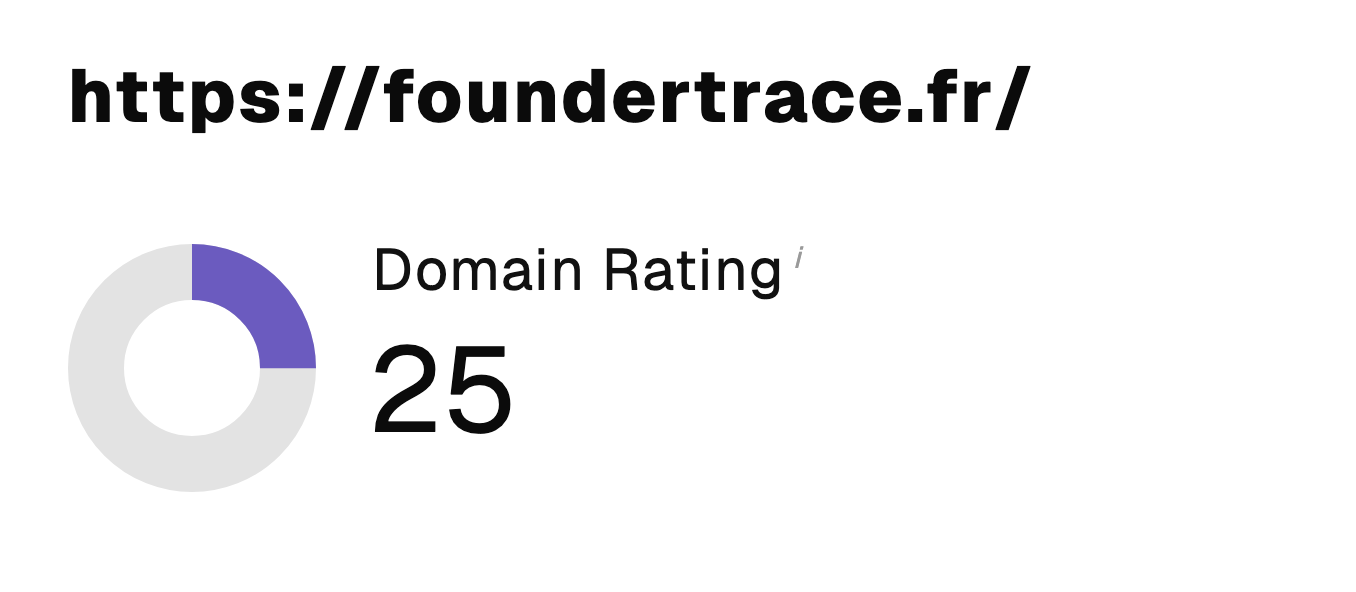 “I just let the Sorank software do its thing, and now my DR is 25 and my page is ranking higher.”
 Lucas Flandrefoundertrace.fr“I specialized in GEO thanks to Sorank. The GEO Leaderboard allows me to show my clients their position vs competitors on ChatGPT. It’s a real commercial differentiator.”
 MélanieSEO Freelance“Great service, works well for our website and helps us understand how to improve it to rank better on Google and elsewhere. Congrats, keep going, I recommend it.”
 Hugo T.E-commerce merchant