


Summary
The Googlebot simulator reads a page twice: once with the Googlebot smartphone user agent and once with a browser user agent. It compares the HTTP status, redirects, title, text, links, robots directives and canonical of both readings, checks robots.txt for Googlebot, and gives a green, orange or red verdict with the points to fix.
Want to go further? Ask


A Googlebot simulator answers one question: does Google receive the same page as your visitors? Servers, firewalls, plugins and content delivery networks often choose what to send based on the user agent, the line of text every crawler and browser sends with its request. When that choice goes wrong, Googlebot gets a 403, a redirect to the home page or an empty shell, while the page looks fine in your own browser.
What does the Googlebot simulator check?
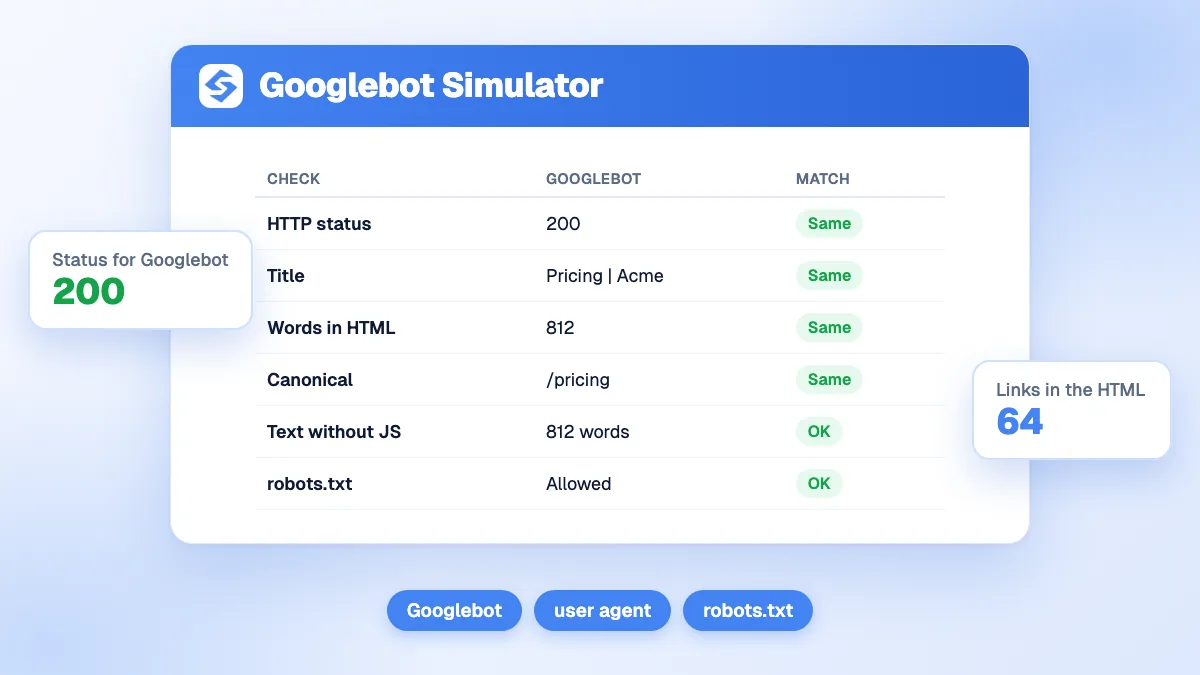
It checks whether Googlebot is blocked or served a different page than a browser. The tool sends two requests to the address you enter and compares nine points side by side.
- HTTP status returned to each reader.
- Redirects: how many hops each reader follows, and the final address.
- Title of the page.
- Words in the HTML and links in the HTML.
- Robots directives: noindex and nofollow.
- Canonical tag.
- Text without JavaScript: how much text sits in the HTML before any script runs, and whether an empty application container (root, app, __next) suggests the content is drawn by JavaScript.
- robots.txt: whether a rule stops Googlebot from crawling this page, and the status the file returns.
The smartphone user agent is the right one to test: Google says that for most sites it primarily indexes the mobile version, and that most Googlebot requests use the mobile crawler (Google Search Central, Googlebot).
How do you use the Googlebot simulator?
- Paste the full address of the page, with https://, in the field above.
- Complete the anti-bot check, then click Simulate Googlebot.
- Read the verdict at the top of the report.
- Open the red points first: they are expanded by default. Then check the orange ones.
- Look at "What each reader receives" to see the exact user agent sent, the status, the final address and the word count of each reading.
- Fix, then run the test again to confirm both readings now match.
You get a few free simulations per day; the counter under the field shows how many remain.
How do you read the result?
The verdict has three levels. Green means both readings match on status, title, text, links and directives, and nothing blocks Googlebot in the points checked. Orange means some points differ. Red means at least one point stops Googlebot or gives it content that differs from the browser.
Four tiles follow: the status for Googlebot, the status for a browser, the words in the HTML and the links in the HTML. A status in red on the first tile and green on the second is the clearest sign that something on your server treats Googlebot differently.
| Check | Good result | What a difference means |
|---|---|---|
| HTTP status | 200 for both | A firewall or bot rule answers Googlebot with 403, 429 or 503 |
| Redirects | Same path for both | A mobile or geographic redirect sends Googlebot elsewhere |
| Title | Same title | A template or cache serves another version to bots |
| Words and links | Same counts | Content is hidden, trimmed or replaced for one reader |
| Robots directives | No change | noindex sent to only one reader: check server rules by user agent |
| Canonical | Same canonical | Google may receive a different preferred address |
| Text without JavaScript | Main text in the HTML | The page depends on JavaScript to show its content |
| robots.txt | Googlebot allowed | A Disallow rule blocks the page, or the file answers a server error |
What problems does it reveal in practice?
A security rule blocks Googlebot. The browser gets 200, Googlebot gets 403. Bot protection set too strict is the usual cause. Allow verified Google crawlers instead of blocking every bot name.
A mobile redirect goes wrong. The smartphone user agent is redirected to a mobile home page instead of the matching mobile page. The redirect count differs and the final address changes. The redirect checker shows each hop of the chain.
A rendering service sends an old snapshot. Prerendering tools serve bots a cached copy. If that copy is stale, the title, word count or canonical differ from what visitors see.
A JavaScript page with almost no HTML. Both readings match, but the text without JavaScript is very short and an empty container is found. Google queues pages for rendering, and they "may stay on this queue for a few seconds, but it can take longer than that" (Google Search Central, JavaScript SEO basics). Our JavaScript SEO guide explains server rendering and the other fixes.
robots.txt blocks the page. The tool names the rule that stops Googlebot. Test the file in detail with the robots.txt checker.
What mistakes should you avoid?
- Testing only in your browser. Your browser is the reader that works; the problem is usually on the other side.
- Fixing noindex with JavaScript. Google may skip rendering when it finds a noindex tag, so keep it out of the original HTML if you want the page indexed.
- Ignoring a robots.txt error. When robots.txt answers a 5xx error, Google stops crawling the site for the first 12 hours while it retries, then uses the last good version for 30 days (Google Search Central, robots.txt specification).
- Blocking by user agent name. Anyone can send a Googlebot user agent. Check real Googlebot visits by reverse DNS or against Google's published IP ranges (Google Search Central, verifying Googlebot).
- Serving bots a different page on purpose. Google's spam policies call this cloaking when it is done to manipulate rankings.
What can this simulator not do?
- It does not come from Google's network. It sends only the user agent. A rule that trusts or blocks Google by IP address cannot be tested here.
- It does not run JavaScript. Text, links and tags added by a script are not counted, although Google may read them later when it renders the page.
- The Chrome version in the user agent is fixed. The real Googlebot updates it over time.
- It tests one page at a time. It does not crawl your site, read your server logs or show what Google has indexed. For that, use the URL Inspection tool in Search Console, then read our guide on pages blocked by robots.txt if that status appears.
- It checks access, not quality. A page Googlebot can read can still rank poorly.
When should you move from one test to Sorank?
Use the simulator to find out whether Googlebot gets the same page as your visitors, then fix what blocks it. Once your pages are reachable, the work is to make them earn traffic. The Sorank GEO and SEO dashboard shows your Google traffic and your visits from AI assistants in one view, so you see which pages grow and which ones fall after a change.