




 Try in ChatGPT

Search Console and AI traffic
Clicks, impressions, positions and pages, live, plus the visits that come from AI assistants.
6 toolsPrivacy is important to us, so you have the option of disabling certain types of storage that may not be necessary for the basic functioning of the website. Blocking categories may impact your experience on the website. More information


Connect Claude, ChatGPT or any MCP client to Sorank. Your AI analyzes your Search Console, AI traffic and AI visibility, then writes, plans and publishes your articles.
Opens Claude with the Sorank name and address already filled in.
Claude opens the custom connector window with the Sorank name and address already filled in. Click Add, then Connect.
On the Sorank page, choose your websites and permissions, then click Allow access.
In a chat, open +, then Connectors, switch Sorank on and ask away.
On ChatGPT plans that allow custom connectors in developer mode.
In Settings, open Apps (or Connectors), then Advanced settings, and turn on Developer mode.
Click Create. Name: Sorank. URL: https://app.sorank.com/mcp. Authentication: OAuth.
Choose your websites and permissions, then click Allow access.
Sorank now appears in the tools of your chats.
Set up the Sorank MCP server for me.
1. Run `claude mcp add --transport http sorank https://app.sorank.com/mcp`.
2. Then tell me to type `/mcp`, select sorank and choose Authenticate, so I can sign in to Sorank in my browser.
3. Once I am connected, call `list_profiles` and show me the websites I approved.
Opens VS Code with the Sorank name and address already filled in.
.vscode/mcp.json{
"servers": {
"sorank": {
"type": "http",
"url": "https://app.sorank.com/mcp"
}
}
}Click Start above the server, sign in to Sorank, then use it in Copilot Chat in Agent mode.
Opens Cursor with the Sorank name and address already filled in.
~/.cursor/mcp.json{
"mcpServers": {
"sorank": {
"url": "https://app.sorank.com/mcp",
"headers": {
"Authorization": "Bearer YOUR_SORANK_KEY"
}
}
}
}Replace YOUR_SORANK_KEY with a personal key created in Sorank under Settings, then API access. It is shown only once.
https://app.sorank.com/mcp
Works with any client that supports remote MCP over Streamable HTTP with OAuth (PKCE), or a custom Authorization: Bearer header with a personal key.
https://app.sorank.com/mcpIncluded in every Sorank plan. Start 3-day free trial
Pick a request, send it to your AI and let Sorank do the work.
Find the queries and pages that lost clicks, and what to fix first.
/list_gsc_queriesSearch Console
See the visits coming from ChatGPT, Claude, Gemini and Perplexity, page by page.
/get_ai_traffic_timelineSearch Console
Find out who AI answers cite instead of you, model by model.
/get_geo_cited_competitorsAI visibility
List the domains and pages AI answers rely on when they mention you.
/list_geo_citing_sourcesAI visibility
Follow your mentions per AI model over the last 90 days.
/get_geo_mentions_evolutionAI visibility
Turn your best keyword suggestions into new articles.
/generate_articlesArticles
Improve an article and send the new version to your CMS.
/update_published_articleArticles
Plan your subjects and let Sorank write and publish on schedule.
/create_calendarCalendar
Pause your automatic publications and review what is planned.
/set_calendar_statusCalendar
Choose the day and time, Sorank publishes on your CMS.
/schedule_articlePublication
Keep the competitors Sorank tracks for you up to date.
/replace_competitorsSettings
Let your articles include your own videos.
/connect_youtube_channelSettings
49 tools that read your data and act on your website, with the permissions you choose.
Clicks, impressions, positions and pages, live, plus the visits that come from AI assistants.
6 toolsMentions per AI model, cited sources and the competitors AI recommend.
7 toolsWritten from your keywords, then edited or deleted in one sentence.
5 toolsPlan your subjects, then Sorank writes and publishes on schedule.
9 toolsPublish, schedule, update or unpublish on WordPress, Shopify, Webflow, Wix and more.
6 toolsMarket, business brief, competitors, article style, visuals and YouTube channel.
9 toolsYour assistant chooses the right tool on its own. Here is the full list, grouped by use.
Your AI only does what you allow, on the websites you choose.
On the Sorank consent screen, you pick the websites and the permissions: read only, or also write, plan and publish.
Your assistant only sees the tools of the permissions you granted, and every call is checked again on our side.
Your plan, quotas and settings apply exactly as in Sorank. Each action returns a receipt your AI follows until it is finished, and a retried action never runs twice.
Disconnect an assistant at any time in Settings, then API access. Its next calls are blocked right away.
It is the official MCP server of Sorank, hosted at https://app.sorank.com/mcp. It lets an AI assistant such as Claude or ChatGPT use your Sorank account: analytics, AI visibility, articles, calendar, CMS publication and settings.
Yes. The MCP is included in every Sorank plan, at no extra cost. You need a Sorank account with your onboarding completed and at least one website with an active subscription.
Claude, ChatGPT, Claude Code, VS Code with GitHub Copilot, Cursor, and any client that supports remote MCP over Streamable HTTP with OAuth, or a custom Authorization header with a personal key.
Only if you allow it. Publishing, deleting and editing settings are separate permissions that you select on the consent screen, and most assistants also let you approve each use of a tool.
No. Most assistants connect with OAuth: you sign in to Sorank and approve the access. A personal key is only needed for clients that use a header, such as Cursor.
In Sorank, open Settings, then API access, and disconnect the application or revoke the key. Its next calls are blocked right away.
Generating articles uses the same monthly quota as in the app. Reading your data does not use your article quota.
THEY TRIED SORANK BEFORE YOU
 “I tested Sorank on a real client site and it's insane. It does everything an agency would bill you $1500 a month for. It's going into production on that client now.”
 Guillaume Guersanguersanguillaume.com“We are an Ads agency and we wanted to get our SEO back on track once and for all. Sorank gave us a clear view of our site, helped us prioritize optimizations, and properly structure our content. The tool is easy to use, well designed for a team, and very practical for centralizing tracking without having to juggle multiple platforms. A very solid foundation to start fresh with our SEO.”
 Gaspard MadouiAds Agency
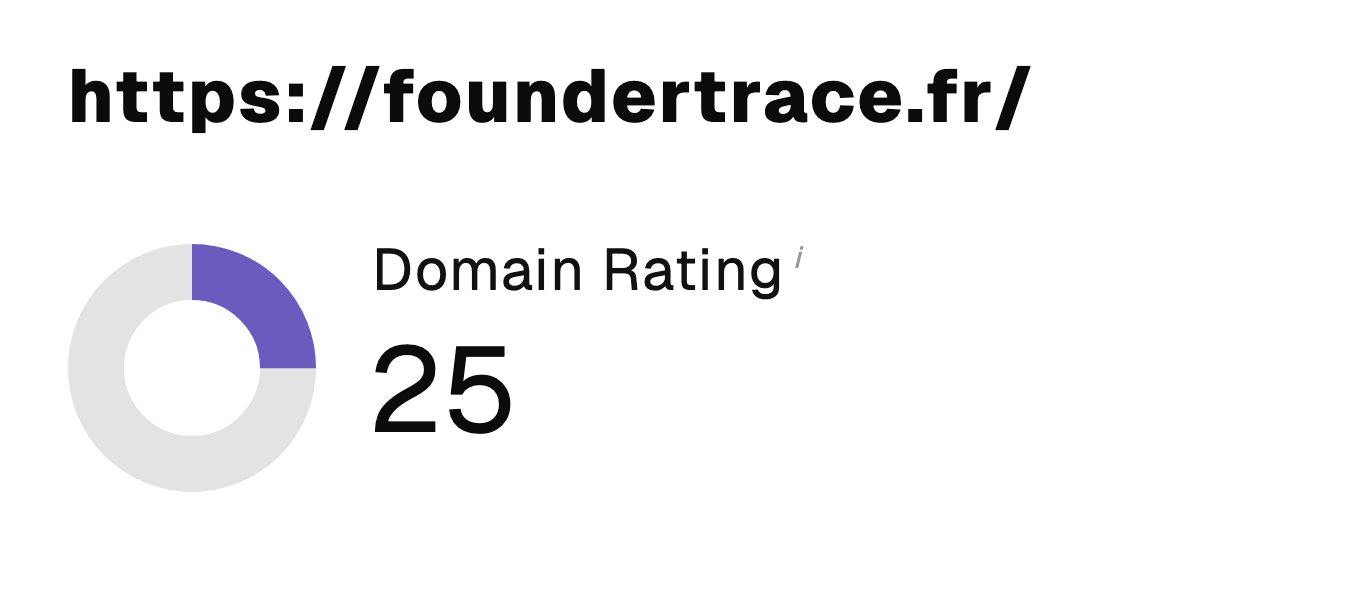 “I just let the Sorank software do its thing, and now my DR is 25 and my page is ranking higher.”
 Lucas Flandrefoundertrace.fr“I specialized in GEO thanks to Sorank. The GEO Leaderboard allows me to show my clients their position vs competitors on ChatGPT. It’s a real commercial differentiator.”
 MélanieSEO Freelance“Great service, works well for our website and helps us understand how to improve it to rank better on Google and elsewhere. Congrats, keep going, I recommend it.”
 Hugo T.E-commerce merchant