





 ChatGPT에서 사용해 보기
Search Console과 AI 트래픽
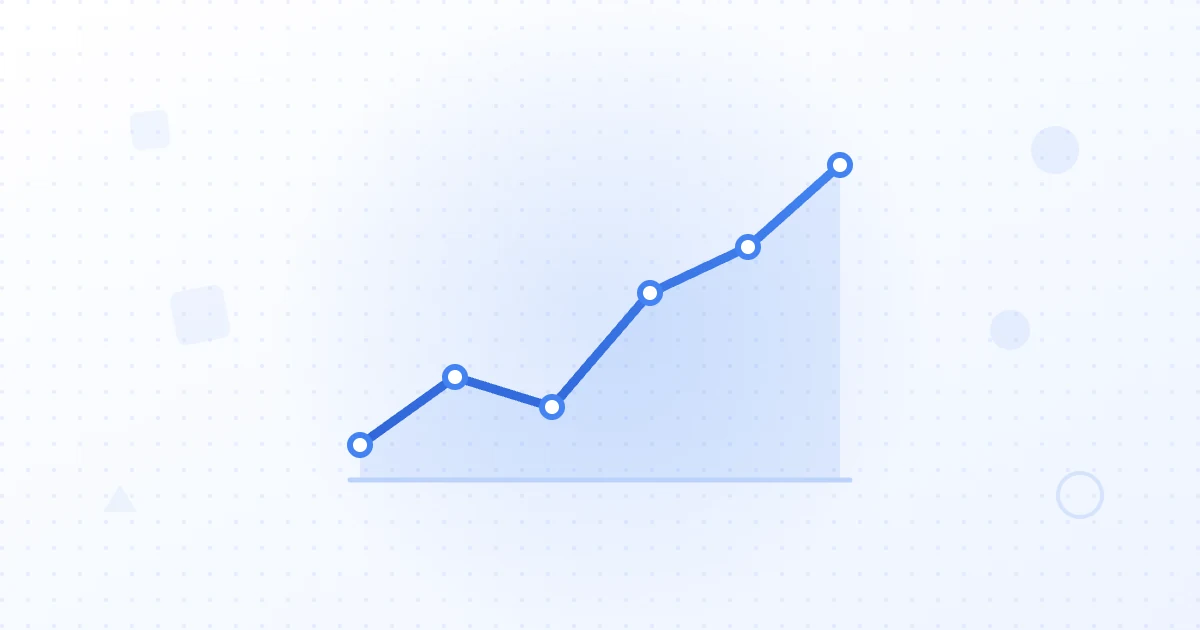
클릭수, 노출수, 순위, 페이지를 실시간으로 확인하고, AI 어시스턴트에서 유입된 방문까지 파악합니다.
도구 6개
Claude, ChatGPT 또는 모든 MCP 클라이언트를 Sorank에 연결하세요. AI가 Search Console, AI 트래픽, AI 가시성을 분석한 다음 기사를 작성하고, 계획하고, 게시합니다.
Claude에서 Sorank 이름과 주소가 미리 입력된 화면이 열립니다.
Sorank 이름과 주소가 미리 입력된 Claude의 사용자 지정 커넥터 창이 열립니다. Add(추가)를 클릭한 다음 Connect(연결)을 클릭하세요.
Sorank 페이지에서 웹사이트와 권한을 선택한 다음 Allow access를 클릭하세요.
채팅에서 +를 열고 Connectors(커넥터)에서 Sorank를 켠 다음 자유롭게 질문하세요.
개발자 모드에서 사용자 지정 커넥터를 지원하는 ChatGPT 플랜에서 사용할 수 있습니다.
설정에서 앱(또는 커넥터)을 열고 고급 설정으로 이동해 개발자 모드를 켜세요.
만들기를 클릭하세요. 이름에 Sorank, URL에 https://app.sorank.com/mcp를 입력하고, 인증은 OAuth를 선택하세요.
웹사이트와 권한을 선택한 다음 Allow access를 클릭하세요.
이제 채팅의 도구에 Sorank가 표시됩니다.
Sorank MCP 서버를 설정해 주세요.
1. `claude mcp add --transport http sorank https://app.sorank.com/mcp`를 실행해 주세요.
2. 그다음 제가 브라우저에서 Sorank에 로그인할 수 있도록 `/mcp`를 입력하고 sorank를 선택한 뒤 Authenticate를 고르라고 안내해 주세요.
3. 연결이 완료되면 `list_profiles`를 호출해서 제가 승인한 웹사이트를 보여 주세요.
VS Code에서 Sorank 이름과 주소가 미리 입력된 화면이 열립니다.
.vscode/mcp.json에 다음 내용을 추가하세요{
"servers": {
"sorank": {
"type": "http",
"url": "https://app.sorank.com/mcp"
}
}
}서버 위에 표시되는 Start를 클릭하고 Sorank에 로그인한 다음, Copilot Chat의 Agent 모드에서 사용하세요.
Cursor에서 Sorank 이름과 주소가 미리 입력된 화면이 열립니다.
~/.cursor/mcp.json에 다음 내용을 추가하세요{
"mcpServers": {
"sorank": {
"url": "https://app.sorank.com/mcp",
"headers": {
"Authorization": "Bearer YOUR_SORANK_KEY"
}
}
}
}YOUR_SORANK_KEY를 Sorank의 Settings, API access에서 만든 개인 키로 바꾸세요. 키는 한 번만 표시됩니다.
https://app.sorank.com/mcp
OAuth(PKCE)와 함께 Streamable HTTP 기반 원격 MCP를 지원하거나, 개인 키를 담은 사용자 지정 Authorization: Bearer 헤더를 지원하는 모든 클라이언트에서 사용할 수 있습니다.
https://app.sorank.com/mcp모든 Sorank 플랜에 포함되어 있습니다. 3일 무료 체험 시작
요청을 골라 AI에 보내면 나머지는 Sorank가 처리합니다.
클릭이 줄어든 검색어와 페이지, 그리고 가장 먼저 고쳐야 할 부분을 찾아보세요.
/list_gsc_queriesSearch Console
ChatGPT, Claude, Gemini, Perplexity에서 유입된 방문을 페이지별로 확인하세요.
/get_ai_traffic_timelineSearch Console
AI 답변이 나 대신 인용하는 경쟁사를 모델별로 확인하세요.
/get_geo_cited_competitorsAI 가시성
AI 답변이 나를 언급할 때 참고하는 도메인과 페이지를 정리해 보세요.
/list_geo_citing_sourcesAI 가시성
지난 90일 동안의 언급 수를 AI 모델별로 추적하세요.
/get_geo_mentions_evolutionAI 가시성
데이터를 읽고 웹사이트에서 직접 작업하는 49개 도구. 권한은 직접 선택합니다.
클릭수, 노출수, 순위, 페이지를 실시간으로 확인하고, AI 어시스턴트에서 유입된 방문까지 파악합니다.
도구 6개AI 모델별 언급 수, 인용된 출처, AI가 추천하는 경쟁사.
도구 7개키워드를 바탕으로 작성하고, 한 문장으로 수정하거나 삭제합니다.
도구 5개주제를 계획하면 Sorank가 일정에 맞춰 작성하고 게시합니다.
도구 9개WordPress, Shopify, Webflow, Wix 등에서 게시, 예약, 업데이트, 게시 취소를 할 수 있습니다.
도구 6개타깃 시장, 비즈니스 소개, 경쟁사, 기사 스타일, 비주얼, YouTube 채널.
도구 9개어시스턴트가 알맞은 도구를 스스로 선택합니다. 용도별로 정리한 전체 목록은 다음과 같습니다.
AI는 내가 선택한 웹사이트에서, 내가 허용한 작업만 수행합니다.
Sorank 동의 화면에서 웹사이트와 권한을 선택합니다. 읽기만 허용할 수도 있고, 작성, 계획, 게시까지 허용할 수도 있습니다.
어시스턴트에는 부여한 권한에 해당하는 도구만 표시되며, 모든 호출은 Sorank 쪽에서 한 번 더 확인합니다.
플랜, 할당량, 설정이 Sorank에서와 똑같이 적용됩니다. 각 작업은 접수 확인을 반환하고 AI는 작업이 끝날 때까지 이를 추적하며, 재시도한 작업이 두 번 실행되는 일은 없습니다.
Settings, API access에서 언제든지 어시스턴트의 연결을 해제할 수 있습니다. 이후 호출은 즉시 차단됩니다.
https://app.sorank.com/mcp에서 호스팅되는 Sorank의 공식 MCP 서버입니다. Claude나 ChatGPT 같은 AI 어시스턴트가 Sorank 계정의 분석 데이터, AI 가시성, 기사, 캘린더, CMS 게시, 설정을 사용할 수 있게 해 줍니다.
네. MCP는 모든 Sorank 플랜에 추가 비용 없이 포함되어 있습니다. 온보딩을 마친 Sorank 계정과, 구독이 활성화된 웹사이트가 하나 이상 있어야 합니다.
Claude, ChatGPT, Claude Code, GitHub Copilot을 사용하는 VS Code, Cursor와 호환됩니다. 또한 OAuth와 함께 Streamable HTTP 기반 원격 MCP를 지원하거나, 개인 키를 담은 사용자 지정 Authorization 헤더를 지원하는 모든 클라이언트에서 사용할 수 있습니다.
허용한 경우에만 가능합니다. 게시, 삭제, 설정 편집은 각각 별도의 권한이며 동의 화면에서 직접 선택합니다. 또한 대부분의 어시스턴트에서는 도구를 사용할 때마다 승인할 수도 있습니다.
아니요. 대부분의 어시스턴트는 OAuth로 연결되므로 Sorank에 로그인해 접근을 승인하기만 하면 됩니다. 개인 키는 Cursor처럼 헤더를 사용하는 클라이언트에만 필요합니다.
Sorank에서 Settings, API access를 차례로 열고 애플리케이션 연결을 해제하거나 키를 취소하세요. 이후 호출은 즉시 차단됩니다.
기사 생성에는 앱과 같은 월간 할당량이 사용됩니다. 데이터를 읽는 것은 기사 할당량을 차감하지 않습니다.
먼저 Sorank를 경험한 사람들
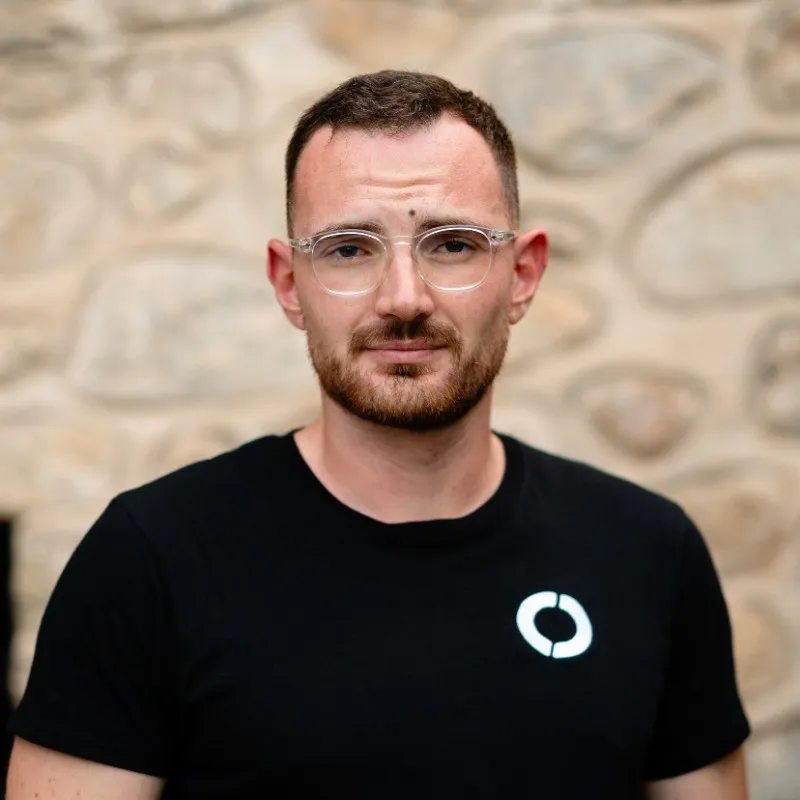
 “2년 동안 제 고객의 100%는 LinkedIn에서 왔습니다. 매일 게시물을 올리고, 댓글을 달고, DM으로 후속 연락을 하고… 알고리즘에 완전히 의존하는 방식이었습니다. SEO를 해야 한다는 것은 알았지만 늘 미뤘습니다. 시간이 오래 걸리고, 너무 기술적이며, 제 일이 아니라고 생각했기 때문입니다. Sorank와 함께 드디어 첫걸음을 내디뎠습니다. 4개월 만에 아무것도 게시하지 않고도 매달 15건의 오가닉 리드를 확보하고 있습니다. 아직 LinkedIn과 50 대 50은 아니지만, 자동 운영으로 성장하는 두 번째 리드 채널이 생겼다는 사실에 훨씬 마음이 놓입니다.”
 Valentin Thomy콜드메일 대행사“Sorank는 저희가 고객사에 제공하는 성과를 완전히 바꿔 놓았습니다. 이제 AI가 실제로 사용하는 키워드를 파악하고, 특정 경쟁사가 인용되는 이유를 이해하며, 이전에는 전혀 보지 못했던 기회를 발견합니다. 고객사는 더 빠른 순위 상승, AI 답변에서의 더 나은 가시성, 그리고 실행하는 모든 작업에 대한 더 명확한 ROI를 확인합니다.”
 Benjamin Rouxovirank.com
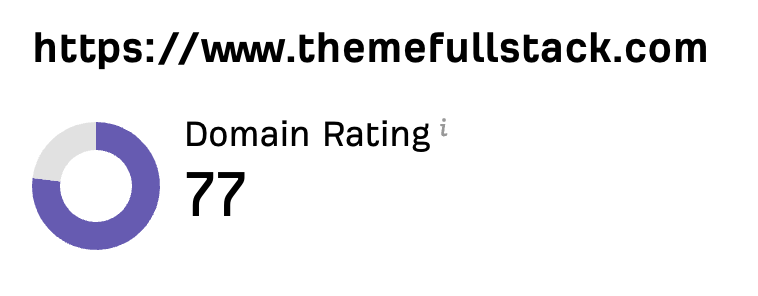 “저는 마케터가 아니라 개발자입니다. 제 Shopify 테마는 입소문과 광고로만 팔리고 있었습니다. Sorank 덕분에 드디어 SEO를 어떻게 구조화하고 상위에 노출되는 글을 어떻게 써야 하는지 이해했습니다. 진단 결과 제품 페이지가 너무 느리다는 사실이 드러났습니다. 2개월 만에 오가닉 트래픽이 두 배가 되었고, 사람들이 Shopify 테마를 검색할 때 ChatGPT 답변에 등장하기 시작했습니다. 그 모든 것을 주당 약 2시간으로 해냈습니다.”
 Thème FullStackthemefullstack.com“Sorank는 저희 SEO 대행사의 운영 방식을 완전히 바꿔 놓았습니다. 모든 것이 한곳에 모이고 자동화되어 고객사마다 들이는 시간이 훨씬 줄었습니다. 예전에 몇 시간씩 걸리던 작업이 이제 몇 분이면 끝나고, 덕분에 드디어 사업 안에서 일하는 것을 멈추고 사업 위에서 일하기 시작할 수 있게 되었습니다.”
 Océane Bondismaison-leverage.com