


Summary
The canonical tag generator turns a list of URLs into canonical tags ready to paste in the head of your pages. Paste up to 500 addresses, one per line, choose the cleaning options (https, www, final slash, tracking parameters), then copy the tags or download them as a text file. PDF files get the HTTP header version instead.
Want to go further? Ask


A canonical tag generator saves you from writing the same line of HTML by hand and from copying the wrong address into it. A canonical tag tells search engines which URL is the main version of a page when several addresses show the same content. Google calls the link element "a strong signal that the specified URL should become canonical" in its guide to consolidating duplicate URLs. The tag only helps if the address inside it is clean: no campaign parameters, no fragment, and the same protocol and host as your real page.
What does the canonical tag generator do?
It cleans each address you paste and writes one tag per address. Everything runs in your browser, as you type. For each line, the tool:
- Reads the address and adds https:// if you left out the protocol.
- Puts the host name in lowercase, because web addresses ignore case in that part.
- Removes the fragment (the part after #), since a canonical never has one.
- Applies your options: force https, remove www, remove the final slash, remove tracking parameters.
- Flags duplicates: two lines that end up with the same canonical are marked.
- Writes the tag
<link rel="canonical" href="...">, with & correctly written as & so the HTML stays valid.
For addresses ending in .pdf, it also writes the HTTP header form, because a PDF has no head section to hold a link tag.
How do you use the canonical tag generator?
- Paste your URLs in the box, one per line. The tool reads up to 500 addresses; beyond that, only the first 500 are processed.
- Choose the cleaning options. "Force https" and "Remove tracking parameters" are ticked by default. Tick "Remove www" or "Remove the final slash" only if that matches the version your site really serves.
- Read the result for each address to see what changed and spot invalid lines.
- Copy the tags or download them as a .txt file. The file also contains the PDF headers, if any.
- Place each tag in the head of the page it describes. Each page gets its own tag, not one shared tag for the whole site.
How do you read the result?
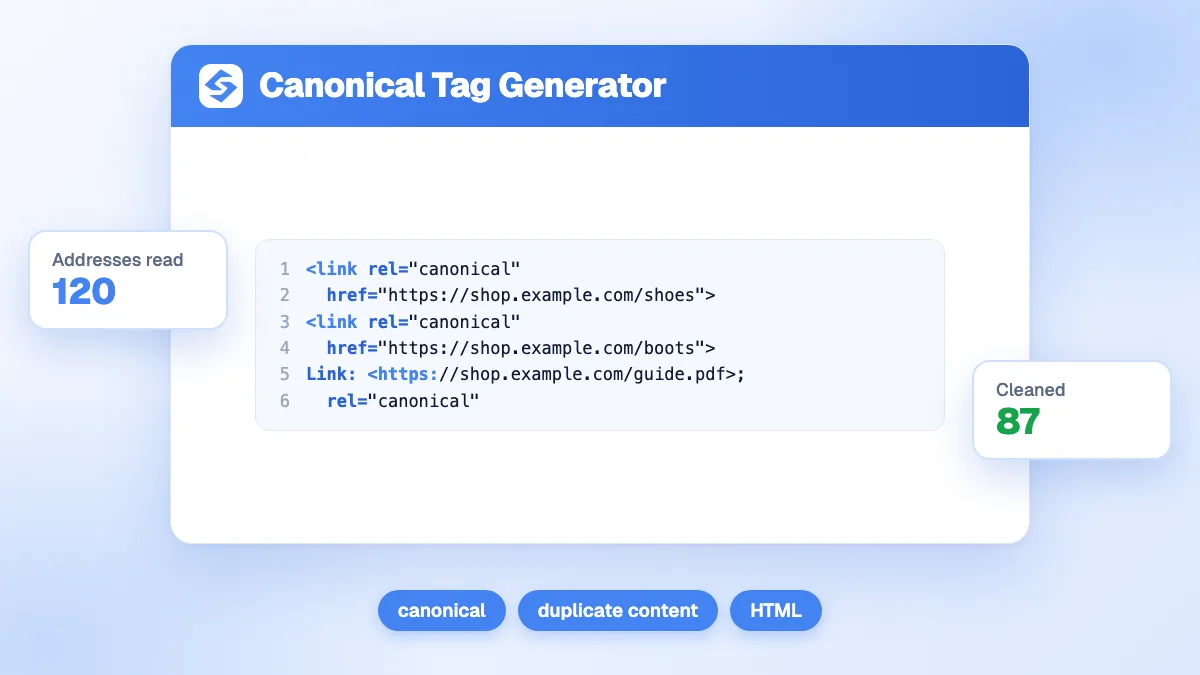
Three counters come first: addresses read, addresses cleaned and invalid addresses. Then the tags, the PDF headers if you pasted PDF files, and a line per address with the changes made.
- Kept as typed: the address was already clean.
- Switched to https, www removed, final slash removed: one of your options applied.
- Tracking removed: the tool names each parameter it dropped, for example utm_source or gclid.
- Fragment removed and host in lowercase: always applied.
- Same canonical as another line: two of your URLs point to one page. That is often normal (a tagged and an untagged link to the same product), but check it is not two different pages by mistake.
- Not a valid web address: the line is not an http or https address, or its host has no dot.
Which cleaning option should you tick?
Tick the options that bring every address back to the version your server actually answers with. The table shows what each one does to an example.
| Option | Default | Before | After |
|---|---|---|---|
| Force https:// | On | http://example.com/shoes | https://example.com/shoes |
| Remove www. | Off | https://www.example.com/shoes | https://example.com/shoes |
| Remove the final slash | Off | https://example.com/shoes/ | https://example.com/shoes |
| Remove tracking parameters | On | https://example.com/shoes?utm_source=newsletter | https://example.com/shoes |
| Host in lowercase (always) | Always | https://Example.COM/shoes | https://example.com/shoes |
| Fragment removed (always) | Always | https://example.com/shoes#reviews | https://example.com/shoes |
The tracking option removes utm_ parameters plus gclid, gbraid, wbraid, fbclid, msclkid, dclid, yclid, mc_cid, mc_eid, igshid, _ga and _gl. Other parameters, such as color=red or page=2, stay in the address. The home page always keeps its slash.
What do real examples look like?
A newsletter link. You paste http://Shop.Example.com/shoes/?utm_source=newsletter&color=red#reviews. With the default options, the tool switches to https, puts the host in lowercase, removes utm_source and the fragment. The result:
<link rel="canonical" href="https://shop.example.com/shoes/?color=red">Whether color=red belongs in the canonical is your call. If the filtered page is only a variant of the main category, point the canonical to the category instead. The faceted navigation guide explains which filter pages to index and which to canonicalize.
An ad click. https://example.com/offer?gclid=abc123 and https://example.com/offer both give https://example.com/offer. The second line is marked "same canonical as another line", which is what you want: the ad click and the normal visit are one page.
A PDF guide. For https://example.com/guide.pdf, the tool adds the header to send from your server:
Link: <https://example.com/guide.pdf>; rel="canonical"Google documents this header form for non-HTML files in the same consolidation guide. If you build campaign links yourself, the UTM link builder creates the tagged versions that this generator then strips back.
Which canonical mistakes should you avoid?
- One canonical for the whole site: pointing every page to the home page asks Google to drop all the others. Each page gets its own address.
- A canonical that redirects or returns an error: the target must be the page's own address, answering with a 200 status.
- A tag outside the head: Google only accepts the link element in the head section of the HTML.
- Relative addresses: Google supports them but recommends absolute URLs. The generator always writes absolute ones.
- A fragment in the canonical: Google says not to specify a URL fragment as canonical, which is why the tool removes it.
- Mixing methods that disagree: a canonical to one URL, a redirect to another and a sitemap listing a third send conflicting signals. Google warns against using robots.txt or noindex for canonicalization.
The glossary entry on the canonical URL explains how Google weighs these signals together.
What does the tool not do?
It cleans the text you paste. It does not open your pages, so it cannot tell you whether an address loads, redirects or already carries a canonical. It also has limits on what it changes:
- It does not choose between the www and non-www versions for you: you tick the option that matches your site.
- It does not change the case of the path or reorder parameters, because /Shoes and /shoes can be two pages on some servers.
- It does not add a final slash, it only removes one.
- It does not install the tags. You paste them into your CMS, template or theme.
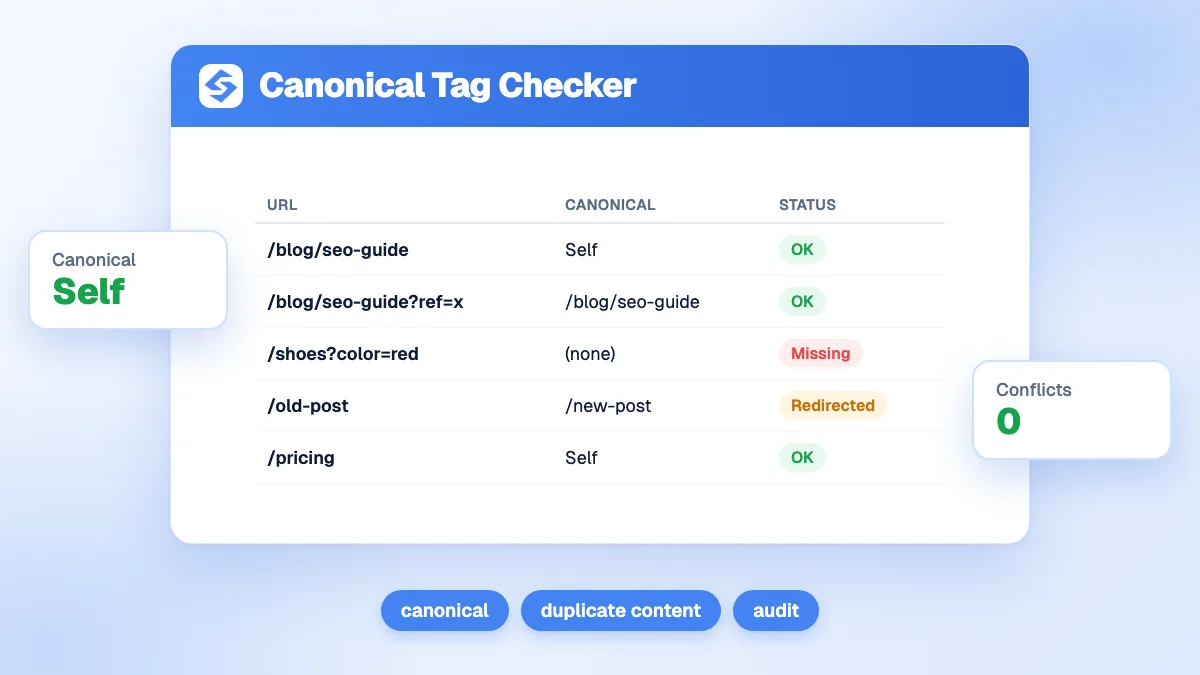
Google also treats your tag as a preference: its canonicalization documentation states that "indicating a canonical preference is a hint, not a rule." After publishing, check what a page really declares with the canonical tag checker, then compare it with the Google-selected canonical in Search Console's URL Inspection tool. If the two differ, the guide on duplicate without user-selected canonical walks through the fixes.
When should you move from tags to Sorank?
Use the generator to fix a batch of pages; use Sorank to follow what happens next. Canonical tags tidy up how Google groups your URLs, but they do not bring traffic on their own. The Sorank GEO and SEO dashboard shows your Google traffic and your visits from AI assistants in one view, so you can see whether the pages you cleaned are the ones that gain clicks, and Sorank grows that traffic on autopilot.