




Google has a hard limit on how much of a page it will download during crawling, and pages exceeding 15MB of raw HTML are truncated entirely. If your page's HTML exceeds what Googlebot is willing to process, critical content, structured data, and internal links may never get indexed.
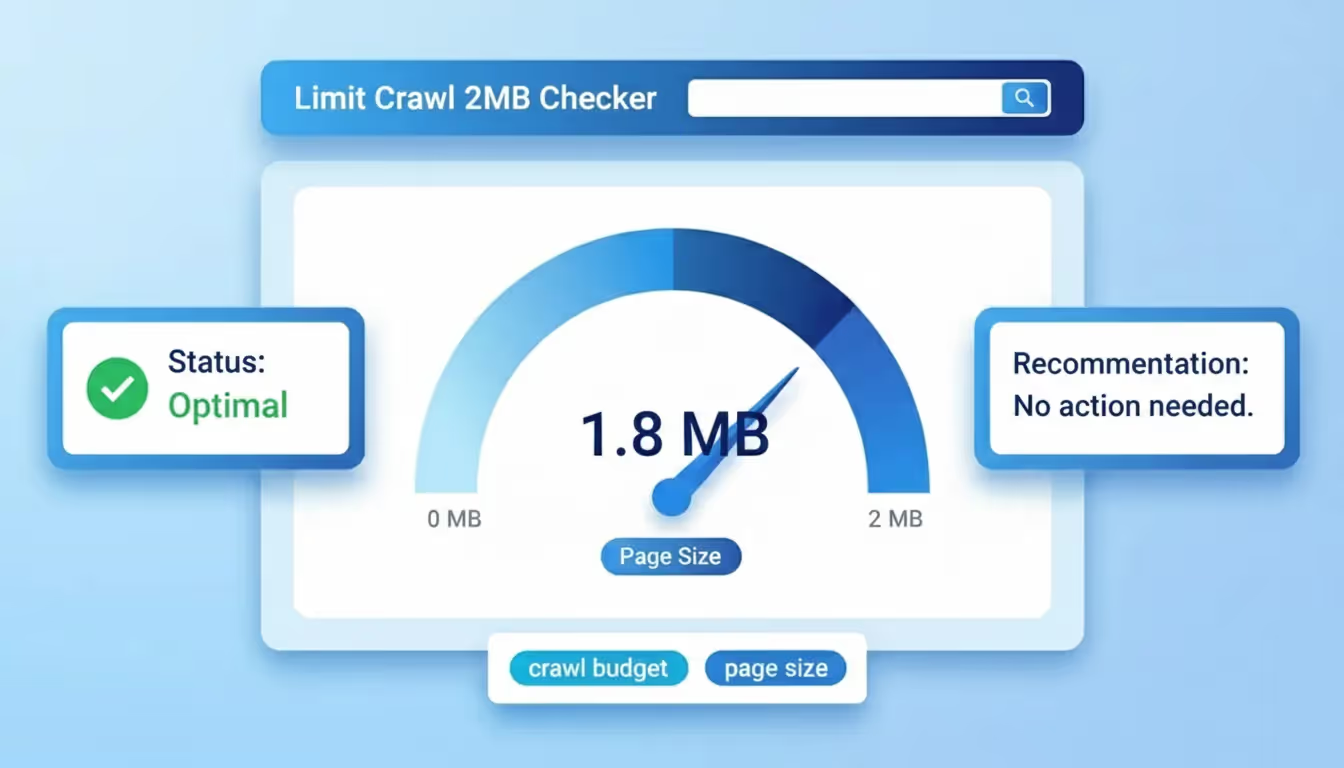
The Sorank Page Size Checker instantly measures your page's total size and compares it against Google's recommended thresholds, helping you identify pages that may be too heavy for efficient crawling and indexing.
Why Page Size Matters for SEO
Page size directly impacts how search engines crawl, render, and index your content. While most pages fall well within acceptable limits, certain site types, dynamic web apps, content-heavy landing pages, and bloated CMS templates, can produce surprisingly large HTML documents:
- Crawl efficiency: Google allocates a finite crawl budget to each site. Larger pages consume more of that budget per URL, meaning fewer of your pages get crawled in each session.
- Content truncation: When a page's raw HTML exceeds Googlebot's processing limit, content at the bottom of the document may not get indexed. This includes footer links, late-loading sections, and structured data placed at the end of the source.
- Rendering costs: Larger pages take longer for Googlebot's rendering service (WRS) to process. This delays indexing and can cause Google to use the raw HTML version instead of the fully rendered page.
- Page speed impact: Page size correlates directly with load time. Larger documents take longer to download, parse, and render, negatively affecting Core Web Vitals and user experience metrics.
- Mobile crawling: Google uses mobile-first indexing, and mobile connections have lower bandwidth. Heavy pages are even more problematic for mobile crawling and rendering.
Google's Page Size Thresholds
Understanding Google's documented limits helps you set clear optimization targets:
- Under 500KB: Ideal range. Pages in this size are crawled efficiently and processed quickly. Most well-optimized static pages fall in this range.
- 500KB-2MB: Acceptable but worth monitoring. Complex pages with heavy inline CSS, JavaScript, or embedded content often land here. Look for optimization opportunities.
- 2MB-15MB: Risk zone. Pages this large strain crawl budgets and may experience delayed indexing. Content near the end of the HTML document is at risk of being deprioritized or missed.
- Over 15MB: Google's hard cutoff for raw HTML. Content beyond this limit is not processed. If your page exceeds 15MB, critical content will be invisible to Google.
Note that these limits apply to the raw HTML document size, not the total page weight including images, CSS files, and JavaScript. However, external resources do affect rendering performance and overall crawl cost.
How to Use the Page Size Checker
The tool provides a straightforward analysis of any publicly accessible URL:
- Enter a URL: Type or paste the full URL of the page you want to analyze into the input field.
- View the results: The tool displays the total HTML document size, along with a visual indicator showing where your page falls relative to Google's thresholds.
- Identify issues: If your page exceeds recommended limits, analyze the HTML source to find bloat, inline styles, embedded SVGs, excessive DOM elements, or unnecessary JavaScript.
Common Causes of Oversized Pages
Several technical patterns lead to bloated HTML documents:
- Inline CSS and JavaScript: Embedding large CSS frameworks or JavaScript libraries directly in the HTML instead of linking to external files inflates the document size significantly.
- Excessive DOM elements: Pages with deeply nested HTML structures or thousands of DOM nodes produce larger documents. This is common with complex layouts, mega menus, and auto-generated content grids.
- Inline SVGs: SVG graphics embedded directly in the HTML can be very large, especially complex illustrations or icons repeated across the page.
- Duplicated content blocks: CMS templates that output repeated HTML structures, comment sections, related posts, product variants, can multiply the page size unexpectedly.
- Base64-encoded images: Embedding images as base64 strings in the HTML is much less efficient than linking to external image files and dramatically increases document size.
- JSON-LD structured data: While structured data is important for SEO, excessively detailed schema markup (especially on product pages with many variants) can add significant weight to the HTML.
- Third-party scripts: Marketing tags, analytics scripts, and chat widgets injected into the HTML at render time add to the total document size that Googlebot processes.
How to Reduce Page Size
If your pages exceed recommended thresholds, apply these optimization techniques:
Move Inline Resources to External Files
Extract inline CSS into external stylesheets and inline JavaScript into external script files. This reduces HTML document size and allows the browser to cache these resources separately, improving both crawl efficiency and page speed.
Simplify the DOM Structure
Reduce nesting depth and eliminate unnecessary wrapper elements. Use modern CSS techniques like Grid and Flexbox to achieve complex layouts with fewer HTML elements. Aim for fewer than 1,500 DOM nodes per page.
Lazy Load Non-Critical Content
Move below-the-fold content, comments sections, and related post widgets to lazy-loaded components that only render when the user scrolls to them. This keeps the initial HTML document small while still providing full content to engaged users.
Optimize Structured Data
Keep JSON-LD markup concise. Include only the required and recommended properties for each schema type. For product pages with many variants, consider using aggregateOffer instead of listing every variant individually.
Use External Image References
Replace base64-encoded images and inline SVGs with external file references. For SVG icons, consider using an SVG sprite sheet linked externally rather than embedding each icon in the HTML.
Enable Server-Side Compression
While compression (gzip/Brotli) does not reduce the uncompressed HTML size that Google measures, it dramatically reduces transfer size, improving crawl speed and page load time. Ensure your server compresses HTML, CSS, and JavaScript responses.
Page Size and Core Web Vitals
Page size has a direct relationship with several Core Web Vitals metrics:
- Largest Contentful Paint (LCP): Larger HTML documents take longer to download and parse, delaying the rendering of the largest visible content element.
- Interaction to Next Paint (INP): Excessive DOM elements increase the browser's layout and paint costs, making interactions feel sluggish and unresponsive.
- Cumulative Layout Shift (CLS): Heavy pages with late-loading elements are more prone to layout shifts as content progressively renders.
Keeping your page size within Google's recommended thresholds is not just about crawl efficiency, it is a foundational step toward better Core Web Vitals scores and improved search visibility.
Page Size Auditing Workflow
Incorporate page size checks into your regular SEO auditing process:
- Audit template pages first: Check the size of each page template type (homepage, category pages, product pages, blog posts). If a template is oversized, every page using that template is affected.
- Monitor dynamically generated pages: Pages that aggregate content (search results, filtered product listings, tag archives) often grow larger as content is added. Recheck these regularly.
- Set alerts for thresholds: Integrate page size monitoring into your technical SEO workflow. Flag any page that exceeds 1MB of HTML for review.
- Test after deployments: New features, plugins, or theme updates can silently inflate page size. Check critical pages after each deployment to catch regressions early.
- Compare with competitors: Check competitor page sizes to benchmark your site against industry norms. Leaner pages correlate with faster load times and better crawl efficiency.
Common Page Size Mistakes
Avoid these pitfalls when managing page size:
- Only measuring total page weight: Total page weight (including images, CSS, JS) matters for performance, but Google's crawl limit applies to the raw HTML document. Always measure HTML size separately.
- Ignoring server-rendered content: If your site uses server-side rendering, the full HTML output may be much larger than your source templates suggest. Always measure the rendered output.
- Forgetting about pagination: Category and listing pages grow as products or posts are added. Without pagination limits, these pages can silently exceed size thresholds over time.
- Over-optimizing structured data: Adding every possible schema property inflates HTML size. Focus on required and recommended properties that actually impact rich result eligibility.
- Not testing on production: Development environments often lack third-party scripts, ads, and dynamic content that inflate page size in production. Always test page size on your live site.
The Sorank Page Size Checker gives you the instant visibility you need to ensure Google can fully crawl and index every page on your site, catching potential issues before they impact your organic performance.