


Summary
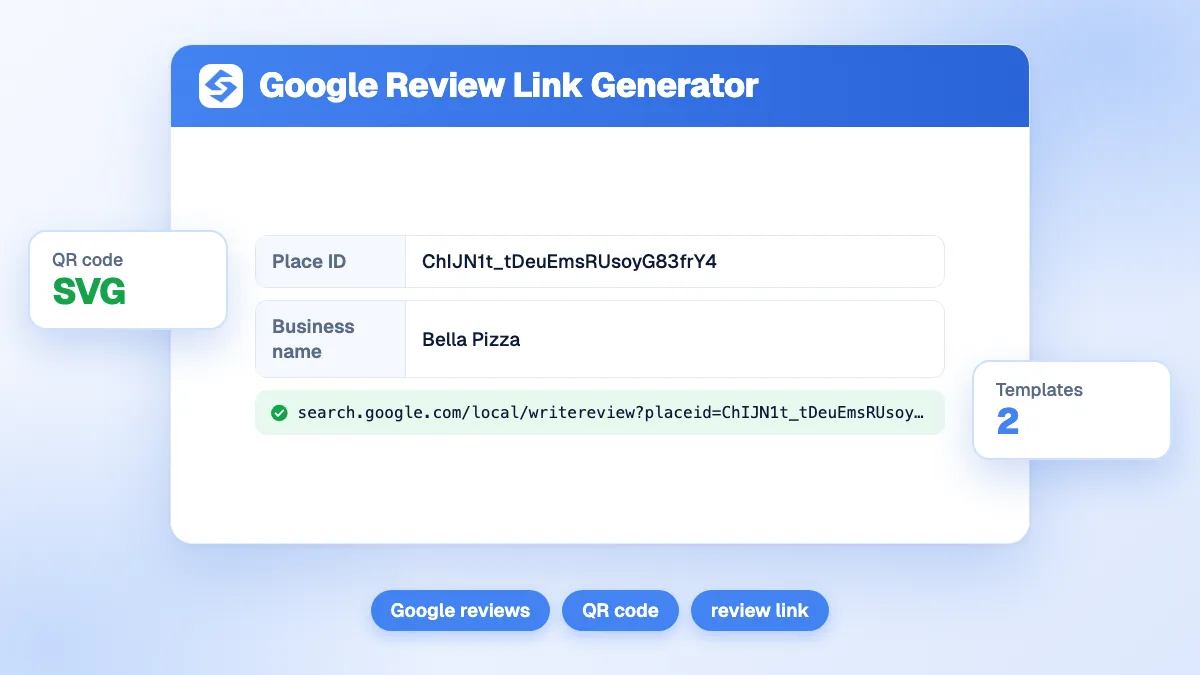
The Google review link generator turns your Place ID into a direct link to the Google review form. Paste the ID or a full review link, add your business name, and you get the link, a QR code to download as SVG, and an email and an SMS template to copy. Everything runs in your browser.
Want to go further? Ask


Asking for a review works best when the customer lands straight on the form. A link to your Maps listing makes them search for the button; a Google review link opens the star rating box at once. The tool builds that link, the QR code for your counter and the messages to send it, in one screen.
What does the Google review link generator do?
It builds a link to the review form of your Google Business Profile from one value: your Place ID. Google describes the Place ID as "a textual identifier that uniquely identifies a place" (Google Maps Platform, Place IDs). The tool adds it to the address https://search.google.com/local/writereview?placeid= and gives you four things:
- The review link, with a Copy button and a Test the link button.
- A QR code drawn in your browser, ready to download as an SVG file for print.
- An email template with a subject line, your business name and the link.
- An SMS template, short enough to send after a visit or a delivery.
No account, no limit, and nothing is sent to an outside service: the QR code is computed on the page itself.
How do you create your Google review link?
- Find your Place ID. Open Google's Place ID Finder (linked under the field), type your business name and copy the ID that appears.
- Paste it in the Place ID field. You can also paste a full review link that contains placeid=: the tool reads the ID from it.
- Type your business name. It goes into the email and SMS templates. Leave it empty and the templates say "our business".
- Click Test the link. The review form of your business should open. Check the name before you share anything.
- Copy what you need: the link, the email or the SMS. Click Download SVG to save the QR code.
How do you read the result?
The result updates as you type. Each block tells you something:
- Your review link: the full address customers will open. It always starts with search.google.com/local/writereview?placeid=.
- A red message means the value contains a character the tool does not accept in a Place ID. It accepts only letters, digits, underscores and hyphens.
- An orange warning means the ID does not start with a common prefix (ChIJ, GhIJ, Eicx or IhoS). Google's examples use these starts, but Google sets no fixed format, so the tool still builds the link. Test it before you use it.
- The QR code encodes the same link. If the link is too long for a QR code, the tool says so and you use the link alone.
Which input works in the Place ID field?
The tool accepts two kinds of input. The table shows what happens with the values people paste most often.
| What you paste | What the tool does | What to do |
|---|---|---|
| A Place ID such as ChIJN1t_tDeuEmsRUsoyG83frY4 | Builds the link, the QR code and the templates | Test the link, then share it |
| A review link containing placeid= | Reads the ID after placeid= and rebuilds the link | Useful to make a QR code from a link you already have |
| A Place ID with a space or a stray character | Shows an error | Copy the ID again from the Place ID Finder |
| A short link from your Business Profile or a Maps share link | Shows an error: these links carry no placeid= | Use the short link as it is, or find the Place ID |
| Your business name | Shows an error | Put the name in the second field, the ID in the first |
Examples: where to use the link, the QR code and the templates
Take a pizzeria called Bella Pizza. Once the Place ID is pasted and the name typed, the SMS template reads: "Thank you for choosing Bella Pizza! Could you leave us a short review on Google?" followed by the link.
- At the counter: print the SVG QR code on a small stand next to the till. SVG stays sharp at any size, from a business card to a poster.
- After a delivery or an appointment: send the SMS template the same day, while the visit is fresh.
- In a follow-up email: paste the email template into your mail tool, subject included.
- On receipts and invoices: add the QR code to the footer of the document.
- On your website: put the link behind a "Leave us a review" button on your contact page.
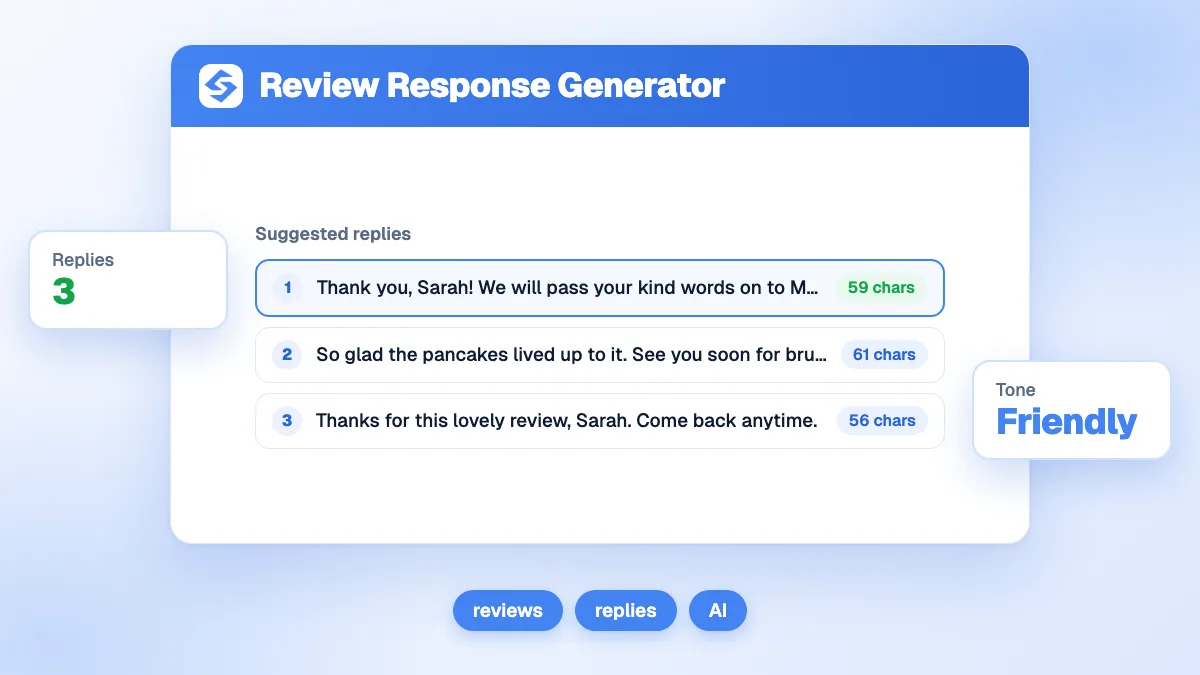
For more ideas on timing and wording, read the guide on how to get more Google reviews. Once reviews arrive, the review response generator helps you answer each one.
What are the common mistakes?
- Asking only happy customers. Google's policy says merchants may not "discourage or prohibit negative reviews, or selectively solicit positive reviews from customers" (Maps user contributed content policy). Send the link to everyone.
- Offering a reward. Discounts, free goods or gifts in exchange for a review are not allowed under the same policy. Google's Business Profile help calls this "strictly prohibited".
- Setting review targets for staff. The policy also forbids asking staff to collect a certain number of reviews or reviews with specific content.
- Printing before testing. A typo in the ID gives a broken QR code on a whole box of flyers. Open the link once before you print.
- Sending a Maps listing instead of the form. The customer then has to find the review button alone, an extra step where some give up.
What are the limits of this tool?
- The link format is not documented by Google. The writereview?placeid= address is widely used, but Google's Place ID page does not describe it. Test it before every print run.
- It does not check that the ID exists. The tool validates the characters, not the business. Only the Test the link button tells you if the form opens on the right place.
- Place IDs can change. Google notes that "Place IDs may change over time". If an old QR code stops working, look up the ID again.
- Customers need a Google account. Google states that customers must be signed in to leave a review (Business Profile Help, get more reviews).
- It does not read your reviews. The tool builds a link; it does not count, track or answer reviews.
Google also offers its own link: in your Business Profile, open Read Reviews, then Get more reviews, and copy the link or save the QR code. Google notes that review QR codes can only be generated in a computer browser (Business Profile Help, create a link or QR code). This generator is useful when you have the Place ID but not the owner access, or when you want the templates and an SVG file.
When should you move to Sorank?
A review link brings in reviews; it does not tell you whether people find you. Reviews are one signal among many in local search and in the answers of AI assistants. Track the pace of new reviews with review velocity, then look at the bigger picture. The Sorank GEO and SEO dashboard shows your Google traffic and your visits from AI assistants in one view, and AI mention tracking tells you when ChatGPT and the other assistants cite your business. Sorank grows that traffic on autopilot. To reply well to the reviews this link brings, follow the guide on how to respond to Google reviews.