


Summary
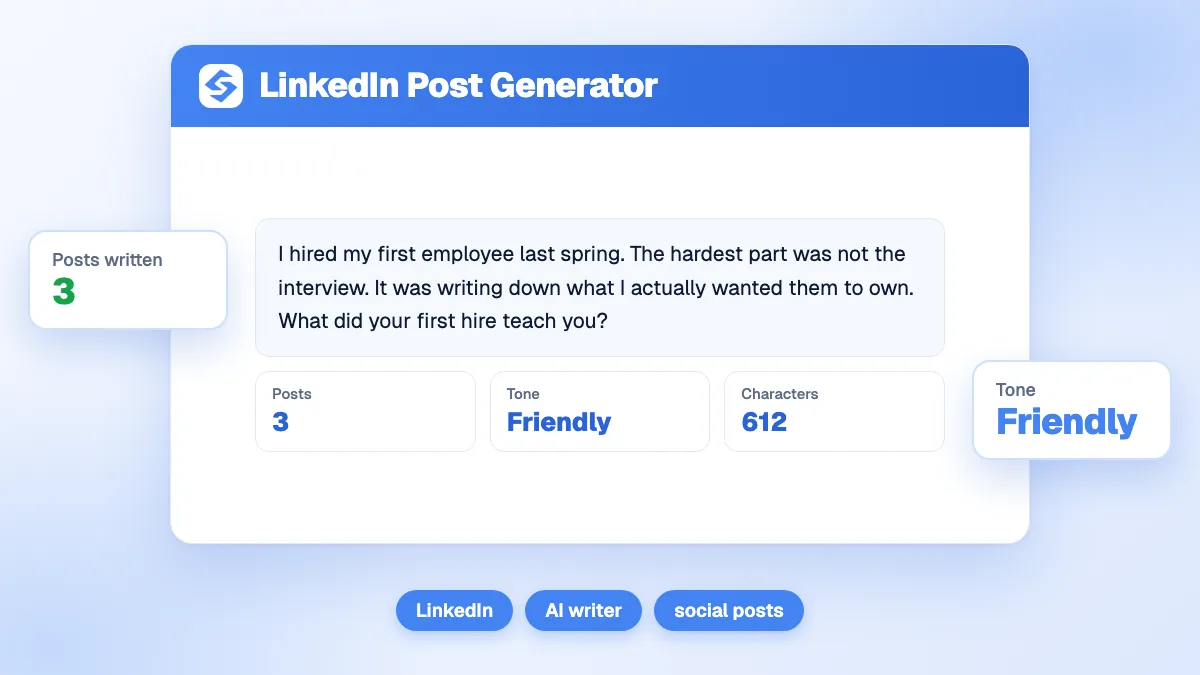
The LinkedIn post generator writes 3 posts from a topic you describe in a few words. You can add a target keyword and choose one of four tones: clear and professional, persuasive, friendly or expert. Each post uses short paragraphs, one clear insight and a question at the end. Copy one or all three, then edit before publishing.
Want to go further? Ask


What does the LinkedIn post generator do?
It drafts three different LinkedIn posts on the same topic, so you start from a draft instead of a blank page. You type the subject of the post, for example "what I learned from hiring my first employee", and the AI writes three versions in about ten seconds.
Every version follows the same simple structure that works in a feed:
- Short paragraphs of one to three lines, easy to read on a phone.
- One clear insight, the lesson or idea the reader should remember.
- A question at the end, to invite people to answer in the comments.
The tool does not publish anything and does not connect to your LinkedIn account. It gives you text, and you stay in control of what goes live.
How do you write a LinkedIn post with the tool?
- Describe your topic in the main field, in at least 3 characters and at most 300. One concrete sentence works better than a single word.
- Add a target keyword if you want the posts to mention a specific term, such as your product category or a skill. This field is optional.
- Pick a tone: clear and professional, persuasive, friendly or expert.
- Complete the anti-bot check, then click "Write my posts".
- Read the three suggestions on the right, copy the one you prefer with its Copy button, or use "Copy all" to keep every version.
- Edit the post in your own words before you paste it into LinkedIn: add a real detail, a number you can prove or a short story from your work.
The counter under the button shows how many free generations you have left today.
How should you read the three posts?
Treat them as three angles, not three final copies. The three posts are written from the same topic, so they usually differ in how they open, which example they use and how direct the closing question is. Pick the opening that sounds most like you, then borrow the best lines from the other two if they help.
Check each draft against three questions:
- Is the first line worth stopping for? LinkedIn shows only the start of a post in the feed, followed by a "see more" link. The first line has to make people want to open the rest.
- Is the insight yours? The AI cannot know what happened in your company. Replace general statements with your own facts.
- Is the question easy to answer? A question that asks for an experience ("What was your first hire like?") is easier to answer than a yes or no question.
The tool reminds you of this under the results: the text is written by an AI, so check the facts and adjust it to your brand before publishing.
Which tone should you choose for your post?
Choose the tone that matches your goal and your audience. The table sums up when each of the four tones fits best.
| Tone in the tool | Best for | Example topic |
|---|---|---|
| Clear and professional | Company news, announcements, updates for clients | We opened a second office in Lyon |
| Persuasive | Defending an opinion, promoting an offer or an event | Why every small business needs a written sales process |
| Friendly | Personal stories, team life, thank-you posts | What my first year as a freelancer taught me |
| Expert | Tips, methods, analysis in your field of expertise | 3 mistakes I see in B2B onboarding emails |
If you hesitate, generate the same topic twice with two tones and compare. The LinkedIn marketing glossary entry explains how these posts fit into a wider B2B presence.
What do good topics look like?
Good topics are specific, personal and easy to picture. Compare these pairs:
- Too vague: "leadership". Better: "the meeting I cancelled every week and what replaced it".
- Too vague: "SEO tips". Better: "what changed when we rewrote our oldest blog articles". If you add a result, use your own numbers.
- Too vague: "customer service". Better: "the complaint that changed how we answer support emails".
A topic with a moment, a decision or a result gives the AI something concrete to build the insight on. If your topic is an opinion, say which side you take: "remote work is better for junior developers" gives a stronger draft than "remote work".
Need a sharper first line? The free hook generator suggests openings you can paste at the top of any draft.
What mistakes should you avoid when you use an AI post generator?
- Publishing the draft as it is. A post with no personal detail reads like every other AI post. Add one fact only you can know.
- Keeping claims you cannot prove. LinkedIn's Professional Community Policies ask members not to share content that is false, misleading or intended to deceive. Remove any number or quote you cannot back up.
- Stuffing the keyword. The keyword field is for one term, used naturally. Repeating it in every line makes the post harder to read.
- Adding too many hashtags. A LinkedIn guide for nonprofits says it is best to use no more than three hashtags per post, and notes that hashtags only work in the post text, not in the comments.
- Ending on a link only. The closing question exists to start a conversation. If you add a link, keep the question too, and write a clear call to action.
What are the limits of this LinkedIn post generator?
- Text only. It writes posts. It does not create images, carousels or videos, and it does not schedule or publish.
- No knowledge of you. It does not read your profile, your past posts or your company website. The more precise your topic, the closer the draft gets to your reality.
- Short input. The topic field accepts up to 300 characters, so you cannot paste a full article to summarise.
- Post length. The drafts are short feed posts. LinkedIn Help states that the character limit for a post is 3000 characters, while articles can reach 125000 characters. For long, in-depth content, write an article instead.
- Daily quota. Free generations are limited per day. When the quota is used up, the tool tells you to come back tomorrow.
- Languages. The posts are written in the language of the page you use the tool on.
- No performance promise. Reach depends on your network, your timing and how people react. The guide to social media algorithms explains how LinkedIn ranks posts in the feed.
When should you move to Sorank?
Move to Sorank when you want content that keeps working after the post leaves the feed. A LinkedIn post gets attention for a short time; an article on your own site can rank on Google and be cited by AI assistants for months. A common approach is to publish the full idea on your blog, then share a short post that points to it.
Sorank writes and publishes those blog articles for you on autopilot, from a keyword plan built for your site. With Sorank brand voice, the articles follow your tone and your words, so your blog and your LinkedIn posts sound like the same company. To plan the LinkedIn side, read our LinkedIn marketing strategy guide.