Preferences
Privacy is important to us, so you have the option of disabling certain types of storage that may not be necessary for the basic functioning of the website. Blocking categories may impact your experience on the website. More information
Privacy is important to us, so you have the option of disabling certain types of storage that may not be necessary for the basic functioning of the website. Blocking categories may impact your experience on the website. More information

Find and fix crawl errors: DNS, server, robots.txt, 404, soft 404 and redirect errors. How Googlebot reacts to each, and a 6-step method to fix them in order.


Tools

In short
crawl errors are the requests a search engine or AI crawler makes to your site that fail: the server times out, DNS does not answer, robots.txt cannot be fetched, a redirect loops, or a page returns a 4xx or 5xx code. Site-level errors (DNS, server, robots.txt) can stop Google from crawling your whole site, so fix them first; URL-level errors (404, soft 404, redirect errors) matter only when they hit pages you want indexed. You find them in the Search Console Crawl Stats and Page indexing reports, confirm them with a crawler and your server logs, then fix the cause and validate.
Want to go further? Ask
Quick quiz
Who should fix the technical side of your site?
Our advice for you
Check it yourself with free Google tools
Search Console lists the pages Google cannot read, and PageSpeed Insights tests speed. Many small issues are fixed from your website builder settings.
Our advice for you
A web developer
Your problem is in the code or the server: a developer who knows SEO is the right person. Give them the list of errors from Search Console.
Our advice for you
A technical audit tool
Your site has many pages: a crawler reads them all like Google does and gives a full list of errors to fix, page by page.
Our advice for you
An automatic audit, then content
Your site works but brings few visitors: technical issues are rarely the cause. Sorank audits the site, then writes the pages that bring traffic.
A crawler works like a very patient visitor. It asks your server for a URL, waits for an answer, reads the status code and the content, then moves on to the links it found. A crawl error is any step in that chain that fails. The visitor never gets a usable page.
That definition matters because many reports mix crawl errors with indexing decisions. "Crawled, currently not indexed" is not a crawl error: Google fetched the page fine and chose not to keep it. "Excluded by noindex" is not a crawl error either: you told Google to drop the page. A crawl error means the fetch itself went wrong.
Google splits problems into two levels, and you should too.
Site errors vs URL errors
A store with 4000 old product URLs returning 404 may be perfectly healthy if those products are gone for good. The same store with a robots.txt file that returns 503 for six hours has a real emergency, even if every product page works. Start with the host, then the URLs that earn money, then the rest.
To fix crawl errors well, you need to know what Google actually does when it meets one. Google's documentation on how HTTP status codes and network errors affect Google Search (Google Search Central) gives the rules. Here is what they mean in practice.
| Response | What Google does | Is it a problem? |
|---|---|---|
| 2xx | Passes the content to indexing. Indexing is not guaranteed. | No, unless the page is empty (soft 404). |
| 301, 308 | Strong signal that the target is the new URL. | No, if it is one hop to a 200. |
| 302, 303, 307 | Weak signal: the original URL tends to stay the canonical. | Yes, if the move is permanent. |
| 3xx chains | Follows up to 10 hops by default, then gives up. | Yes: each hop wastes a request, and loops never resolve. |
| 404, 410, other 4xx (except 429) | Treats the content as nonexistent, drops indexed URLs over time, crawls them less often. | Only if the page should exist. |
| 401, 403 | Same as other 4xx. They do not slow crawling down. | Yes, if they block Googlebot from public pages. |
| 429 | Treated as a server overload signal, like a 5xx. | Yes: crawling slows down. |
| 5xx | Slows crawling in proportion to the errors. URLs that keep failing are removed from the index. | Yes, always. |
Two details trip up a lot of teams. First, 401 and 403 do not reduce crawl rate. If your server is struggling, returning 403 to Googlebot does not help; Google asks you to return 503 or 429 temporarily instead. Second, a 404 is not a penalty. It is the correct answer for a page that is gone.
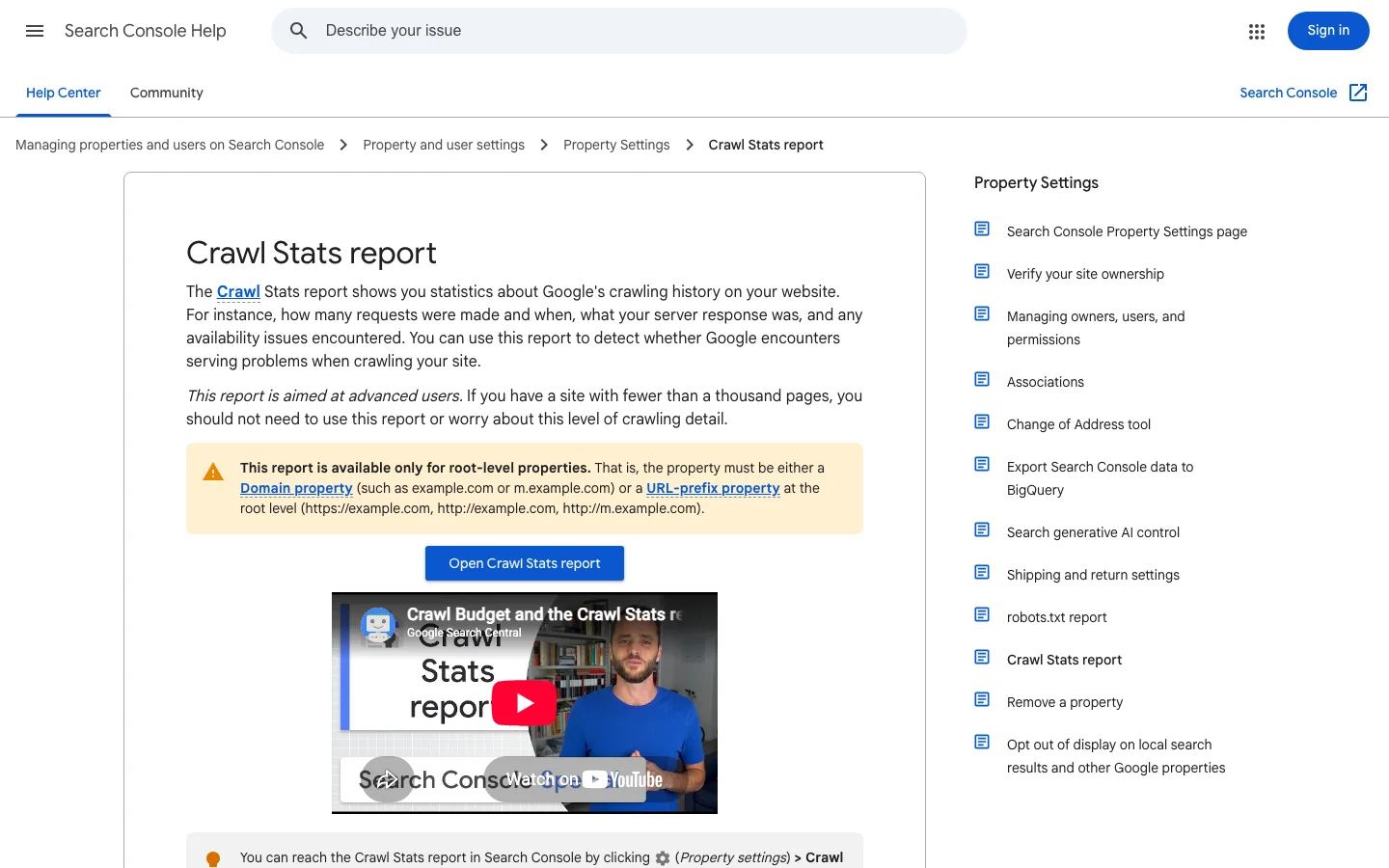
Google's Crawl Stats report documentation (Search Console Help) explains the rule. A robots.txt that answers 200 (even empty) or 403, 404 or 410 (no file) is fine. A robots.txt that answers 429 or 5xx is a failure, and Google then plays it safe.
What Google does when robots.txt keeps failing
Source: Google Search Console Help, Crawl Stats report
So a CDN rule or a firewall that serves 503 on /robots.txt can freeze your whole site for half a day, even if every other URL is fine. Check this file first in any crawl error investigation. Our guide to the "Blocked by robots.txt" status covers the opposite problem, when the file works but blocks too much.
Google's crawl limits worth remembering
Sources: Google Search Central, HTTP status codes and network errors; Search Console Help, Crawl Stats report
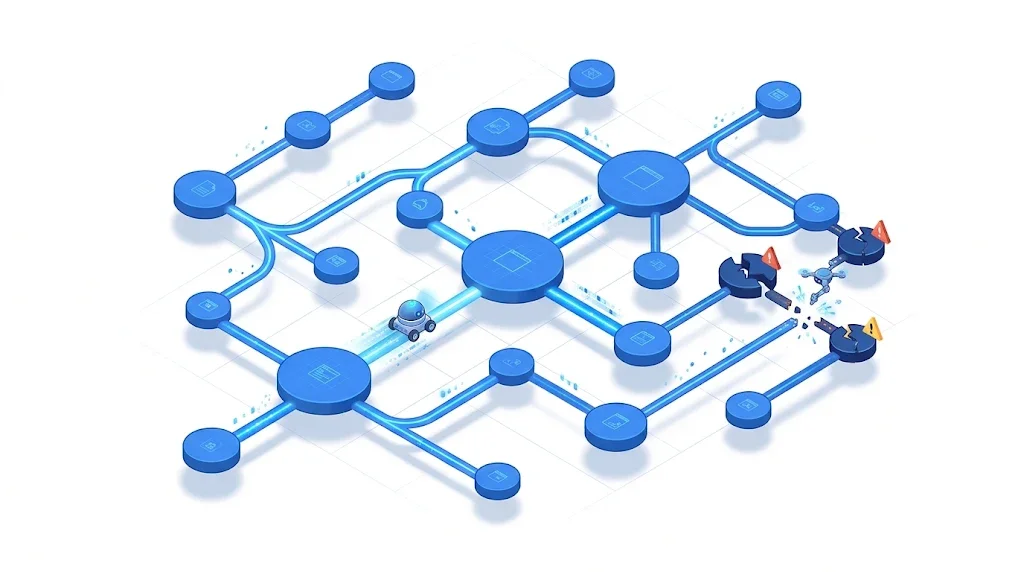
Here is the full list you will meet in Search Console and in crawlers, with the cause and the fix for each. The names follow Google's Page indexing report documentation (Search Console Help).
Google could not turn your domain name into an IP address, or the DNS server did not answer. Common causes: an expired domain, a DNS provider outage, a wrong record after a migration, or a DNSSEC misconfiguration. Check with a lookup from outside your network:
dig +short example.com A
dig +short www.example.com CNAME
dig example.com +dnssec
Fix: correct the records, lower the TTL before any migration, and use a DNS provider with redundancy. If both example.com and www.example.com exist, both must resolve, even if one only redirects.
The server did not answer in time, closed the connection, or answered with 500, 502, 503 or 504. Typical causes: an overloaded database, a PHP or Node process that crashes under load, a reverse proxy timeout, a plugin update, or a firewall that rate-limits bots. Look at the time pattern: errors at the same hour every night often point to a backup or cron job.
Fix: read the server error log at the timestamps Google reports, raise timeouts or worker counts, cache heavy pages, and make sure your bot protection lets verified Googlebot through. For planned maintenance, return 503 with a Retry-After header rather than a 200 page saying "back soon":
HTTP/1.1 503 Service Unavailable
Retry-After: 3600The page does not exist. That is fine when it was deleted on purpose and nothing links to it. It is a problem when the URL still has backlinks, traffic, or internal links, or when the page should exist and a deploy broke it.
Fix: if the content moved, add a single 301 to the closest equivalent. If it is gone for good, keep the 404 or use 410, and remove the internal links and sitemap entries that point to it. Never redirect every 404 to the homepage: Google tends to treat those as soft 404s.
The server says 200 but the page looks empty or says "not found": an empty category, a search page with no results, an out-of-stock product with no content. Google spends a request on it and gets nothing. We cover this one in depth in our guide to soft 404 errors.
Googlebot never sends credentials, so a 401 or 403 on a public page means your server or a security layer is blocking it. Common culprits: a staging password left on production, a WAF rule, a country block, or a hotlink protection rule applied to HTML. Fix the rule, not the symptom, and test with the URL Inspection tool in Search Console.
Google reports a redirect error when it hits a loop, a chain that is too long, a URL that exceeds the maximum length, or a bad or empty URL in the chain. The classic case after a migration: http to https, then to www, then to a trailing slash, then to a new path. Four hops where one would do. Our complete guide to SEO redirects explains how to collapse them.
Tip
Paste any suspect URL into the free Sorank redirect checker: it follows the full chain, shows each hop and its status code, and tells you where the loop or the extra hop is.
Some errors never show a status code. The page starts loading and stops, or it is so heavy that the crawler only reads part of it. Google's crawlers read a limited number of bytes per file, so a page bloated with inline scripts or base64 images can lose the content at the bottom. Check heavy templates with the page size checker.
No single tool shows every crawl error. Each method sees the problem from a different angle, and a serious audit combines at least two.
Principle: Google shows its own crawl requests over the last 90 days, grouped by response, file type, purpose and Googlebot type, plus the host status for DNS, server and robots.txt. When to use it: always, and first, for site errors. Advantages: it is the ground truth from Google itself. Limits: only for root-level properties, sampled examples, and Google says sites under a thousand pages rarely need it. Example: a spike of "page timeout" responses every Sunday at 3am that matches a database backup.
Principle: lists URLs Google knows about and why they are not indexed, with reasons such as Server error (5xx), Redirect error, Not found (404) or Soft 404. When to use it: to triage URL errors and to validate fixes. Advantages: tied to the pages Google actually tried. Limits: reports lag by days, example lists are capped, and it mixes crawl errors with indexing choices. Example: 300 URLs under "Redirect error" all sharing the same old /blog/ prefix.
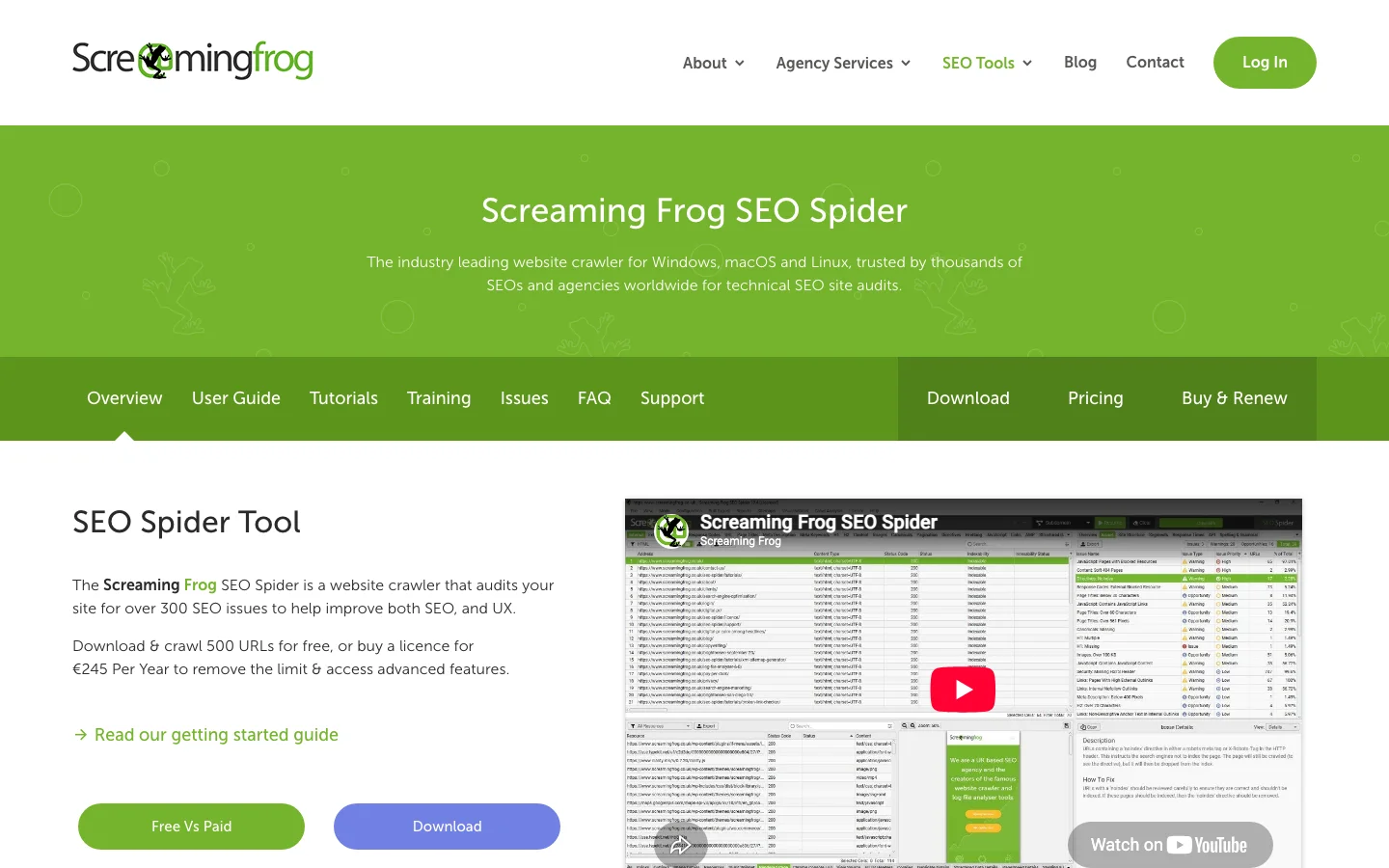
Principle: a tool like Screaming Frog crawls your site the way a bot would, following links from the homepage, and logs every status code, redirect chain and broken link. When to use it: before and after a migration, a redesign or a big deploy, and monthly on large sites. Advantages: immediate, complete for linked pages, shows where each broken link sits. Limits: it does not know what Google really requested, misses orphan pages, and your server may treat it differently than Googlebot. Our Screaming Frog setup guide walks through a full audit.
Principle: your access logs record every request, including those from Googlebot, Bingbot, GPTBot, ClaudeBot and PerplexityBot, with the exact status code and response time. When to use it: on large sites, after unexplained traffic drops, and to see what AI crawlers hit. Advantages: real requests, real codes, no sampling, every bot. Limits: needs access to the logs and some scripting; you must verify that "Googlebot" is really Google. Our guide to log file analysis for SEO goes step by step. A quick first look:
# Googlebot requests that did not return 200, 301 or 304, most frequent first
grep -i "googlebot" access.log | awk '$9 !~ /^(200|301|304)$/ {print $9, $7}' | sort | uniq -c | sort -rn | head -50Principle: test one URL at a time with curl or a free online checker. When to use it: to confirm a fix, or to check a key page after a deploy. Advantages: instant and precise. Limits: does not scale. Use a Googlebot user agent to catch rules that treat bots differently:
curl -sI -A "Mozilla/5.0 (compatible; Googlebot/2.1; +http://www.google.com/bot.html)" https://example.com/page/
curl -sIL https://example.com/old-page/ | grep -iE "^(HTTP|location)"| Method | Sees site errors | Sees URL errors | Real Googlebot data | Sees AI crawlers | Best for |
|---|---|---|---|---|---|
| Crawl Stats report | Yes | Sampled | Yes | No | Host health |
| Page indexing report | Partly | Yes | Yes | No | Triage and validation |
| Crawler (Screaming Frog...) | No | Yes, linked pages | No | No | Finding broken links at the source |
| Server logs | Partly | Yes | Yes | Yes | Large sites, root causes |
| Single URL checks | No | One at a time | No | No | Confirming fixes |
A 5xx status means the server could not handle a request that looked valid. Google slows its crawling in response, and it slows more when more of your URLs return errors. Google keeps already indexed URLs for a while, but it removes URLs that persistently return a server error. A short burst is recoverable, because Google gradually raises the crawl rate again once your server answers with 2xx codes. A long run of errors is what damages your index.
Each 5xx code points to a different part of the stack. The table gives you a first place to look for each one.
| Code | What it usually means | Look at first |
|---|---|---|
| 500 | The application failed while it handled the request | The application error log at the exact time of the request |
| 502 | The proxy or CDN got an invalid answer from the application, often because it crashed or restarted | Restarts and uptime of the application process |
| 503 | The service is overloaded, rate limited or in maintenance | Load graphs, deploy history and maintenance windows |
| 504 | The proxy gave up waiting for the application | Slow database queries and proxy timeout settings |
| 429 | A rate limiter says there are too many requests | Rate limit rules, and whether they apply to verified Googlebot |
Crawl Stats shows the days and hours when Google met errors (our Crawl Stats guide explains each graph). Your server log shows what happened at those exact moments. Filter the Googlebot requests and count the 5xx responses per hour:
grep -i 'googlebot' access.log | awk '$9 ~ /^5/ {print substr($4,2,14), $9}' | sort | uniq -c
Each output line is an hour, a status code and a count. A cluster in the same hour every night usually points to a backup, a cron job or a scheduled import. Errors spread across the whole day usually point to load, so the fix is capacity or caching rather than a single bug. For a deeper method, see our log file analysis guide.
Google reduces crawling in proportion to the number of URLs that return errors. A broken template that affects a few URLs costs you little crawl time. A database outage that breaks every page costs you a lot, and it is the one to fix first.
A 429 has the same effect as a 5xx, because Google reads it as an overloaded server. If your rate limiter or bot protection returns 429 to Googlebot, you pay for it in crawl time. Google's documentation does not mention the Retry-After header. Keep sending it to human visitors and API clients, but do not count on Googlebot to wait for the time you set.
A 4xx status means the server rejected the request because of something on the client side: the URL does not exist, access is forbidden, or the address is malformed. Google treats every 4xx except 429 the same way. It stops using the content behind that URL and drops the URL from the index if it was indexed. Before you touch a 4xx, find out where the request comes from, because the fix often sits in one place: a link, a template or a redirect rule.
Your access log records the referrer of each request, which tells you which page sent the visitor or bot to that URL. Count the 4xx responses by path and by referrer:
awk '$9 ~ /^4/ {print $9, $7}' access.log | sort | uniq -c | sort -rn | head -20
awk '$9 ~ /^4/ {print $11, $7}' access.log | sort | uniq -c | sort -rn | head -20
Read the referrer column this way:
A release that renames a route, changes a slug or rebuilds a template often produces a wave of 404s on the same day. Export the number of 4xx responses per day for the week before the deploy and the week after. A jump concentrated in one folder points straight at the change. Add the redirect from the old URL to the new one in the same release, not in a later ticket. For a full move, see our SEO migration checklist.
Tip
Do not replace a missing page with a 200 response that shows a short message or an empty list. Google can treat it as a soft 404, which costs a full fetch and gives nothing back.
This is the method we use. It goes from the errors that can stop your whole site to the ones that only waste a little crawl.
The 6-step crawl error method
In Search Console, open Settings, then Crawl stats, then Host status. Green means no significant issue in 90 days. "Recent issue" means a significant problem in the last week: drop everything else. Click each category to see the failure rate by day, then match the bad days with your hosting, CDN and deploy history.
Open Indexing, then Pages, and export each error reason. Do not fix URLs one by one. Put them in a spreadsheet and extract the first folder:
=REGEXEXTRACT(A2, "^https?://[^/]+(/[^/]*/?)")A pivot on that column usually shows that most errors come from two or three templates: a retired blog category, a filter parameter, an old product feed.
For each pattern, ask four questions. Does it get organic clicks? Does it have backlinks? Is it linked internally? Is it in the sitemap? A 404 with none of the four can wait forever. A 404 with backlinks needs a 301 today. The free broken link checker shows which of your own pages still link to dead URLs.
Fix rules, not URLs. A redirect map in your server config beats 400 redirects added by hand in a plugin. For example, in nginx:
map $request_uri $new_uri {
    /old-blog/seo-tips/    /blog-geo-seo/seo-best-practices/;
    /old-blog/sitemaps/    /blog-geo-seo/how-to-create-a-sitemap/;
}
server {
    if ($new_uri) { return 301 $new_uri; }
}
For 5xx, fix the capacity or the bug. For 401 and 403, fix the security rule. For soft 404s, either add real content or return a real 404.
Every internal link should point directly to a URL that returns 200. Every sitemap entry should be a canonical, indexable, 200 URL. A sitemap full of redirects and 404s teaches Google to trust it less. Our guide on how to create a sitemap explains what belongs in it.
In the Page indexing report, open the fixed reason and click Validate fix. Google first checks a sample, then the rest; it usually takes up to about two weeks, and it stops if even one URL still fails. Do not click again while it runs. Then set a weekly routine: Crawl Stats for the host, logs for spikes, a crawl after each deploy.
A redirect chain before and after the fix
What it is: a plugin or rule that sends any missing URL to /. How to spot it: many URLs in "Soft 404" or "Page with redirect" that all land on the homepage; a crawler shows hundreds of 301s with the same target. How to fix it: redirect only to a close equivalent, and let the rest return 404 or 410.
What it is: a WAF, bot manager or rate limiter that serves 403, 429 or a challenge page to Google. How to spot it: 403 or 429 in Crawl Stats, while the page loads fine in your browser; logs show the blocks by IP. How to fix it: allow verified Googlebot, using reverse DNS or Google's published IP ranges, rather than trusting the user agent string.
What it is: robots.txt generated by the app, so it fails whenever the app fails, or served through a CDN rule that caches a 5xx. How to spot it: the robots.txt fetch category in Host status is not green. How to fix it: serve it as a static file, outside the app, and test it with the robots.txt checker.
What it is: a "We will be back soon" page served with status 200 on every URL. How to spot it: after maintenance, a wave of soft 404s or duplicate titles. How to fix it: return 503 with Retry-After during maintenance, and keep it short.
What it is: answering 403 to Googlebot when the server is overloaded. How to spot it: 403 spikes that match load spikes. How to fix it: Google says 4xx codes other than 429 have no effect on crawl rate. Return 503 or 429 for a short time, and fix the capacity.
What it is: clicking through the Search Console list and editing each URL. How to spot it: the same reason comes back every month. How to fix it: group by pattern, fix the template or the rule, then validate once.
What it is: spending days on 404s for spam URLs or long-deleted pages with no links. How to spot it: the URLs have no clicks, no backlinks and no internal links. How to fix it: leave them. Google says a 404 for a removed page is not necessarily a problem.
Warning
Never block a URL in robots.txt to "hide" a crawl error. Google can no longer see the 404 or the redirect, the URL can stay indexed, and you lose the signal you were trying to send.
On a site with a few hundred pages, Google has time for everything, and crawl errors matter mostly for the pages they break. On large sites (stores with filters, marketplaces, news), every failed or wasted request takes time away from your real pages. That is the idea behind crawl budget.
5xx and 429 make Google slow down across the host, so a few broken templates can delay the crawl of your new product pages. Redirect chains cost one request per hop. Soft 404s cost a full fetch and give nothing back. Fix those three and the same budget covers more useful pages.
When Google finds URLs but postpones crawling them, the cause is often a server it considers fragile. If you see a growing "Discovered, currently not indexed" count together with server errors in Crawl Stats, fix the server first. The two reports tell the same story.
Googlebot is no longer the only visitor that matters. GPTBot, OAI-SearchBot, ClaudeBot and PerplexityBot fetch pages to train models or to answer questions in real time. They hit the same server, and they suffer from the same errors, with one difference: you get no Search Console for them.
Most AI crawlers do not run JavaScript, so a page that only builds its content in the browser can look empty to them, a kind of soft 404 you will never see in Google's reports. Many are blocked by default by bot protection services, often with a 403. And because they fetch on demand when a user asks a question, a timeout at that moment means the answer cites someone else. Our guide to JavaScript SEO covers rendering for both search and AI crawlers.
Your server logs are the only reliable source. Filter by user agent and look at status codes:
grep -iE "GPTBot|OAI-SearchBot|ChatGPT-User|ClaudeBot|PerplexityBot" access.log | awk '{print $9}' | sort | uniq -c | sort -rnIf AI bots get 403s you did not intend, fix the rule. Then check whether they actually cite you: Sorank's AI mention tracking follows how often ChatGPT, Gemini, Claude and Perplexity mention your brand, so you can see if a crawl fix changes anything.
Run this list after every migration, redesign or major deploy, and once a month on large sites.
Crawl health checklist
Open Crawl Stats and check the three host status lines. Then run the free indexability checker on your five most valuable pages. If both are clean, export the Page indexing errors and group them by folder: you now have a short, ranked fix list instead of a scary report.
Once the crawl is clean, the next limit is the content itself. Sorank's content optimization rewrites and refreshes your existing pages on autopilot, so the pages Google can now reach are worth indexing and citing. For the pages Google crawled but left out, read our guide to "Crawled, currently not indexed".
Crawl errors are requests from a search engine or AI crawler that fail: DNS does not resolve, the server times out or returns 5xx, robots.txt cannot be fetched, a redirect loops, or a page returns a 4xx code. Site-level errors can pause crawling of the whole site, while URL errors only affect the page concerned.
Not by themselves. Google says a 404 for a page that was removed without a replacement is not necessarily a problem. It becomes one when the URL still has backlinks, traffic or internal links, in which case a single 301 to a close equivalent is the right fix.
After you click Validate fix in the Search Console Page indexing report, validation usually takes up to about two weeks. Google first checks a sample of URLs, then the rest, and it stops if even one affected URL still fails.
We analyse your competitors, your website and your AI visibility to create a tailored content plan for free.
 AI Content Brief Generator
 FAQ Schema Generator
 AI Blog Post Ideas Generator
 Structured Data Validator (Schema Validator)
 Alt Text Checker
 Internal Link Analyzer
 Backlink Challenge
 AI Meta Description Generator
 AI Blog Title Generator
 Google Indexability Checker
 AI Blog Outline Generator
 UTM Link Builder
 Keyword Clustering Tool
 Canonical Tag Checker
 XML Sitemap Generator
 Broken Link Checker
 AI SEO Title Generator
 Headline Analyzer
 SERP Preview Tool
 Redirect Checker
 Hreflang Tag Generator
 Heading Structure Analyzer
 HTTP Headers Checker
 Favicon Extractor
 SERP CTR Calculator
 SEO vs Paid Search Savings Calculator
 SEO Share of Voice Calculator
 SEO ROI Calculator
 SEO Traffic and Revenue Forecast Calculator
 SEO Budget Calculator
 SEO Break-Even Calculator
 SaaS SEO ROI Calculator
 ROAS Calculator
 Reading Time Calculator
 Ranking Gain Simulator
 Organic Traffic Value Calculator
 Organic Traffic Estimator and Website Traffic Checker
 LTV to CAC Ratio Calculator
 Local SEO ROI Calculator
 Link Building Cost Calculator
 Keyword Value Calculator
 Keyword Opportunity Score Calculator
 Keyword Density Calculator
 GEO ROI Calculator
 GEO Content Investment Calculator
 Ecommerce SEO ROI Calculator
 Customer Lifetime Value Calculator
 Customer Acquisition Cost Calculator
 CTR Calculator
 Cost Per Article Calculator
 Conversion Rate Calculator
 Content Marketing ROI Calculator
 ChatGPT Referral Traffic Estimator
 Bounce Rate Calculator
 Backlink ROI Calculator
 AI Visibility Score Calculator
 AI Traffic Value Calculator
 AI Share of Voice Calculator
 Cost of AI Invisibility Calculator
 AI Citation Rate Calculator
 llms.txt Validator
 AI Overview Checker and AI Overviews Rank Checker
 Robots.txt Checker
 AI SEO Audit
 LLM Readability Checker
 SearchGPT Readiness Checker
 Structured Data LLM Audit
 Website Crawlability AI Audit
 Why ChatGPT Is Not Recommending My Website
 Gemini Ranking Tool
 Perplexity Ranking Checker
 LLM Citation Checker
 Answer Engine Optimization Audit
 GEO Audit
 AI Search Visibility Test
 ChatGPT Visibility Checker
 llms.txt Generator
 URL Extractor
 Webpage to Markdown
 Sitemap Checker
 SERP Volatility Sensor
 Page Size Checker
 Word Counter
 Slug Generator
 Schema Generator
 Robots Generator
 OG Preview
 Meta Tags Generator
 Image Compressor
 Favicon Generator
 On-Page SEO Audit: SEO Checker and SEO Analyzer
 Backlink Analysis Tool
 Keyword Research Tool
 Domain Authority Checker
 “I tested Sorank on a real client site and it's insane. It does everything an agency would bill you $1500 a month for. It's going into production on that client now.”

 Guillaume Guersanguersanguillaume.com“We are an Ads agency and we wanted to get our SEO back on track once and for all. Sorank gave us a clear view of our site, helped us prioritize optimizations, and properly structure our content. The tool is easy to use, well designed for a team, and very practical for centralizing tracking without having to juggle multiple platforms. A very solid foundation to start fresh with our SEO.”
 Gaspard MadouiAds Agency
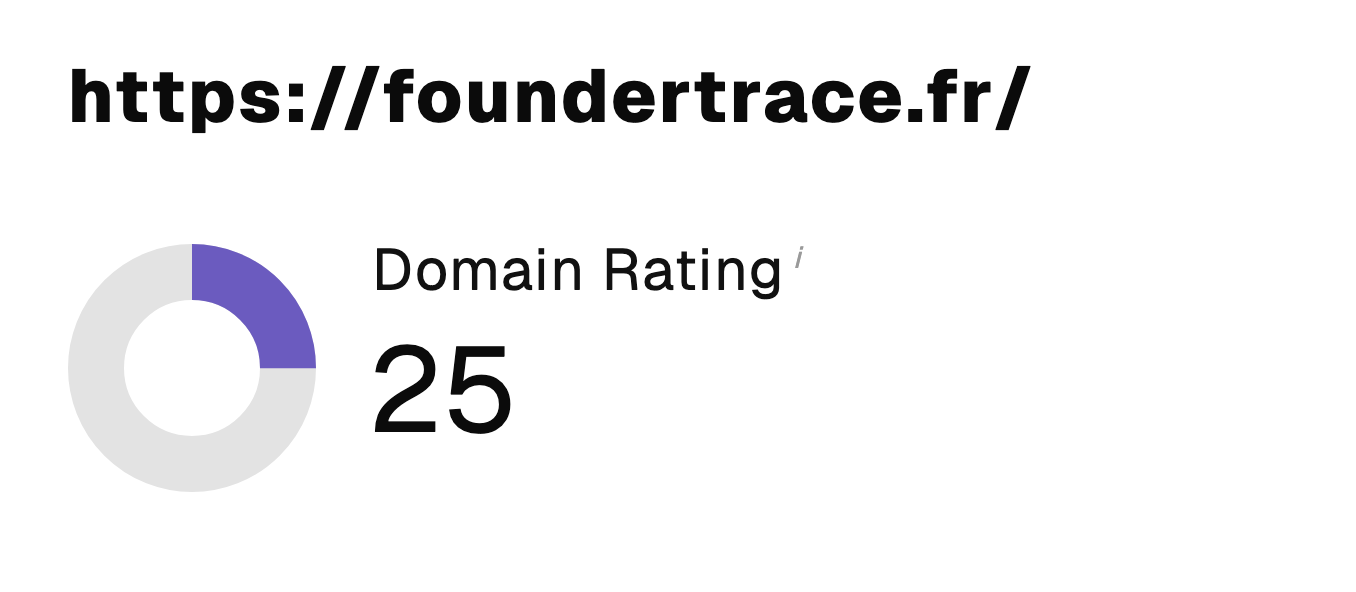 “I just let the Sorank software do its thing, and now my DR is 25 and my page is ranking higher.”
 Lucas Flandrefoundertrace.fr“I specialized in GEO thanks to Sorank. The GEO Leaderboard allows me to show my clients their position vs competitors on ChatGPT. It’s a real commercial differentiator.”
 MélanieSEO Freelance“Great service, works well for our website and helps us understand how to improve it to rank better on Google and elsewhere. Congrats, keep going, I recommend it.”
 Hugo T.E-commerce merchant