Preferences
Privacy is important to us, so you have the option of disabling certain types of storage that may not be necessary for the basic functioning of the website. Blocking categories may impact your experience on the website. More information
Privacy is important to us, so you have the option of disabling certain types of storage that may not be necessary for the basic functioning of the website. Blocking categories may impact your experience on the website. More information

 Screaming Frog: Which Crawler Fits Your Site?
Deepcrawl (now Lumar) or Screaming Frog? Compare price, speed, JavaScript rendering, extraction and monitoring, and pick the crawler that fits your site.
In short
Screaming Frog SEO Spider is a desktop crawler you install on your own computer. Lumar (formerly Deepcrawl) is a cloud platform for large sites and teams. Pick Screaming Frog when one person audits one site on a budget, and Lumar when several people need shared, scheduled monitoring across big sites.
Want to go further? Ask
Quick quiz
Which kind of SEO tool is right for you?
Sorank matches your answers


Test it for 3 days on your own site and see where you stand on Google, ChatGPT and the other AIs.
Start 3-day free trial3 days free, then stop whenever you want. 90-day results guarantee, conditions apply.
Both tools do the same basic job. They start from a URL, follow every internal link, record what each page returns, and list the problems they find. A crawler reads the status code, the title, the canonical tag, the robots directives, the internal links and the content of each URL, then puts all of it in a table you can filter and export. That table is what you work from when you fix a site.
Screaming Frog SEO Spider is a desktop application made by a UK company. You install it on Windows, macOS or Linux, and every crawl runs on that machine. Many SEO freelancers use it as their default crawler. If you want the setup steps, read our Screaming Frog SEO Spider setup guide first, then come back here for the comparison.
Lumar, formerly Deepcrawl, is a cloud platform. You do not install a crawler. You set up a project, the crawl runs on Lumar's infrastructure, and the results sit in a web dashboard that several people can open at the same time. Lumar sells its crawler as the core of a wider product that also covers site speed, accessibility and AI search visibility.
The practical difference is where the work happens. With Screaming Frog, your computer does the crawling, so your memory and disk set the limit. With Lumar, the vendor's servers do the crawling, so your plan and their infrastructure set the limit. Most of the price, speed and monitoring differences in this article come from that one choice.
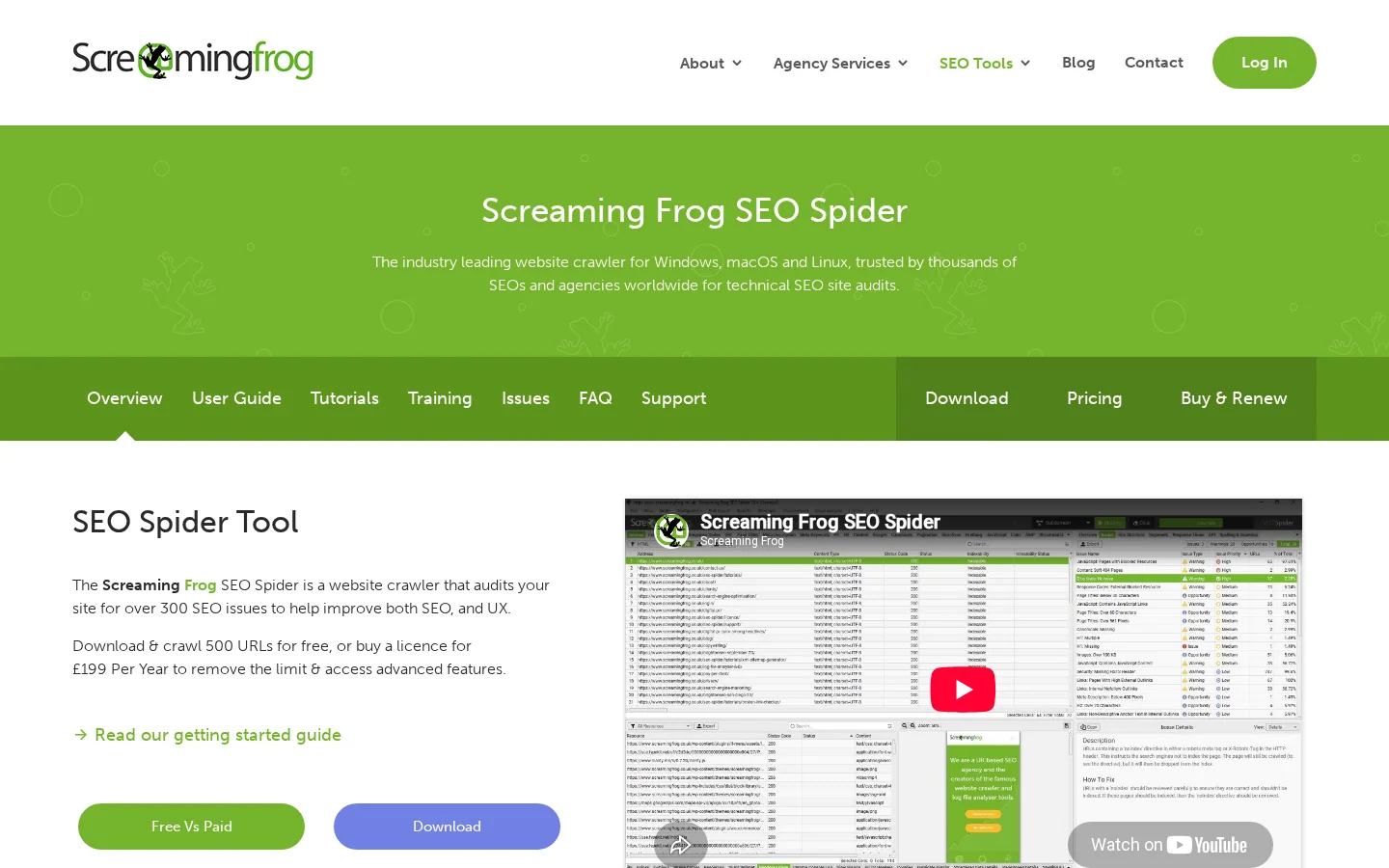
Screaming Frog is the cheaper, hands-on choice for one analyst working on one site, and it has a free version capped at 500 URLs per crawl. Lumar is the choice for large sites and teams that need shared dashboards, monitoring and a custom contract. The table below compares the points that matter when you choose. Where a vendor publishes no figure, the table says so instead of guessing.
| Criteria | Screaming Frog SEO Spider | Lumar (formerly Deepcrawl) |
|---|---|---|
| Where it runs | On your computer, limited by your RAM and disk | On the vendor's infrastructure, limited by your plan |
| Best for | One analyst auditing one site | Teams running shared monitoring on large sites |
| Price | €245 per year per licence on its pricing page (checked November 22, 2026) | Custom quote, no public price on its crawler page |
| Free option | Free version, every crawl capped at 500 URLs | No free crawler plan on its crawler page |
| Speed | Depends on your machine and on the server you crawl | Up to 450 URLs per second without rendering, 350 with rendering, in its own tests |
| JavaScript | Headless Chromium, with render wait settings | Uses Google's rendering and parsing engine, according to the vendor |
| Custom extraction | XPath, CSS Path and Regex, up to 100 extractors per crawl | Custom extractions, plus extraction of almost any page data on request |
| Monitoring | Runs from the command line, so you can schedule it, and compares two crawls | Failure rate threshold that pauses a crawl and sends a notification, and a Monitor product for trends |
If you read only one row, read the price row against your team size. A single analyst pays for one licence. A team that wants the same data for five people needs five licences, and at that point the quote from Lumar becomes a real option to compare.

Screaming Frog's limit is your memory. By default, the SEO Spider starts in database storage mode with 2GB of RAM allocated, and the vendor's user guide says you should allow at least 2 to 4GB of free RAM for your system. On an 8GB machine, that means allocating 4 to 6GB at most. You change the value under Settings, then restart the app, then check the Max value under Help, Debug, because the change does not apply until the restart.
The same guide gives rough capacity figures. With database storage, the vendor says an SSD with 4GB allocated should handle about 2 million URLs, and it recommends 4GB for crawls up to 2 million URLs. In memory storage, the default 2GB setup typically handles 10000 to 100000 URLs. The default crawl limit in database mode is 5 million URLs, which the guide describes as not a hard limit. Those are estimates from the vendor, not a promise for your site, because the size of each page changes the result.
Lumar's limit is its own infrastructure, and it publishes speed figures from its own tests. Its website crawler page states crawl speeds of up to 450 URLs per second for non-rendered crawls and 350 URLs per second for rendered ones. It also says speed is limited by your infrastructure, and the progress screen shows requests per second, failure rate and URL counts per status code while the crawl runs. The vendor's figures describe a fast test setup. They do not describe your server.
The bottleneck on most sites is not the crawler. It is the server answering each request. A store with 25000 URLs fits well inside the 2 million URL capacity that Screaming Frog gives for database mode with 4GB allocated, but the crawl still takes as long as your server needs to answer each page. If your origin is slow, a faster crawler just sends more requests to a server that is already struggling.
The numbers the vendors publish
Sources: Screaming Frog user guide and pricing page; Lumar website crawler page, checked November 22, 2026
JavaScript rendering is the setting most likely to change your results. Without it, a crawler reads only the raw HTML the server sends. If a React or Vue template builds the product list or the internal menu in the browser, the raw HTML can look almost empty, and the crawl reports far fewer links than a visitor sees. Turning rendering on fixes that, but it makes each page slower to crawl, so you should choose the mode on purpose.
Screaming Frog offers three rendering modes: Text Only, Old AJAX Crawling Scheme and JavaScript. In JavaScript mode, it runs client-side code in a headless Chrome browser. The configuration guide says the renderer uses Chromium, because "to emulate Googlebot as closely as possible our rendering engine uses the Chromium project." You control when the crawler decides a page is ready with Render Wait. The default is Network Idle, which the guide calls "closest to how Google renders web pages". The Fixed Timeout option waits 5 seconds by default, and Page Load ignores the timeout setting.
Two more details matter. Rendered page screenshots are on by default in JavaScript mode, which makes the crawl heavier on memory. And you can store rendered HTML only when rendering is on, so if you plan to diff rendered HTML later, turn it on before the crawl, not after.
Lumar says its crawler "takes full advantage of Google's industry-leading rendering and parsing engine", and its page says crawler behaviour is aligned with Google Search crawling. The product page does not list render wait options, timeouts or screenshot settings. If you need to match one exact rendering setup for an audit, ask the vendor for the settings before you buy, because you cannot see them on the page.
Rendering: what you can check before the crawl
Warning
Compare a rendered crawl with a Text Only crawl on the same sample of 50 to 100 pages. If the titles or internal links appear only in the rendered version, your site relies on JavaScript, and a Text Only audit will miss those problems.
Custom extraction pulls one value from every page into a column of the crawl. You can use it for a canonical URL, a price, an author name, a schema type or the number of H1 tags. Without it, you would have to open each page by hand. The feature is where a crawler stops being a list of problems and becomes a data source for your own analysis.
In Screaming Frog, you choose XPath, CSS Path or Regex. For XPath and CSS Path, you choose what to return: the element, its inner HTML, its text content, or a function value such as count(//h1). The configuration guide sets the limits at 100 extractors per crawl and 1000 extractions across all of them. By default, extraction runs on the static HTML of internal pages that return a 2XX status, and you switch to rendering when the value only appears after JavaScript runs.
Regex mode works on the raw source. The guide says the dot matches newlines and the crawler does not clean up the HTML before it runs your expression. That means a regex is fine for a simple tag, but it breaks easily on attributes written in a different order, so test it on three or four pages with different templates first.
Regex mode, canonical URL:
<link rel="canonical" href="([^"]+)"

XPath mode, canonical URL:
//link[@rel='canonical']/@href

XPath mode, number of H1 tags on the page:
count(//h1)
The XPath version is more robust than the regex because it reads the parsed page, not the raw text. Use the regex when you need to match something the parser would reject, and use XPath for everything else.
Lumar's crawler page says users can generate custom metrics "through custom extractions" and that Lumar can extract "practically any information from a page's HTML" on request. The public page does not say how many extractions a plan includes or whether you write the expressions yourself on every plan. Ask for those limits in the quote, because they decide whether you can run a large extraction project without extra cost.
Add a custom extraction in five steps
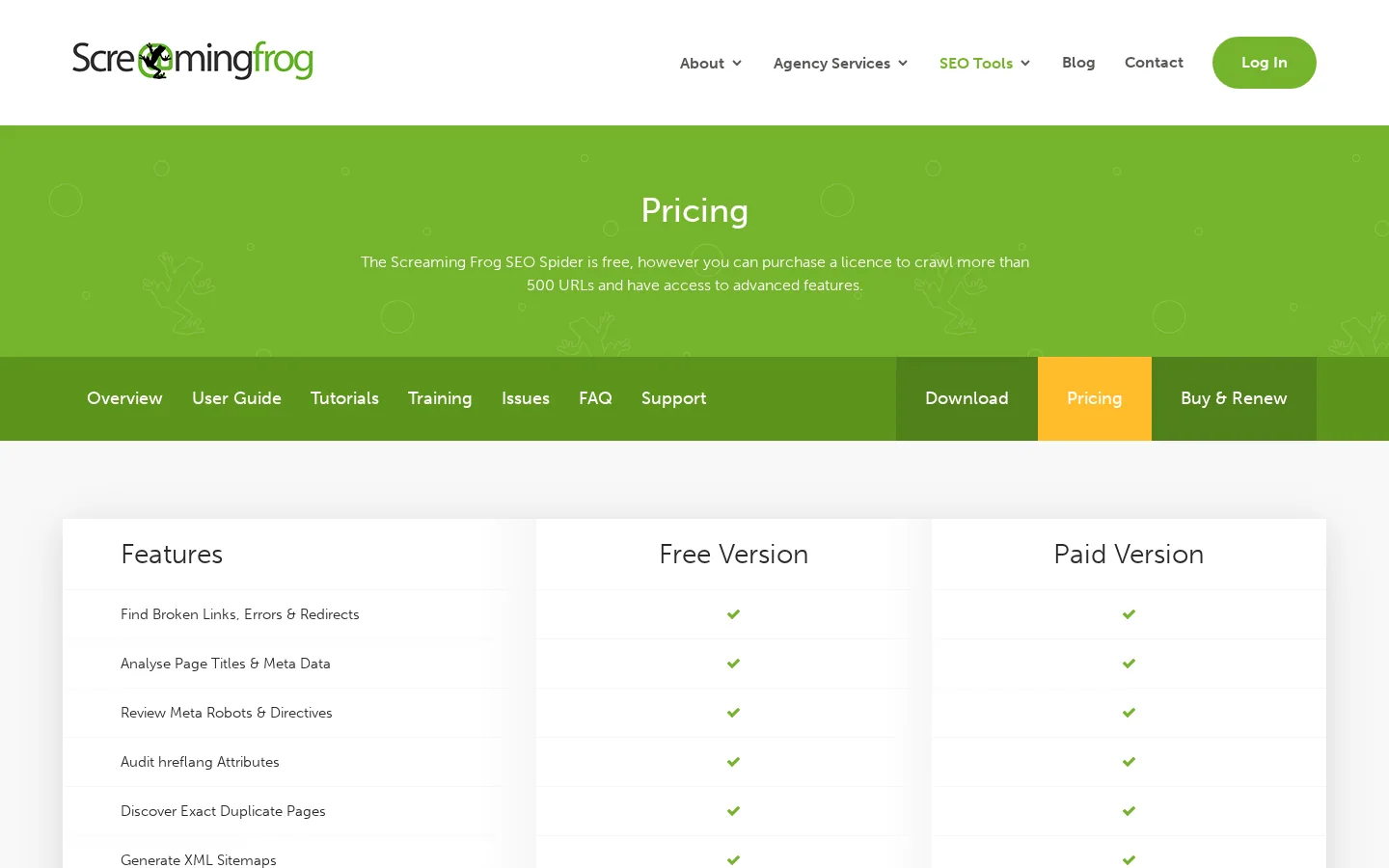
Screaming Frog sells a paid licence for one year at a time. The pricing page listed €245 per year for one licence when we checked it on November 22, 2026. Bulk prices apply from five licences: €235 each for 5 to 9 licences, €219 each for 10 to 19, and €209 each for 20 or more. Licences last one year, and the page says you must renew yours after that. The page shows prices in several currencies, so check the one you will pay in on the day you buy, because prices change.
Lumar does not publish a price for its crawler. Its website crawler page links to "Get pricing" and "Book a demo", and it does not show a free crawler plan. The only free offer on that site is a separate GEO scan that checks whether ChatGPT recommends your brand, which is a different product. So for Lumar, the real cost is the quote, and you should ask for it with the number of projects, the number of URLs and the number of users you need.
Screaming Frog's free version crawls up to 500 URLs per crawl. That covers a small brochure site or one section of a larger site. It does not cover a store, a blog with years of archives or a site with faceted navigation. The free limit is also silent: the crawl finishes, the report looks complete, and the numbers are only a sample.
What it costs to start
Source: Screaming Frog pricing page, checked November 22, 2026
Note
A 500 URL crawl is a sample, not an audit. Compare the number of URLs in the crawl summary with the URL count in your sitemap before you draw any conclusion from it.
Monitoring is where the cloud model earns its price, and where Screaming Frog asks more of you. Screaming Frog runs from the command line, so you can call it from your system's scheduler, export the result to a file or to Google Sheets, and compare the new crawl with an older one. The command-line guide lists the options for this, including --crawl-comparison, which compares two crawls by database ID, and --project-crawl-comparison, which compares the last two crawls in a project. The work of building the schedule, checking the output and raising the alert is still yours.
Lumar describes a safeguard built into its crawls. You set failure rate thresholds, and the crawl pauses automatically when a threshold is breached, with a notification. Its Monitor product tracks changes and trends across core site metrics. The crawler page does not say that monitoring runs in real time, so ask the vendor directly before you rely on it for an alert that must fire within minutes.
Scheduling and alerts answer different questions. A schedule tells you what the site looked like last week. An alert tells you that something broke an hour ago. Most teams need the schedule first, and they add the alert only when a broken release costs real money every day it stays online.
A weekly monitoring routine that works with either tool
A crawler is only one source of data about your site. Desktop crawls, cloud crawls, Google's own reports and server logs each see a different part of how your site is treated. The crawler tells you what your links point to and what breaks. Search Console tells you what Google chose to request. Server logs tell you what every bot actually asked for. The four methods below work best together, and the table at the end shows when each one wins.
Principle: your computer requests every URL it finds through links and records the response. Use it when one person audits one site and needs full control over the settings, the exclusions and the exports. Advantages: you control every setting, you can save the configuration in a file, and the data stays on your machine. Limits: the crawl depends on your RAM and disk, and the free version stops at 500 URLs. Example: you crawl a 25000 URL store with a licence, export the 4xx tab and send the list to the developer who owns the templates.
Principle: the vendor's servers crawl your site and store the results in a dashboard. Use it when several people need the same data, when you manage many large sites, or when you need monitoring with thresholds. Advantages: you do not manage memory, the results are shared, and the monitoring features sit next to the crawl. Limits: the price is a quote, the speed figures come from the vendor's tests, and you rely on its infrastructure and its settings. Example: an agency runs weekly crawls on twenty client sites and sends each client a dashboard with the trends.
Principle: Google reports how often its crawlers fetched URLs from your site and how long the responses took. Use it when you want to know what Google does, not what your links say. Advantages: it is free and comes from Google's own data. Limits: it is aggregated, so it does not give you a full URL list for each problem. Example: the crawl stats show a spike in server errors on one day, and you use a crawler to find the URLs behind it. Our Crawl Stats guide explains how to read that report.
Principle: your web server writes a line for each request, including the requests from Googlebot and other bots. Use it when you need to see which URLs bots really request, including the ones no crawler would find through links. Advantages: the data is complete for the period you keep, and it shows real bot behaviour. Limits: you need access to the logs, and you need a process to parse and filter them. Example: the logs show that a bot requests thousands of filter URLs every day, which points to a crawl budget problem. Our log file analysis guide covers the process, and the crawl budget entry explains why it matters.
| Method | Principle | Use it when | Main advantage | Main limit |
|---|---|---|---|---|
| Desktop crawler | Your computer crawls every linked URL | One analyst, one site, full control | Settings, exports and local data | Limited by RAM and disk, free version capped at 500 URLs |
| Cloud crawler | Vendor servers crawl and store results | Teams, many large sites, shared monitoring | Shared dashboards and no local memory limit | Custom quote and vendor-measured speeds |
| Search Console | Google reports its own crawl activity | You want to see Google's behaviour | Free, from Google's data | Aggregated, not a full URL list |
| Server logs | Your server records every bot request | You need the real bot traffic | Complete record of requests | Needs log access and parsing |
To compare the two tools fairly, run both on the same site with the same scope and the same settings. The steps below take an afternoon on a site of a few thousand URLs. You need a Screaming Frog licence for this, because the free version stops at 500 URLs, and you need access to a Lumar project, which you get after a quote or a demo. Keep a note of every setting you choose, because the note is what makes the comparison reproducible.
Run the same audit in both tools
If you want to script the Screaming Frog side, the macOS launcher accepts the same options as the interface. This example runs a headless crawl, saves it, and exports every internal URL and the 4xx list to a folder. Replace the domain with your own, and run the --help flag first, because the options can change between versions.
/Applications/Screaming\ Frog\ SEO\ Spider.app/Contents/MacOS/ScreamingFrogSEOSpiderLauncher --crawl https://www.example.com/ --headless --save-crawl --output-folder /tmp/cli --export-tabs "Internal:All,Response Codes:Client Error (4xx)"The command-line guide also lists --config, which loads a saved configuration file, and --export-format, which sets the output format to csv, xls, xlsx or gsheet. Save your settings once, then reuse them for every crawl, so that each run starts from the same scope. The full list of options is in the vendor's command-line guide.
Tip
Before you start the crawl, check the XML sitemap so you know which URLs should exist. Our free XML sitemap checker validates the file, and the list of URLs it reads is the baseline you compare against the crawl.
The comparison works best when you also know the theory behind the technical checks. The technical SEO audit entry lists the checks that matter most, and the step-by-step SEO audit guide shows where a crawl fits in the wider audit.
Most bad comparisons come from unequal tests, and most bad audits come from a crawl nobody checked. The mistakes below come up most often. Each one has a warning sign you can see in the output, and a fix you can apply in the same session.
What it is: the free version stops each crawl at 500 URLs, so the report covers a sample of your site. How to spot it: the crawl ends at exactly 500 URLs, and your sitemap or your Search Console report lists far more pages. How to fix it: count the sitemap URLs before you judge the tool, run the test with a licence, or crawl one section at a time and say which section each report covers.
What it is: the crawler reads only the raw HTML, so links and titles added by scripts are missing from the result. How to spot it: the crawl finds few internal links, or many pages with empty titles, while the page looks full in a browser. How to fix it: run a Text Only crawl and a JavaScript crawl on the same sample of pages, compare the counts, and use JavaScript mode for the whole crawl if the numbers differ.
What it is: Screaming Frog starts with 2GB of RAM allocated in database mode, which is not enough for a large site with rendering on. How to spot it: the app slows down, the crawl stalls, or the memory warning appears. How to fix it: raise the allocation under Settings, leave 2 to 4GB free for the system, restart the app, and check the Max value under Help, Debug before you start the crawl.
What it is: 450 URLs per second is Lumar's test result on its test setup. Your server, your caching and your rate limits decide the speed you get. How to spot it: the crawl runs far below the vendor figure, and the progress screen shows a rising failure rate or many 429 and 5xx responses. How to fix it: lower the crawl speed in the tool, check your server logs for errors during the crawl, and ask your host about rate limits before you raise the speed again.
What it is: changing the rendering mode, the exclusions, the user agent or the start URL between two crawls changes the URL count, so the comparison measures your settings, not your site. How to spot it: the URL totals move by far more than the change you made to the site. How to fix it: save the configuration once, load it with --config on every run, and write any deliberate change in a short log next to the crawl.
What it is: a crawl lists what your links point to. It does not show what Google indexes, what it clicks, or which pages bring traffic. How to spot it: the crawler flags a page as broken that has no impressions, or it misses an orphan page that ranks well. How to fix it: join the crawl with Search Console data, sort the problems by traffic, and work through the list in the order of the crawl errors guide.
Crawl setup, before and after
Pick Screaming Frog when one person runs the audits, the site fits in the memory you can give the app, and you want to own every setting and every export. It is the lower-cost option per user, and its free version lets you test the workflow before you pay. Pick Lumar when several people need the same dashboards, when you manage many large sites, or when you want monitoring with thresholds and a vendor who runs the infrastructure. In that case, expect a quote, and ask for the rendering, extraction and monitoring details in writing.
| Your situation | Pick | Why |
|---|---|---|
| One site, one analyst, limited budget | Screaming Frog | Per-licence price and full control of the crawl |
| Large site with heavy JavaScript and tight deadlines | Test both | Run the step-by-step test above on the same sample |
| Several teams, many client sites, shared dashboards | Lumar | Shared access, monitoring and a quote for the whole team |
| Need to see what Google and bots request | Search Console and server logs | Google's own data and the real bot traffic |
Before you buy either tool
Sorank is not a crawler. It focuses on content, backlinks and tracking your visibility in ChatGPT, Gemini, Claude and Perplexity. Keep a crawler for the technical side of the site, and use Sorank for the content and AI visibility work. Our Sorank for SEO teams page covers what a team can automate on the content and AI side. For a wider view of the category, our guide to the best technical SEO tools compares the other options by the job they do.
Neither is better in every case. Screaming Frog is a desktop crawler with a low per-licence price and a free version, which suits one analyst auditing one site. Lumar, formerly Deepcrawl, is a cloud platform built for large sites and team monitoring, and it sells on a custom quote.
There is a free version that crawls up to 500 URLs per crawl. Larger crawls need a paid licence, which Screaming Frog listed at €245 per year on its pricing page when we checked on November 22, 2026. Check the pricing page before you buy, because prices change.
Yes. Screaming Frog renders pages in a headless Chromium browser when JavaScript mode is on. Lumar says its crawler uses Google's rendering and parsing engine. Rendered crawls are slower, and Lumar's own tests show 350 URLs per second rendered against 450 without rendering.
We analyse your competitors, your website and your AI visibility to create a tailored content plan for free.
 Duplicate Content Checker
 Mobile-Friendly Test
 Website Speed Test
 Subdomain Finder
 Domain Age Checker
 CMS Detector
 Googlebot Simulator
 Nofollow Link Checker
 Meta Tag Checker
 Keyword Cannibalization Checker
 Keyword Intent Checker
 Keyword Extractor
 Google Ads Cost Calculator
 CPC Calculator
 Local Citation Finder
 Reddit Threads Finder
 Disavow File Generator
 Redirect Generator
 Canonical Tag Generator
 Passive Voice Checker
 Google Location Changer
 Google Review Calculator
 Google Review Link Generator
 Keyword Combiner
 Podcast Show Notes Generator
 AI Content Rewriter
 AI Text Humanizer
 ChatGPT Prompt Generator
 Twitter Thread Generator
 Tweet Generator
 Landing Page Copy Generator
 Google Ads Copy Generator
 Pinterest Pin Description Generator
 Anchor Text Generator
 Social Media Post Generator
 LinkedIn Post Generator
 Free AI Writer
 Review Response Generator
 LSI Keyword Generator
 YouTube Video Ideas Generator
 YouTube Tag Generator
 YouTube Description Generator
 Product Description Generator
 CTA Generator
 Blog Introduction Generator
 Conclusion Generator
 Hook Generator
 AI Content Brief Generator
 FAQ Schema Generator
 AI Blog Post Ideas Generator
 Structured Data Validator (Schema Validator)
 Alt Text Checker
 Internal Link Analyzer
 Backlink Challenge
 AI Meta Description Generator
 AI Blog Title Generator
 Google Indexability Checker
 AI Blog Outline Generator
 UTM Link Builder
 Keyword Clustering Tool
 Canonical Tag Checker
 XML Sitemap Generator
 Broken Link Checker
 AI SEO Title Generator
 Headline Analyzer
 SERP Preview Tool
 Redirect Checker
 Hreflang Tag Generator
 Heading Structure Analyzer
 HTTP Headers Checker
 Favicon Extractor
 SERP CTR Calculator
 SEO vs Paid Search Savings Calculator
 SEO Share of Voice Calculator
 SEO ROI Calculator
 SEO Traffic and Revenue Forecast Calculator
 SEO Budget Calculator
 SEO Break-Even Calculator
 SaaS SEO ROI Calculator
 ROAS Calculator
 Reading Time Calculator
 Ranking Gain Simulator
 Organic Traffic Value Calculator
 Organic Traffic Estimator and Website Traffic Checker
 LTV to CAC Ratio Calculator
 Local SEO ROI Calculator
 Link Building Cost Calculator
 Keyword Value Calculator
 Keyword Opportunity Score Calculator
 Keyword Density Calculator
 GEO ROI Calculator
 GEO Content Investment Calculator
 Ecommerce SEO ROI Calculator
 Customer Lifetime Value Calculator
 Customer Acquisition Cost Calculator
 CTR Calculator
 Cost Per Article Calculator
 Conversion Rate Calculator
 Content Marketing ROI Calculator
 ChatGPT Referral Traffic Estimator
 Bounce Rate Calculator
 Backlink ROI Calculator
 AI Visibility Score Calculator
 AI Traffic Value Calculator
 AI Share of Voice Calculator
 Cost of AI Invisibility Calculator
 AI Citation Rate Calculator
 llms.txt Validator
 AI Overview Checker and AI Overviews Rank Checker
 Robots.txt Checker
 AI SEO Audit
 LLM Readability Checker
 SearchGPT Readiness Checker
 Structured Data LLM Audit
 Website Crawlability AI Audit
 Why ChatGPT Is Not Recommending My Website
 Gemini Ranking Tool
 Perplexity Ranking Checker
 LLM Citation Checker
 Answer Engine Optimization Audit
 GEO Audit
 AI Search Visibility Test
 ChatGPT Visibility Checker
 llms.txt Generator
 URL Extractor
 Webpage to Markdown
 Sitemap Checker
 SERP Volatility Sensor
 Page Size Checker
 Word Counter
 Slug Generator
 Schema Generator
 Robots Generator
 OG Preview
 Meta Tags Generator
 Image Compressor
 Favicon Generator
 On-Page SEO Audit: SEO Checker and SEO Analyzer
 Backlink Analysis Tool
 Keyword Research Tool
 Domain Authority Checker
 “I tested Sorank on a real client site and it's insane. It does everything an agency would bill you $1500 a month for. It's going into production on that client now.”

 Guillaume Guersanguersanguillaume.com“We are an Ads agency and we wanted to get our SEO back on track once and for all. Sorank gave us a clear view of our site, helped us prioritize optimizations, and properly structure our content. The tool is easy to use, well designed for a team, and very practical for centralizing tracking without having to juggle multiple platforms. A very solid foundation to start fresh with our SEO.”
 Gaspard MadouiAds Agency
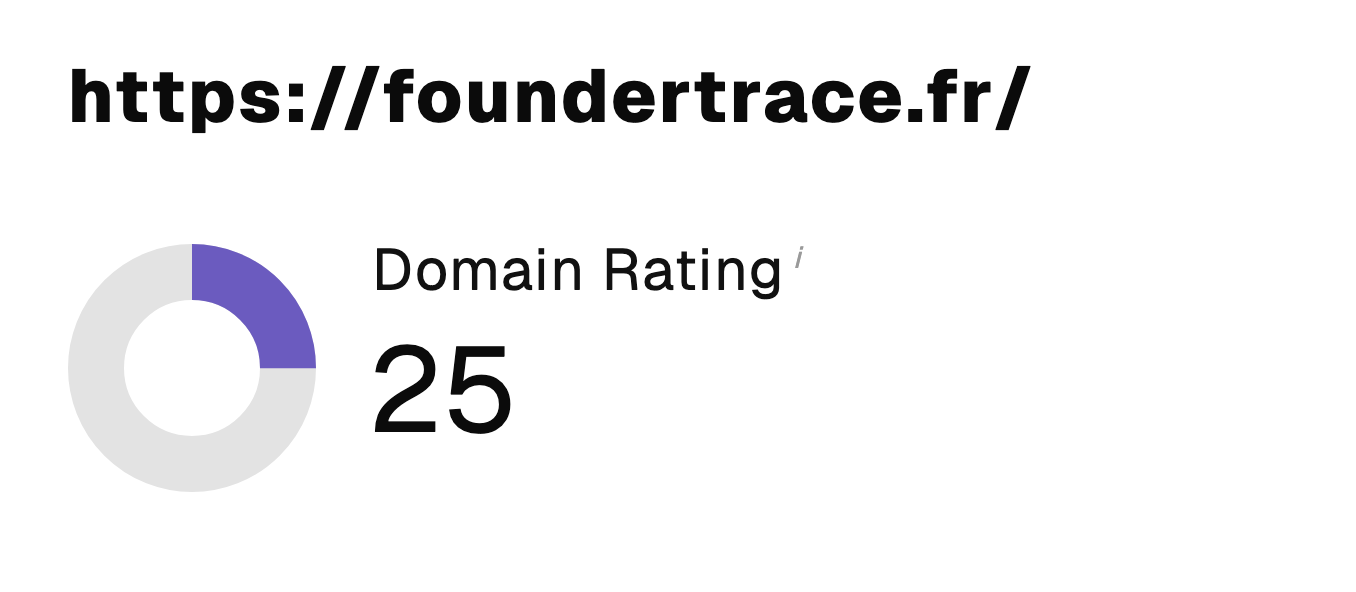 “I just let the Sorank software do its thing, and now my DR is 25 and my page is ranking higher.”
 Lucas Flandrefoundertrace.fr“I specialized in GEO thanks to Sorank. The GEO Leaderboard allows me to show my clients their position vs competitors on ChatGPT. It’s a real commercial differentiator.”
 MélanieSEO Freelance“Great service, works well for our website and helps us understand how to improve it to rank better on Google and elsewhere. Congrats, keep going, I recommend it.”
 Hugo T.E-commerce merchant