Preferences
Privacy is important to us, so you have the option of disabling certain types of storage that may not be necessary for the basic functioning of the website. Blocking categories may impact your experience on the website. More information
Privacy is important to us, so you have the option of disabling certain types of storage that may not be necessary for the basic functioning of the website. Blocking categories may impact your experience on the website. More information

An SEO diagnostic decision tree turns a traffic drop into one cause and one fix. Answer its yes or no questions in order, from data to AI crawlers.

In short
An SEO diagnostic decision tree is a set of yes or no questions that takes a traffic drop from symptom to cause. You check the data first, then impressions and clicks, then the affected pages, indexing and technical status, and only then outside causes such as updates or manual actions. A short AI branch adds two questions: can AI crawlers reach your pages, and do AI tools name or cite you?
Want to go further? Ask
Quick quiz
Is SEO right for you, and how should you start?
Sorank matches your answers


Test it for 3 days on your own site and see where you stand on Google, ChatGPT and the other AIs.
Start 3-day free trial3 days free, then stop whenever you want. 90-day results guarantee, conditions apply.
A decision tree is a sequence of questions where each answer sends you to the next check. A checklist tells you what to look at. A tree tells you what to look at next, based on what you just found. That difference matters when traffic drops, because the first guess is usually wrong and every wrong guess costs you a week.
Most teams handle a drop in one of three ways. They run a full audit and fix the longest list first. They rely on a gut feeling. Or they use a tree. The table below shows where each one fits.
| Approach | What it gives you | Where it fails | Best for |
|---|---|---|---|
| Full audit checklist | Every issue on the site | Long list, little priority | Planned audits, new sites |
| Gut feeling | A fast guess | Often picks the wrong cause | Nothing that loses traffic |
| Decision tree | The next check and the likely cause | Only as good as its questions | Sudden drops and plateaus |
Google's own guide to debugging search traffic drops follows the same logic: confirm the data, read the Performance chart, widen the date range, compare periods, split by search type, find the affected pages, then investigate the causes. This article uses that order and adds an AI answer branch, because a drop in Google clicks and a drop in AI mentions often need different checks.
If you already have a list of problems from an audit, the tree helps you rank them. It tells you which problem explains the drop you see, and which ones can wait. The method for a full audit is covered in how to do an SEO audit, and the tree below sits in front of it.
Before you run any branch, confirm that the drop is in the data you are reading and not in the tool that displays it. Many "drops" come from a tracking change, a new consent banner, or a report that changed its filters. Google's guide starts with the Data Anomalies page in Search Console for exactly this reason, because it lists processing changes and logging errors that can look like a loss.
Step 0 checklist
Warning
A removed analytics tag looks exactly like a traffic drop in your analytics dashboard. It does not change the clicks in Search Console. If the two sources disagree, trust Search Console for Google and fix the tracking before you diagnose anything.

The first split in the tree is impressions. If impressions fell, your pages appeared less often, so you lost visibility. If impressions held and clicks fell, your pages still appeared but fewer people chose them, so you lost clicks. Those two cases have different causes and different fixes, so do not mix them.
The Performance report shows four metrics: clicks, impressions, click-through rate (CTR) and average position. The default view covers the last three months. You can switch the view to 16 months, which is what you need to check for seasonal patterns (see Step 2).
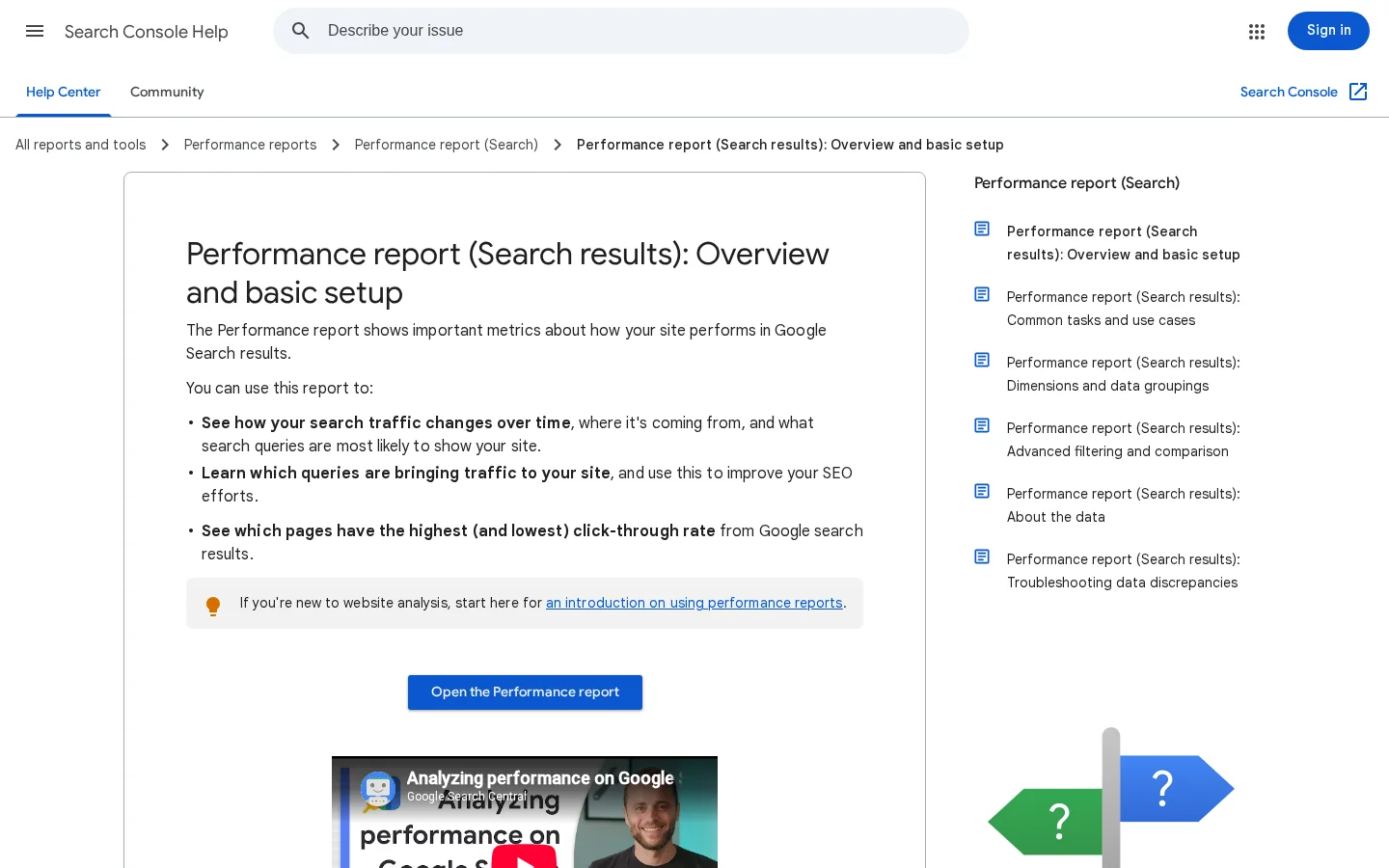
Average position is the metric people over-read. Google defines it on the chart as "The average position of the topmost result from your site." If one query shows your page in position 3 for some users and position 12 for others, the average lands somewhere in the middle and can move without any real change. Use it to spot a sustained, large shift, and use impressions and clicks for everything else.
| Symptom in the Performance report | Branch | First check |
|---|---|---|
| Impressions down, clicks down | Visibility loss | Step 2, then Step 3 for the affected pages |
| Impressions flat, clicks down | Click loss on results that still show | Your title and description, and the results around yours |
| Impressions up, clicks flat | Demand or intent change | The queries that grew, and whether their intent changed |
| Impressions stable, average position worse | Ranking shift on a few terms | The query tab, one term at a time |
When impressions are flat and clicks fall, calculate CTR for the same period and the same pages. A page with stable impressions can lose CTR because a new result above it takes the click, because the title no longer matches the query, or because a result type such as a video or an image pack now sits in the way. The formula is simple:
CTR = clicks / impressions x 100

Example: 120 clicks / 4000 impressions x 100 = 3 percent
A fall from 3 percent to 1.5 percent on the same query is a click problem, not a visibility problem. Rewrite the title and check the page against the query before you touch the content or the technical setup.
A loss on one query or one URL has a different cause than a loss across the whole site, so the tree splits again here. The aim is to find the smallest group of queries, pages or countries that explains most of the change.
Two settings that change the diagnosis
Sources: Google Search Central, debugging search traffic drops; Google Search Console Help, Performance report
Use the Compare tab in the Performance report. Two comparisons answer most questions. The first compares the last three months with the previous period, which shows a recent change. The second compares the same months of the previous year, which removes seasonality. If the drop appears in both comparisons, it is real. If it appears only in the first, check whether the previous period was unusually strong.
Each filter answers one question. Use them in this order, and stop as soon as one of them shows a concentrated loss.
| Filter | Question it answers | What a concentrated loss suggests |
|---|---|---|
| Query | Which terms lost clicks? | One brand term points to naming or entity issues. Many informational terms point to content or competing pages. |
| Page | Which URLs lost clicks? | A few URLs point to a page-level cause, so go to Step 3. Most URLs point to a site-wide cause. |
| Device | Mobile, desktop or tablet? | Mobile only often points to layout, speed or rendering on phones. |
| Country | Which markets? | One market points to language targeting or local competitors. |
| Search type | Web, image, video or news? | Image only points to image search and its own ranking rules. |
To find the affected pages quickly, open the Pages table and sort it by "Clicks Difference," as Google suggests. Then open the three or four URLs that lost the most in the URL Inspection tool. If the same template or directory appears at the top of the list, you have a group, and the cause is probably shared across those pages.
If the affected pages are missing from the index or are crawled less often, the tree goes to the indexing branch. Google reports the status of every URL in the Page indexing report. Read the label for each affected page, because the label tells you which cause to test.
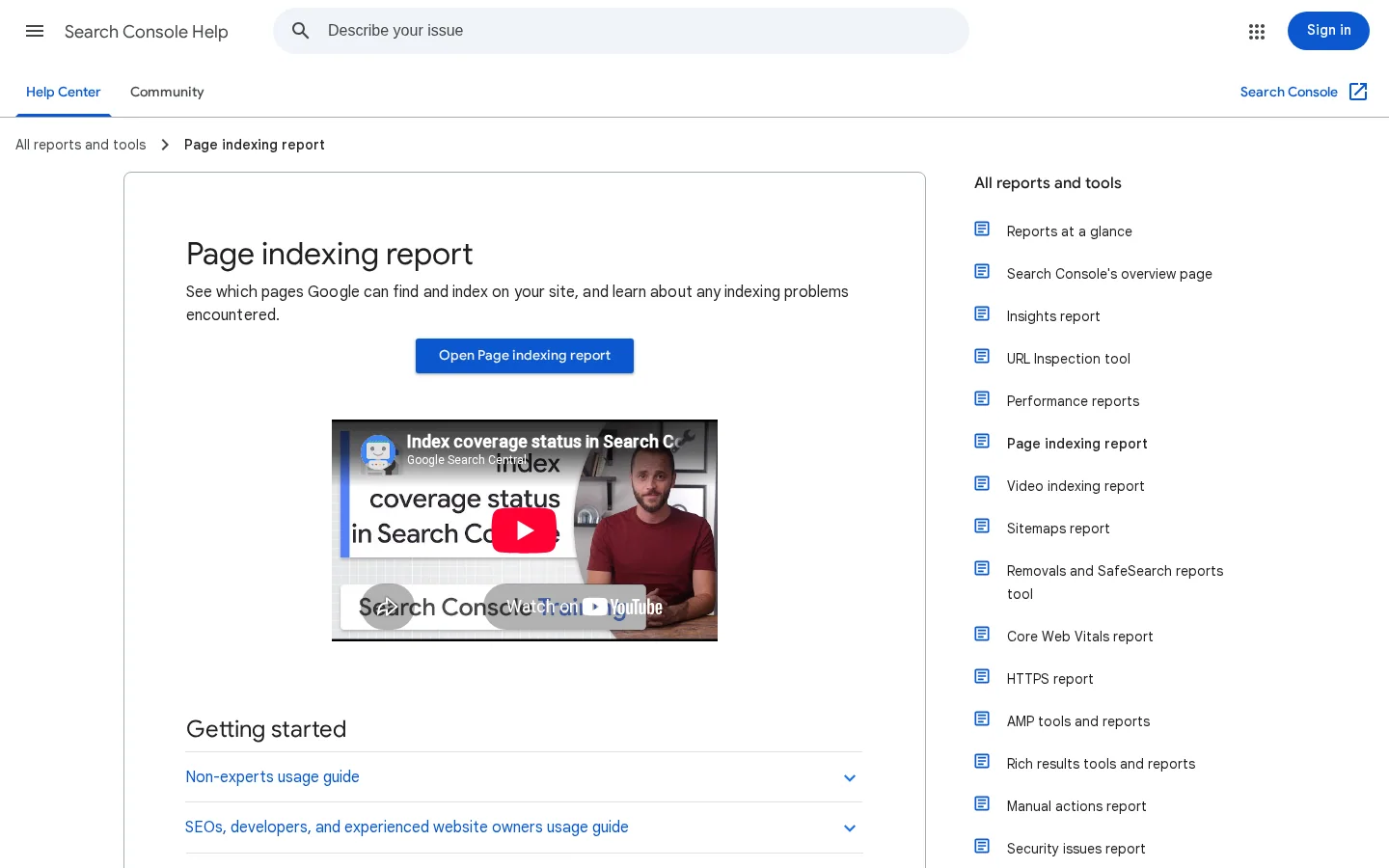
Google's help page on the Page indexing report lists the reasons pages are not indexed. The most common ones, and what to do with them, are below. Some labels look alarming but are normal, so check the page before you change anything.
| Label in Search Console | What it means, per Google | Your action |
|---|---|---|
| Crawled - currently not indexed | Google crawled the page and did not index it. Google says this is common and does not always need attention. | For important pages, inspect the URL, then improve the content and the internal links. See what this label means and how to fix it. |
| Discovered - currently not indexed | Google found the page but has not crawled it yet. Google may have delayed the crawl to avoid overloading the site. | Check server response times and make sure the page has internal links from crawled pages. |
| URL marked 'noindex' | A noindex directive stopped indexing. | If the page should rank, remove the directive from the page or the header. |
| URL blocked by robots.txt | A robots.txt rule blocks Google from the page. | Check that the rule is intended, then narrow it if it is too broad. |
| Soft 404, Not found (404), Page with redirect | The page looks empty, is missing, or redirects. | Restore the content, fix the status code, or shorten the redirect chain. |
| Duplicate without user-selected canonical | Google found a duplicate and cannot tell which version you want. | Set a canonical tag on the version you want to rank. |
A single line in robots.txt can remove a whole section of your site from crawling. The rule below blocks every URL that starts with /blog/ for Googlebot. It often appears after a staging rule is copied to production.
User-agent: Googlebot
Disallow: /blog/
To check it, open your robots.txt and search for Disallow lines that match the URLs in your list. If a rule matches a page you want ranked, remove it or narrow it to the path you actually want to hide. Then test the new file with a checker before you deploy it.
Google advises you to fix only the issues whose source is listed as "Website," and then to use "Validate Fix" so Google re-checks them. If the source is an external site, a link or a feed, the fix is on that side, and a validation request will not help. Use the sitemap and internal links to make sure Google can find the pages you fixed.
These causes sit outside your individual pages. Check them after indexing, because each one has its own report in Search Console and each one has its own fix. If none of them fits the timing of your drop, the tree sends you to the seasonal and competitive branch.
| Cause | Where to check | Signal that it fits | Action |
|---|---|---|---|
| Manual action | Manual Actions report | A notice that your site breaks a spam policy | Fix the issue, then request a review |
| Security issue | Security Issues report | Malware, hacked content or hidden pages | Clean the site, then request a review |
| Algorithm update | Google's ranking updates history | The drop starts close to the date of a named update | Review the content as Google advises, then wait a few weeks before you re-analyze |
| Seasonality or changing interest | Google Trends for your top queries | The queries fall in the whole market, not only on your site | Plan for the cycle, do not rewrite the pages |
| Site move | Your redirect map and the old URLs | Traffic does not come back after a URL change | Check every old URL redirects to its new equivalent |
The hardest part of this step is telling an update apart from a problem on your side. Look at the shape of the drop. An update usually moves many queries and many sites in the same direction, and it shows up in the Performance chart on or near the update date. A problem on your side usually starts on a specific day, touches a specific group of URLs, and shows up in the indexing or crawl reports at the same time. If the drop has both shapes, treat the site-side cause as the first thing to fix, because you can control it.
Note
When a large position drop follows an update, Google suggests you assess the whole site for content that is "helpful, reliable and people-first," and allow a few weeks before you measure again. Changing the site every day during that window hides the result you are waiting for.
Google rankings and AI answers draw on different systems, so the tree needs a second path for AI visibility. It asks two questions. Can the AI bot reach your pages, and do AI tools name you or cite your pages when they answer the questions your buyers ask? Start with access, because nothing else matters if the bot cannot read the page.
OpenAI documents its crawlers in its bots documentation. The three you will see most are listed below, with the effect each one has on robots.txt.
| Bot | What it does, per OpenAI | Effect of robots.txt |
|---|---|---|
| GPTBot | Gathers web content that may be used to improve OpenAI's foundation models | Disallowing it signals that your content should not be used for training |
| OAI-SearchBot | Indexes sites so they can appear in ChatGPT search features | Opted-out sites are not shown in ChatGPT search answers, though they can still appear as navigational links. Changes can take about 24 hours to apply. |
| ChatGPT-User | Visits a page when a user asks ChatGPT or a custom GPT a question | It is user-initiated, so robots.txt rules may not apply, and it does not decide search visibility |
The practical point is that blocking GPTBot does not remove you from ChatGPT search. The bot that controls search visibility is OAI-SearchBot. That is a common mistake, and it is covered in the mistakes section below. If you want to appear in ChatGPT search but stay out of training, the robots.txt would look like this:
User-agent: OAI-SearchBot
Allow: /

User-agent: GPTBot
Disallow: /
Whether to allow or block a bot is a business decision. This snippet shows the syntax for one choice, not a recommendation for every site. For a fuller view of the rules, read what to allow and what to block for AI crawlers.
AI answers change between runs, so one test tells you little. Run each prompt several times, and record two things separately: whether your brand is named, and whether your page is cited. A brand can be named without a link, and a page can be cited without the brand name. Each combination points to a different fix.
The AI branch in four steps
Tip
To check your rules without waiting for a crawl, paste your robots.txt into the free Robots.txt Checker. It validates the syntax and shows whether the AI crawlers can access your site.
The tree, the full audit and log file analysis each answer a different question, and each one has a blind spot. Use the tree first. Move to a full audit or to the logs only when the tree does not settle the cause.
Principle: follow yes or no questions from the symptom to the next check. When to use it: a sudden drop, a plateau, or a page that stopped ranking, when you need a cause fast. Advantage: it keeps you from fixing the wrong thing first and gives you a log of each decision. Limit: it only works with the data you have in Search Console and your analytics, so it cannot see crawl detail. Example: impressions fell on one template, the Page indexing report shows "URL marked 'noindex'" on those URLs, and the fix is a single template change.
Principle: crawl the whole site and list every technical issue, then rank them. When to use it: a site you have not checked in a long time, or a migration. Advantage: it finds problems you did not know about. Limit: the list is long, and most items may have nothing to do with the drop. Example: the audit finds a long list of broken internal links, but the drop is in one product category, so those links become a second-wave task. The method is in how to do an SEO audit, and the term is defined in the technical SEO audit glossary entry.
Principle: read your server logs to see which URLs Googlebot and the AI bots actually request, and how often. When to use it: you suspect crawl waste, or Search Console says a page is crawled but you cannot see why. Advantage: it shows real bot behavior, not a report of it. Limit: it needs server log access, large files and some skill, and it says nothing about rankings on its own. Example: the logs show bots spending most of their visits on filtered URLs with parameters, while the pages you want ranked get few visits. Read more in log file analysis for SEO.
| Method | Question it answers | Effort | What you need | Blind spot |
|---|---|---|---|---|
| Decision tree | Which cause fits my symptoms? | Short | Search Console and analytics access | No view of crawl detail |
| Full technical audit | What is broken across the site? | Medium to long | A crawler and Search Console | Long list with little priority |
| Log file analysis | What do bots really request? | Long | Server log access | Says nothing about rankings alone |
When the drop is clear, you can work the whole tree in one afternoon. The rule is to finish each step, write one line for the answer, and only then move on. Skipping a step is how teams end up with two fixes that cancel each other out.
Six steps from symptom to fix
Imagine a shop that sees clicks fall on its category pages while the homepage holds steady. Step 0 shows the drop is real, and the analytics tool agrees with Search Console. Step 1 shows impressions fell as well, so the branch is visibility loss. Step 2 shows the loss sits on one template, the filtered category pages, and the homepage is not affected. Step 3 shows the Page indexing report marks many of those filtered URLs as "URL marked 'noindex'" after a recent release added a noindex header to the filter template. Step 4 finds no manual action and no update near the start date. The fix is a single change: remove the header from the pages that should rank, then re-check the same pages a few weeks later. The log line records all of it, so the next person does not repeat the investigation.
A decision log is the cheapest part of the method and the one most teams skip. Write one line per diagnosis, so that the next person can see why you changed what you changed. You can use a simple format like this:
Date | Symptom | Branch | Check | Result | Fix | Re-check dateA log also protects you from memory. Three weeks later, nobody remembers which template changed first. A line in the log answers that in seconds, and it shows whether the fix worked.
Most failed diagnoses come from reading one signal alone, changing several things at once, or treating a normal label as an error. Each mistake below has the same three parts: what it is, how to spot it, and how to fix it.
The same drop, read two ways
What it is: you see average position fall by two places and assume the page lost its ranking. How to spot it: impressions are stable or rising, and the drop appears only in the position chart. How to fix it: return to impressions and clicks, sort by query, and check whether the page now ranks for new, lower-value terms. Google itself says not to over-weight average position, so use it as a signal of a sustained change only.
What it is: you compare a holiday week or a launch week with a normal week. How to spot it: the drop disappears when you widen the range to 16 months, or it matches a pattern from last year. How to fix it: use the year-over-year comparison, and set the Compare tab to the same period in the previous year before you change anything. A drop that repeats each year is seasonal, and you should plan for it.
What it is: you see the label on dozens of URLs and start rebuilding them. How to spot it: the label is on thin, low-value or duplicate pages, not on your main pages. How to fix it: inspect the pages that matter, improve the content and internal links on those, and leave the rest alone. Google says this label is common and does not always need attention.
What it is: you block GPTBot to stop ChatGPT from using your content, but OAI-SearchBot is the bot that controls ChatGPT search visibility. How to spot it: your robots.txt blocks GPTBot, and you wonder why AI tools still show your site, or the reverse, why they stopped showing it after you blocked everything. How to fix it: write one rule per bot, and decide separately whether you want search visibility and training use. Allow OAI-SearchBot if you want to appear in ChatGPT search.
What it is: you rewrite the titles, change the robots.txt, redirect a directory and publish new content in the same week. How to spot it: you cannot say which change moved the data, or the results go in both directions. How to fix it: change one cause per page or per template, log the date, and wait before you measure. Google suggests allowing a few weeks after an update before you re-analyze.
The tree stops when you have one cause, one fix and a date to re-check. If it stops without a cause, the drop is probably market-wide or seasonal, and the right response is to plan rather than rewrite. In both cases, the output is a short written diagnosis, not a long list.
If you track Google and AI traffic side by side, the GEO / SEO dashboard puts both sources in one view, so the branch decision is easier to see. When the fix is on the content side, content optimization helps you rewrite older pages that lost clicks. For choosing a tool that runs the checks for you, read how to choose SEO diagnostic software.
This week
It is a set of yes or no questions that leads you from a symptom, such as a traffic drop, to a likely cause and the check that confirms it. You answer each question with data from Search Console and your analytics, and the answer decides the next check. Done in order, it stops you from fixing the wrong thing first.
A drop without an error usually comes from a change in your rankings, a change in what people search for, or fewer clicks on a result that still shows. The Performance report separates these cases: impressions fall when you appear for less, while clicks can fall alone when your title stops earning the click. Start there before you change the site.
Ask the AI tools the questions your buyers ask, run each one several times, and record whether your brand is named and whether your pages are cited. Answers change between runs, so one test proves little. Then check that the AI crawlers you want, such as OAI-SearchBot, can reach your pages in robots.txt.
We analyse your competitors, your website and your AI visibility to create a tailored content plan for free.
 Website Value Calculator
 Website Accessibility Checker
 Google Analytics Checker
 Duplicate Content Checker
 Mobile-Friendly Test
 Website Speed Test
 Subdomain Finder
 Domain Age Checker
 CMS Detector
 Googlebot Simulator
 Nofollow Link Checker
 Meta Tag Checker
 Keyword Cannibalization Checker
 Keyword Intent Checker
 Keyword Extractor
 Google Ads Cost Calculator
 CPC Calculator
 Local Citation Finder
 Reddit Threads Finder
 Disavow File Generator
 Redirect Generator
 Canonical Tag Generator
 Passive Voice Checker
 Google Location Changer
 Google Review Calculator
 Google Review Link Generator
 Keyword Combiner
 Podcast Show Notes Generator
 AI Content Rewriter
 AI Text Humanizer
 ChatGPT Prompt Generator
 Twitter Thread Generator
 Tweet Generator
 Landing Page Copy Generator
 Google Ads Copy Generator
 Pinterest Pin Description Generator
 Anchor Text Generator
 Social Media Post Generator
 LinkedIn Post Generator
 Free AI Writer
 Review Response Generator
 LSI Keyword Generator
 YouTube Video Ideas Generator
 YouTube Tag Generator
 YouTube Description Generator
 Product Description Generator
 CTA Generator
 Blog Introduction Generator
 Conclusion Generator
 Hook Generator
 AI Content Brief Generator
 FAQ Schema Generator
 AI Blog Post Ideas Generator
 Structured Data Validator (Schema Validator)
 Alt Text Checker
 Internal Link Analyzer
 Backlink Challenge
 AI Meta Description Generator
 AI Blog Title Generator
 Google Indexability Checker
 AI Blog Outline Generator
 UTM Link Builder
 Keyword Clustering Tool
 Canonical Tag Checker
 XML Sitemap Generator
 Broken Link Checker
 AI SEO Title Generator
 Headline Analyzer
 SERP Preview Tool
 Redirect Checker
 Hreflang Tag Generator
 Heading Structure Analyzer
 HTTP Headers Checker
 Favicon Extractor
 SERP CTR Calculator
 SEO vs Paid Search Savings Calculator
 SEO Share of Voice Calculator
 SEO ROI Calculator
 SEO Traffic and Revenue Forecast Calculator
 SEO Budget Calculator
 SEO Break-Even Calculator
 SaaS SEO ROI Calculator
 ROAS Calculator
 Reading Time Calculator
 Ranking Gain Simulator
 Organic Traffic Value Calculator
 Organic Traffic Estimator and Website Traffic Checker
 LTV to CAC Ratio Calculator
 Local SEO ROI Calculator
 Link Building Cost Calculator
 Keyword Value Calculator
 Keyword Opportunity Score Calculator
 Keyword Density Calculator
 GEO ROI Calculator
 GEO Content Investment Calculator
 Ecommerce SEO ROI Calculator
 Customer Lifetime Value Calculator
 Customer Acquisition Cost Calculator
 CTR Calculator
 Cost Per Article Calculator
 Conversion Rate Calculator
 Content Marketing ROI Calculator
 ChatGPT Referral Traffic Estimator
 Bounce Rate Calculator
 Backlink ROI Calculator
 AI Visibility Score Calculator
 AI Traffic Value Calculator
 AI Share of Voice Calculator
 Cost of AI Invisibility Calculator
 AI Citation Rate Calculator
 llms.txt Validator
 AI Overview Checker and AI Overviews Rank Checker
 Robots.txt Checker
 AI SEO Audit
 LLM Readability Checker
 SearchGPT Readiness Checker
 Structured Data LLM Audit
 Website Crawlability AI Audit
 Why ChatGPT Is Not Recommending My Website
 Gemini Ranking Tool
 Perplexity Ranking Checker
 LLM Citation Checker
 Answer Engine Optimization Audit
 GEO Audit
 AI Search Visibility Test
 ChatGPT Visibility Checker
 llms.txt Generator
 URL Extractor
 Webpage to Markdown
 Sitemap Checker
 SERP Volatility Sensor
 Page Size Checker
 Word Counter
 Slug Generator
 Schema Generator
 Robots Generator
 OG Preview
 Meta Tags Generator
 Image Compressor
 Favicon Generator
 On-Page SEO Audit: SEO Checker and SEO Analyzer
 Backlink Analysis Tool
 Keyword Research Tool
 Domain Authority Checker
 “I tested Sorank on a real client site and it's insane. It does everything an agency would bill you $1500 a month for. It's going into production on that client now.”

 Guillaume Guersanguersanguillaume.com
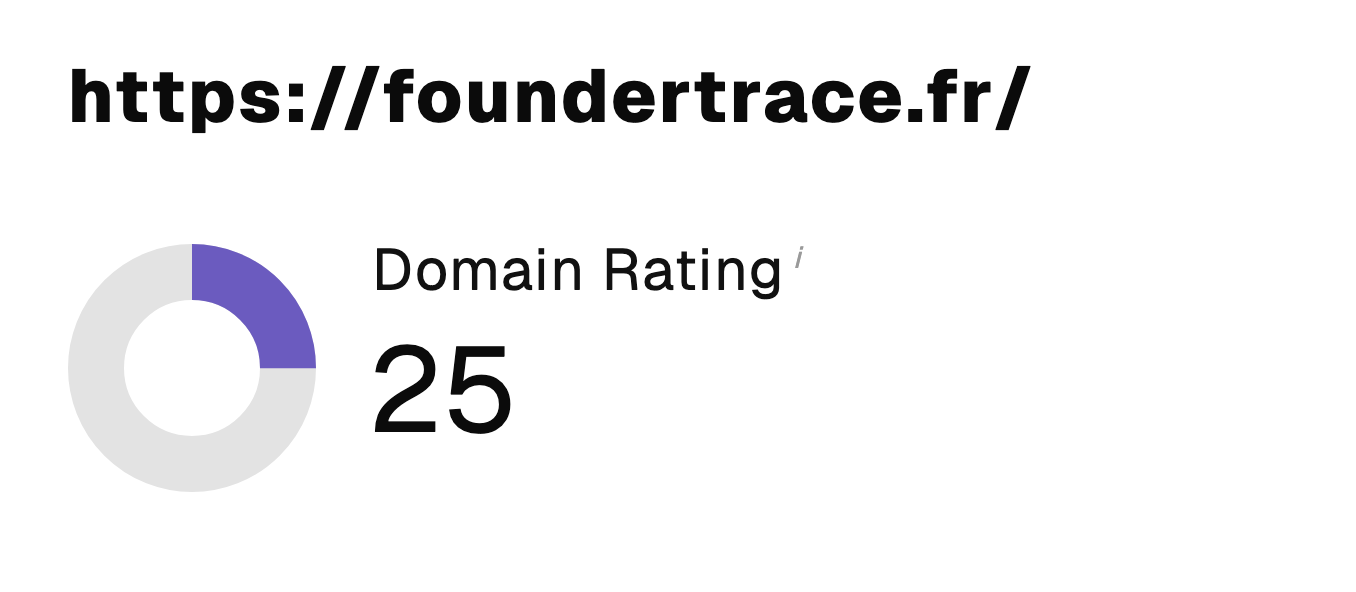 “I just let the Sorank software do its thing, and now my DR is 25 and my page is ranking higher.”
 Lucas Flandrefoundertrace.fr“We are an Ads agency and we wanted to get our SEO back on track once and for all. Sorank gave us a clear view of our site, helped us prioritize optimizations, and properly structure our content. The tool is easy to use, well designed for a team, and very practical for centralizing tracking without having to juggle multiple platforms. A very solid foundation to start fresh with our SEO.”
 Gaspard MadouiAds Agency“I specialized in GEO thanks to Sorank. The GEO Leaderboard allows me to show my clients their position vs competitors on ChatGPT. It’s a real commercial differentiator.”
 MélanieSEO Freelance