


Summary
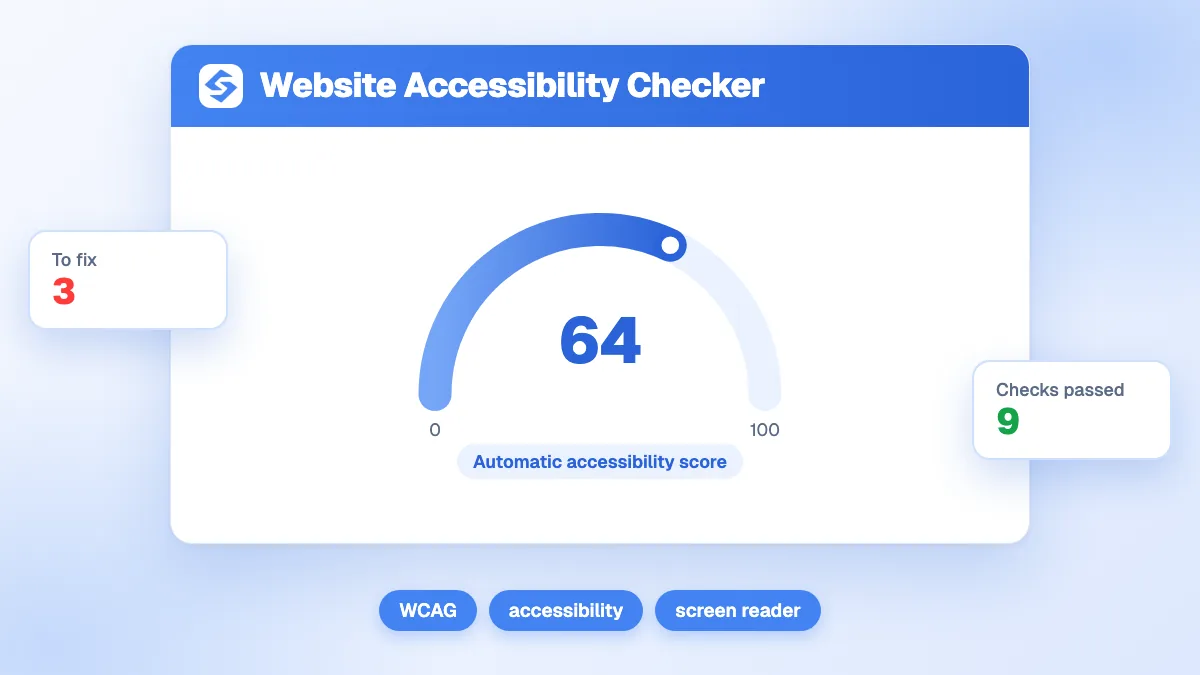
The website accessibility checker reads the HTML of any public page and runs 13 automatic checks linked to WCAG criteria: page language, title, image alt text, form labels, button and link names, heading order, mobile zoom, table headers, duplicate ids, tabindex and autoplay. You get a score out of 100, the problems first, examples from your code and the fix.
Want to go further? Ask


What does the website accessibility checker do?
It finds the accessibility errors that can be detected in the code of a page. You enter a URL, the tool fetches the page, applies 13 rules and tells you, for each rule, how many elements it checked, how many failed and which WCAG success criterion is involved.
The report shows four counters: checks passed, checks to improve, checks to fix and elements checked. Problems come first, red ones on top, each with extracts of the faulty code from your page. Checks that pass are listed below. You can copy the report or download it as a TXT file to send to a developer.
How do you check a page step by step?
- Paste the full page address, with https://, in the Page URL field.
- Complete the anti-bot check that appears under the field.
- Click Check accessibility. The tool reads the page and builds the report.
- Open the red problems first. Each one explains why it blocks visitors and shows extracts of the faulty code.
- Fix, then check again to confirm the problem is gone. The number of free checks per day is limited, and the counter under the field shows how many you have left.
How do you read the score and the verdict?
The score is the share of elements that pass each check, weighted by importance. It is a guide, not a certification. The verdict follows the score:
- Good result on the automatic checks: 90 or more and no check in red. The automatic checks found little or nothing.
- Some problems to fix: 70 or more. Fix the red checks first.
- Many problems to fix: below 70. Some visitors, such as screen reader or keyboard users, are likely blocked.
Each check also shows a status: "3 of 12 elements" means 3 elements out of 12 failed. "Nothing to check on this page" means the page has no element of that kind, for example no table.
Which WCAG criteria does each check cover?
The table lists the 13 checks and the WCAG criteria they relate to; the report names the exact criterion under each check. All are level A except Resize text, which is level AA.
| Check | What fails | WCAG criterion |
|---|---|---|
| Page language | No valid lang on the html tag | 3.1.1 Language of page |
| Page title | Missing or empty title tag | 2.4.2 Page titled |
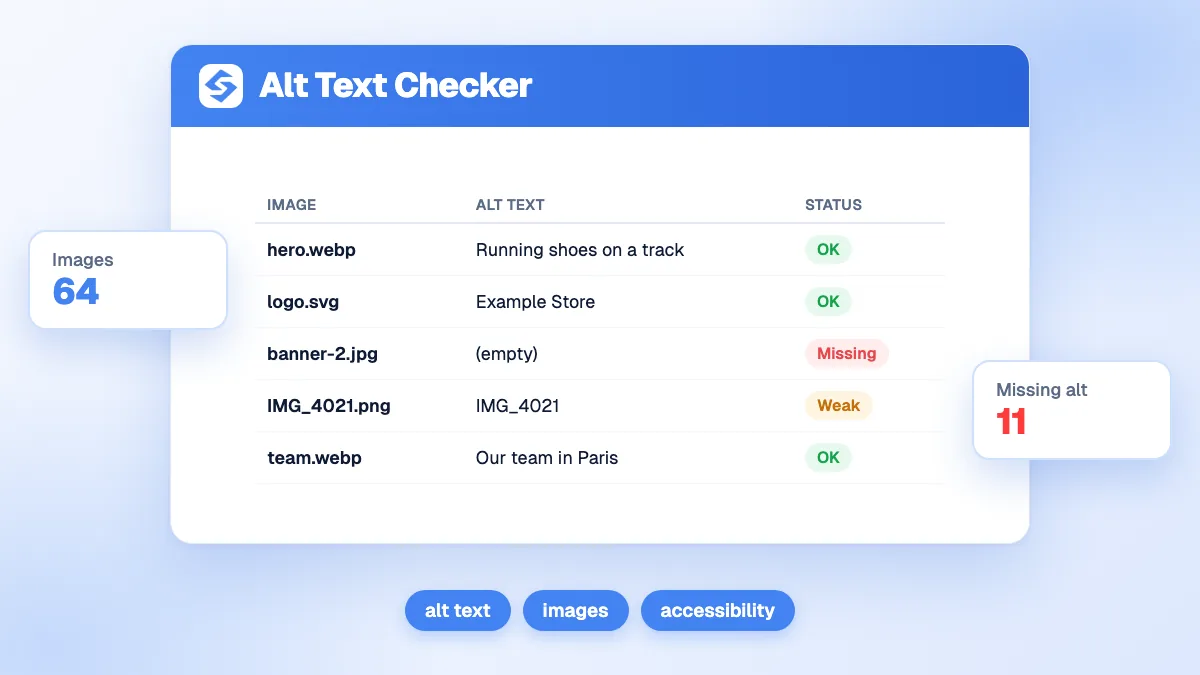
| Images without alternative text | img with no alt attribute | 1.1.1 Non-text content |
| Form fields without a label | No label, no aria-label | 3.3.2 Labels or instructions, 4.1.2 Name, role, value |
| Buttons without a name | No text, no accessible name | 4.1.2 Name, role, value |
| Links without a name | Icon or image link with no text | 2.4.4 Link purpose (in context) |
| Links that go nowhere | Empty href or only # | 2.4.4 Link purpose (in context) |
| Heading levels skipped | An h2 followed by an h4 | 1.3.1 Info and relationships |
| Zoom blocked on mobile | user-scalable=no or maximum-scale below 2 | 1.4.4 Resize text |
| Tables without header cells | Data table with no th | 1.3.1 Info and relationships |
| Duplicate ids | The same id used twice | 4.1.1 Parsing (obsolete since WCAG 2.2) |
| Positive tabindex | tabindex="1" or higher | 2.4.3 Focus order |
| Media that plays by itself | video or audio with autoplay | 1.4.2 Audio control, 2.2.2 Pause, stop, hide |
The zoom rule follows WCAG 1.4.4, which asks that text can be resized "up to 200 percent" without loss of content (W3C, Understanding Resize Text). Duplicate ids are still worth fixing even though W3C removed 4.1.1 from WCAG 2.2: it explains that many issues that failed it now fail Info and Relationships or Name, Role, Value (W3C, Understanding Parsing).
What do typical problems and fixes look like?
An image without alt
The tool shows <img src="team.jpg">. A screen reader may read the file name. Write what the image shows, or leave the alt empty if it is decorative:
<img src="team.jpg" alt="Our five support agents in the Lyon office"><img src="divider.svg" alt="">Google also says alt text "improves accessibility for people who can't see images" and uses it to understand the image (Google Search Central, image SEO best practices). The alt text glossary entry shows how to write good descriptions.
An icon button with no name
A search button that only contains an SVG is announced as "button". Add aria-label="Search" or visible text.
A skipped heading level
The tool shows the h4 and adds "Comes after an h2". Change it to an h3, or restyle it with CSS if you only wanted a smaller font. The heading structure analyzer displays the full outline of the page if you want to see every level at once.
What are the most common mistakes?
- Using a placeholder as a label: the text disappears when the user types, and many screen readers do not treat it as a label.
- Writing alt="image" or the file name: the check passes, but the text tells the visitor nothing.
- Using a link as a button:
<a href="#">that opens a menu should be a<button>. - Choosing heading tags for their size: headings describe the structure, CSS handles the look.
- Blocking zoom to protect the layout: people with low vision then cannot enlarge the text.
- Stopping at a good score: a page can pass all 13 checks and still be hard to use.
What can't an automatic accessibility check see?
A lot. W3C states that tools "cannot check all accessibility aspects automatically" and that human judgement is required (W3C, selecting evaluation tools). This checker has clear limits:
- No colour contrast: it does not measure text against its background.
- No keyboard or focus test: it does not tab through the page or check that focus stays visible.
- No screen reader test: it does not hear how the page is announced.
- No judgement on quality: it checks that an alt or a label exists, not that it is useful.
- One page at a time: it does not crawl your site.
- The HTML it receives: it reads the code of the page, so content added later by scripts or hidden behind a login may not be checked. Pages that block robots or answer too slowly cannot be read.
Use the report as a first pass, then test the page with a keyboard and a screen reader. The guide to SEO and accessibility lists the fixes that help both your visitors and search engines, and the article on semantic HTML explains which tags to use.
When should you move to Sorank?
Fix accessibility page by page with this tool; let Sorank handle the rest of your growth. Sorank does not audit accessibility. It grows your traffic from Google and from AI assistants on autopilot: it plans and writes content, earns links and tracks where you appear. The Sorank GEO and SEO dashboard shows your Google traffic and your AI visits in one view, and the Sorank plans include a 3-day free trial.