


Summary
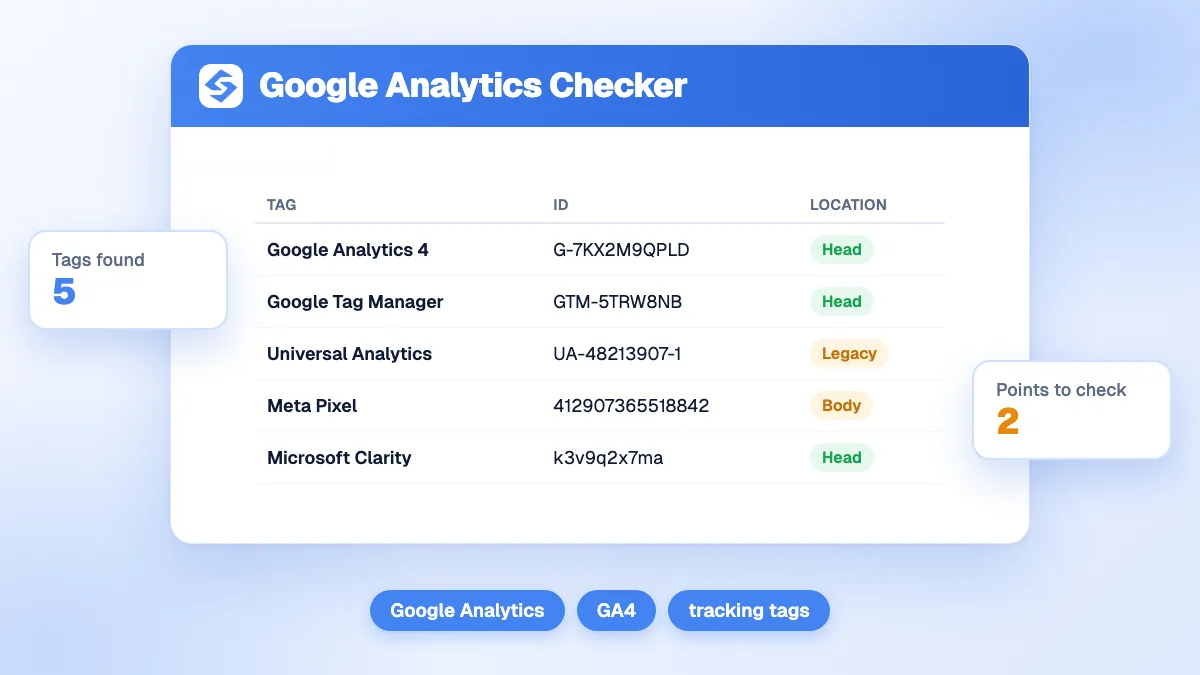
This Google Analytics checker reads the HTML a server sends for any page and lists the tracking tags it finds: Google Analytics 4, Universal Analytics, Google Tag Manager and other tools such as Meta Pixel, Microsoft Clarity, Matomo or Hotjar. For each tag you get the IDs, where it sits in the page and the points to check.
Want to go further? Ask


You installed Google Analytics, or someone told you they did, and you want proof without logging in. A Google Analytics checker gives you that proof in seconds: paste a URL and see which measurement IDs are in the code. It works on any public page, including a client site or a competitor you have no access to. If you are new to the tool itself, our GA4 glossary entry explains how it measures traffic and conversions.
What does the Google Analytics checker do?
It fetches the page, reads the raw HTML and looks for known tracking code. Results are split into two families: Google tags and other tracking tools.
- Tags found: each tag gets a card with its name, the IDs found (G-, UA- or GTM- for Google) and its location: head, body or both.
- Evidence: the card shows the script address, inline code or library file that triggered the detection, so you can find it in your source.
- Badges: Legacy marks an old Universal Analytics tag. Waits for consent marks code that stays blocked until the visitor accepts.
- Things to check: plain findings, such as an ID configured twice or a missing Tag Manager noscript block.
You can copy the list or download it as a TXT file. That is handy for an audit report or a ticket for your developer.
How do you check if a website has Google Analytics?
- Paste the full page URL, starting with https://. Test the home page first, then a key page such as a product page or a form.
- Complete the anti-bot check next to the field.
- Click Check the tags. The tool reads the page and shows the result below.
- Read the four tiles: tags found, Google tags, other tools and points to check.
- Open each card to see the IDs, the location and the code that was matched.
- Compare the IDs with your account. In GA4, the Measurement ID sits under Admin, then Data streams, and Google's help on finding your tag ID says it usually starts with G-.
The number of free checks you have left today is shown under the button.
How do you read the result?
Start with the headline. Tracking tags found means code is in the HTML. No tracking tag found in the HTML means nothing was visible in what the server sent, which is not the same as no tracking at all. Then read the findings: each one tells you what to do next.
| Finding | What it means | What to do |
|---|---|---|
| Google Analytics 4 is installed | A G- ID is in the code | Check that it matches your property |
| Only Universal Analytics was found | The site still runs the old tag alone | Install Google Analytics 4 |
| Old Universal Analytics tag next to GA4 | A leftover from the migration | Remove the UA code |
| Several GA4 IDs | Two or more properties receive data | Confirm it is intended |
| Same ID configured more than once | Every page view may count twice | Keep a single configuration |
| Tag loaded in the body | It works, but starts later | Move it to the head |
| Code blocked until consent | It runs only for visitors who accept | Check your consent setup |
| Consent tool detected | Some tags may load only after acceptance | Do not read an empty result as a missing tag |
| Page looks like a JavaScript application | Tags may be added after loading | Confirm with a browser test |
The UA findings matter because the old tag is dead weight: Google's Universal Analytics sunset page states that standard properties stopped processing hits on July 1, 2023. The head finding follows Google's tag installation guide, which asks you to place the snippet immediately after the opening head tag.
Examples: what the checker finds on real setups
A clean install
One card: Google Analytics 4, ID G-7KX2M9QPLD, in the head of the page. No findings to fix. You only need to confirm the ID is the right property, not a test one.
A forgotten Universal Analytics tag
Two cards: GA4 and Universal Analytics with the Legacy badge. The finding says the UA tag no longer collects data. Delete it from your theme or tag plugin: it adds code and nothing else.
Double counting
A theme setting and a hand-pasted snippet both configure the same G- ID. The checker flags the ID as configured more than once. Your page views may be inflated, so keep one of the two.
Tag Manager only
You see a Google Tag Manager card with a GTM- ID, but no GA4 card. That is normal when GA4 is set up inside the container: the GA4 tag is loaded by Tag Manager in the browser, so it is not in the raw HTML. Our Google Tag Manager guide shows how to check what the container fires.
Common mistakes when installing Google Analytics
- Installing it twice: a CMS plugin plus a manual snippet, or gtag plus the same tag inside Tag Manager. Your reports then show more views than you really had.
- Using the wrong ID: a staging or old property receives the data while the live one stays empty. Always compare the ID in the card with your account.
- Testing only the home page: blog posts, landing pages and checkout often use other templates. Check one page of each type.
- Worrying about the noscript block: Google's Tag Manager setup guide asks you to paste the container code as high in the head as possible, and its current steps no longer include the body snippet. The tool marks a missing noscript as optional.
- Blocking every tag behind consent without a plan: visitors who refuse are not measured. Read our Consent Mode v2 guide to keep modelled data.
What are the limits of this checker?
- It runs no JavaScript. A tag added later by a script, a consent tool or Tag Manager itself can exist without appearing here. Sites built as JavaScript applications are the usual case, as our JavaScript SEO guide explains.
- It confirms the code, not the data. A correct tag can still send nothing if filters, consent or a wrong ID get in the way. Open the Realtime report in GA4 while you visit the page to be sure.
- It does not open your Tag Manager container. You see the GTM- ID, not the tags inside it.
- One page per check. Each check reads a single URL, and the number of free checks per day is limited.
- Some pages cannot be read. A page that is offline, too slow or blocking robots returns an error.
When should you move from checking tags to Sorank?
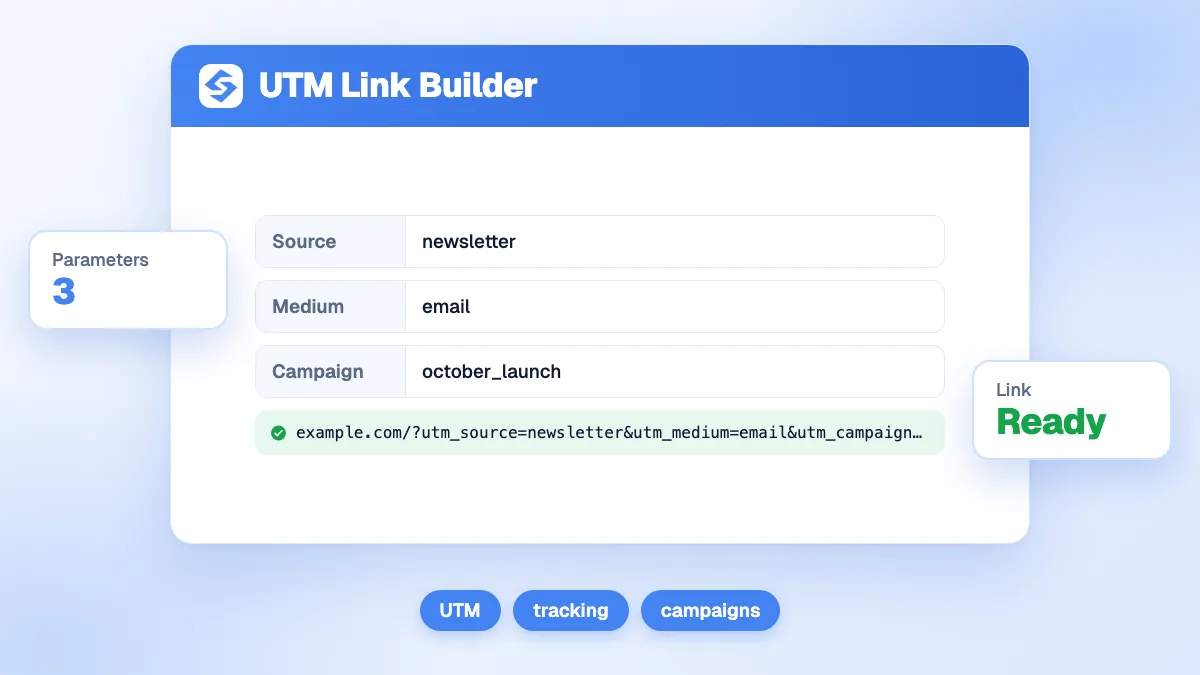
Use the checker to confirm your tracking is in place, then let the data work for you. A tag only tells you that visits can be counted. It does not tell you why traffic from Google rises or falls, or how often AI assistants send you visitors. The Sorank GEO and SEO dashboard shows your Google traffic and your AI traffic in one view, and Sorank grows both on autopilot. For your own campaigns, tag every link with the UTM link builder so each visit lands in the right channel.