Preferences
Privacy is important to us, so you have the option of disabling certain types of storage that may not be necessary for the basic functioning of the website. Blocking categories may impact your experience on the website. More information
Privacy is important to us, so you have the option of disabling certain types of storage that may not be necessary for the basic functioning of the website. Blocking categories may impact your experience on the website. More information

Google Site Kit explained: what Google's free  WordPress plugin connects, a step-by-step setup, the checks that fix empty dashboards and the privacy duties.
In short
Google Site Kit is Google's official free plugin for WordPress. It brings data from Search Console, Analytics, PageSpeed Insights and several other Google tools into your WordPress dashboard, so you do not have to paste tracking code into your theme. Setup takes a few minutes. The data takes longer to arrive, and most empty dashboards come from four causes you can check before you start.
Want to go further? Ask
Quick quiz
Is SEO right for you, and how should you start?
Sorank matches your answers


Test it for 3 days on your own site and see where you stand on Google, ChatGPT and the other AIs.
Start 3-day free trial3 days free, then stop whenever you want. 90-day results guarantee, conditions apply.
Site Kit is a reporting layer. You install it in WordPress, sign in with a Google account, and it shows the numbers from Google's tools inside your admin area. The WordPress.org listing describes it as "the official WordPress plugin from Google for insights about how people find and use your site." Read that sentence as a limit as much as a promise. The plugin reads data. It does not write your content, choose your keywords or fix your pages.
It also does not replace the Google tools themselves. The Site Kit view is a summary. When you need every filter, comparison and export, you open Search Console or Analytics directly. If you are still learning what Search Console measures, the GSC guide covers the tool itself. This article covers what the plugin adds on top of it, and where it stops. If you also want a tool that works on the content of your pages, compare the options in the best WordPress SEO plugins roundup, because Site Kit is not that kind of tool.
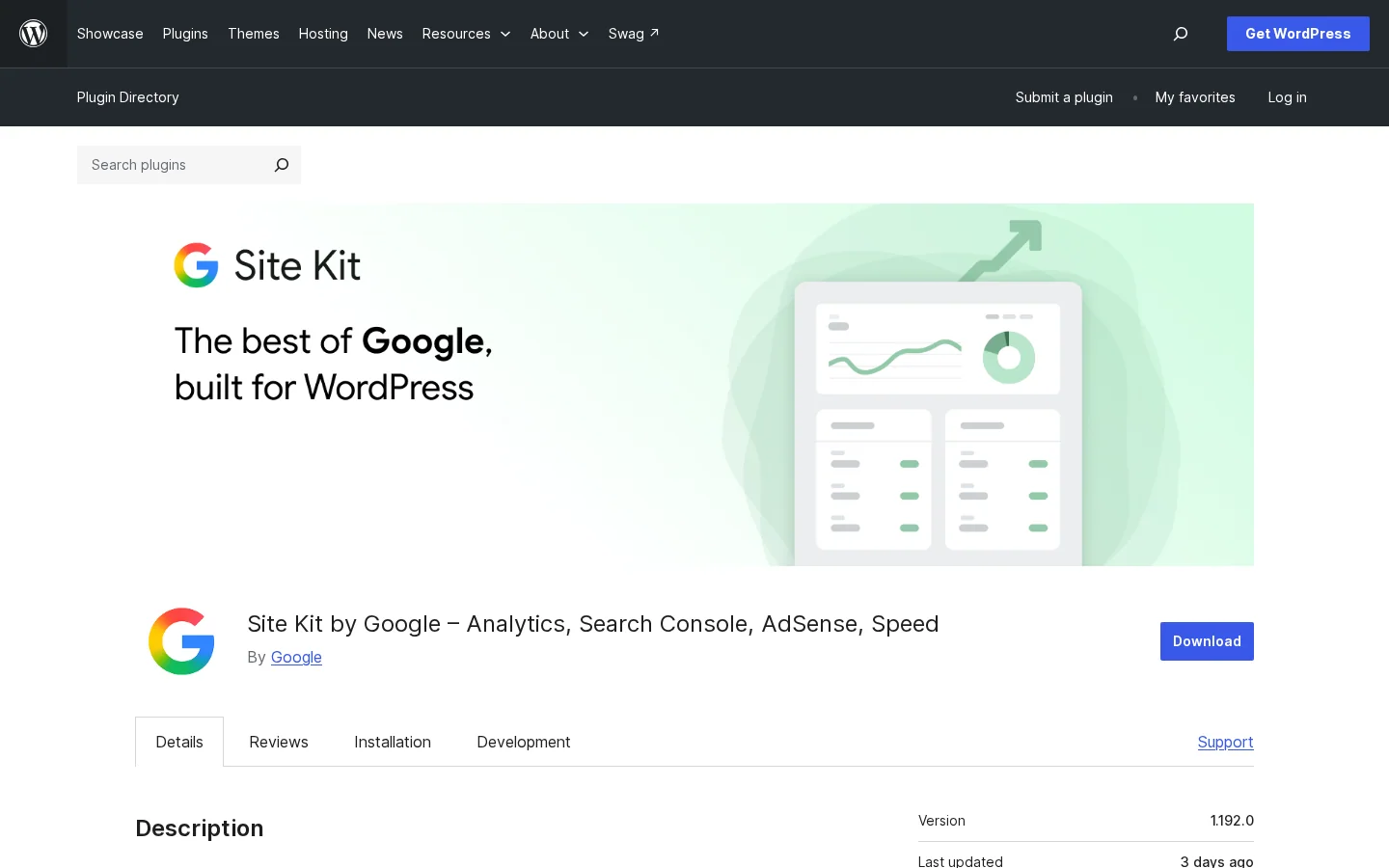
The plugin is mature. The WordPress.org listing shows more than 5 million active installations, version 1.192.0 and a last update dated November 16, 2026. It requires WordPress 5.2 or higher and PHP 7.4 or higher, and it is tested up to WordPress 7.1.5. Check those figures on the listing before you install, since they change with each release. The plugin itself is free. The costs you may see come from the services behind it, such as Google Ads campaigns that you pay for when you run them.
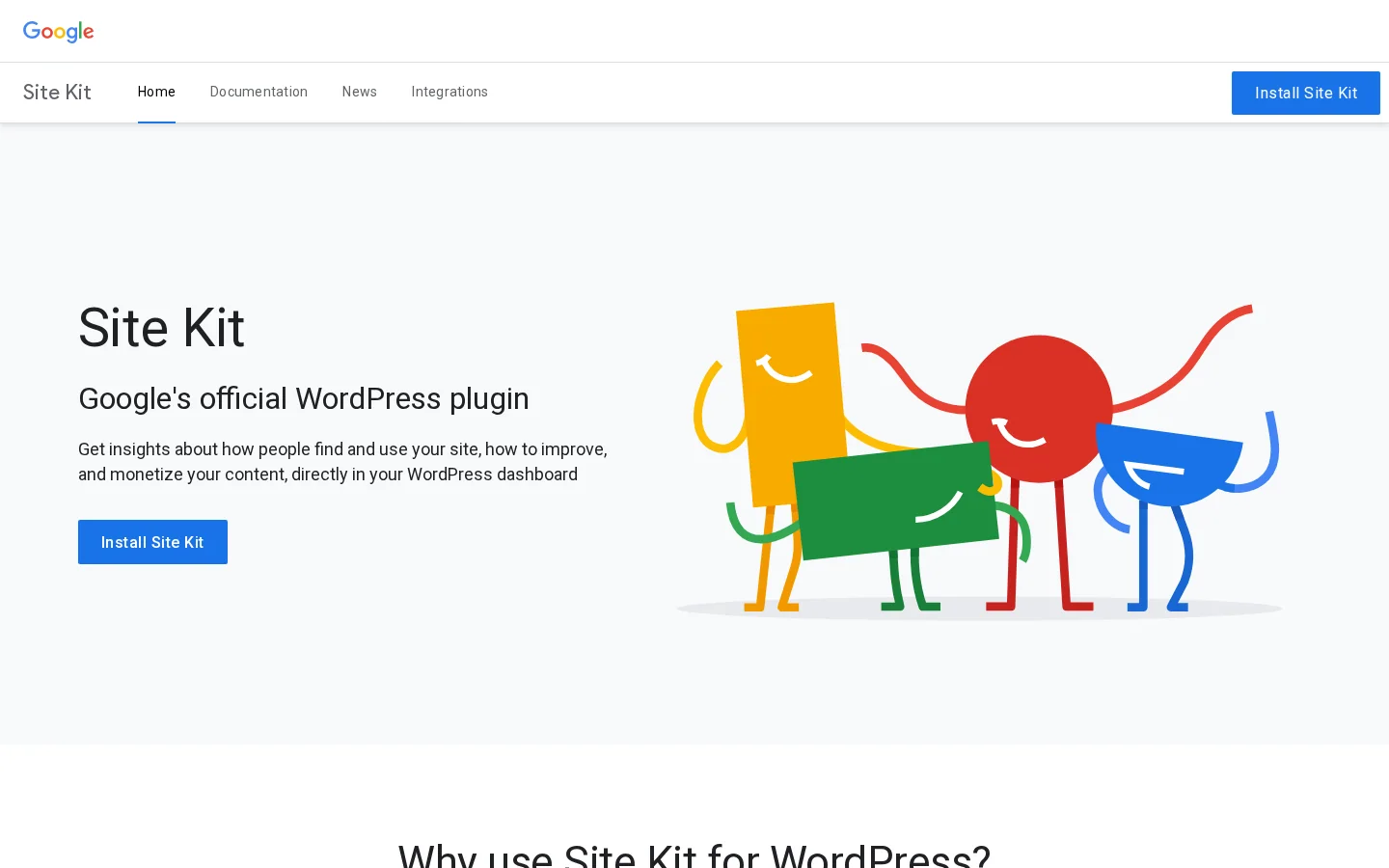
The official Site Kit page lists the same services and makes two claims you can test yourself: "No code editing required" and a setup "in 3 easy steps". Both hold for a standard public WordPress site with a Google account that has access to the right properties, and a consent setup that lets the tags load. The rest of this article covers the cases where one of those conditions is missing.
Google Site Kit at a glance
Sources: WordPress.org plugin listing (last updated November 16, 2026); Google Search Console Help, performance report
Site Kit lists eight services on WordPress.org. You do not have to connect all of them. Most sites start with Search Console and Analytics, then add the rest when they need them. The table below sums up what each one shows you and the detail that trips people up.
| Service | What you see in WordPress | What to know |
|---|---|---|
| Search Console | How Google Search shows your pages and the queries that bring people in | The source for search clicks and impressions. Connect it first. |
| Analytics | How visitors move through the site, and goal completions | IP addresses are anonymized by default. |
| PageSpeed Insights | How your pages perform against real-world sites, with tips | Tests pages. It does not track visitors. |
| AdSense | Earnings from your content | Approval status sits under Settings, then Connected Services, then AdSense. |
| Tag Manager | Tags created and managed without editing site code | Useful once you have several marketing tags to manage. |
| Google Ads | Campaign data for growing traffic with ads | Only relevant if you run paid campaigns. |
| Sign in with Google | Visitors can sign up and log in with a Google account | A visitor feature, not a report. |
| Reader Revenue Manager | Subscriptions, contributions, newsletters and surveys | For publishers who sell or ask for support. |
Search Console gives you the clicks and impressions your pages get in Google Search. It is the only source in the list for search performance, so if you connect nothing else, connect this one. Analytics shows what visitors do after they arrive: the pages they open, how they move from one to the next, and the goals you have set. The Analytics detail that matters most is privacy. The WordPress.org FAQ states that Analytics anonymizes IP addresses by default and that you can turn this off in the Analytics settings. Leave it on unless you have a documented reason to change it. If you need the basics of the current version first, read the GA4 guide.
PageSpeed Insights is different from the other two. It does not track visitors. It tests a page, compares it with real-world sites, and suggests what to fix. Speed work usually starts there, and the PageSpeed Insights walkthrough explains how to read the report without chasing every warning. A slow page can also hurt the numbers you read in Analytics, because visitors leave before the content loads, so a speed problem can look like a traffic problem.
AdSense and Google Ads only matter if you earn from ads or run campaigns. For AdSense, the approval status is not on the main dashboard. You find it under Site Kit, then Settings, then Connected Services, then AdSense. Tag Manager is useful once you have several tags to manage, and the Tag Manager article explains when a container pays off. Sign in with Google lets visitors sign up or log in with an existing Google account. Reader Revenue Manager covers subscriptions, contributions, newsletters and surveys, and it suits publishers who sell or ask for support.
Two gaps matter for a GEO strategy. Site Kit does not report on ChatGPT, Gemini, Claude or Perplexity. It tells you how Google Search and Google's own tools see your site, not whether an AI assistant names you when someone asks for a recommendation. We come back to that gap near the end of this article.

Most setup problems are decided before you touch the plugin. Ten minutes of checking saves an afternoon of wondering why the dashboard says nothing. Run through this list with the person who owns the Google account and the person who manages the WordPress site, since they are often different people.
Before you start setup
The first two items are the ones people skip. Site Kit cannot show data for a site that is not live. The plugin readme says so directly: "If your website isn't live yet, Site Kit can't show you any data." It adds that the site must not be in maintenance mode, accessible only via password, or otherwise blocked. A staging copy behind a login will install without errors and show nothing. That is one of the most common reasons for a silent dashboard on a new build.
The third item prevents the second most common problem. Analytics data belongs to the Google account that owns the property. If the person who installs the plugin signs in with a personal account that has no access to that property, the setup may complete, but the reports stay empty or show the wrong site. Write down which account owns each property before you start, so you know which login to use.
The last two items concern the people who will read the dashboard, and privacy. Each WordPress admin who wants to see the data must connect their own Google account. The consent rules have their own section below, but decide before setup who answers for consent in your organization, because the plugin will not decide that for you.
Tip
Ask for access to the Google account a week before launch, not on launch day. Waiting for a colleague to add you to an Analytics property is a common reason a clean setup slips.
The path below works for a standard public WordPress site. Each step has one thing to confirm before you move on, so you do not end up with a half-connected plugin and no way to tell which part failed.
Setup in five steps
Install Site Kit by Google from the WordPress plugin directory, then activate it. The listing on WordPress.org is the place to check the current version and the requirements. If your host runs a PHP version older than 7.4, the install does not meet the stated requirement. Ask your host first, or update the PHP version in your hosting panel before you install. The listing's screenshot below shows the page you should check.
Run this from your own machine, not from inside WordPress. It checks that the home page answers without a login prompt. Replace the address with your own.
curl -s -o /dev/null -w "%{http_code}\n" https://www.example.com/A healthy public page returns 200. A 401 means that HTTP authentication is blocking visitors, and a 503 often means maintenance mode. Neither lets Site Kit show data, so fix those first. Run the same check on a second page, such as a recent post, because some setups protect only part of a site. A home page that returns 200 while a post returns 401 is a common surprise on a staging copy that went live with one page unlocked.
Start the setup from the Site Kit menu in WordPress, and sign in with the Google account you chose in the checklist. Grant the permissions it asks for. Each admin repeats this on their own login. The readme says that each admin must connect their own Google account in order to access the plugin, so a second admin who only logs in to WordPress will not see your data. If you hand the site to an agency or a new employee later, plan for that connection as well, and remove the access of anyone who leaves.
Search Console data appears on the main dashboard once it is connected. The other services are added later, in Site Kit, then Settings. Choose the Analytics property that belongs to this site, not a similar one from another project or a test domain. Choosing the wrong property is one of the errors covered further down, and it is easy to miss because the dashboard still looks alive.
Do not judge the setup on the first afternoon. The Search Console help page says that "the newest data can be preliminary, meaning it's still being collected and might change in the next few hours." New Analytics properties also need time before the first reports fill in. Give the setup a few days before you decide something is broken, and check the date range before you read a drop as a real change.
Note
The first numbers you see are not the final ones. If you share a screenshot with a client or a manager on day one, label it as preliminary, or wait until the full week is in.
Site Kit is not the only route. Four methods get Google data into a WordPress site, and each one fits a different team. The table compares them. The sections below give the principle, the use case, the advantages, the limits and an example for each one, so you can pick the method that fits your team rather than the one you read about first.
| Method | Code editing | Who it suits | Main limit |
|---|---|---|---|
| Site Kit by Google | None | Teams that want Google data inside WordPress | Limited to the options the plugin offers |
| Tag pasted into the theme | Yes, in the header | Developers who want one tag under exact control | Theme updates and manual upkeep |
| Google Tag Manager | One snippet, then setup in the interface | Marketing teams with many tags | Needs a review step before publishing |
| Search Console alone | None, apart from optional verification | SEO specialists who want the full reports | Nothing appears inside WordPress |
Principle. The plugin connects to Google through your account and displays the data in the WordPress admin, with per-page stats in the admin bar.
When to use it. When you want the Google numbers in front of the people who edit the site, without asking a developer to add a tag.
Advantages. Google's own page says no code editing is required. You get eight services in one place, and the admin bar shows figures for the page you are editing, without a trip to another tool.
Limits. You work inside the options Google built into the plugin. Advanced tag rules, custom events and server-side setups still belong in Analytics or Tag Manager.
Example. An editor opens a post, sees its figures in the admin bar, and decides whether to rework the title before the next update.
Principle. You copy the Analytics snippet into the header of your theme, so every page loads it.
When to use it. When a developer owns the site and wants exact control over one tag, with no extra plugin.
Advantages. Nothing to install, and the tag does not depend on a plugin update.
Limits. A theme update can overwrite the file, and each new service means another snippet. Nobody on the editorial side sees the data unless they log in to Analytics.
Example. A developer adds the tag to a child theme's header file, so a parent theme update does not remove it.
Principle. You install one container snippet, then add and manage every other tag inside the Tag Manager interface.
When to use it. When marketing needs to add or change tags without a developer and a release each time.
Advantages. One snippet in the site, and tags move in and out without touching the theme. Site Kit's own page describes Tag Manager as a way to create and manage tags without updating site code.
Limits. The container needs a setup pass, and a bad tag can affect the whole site, so you need a review step before you publish.
Example. A marketing lead adds a conversion tag for a form, tests it in preview mode, then publishes the container.
Principle. You skip WordPress for the data, and read the search reports in the Search Console web interface.
When to use it. When you need the full reports and filters, and nobody else needs them inside WordPress.
Advantages. The complete tool, with no plugin to update and no extra code on the site.
Limits. Nothing appears inside WordPress, so editors do not see it. Search Console also tells you nothing about what visitors do after they click.
Example. An SEO lead checks query-level changes on a Monday morning, without ever opening the WordPress admin.
Site Kit or hand-written tags
The dashboard is easy to read, and that is also the risk. A chart that moves every day invites a conclusion, and most of those conclusions come from the date range, the preliminary days or a filter you forgot about. Before you act on a movement, check three things: the period, whether the last few days are still settling, and which query or page drives the change.
Search Console is the reference for search data, and its default view covers the past three months. The Search Console performance help page describes the view as "click and impression data for your site in Google Search results for the past three months." If you need a comparison beyond that window, do it in Search Console itself. Before you compare two periods in the WordPress widget, check that the widget uses the same range.
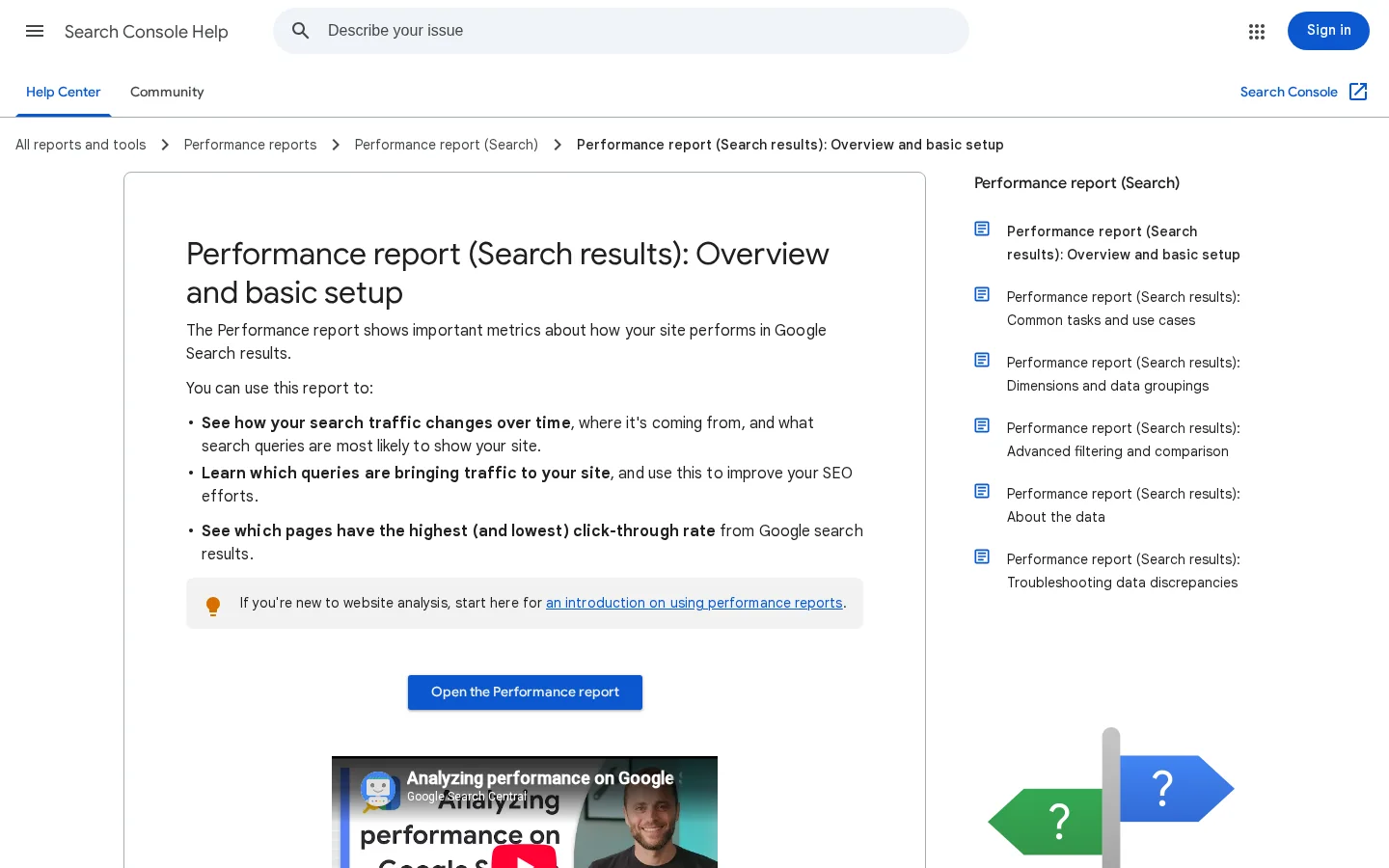
Take a worked example. A service page drops from 400 clicks in one week to 250 the next. Before you rewrite the page, open the date range and compare the same weekdays. Then check whether the last three days are still preliminary. Then split the report by query, because a single lost query can explain a drop that looks like a page problem. Only after that does it make sense to change the content.
Analytics answers a different question. It tells you what happened after the click. For that split, the comparison of Analytics and Search Console explains which tool to open for which question, and why the two numbers never match exactly. Keep that difference in mind when someone in a meeting asks why the search clicks and the sessions do not agree.
Most of the problems below look the same from the admin screen: an empty chart, a zero, or a message that data is missing. The diagnosis is the same too. Work through the steps in order, because each one rules out a cause before you move on to the next.
Diagnose an empty dashboard
The subsections after this one go through the causes in more detail. Each has three parts: what the error is, how to spot it, and how to fix it.
What it is. The site loads for you because you are logged in, or because you use a staging address, but visitors and Google see a maintenance page or a login prompt.
How to spot it. Run the status check from the setup section, or open the public URL in a private browser window. A maintenance page, a login prompt, or a status code other than 200 on public pages is the sign.
How to fix it. Turn off maintenance mode, remove the password protection from the public site, and wait for the next day's data. Connect Site Kit on the live address, not on a staging copy, because a staging copy will not give you the production numbers.
What it is. The setup completed with an account that has no access to the Analytics or Search Console property for this site.
How to spot it. The dashboard shows a different site, no site at all, or an empty Analytics view. Check in the Site Kit settings which account is connected.
How to fix it. Disconnect in the Site Kit settings and reconnect with the account that owns the property. If you cannot use that account, ask the owner to grant your account access inside the Google tool itself. Then confirm that the property name matches your domain.
What it is. The site connects to a property with a similar name, a test project, or a property that belongs to another domain.
How to spot it. The numbers look too small, too large, or match a different website. Compare last month's total with the figure in the Analytics interface itself. A mismatch you cannot explain is the signal.
How to fix it. Open Site Kit, then Settings, and select the property for this domain. Then give the data a day or two to refresh before you judge it.
What it is. A consent banner stops Analytics, Tag Manager or AdSense from loading until a visitor accepts. If most visitors reject, the data is thinner than you expect, and nothing on the dashboard tells you why.
How to spot it. Compare the traffic in Analytics with the traffic in your hosting panel or server logs. A large gap, plus a consent tool installed on the site, points to this cause.
How to fix it. Configure the consent tool so that the Google tags wait for consent, rather than being blocked for everyone. Test it in a private window: accept once, reject once, and check what reaches Analytics in each case. The consent section below covers the rules.
What it is. The person who set up the plugin is the only one with access, and the rest of the team sees nothing or an error.
How to spot it. A colleague reports an empty screen or a prompt to connect, even though the site itself works.
How to fix it. Ask each admin to connect their own Google account, as the readme requires. Add the step to the onboarding of every new editor, so the connection does not depend on one person.
What it is. You act on the last few days of data, which Google is still collecting and which can change.
How to spot it. The drop sits in the most recent days only, and it disappears when you widen the view.
How to fix it. Compare full weeks, and leave the newest days out of any decision that matters. Note the date you checked, so a later comparison makes sense.
Site Kit gives you the data. Your site keeps the obligation to tell visitors what you collect and to ask for consent where the law requires it. The plugin's FAQ says that site owners are responsible for notice and consent requirements, including GDPR. That is a legal duty, and the plugin cannot discharge it for you.
Three details from the FAQ shape the setup. Analytics anonymizes IP addresses by default, and you can change that in the Analytics settings. Third-party plugins can block Analytics, Tag Manager and AdSense until a visitor consents. And each WordPress admin signs in with a Google account, so the account used for the connection is an organizational decision, not a personal one.
| Point | Default | What you do |
|---|---|---|
| IP anonymization in Analytics | On | Leave it on unless you have a documented reason to change it |
| Consent for Analytics, Tag Manager and AdSense | Handled by your consent tool, if you have one | Set the tool so these tags wait for the visitor's choice |
| Notice and consent duties, including GDPR | Owned by the site owner | Describe the Google services in your privacy notice |
| Google accounts for admins | One per admin | Give each admin their own account, and remove access when someone leaves |
Speak with whoever handles legal or privacy for your business before you change defaults. This article is a technical guide, not legal advice. If you also collect email addresses through forms or a store, your privacy notice should describe those flows as well as the Google services.
Site Kit answers a useful question: how do Google's tools see my site? It does not answer the question many teams now ask next: does an AI assistant name my brand when someone asks for a recommendation? None of the eight services listed on WordPress.org covers ChatGPT, Gemini, Claude or Perplexity, so you need a separate method for that gap.
Sorank covers that gap. It tracks your visibility in ChatGPT, Gemini, Claude and Perplexity, and it runs the SEO and GEO work of a site on autopilot. Use Site Kit for the Google side and Sorank for the AI side, and read the two reports together, since they answer different questions about the same pages.
| Question | Where to look |
|---|---|
| Are my pages clicked in Google search? | Site Kit, or Search Console directly |
| Are my pages fast enough? | PageSpeed Insights, inside Site Kit |
| What do visitors do after they arrive? | Analytics, inside Site Kit |
| Does ChatGPT, Gemini, Claude or Perplexity name my brand? | Sorank |
Tip
Before you read the Google numbers for a page, run it through the free On-Page SEO Audit Tool. It gives you a quick read on the on-page elements of that single page, so you know whether the content or the search demand is the thing to change.
Note
Google Analytics can help you measure visits from AI assistants, when those visits reach your site with a referrer you can read. The guide on measuring AI citations with Google Analytics walks through the setup.
You can finish the basics in one sitting. Start with the checks, because the setup itself is the quick part.
Next steps
Yes. Site Kit by Google is a free plugin in the WordPress.org plugin directory. The Google services it connects have their own terms, and paid products such as Google Ads cost money when you run campaigns.
The most common causes are a site that is not live or sits behind maintenance mode or a password, a Google account without access to the property, the wrong Analytics property, and consent settings that block the tags. Check those first, then wait a few days, because the newest data is preliminary.
No. Site Kit shows a summary of Search Console data inside WordPress, which is useful for editors. For full reports, filters and exports, open Search Console itself.
We analyse your competitors, your website and your AI visibility to create a tailored content plan for free.
 AI Content Brief Generator
 FAQ Schema Generator
 AI Blog Post Ideas Generator
 Structured Data Validator (Schema Validator)
 Alt Text Checker
 Internal Link Analyzer
 Backlink Challenge
 AI Meta Description Generator
 AI Blog Title Generator
 Google Indexability Checker
 AI Blog Outline Generator
 UTM Link Builder
 Keyword Clustering Tool
 Canonical Tag Checker
 XML Sitemap Generator
 Broken Link Checker
 AI SEO Title Generator
 Headline Analyzer
 SERP Preview Tool
 Redirect Checker
 Hreflang Tag Generator
 Heading Structure Analyzer
 HTTP Headers Checker
 Favicon Extractor
 SERP CTR Calculator
 SEO vs Paid Search Savings Calculator
 SEO Share of Voice Calculator
 SEO ROI Calculator
 SEO Traffic and Revenue Forecast Calculator
 SEO Budget Calculator
 SEO Break-Even Calculator
 SaaS SEO ROI Calculator
 ROAS Calculator
 Reading Time Calculator
 Ranking Gain Simulator
 Organic Traffic Value Calculator
 Organic Traffic Estimator and Website Traffic Checker
 LTV to CAC Ratio Calculator
 Local SEO ROI Calculator
 Link Building Cost Calculator
 Keyword Value Calculator
 Keyword Opportunity Score Calculator
 Keyword Density Calculator
 GEO ROI Calculator
 GEO Content Investment Calculator
 Ecommerce SEO ROI Calculator
 Customer Lifetime Value Calculator
 Customer Acquisition Cost Calculator
 CTR Calculator
 Cost Per Article Calculator
 Conversion Rate Calculator
 Content Marketing ROI Calculator
 ChatGPT Referral Traffic Estimator
 Bounce Rate Calculator
 Backlink ROI Calculator
 AI Visibility Score Calculator
 AI Traffic Value Calculator
 AI Share of Voice Calculator
 Cost of AI Invisibility Calculator
 AI Citation Rate Calculator
 llms.txt Validator
 AI Overview Checker and AI Overviews Rank Checker
 Robots.txt Checker
 AI SEO Audit
 LLM Readability Checker
 SearchGPT Readiness Checker
 Structured Data LLM Audit
 Website Crawlability AI Audit
 Why ChatGPT Is Not Recommending My Website
 Gemini Ranking Tool
 Perplexity Ranking Checker
 LLM Citation Checker
 Answer Engine Optimization Audit
 GEO Audit
 AI Search Visibility Test
 ChatGPT Visibility Checker
 llms.txt Generator
 URL Extractor
 Webpage to Markdown
 Sitemap Checker
 SERP Volatility Sensor
 Page Size Checker
 Word Counter
 Slug Generator
 Schema Generator
 Robots Generator
 OG Preview
 Meta Tags Generator
 Image Compressor
 Favicon Generator
 On-Page SEO Audit: SEO Checker and SEO Analyzer
 Backlink Analysis Tool
 Keyword Research Tool
 Domain Authority Checker
 “I tested Sorank on a real client site and it's insane. It does everything an agency would bill you $1500 a month for. It's going into production on that client now.”

 Guillaume Guersanguersanguillaume.com“We are an Ads agency and we wanted to get our SEO back on track once and for all. Sorank gave us a clear view of our site, helped us prioritize optimizations, and properly structure our content. The tool is easy to use, well designed for a team, and very practical for centralizing tracking without having to juggle multiple platforms. A very solid foundation to start fresh with our SEO.”
 Gaspard MadouiAds Agency
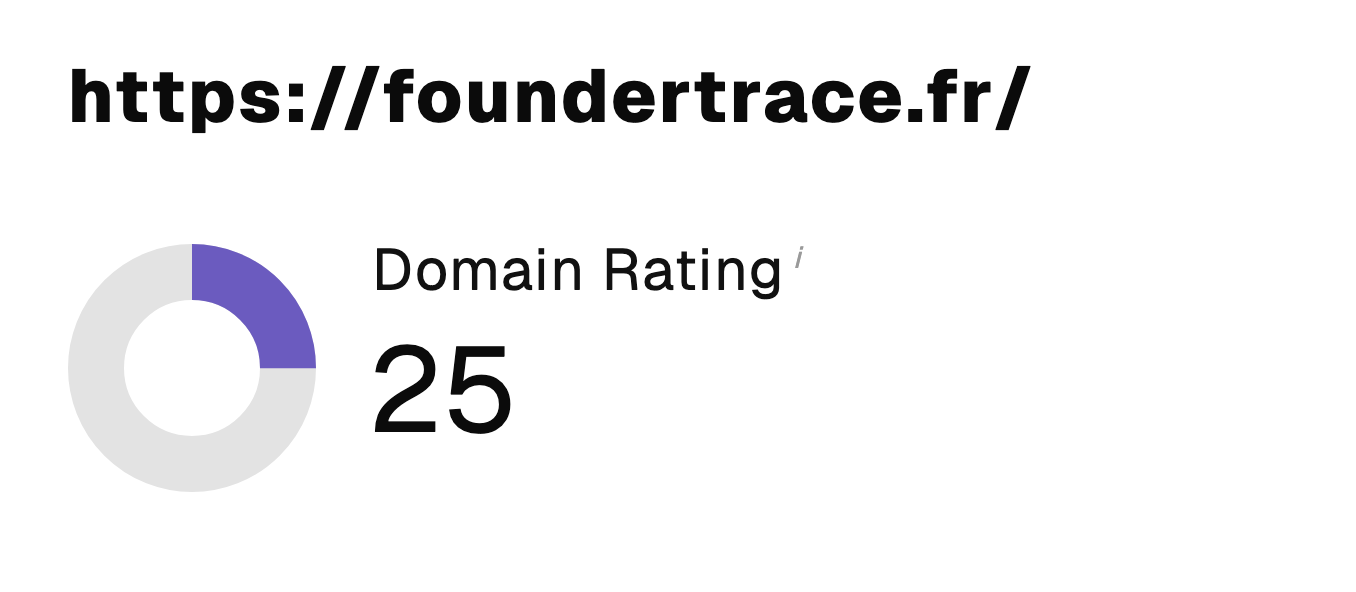 “I just let the Sorank software do its thing, and now my DR is 25 and my page is ranking higher.”
 Lucas Flandrefoundertrace.fr“I specialized in GEO thanks to Sorank. The GEO Leaderboard allows me to show my clients their position vs competitors on ChatGPT. It’s a real commercial differentiator.”
 MélanieSEO Freelance“Great service, works well for our website and helps us understand how to improve it to rank better on Google and elsewhere. Congrats, keep going, I recommend it.”
 Hugo T.E-commerce merchant