Preferences
Privacy is important to us, so you have the option of disabling certain types of storage that may not be necessary for the basic functioning of the website. Blocking categories may impact your experience on the website. More information
Privacy is important to us, so you have the option of disabling certain types of storage that may not be necessary for the basic functioning of the website. Blocking categories may impact your experience on the website. More information

Google Sites SEO explained: what the platform controls, what it does not, and the titles, links and sitemap steps that get your pages found on Google.
In short
Google can index and rank a page built on Google Sites, but the platform gives you fewer SEO controls than WordPress or a dedicated content management system. You can still do the essentials well: one clear title per page, real headings, descriptive text, links between your pages, Search Console connected, and a custom domain if you want a brand address. Most of the work is in the content and the links, not in hidden settings.
Want to go further? Ask
Quick quiz
Is SEO right for you, and how should you start?
Sorank matches your answers


Test it for 3 days on your own site and see where you stand on Google, ChatGPT and the other AIs.
Start 3-day free trial3 days free, then stop whenever you want. 90-day results guarantee, conditions apply.
Google Sites is a free website builder inside Google Workspace. You drag blocks onto a page, pick a theme and publish. It was designed for intranets, team pages, project hubs and simple company sites. It is not a blog engine, and it does not work like a content management system (CMS), the category of software built to manage pages, posts and templates at scale. If the difference between the two is still fuzzy, read our content management system guide before you decide where your site should live.
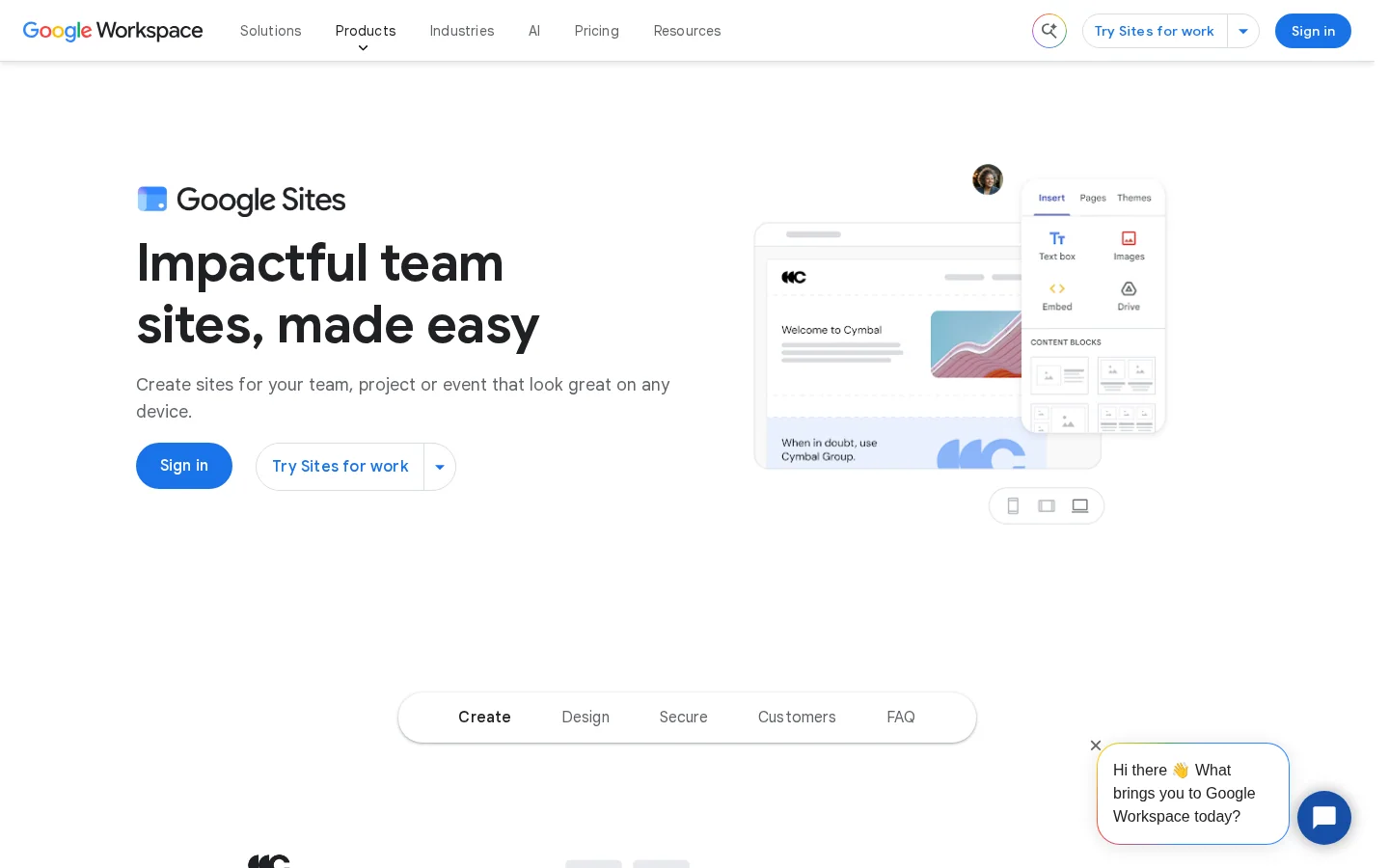
The Google Sites product page sells what Google promises: no-code design, real-time collaboration, templates and custom domains. It does not promise search visibility. That gap matters. Google Sites makes a page look finished, but ranking depends on what Google can read in the page, how the page is titled, and which other pages link to it.
Before you invest time, answer three questions. Do you need a site that people read, or a site your team edits? Will you publish 5 pages or 150? Do you need to control the HTML of each page? If the answer to the third question is yes, you will hit the limits quickly, and the rest of this guide shows where they are and how to work around them.
Search works in three stages. Crawling is when Googlebot fetches a URL. Indexing is when Google stores what it understood from that page. Ranking is when Google picks which indexed pages answer a query. Each stage can fail on its own. A page can be crawled but never indexed, or indexed and never shown because another page matches the query better.
From publish to ranking
Two points matter most on Google Sites. First, Google can only rank what it can read as text. Words inside an image, a PDF or the frame of an external tool carry little weight, so write the important words in normal text blocks. Second, links make pages discoverable. A page that no other page links to may be found only through a sitemap, and it starts with less weight than a page that sits in your navigation.
You can check each stage yourself. The URL Inspection tool in Search Console tells you whether a given address is indexed and when Google last crawled it. Use it on your homepage and on your most important page before you worry about anything else.

Start with the basics and only then go deeper. The order below saves the most time, because each step makes the next one easier to check.
The setup order
The site name is part of what people see next to your links, so use your brand first and then a short description of what you do. "Acme Studio, web design for dentists" works better than "My Site" because it tells both a visitor and Google what the site is about. Keep it short. A long name gets cut off on a phone.
Then check the homepage. It should say in plain text, near the top, what the business does, for whom and where. A homepage that holds only a logo, a banner image and a button gives Google almost nothing to work with.
Google reads the title of each page to understand it, and Google's title link guidance asks for distinct, descriptive text in the title element of every page. On many Google Sites setups, the page name becomes the title Google sees. Check what your version uses for the browser tab title, then name the page for what it contains. Call it "Google Sites SEO checklist", not "Page 2" or "New page".
A description is the short text under a title in results. Google's snippet guidance says it "sometimes uses" the meta description when it describes the page more accurately than the page text does. So the description is a request, not a guarantee. What you control is whether it is worth using: one or two sentences, specific to the page, and different from every other page.
Links are how visitors and Google move through your site. Put every important page in the navigation, and add two or three text links from related pages. Use anchor text that says what the target page is about, such as "Google Sites custom domain setup", not "click here" or "read more". The rules and examples are in our guide to internal linking.
A custom domain such as example.com gives your pages a brand address. The default address starts with sites.google.com, and it works, but it says less about who you are. Google's Workspace product page says Google can help you buy a domain through partner registrars and set it up with Workspace. Pick a short domain, and keep it. Changing the address later means fixing links, and it can cost you the history your pages built up.
Add the site to Google Search Console, verify that you own it and open the Pages report. That report lists which URLs are indexed, which are not, and the reason for each. Do this in the first week, not after a traffic drop. Search Console is where Google tells you directly what it did with your pages.
Google Search Central's title link guide gives the same advice for every site: write descriptive and concise text for each title element, make sure every page has one, and keep the text distinct for each page. Google does not always show your title in results. It can rewrite it when the title is half-empty, obsolete, inaccurate, made of boilerplate, duplicated across pages, or when it repeats the site name without need.
A title Google will rewrite, and one it will keep
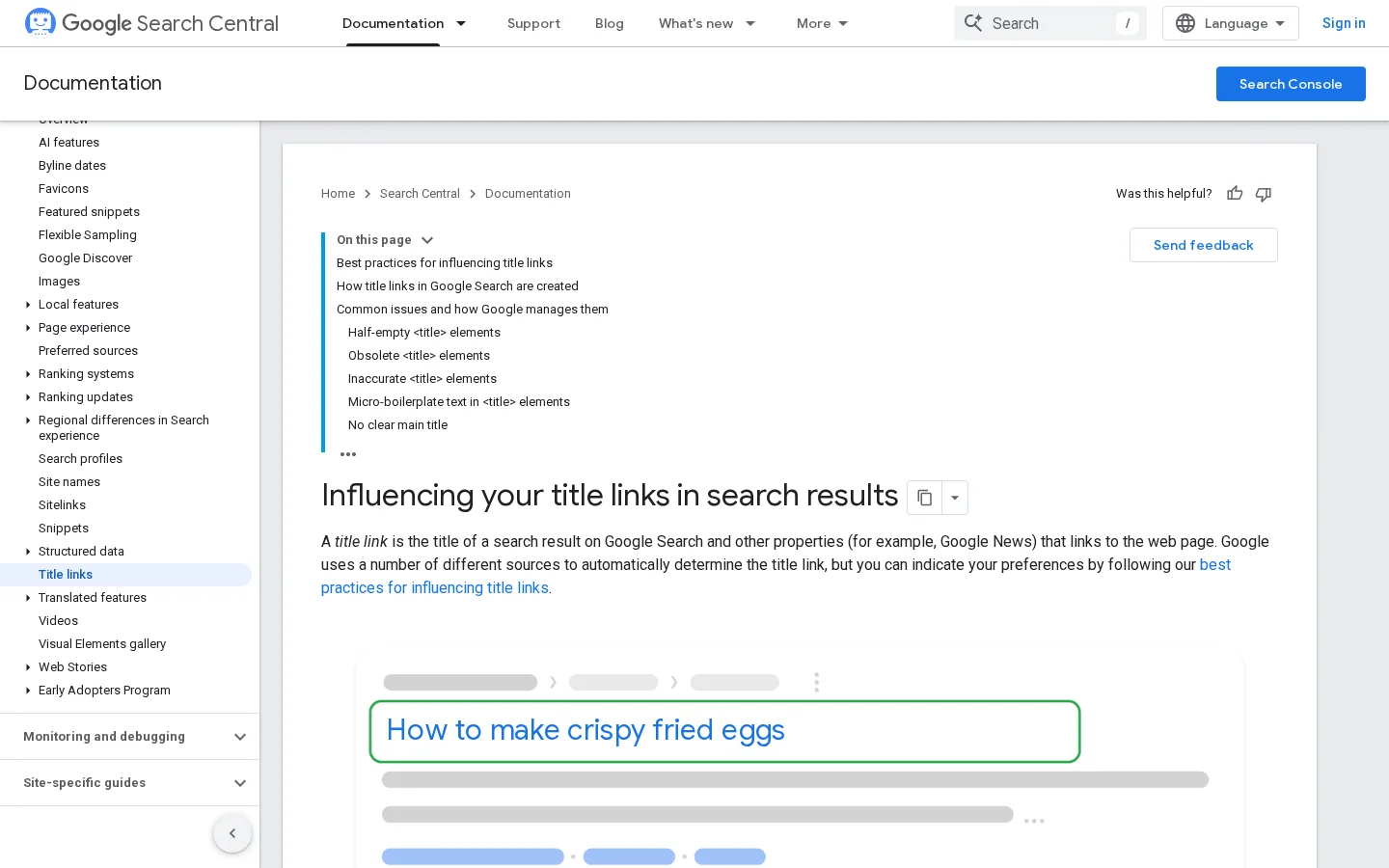
Keep titles to about 50 to 60 characters so they are not cut off. Put the main phrase first, then the brand. Do not repeat the same phrase three times in one title. A title that reads like a sentence a person would say out loud is almost always better than one stuffed with keywords.
Google Search Central's snippet guide says identical or similar descriptions on every page are not helpful, and it asks site owners to write page-specific descriptions wherever possible. It also says there is no limit on how long a description can be, but snippets are truncated to fit the device. So aim for one or two sentences that tell the reader exactly what they will get. For a checklist page, that might be "A step-by-step checklist for titles, links, domain and Search Console on a Google Sites site." Say what the page gives the reader, not that it is "the best guide ever".
Note
If your Google Sites version has no description field for a page, you cannot set the snippet directly. Write the summary as the first paragraph of the page, as a complete answer to the query. Google often builds the snippet from the page text, so a clear first paragraph is the closest thing to a description you can control.
Looking at a title and description in your own editor tells you little about how they look in results. Build the snippet in a preview, check that the title is not cut off and that the description reads well on its own.
Tip
Before you publish, check how your title and description look in results with our free SERP preview tool. It takes a minute and catches the titles that get cut off.
Internal linking decides which pages look important inside your site, and it tells Google which pages belong together. On Google Sites you build that structure by hand, with the menu, buttons and text links. Three methods work well. Each one trades simplicity for precision, and you should pick the one that matches how much content you plan to publish.
The principle. One central page, the hub, links to every important page, and each page links back to the hub. When to use it. Small sites under about 20 pages, or a site that covers one topic with a limited number of pages. Advantages. It is simple to build and to maintain, and every page sits one click away from the homepage. Limits. The hub collects most of the attention, and the structure says little about which pages are related to each other. Example. A consultant's site with a "Resources" hub that links to 12 articles, and each article links back to it.
The principle. One pillar page covers a broad topic. Cluster pages cover subtopics in depth. Each cluster page links to the pillar, and the pillar links to each cluster page. When to use it. When you publish articles on one topic over several months, because each new article has a clear place to go. Advantages. The pages support each other, and the topic becomes clear to Google and to readers. Limits. You need a plan for which subtopics belong together, and you must keep the links up to date as pages change. Example. A pillar called "Google Sites SEO" with cluster pages on titles, sitemaps, custom domains and mobile speed. Sorank's topic cluster generator plans these groups and helps you avoid two pages competing for the same query.
The principle. You group pages into sections by subject and link inside each section more than across sections. The menu shows the sections, and the links inside a section reinforce them. When to use it. A site with clearly separate parts, such as services, case studies and locations. Advantages. Visitors find their way easily, and each section has a clear identity. Limits. You control URLs less on Google Sites than on a CMS, so the silo lives mainly in the menu and in the links you write. If two sections overlap, you split the signal between them. Example. A company site with a "Services" section and a "Case studies" section, where each service page links to the two case studies that prove it.
| Method | Best for | Main advantage | Main limit | Effort |
|---|---|---|---|---|
| Hub | Small sites, one topic | Every page one click from the homepage | The hub takes most of the attention | Low |
| Topic cluster | Articles on one topic over time | Pages support each other | Needs a topic plan and upkeep | Medium |
| Silo by structure | Sites with separate sections | Clear navigation and groups | Overlapping sections split the signal | Medium |
Example
On a services page for a dental clinic, the link "emergency dental care in Lyon" is better than "our services". The first tells Google the target page is about emergency care in Lyon. The second tells Google nothing.
A sitemap is a file that lists the URLs you want search engines to know about. Google accepts several formats: XML sitemaps, RSS, Atom and plain text files with one URL per line. Google's guide to building a sitemap says a single file is limited to 50MB uncompressed or 50000 URLs, whichever you reach first. Larger sites split the list into several files and group them in a sitemap index. The URLs must be fully qualified, with the protocol and the domain.
Sitemap limits per file
Source: Google Search Central, sitemap building guide
<urlset xmlns="http://www.sitemaps.org/schemas/sitemap/0.9">
  <url>
    <loc>https://www.example.com/google-sites-seo-checklist</loc>
  </url>
</urlset>
Google treats a submitted sitemap as a hint. It does not guarantee that every listed URL will be crawled. So the sitemap helps discovery, but your links still do most of the work. Before you do anything else, find out whether your site already provides a sitemap, and test the address in Search Console. If none exists, do not build a fake one by hand. Make sure each important page is linked from somewhere, and the pages will be found through those links. Our guides on how to create a sitemap and how to submit a sitemap to Google cover the cases where you need a file.
A robots.txt file tells crawlers which paths they should skip. Your version of Google Sites may not give you a robots.txt editor, and for most small sites that is not a problem. The mistake to watch for is a setting that hides published pages from search engines, left on by accident after a test. Check the sharing and search visibility settings of the site, and then check the Pages report in Search Console to see whether the important URLs are indexed. If a page is missing, our guide to Google indexing walks through the usual causes.
The page itself is rarely the problem. The weight usually comes from your images and your embeds. Each embedded map, video, form, calendar or chart loads its own scripts, and each one can slow the page on a phone. Resize images before you upload them, so that a 4000-pixel photo does not travel to a 400-pixel slot. Give each image a descriptive file name and a short alt text that describes what the image shows. Then open the page on a phone, because the layout you see on your laptop is not the one most visitors see.
Before you publish a page
Most problems on Google Sites come from a few habits. Each mistake below shows what it looks like, how to spot it, and how to fix it. The table at the end gives you the short version.
What it is. Every page keeps the default name, or several pages share one title. How to spot it. Open the Pages report in Search Console, or look at the browser tabs when you move between pages. If you cannot tell the pages apart, Google cannot either. How to fix it. Rename each page for its content and write the title as described above.
What it is. Headlines, prices or lists are typed into a graphic and placed on the page as an image. How to spot it. Try to select the words with your cursor. If you cannot select them, a crawler cannot read them either. How to fix it. Write the words as text in a text block, and keep the image as decoration with a short alt text.
What it is. A page exists, but no menu item or text link points to it. Visitors only find it through a direct address. How to spot it. Compare your list of pages with the links you actually see from the homepage and the menu. Anything missing is an orphan. How to fix it. Link it from the menu if it is important, or from two related pages if it is a supporting article.
What it is. You rename a page or move it, and the old address stops working. How to spot it. The Pages report shows "Not found (404)" for URLs that had been indexed, and links from other sites lead nowhere. How to fix it. Choose the address before you publish. If you must change it, keep the old page in place with a clear link to the new one for as long as links point to the old address. Then update your own internal links to the new address.
What it is. The first screen holds a logo, a big image and a button, and nothing says what the business does. How to spot it. Read the first screen as a stranger would. If you cannot say what the site offers in one sentence, Google will have the same trouble. How to fix it. Add one clear sentence near the top, then a short paragraph that names the service, the audience and the place.
What it is. A page contains only an embedded form, calendar or chart, with no text around it. How to spot it. Select all the text on the page. If almost nothing is selected, the page has no content for Google to rank. How to fix it. Add a real explanation above the embed: what it is, who it is for, and what happens next.
| Error | How to spot it | How to fix it |
|---|---|---|
| Same title on every page | Pages report, browser tabs | Name each page for its content |
| Text inside images | Words cannot be selected | Write the text as text |
| Orphan pages | No link points to the page | Link from the menu or from related pages |
| Changed addresses | 404 errors in the Pages report | Keep old pages linking to the new one |
| Homepage with no text | No clear sentence on the first screen | Add a one-sentence summary |
| Embeds as the whole page | Almost no selectable text | Explain the embed in text |
Google Sites wins on speed to publish and on the cost of starting. A CMS wins on control: the HTML of each page, structured data, redirects, and a large ecosystem of templates and SEO plugins. Neither choice is wrong. Choose by what you will need in twelve months, not by what you need this week. If you want to compare the options, start with our guide to what a CMS is, then read the best CMS for SEO and the best website builder software comparisons.
Google Sites or a CMS for SEO
If you stay on Google Sites, you can still rank a small site well. Write one clear title per page, link the pages together, keep the text in text blocks, watch the Pages report, and publish with a plan instead of at random. If you need more control, decide early. The more pages are indexed, the more work a move becomes.
Yes, Google can index and rank pages built on Google Sites, as long as they are public and reachable. Ranking depends on the same things as on any site: the page content, its title, the links that point to it and how well it answers the query.
Yes, but with fewer controls than on WordPress or a dedicated CMS. You can set page titles, use real headings, link pages together, connect a custom domain and connect Search Console to see how Google reads your pages.
Not strictly. Google Sites works with its default address, but a custom domain gives you a brand URL that you control. Google's Workspace product page says Google Sites supports custom domains and that Google can help you set one up.
We analyse your competitors, your website and your AI visibility to create a tailored content plan for free.
 AI Content Brief Generator
 FAQ Schema Generator
 AI Blog Post Ideas Generator
 Structured Data Validator (Schema Validator)
 Alt Text Checker
 Internal Link Analyzer
 Backlink Challenge
 AI Meta Description Generator
 AI Blog Title Generator
 Google Indexability Checker
 AI Blog Outline Generator
 UTM Link Builder
 Keyword Clustering Tool
 Canonical Tag Checker
 XML Sitemap Generator
 Broken Link Checker
 AI SEO Title Generator
 Headline Analyzer
 SERP Preview Tool
 Redirect Checker
 Hreflang Tag Generator
 Heading Structure Analyzer
 HTTP Headers Checker
 Favicon Extractor
 SERP CTR Calculator
 SEO vs Paid Search Savings Calculator
 SEO Share of Voice Calculator
 SEO ROI Calculator
 SEO Traffic and Revenue Forecast Calculator
 SEO Budget Calculator
 SEO Break-Even Calculator
 SaaS SEO ROI Calculator
 ROAS Calculator
 Reading Time Calculator
 Ranking Gain Simulator
 Organic Traffic Value Calculator
 Organic Traffic Estimator and Website Traffic Checker
 LTV to CAC Ratio Calculator
 Local SEO ROI Calculator
 Link Building Cost Calculator
 Keyword Value Calculator
 Keyword Opportunity Score Calculator
 Keyword Density Calculator
 GEO ROI Calculator
 GEO Content Investment Calculator
 Ecommerce SEO ROI Calculator
 Customer Lifetime Value Calculator
 Customer Acquisition Cost Calculator
 CTR Calculator
 Cost Per Article Calculator
 Conversion Rate Calculator
 Content Marketing ROI Calculator
 ChatGPT Referral Traffic Estimator
 Bounce Rate Calculator
 Backlink ROI Calculator
 AI Visibility Score Calculator
 AI Traffic Value Calculator
 AI Share of Voice Calculator
 Cost of AI Invisibility Calculator
 AI Citation Rate Calculator
 llms.txt Validator
 AI Overview Checker and AI Overviews Rank Checker
 Robots.txt Checker
 AI SEO Audit
 LLM Readability Checker
 SearchGPT Readiness Checker
 Structured Data LLM Audit
 Website Crawlability AI Audit
 Why ChatGPT Is Not Recommending My Website
 Gemini Ranking Tool
 Perplexity Ranking Checker
 LLM Citation Checker
 Answer Engine Optimization Audit
 GEO Audit
 AI Search Visibility Test
 ChatGPT Visibility Checker
 llms.txt Generator
 URL Extractor
 Webpage to Markdown
 Sitemap Checker
 SERP Volatility Sensor
 Page Size Checker
 Word Counter
 Slug Generator
 Schema Generator
 Robots Generator
 OG Preview
 Meta Tags Generator
 Image Compressor
 Favicon Generator
 On-Page SEO Audit: SEO Checker and SEO Analyzer
 Backlink Analysis Tool
 Keyword Research Tool
 Domain Authority Checker
 “I tested Sorank on a real client site and it's insane. It does everything an agency would bill you $1500 a month for. It's going into production on that client now.”

 Guillaume Guersanguersanguillaume.com“We are an Ads agency and we wanted to get our SEO back on track once and for all. Sorank gave us a clear view of our site, helped us prioritize optimizations, and properly structure our content. The tool is easy to use, well designed for a team, and very practical for centralizing tracking without having to juggle multiple platforms. A very solid foundation to start fresh with our SEO.”
 Gaspard MadouiAds Agency
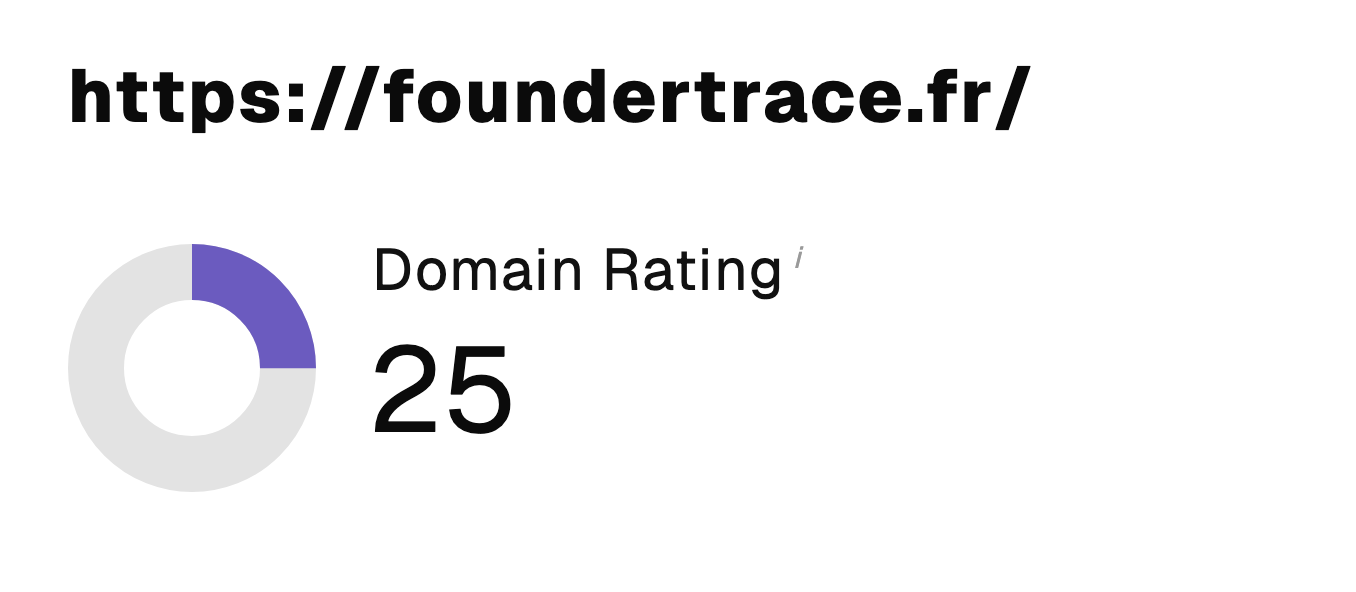 “I just let the Sorank software do its thing, and now my DR is 25 and my page is ranking higher.”
 Lucas Flandrefoundertrace.fr“I specialized in GEO thanks to Sorank. The GEO Leaderboard allows me to show my clients their position vs competitors on ChatGPT. It’s a real commercial differentiator.”
 MélanieSEO Freelance“Great service, works well for our website and helps us understand how to improve it to rank better on Google and elsewhere. Congrats, keep going, I recommend it.”
 Hugo T.E-commerce merchant