Preferences
Privacy is important to us, so you have the option of disabling certain types of storage that may not be necessary for the basic functioning of the website. Blocking categories may impact your experience on the website. More information
Privacy is important to us, so you have the option of disabling certain types of storage that may not be necessary for the basic functioning of the website. Blocking categories may impact your experience on the website. More information

Learn which Open Graph tags to add, the image size to use (1200 x 630), how to set them in HTML or frameworks, and how to test your link previews.
In short
Open Graph tags are meta tags in the head of a page. They tell Facebook, LinkedIn, Slack, WhatsApp and other apps which title, description and image to show when someone shares your link. Put four properties on every page: og:title, og:type, og:image and og:url. Use a full image URL at 1200 x 630 pixels, then check the page in Facebook's Sharing Debugger after every change.
Want to go further? Ask
Quick quiz
Which way of finding customers online fits you best?
Sorank matches your answers


Test it for 3 days on your own site and see where you stand on Google, ChatGPT and the other AIs.
Start 3-day free trial3 days free, then stop whenever you want. 90-day results guarantee, conditions apply.
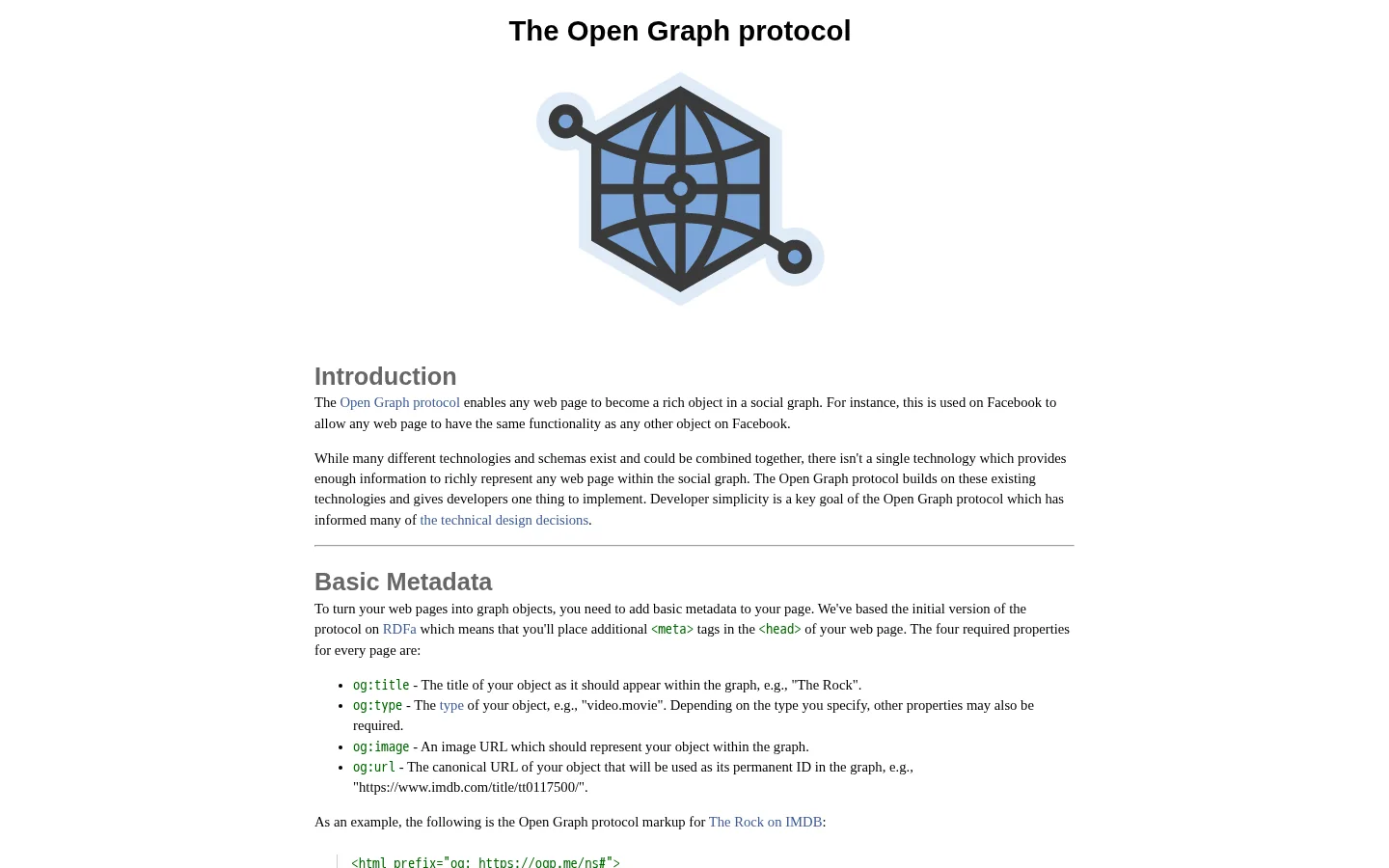
Open Graph is a small protocol. It lets any web page describe itself to the platforms that show it. The Open Graph protocol site (ogp.me) defines the properties, their meaning and how to write them in the head of your HTML.
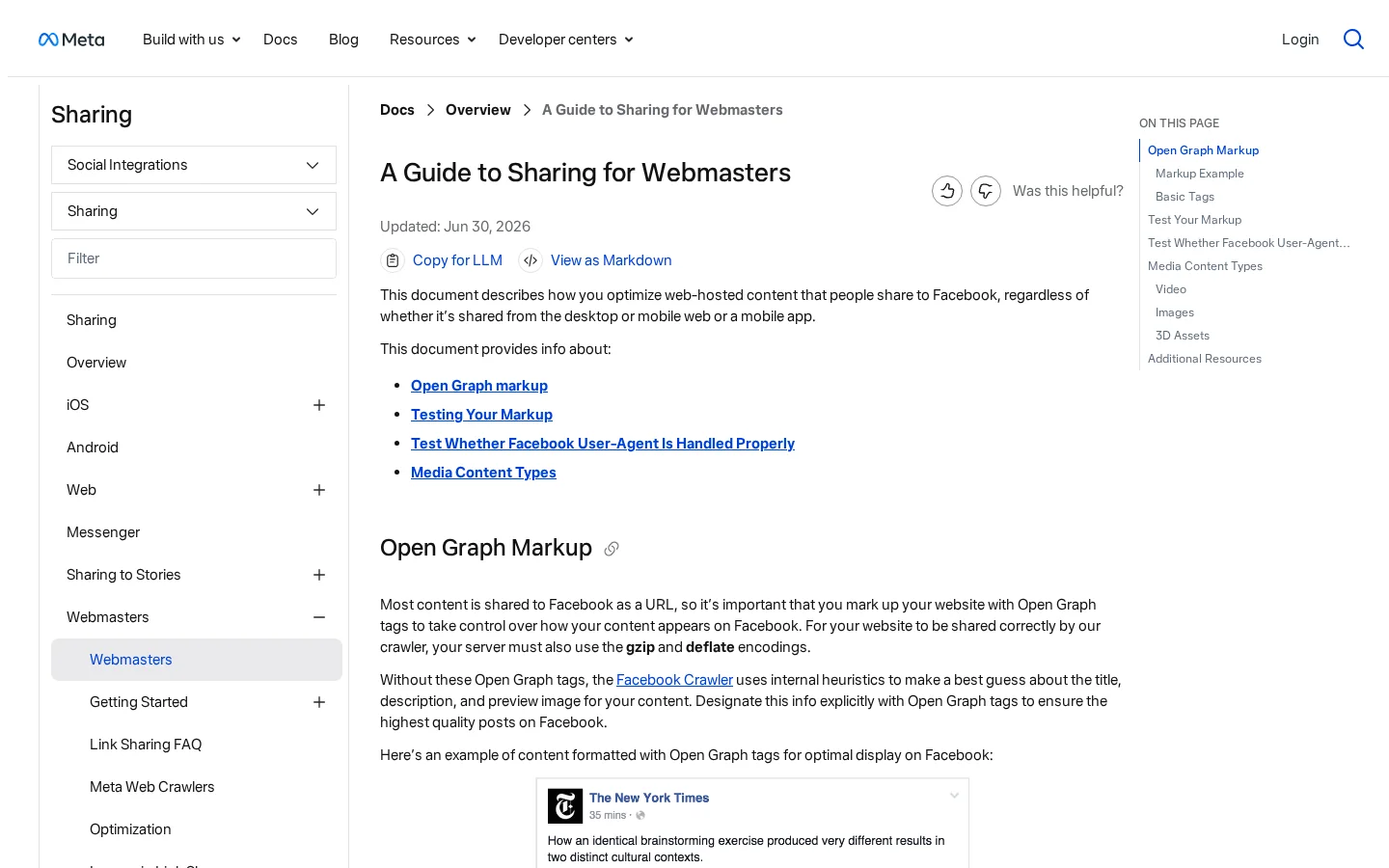
When someone pastes your link into a post, a chat or a message, the platform fetches the page and looks for these tags. If it finds them, it builds a card with your title, your description and your picture. If it does not, it guesses. Meta says so in its sharing guide for webmasters: without these tags, its crawler uses internal heuristics to make a best guess about the title, the description and the preview image.
A guess is often bad. The platform may pick a menu label as the title, a logo as the image, or the first sentence of a cookie banner as the description. You lose control of the first thing a reader sees.
Open Graph does not set your position in Google. It sets how your link looks when it is shared. A card with a clear headline and a sharp picture is easier to click than a bare URL. That is the reason to care. A shared link that gets clicked sends people to your page, and some of them link to it later.
Many people treat the two as the same. They are different tags with different jobs. The meta description is written for search results. The Open Graph description is written for the card that a platform builds when someone shares the page. You can use the same sentence for both, but you do not have to, and the image has no equivalent in the meta description at all.
Most broken cards come from one of four causes. The tags are missing, so the platform guesses. The tags are present but point to a relative image path that the platform cannot load. The tags are duplicated, so two sets compete. Or the tags exist only after JavaScript runs, so the crawler never sees them. Each cause has a clear test, and we cover all four in the sections below.
The Open Graph protocol lists four required properties for every page. Put these in the head of every indexable page, including your blog posts, category pages and product pages.
Minimum tags for every page
Two of the required tags deserve a closer look. The og:type tag is easy to skip, and the default matters. Meta says that if you do not specify a type, the default is website. That is fine for a home page, but a blog post should say article, so that the platform treats it as an article.
The og:url tag is the permanent ID of the page in the protocol's model. Use the canonical URL, the one you want people to share. If your page has a canonical tag, og:url should match it. If the two disagree, you split the share count of one page across several addresses.
The og:locale tag defaults to en_US when you leave it out, according to the protocol. Set it on pages in other languages, such as fr_FR for a French page, so the platform does not assume English.

The table below lists every tag you are likely to use. The required column follows the protocol. The rest are recommended or optional, but they cost nothing and they make the card more predictable.
| Tag | What it controls | Required? | Example value |
|---|---|---|---|
| og:title | The headline of the card | Yes | Open Graph Tags: How to Set Them Up and Test Social Previews |
| og:type | The kind of object, website or article | Yes | article |
| og:image | The picture in the card, as a full URL | Yes | https://www.example.com/images/open-graph-tags.jpg |
| og:url | The canonical address of the page | Yes | https://www.example.com/blog/open-graph-tags |
| og:description | One or two sentences under the headline | Recommended | A short summary of what the reader gets |
| og:site_name | The name of the whole site | Optional | Example Shop |
| og:locale | Language and region, default en_US | Optional | fr_FR |
| og:image:width and og:image:height | Pixel size of the image, so the platform can reserve space | Recommended | 1200 and 630 |
| og:image:alt | Text description of the image | Should be set with og:image | Preview card of an article about Open Graph tags |
The og:title tag can differ from your SEO title. The SEO title has to fit the search results, and it often ends with your brand name. Facebook's guidance is to leave branding, such as the site name, out of the og:title. Put the brand in og:site_name instead, where the platform can place it separately.
Keep the headline short enough to read in one line on a phone. Use the words a reader would say out loud, not the keyword list. If the page targets a query like "open graph tags", keep that phrase near the start of the headline, and make sure the headline still makes sense on its own.
Note
Your SEO title and your og:title can be different on purpose. Keep the SEO title for Google and write a plainer, more direct headline for the card. What matters is that the card matches what the page promises.
The protocol describes the og:description as one to two sentences. Write it as a promise of what the reader gets, not as a summary of the page structure. "Five checks you can run in ten minutes" works better than "This article is about Open Graph tags and their use in HTML pages".
The picture is the part people look at first. A badly sized image gets cropped, stretched or replaced by a small thumbnail. The rules below come from Meta's guide for Facebook, which is the strictest of the platforms we checked on this point. Other platforms use similar sizes, but check each one before you rely on it.
Meta recommends an image of at least 1200 x 630 pixels for the best display on high-resolution screens. It asks you to keep the image as close as possible to a 1.91:1 aspect ratio, so that the whole picture shows in the feed without cropping. Images at 600 x 315 pixels still show, but much smaller. The absolute minimum allowed is 200 x 200 pixels, and the file must not exceed 8 MB.
Facebook image specs
Source: Meta for Developers, sharing images guide
Use a full URL that starts with https, such as https://www.example.com/images/open-graph-tags.jpg. A platform fetches the image from outside your page, so a path like /images/cover.jpg has no site attached to it when the platform reads it. Add og:image:width and og:image:height so the platform knows the size before it downloads the file. Add og:image:alt too. The protocol says that if the page specifies an og:image, it should specify og:image:alt.
The guide we checked lists no accepted file formats. We use JPG or PNG as a safe default. That is our choice, not a rule from Meta, and a crawler that reads both is the usual safe bet.
Crops differ between apps, and a headline in the corner of your image can get cut off. Put the words you need to read in the middle third, leave a margin on every side, and check the picture at a small size on a phone. If the image only makes sense with the words, the words belong inside the image.
Many sites set one default picture for every page, usually the logo. It is quick to set up, and every shared link then looks the same. A shared logo tells the reader nothing about the article, so the card gets scrolled past. The fix is an image per page, which can be a designed picture or one generated from the page title.
One image for all pages or one per page?
There is no single right way to add Open Graph tags. The method depends on how your site is built, who edits the pages and how many pages you have. Below are the five methods we see in practice, from the simplest to the most automated. Each one has a principle, a best use, a main risk and an example. The comparison table at the end puts them side by side.
You write the tags directly in the head of each HTML file. This is the most transparent method. You can see every tag in the source, and nothing runs behind your back. It suits a small site, a landing page or a handful of documents that rarely change.
The risk is scale. Each new page needs its own tags, and someone will forget. A page without tags will not break your site, so nobody notices until a shared link looks wrong. Here is what a complete head looks like for one blog post:
<head>
  <meta property="og:title" content="Open Graph Tags: How to Set Them Up and Test Social Previews">
  <meta property="og:type" content="article">
  <meta property="og:url" content="https://www.example.com/blog/open-graph-tags">
  <meta property="og:description" content="Five steps to add the right tags, size the image and check the card before you share.">
  <meta property="og:image" content="https://www.example.com/images/open-graph-tags-1200x630.jpg">
  <meta property="og:image:width" content="1200">
  <meta property="og:image:height" content="630">
  <meta property="og:image:alt" content="Preview card of an article about Open Graph tags">
  <meta property="og:site_name" content="Example Shop">
  <meta property="og:locale" content="en_US">
</head>
Keep the content values plain, with no line breaks inside them. Use straight double quotes, and escape any quote that appears inside the text.
Most content management systems offer a field for the title, description and image on each page, and many SEO plugins write the tags for you. This is the right choice for a WordPress site or any CMS where editors publish without touching code. The fields make the tags part of the publishing workflow, so a new page is more likely to have them.
The risk is duplication. A theme and a plugin can both print og:title, and then the page has two sets of tags that may disagree. Platforms do not guess which set you meant. Look at the source of a live page, count the og:title tags, and turn one source off if you see two.
Modern frameworks have a metadata system. In Next.js, you export a metadata object from the page, and the framework renders the tags into the head on the server. The example below uses the App Router. Check your version of the framework, because the exact names change between releases.
export const metadata = {
  title: 'Open Graph Tags: How to Set Them Up and Test Social Previews',
  openGraph: {
    type: 'article',
    url: 'https://www.example.com/blog/open-graph-tags',
    images: [
      {
        url: 'https://www.example.com/images/open-graph-tags-1200x630.jpg',
        width: 1200,
        height: 630,
        alt: 'Preview card of an article about Open Graph tags',
      },
    ],
  },
};
The risk is client-side rendering. If the tags are added only after the browser runs your JavaScript, a crawler that does not run scripts sees an empty head. Test the framework output, not your local preview, with the source view of the deployed page. Our guides on Next.js SEO and React SEO cover the rendering questions in more depth.
If you run a custom application, the tags usually live in one shared layout or template. A product page, a category page and a blog post all inherit the same head, and you fill in the variables per page. This keeps the tags consistent and makes a template change reach every page at once.
The risk is the same at larger scale. A bug in the template removes the tags from thousands of pages in one deploy. Add a test that fetches a few URLs from each template and checks that the four required tags exist, and run it in your deploy pipeline.
The most advanced method creates a picture for each page at the moment it is requested or built. The picture carries the page title, a short line and your brand colours, at 1200 x 630 pixels. Blogs with hundreds of articles and catalogues with thousands of products use it, because a designer cannot make that many images by hand.
The risks are real. Generation adds time and a point of failure. Fonts and special characters break easily, and a long title can overflow the frame. Cache the result, store it at a stable URL, and test a long title and an empty one before you roll it out.
| Method | Best for | Main risk | Effort |
|---|---|---|---|
| Static HTML | Small sites, a few landing pages | Tags forgotten on new pages | Low per page, high at scale |
| CMS plugin or theme field | WordPress and other CMS with editors | Two plugins printing duplicate tags | Low |
| Framework metadata | Next.js, React and similar apps | Tags added only in the browser | Medium, once |
| Server-side templates | Custom sites with one layout | One template bug hits every page | Medium, then low |
| Generated images | Blogs and catalogues with many pages | Broken or slow generation, bad crops | High once, then low |
Start with a single page. Once one card works, repeat the process for the rest. The steps below take about thirty minutes for a page that already has a good image.
The six-step method
Example
A blog post on example.com targets "open graph tags". The headline is "Open Graph Tags: How to Set Them Up and Test Social Previews", which is 60 characters. The picture is a 1200 x 630 JPG with the title in the centre and a clean background. The og:type is article. Once the tags are in the served HTML, the debugger shows the card, and the test message in a private draft shows the same headline and picture.
Most card problems come from a short list of errors. Each one below describes what the error is, how to spot it, and how to fix it. Check for them in this order, because the first two are the most common.
The tag reads content="/images/cover.jpg" instead of a full URL. Your browser shows the picture on your site without trouble, so the error hides well. What it is: the platform receives a path with no domain, and it cannot load the file from outside your page. How to spot it: the debugger shows no image or a broken one, while the picture looks fine on your site. How to fix it: write the full URL with https and the domain, and test it by opening the URL in a private browser window.
The tag is absent, so the platform uses the default, which is website. What it is: your article is treated as a generic page. How to spot it: the debugger shows type website on a blog post. How to fix it: set og:type to article on every post, and to website on the home page and other general pages.
The og:url points to the http version, to a version with a tracking parameter, or to another page. What it is: shares of one page are counted against different addresses. How to spot it: the canonical tag in the source and the og:url differ, or the debugger shows a different URL from the one you pasted. How to fix it: make og:url equal to the canonical URL, using https and no tracking parameters.
The page builds its head in the browser, so the tags appear in the rendered page but not in the source the server sends. What it is: crawlers that do not run scripts see an empty head. How to spot it: view the source of the deployed page, not the inspector, and search for og:title. If it is missing, the tags are not in the server response. How to fix it: render the tags on the server, through the framework metadata system or the template, so they are present before any script runs.
A theme prints its own tags, and an SEO plugin prints a second set. What it is: the page has two og:title tags, and the platform may pick either. How to spot it: count the og:title tags in the source. How to fix it: keep one source for the social tags, usually the plugin, and disable the theme's output.
You replace the picture at the same URL, but the card still shows the old one. What it is: Meta caches images by URL. How to spot it: the file on your server is new, but the debugger shows the old picture. How to fix it: give the new image a new file name, update og:image, and scrape again. The callout further down explains the cache in more detail.
The og:image is set, but og:image:alt is absent or says "image". What it is: the card has no description for readers who use assistive technology, and an unhelpful alt text tells nobody anything. How to spot it: check the source for og:image:alt, and read the value out loud. How to fix it: write one short sentence that describes the picture and its message, in the same language as the page.
A head that breaks the card, then the fix
A card is only as good as your last test. Facebook's Sharing Debugger is the reference tool for Meta platforms. According to Meta's guide, it shows which meta tags the crawler scrapes, along with any errors or warnings, and it triggers a fresh scrape of your page. Use it after every change, and use it again after you fix an error, because the old scrape stays in place until the debugger refreshes it.
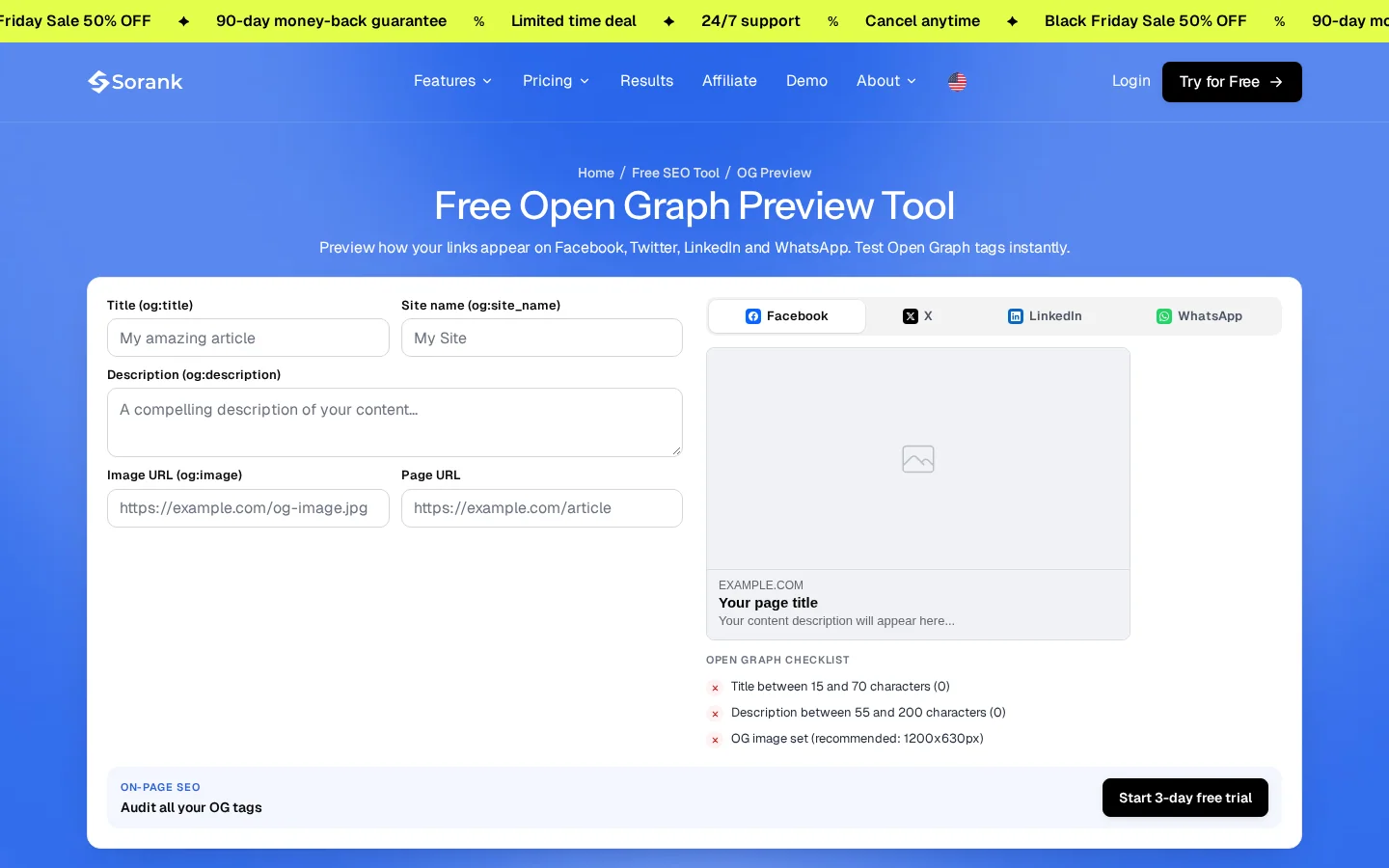
For a quick check, you can paste a URL into our free Open Graph preview tool and see the card before you publish. Use it for every new article, then check the live page with the platform's own debugger, because a preview tool shows what it reads, not what each platform will display.
Tip
Open the Free Open Graph Preview Tool while you write the card. Change the headline and picture, then paste the final URL once it is live to confirm the tags.
Warning
Meta caches images based on their URL. An image is not updated unless the URL changes. Replacing the file at the same address does nothing for the card. Rename the file, update og:image, and scrape again.
The same rule applies to the title and description. If the card still shows old text after you change it, the platform has a cached copy. Scrape the URL again in the debugger, and wait for the platform to refresh its copy before you assume the fix failed.
Tags go stale when the article changes and nobody updates the card. Add the card to your publishing checklist: when the title changes, the og:title changes. When the image changes, the file name changes. When you move a page, the og:url changes, and you set a redirect from the old address.
For a site with many pages, sample a few URLs from each template every month. Pick the newest post, an old post, a category page and the home page. A sample of four pages finds most template bugs in a few minutes. For building the tag block for one page, our meta tags generator writes the head for you, and the SERP preview tool shows the search snippet next to it.
Twitter cards are meta tags whose names start with twitter:. X reads them to build the preview when someone posts your link. Set twitter:card to summary_large_image for a wide picture, then add twitter:site, twitter:title, twitter:description and twitter:image.
Open Graph tags do not count as Twitter tags. X may fall back to Open Graph when the Twitter tags are missing, but that fallback is not guaranteed, and the card may come out smaller than you planned. Write both sets. The Twitter tags take a few minutes to add.
| Tag | What it controls | Practical note |
|---|---|---|
| twitter:card | The card type, summary or summary_large_image | Use summary_large_image for a wide picture |
| twitter:site | The X account the card is attributed to | Write the handle with the @ sign |
| twitter:title | The headline of the card | X cuts long titles, so keep it short |
| twitter:description | The text under the headline | Put the main point at the start |
| twitter:image | The picture, as a full URL | Use https and the domain, never a path |
| twitter:image:alt | A text description of the picture | One short sentence |
Here is the block for the same blog post as the Method 1 example above:
<meta name="twitter:card" content="summary_large_image">
<meta name="twitter:site" content="@yourbrand">
<meta name="twitter:title" content="Open Graph Tags: How to Set Them Up and Test Social Previews">
<meta name="twitter:description" content="Five steps to add the right tags, size the image and check the card before you share.">
<meta name="twitter:image" content="https://www.example.com/images/open-graph-tags-1200x630.jpg">
<meta name="twitter:image:alt" content="Preview card of an article about Open Graph tags">
Open Graph tags use property=, and Twitter tags use name=. Mixing them up is a common mistake, and it is easy to miss because the tag looks right. Check the source of the live page and make sure every twitter: tag has name= in front of it.
The summary card shows a small thumbnail next to the text. The summary_large_image card shows a wide picture that takes most of the post. Use the large card for articles and product pages with a designed image. Use the small card when your only picture is a logo or a square icon, because a logo blown up across a wide frame looks weak.
Long titles and descriptions get cut, so the end of your sentence may disappear. Write a title that reads in one line, and a description that still makes sense if it is cut after the first line. Keep the words in the middle of the picture, because crops differ between apps. Use a full https URL in twitter:image, the same rule as og:image. If the picture only works with its words, the words belong inside the image.
Post the link in a private draft or send it to a colleague, and check the card. X may keep an older copy of the page. After a fix, change the picture's file name, update twitter:image, and test again. Wait a while before you decide that the fix failed.
Tip
Write the handle in twitter:site exactly as it appears on your X profile, with the @ sign. Check the spelling against your profile before you publish the page.
Twitter cards are one part of your X presence. For the account side, read our guide on Twitter marketing. To see whether AI assistants cite X content, read our AI citation study on Twitter/X.
Open Graph sits next to the basic head tags that search engines and social platforms read. It does not replace them. The title tag, the meta description, the canonical tag and the structured data each have their own job. For the search side, read our guides on HTML tags for SEO and H1 tag SEO, and the glossary entry on meta tags.
Meta description or Open Graph description?
Open Graph has no direct effect on your ranking in Google. Its value is indirect. A good card can bring more visits from shares, and those visits can bring links and mentions over time. Measure the card by the clicks it brings, not by the ranking it might or might not change.
If you publish many pages, the work of keeping titles, descriptions and tags consistent is where a tool helps. Sorank's content optimization page describes how existing pages are reviewed and rewritten on autopilot.
Not directly. Open Graph tags control how a link looks when someone shares it on social platforms or in messages. A clear card can bring more visits from those shares, and those visits can lead to links and mentions over time. Measure the card by the clicks it brings.
Meta recommends at least 1200 x 630 pixels, with an aspect ratio as close as possible to 1.91:1, so the whole image shows in the feed without cropping. The file must not exceed 8 MB, and the URL must be a full https address.
Facebook caches images by URL, so replacing the file at the same address does not change the card. Give the new image a new file name, update og:image, then scrape the page again in the Sharing Debugger.
We analyse your competitors, your website and your AI visibility to create a tailored content plan for free.
 Website Value Calculator
 Website Accessibility Checker
 Google Analytics Checker
 Duplicate Content Checker
 Mobile-Friendly Test
 Website Speed Test
 Subdomain Finder
 Domain Age Checker
 CMS Detector
 Googlebot Simulator
 Nofollow Link Checker
 Meta Tag Checker
 Keyword Cannibalization Checker
 Keyword Intent Checker
 Keyword Extractor
 Google Ads Cost Calculator
 CPC Calculator
 Local Citation Finder
 Reddit Threads Finder
 Disavow File Generator
 Redirect Generator
 Canonical Tag Generator
 Passive Voice Checker
 Google Location Changer
 Google Review Calculator
 Google Review Link Generator
 Keyword Combiner
 Podcast Show Notes Generator
 AI Content Rewriter
 AI Text Humanizer
 ChatGPT Prompt Generator
 Twitter Thread Generator
 Tweet Generator
 Landing Page Copy Generator
 Google Ads Copy Generator
 Pinterest Pin Description Generator
 Anchor Text Generator
 Social Media Post Generator
 LinkedIn Post Generator
 Free AI Writer
 Review Response Generator
 LSI Keyword Generator
 YouTube Video Ideas Generator
 YouTube Tag Generator
 YouTube Description Generator
 Product Description Generator
 CTA Generator
 Blog Introduction Generator
 Conclusion Generator
 Hook Generator
 AI Content Brief Generator
 FAQ Schema Generator
 AI Blog Post Ideas Generator
 Structured Data Validator (Schema Validator)
 Alt Text Checker
 Internal Link Analyzer
 Backlink Challenge
 AI Meta Description Generator
 AI Blog Title Generator
 Google Indexability Checker
 AI Blog Outline Generator
 UTM Link Builder
 Keyword Clustering Tool
 Canonical Tag Checker
 XML Sitemap Generator
 Broken Link Checker
 AI SEO Title Generator
 Headline Analyzer
 SERP Preview Tool
 Redirect Checker
 Hreflang Tag Generator
 Heading Structure Analyzer
 HTTP Headers Checker
 Favicon Extractor
 SERP CTR Calculator
 SEO vs Paid Search Savings Calculator
 SEO Share of Voice Calculator
 SEO ROI Calculator
 SEO Traffic and Revenue Forecast Calculator
 SEO Budget Calculator
 SEO Break-Even Calculator
 SaaS SEO ROI Calculator
 ROAS Calculator
 Reading Time Calculator
 Ranking Gain Simulator
 Organic Traffic Value Calculator
 Organic Traffic Estimator and Website Traffic Checker
 LTV to CAC Ratio Calculator
 Local SEO ROI Calculator
 Link Building Cost Calculator
 Keyword Value Calculator
 Keyword Opportunity Score Calculator
 Keyword Density Calculator
 GEO ROI Calculator
 GEO Content Investment Calculator
 Ecommerce SEO ROI Calculator
 Customer Lifetime Value Calculator
 Customer Acquisition Cost Calculator
 CTR Calculator
 Cost Per Article Calculator
 Conversion Rate Calculator
 Content Marketing ROI Calculator
 ChatGPT Referral Traffic Estimator
 Bounce Rate Calculator
 Backlink ROI Calculator
 AI Visibility Score Calculator
 AI Traffic Value Calculator
 AI Share of Voice Calculator
 Cost of AI Invisibility Calculator
 AI Citation Rate Calculator
 llms.txt Validator
 AI Overview Checker and AI Overviews Rank Checker
 Robots.txt Checker
 AI SEO Audit
 LLM Readability Checker
 SearchGPT Readiness Checker
 Structured Data LLM Audit
 Website Crawlability AI Audit
 Why ChatGPT Is Not Recommending My Website
 Gemini Ranking Tool
 Perplexity Ranking Checker
 LLM Citation Checker
 Answer Engine Optimization Audit
 GEO Audit
 AI Search Visibility Test
 ChatGPT Visibility Checker
 llms.txt Generator
 URL Extractor
 Webpage to Markdown
 Sitemap Checker
 SERP Volatility Sensor
 Page Size Checker
 Word Counter
 Slug Generator
 Schema Generator
 Robots Generator
 OG Preview
 Meta Tags Generator
 Image Compressor
 Favicon Generator
 On-Page SEO Audit: SEO Checker and SEO Analyzer
 Backlink Analysis Tool
 Keyword Research Tool
 Domain Authority Checker
 “I tested Sorank on a real client site and it's insane. It does everything an agency would bill you $1500 a month for. It's going into production on that client now.”

 Guillaume Guersanguersanguillaume.com“We are an Ads agency and we wanted to get our SEO back on track once and for all. Sorank gave us a clear view of our site, helped us prioritize optimizations, and properly structure our content. The tool is easy to use, well designed for a team, and very practical for centralizing tracking without having to juggle multiple platforms. A very solid foundation to start fresh with our SEO.”
 Gaspard MadouiAds Agency
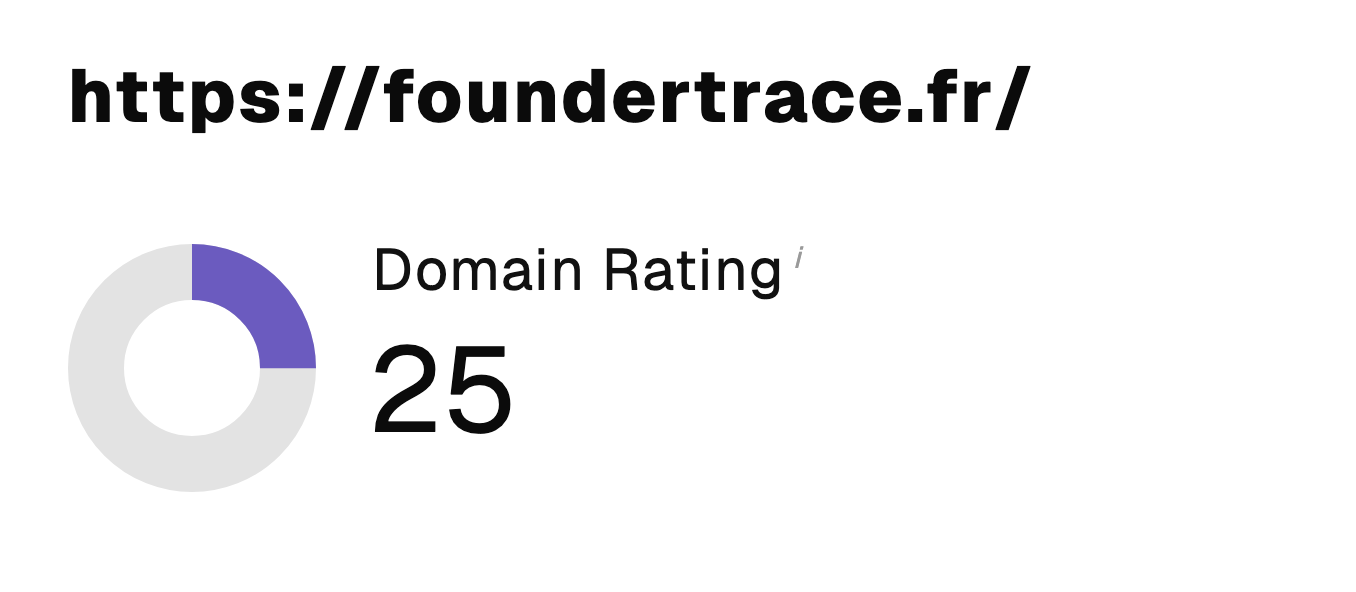 “I just let the Sorank software do its thing, and now my DR is 25 and my page is ranking higher.”
 Lucas Flandrefoundertrace.fr“I specialized in GEO thanks to Sorank. The GEO Leaderboard allows me to show my clients their position vs competitors on ChatGPT. It’s a real commercial differentiator.”
 MélanieSEO Freelance“Great service, works well for our website and helps us understand how to improve it to rank better on Google and elsewhere. Congrats, keep going, I recommend it.”
 Hugo T.E-commerce merchant