Preferences
Privacy is important to us, so you have the option of disabling certain types of storage that may not be necessary for the basic functioning of the website. Blocking categories may impact your experience on the website. More information
Privacy is important to us, so you have the option of disabling certain types of storage that may not be necessary for the basic functioning of the website. Blocking categories may impact your experience on the website. More information

Learn technical SEO optimization step by step: crawling, robots.txt, canonical tags, sitemaps, Core Web Vitals and site architecture, with fixes to run today.

In short
Technical SEO optimization is the work of making your site easy for search engines and AI crawlers to find, read, render, index and rank. It covers five layers: crawling, indexing, rendering, performance and site architecture. Fix what blocks indexing first, then what slows pages or wastes crawl budget.
Want to go further? Ask
Quick quiz
Is SEO right for you, and how should you start?
Sorank matches your answers


Test it for 3 days on your own site and see where you stand on Google, ChatGPT and the other AIs.
Start 3-day free trial3 days free, then stop whenever you want. 90-day results guarantee, conditions apply.
Technical SEO optimization is the set of changes that let machines do their job on your site: the crawlers that request your URLs, the indexing systems that decide what to store, and the bots that feed AI assistants. Content says what a page is about. Technical SEO decides whether that page gets requested, read in full, stored and shown. An excellent article behind a blocked folder or a wrong canonical tag earns nothing.
The work splits into five layers. Each one answers a question you can check with a tool:
A few thresholds set the priorities. The block below gives the four figures we use most in audits. The 2 MB limit comes from Google's Googlebot documentation, and the three Core Web Vitals thresholds come from web.dev. If you want the short definition first, the technical SEO glossary entry covers it in a few lines.
Four numbers to know before you audit
Sources: Google Search Central, Googlebot documentation; web.dev, Core Web Vitals guidance (last updated October 2024)
A page has to pass four steps in order, and a failure at one step hides it from every step after. Discovery finds the URL through a link, a sitemap or a redirect. Crawling requests it and receives a status code and an HTML file. Rendering runs the scripts when the content needs them. Indexing then decides whether to store the page and which version of it is canonical. Only indexed pages can rank.
The path from URL to ranking
Crawling is the step most people underestimate, and Google documents its limits in detail. In its Googlebot documentation, Google states that when crawling for Search, Googlebot reads the first 2 MB of a supported file type, stops the fetch at that point and sends only the part already downloaded for indexing. The capture below shows that page.
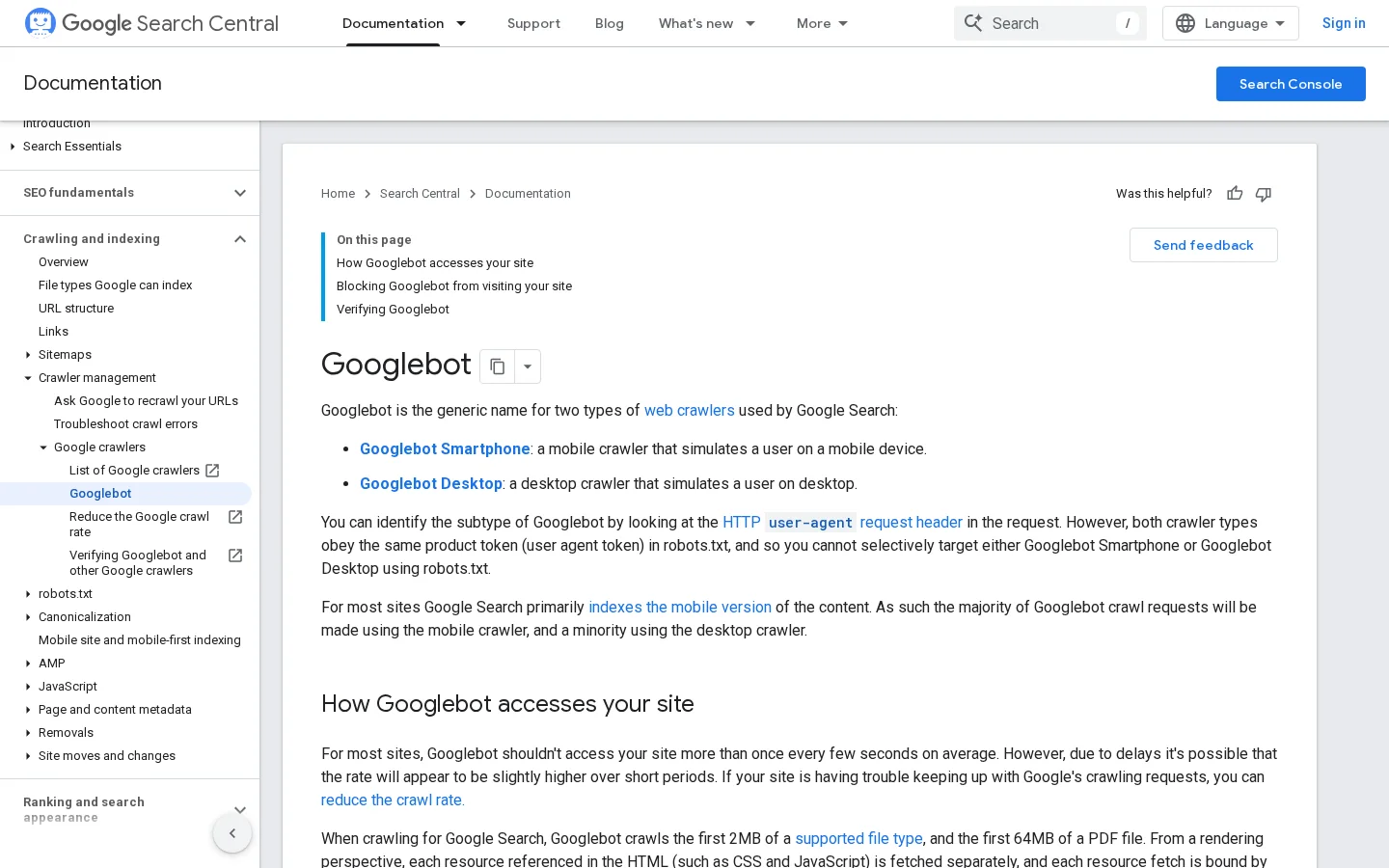
That sentence explains a lot of "missing content" problems. If your important text, links or structured data sit after a few megabytes of scripts, Google may never index them, even though a visitor sees them without trouble.
Each step maps to things you can fix. Discovery depends on your sitemap and internal links. Crawling depends on status codes and robots.txt. Rendering depends on how much of the content needs JavaScript. Indexing depends on canonical tags, noindex directives and duplicates. Ranking is the result of all of this plus content and links, which are outside this article.

Crawlability is the ability of a bot to request your pages and get a clean answer. Three things control it: the status code each URL returns, the rules in robots.txt, and the links that lead bots to each page. Get these right first, because nothing downstream can work on a page that was never fetched.
The table below lists the answers that matter. A page you want in search should return a 200 OK. A page that moved for good should return a 301 redirect to its new address. A page that is gone should return a 404 or a 410. Server errors in the 5xx family mean the page could not be served at all.
| Status | Meaning for the bot | What to do |
|---|---|---|
| 200 OK | The page is served and can be indexed | Keep it for every page you want in search |
| 301 | The page moved for good | Point the old address straight at the new one |
| 404 or 410 | The page is gone | Redirect it if a replacement exists, otherwise remove the internal links that still point to it |
| 5xx | The server failed to answer | Fix the cause, since repeated errors slow down crawling |
Redirect chains are the most common waste. If A redirects to B, which redirects to C, the bot spends three requests to reach one page, and each hop can lose a little signal. Check a suspect URL from the command line:
curl -s -o /dev/null -w "%{http_code} %{redirect_url}\n" https://www.example.com/old-running-shoes/
301 https://www.example.com/running-shoes/trail/
curl -s -o /dev/null -w "%{http_code}\n" https://www.example.com/running-shoes/trail/
200
The chain should end on one 200. Rewrite the first redirect so it points straight at the final address. The free Redirect Checker follows the whole chain for you, and the crawl errors guide lists each error type with its fix.
Tip
Start with the URLs that bring traffic or links. A redirect chain on a page nobody links to costs little. The same chain on a page with 50 backlinks is a priority.
The robots.txt file sits at the root of your host, for example at https://www.example.com/robots.txt. According to Google's robots.txt introduction, the file tells crawlers which URLs they can access, and it is used mainly to avoid overloading your site with requests. The same page is explicit that robots.txt is not a mechanism for keeping a page out of Google. Google can still index a blocked URL if other pages link to it, because it knows the address without visiting the page.
User-agent: *
Disallow: /cart/
Disallow: /search
Allow: /search/category-
Sitemap: https://www.example.com/sitemap.xml
Read it line by line. The first group applies to every crawler. Disallow blocks the cart and the internal search results. The Allow line reopens the category pages that happen to live under /search. Google applies the most specific matching rule, so the Allow wins for those URLs. The Sitemap line points crawlers to your list of URLs.
The most expensive robots.txt mistake is a rule left over from staging. A bare slash after Disallow blocks the whole site, and it is often copied from a test environment and forgotten after launch. Test each change with the Robots.txt Checker before it goes live, and read the blocked by robots.txt guide if Search Console already reports the problem.
Crawl budget is the number of requests a search engine is willing to spend on your site in a given period. For small sites it rarely limits anything. It matters when the site generates many URLs: filter combinations, session IDs, internal search results, print versions or endless calendar pages. Each of these can take requests away from the pages you want indexed. The crawl budget definition has the basics.
To find the waste, look at the crawl statistics in Search Console and at your server logs. Groups of URLs that get many hits and never bring a click are the first candidates for a block, a canonical tag or a noindex. The log file analysis guide shows how to sort those logs by URL pattern.
Indexing is the decision to store a page and show it in results. You steer it with four tools: canonical tags, noindex directives, redirects and sitemaps. Each one sends a different signal, and mixing them up causes most indexing confusion. Start by listing which URLs should be indexed, then check that every signal agrees with that list.
Duplicate content is rarely copied text. Most duplicates come from one page reachable under several addresses: with and without a trailing slash, with tracking parameters, through a filter, or under both http and https. A canonical tag names the version you want kept. It goes in the head of every duplicate, and the preferred page should point to itself:
<link rel="canonical" href="https://www.example.com/running-shoes/">The canonical must point to a live page that is allowed to be indexed. Google's guidance on consolidating duplicate URLs ranks the signals you can use. The page does not describe them as orders. It says a redirect and a rel="canonical" annotation are both strong signals, and that a sitemap entry is only a weak one.
| Signal | Strength, per Google's guidance | Use it when |
|---|---|---|
| 301 redirect | Strong | The old address should disappear for good |
| rel="canonical" link | Strong | Both versions must stay live, for example behind a filter |
| Sitemap inclusion | Weak | You want to suggest which version to keep |
Mixing signals creates confusion. A page that is redirected, still listed in your sitemap and canonicalized to itself sends three different messages. Pick one destination per URL.
People mix these up constantly. Robots.txt stops crawling. A noindex directive stops indexing, but Google has to crawl the page to read it. If you block a page in robots.txt and also add noindex to it, Google never sees the noindex. To keep a page out of results, leave it crawlable and add the directive in the page head, or in the HTTP headers for files that have no head:
<meta name="robots" content="noindex">Stop crawling or stop indexing?
A sitemap is a file that lists the URLs you want in search. It helps most on large sites, new sites and pages that few links reach. Google's guidance on building a sitemap sets a hard limit of 50000 URLs and 50 MB uncompressed for each file. Larger sites split the list into several files. The same guidance asks you to include only the URLs you want to see in results, normally the canonical version.
The lastmod field only helps when it is accurate. Google uses it when it is consistently and verifiably right, and the date should reflect the last significant update to the page. A copyright year change does not count. A sitemap that stamps every URL with today's date teaches Google to ignore the field.
<?xml version="1.0" encoding="UTF-8"?>
<urlset xmlns="http://www.sitemaps.org/schemas/sitemap/0.9">
  <url>
    <loc>https://www.example.com/running-shoes/trail/</loc>
    <lastmod>2026-11-03</lastmod>
  </url>
</urlset>
The how to create a sitemap guide covers generation, and the XML sitemap definition explains the format in short.
Rendering is the step where a crawler runs the page's JavaScript to build the content a visitor would see. Single-page apps, and pages that load their text from an API, depend on this step. When it works, the content gets indexed. When it fails, times out or is blocked, the page can lose its main text, its internal links and its structured data, and nothing looks broken to a human visitor.
The safest design puts the important content in the HTML the server sends, then lets scripts add interactivity on top. That is server-side rendering or static generation. The test is simple: disable JavaScript in your browser, or compare the raw source with the rendered page. If the headline, the main text and the links are missing from the raw source, your page depends on rendering, and you should check it more often.
A page that depends on scripts for its content
Check the result with the URL Inspection tool in Search Console, which shows the rendered HTML Google retrieved. The JavaScript SEO guide walks through the common rendering failures, and the crawlability definition covers the wider question of whether bots can reach your content at all.
The 2 MB limit applies to each file Googlebot fetches, and the HTML document has its own budget. Google measures it on uncompressed data, so gzip or Brotli speed up the transfer but do not change the count. Each external CSS or JavaScript file is fetched separately with the same limit, so a heavy page is not the problem. A heavy HTML file is.
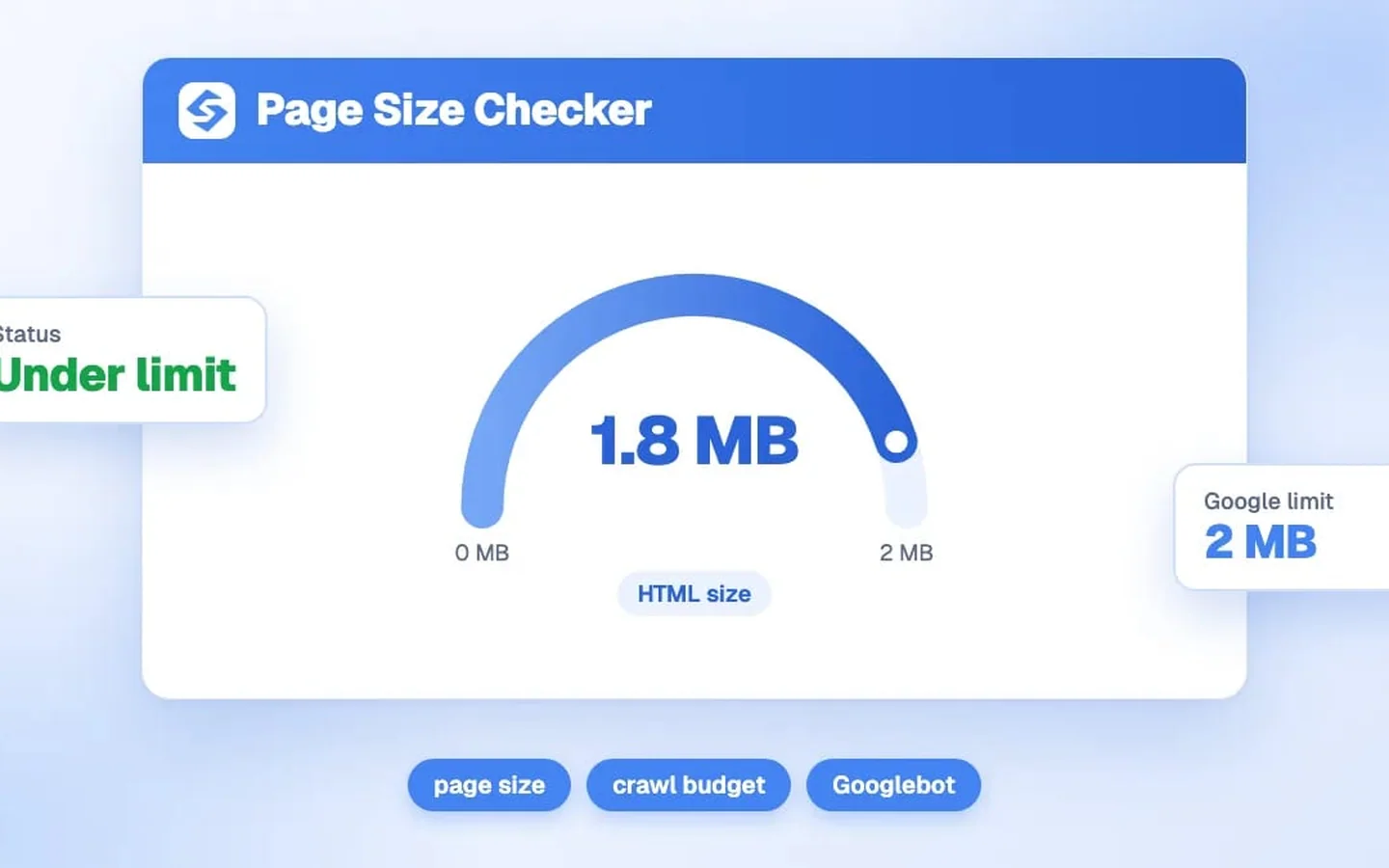
Most sites never get close to 2 MB. The ones that do usually run a template that prints too much: serialized application state, long product listings, inline SVG repeated in every card, or base64 images pasted into the markup. Once the limit is hit, the fetch stops, and the content after the cutoff is not considered for indexing, even if it looks fine in a browser. The capture below shows the free checker that measures any public URL.
What counts toward the 2 MB of HTML
When a template is too heavy, work from the largest block down:
Tip
Test your heaviest template first, such as a category page with hundreds of products or a long article with embedded widgets. The free Page Size Checker measures the uncompressed HTML of any public URL against the 2 MB limit and breaks the weight down by type.
Core Web Vitals are three metrics that measure what real visitors experience. Largest Contentful Paint (LCP) measures how fast the main content appears. Interaction to Next Paint (INP) measures how quickly the page responds to clicks and taps. Cumulative Layout Shift (CLS) measures how much the layout jumps while the page loads. In its Core Web Vitals guidance, web.dev sets the "good" thresholds at 2.5 seconds for LCP, 200 milliseconds for INP and 0.1 for CLS. Those values are judged on the 75th percentile of page loads, separately for mobile and desktop.
| Metric | What it measures | Good | First fix to try |
|---|---|---|---|
| LCP | Time until the largest visible element is painted | 2.5 seconds or less | Compress and preload the hero image, and send the HTML faster |
| INP | Delay between an interaction and the next visual update | 200 milliseconds or less | Break up long JavaScript tasks and remove unused scripts |
| CLS | Total unexpected movement of visible elements | 0.1 or less | Give images and embeds width and height, and reserve space for ads |
Lab tests run one simulated visit on one device. Field data comes from real visits, and it is what Search Console reports. A page can score well in a lab test and still fail in the field, for example when your visitors use slower phones or a third-party widget loads late. Use the Core Web Vitals report in Search Console to see which page groups fail, then use lab tools to find the cause. The Core Web Vitals definition gives the short version.
Most LCP problems come from one oversized image or a slow server response. Most INP problems come from long JavaScript tasks that block the main thread, often from third-party tags. Most CLS problems come from images without dimensions and from banners that load late. The list below starts with the fixes that move scores most often:
<link rel="preload" as="image" href="https://www.example.com/images/hero-1200.webp" fetchpriority="high">
<img src="https://www.example.com/images/hero-1200.webp" width="1200" height="630" alt="Trail running shoes on a mountain path">
The image compressor is a quick way to shrink a hero image before you preload it.
Core Web Vitals checks, one template at a time
Site architecture is how your pages link to each other. Three methods come up most often, and each one organizes the same pages differently. The flat method links widely, like an encyclopedia. The cocoon groups a topic around a central page. The silo follows the folder tree of your URLs. None is best on every site, so each method below covers its principle, when to use it, its advantages, its limits and an example, followed by a comparison table.
Principle: every page links to related pages across the site, and important pages stay a few clicks from the homepage. Crawlers follow links to find pages and to judge which ones matter, so a well-linked site with few orphan pages is easy to crawl. When to use it: your content is broad and topics overlap, as on a news site or a large help center. Advantages: fast discovery, no page left alone, and an easy start. Limits: without a clear hub per topic, relevance blurs, and editors need a rule for which links to add. Example: a running blog where a post about shoe fit links to the trail shoe guide, the sock guide and the injury prevention post, and each of those links back. Automation can handle the bulk of it, but the rules still matter. See our internal linking strategy and the automated internal linking guide.
Principle: a hub page covers a topic broadly, and supporting pages cover its sub-questions in depth. Each supporting page links to the hub and to its closest siblings, and the hub links back to all of them, which forms a closed cluster. When to use it: you want to own one topic, such as technical SEO, and every supporting article should reinforce the same hub. Advantages: a clear topical signal, fewer cannibalization conflicts, and an editorial plan that is easy to follow. Limits: the cluster is closed on purpose, so links to other topics must be rare, and the plan takes effort before the first article is published. Example: a hub on technical SEO with supporting pages on robots.txt, sitemaps, canonical tags and page speed, each linking back to the hub and to the two siblings closest in intent. The full method is in our semantic cocoon guide.
Principle: the address structure defines the topic groups. Pages under /running-shoes/ form one silo, and most of their links stay inside it. When to use it: your site already has a clean folder structure that maps to topics, as a shop or a directory does. Advantages: the structure is readable by people and bots, and the silo is easy to audit by path. Limits: an address is hard to change later, and a page that belongs to two topics does not fit a single folder. Example: /running-shoes/trail/ sits inside the /running-shoes/ silo, links up to its parent and links sideways to /running-shoes/road/ only when a reader would benefit. The silo rule lives in the menu and the templates, and the content adds the cross links.
| Method | Organizes pages by | Best for | Main risk |
|---|---|---|---|
| Flat linking | Links across all pages | Broad sites with overlapping topics | Diluted topical signals |
| Semantic cocoon | A hub and its supporting pages | One topic owned in depth | A closed cluster that is slow to plan |
| URL silo | Address folders | Shops and directories with a clean tree | Hard to change, and pages fit only one folder |
Build a hybrid structure
In practice, most sites combine the methods. Use a URL silo for the folder structure, a cocoon for each major topic inside it, and a few flat links between clusters where readers need them.
Run the audit in order, because each pass depends on the one before it. There is no point checking canonical tags on pages that cannot be crawled, and no point measuring speed on pages that should not be indexed. The six steps below cover the whole method.
The six-pass audit
If you would rather have a system run these checks across every page and apply the fixes, Sorank's Content Optimization module checks the title, the links, the images, the canonical tag and the noindex tag of each page. It lists the errors page by page and publishes the corrections on your site. The module is in beta, so review each proposed change before you click Fix.
The costliest technical errors look harmless in a quick review. The table below summarizes six of them, and each entry after it explains what the error is, how to spot it and how to correct it. Work through them in order, because the first ones block the rest.
| Error | How to spot it | Fix |
|---|---|---|
| Staging noindex left live | Search the key templates for the directive | Remove it from the template, then request reindexing |
| Canonical pointing to the wrong page | Run the canonical checker on a sample from each template | Generate the canonical from each page's own URL |
| Redirect chains and loops | Follow each chain and count the hops | Point each old address at the final address |
| Sitemap full of non-canonical URLs | Export the sitemap and check each status and canonical | Keep only indexable canonical URLs in the file |
| Faceted URLs that multiply | Count the URLs a category generates in the logs or a crawl | Keep useful filters indexable, canonicalize the rest |
| Heavy HTML hiding content | Measure the raw HTML of each template | Move scripts out and place key content early |
What it is: a noindex directive or a blocking rule from a test environment still runs on the live site after launch. How to spot it: search the source of the key templates for the directive, and check the indexing report in Search Console for a sudden drop in indexed pages. How to fix it: remove the directive from the template rather than from each page, then request reindexing of the key URLs.
A launch that hid the whole site
What it is: a template sets every page's canonical to the homepage, or to a page that redirects or is blocked. How to spot it: run the canonical checker on a sample of URLs from each template, and compare the canonical address with the page you want indexed. How to fix it: build the canonical from the page's own address, and strip tracking parameters only when they never change the content. The canonical tag guide explains the edge cases.
What it is: a redirect that passes through two or three hops, or a loop that never reaches a 200. How to spot it: follow each chain with the redirect checker, or with the curl command shown earlier. How to fix it: point each old address straight at the final address, and break loops by checking the rules that generate redirects. Migrations cause most chains, so keep one old-to-new table and check it against the live redirects after launch.
What it is: the sitemap lists redirected URLs, noindex pages and filter variants next to the canonical pages. How to spot it: export the sitemap and check the status and canonical of each URL. How to fix it: generate the sitemap only from indexable canonical URLs, and update lastmod only when the content really changes. Our submit sitemap to Google guide covers the Search Console step.
What it is: filters for colour, size and price create thousands of addresses that show nearly the same products. How to spot it: count the URLs your site generates per category, in the logs or in a crawl, and compare that number with the pages you actually want indexed. How to fix it: keep the filter pages that answer real searches indexable, canonicalize the others to their parent category, and block endless combinations in robots.txt only when they never need crawling. The faceted navigation guide gives a decision table.
What it is: serialized state, inline styles or repeated SVG push the main text or the internal links beyond the first 2 MB. How to spot it: measure the raw HTML size of each template, and check in Search Console that the crawled page contains the last paragraph and the footer links. How to fix it: move scripts and styles out of the HTML, trim the state sent to the page, and place the main text and links early in the document.
Warning
A fix on a template changes every page built from it. Test one URL per template after each change, then recheck the crawl, because one bad line in a shared file can affect thousands of pages at once.
AI assistants fetch and read pages through their own bots, and robots.txt can treat each bot separately by its user agent name. The basics do not change: a clean status code, readable HTML and the main content early in the document serve search crawlers and AI bots alike. What changes is the access decision. Some sites let AI bots read and cite their pages, others block training crawlers and keep search access. Both choices are legitimate, and both should be explicit.
| Your goal | How to write it in robots.txt |
|---|---|
| Let every bot read the site | No AI-specific group needed, keep the rules under the wildcard group |
| Block one bot from a folder | A group with that bot's User-agent line, then a Disallow for the folder |
| Allow search but refuse training | One group per bot name, written after checking each bot's own documentation |
User-agent: GPTBot
Disallow: /private/

User-agent: *
Disallow: /cart/
Allow: /
Each group starts with a User-agent line, and the rules below it apply only to that bot. Here GPTBot is kept out of /private/, while every other bot is kept out of the cart only. Decide which bots you want, write one group per bot, and test the file with the Robots.txt Checker. The robots.txt for AI crawlers guide covers which bots to allow or block, and the AI crawlers definition explains how each one behaves.
Fix what stops indexing first, then what wastes crawl requests or slows pages, then what improves structure. A site with a noindex on its product templates does not need better Core Web Vitals until those products are indexed again. The technical SEO checklist gives the short ordered list, and this guide explains how each item works.
Your priority order
Pick the template that brings you the most traffic, run the six passes on it, and fix the first error you find. Then repeat on the next template. Steady fixes on the templates that matter most usually beat one large cleanup that nobody can test.
Technical SEO optimization is the work of making your site easy for search engines to crawl, render, index and rank. It covers robots.txt, status codes, canonical tags, sitemaps, page speed and site architecture. Content decides what a page says, while technical SEO decides whether that page gets read and stored.
No. Robots.txt controls crawling, not indexing, and Google can still index a blocked URL if other pages link to it. To keep a page out of results, leave it crawlable and add a noindex directive, which Google can only read on a page it is allowed to fetch.
Fix anything that stops indexing first: noindex or blocking rules left over from staging, server errors and canonical tags that point to dead pages. Then shorten redirect chains, clean the sitemap and reduce heavy HTML. Speed and architecture come after your pages are indexed correctly.
We analyse your competitors, your website and your AI visibility to create a tailored content plan for free.
 Duplicate Content Checker
 Mobile-Friendly Test
 Website Speed Test
 Subdomain Finder
 Domain Age Checker
 CMS Detector
 Googlebot Simulator
 Nofollow Link Checker
 Meta Tag Checker
 Keyword Cannibalization Checker
 Keyword Intent Checker
 Keyword Extractor
 Google Ads Cost Calculator
 CPC Calculator
 Local Citation Finder
 Reddit Threads Finder
 Disavow File Generator
 Redirect Generator
 Canonical Tag Generator
 Passive Voice Checker
 Google Location Changer
 Google Review Calculator
 Google Review Link Generator
 Keyword Combiner
 Podcast Show Notes Generator
 AI Content Rewriter
 AI Text Humanizer
 ChatGPT Prompt Generator
 Twitter Thread Generator
 Tweet Generator
 Landing Page Copy Generator
 Google Ads Copy Generator
 Pinterest Pin Description Generator
 Anchor Text Generator
 Social Media Post Generator
 LinkedIn Post Generator
 Free AI Writer
 Review Response Generator
 LSI Keyword Generator
 YouTube Video Ideas Generator
 YouTube Tag Generator
 YouTube Description Generator
 Product Description Generator
 CTA Generator
 Blog Introduction Generator
 Conclusion Generator
 Hook Generator
 AI Content Brief Generator
 FAQ Schema Generator
 AI Blog Post Ideas Generator
 Structured Data Validator (Schema Validator)
 Alt Text Checker
 Internal Link Analyzer
 Backlink Challenge
 AI Meta Description Generator
 AI Blog Title Generator
 Google Indexability Checker
 AI Blog Outline Generator
 UTM Link Builder
 Keyword Clustering Tool
 Canonical Tag Checker
 XML Sitemap Generator
 Broken Link Checker
 AI SEO Title Generator
 Headline Analyzer
 SERP Preview Tool
 Redirect Checker
 Hreflang Tag Generator
 Heading Structure Analyzer
 HTTP Headers Checker
 Favicon Extractor
 SERP CTR Calculator
 SEO vs Paid Search Savings Calculator
 SEO Share of Voice Calculator
 SEO ROI Calculator
 SEO Traffic and Revenue Forecast Calculator
 SEO Budget Calculator
 SEO Break-Even Calculator
 SaaS SEO ROI Calculator
 ROAS Calculator
 Reading Time Calculator
 Ranking Gain Simulator
 Organic Traffic Value Calculator
 Organic Traffic Estimator and Website Traffic Checker
 LTV to CAC Ratio Calculator
 Local SEO ROI Calculator
 Link Building Cost Calculator
 Keyword Value Calculator
 Keyword Opportunity Score Calculator
 Keyword Density Calculator
 GEO ROI Calculator
 GEO Content Investment Calculator
 Ecommerce SEO ROI Calculator
 Customer Lifetime Value Calculator
 Customer Acquisition Cost Calculator
 CTR Calculator
 Cost Per Article Calculator
 Conversion Rate Calculator
 Content Marketing ROI Calculator
 ChatGPT Referral Traffic Estimator
 Bounce Rate Calculator
 Backlink ROI Calculator
 AI Visibility Score Calculator
 AI Traffic Value Calculator
 AI Share of Voice Calculator
 Cost of AI Invisibility Calculator
 AI Citation Rate Calculator
 llms.txt Validator
 AI Overview Checker and AI Overviews Rank Checker
 Robots.txt Checker
 AI SEO Audit
 LLM Readability Checker
 SearchGPT Readiness Checker
 Structured Data LLM Audit
 Website Crawlability AI Audit
 Why ChatGPT Is Not Recommending My Website
 Gemini Ranking Tool
 Perplexity Ranking Checker
 LLM Citation Checker
 Answer Engine Optimization Audit
 GEO Audit
 AI Search Visibility Test
 ChatGPT Visibility Checker
 llms.txt Generator
 URL Extractor
 Webpage to Markdown
 Sitemap Checker
 SERP Volatility Sensor
 Page Size Checker
 Word Counter
 Slug Generator
 Schema Generator
 Robots Generator
 OG Preview
 Meta Tags Generator
 Image Compressor
 Favicon Generator
 On-Page SEO Audit: SEO Checker and SEO Analyzer
 Backlink Analysis Tool
 Keyword Research Tool
 Domain Authority Checker
 “I tested Sorank on a real client site and it's insane. It does everything an agency would bill you $1500 a month for. It's going into production on that client now.”

 Guillaume Guersanguersanguillaume.com“We are an Ads agency and we wanted to get our SEO back on track once and for all. Sorank gave us a clear view of our site, helped us prioritize optimizations, and properly structure our content. The tool is easy to use, well designed for a team, and very practical for centralizing tracking without having to juggle multiple platforms. A very solid foundation to start fresh with our SEO.”
 Gaspard MadouiAds Agency
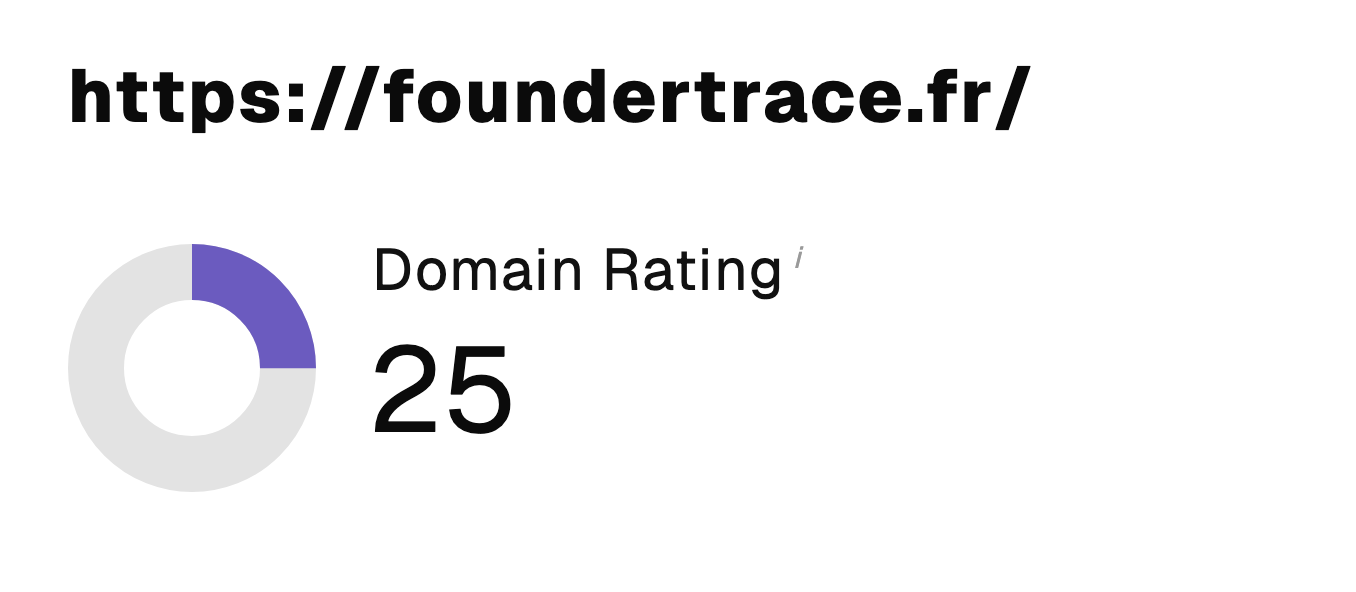 “I just let the Sorank software do its thing, and now my DR is 25 and my page is ranking higher.”
 Lucas Flandrefoundertrace.fr“I specialized in GEO thanks to Sorank. The GEO Leaderboard allows me to show my clients their position vs competitors on ChatGPT. It’s a real commercial differentiator.”
 MélanieSEO Freelance“Great service, works well for our website and helps us understand how to improve it to rank better on Google and elsewhere. Congrats, keep going, I recommend it.”
 Hugo T.E-commerce merchant