Preferences
Privacy is important to us, so you have the option of disabling certain types of storage that may not be necessary for the basic functioning of the website. Blocking categories may impact your experience on the website. More information
Privacy is important to us, so you have the option of disabling certain types of storage that may not be necessary for the basic functioning of the website. Blocking categories may impact your experience on the website. More information

Technical SEO for SaaS: crawling, indexing, JavaScript rendering, Core Web Vitals, schema and the mistakes that hide software sites from Google and AI.


In short
Technical SEO for SaaS makes sure Google and AI crawlers can reach, render and index your marketing pages, docs and blog, and keep your logged-in app out of search. Most SaaS sites lose visibility because of setup, not copy: a shared template with a noindex left on, product pages that only exist after JavaScript runs, a canonical that points to the homepage, or thousands of filter URLs eating crawl time. Fix access first, then rendering, then speed and markup, and check the result every month.
Want to go further? Ask
Quick quiz
Is SEO right for you, and how should you start?
Sorank matches your answers


Test it for 3 days on your own site and see where you stand on Google, ChatGPT and the other AIs.
Start 3-day free trial3 days free, then stop whenever you want. 90-day results guarantee, conditions apply.
A blog or an online shop has one main job: publish pages that search engines can read. A SaaS site has at least three jobs. It runs a marketing site, a web app behind a login, and usually a documentation or help center. Each part often runs on a different stack and ships on a different schedule. Each one can break search in its own way.
Technical problems on SaaS sites are rarely about one page. They come from a template, a build setting or a line in a config file. One mistake can hit hundreds of URLs at once. So when you audit, check your templates and URL patterns first, then single pages.
Our general checklist covers the basics for any website in the technical SEO checklist. This guide covers what changes when the site sells software. If you want the buyer side, how a software tool gets onto shortlists in Google and ChatGPT, read the SEO software for SaaS page. This article stays on the site itself.
Two parts, two sets of rules
Before you touch a single tag, decide where each part of the site lives. This choice is slow and expensive to reverse. Moving a blog from a subdomain to a subfolder later means changing every URL, writing redirects for each one, and updating every internal link and sitemap.
Most SaaS teams need one of three setups. The table compares them, with our recommendation in the last column.
| Option | Example | What it gives you | What it costs you | Our call |
|---|---|---|---|---|
| Subfolder | example.com/blog | All content shares one domain and one set of checks | Everything lives in one stack, so the deploy has to handle both | Default choice for the blog and the docs |
| Subdomain | docs.example.com | Easy to host on a separate stack or vendor | Each host needs its own robots.txt, sitemap, canonicals and Search Console property | Use it when the stack forces it, and manage each host on purpose |
| Second domain | example-brand.com | A clean split for a different audience or product line | Two sites to build, link and measure, and nothing moves over by default | Rare for SaaS, and only with a clear business reason |
Many SaaS companies put the docs on a subdomain, and that works well. The price is discipline. Each host needs its own robots.txt file, its own sitemap, its own canonical rules, and its own check in Search Console. Write these down before launch, not after the first traffic drop.

Use lowercase, hyphens, and a path that says what the page is about, such as /integrations/hubspot rather than /p?id=8841&cat=7. Don't put dates or version numbers in URLs that you will keep for years, because you will have to redirect them later. When a page changes its name, keep the old URL alive with a 301 redirect, as covered in the indexing section below.
Crawling is the first step. A crawler requests a URL, reads what the server returns, and follows the links it finds. Your job has two parts. Make sure the pages that earn revenue are easy to reach. Keep the crawler away from pages that add noise.
The robots.txt file tells crawlers which paths they may request. It is a request, not a lock. Reputable crawlers respect it, and others don't. The most common SaaS mistake is to treat it as a way to hide pages. A blocked URL can still appear in results, without its content, if other sites link to it. If you want a page out of Google, use noindex, as explained in the indexing section, and leave the page crawlable so the noindex can be read.
A starting file for a typical SaaS site looks like this:
User-agent: *
Disallow: /app/
Disallow: /login
Disallow: /signup
Disallow: /search
Allow: /

Sitemap: https://www.example.com/sitemap.xml
Read it line by line. The first rule keeps crawlers out of the logged-in product. The search rule stops crawl waste from internal search result pages. The Sitemap line gives the full URL of your list of canonical pages. Don't block the CSS and JavaScript files that your pages need, because Google uses them to render the page.
Tip
Run the file through the free robots.txt checker after every change. It reads the live file, lists the sitemaps it declares, and shows whether each AI crawler is allowed, partly blocked or blocked.
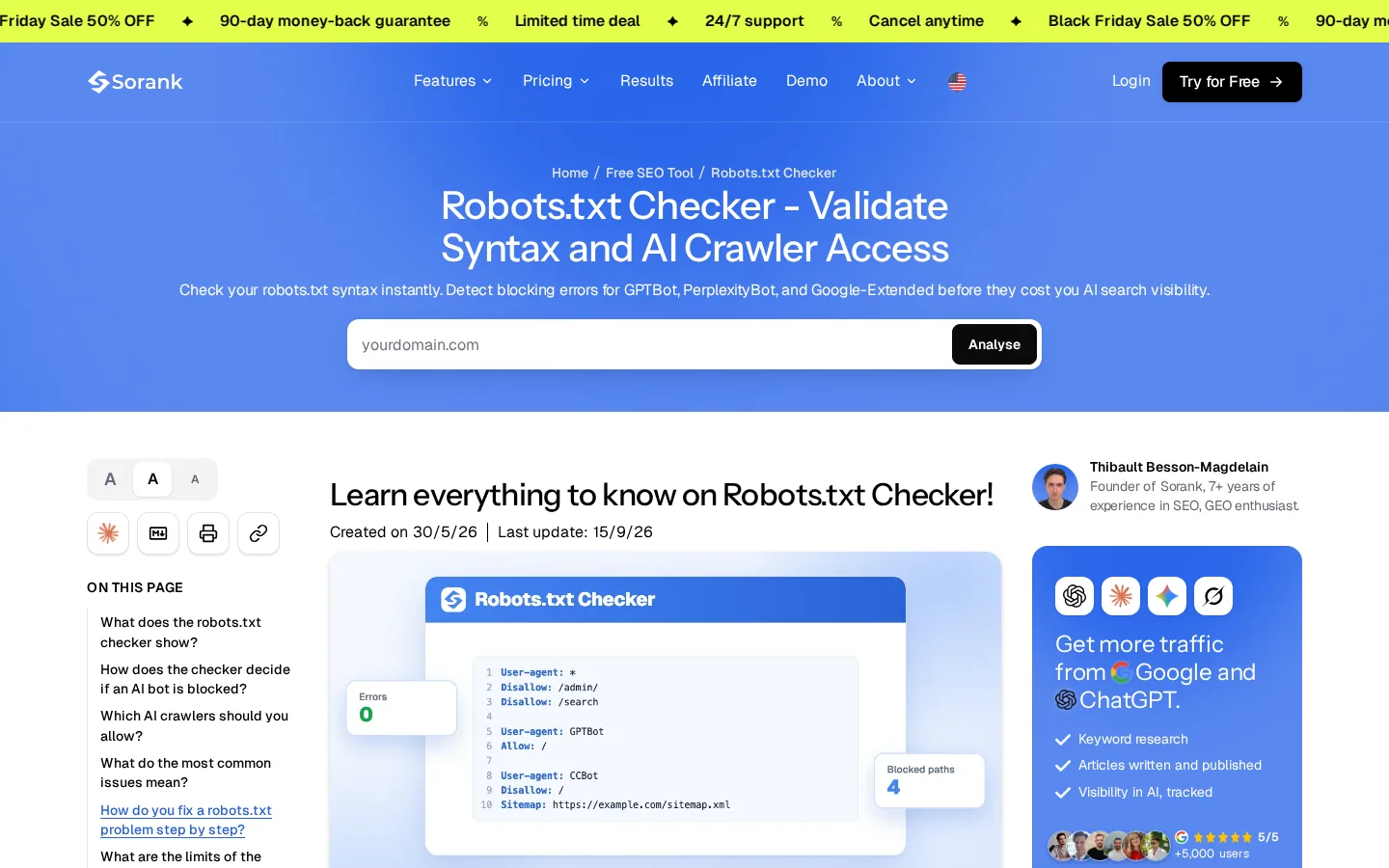
AI providers run several bots, and they don't all do the same job. Some collect data for model training. Others fetch pages to answer a question a user has just asked. Blocking a training bot is a business choice. Blocking an answer or search bot can remove you from AI answers. Decide each bot on purpose and write the decision in the file, with a comment that says why. We cover the choices in robots.txt for AI crawlers.
Every filter, sort order and tracking parameter can create a new URL. A pricing page with ?utm_source=newsletter is a second URL. An integrations list sorted by name and paginated to page 7 is dozens more. Each one is a page the crawler may fetch, and each one is a page that competes with your main version. Internal search pages are the worst case: they create near-infinite URLs with thin content.
The server log shows which URLs crawlers really request, not which ones you think they request. Comparing that log with your sitemap is the fastest way to see the gap. The method is in log file analysis for SEO. Our guide to faceted navigation explains which filter pages to index, block or canonicalize.
Crawl checklist for a SaaS site
Four tools decide whether a URL is kept, merged, moved or dropped. Teams mix them up all the time, and the mix-up causes most indexing bugs. A noindex on a page that robots.txt blocks does nothing, because the crawler never reads the noindex. A canonical that points to another page tells Google to treat this page as a copy. Each tool has one job. The table sums them up, and the sections after it explain each one.
| Method | Its job | How Google reads it | Use it when | Main risk |
|---|---|---|---|---|
| Noindex | Keep a page out of results | Read from the meta robots tag or the X-Robots-Tag header, only if the page can be crawled | Staging copies, app pages, thank-you pages, thin pages you must keep on the site | A template with noindex left on hides a whole section |
| Canonical | Name the preferred copy of similar pages | A strong signal, not an order. Google may pick another URL | Parameter variants, duplicate versions, the same article on two paths | A canonical to the wrong URL silently moves the signal away from your page |
| 301 redirect | Move a URL for good | The strongest consolidation signal. The old URL drops out and the new one takes over | URL changes, merged pages, retired pages with a clear replacement | Chains, and redirects that send every old page to the homepage |
| Robots.txt disallow | Stop crawling a path | Stops the fetch, not the index entry | Crawl waste, internal search, app paths | Blocked URLs can still appear without content, and their noindex tags are never read |
Noindex tells search engines to leave a page out of results. You set it per page in the HTML head, or per file with the X-Robots-Tag HTTP header, which also works for PDFs and other non-HTML files.
<meta name="robots" content="noindex, follow">The advantage is precision. The limit is that the page must stay crawlable. If you block the page in robots.txt and add a noindex, the crawler sees the block and never reads the tag. For a page that is already indexed, keep it crawlable until it drops out, then decide whether to block it.
A common SaaS case: a public onboarding step was published by mistake. Add the noindex, keep the page reachable, wait until Search Console shows it as excluded, then block the path if the page should stay private for good.
The canonical tag names the URL you want Google to treat as the main version of a page. Use one per page, in the head, with a full absolute URL. On an original page, the canonical points to the page itself.
<link rel="canonical" href="https://www.sorank.com/pricing">Google's documentation on consolidating duplicate URLs calls rel="canonical" a strong signal that the specified URL should become canonical. It is weaker than a redirect, and Google can still choose another URL. Two rules keep it honest. Don't declare different canonicals in different places for the same page, such as one in the head and one in an HTTP header. And don't combine a noindex with a canonical that points to another page, because the two signals contradict each other.
The most expensive canonical error on SaaS sites is a template bug. A product template that writes the homepage URL into every canonical quietly sends the signal of hundreds of pages to one place.
Canonicals on a product template: before and after
A 301 redirect tells crawlers and browsers that a URL has moved for good. Use it when you rename a page, merge two pages into one, or retire a page that has a clear replacement. A 302 is temporary and should stay that way. We compare them in 301 vs 302 redirects.
On an nginx server, a whole subdomain can be moved to the main domain in a few lines:
server {
    listen 80;
    server_name old.example.com;
    return 301 https://www.example.com$request_uri;
}
The advantage is that the signal moves with the URL. The limits are chains and mass redirects. A chain runs http to https to www to a trailing slash, which is three hops where one would do. A mass redirect to the homepage tells Google nothing about where each old page went. Map every old URL to the closest new page, and keep each redirect to a single hop. More patterns are in the SEO redirects guide.
A disallow rule stops the crawler from fetching a path. Use it for crawl waste and for private areas that no search result should show, like the app. Its limit is the one from the crawling section: a blocked URL can still be listed. Pair it with the right noindex or canonical on the pages that matter.
Tip
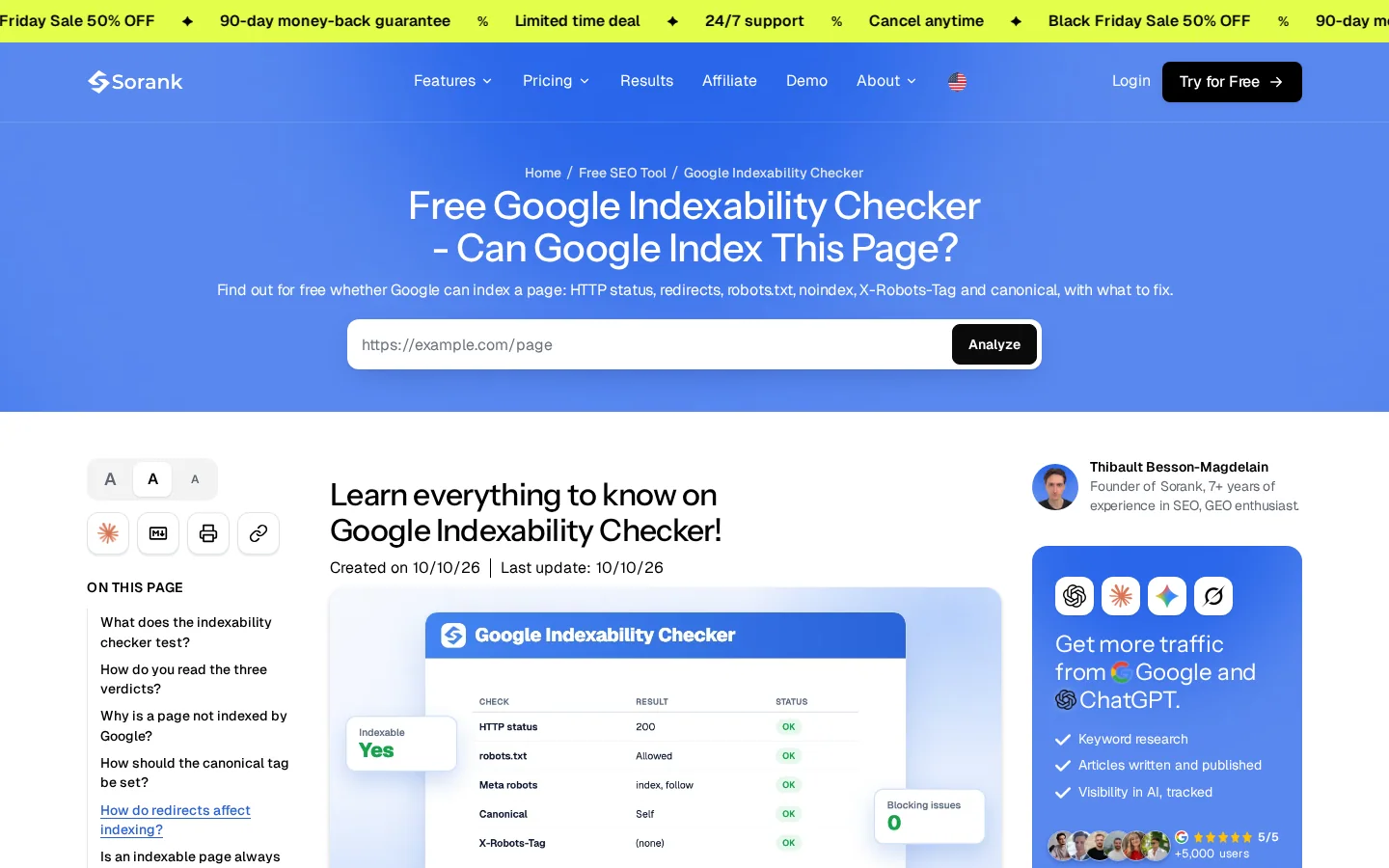
To check any single URL, the Google indexability checker reads the status code, robots.txt rule, noindex signals and canonical in one run, then gives one of three verdicts. Test one page per template first, not the whole site.
Modern app frameworks render pages in the browser by default. That is fine for the app. It becomes a problem when the same approach serves your pricing page, your feature pages and your blog. A visitor sees the content. A crawler may see an empty shell.
Google handles JavaScript in two steps. It fetches the HTML first. Then it puts pages with a 200 status in a rendering queue, and a headless Chromium runs the JavaScript once resources allow. The page can wait in that queue for a short time, and sometimes longer. Content that exists only after rendering is seen later, and some crawlers never render at all.
What happens to a JavaScript page at Google
Google finds links through a elements with an href attribute. A link built from a click handler on a span may work for a visitor and be invisible to a crawler.
<span onclick="go('/pricing')">Pricing</span>
<a href="/pricing">Pricing</a>
Only the second line gives the crawler a URL to follow. Check your navigation and footer this way, because a framework update can change the markup of every link on the site in one pass.
You don't have to pick one mode for the whole site. Pick per section, based on how often the content changes and whether it must be personal.
| Rendering mode | Good for | Watch for |
|---|---|---|
| Static generation at build time | Marketing pages, blog posts, docs, glossary | Content changes need a rebuild or a scheduled build |
| Server-side rendering on each request | Pricing pages with live data, pages that depend on the visitor's region | Server load, and the same content must reach users and bots |
| Prerendering a client-side app | Older single-page apps that cannot move yet | Cache freshness, and the prerendered copy must match what users see |
| Client-side rendering only | The logged-in app | Never use it alone for public pages you want found |
Open the important URLs in the URL Inspection tool in Search Console and compare the rendered HTML with what your browser shows. Check three things: the main content, the internal links, and the canonical tag. If one is missing from the rendered version, the crawler is missing it too.
Warning
Don't serve Googlebot a different page from the one users see. Google treats that as cloaking, and the fix is to make the page itself work for both. Server-side rendering and static generation solve most cases without any special handling.
If you run a single-page app, our guide to SPA SEO covers the hybrid setups in more detail. For a Next.js site, see Next.js SEO. For the JavaScript side of AI crawlers, see JavaScript SEO.
Google measures page experience with Core Web Vitals, three field metrics that describe loading, responsiveness and visual stability. Google publishes the "good" thresholds in its documentation, and they are the target to aim for on your marketing templates. The exact definitions are in Google's Core Web Vitals documentation.
The three Core Web Vitals thresholds
Source: Google Search Central, Core Web Vitals documentation
The metrics that matter are the ones your real visitors experience. Lab tests help you debug, and field data tells you whether the fix worked. Our Core Web Vitals glossary entry explains each metric in plain words.
The usual suspects are the same on almost every SaaS site. A large hero image or an autoplaying video loads before anything else. Web fonts block the first render. A chat widget, a session recorder and three analytics tags all start on page load. Each one competes with the page's main content for the browser's time.
Start with the widgets. Load the chat widget after the first user interaction, or after the main content has rendered. Give the hero image explicit width and height so the layout doesn't jump when it arrives. Preload the one font that the first screen needs: a rel="preload" link with as="font", a type="font/woff2" attribute and the crossorigin attribute, placed in the head of the page.
Tip
Put the widgets on a delay and measure the result the same day. In most audits, deferring the chat widget and the session recorder is the cheapest speed gain, and it changes nothing for the visitor who wants to use it.
Start with the Core Web Vitals report in Search Console, which groups URLs by template. Then run one representative URL per template through a speed test. Fix the template, not the page. A slow product template affects every product page, and one fix improves all of them.
Structured data gives machines the facts about a page in a fixed format, usually JSON-LD. For a SaaS site, the types that matter most are Organization for the company, SoftwareApplication for the product, BreadcrumbList for navigation, Article for blog posts, and FAQPage when the questions and answers are visible on the page.
The rule is simple: mark up only what the visitor can see. A price in the markup must match the price on the page. A feature list in the markup must match the feature list on screen. Markup that describes content nobody can see is a quality problem, and it breaks silently when a template changes.
Here is a SoftwareApplication example for a product with a free plan. Replace the values with your own, and only set a price that is shown on the page.
{
  "@context": "https://schema.org",
  "@type": "SoftwareApplication",
  "name": "Example Analytics",
  "applicationCategory": "BusinessApplication",
  "operatingSystem": "Web",
  "offers": {
    "@type": "Offer",
    "price": "0",
    "priceCurrency": "USD"
  }
}
The most common markup errors are not exotic. A JSON file with a trailing comma fails to parse. Two templates each output their own Organization object with different names. A FAQPage block lists questions that are hidden behind a tab nobody can open. Each of these is easy to catch before release, and hard to notice after.
Markup check before publishing
To build a block without typos, use the schema generator, then validate the result with the tools in Search Console and a validator of your choice. Our glossary entry on schema markup covers the vocabulary.
Internal links tell crawlers which pages matter and how they relate. There is no single correct structure. Three approaches come up on SaaS sites, and each one suits a different size and shape of content. Pick one on purpose, then apply its rules across the site.
Principle: like a Wikipedia article, every page links to related pages from inside the text, wherever the reader needs them. There is no fixed hierarchy. The site behaves like a wiki, where most pages sit a few clicks from each other.
When to use it: a small site with a limited number of topics, or an editorial blog where each article has a strong reason to link out.
Advantages: it is easy to start, the links feel natural to the reader, and it needs no upkeep beyond writing.
Limits: the structure stays invisible. Nobody can see which pages the site considers its core. Important product pages end up with links from random posts, and the anchor text is often inconsistent.
Example: a feature page for backlinks receives links from six articles, each with a different anchor. The page is well linked, but the site has no rule that says which articles should link to it.
Principle: one pillar page covers a broad theme. Articles on subtopics, the spokes, link to the pillar, and the pillar links back to each of them. Each cluster answers one theme in depth.
When to use it: once you have roughly 20 or more articles on one theme, or when you plan a theme in advance. Most B2B SaaS blogs end up here.
Advantages: the theme is visible in the link graph, the pillar collects internal authority, and audits are simple: each spoke should link to the pillar and to two or three siblings.
Limits: it needs planning and upkeep. Two spokes that target the same query compete with each other, which is called cannibalization. Sorank's topic cluster generator includes anti-cannibalization checks for this reason.
Example: the pillar "Technical SEO for SaaS" links to spokes on crawling, JavaScript rendering, structured data and redirects. Each spoke links back to the pillar and to the two spokes closest to it in subject.
Principle: pages on one theme live under one folder, such as /docs/api/, and link mainly within that folder. Cross-links to other folders are kept deliberate and few. The structure shows in the URL itself.
When to use it: large catalogs and multi-section sites, such as a docs center with versions, an integrations directory, or a product with several separate products under one brand.
Advantages: the architecture is obvious from the URLs, it scales to thousands of pages, and it keeps crawl paths short inside each section.
Limits: it is rigid. Once a section is locked into a folder, moving it means redirects. A reader who needs a page from another folder has to leave the silo, so cross-links must be designed in from the start.
Example: a docs center where /docs/api/ links only within API pages, plus one controlled link to the main product section from the overview page.
| Method | Structure | Best for | Main risk |
|---|---|---|---|
| Wikipedia-style linking | No fixed hierarchy, links where they help | Small sites and editorial blogs | Invisible structure and uneven link equity |
| Topic clusters (semantic cocoon) | Pillar and spokes, two-way links | Blogs with many articles on one theme | Cannibalization between spokes |
| URL silos | One folder per theme, links mostly inside it | Large catalogs, docs and multi-product sites | Rigid structure and hard cross-links |
Whatever method you pick, four rules keep the link graph healthy. Every important page should be reachable through a short chain of links from the homepage. No page should be an orphan, meaning it has no internal link at all. Anchor text should describe the target, so "technical SEO checklist" beats "click here". And links should point to final URLs, not to pages that redirect.
The analyzer is the fastest test. The free internal link analyzer audits the internal links of any page. For the full method, read the internal linking strategy guide, and for the case where you want rules applied at scale, see automated internal linking.
Many SaaS sites generate thousands of pages from data: integrations, templates, comparison pages, glossary entries and docs versions. The pattern is called programmatic SEO, and it is powerful when every page answers a real question. Our guide covers the playbook in programmatic SEO for SaaS.
Google's guidance on managing crawl budget applies to large sites. It describes sites with 1 million or more unique pages that change about once a week, and sites with 10000 or more pages that change every day, as a rough estimate and not an exact threshold. Most SaaS sites sit well below that. For them, the risk is quality and duplication, not crawl budget. A thousand thin pages dilute the site more than they waste a crawler's time.
Set a simple rule before you generate anything. A page is indexable only if it answers a distinct query and has enough unique content to be useful on its own. If a generated page is a near copy of another, canonicalize it to the strongest version. If it has no value for a searcher, noindex it or leave it out of the sitemap.
Keep the sitemap clean. List only the canonical, indexable URLs. Our sitemap checker validates the file, and how to create a sitemap covers the format.
Docs cause more duplication than any other part of a SaaS site. Version 1 and version 2 of an API page often share most of their text. If the old version has no unique value, point its canonical at the current version. If it has unique value, such as a migration guide, keep it indexable and link it clearly from the current docs.
Docs versions: before and after
Docs also have a crawl pattern that teams miss. Search results inside the docs, tag pages, and "load more" pagination can each create many URLs. Treat them the same way you treat faceted pages: pick the canonical page, block the rest, and check the logs.
Order matters. Fix access before content, and rendering before speed. A fast page that Google cannot render helps nobody. A perfectly marked-up page that is blocked by robots.txt is invisible.
The technical audit for a SaaS site, in order
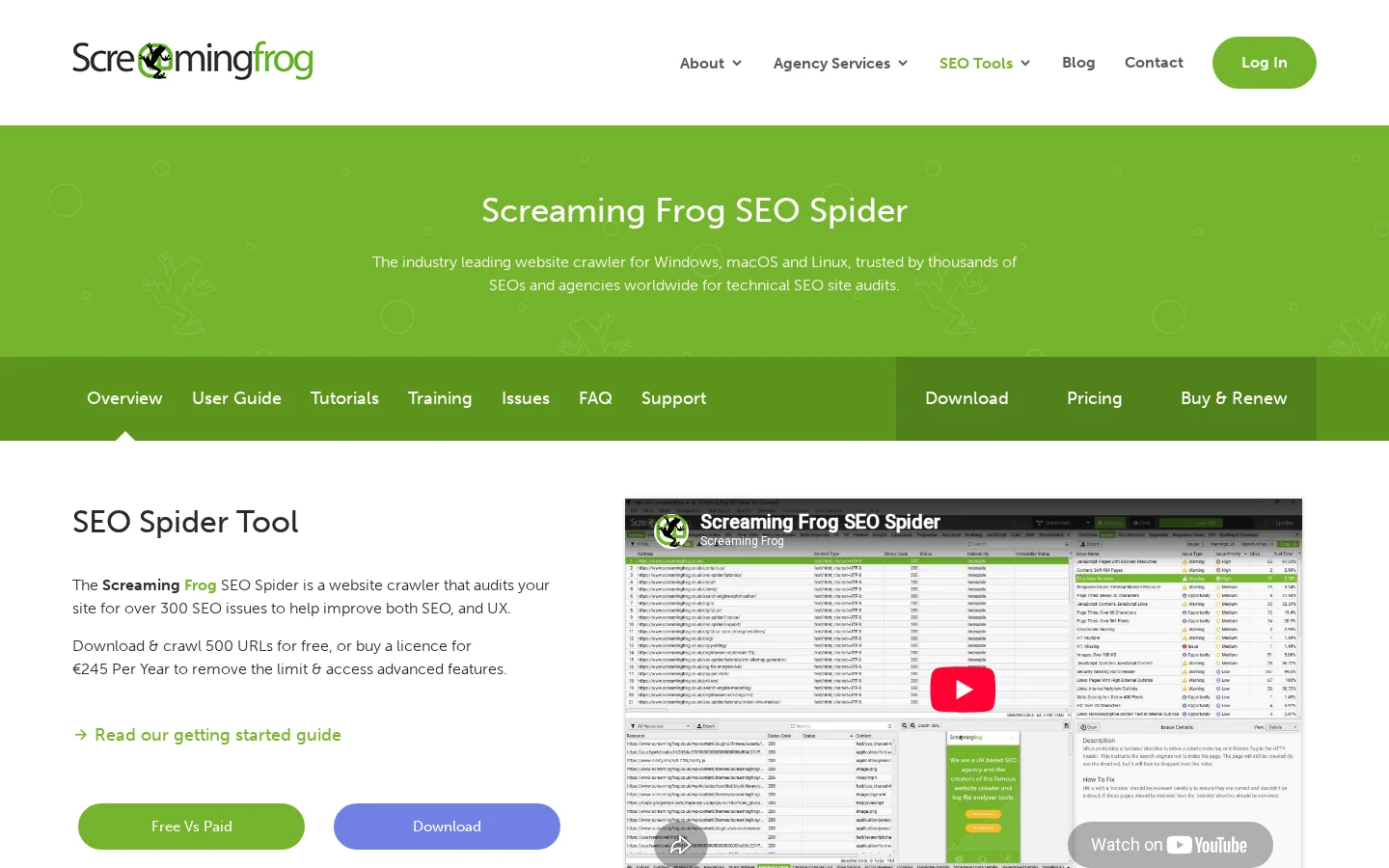
Migrations are where traffic is lost fastest. Before you move anything, crawl the old site and export every URL that has links or traffic. Map each one to the closest new page, not to the homepage. Test a sample of old URLs after launch, then watch Search Console for new 404 errors for the first weeks. The method is covered in crawl errors, and the status codes are compared in the SEO redirects guide.
Technical problems come back with every release, so the audit is not a one-off. Once a month, check four things in Search Console: the Pages report for new exclusions, the Core Web Vitals report for regressions, the sitemap report for errors, and the robots.txt status for your key hosts. Add a look at which bots are reading the site in your logs. To see Google and AI traffic side by side, the GEO and SEO dashboard puts both in one view.
For indexing questions on a single page, the crawled, currently not indexed guide explains the usual causes. For indexing in Bing and other engines, read about IndexNow, which lets you announce changed URLs.
Three actions take less than an hour and catch most of the problems in this guide. Open your robots.txt and confirm the app paths are blocked and the marketing paths are not. Run the indexability check on your pricing page, your homepage and one docs page. Then open one product template and check that its canonical points to the page itself.
These are the errors that show up most often in SaaS audits. Each one has the same three parts: what it is, how to spot it, and how to fix it. Check the list against your site in the order given, since the first items usually affect the most pages.
What it is: a meta robots tag saying noindex, copied from staging into the production template. The most common trigger is a redesign or a launch where the environment setting was not switched.
How to spot it: run the indexability checker on the homepage and two or three marketing URLs. In Search Console, look for pages excluded by a noindex tag that you expect to rank.
How to fix it: make the robots directive depend on the environment, and add a release check that fails the build if a production template contains noindex. Then request indexing for the affected URLs.
What it is: a rule written for the app, or a staging rule, that blocks the whole site. A single disallow rule for the root path, placed in the wildcard group, is enough to hide every page from crawlers that have no more specific group.
How to spot it: read the live file with the robots.txt checker. Then look for "Blocked by robots.txt" statuses in Search Console for pages that should be indexed.
How to fix it: limit disallow rules to the app and private paths, then check the file again. Our guide to the blocked by robots.txt status covers the Search Console side.
What it is: every page on a template sends its canonical to the homepage, to a parameter URL, or to a different language version. Google then treats the real page as a duplicate of something else.
How to spot it: test five random URLs per template with the canonical checker. If the canonicals do not match the page's own address, the template is wrong, not the pages.
How to fix it: write a self-referencing canonical with the full absolute URL, stripped of tracking parameters, and only add a different canonical where a real duplicate exists. The alternate page with a proper canonical guide explains when a non-matching canonical is normal.
What it is: the feature list, the pricing table or the FAQ is added by the browser after load, and the raw HTML is almost empty.
How to spot it: view the source of the page. If the main text is missing there, compare it with the rendered version in URL Inspection. Missing text in the source is a risk, and missing text in the rendered version is a serious problem.
How to fix it: move the public pages to static generation or server-side rendering, and keep the logged-in app client-side. Reuse the rendering table earlier in this guide to choose the mode per section.
What it is: logged-in or onboarding pages are public, linked from the navigation or a sitemap, and show up in search. They add thin, private content to the index.
How to spot it: search your domain with the site operator in Google, and check the Pages report for URLs under your app path. Check your sitemap for any app path.
How to fix it: remove app URLs from the sitemap, add noindex where the page must stay public for users, and block the private paths in robots.txt once they have dropped out.
What it is: an old URL redirects to a second URL, which redirects to a third, which redirects to the final page. Each hop slows the visitor and adds a step where signals can be lost.
How to spot it: crawl the old URLs and look at the redirect chain for each. Any chain with more than one hop is a candidate for a fix.
How to fix it: point every old URL straight at the final page, and update internal links so they point to the final URL too.
What it is: a landing page or a docs article that is in the sitemap but has no internal link from any other page. Crawlers can find it only through the sitemap, and visitors can't find it at all.
How to spot it: compare the list of URLs in your sitemap with the list of URLs that receive at least one internal link in your crawl. The difference is your orphan list.
How to fix it: link each orphan from the relevant hub or pillar page, then from one related article. If a page has no reason to exist, remove it and redirect it.
Spot check per template
If the list above feels long, that is because a SaaS site has more moving parts than a blog. The good news is that most of these checks run once per template, not once per page. Start with the first two, then move down the list.
It is the part of SEO that lets Google and AI crawlers reach, render and index your marketing pages, docs and blog, while keeping the logged-in app out of search. The parts that break most on SaaS sites are JavaScript rendering, indexing rules in shared templates, and crawl waste from app and filter URLs.
In most cases, a subfolder such as example.com/blog. It keeps the blog under the same domain, with one set of robots.txt, sitemap and canonical rules. Use a subdomain only when your stack forces it, and then manage each host on purpose.
Yes, but in two steps. Google fetches the HTML first, then queues the page for rendering, where a headless Chromium runs the JavaScript. Put key content, links and canonical tags in the HTML or make sure they render, then check the result with URL Inspection in Search Console.
We analyse your competitors, your website and your AI visibility to create a tailored content plan for free.
 AI Content Brief Generator
 FAQ Schema Generator
 AI Blog Post Ideas Generator
 Structured Data Validator (Schema Validator)
 Alt Text Checker
 Internal Link Analyzer
 Backlink Challenge
 AI Meta Description Generator
 AI Blog Title Generator
 Google Indexability Checker
 AI Blog Outline Generator
 UTM Link Builder
 Keyword Clustering Tool
 Canonical Tag Checker
 XML Sitemap Generator
 Broken Link Checker
 AI SEO Title Generator
 Headline Analyzer
 SERP Preview Tool
 Redirect Checker
 Hreflang Tag Generator
 Heading Structure Analyzer
 HTTP Headers Checker
 Favicon Extractor
 SERP CTR Calculator
 SEO vs Paid Search Savings Calculator
 SEO Share of Voice Calculator
 SEO ROI Calculator
 SEO Traffic and Revenue Forecast Calculator
 SEO Budget Calculator
 SEO Break-Even Calculator
 SaaS SEO ROI Calculator
 ROAS Calculator
 Reading Time Calculator
 Ranking Gain Simulator
 Organic Traffic Value Calculator
 Organic Traffic Estimator and Website Traffic Checker
 LTV to CAC Ratio Calculator
 Local SEO ROI Calculator
 Link Building Cost Calculator
 Keyword Value Calculator
 Keyword Opportunity Score Calculator
 Keyword Density Calculator
 GEO ROI Calculator
 GEO Content Investment Calculator
 Ecommerce SEO ROI Calculator
 Customer Lifetime Value Calculator
 Customer Acquisition Cost Calculator
 CTR Calculator
 Cost Per Article Calculator
 Conversion Rate Calculator
 Content Marketing ROI Calculator
 ChatGPT Referral Traffic Estimator
 Bounce Rate Calculator
 Backlink ROI Calculator
 AI Visibility Score Calculator
 AI Traffic Value Calculator
 AI Share of Voice Calculator
 Cost of AI Invisibility Calculator
 AI Citation Rate Calculator
 llms.txt Validator
 AI Overview Checker and AI Overviews Rank Checker
 Robots.txt Checker
 AI SEO Audit
 LLM Readability Checker
 SearchGPT Readiness Checker
 Structured Data LLM Audit
 Website Crawlability AI Audit
 Why ChatGPT Is Not Recommending My Website
 Gemini Ranking Tool
 Perplexity Ranking Checker
 LLM Citation Checker
 Answer Engine Optimization Audit
 GEO Audit
 AI Search Visibility Test
 ChatGPT Visibility Checker
 llms.txt Generator
 URL Extractor
 Webpage to Markdown
 Sitemap Checker
 SERP Volatility Sensor
 Page Size Checker
 Word Counter
 Slug Generator
 Schema Generator
 Robots Generator
 OG Preview
 Meta Tags Generator
 Image Compressor
 Favicon Generator
 On-Page SEO Audit: SEO Checker and SEO Analyzer
 Backlink Analysis Tool
 Keyword Research Tool
 Domain Authority Checker
 “I tested Sorank on a real client site and it's insane. It does everything an agency would bill you $1500 a month for. It's going into production on that client now.”

 Guillaume Guersanguersanguillaume.com“We are an Ads agency and we wanted to get our SEO back on track once and for all. Sorank gave us a clear view of our site, helped us prioritize optimizations, and properly structure our content. The tool is easy to use, well designed for a team, and very practical for centralizing tracking without having to juggle multiple platforms. A very solid foundation to start fresh with our SEO.”
 Gaspard MadouiAds Agency
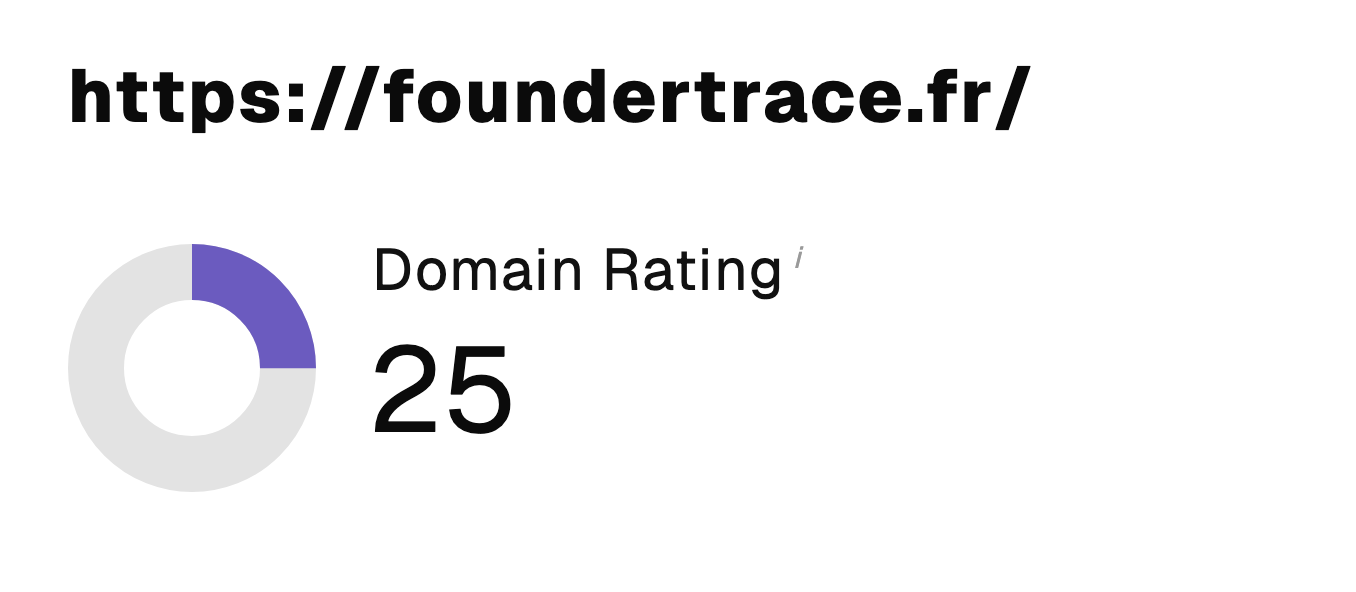 “I just let the Sorank software do its thing, and now my DR is 25 and my page is ranking higher.”
 Lucas Flandrefoundertrace.fr“I specialized in GEO thanks to Sorank. The GEO Leaderboard allows me to show my clients their position vs competitors on ChatGPT. It’s a real commercial differentiator.”
 MélanieSEO Freelance“Great service, works well for our website and helps us understand how to improve it to rank better on Google and elsewhere. Congrats, keep going, I recommend it.”
 Hugo T.E-commerce merchant