Preferences
Privacy is important to us, so you have the option of disabling certain types of storage that may not be necessary for the basic functioning of the website. Blocking categories may impact your experience on the website. More information
Privacy is important to us, so you have the option of disabling certain types of storage that may not be necessary for the basic functioning of the website. Blocking categories may impact your experience on the website. More information

 WordPress SEO Plugin Fits Your Site
Rank Math vs Yoast compared on features, free vs paid plans, schema, redirects and pricing, plus a safe test and switch method for WordPress sites.
In short
Rank Math and Yoast SEO are two of the most installed WordPress SEO plugins, and both handle titles, meta descriptions, XML sitemaps and schema markup. Yoast is the choice for a team that wants one clear editor and a long track record; Rank Math packs more into its free version and into lower-priced paid plans.
Want to go further? Ask
Quick quiz
How should you follow your positions on Google?
Sorank matches your answers


Test it for 3 days on your own site and see where you stand on Google, ChatGPT and the other AIs.
Start 3-day free trial3 days free, then stop whenever you want. 90-day results guarantee, conditions apply.
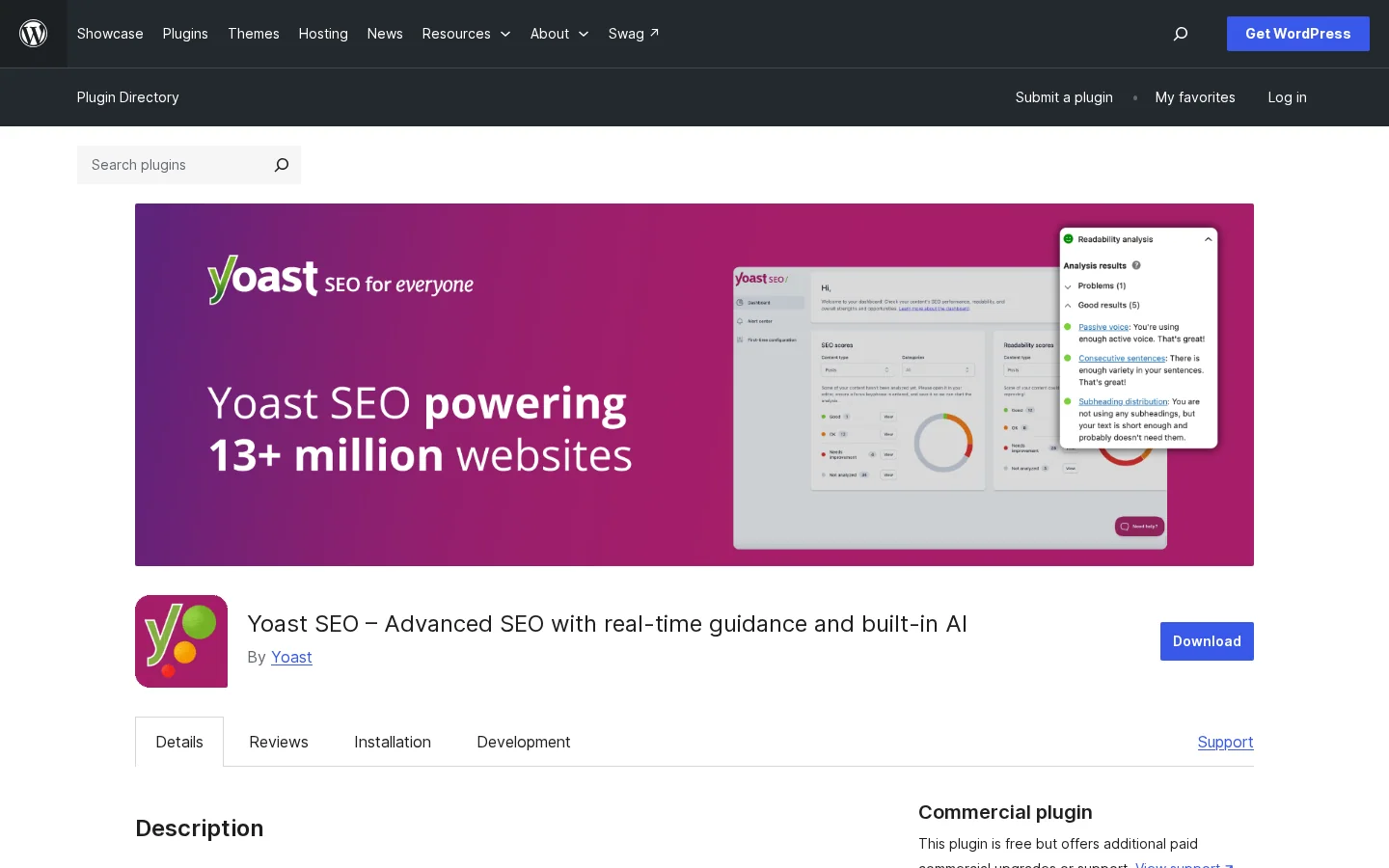
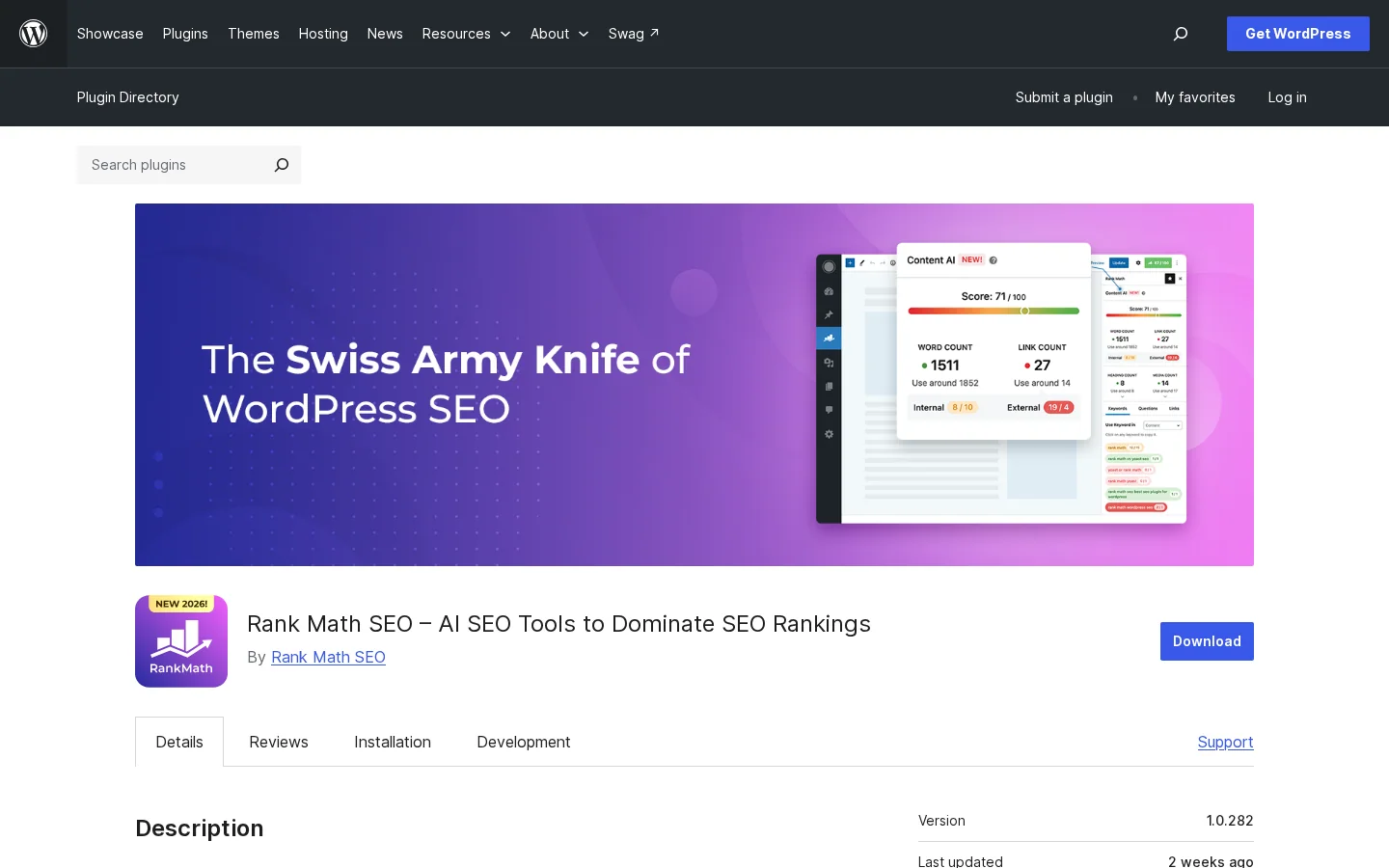
Yoast SEO has the larger install base, and Rank Math is cheaper per plan at the prices we checked. In the WordPress.org plugin directory, checked in November 2026, Yoast SEO shows 10+ million active installations and 27821 ratings, while Rank Math shows 4+ million active installations and 7530 ratings. Both average 4.8 out of 5. Those numbers tell you about adoption, not about which plugin fits your site, so the table below lists the differences that change your daily work.
| Question | Yoast SEO | Rank Math |
|---|---|---|
| Editor analysis | Readability analysis is part of the free plugin | Focus keyword score in the post editor |
| Schema markup | Structured data, schema aggregation, FAQ and How-to blocks in the free plugin | Schema generator with pre-built types, listed in the PRO plan |
| Redirects | Redirect manager and CSV import and export are Premium only | Check the comparison table of the plan you want |
| Internal linking | Internal linking suggestions are Premium only | Not listed in the pricing summary we checked |
| Paid plans | Premium, listed at 118.80 per year | PRO, Business and Agency, priced by client sites and keywords |
Two plugins, one directory
Source: WordPress.org plugin directory, pages checked November 2026
Several independent reviews say Rank Math's free version includes more than Yoast's free plugin. The feature pages we checked did not confirm the full free list for Rank Math, so verify it in the version you install. The rest of this guide shows how to check each claim on your own site rather than trusting a comparison table, including ours.
Both plugins score one focus keyword against the text of one page and list what to fix. The score is a checklist for on-page basics, not a forecast of rankings. Yoast's readability analysis, which checks sentence length, transition words and how the text reads, is part of its free plugin. Rank Math's editor gives a keyword score with its own checks, and several reviewers say its free version lets you add more than one focus keyword per post. Test that in your version before you rely on it.
The useful way to read the score is to ask where the keyword sits, not how many points you have. A keyword in the SEO title, the first paragraph, one H2 and the URL slug covers the places search engines read first. Repeating it in every heading only lowers the reading quality, and the score does not detect that. If you are new to choosing a keyword, our guide to how to choose and place a focus keyword covers the choice itself, and the plugin score only checks what you decided.
Before you publish, check the editor
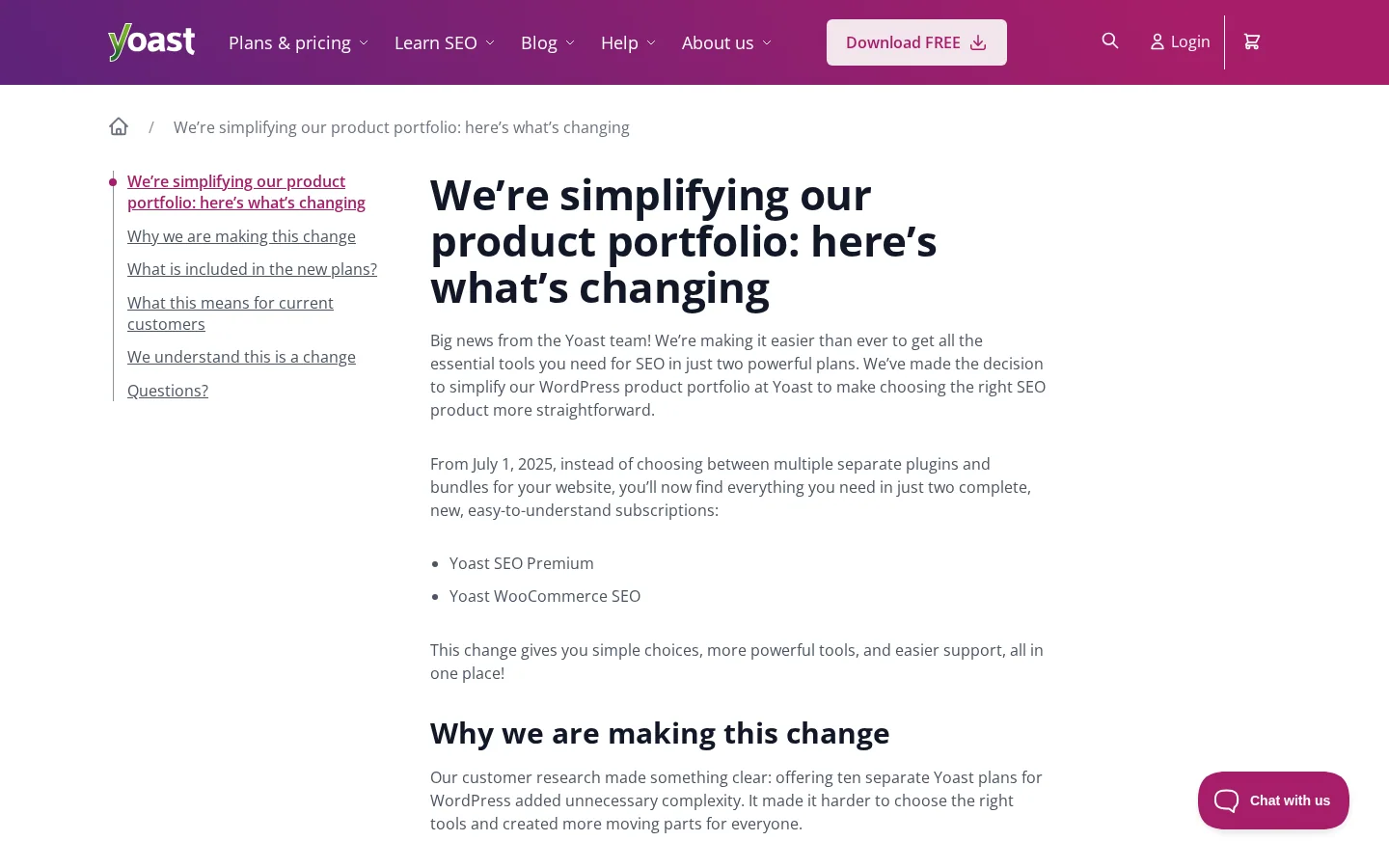
The free plugin covers the basics on both sides, and the paid plans add the tools that save time on a large site. Yoast's pricing page lists Premium at 118.80 per year, and says it includes everything in the free plugin. Premium adds a redirect manager, internal linking suggestions and AI features, which Yoast lists as unlimited use in beta. Yoast restructured its plans on July 1, 2025, so an older price you find online may no longer apply.
Rank Math sells PRO, Business and Agency plans, and its pricing page (last updated June 3, 2026) shows PRO at 4.49 per month billed annually, with the earlier price of 8.99 per month crossed out. PRO covers unlimited personal sites, but client sites are excluded from that count. Business covers 200 client sites and Agency 750, with keyword limits that rise with each plan. Those prices come from a sale, so check the live page before you buy.

To compare the two fairly, divide the yearly price by the number of sites you run. A single site on Yoast Premium costs 118.80 per year. A single personal site on Rank Math PRO costs about 53.88 per year at the sale price, and 107.88 per year at the earlier 8.99 monthly price (8.99 times 12). A freelancer with five personal sites gets the same Rank Math PRO plan for the same fee, so the cost per site drops quickly. An agency with client sites should compare the client-site limits, not the monthly price.
Warning
Prices, plan limits and free-feature lists change often in this category. The figures in this guide come from pages checked in November 2026. Confirm each one on the pricing page before you pay, and keep a screenshot of the plan you choose.
Schema markup is the part of an SEO plugin most site owners never check, and it is where the two plugins differ most in practice. Yoast's free plugin outputs a schema graph, aggregates the blocks on a page, and adds FAQ and How-to blocks. Rank Math's PRO plan includes a schema generator with pre-built types, and you can create your own. A schema markup block only helps if it describes what the page actually shows, so the output matters more than the settings screen.
Count the JSON-LD blocks in the page source. Run this command on the page you want to check, replacing the address with your own:
curl -s https://www.example.com/your-page/ | grep -o '<script type="application/ld+json">' | wc -lA result of 1 usually means one plugin writes the schema for that page. A result of 2 or more usually means two plugins, or a plugin and a theme, each write their own graph. Duplicate blocks do not always break a page, but they make it harder for search engines to know which entity is the real one, such as your organisation or the article author.
Check your schema in four steps
The most common conflict is two organisation blocks with different names, usually one from the plugin and one from the theme, where the theme still uses the site title and the plugin uses the legal name. The second is an article block that marks the same post as both an Article and a WebPage with different authors. The third is FAQ markup added twice, once by a block in the editor and once by a plugin setting. In each case, keep one source, turn off the other, and check the page again.
Both plugins build title tags and meta descriptions from templates, and both let you override them page by page. Google, however, does not always show what you write. In its title link documentation, which Google publishes without a visible date, Google says its title links are generated automatically from several sources and that it "might modify the title link to better help users." The plugin sets the input, and the page content decides what the searcher sees.
| Source Google uses for the title link | What you control |
|---|---|
| Content in the title element | The SEO title field in your plugin |
| Main visual title and h1 headings | The heading of your page in the theme or editor |
| og:title meta tag | The social title in your plugin, if it has one |
| Anchor text and text in links that point to the page | Your internal links, which the plugin does not write |
| WebSite structured data | The site-wide schema settings |
The practical lesson is that a plugin change alone rarely fixes a weak title. If your h1 and your SEO title say different things, Google may pick the one that matches the query better. Read the title tag guide before you write templates, and then check the pages that Google already rewrites in Search Console.
Title templates save the most time, and they are the place where a switch most often breaks. Yoast uses variables with double percent signs, while Rank Math uses single ones. The same template reads like this in each plugin:
Yoast SEO, post title template:  %%title%% %%sep%% %%sitename%%
Rank Math, post title template:  %title% %sep% %sitename%
Check the templates for archive, tag and author pages as well. A plugin that uses the default archive template can give dozens of thin pages the same title, and that pattern is easy to miss on a large site.
Redirects are where a plugin switch can cost the most traffic, and where the two plugins differ on what you pay for. Yoast's redirect manager is a Premium feature according to the Yoast pricing page, and its feature list also places CSV import and export in Premium. Rank Math's redirect tools sit in its plan comparison, and the summary we checked did not show them clearly, so read the table before you assume a feature is free. A redirect does not need a plugin at all if you can edit your server configuration.
Redirect 301 /old-slug/ https://www.example.com/new-slug/That line is an Apache rule, and it is only one example. Use a 301 for a permanent move and keep the old URL alive for at least as long as the old pages earned links. Our guide on 301 and 302 redirects covers when a temporary 302 is the wrong choice.
| Need | Yoast SEO | Rank Math | Without a plugin |
|---|---|---|---|
| Manage 301 redirects in the dashboard | Premium | Check the plan table | Server configuration |
| Import or export redirects as CSV | Premium | Check the plan table | Spreadsheet and server rules |
| Suggest internal links while you write | Premium | Not in the summary we checked | Manual links |
Test on a copy of the site first, measure what changes, and only then switch the live site. For a site with a few hundred URLs, this takes about one afternoon, and most of it does not need a developer. The method below works for any two SEO plugins, not only these two.
Test a plugin switch on staging
Step 5 is where most problems show up. Look for pages whose title changed without a reason, descriptions that went empty, canonical tags that point to another URL and schema counts that jumped from one to two. When the same change appears on many URLs, fix the template, not single pages, because a template fix holds after the next update and a manual fix does not.

A clean migration keeps every URL, every canonical tag and every redirect, and removes the old plugin's output completely. The risk is rarely the new plugin itself. It is what the old plugin leaves behind: an old sitemap that is still submitted, two sets of meta tags, or a redirect rule that points to a page you deleted. Plan the switch as a single day with a rollback point, then watch the results for several weeks.
Before the switch, list every URL that has organic clicks in Search Console and record its canonical tag. After the switch, compare the two lists. A new plugin sometimes writes the canonical of a paginated or filtered page differently, and that single change can make a set of pages drop out of the index. If a URL must change, add a 301 redirect in the same step, never later.
Both plugins generate an XML sitemap, and both are usually found at a sitemap index address. Submit the new one in Search Console, wait until it reads without errors, then remove the old one. Keep the old sitemap reachable for a short time so search engines can follow it to the new URLs, and never remove a sitemap while pages in it are still indexed.
Check Search Console every few days for the first week, then once a week until the fourth. Watch the coverage report for new "Excluded" pages, the performance report for the 20 key pages you saved, and the crawl stats for a jump in errors. A small dip in the first week is normal, but a drop that stays for four weeks means something in the migration changed.
Migration checklist
Most ranking drops after a plugin change come from four errors that are easy to spot once you know what to look for. Each one below says what it is, how to see it, and how to fix it. Check them in this order, because the first one hides the others.
What it is: Both plugins write a title tag, a meta description and schema. Some sites run the old plugin "just in case" for weeks. How to spot it: View the page source and count the title tags and the JSON-LD blocks, using the command from the schema section. Two titles or two blocks of the same type mean two writers. How to fix it: Deactivate the old plugin, clear the page cache, and count again. Hiding its menu does not stop its output, so deactivate it.
What it is: Search Console keeps every sitemap you have submitted, including the old one. How to spot it: Open the Sitemaps report and look for two entries, one with errors or a last-read date that never changes. How to fix it: Confirm the new sitemap reads without errors and lists the same URLs as the old one, then remove the old entry. Keep any redirected URLs live until the old pages leave the index.
What it is: Tag, author and date archives get a generic title, and dozens of them end up with the same text. How to spot it: Crawl the site and sort by title. Many pages with identical titles across different URLs is the sign. How to fix it: Set the archive templates in the plugin so each type has its own title pattern. If an archive has little content and should not rank, set it to noindex instead of letting it compete with your articles.
What it is: The keyword is repeated in every heading and the meta description reads like a list of terms. The plugin shows a green light, and the page reads badly. How to spot it: Read the first paragraph and the meta description aloud. If either sounds forced, the score has won over the reader. How to fix it: Rewrite the paragraph to answer the query in plain words, keep the keyword where it fits, and accept a lower score when the reader is better served.
Two plugins, two title tags
Choose Yoast if you run one site, want guided editing, and are willing to pay for redirects and AI features. Choose Rank Math if you manage several personal sites or client sites and want the lower price per site. Either choice works on a single blog, so the deciding factor is the number of sites and the tools you will really use. The table below maps the common cases to the plan that usually fits, based on the pricing and feature pages we checked in November 2026.
| Your situation | Usually the better fit | Why |
|---|---|---|
| Solo blogger, one site | Yoast SEO free | Titles, sitemaps, schema and readability are in the free plugin. |
| Freelancer with several personal sites | Rank Math PRO | PRO lists unlimited personal sites on its pricing page. |
| Agency with client sites | Rank Math Business or Agency | Plans are priced by client site count and keyword volume. |
| Editorial team with new writers | Yoast Premium | Readability guidance and redirects are in one plan. |
| WooCommerce store | Compare the add-on plans first | Yoast sells a WooCommerce plan; the Rank Math summary we checked did not mention WooCommerce. |
Keep your plugin or switch
Example
Imagine a blog with 300 posts that runs Yoast Premium for its redirect manager. It moves to a Rank Math plan only after a staging test shows the same titles, canonicals and schema counts on the 20 key pages. The switch takes one afternoon, and the four-week check finds one old sitemap still submitted, which it removes.
The plugin handles the code of each page. It does not decide which pages to write, which ones to fix or which pages should link to each other. Sorank works one level above. Its content optimization feature works on pages you already have, and its topic cluster generator plans internal links with anti-cannibalization, so two pages do not compete for the same query. Keep your plugin for titles, sitemaps and schema, and use Sorank for the content plan around it. For the rest of the technical side of a WordPress site, our guide to making a WordPress site SEO and GEO friendly goes further.
Tip
Before you switch plugins, record the state of your top pages. Our free SEO and GEO audit Chrome extension helps you check a page's SEO elements, which makes differences after the switch easier to spot.
If you want to go further on the choice itself, read our comparison of All in One SEO vs Yoast and our roundup of the 9 best WordPress SEO plugins, which covers the other options. Pick one plugin, test it on staging, and keep one writer for each element of the page.
Neither is better for every site. Rank Math is cheaper per plan at the prices we checked and packs more into its free version, while Yoast is simpler for beginners and has a longer track record. Choose by the number of sites you run and the tools you will actually use.
You should not. Both plugins write title tags, meta descriptions and schema, so running them together usually produces duplicate tags and conflicting structured data. Test one on a staging copy and deactivate the other before you publish.
Not if you keep your URLs, titles and redirects the same. Most drops come from leftover sitemaps, duplicate tags or broken redirects. Export your titles first, test the switch on staging, and watch Search Console for about four weeks after the change.
We analyse your competitors, your website and your AI visibility to create a tailored content plan for free.
 Duplicate Content Checker
 Mobile-Friendly Test
 Website Speed Test
 Subdomain Finder
 Domain Age Checker
 CMS Detector
 Googlebot Simulator
 Nofollow Link Checker
 Meta Tag Checker
 Keyword Cannibalization Checker
 Keyword Intent Checker
 Keyword Extractor
 Google Ads Cost Calculator
 CPC Calculator
 Local Citation Finder
 Reddit Threads Finder
 Disavow File Generator
 Redirect Generator
 Canonical Tag Generator
 Passive Voice Checker
 Google Location Changer
 Google Review Calculator
 Google Review Link Generator
 Keyword Combiner
 Podcast Show Notes Generator
 AI Content Rewriter
 AI Text Humanizer
 ChatGPT Prompt Generator
 Twitter Thread Generator
 Tweet Generator
 Landing Page Copy Generator
 Google Ads Copy Generator
 Pinterest Pin Description Generator
 Anchor Text Generator
 Social Media Post Generator
 LinkedIn Post Generator
 Free AI Writer
 Review Response Generator
 LSI Keyword Generator
 YouTube Video Ideas Generator
 YouTube Tag Generator
 YouTube Description Generator
 Product Description Generator
 CTA Generator
 Blog Introduction Generator
 Conclusion Generator
 Hook Generator
 AI Content Brief Generator
 FAQ Schema Generator
 AI Blog Post Ideas Generator
 Structured Data Validator (Schema Validator)
 Alt Text Checker
 Internal Link Analyzer
 Backlink Challenge
 AI Meta Description Generator
 AI Blog Title Generator
 Google Indexability Checker
 AI Blog Outline Generator
 UTM Link Builder
 Keyword Clustering Tool
 Canonical Tag Checker
 XML Sitemap Generator
 Broken Link Checker
 AI SEO Title Generator
 Headline Analyzer
 SERP Preview Tool
 Redirect Checker
 Hreflang Tag Generator
 Heading Structure Analyzer
 HTTP Headers Checker
 Favicon Extractor
 SERP CTR Calculator
 SEO vs Paid Search Savings Calculator
 SEO Share of Voice Calculator
 SEO ROI Calculator
 SEO Traffic and Revenue Forecast Calculator
 SEO Budget Calculator
 SEO Break-Even Calculator
 SaaS SEO ROI Calculator
 ROAS Calculator
 Reading Time Calculator
 Ranking Gain Simulator
 Organic Traffic Value Calculator
 Organic Traffic Estimator and Website Traffic Checker
 LTV to CAC Ratio Calculator
 Local SEO ROI Calculator
 Link Building Cost Calculator
 Keyword Value Calculator
 Keyword Opportunity Score Calculator
 Keyword Density Calculator
 GEO ROI Calculator
 GEO Content Investment Calculator
 Ecommerce SEO ROI Calculator
 Customer Lifetime Value Calculator
 Customer Acquisition Cost Calculator
 CTR Calculator
 Cost Per Article Calculator
 Conversion Rate Calculator
 Content Marketing ROI Calculator
 ChatGPT Referral Traffic Estimator
 Bounce Rate Calculator
 Backlink ROI Calculator
 AI Visibility Score Calculator
 AI Traffic Value Calculator
 AI Share of Voice Calculator
 Cost of AI Invisibility Calculator
 AI Citation Rate Calculator
 llms.txt Validator
 AI Overview Checker and AI Overviews Rank Checker
 Robots.txt Checker
 AI SEO Audit
 LLM Readability Checker
 SearchGPT Readiness Checker
 Structured Data LLM Audit
 Website Crawlability AI Audit
 Why ChatGPT Is Not Recommending My Website
 Gemini Ranking Tool
 Perplexity Ranking Checker
 LLM Citation Checker
 Answer Engine Optimization Audit
 GEO Audit
 AI Search Visibility Test
 ChatGPT Visibility Checker
 llms.txt Generator
 URL Extractor
 Webpage to Markdown
 Sitemap Checker
 SERP Volatility Sensor
 Page Size Checker
 Word Counter
 Slug Generator
 Schema Generator
 Robots Generator
 OG Preview
 Meta Tags Generator
 Image Compressor
 Favicon Generator
 On-Page SEO Audit: SEO Checker and SEO Analyzer
 Backlink Analysis Tool
 Keyword Research Tool
 Domain Authority Checker
 “I tested Sorank on a real client site and it's insane. It does everything an agency would bill you $1500 a month for. It's going into production on that client now.”

 Guillaume Guersanguersanguillaume.com“We are an Ads agency and we wanted to get our SEO back on track once and for all. Sorank gave us a clear view of our site, helped us prioritize optimizations, and properly structure our content. The tool is easy to use, well designed for a team, and very practical for centralizing tracking without having to juggle multiple platforms. A very solid foundation to start fresh with our SEO.”
 Gaspard MadouiAds Agency
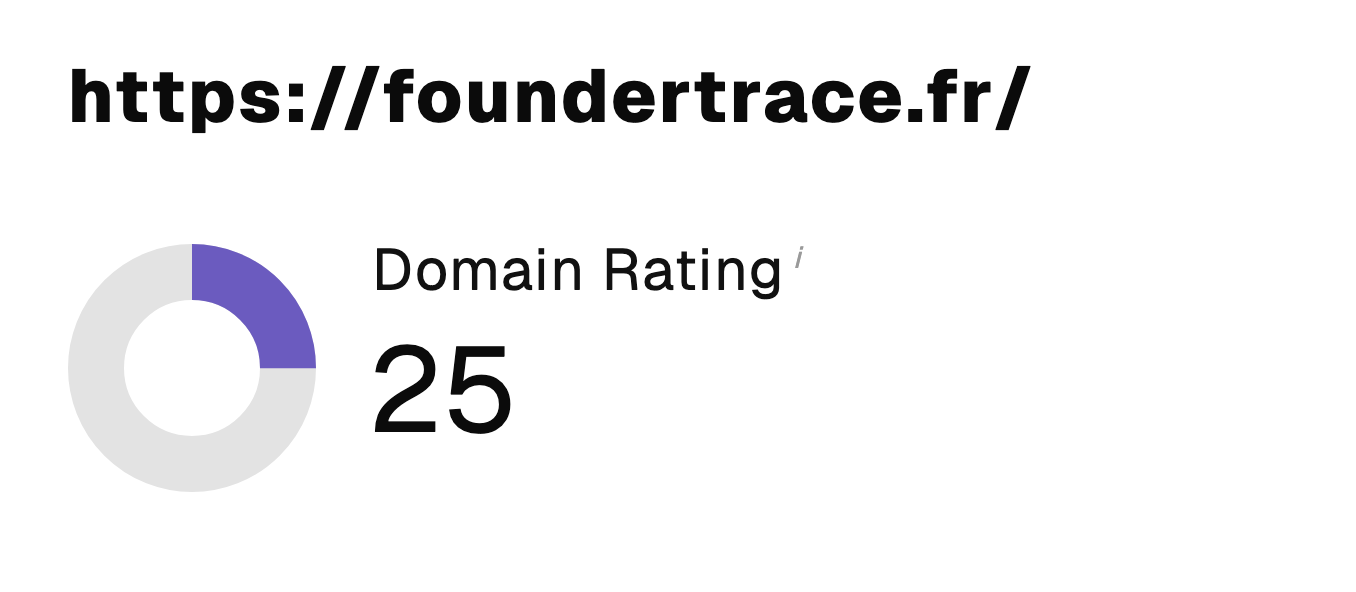 “I just let the Sorank software do its thing, and now my DR is 25 and my page is ranking higher.”
 Lucas Flandrefoundertrace.fr“I specialized in GEO thanks to Sorank. The GEO Leaderboard allows me to show my clients their position vs competitors on ChatGPT. It’s a real commercial differentiator.”
 MélanieSEO Freelance“Great service, works well for our website and helps us understand how to improve it to rank better on Google and elsewhere. Congrats, keep going, I recommend it.”
 Hugo T.E-commerce merchant