
Preferences
Privacy is important to us, so you have the option of disabling certain types of storage that may not be necessary for the basic functioning of the website. Blocking categories may impact your experience on the website. More information
Privacy is important to us, so you have the option of disabling certain types of storage that may not be necessary for the basic functioning of the website. Blocking categories may impact your experience on the website. More information

Does CSS affect SEO? Learn what Google says about class names, robots.txt, render-blocking stylesheets and hidden text, with a step-by-step CSS audit.

In short
CSS does not make a page rank higher by itself. Google has said class names have no SEO effect. CSS matters in three indirect ways: it can slow the page, block the files Google needs to render it, or hide text in a way Google treats as manipulation. Keep stylesheets crawlable, and never hide text from visitors.
Want to go further? Ask
Quick quiz
Is SEO right for you, and how should you start?
Sorank matches your answers


Test it for 3 days on your own site and see where you stand on Google, ChatGPT and the other AIs.
Start 3-day free trial3 days free, then stop whenever you want. 90-day results guarantee, conditions apply.
Not directly. Google has not described CSS as a ranking signal, and the words in a stylesheet are not page content. CSS reaches rankings through two paths: page experience, which depends on how quickly the page becomes usable, and visibility, which depends on what Google can see. Both paths are real, but both are smaller than most SEO advice suggests.
In July 2025, Google's Search Off the Record podcast covered this exact question with John Mueller and Martin Splitt, both from Google Search Relations. Search Engine Journal reported Splitt's answer on July 25, 2025: "I don't think we care because the CSS class names are just that." Splitt added that it "would not make a difference from an SEO perspective." (Source: Search Engine Journal, July 25, 2025.)
So name your classes for your team, such as .product-card or .author-box, and leave keywords out of them. Class names are not visible text, so a keyword in a class name has no ranking value. It also makes the code harder to read for the next person who edits the template.
Google statements on CSS and SEO
Sources: Search Engine Journal, July 25, 2025; Google Search Central Blog, March 31, 2026, with its October 29, 2026 note
Google's page experience documentation states that "Core Web Vitals are used by our ranking systems." The same page adds that "Beyond Core Web Vitals, other page experience aspects don't directly help your website rank higher in search results." (Source: Google Search Central, page experience.) That is the honest scope. CSS matters when it moves Core Web Vitals, and it touches two of them most often.
The first is largest contentful paint (LCP), which measures when the main content appears. A stylesheet that blocks rendering does not have its own metric, but it delays the first paint, and that delay usually shows up in LCP. The second is cumulative layout shift (CLS), which measures how much the page jumps while it loads. Fonts that swap late and images without a set size cause most CLS problems, and both are decided partly in CSS.
Google also says that "Google Search always seeks to show the most relevant content, even if the page experience is sub-par." Relevance comes first. A fast page with thin content will not beat a relevant page because its CSS is clean.
Here is how a stylesheet can affect a result, in order:
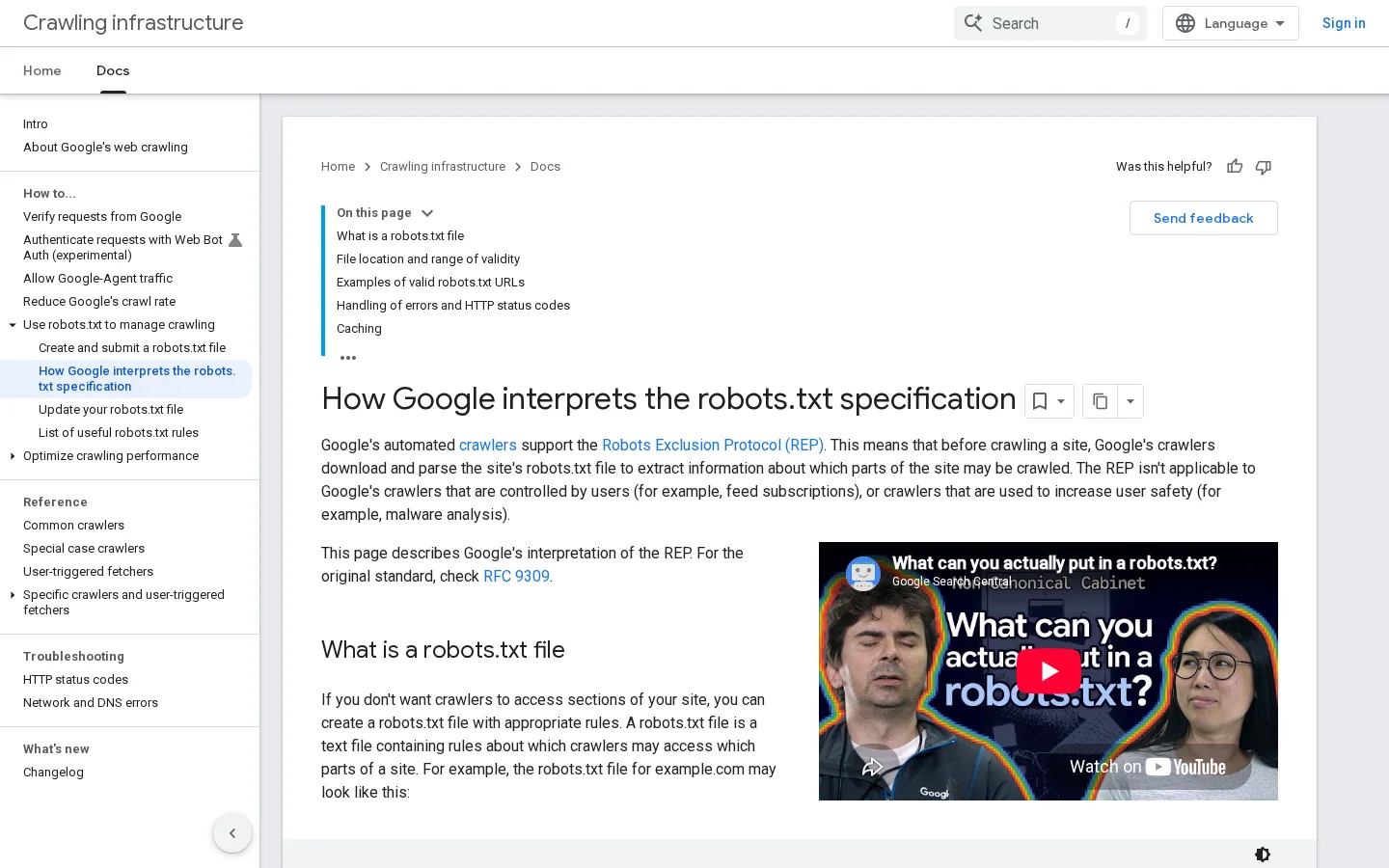
Yes, if you let it. Google fetches stylesheets like other resources, and it needs them to render your page the way a visitor sees it. If robots.txt blocks your CSS folder, Google sees the text without its layout, and it can misread what is visible and how the page works on a phone. Google's own robots.txt documentation says this directly.
The sample robots.txt in Google's reference documentation includes this comment: "All crawlers are disallowed to crawl files in the "includes" directory, such as .css, .js", followed by "but Google needs them for rendering, so Googlebot is allowed to crawl them." (Source: Google Search Central, robots.txt specification.) The rule applies to a folder, not to a file type, so a broad rule can catch your stylesheets without you noticing.
A common mistake is a rule written for an old folder name:
User-agent: *
Disallow: /assets/
If your stylesheets live in /assets/css/, Googlebot cannot fetch them. Narrow the rule to what really must stay private:
User-agent: *
Disallow: /admin/Open your robots.txt file and read every Disallow line. Then test a stylesheet URL from each main template. Sorank's free robots.txt checker validates the syntax and the access rules for AI crawlers. For a page that matters, Search Console's URL Inspection tool shows the HTML Google fetched and a screenshot of the rendered page, so a missing layout is easy to spot. If Search Console reports a blocked page, our guide to the blocked by robots.txt status covers the fixes.
| Robots.txt rule | Effect on your CSS | What to do |
|---|---|---|
Disallow: /assets/ with stylesheets inside | Googlebot cannot fetch the stylesheets | Remove the rule or move the files |
Disallow: /admin/ | No effect on CSS | Keep it |
| No rule covers your CSS | Googlebot fetches the stylesheets | Keep it this way |
Disallow: /*.css$ | Blocks every stylesheet | Remove it |

The 2 MB limit applies to the HTML of a page, not to the stylesheets it links. Each external file has its own byte counter. So the real cost of a heavy stylesheet is delay: the page waits while the browser loads the file, and that wait is where the Core Web Vitals damage comes from. Inline CSS is different, because it is part of the HTML and counts toward the 2 MB.
Google's post "Inside Googlebot," dated March 31, 2026, says that "Googlebot currently fetches up to 2MB for any individual URL (excluding PDFs)." It adds that external scripts and stylesheets are "fetched separately (subject to their own limits)," each with "their own, separate, per-URL byte counter and don't count towards the size of the parent page." A note dated October 29, 2026 corrects the count to include HTTP response headers. (Source: Google Search Central Blog, March 31, 2026.)
In practice, a page with a long block of inline styles uses up its own 2 MB, while the same styles in a separate file are counted against the file instead. Check your own pages before you assume the cap is not a problem.
Tip
Sorank's free page size checker measures the raw HTML of a public URL against the 2 MB cap. It also splits the total into inline scripts, inline styles, comments and tags, so you can see which part is heavy.
To measure a page yourself, run these two commands in a terminal. The header asks the server to skip compression, so you measure the uncompressed size.
curl -s -H "Accept-Encoding: identity" https://example.com/ | wc -c
curl -s -H "Accept-Encoding: identity" https://example.com/css/main.css | wc -c
The first number is the HTML size in bytes, and the second is the stylesheet size. If your server ignores the header, the number is compressed, so check the size in the Network tab of your browser's developer tools instead.
A stylesheet blocks rendering when the browser must load it before it shows anything. Lighthouse flags a stylesheet as render-blocking when it has no media attribute that matches the visitor's device. A stylesheet with media="all" still blocks, because it matches every device. You can keep print rules from blocking the screen:
<link rel="stylesheet" href="/css/main.css">
<link rel="stylesheet" href="/css/print.css" media="print">
The print file still downloads, but the browser does not wait for it before it shows the screen version. The main file still blocks, so that is the one to work on first.
Render-blocking CSS, before and after
Open Chrome's developer tools on a key page, press Ctrl+Shift+P (Cmd+Shift+P on a Mac), type "Show Coverage", and press Enter. Reload the page. The Coverage panel lists each stylesheet with its used and unused bytes. Unused rules are the ones to move out of the critical path, or to delete if no template uses them.
For most sites, one external stylesheet is the right default. Add inline critical CSS only when measurements show that the first paint waits on a stylesheet. Avoid @import chains, and use media attributes to split print and device rules. The five methods below are compared in the table at the end of this section.
Principle: the styles live in a file, and the page links to it with a link tag. When to use it: almost always, as the base of your site. Advantages: browsers keep the file in their cache, so later pages reuse it, and you maintain one source. Limits: the browser waits for the file before it shows anything, and one large file loads on every page.
<link rel="stylesheet" href="/css/main.css">Principle: the few rules needed for the first screen sit in a style block in the head. When to use it: when your measurements show that the first paint waits on a stylesheet. Advantages: the first screen does not wait for a network request. Limits: inline CSS is part of the HTML, so it counts toward the 2 MB cap, and it repeats on every page that carries it. Keep the block small.
<style>
body { margin: 0; font-family: system-ui, sans-serif; }
.hero { min-height: 60vh; }
</style>Principle: the browser fetches the file early with a preload hint, and switches it to a stylesheet when it arrives. When to use it: for styles the first screen does not need, such as rules for a footer or a comment form. Advantages: the file does not block the first paint. Limits: if the file arrives late, the page can show briefly without its styles, and visitors without JavaScript need the fallback below.
<link rel="preload" href="/css/below-fold.css" as="style" onload="this.onload=null;this.rel='stylesheet'">
<noscript><link rel="stylesheet" href="/css/below-fold.css"></noscript>Principle: one stylesheet pulls in another with @import. When to use it: practically never on a production site. Advantages: the source looks tidy. Limits: each import is found only after the file above it has loaded, so the browser makes several requests one after another before it can paint. Replace the imports with separate link tags in the head.
/* main.css: slow, because each import waits for the file above it */
@import url("base.css");
@import url("forms.css");Principle: separate files for separate conditions, each with a media attribute. When to use it: for print layouts, or for large-screen rules you want off phones. Advantages: the browser blocks the first paint only for the files that match the device. Limits: more files to maintain, and a wrong media value can hide a rule from the people who need it. The print example in the previous section shows the pattern.
| Method | Blocks the first paint? | Best for | Main limit |
|---|---|---|---|
| External stylesheet | Yes, unless the media value excludes the device | Most sites | One large file loads on every page |
| Inline critical CSS | No, it is the first paint | Rules for the first screen | Counts toward the 2 MB cap and repeats on each page |
| Preloaded stylesheet | No | Styles for the lower part of the page | A brief flash without styles is possible |
@import chain | Yes, and each step waits | Almost never | Several requests in a row |
| Media-split file | Only if the device matches | Print and screen rules | More files to maintain |
Content hidden with CSS is not a problem by itself. Tabs and accordions that show the same text on mobile and desktop are normal. What Google treats as spam is hiding text in order to manipulate search engines, such as text pushed off-screen or made invisible with opacity. The difference is intent and sameness, not the CSS property.
Google's mobile site guidance says: "Make sure that your mobile site contains the same content as your desktop site." Moving content into accordions or tabs is allowed when the words stay equivalent. (Source: Google Search Central, mobile site guidance.) So an accordion for a long FAQ answer is a good design choice. A tab that holds text absent from the desktop version is not.
Note
Keep the words of a tab or accordion in the HTML, even when they are collapsed. A collapsed block still sends its text to the crawler, while text drawn by a script or a generated pseudo-element is less reliable.
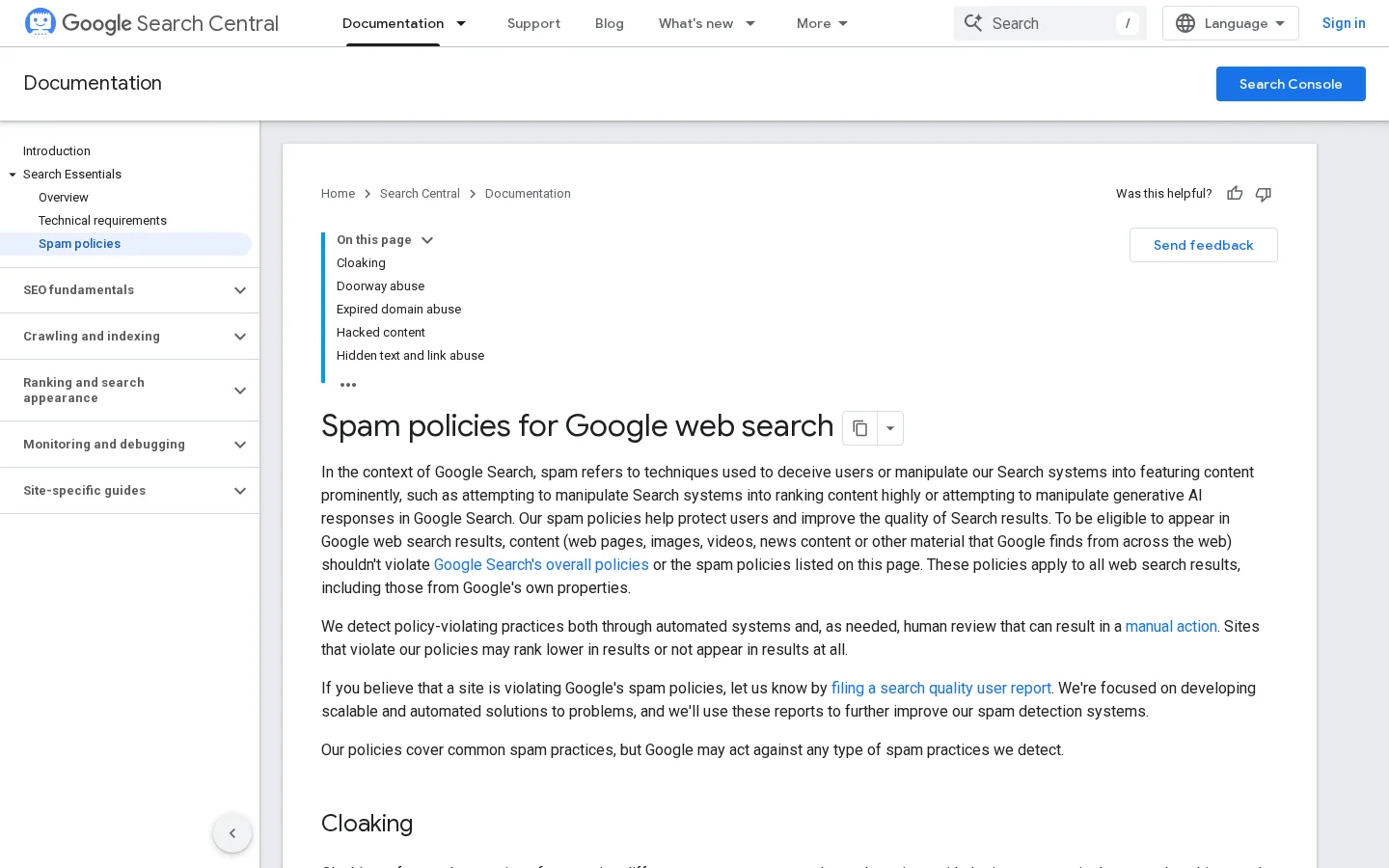
Google's spam policies define the practice this way: "Hidden text or link abuse is the practice of placing content on a page in a way solely to manipulate search engines." The same page gives CSS examples, including "Using CSS to position text off-screen" and "Setting the font size or opacity to 0." (Source: Google Search Central, spam policies.)
.seo-words { position: absolute; left: -9999px; }
.seo-keywords { opacity: 0; }
Both rules send keywords to the HTML, then hide them from every visitor. The fix is to remove the words or to show them. A keyword list that no reader can see gains nothing and can cost the page its trust.
Hidden with CSS: fine or spam?
Google defines cloaking as "presenting different content to users and search engines with the intent to manipulate search rankings and mislead users." (Source: Google Search Central, spam policies.) CSS is not needed for cloaking. Serving a different page to Googlebot by its user agent does the same thing, and it is a bigger risk than any CSS trick.
Warning
Do not show a long sales text to visitors and a keyword-heavy version to crawlers. If you cannot show a visitor the words, do not put them on the page at all.
Text added with ::before or ::after is not in your HTML. Google can render it, but support is inconsistent across tools, and screen readers do not all announce it. Use it for decoration such as icons and separators. Put any words you want ranked, quoted or read aloud in the HTML.
Start with what Google fetches, then measure what delays the first paint, then check what is hidden. For a small site, six steps take an afternoon. Repeat them after each major release.
Audit your CSS for SEO in six steps
Disallow line. Any rule that matches a stylesheet or script folder must go, unless the folder is private.The most common mistakes are a robots.txt rule that blocks stylesheets, one large stylesheet loaded on every page, @import chains, text hidden from visitors, words added with pseudo-elements, and layout shifts caused by fonts and images. Each one below has three parts: what it is, how to spot it, and how to fix it.
What it is. A rule written for an old folder, such as /assets/, now also covers the stylesheets that moved into it.
How to spot it. URL Inspection shows the rendered page without its layout, and the robots.txt checker flags the rule.
How to fix it. Remove the rule, or keep the private folder and move the public files out of it.
What it is. Every rule for every template sits in one file, and every page loads all of it, including the rules for pages the visitor never sees.
How to spot it. The Coverage panel shows a large share of unused bytes on a typical page.
How to fix it. Split the file by template, inline the rules for the first screen, and load the rest with a preload hint.
What it is. One stylesheet imports another, which imports a third.
How to spot it. In the Network panel, the CSS files load one after another, each starting only when the previous one ends.
How to fix it. Replace the imports with link tags in the head. The browser then requests the files at the same time.
What it is. Keywords or links are positioned off-screen, set to opacity 0 or placed in a container that no visitor can open.
How to spot it. Select all the text on the page with Ctrl+A and count the words. Compare that with what you see on screen. A large gap is a warning sign.
How to fix it. Delete the hidden words, or show them in a tab or accordion that visitors can open.
What it is. A sentence, a price or a product name appears on screen only because a pseudo-element adds it.
How to spot it. Search the HTML source for the phrase. If it shows on screen but not in the source, the words come from CSS.
How to fix it. Move the words into the HTML. Keep the pseudo-element for icons and separators only.
What it is. Images without a set size push the text down when they load, and a web font that swaps late changes the line lengths.
How to spot it. Watch the page load in the browser. If the text jumps, the layout shift is real. Lighthouse reports the CLS score too.
How to fix it. Give every image a width and a height, and set the font to swap with a close fallback.
<img src="/img/team.jpg" width="1200" height="800" alt="Two designers reviewing a page layout">
@font-face {
font-family: "Brand";
src: url("/fonts/brand.woff2") format("woff2");
font-display: swap;
}
Before you publish a template
Keep the words you want quoted in the HTML. We could not confirm how every AI crawler handles CSS and JavaScript, and some may not run them at all. Text that appears only after a script or a style runs is a risk for AI systems, even when Google can render it. Treat the HTML as the source of truth for anything you want cited.
Note
Our guide on JavaScript SEO covers rendering in more depth, and the same rule applies to scripts and styles. For the crawler side, read our glossary entry on AI crawlers.
| Content | Where it belongs | Why |
|---|---|---|
| Article text and headings | HTML | Every reader and crawler gets it |
| Key facts, names and prices | HTML | They can be quoted without rendering |
| Tab or accordion text | HTML inside the collapsed element | The words stay in the source and match the desktop version |
| Decorative icons and separators | CSS background or pseudo-element | No meaning is lost when they are missing |
| Hidden keyword lists | Nowhere | They count as hidden text abuse |
Treat CSS as part of technical SEO, not as a ranking lever. Fix crawl blocks first, because Google cannot render a page it cannot read. Then reduce render-blocking CSS and layout shift, which affect Core Web Vitals. Last, remove hidden text, because it is a policy risk that no speed gain can offset. Our technical SEO optimization guide covers crawling, indexing and speed as one system, and it is the right place to plan the whole sequence.
The markup itself matters as well. Clean, semantic HTML makes the page easier to read for crawlers and for assistive tools, and it reduces the need for CSS tricks. Check which HTML tags for SEO your templates already use before you add new styling to fix a problem that the markup could solve.
If you run a large set of existing pages, Sorank's content optimization feature audits pages that already get Google traffic and applies fixes to them. It does not replace the code checks in this guide, so run the robots.txt, size and hidden text checks yourself first. For the core metrics behind this work, the Core Web Vitals entry explains what each score measures.
Not directly. Google has not described CSS as a ranking signal, and class names have no SEO effect. CSS can still affect rankings through page speed and through what Google can see, so the work that counts is loading, blocking and hiding.
No. Google needs stylesheets to render your page, and Google's robots.txt documentation says it needs CSS and JavaScript files for rendering. Block only private folders such as admin areas.
Not when it is the same text that mobile visitors see in a tab or accordion. It becomes a problem when text is pushed off-screen or set to opacity 0 to manipulate search engines, which Google's spam policies treat as hidden text abuse.
We analyse your competitors, your website and your AI visibility to create a tailored content plan for free.
 Website Value Calculator
 Website Accessibility Checker
 Google Analytics Checker
 Duplicate Content Checker
 Mobile-Friendly Test
 Website Speed Test
 Subdomain Finder
 Domain Age Checker
 CMS Detector
 Googlebot Simulator
 Nofollow Link Checker
 Meta Tag Checker
 Keyword Cannibalization Checker
 Keyword Intent Checker
 Keyword Extractor
 Google Ads Cost Calculator
 CPC Calculator
 Local Citation Finder
 Reddit Threads Finder
 Disavow File Generator
 Redirect Generator
 Canonical Tag Generator
 Passive Voice Checker
 Google Location Changer
 Google Review Calculator
 Google Review Link Generator
 Keyword Combiner
 Podcast Show Notes Generator
 AI Content Rewriter
 AI Text Humanizer
 ChatGPT Prompt Generator
 Twitter Thread Generator
 Tweet Generator
 Landing Page Copy Generator
 Google Ads Copy Generator
 Pinterest Pin Description Generator
 Anchor Text Generator
 Social Media Post Generator
 LinkedIn Post Generator
 Free AI Writer
 Review Response Generator
 LSI Keyword Generator
 YouTube Video Ideas Generator
 YouTube Tag Generator
 YouTube Description Generator
 Product Description Generator
 CTA Generator
 Blog Introduction Generator
 Conclusion Generator
 Hook Generator
 AI Content Brief Generator
 FAQ Schema Generator
 AI Blog Post Ideas Generator
 Structured Data Validator (Schema Validator)
 Alt Text Checker
 Internal Link Analyzer
 Backlink Challenge
 AI Meta Description Generator
 AI Blog Title Generator
 Google Indexability Checker
 AI Blog Outline Generator
 UTM Link Builder
 Keyword Clustering Tool
 Canonical Tag Checker
 XML Sitemap Generator
 Broken Link Checker
 AI SEO Title Generator
 Headline Analyzer
 SERP Preview Tool
 Redirect Checker
 Hreflang Tag Generator
 Heading Structure Analyzer
 HTTP Headers Checker
 Favicon Extractor
 SERP CTR Calculator
 SEO vs Paid Search Savings Calculator
 SEO Share of Voice Calculator
 SEO ROI Calculator
 SEO Traffic and Revenue Forecast Calculator
 SEO Budget Calculator
 SEO Break-Even Calculator
 SaaS SEO ROI Calculator
 ROAS Calculator
 Reading Time Calculator
 Ranking Gain Simulator
 Organic Traffic Value Calculator
 Organic Traffic Estimator and Website Traffic Checker
 LTV to CAC Ratio Calculator
 Local SEO ROI Calculator
 Link Building Cost Calculator
 Keyword Value Calculator
 Keyword Opportunity Score Calculator
 Keyword Density Calculator
 GEO ROI Calculator
 GEO Content Investment Calculator
 Ecommerce SEO ROI Calculator
 Customer Lifetime Value Calculator
 Customer Acquisition Cost Calculator
 CTR Calculator
 Cost Per Article Calculator
 Conversion Rate Calculator
 Content Marketing ROI Calculator
 ChatGPT Referral Traffic Estimator
 Bounce Rate Calculator
 Backlink ROI Calculator
 AI Visibility Score Calculator
 AI Traffic Value Calculator
 AI Share of Voice Calculator
 Cost of AI Invisibility Calculator
 AI Citation Rate Calculator
 llms.txt Validator
 AI Overview Checker and AI Overviews Rank Checker
 Robots.txt Checker
 AI SEO Audit
 LLM Readability Checker
 SearchGPT Readiness Checker
 Structured Data LLM Audit
 Website Crawlability AI Audit
 Why ChatGPT Is Not Recommending My Website
 Gemini Ranking Tool
 Perplexity Ranking Checker
 LLM Citation Checker
 Answer Engine Optimization Audit
 GEO Audit
 AI Search Visibility Test
 ChatGPT Visibility Checker
 llms.txt Generator
 URL Extractor
 Webpage to Markdown
 Sitemap Checker
 SERP Volatility Sensor
 Page Size Checker
 Word Counter
 Slug Generator
 Schema Generator
 Robots Generator
 OG Preview
 Meta Tags Generator
 Image Compressor
 Favicon Generator
 On-Page SEO Audit: SEO Checker and SEO Analyzer
 Backlink Analysis Tool
 Keyword Research Tool
 Domain Authority Checker
 “I tested Sorank on a real client site and it's insane. It does everything an agency would bill you $1500 a month for. It's going into production on that client now.”

 Guillaume Guersanguersanguillaume.com“We are an Ads agency and we wanted to get our SEO back on track once and for all. Sorank gave us a clear view of our site, helped us prioritize optimizations, and properly structure our content. The tool is easy to use, well designed for a team, and very practical for centralizing tracking without having to juggle multiple platforms. A very solid foundation to start fresh with our SEO.”
 Gaspard MadouiAds Agency
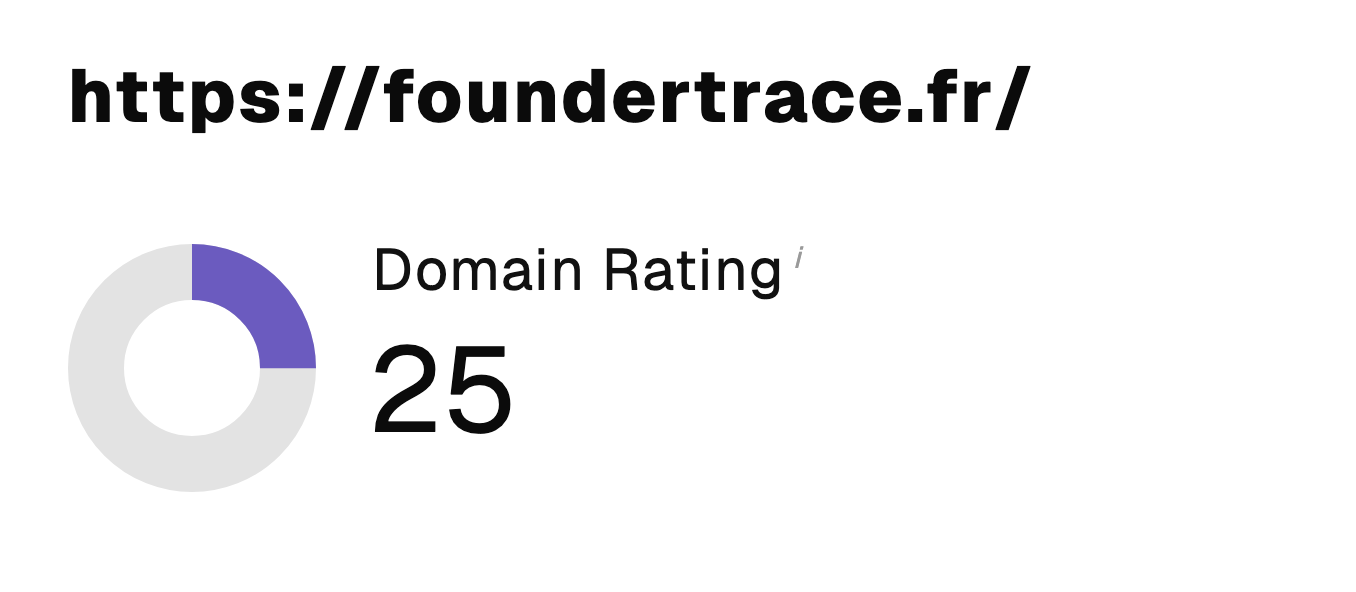 “I just let the Sorank software do its thing, and now my DR is 25 and my page is ranking higher.”
 Lucas Flandrefoundertrace.fr“I specialized in GEO thanks to Sorank. The GEO Leaderboard allows me to show my clients their position vs competitors on ChatGPT. It’s a real commercial differentiator.”
 MélanieSEO Freelance“Great service, works well for our website and helps us understand how to improve it to rank better on Google and elsewhere. Congrats, keep going, I recommend it.”
 Hugo T.E-commerce merchant