Preferences
Privacy is important to us, so you have the option of disabling certain types of storage that may not be necessary for the basic functioning of the website. Blocking categories may impact your experience on the website. More information
Privacy is important to us, so you have the option of disabling certain types of storage that may not be necessary for the basic functioning of the website. Blocking categories may impact your experience on the website. More information

Claim and verify your Apple Maps place card in Apple Business, formerly Apple Business Connect. Official steps, verification options, deadlines and fixes.

Tools

In short
Apple Business Connect is now called Apple Business, and your Apple Maps place card is still managed from its portal. Sign in, go to Brands, then Locations, and either claim the place Apple already shows or add a new one. If Apple already lists your location, phone verification with a four-digit code can be enough. For a new location, you verify your organization with two methods, Apple reviews it within up to 5 business days, and you have 60 days from sign-up to finish.
Want to go further? Ask
Quick quiz
Which way of finding customers online fits you best?
Sorank matches your answers


Test it for 3 days on your own site and see where you stand on Google, ChatGPT and the other AIs.
Start 3-day free trial3 days free, then stop whenever you want. 90-day results guarantee, conditions apply.
If you searched for "apple business connect", you are looking for the right tool under a name Apple has retired. Apple's user guide now opens with the notice that "Apple Business Connect is now Apple Business", and it says the new offering combines what used to be split across Apple Business Manager, Apple Business Essentials and Apple Business Connect into one platform (Apple Business user guide, consulted November 2026).
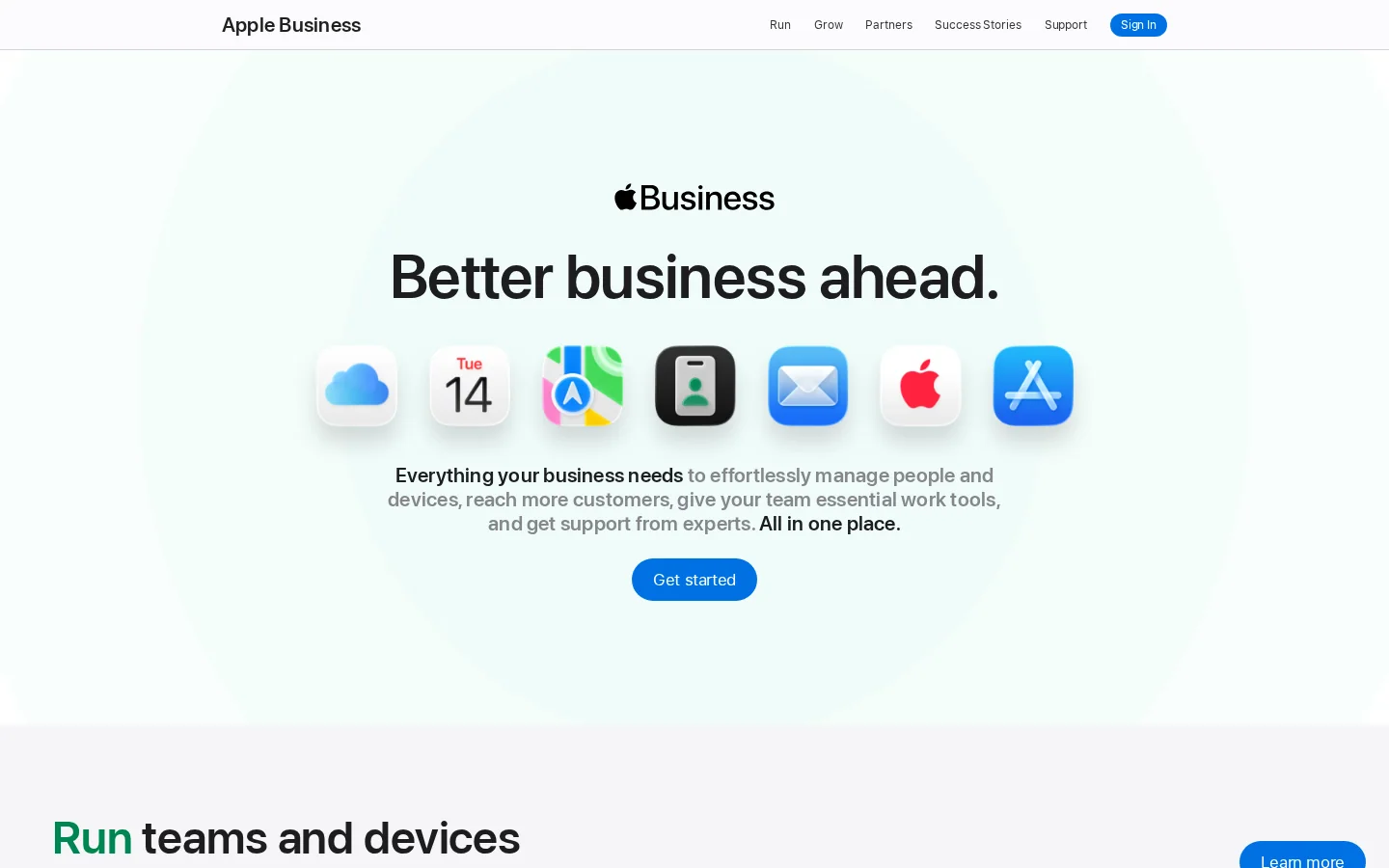
For you, the practical change is where the work happens. Your place card, the public page Apple Maps shows for your business, is managed from the Apple Business portal at business.apple.com. Apple's marketing page for the portal says you can claim your location on Maps, control your logo, hours, images and key details, add Custom Actions so customers can book reservations or schedule appointments, and follow Insights under Grow. It also says feature availability varies by country and region, so check your own portal before you promise a feature to a client (Apple Business, consulted November 2026).
Note
The launch coverage from January 2023 describes Showcases, which work like Google Posts, and call-to-action buttons. The current portal page we checked names Custom Actions and Insights instead. Showcases may still exist for your account, but confirm that in your own portal before you rely on it.
The place card is the page Apple Maps shows for your business. It carries your name, address, phone number, opening hours, primary category and photos. Often it is the first thing a customer reads about you, and it is the one page you do not fully control unless you have claimed it. If one field is wrong, the customer sees the wrong thing, and nobody on your team sees it happen.
Two problems cost the most. The first is a duplicate: a second card for the same shop, usually created by a customer or an old data feed, sits next to your real card and confuses anyone searching for you. The second is drift: you change your hours on your website, but the card keeps last season's hours for months because nobody owns it. Both problems have the same root cause. The listing has no owner. Claiming the place is how you take ownership, and it is also why the process asks for proof.
Apple wants evidence that your organization controls the location before it lets you edit the card. That is why the claim process has several steps that feel slow compared with other platforms. Each step below has a reason, and knowing the reason makes the wait easier to plan around.

Before you sign in, search Apple Maps for your business name and your city, then search for the street address. Write down what you find. You are looking for four things: an existing card for your exact location, a second card for the same place, a card under a slightly different name, and the phone number and category that Apple currently shows.
Those four facts decide your route. An existing card means you claim it, and phone verification may be available. No card means you add a new location, and a first location usually requires organization verification. A card that belongs to another organization means you request a transfer. A second card means you must decide which one stays, because two cards for one shop confuse customers and search results alike.
Example
A bakery on Maple Street finds two cards. One was created years ago with a misspelled name and an old phone number. The other came from a delivery app, with the right name but no hours. The owner looks for the card the portal lets them claim, fixes the name, number and hours there, and deals with the second card through the transfer or support route instead of creating a third card.
Both routes start the same way. Sign in to the Apple Business portal with a user whose role can manage locations, then go to Brands and then Locations. Apple's support guide for adding a single location describes the flow (Apple Support, consulted November 2026). The steps below follow that guide.
The flow is similar, with two differences. You search for the location by name and select it from the results instead of naming a new one. A checkbox lets you keep the existing primary category, which Apple can add to the brand as an additional category. Keep that box checked unless you have a clear reason to change the category, because the category shapes how people find you.
If another organization already manages the location, the flow shows a note saying "This location is already managed". You can still finish adding it, and then you request a transfer, as described in the verification section below.
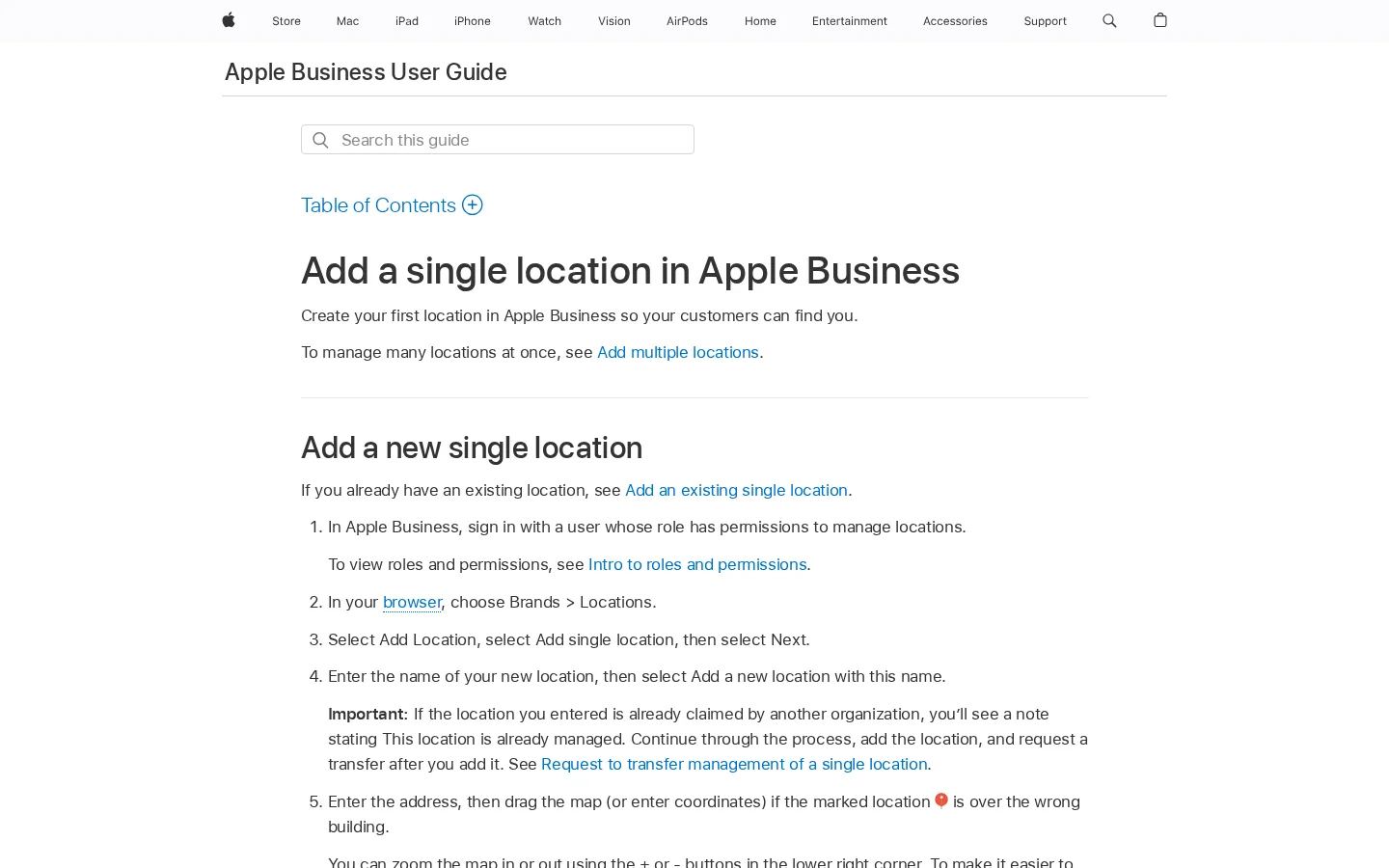
Claiming your place in five steps
Apple gives you three ways to prove that you control a location. Each one fits a different situation, and mixing them up is one of the most common reasons for a delay. Each method below has its principle, when to use it, its advantages, its limits and an example.
Principle. Apple calls the phone number it already has on record for the location, and you enter the four-digit code from that call. In the portal, you select Location Verification, then Next, add an optional extension if you need one, choose Phone Verification, enter the four-digit code, and select Done.
When to use it. Only when Apple already shows the location on Maps. Apple's guide says phone verification "may be available" for a location that already exists, so the option will not appear for every card.
Advantages. You do not prepare documents, and the path has no separate review window in Apple's guide.
Limits. The call goes to the number Apple has on record. If you do not recognize that number, Apple's guide tells you to contact Apple Business support rather than guessing. Phone verification also does nothing for a place Apple does not yet show, which is the case for a brand-new shop.
Example. A dental clinic finds that its card still points to a landline the clinic closed last year. Nobody answers that landline. The clinic has to reach the old number, or contact Apple Business support, before it can finish the phone route.
Principle. You prove that the company behind the locations is real. You do this once for the organization, not for each place. The sign-up guide describes the path as Settings, then Organization, then Verify Now (Apple Support, consulted November 2026).
When to use it. For a first location when your organization is not verified yet. Apple's guide says that in that case you verify the organization and send it to Apple for review before the location is complete.
Advantages. It is the route that works for a new location, the one that a phone call cannot cover.
Limits. You must complete two verification methods out of four. The options are a Business ID (a D-U-N-S Number or an Employer Identification Number), domain validation through a TXT record on your DNS server, an App Store Connect app (not available to agencies or third-party partners), or an official document such as a business license, sales tax permit, lease, or utility bill. Apple says the review "can take up to five business days to complete", and busy periods can add time. Apple's guide also states that you have 60 days after sign-up to verify, and that an organization not approved in time loses its organization, data and Managed Apple Accounts. The sign-up guide does not describe a denial process, so plan for the deadline, not for a rejection.
Example. A two-shop café prepares its business license and a DNS TXT record, which are two different methods, and sends the request for review on the same day. Apple's window is up to 5 business days, so the team plans the opening of its second shop with that margin, not on the day the request goes out.
Principle. When another organization already manages the location, you ask Apple to move management to you. Go to Brands, then Locations, find the location, select Request Transfer under Status, explain why management should move, attach supporting documents, and select Send for Review. Apple's guide gives a business license or a utility bill as examples of documents.
When to use it. When the flow shows the "already managed" note and you are the real operator of the business at that address.
Advantages. You keep working from the existing card instead of creating a competing card that search results must sort out.
Limits. Apple says the transfer review "can take up to five business days". You need documents that prove you run the business at that address, so an invoice in a former owner's name will not do.
Example. A coffee shop finds that a former franchise operator still manages its card. The owner sends a utility bill for the shop address with the transfer request, then waits for Apple's review inside the stated window.
| Method | Use it when | What you provide | Time stated by Apple | Main limit |
|---|---|---|---|---|
| Phone verification | Apple already shows the location | The four-digit code from the call to the number on record | No review window stated | Only for existing locations, and the number on record has to be answerable |
| Organization verification | First location, organization not yet verified | Two methods: Business ID, DNS TXT record, App Store Connect app, or an official document | Up to 5 business days for review, 60 days to finish after sign-up | An unfinished verification can lead to deleted organization data |
| Transfer request | Location already managed by another organization | Supporting documents such as a business license or utility bill | Up to 5 business days | You must prove you run the business at that address |
Phone or organization: which path is yours?
Source: Apple Support, Sign up for Apple Business, consulted November 2026
Three numbers in Apple's guides matter for planning. You have 60 days after sign-up to verify your organization. Review takes up to 5 business days once you have sent the request, and busy periods can add time. If you choose Opening Soon for a new location, the opening date cannot be more than 6 months away.
The sign-up guide also says that users with Managed Apple Accounts can sign in on devices only after the organization is verified. This matters if you plan to give staff access on the first day. They will wait until verification is done, so the verification is a dependency for your whole team, not only for the person who runs the portal.
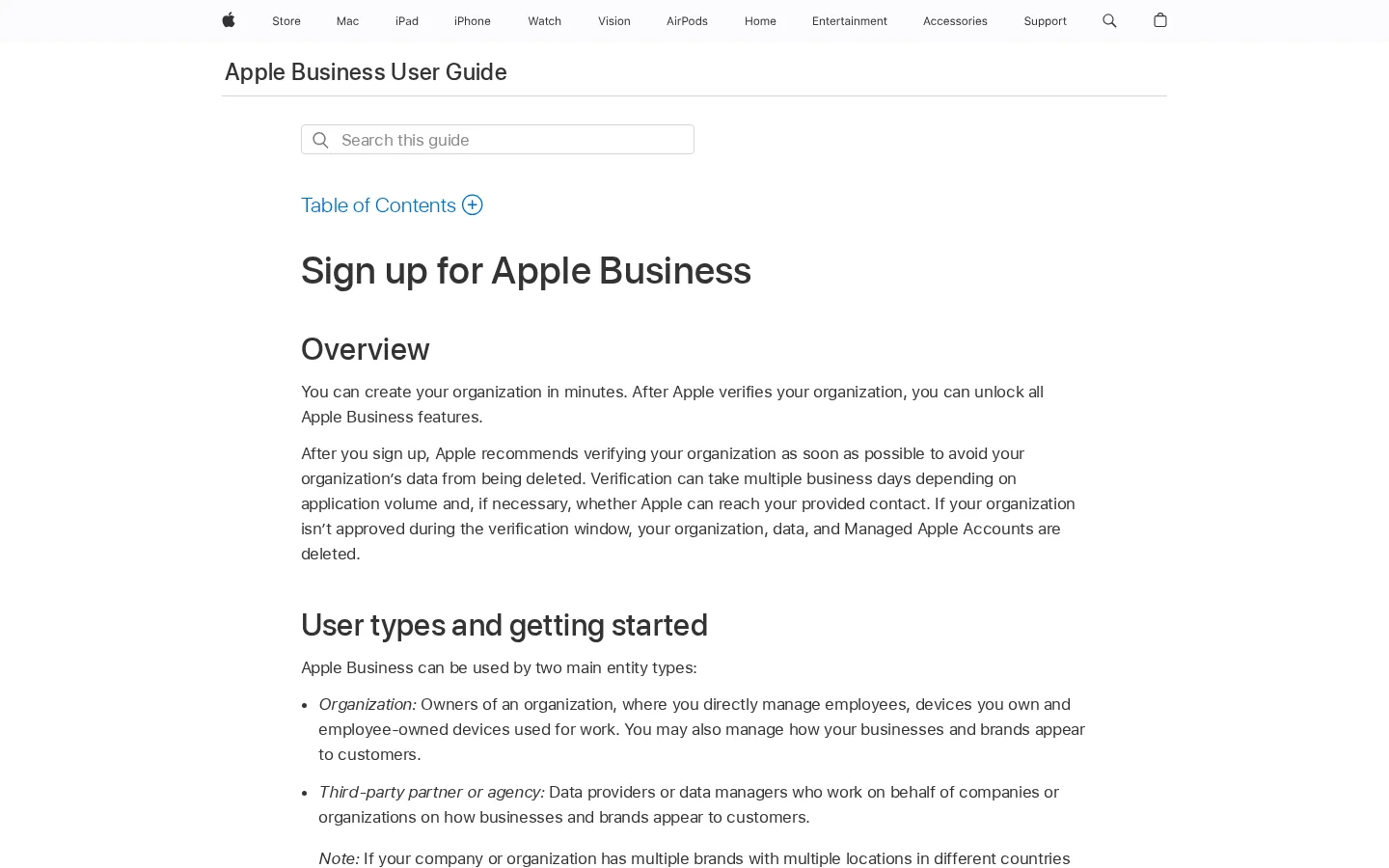
The numbers to plan around
Source: Apple Support, Sign up for Apple Business and Add a single location, consulted November 2026
Warning
Do not wait for day 60. Apple's sign-up guide says that if the organization is not approved in time, your organization, its data and its Managed Apple Accounts are deleted. Send the verification as soon as you have the documents, not when the deadline is close.
A planning timeline for a new location
Source: Apple Support, Sign up for Apple Business, consulted November 2026
Verification gives you control of the card. The card itself does the selling. Each field has a job, and each field has a common error. The table below lists the fields Apple asks for when you add a location, what to enter, and the mistake to avoid.
| Field | What to enter | Mistake to avoid |
|---|---|---|
| Display name for Apple Maps | The name customers use, spelled the way your storefront spells it | Adding a keyword to the name, which reads as spam and no longer matches your sign |
| Primary category | The most specific category that describes what most customers come for | Picking a broad category because it sits first in the list |
| Status | Open, or Opening Soon with a date within 6 months | Setting Opening Soon with a date further away than 6 months |
| Phone number | The number customers should call, with its country or region | Using a number that changes often, when the number on record is also the one Apple calls for verification |
| Website | Your own domain, or a Facebook, Instagram or TikTok page if you have no site | Pointing to a sign-up form or a page that redirects elsewhere |
| Hours | Regular hours, plus holiday changes as they are announced | Leaving last season's hours in place |
The portal lets you add a logo, images and Custom Actions, such as a booking link. Use photos of the storefront and of what you actually sell, taken in the current season, so the card matches the door a customer walks through. Custom Actions should lead to a page that does exactly what the button says. A "book a table" button that opens your homepage makes the card look careless.
If you are not open yet, set the status to Opening Soon and keep the date within 6 months. If you do not know the real opening date, do not invent one. Keep the status accurate and update the date once the lease, the inspection or the launch is confirmed.
Apple reads the card, but people also read your website, and your listing is only as good as the facts behind it. The name, address, phone number and hours on your website must match the place card. When the same fact differs from one page to the next, nobody can tell which version is right, and that uncertainty costs you the trust of the reader before they ever call.
A LocalBusiness-type JSON-LD block on your contact page makes those facts explicit for machines. The example below uses fictional details, so replace every value with your own before you publish it.
{
  "@context": "https://schema.org",
  "@type": "Bakery",
  "name": "Maple Street Bakery",
  "telephone": "+1-555-010-2000",
  "url": "https://www.example.com/",
  "address": {
    "@type": "PostalAddress",
    "streetAddress": "12 Maple Street",
    "addressLocality": "Springfield",
    "postalCode": "00000",
    "addressCountry": "US"
  },
  "openingHoursSpecification": [
    {
      "@type": "OpeningHoursSpecification",
      "dayOfWeek": ["Monday", "Tuesday", "Wednesday", "Thursday", "Friday"],
      "opens": "07:00",
      "closes": "18:00"
    }
  ]
}
Keep the same spelling of the name, the same phone number format and the same hours on your website, your place card and your Google Business Profile. For the rules behind the markup and the mistakes to avoid, read our guide to local business schema.
Tip
Paste your contact page into the free Structured Data Validator to check that the JSON-LD is valid. Then compare its values with your place card by hand, field by field, because a validator checks the syntax, not the facts.
If you manage several locations, the same discipline applies to every directory. Our guide to local listing management covers how to keep one set of facts across listings and how to clean up duplicates when they appear.
Most problems with Apple place cards fall into six patterns. For each one, you will find what it is, how to spot it, and how to fix it.
What it is. You add a new location without searching first, so the same shop now has two cards.
How to spot it. Search Apple Maps for your name and address after you publish. If two cards appear, you have a duplicate.
How to fix it. Claim the card you want to keep, or request a transfer if another organization manages it. If you cannot tell which card should stay, contact Apple Business support, the same route Apple's guide gives for numbers you do not recognize.
What it is. You wait for a six-digit code by text message because you know the portal sign-in uses one.
How to spot it. The location flow asks for a four-digit code from a call. Apple's guide on verification phone numbers describes the six-digit codes as the codes for signing in to the Apple Business portal, not for location verification (Apple Support, Add or reset verification phone numbers, consulted November 2026).
How to fix it. Use the phone route. Answer the call, enter the four-digit code from it, then select Done.
What it is. Apple's phone verification calls the number it has for the location. That number may belong to a closed office, an old landline or a voicemail nobody checks.
How to spot it. You do not recognize the number Apple shows during the flow, or the number rings with no one who can take the call.
How to fix it. Apple's guide says to contact Apple Business support if you do not recognize the number. Do not skip the step by guessing another number, because the verification only works with the one on record.
What it is. You sign up, then leave the verification for later because nobody owns the email account or the documents.
How to spot it. Check the verification status under Settings, then Organization, in the portal. Put the 60-day date in your calendar on the day you sign up, with a reminder a week earlier.
How to fix it. Choose your two methods now and send them for review. The stakes are organization data and Managed Apple Accounts, so make verification the first task of the project, not the last.
What it is. A mail filter or a spam rule catches Apple's messages, so the verification step never completes.
How to spot it. No email arrives after you submit a request. Check the spam folder first, then the filter rules for the domain.
How to fix it. Apple's guide says to make sure that any filters allow mail from all apple.com domains. Add that rule before you start the verification, not after you notice it is missing.
What it is. You set the status to Opening Soon with a date more than 6 months away, and the portal does not allow it.
How to spot it. The date is rejected, or your planned launch date does not fit the window the portal allows.
How to fix it. Keep the date within 6 months, and update it when you know the real opening date.
Place cards drift when nobody owns them, so give the job a fixed slot in the calendar. Once a month, run the checks below. Each one takes a minute or two, and each one catches a fault that would otherwise sit on the card for months.
Monthly check for your Apple Maps place card
Apple Maps is one of several places where your business is read. Google reads your Business Profile, and Bing reads its own listing. The same facts must match across all three, which means the same name, the same address and the same phone number everywhere. Our guides walk through each platform: how to add your business to Google Maps, how to verify your Google Business Profile, and Bing Places for Business.
Business directories follow the same logic. Our article on which business directories still matter for local SEO and AI visibility helps you decide which ones to keep up to date after Apple. For a full pass over your listings, use our local SEO checklist, and the step-by-step local SEO audit shows how to score each source.
The AI side asks the same question in a different way: when someone asks an assistant for a local recommendation, is your business named? Sorank's AI mention tracking shows when ChatGPT cites a brand, and Sorank also follows Gemini, Claude and Perplexity, so you can see where your business appears and where it is missing.
Apple now calls it Apple Business, and the place card tools sit in the Apple Business portal at business.apple.com. The old name still shows up in search, but the steps in this article follow Apple's current guides for the same place cards.
Organization verification can take up to 5 business days after you send it for review, and it must be completed within 60 days of sign-up. A transfer review also takes up to 5 business days. Apple's guides give no fixed wait for a phone verification.
Sometimes. The option appears only when Apple already shows the location on Maps. Apple calls the number it has on record, and you enter the four-digit code from the call. If you do not recognize the number, contact Apple Business support before you go further.
Yes, if customers search Google, which most do. Apple and Google run separate systems, so each one needs the same facts. Our guide to verifying your Google Business Profile covers that side of the work.
Apple Maps SEO means making your place card accurate, complete and consistent with the rest of the web. Apple's guides do not explain how it ranks places, so nobody can promise you a position. What you can do is remove the faults that hold a card back: a wrong category, a missing photo, hours that do not match your website, or a name that differs from the one customers use.
Local results weigh three kinds of signal, as our local SEO ranking factors guide explains: relevance, distance and prominence. Apple does not publish its weighting, and third-party vendors disagree on it, so treat any exact formula you read as a guess. You can act on relevance and accuracy directly, and you can only plan around distance.
The primary category tells Apple what kind of business you are, so it decides which searches can match your card. Pick the most specific category that describes what most customers come for. Keep the display name spelled the way your storefront spells it. A keyword added to the name looks like spam, and it no longer matches the sign customers search for.
Apple places your card at the pin you set during the flow, so check the marker against your real entrance before you publish. A pin on the wrong building sends customers to the wrong street, and no ranking fixes that. If you serve several neighborhoods, a page for each area on your website helps people and search engines connect your business to those places, as our guide to local landing pages explains.
Prominence is the hardest signal to read. Some guides say Apple weighs data accuracy above engagement, while others say third-party reviews such as Yelp still feed your card. None of these claims comes from Apple's own documentation, so do not build a plan on one of them. The safe move is the same either way: make the facts identical everywhere they appear. Our article on citation gaps shows how to find the sources where your facts are missing or wrong.
| Lever | What to check | Why it matters |
|---|---|---|
| Category | The most specific option that fits your main sales | It decides which searches can match the card |
| Name | The same spelling as your sign and your website | Customers search the name they see outside |
| Pin | The marker sits on your entrance | It sets the location that distance is measured from |
| Hours and phone | The same as your website and Google Business Profile | A mismatch makes the card look out of date |
| Photos | Current storefront and products | Customers see what they will find before they visit |
Tip
Search your card on Apple Maps from your door, then again from a few streets away. If it shows up only at the door, distance is the limit, and moving your address is the only fix.
Apple now calls it Apple Business, and the place cards are managed in the Apple Business portal at business.apple.com. Apple's guide says Apple Business combines what used to be Apple Business Manager, Apple Business Essentials and Apple Business Connect.
Organization verification can take up to 5 business days for review once you send it, and you have 60 days from sign-up to complete it. A transfer review also takes up to 5 business days. Apple gives no fixed wait for a phone verification code.
Sometimes. The phone option appears only when Apple already shows your location on Maps. Apple calls the number it has on record for that location, and you enter the four-digit code from that call in the portal.
We analyse your competitors, your website and your AI visibility to create a tailored content plan for free.
 AI Content Brief Generator
 FAQ Schema Generator
 AI Blog Post Ideas Generator
 Structured Data Validator (Schema Validator)
 Alt Text Checker
 Internal Link Analyzer
 Backlink Challenge
 AI Meta Description Generator
 AI Blog Title Generator
 Google Indexability Checker
 AI Blog Outline Generator
 UTM Link Builder
 Keyword Clustering Tool
 Canonical Tag Checker
 XML Sitemap Generator
 Broken Link Checker
 AI SEO Title Generator
 Headline Analyzer
 SERP Preview Tool
 Redirect Checker
 Hreflang Tag Generator
 Heading Structure Analyzer
 HTTP Headers Checker
 Favicon Extractor
 SERP CTR Calculator
 SEO vs Paid Search Savings Calculator
 SEO Share of Voice Calculator
 SEO ROI Calculator
 SEO Traffic and Revenue Forecast Calculator
 SEO Budget Calculator
 SEO Break-Even Calculator
 SaaS SEO ROI Calculator
 ROAS Calculator
 Reading Time Calculator
 Ranking Gain Simulator
 Organic Traffic Value Calculator
 Organic Traffic Estimator and Website Traffic Checker
 LTV to CAC Ratio Calculator
 Local SEO ROI Calculator
 Link Building Cost Calculator
 Keyword Value Calculator
 Keyword Opportunity Score Calculator
 Keyword Density Calculator
 GEO ROI Calculator
 GEO Content Investment Calculator
 Ecommerce SEO ROI Calculator
 Customer Lifetime Value Calculator
 Customer Acquisition Cost Calculator
 CTR Calculator
 Cost Per Article Calculator
 Conversion Rate Calculator
 Content Marketing ROI Calculator
 ChatGPT Referral Traffic Estimator
 Bounce Rate Calculator
 Backlink ROI Calculator
 AI Visibility Score Calculator
 AI Traffic Value Calculator
 AI Share of Voice Calculator
 Cost of AI Invisibility Calculator
 AI Citation Rate Calculator
 llms.txt Validator
 AI Overview Checker and AI Overviews Rank Checker
 Robots.txt Checker
 AI SEO Audit
 LLM Readability Checker
 SearchGPT Readiness Checker
 Structured Data LLM Audit
 Website Crawlability AI Audit
 Why ChatGPT Is Not Recommending My Website
 Gemini Ranking Tool
 Perplexity Ranking Checker
 LLM Citation Checker
 Answer Engine Optimization Audit
 GEO Audit
 AI Search Visibility Test
 ChatGPT Visibility Checker
 llms.txt Generator
 URL Extractor
 Webpage to Markdown
 Sitemap Checker
 SERP Volatility Sensor
 Page Size Checker
 Word Counter
 Slug Generator
 Schema Generator
 Robots Generator
 OG Preview
 Meta Tags Generator
 Image Compressor
 Favicon Generator
 On-Page SEO Audit: SEO Checker and SEO Analyzer
 Backlink Analysis Tool
 Keyword Research Tool
 Domain Authority Checker
 “I tested Sorank on a real client site and it's insane. It does everything an agency would bill you $1500 a month for. It's going into production on that client now.”

 Guillaume Guersanguersanguillaume.com“We are an Ads agency and we wanted to get our SEO back on track once and for all. Sorank gave us a clear view of our site, helped us prioritize optimizations, and properly structure our content. The tool is easy to use, well designed for a team, and very practical for centralizing tracking without having to juggle multiple platforms. A very solid foundation to start fresh with our SEO.”
 Gaspard MadouiAds Agency
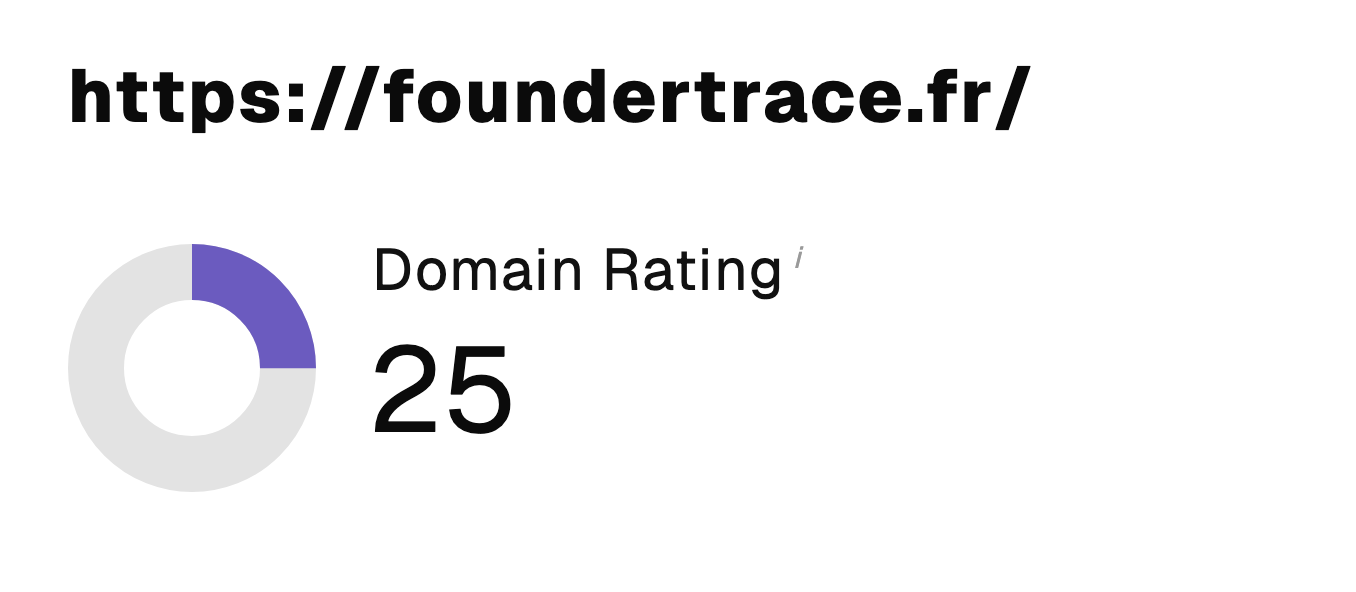 “I just let the Sorank software do its thing, and now my DR is 25 and my page is ranking higher.”
 Lucas Flandrefoundertrace.fr“I specialized in GEO thanks to Sorank. The GEO Leaderboard allows me to show my clients their position vs competitors on ChatGPT. It’s a real commercial differentiator.”
 MélanieSEO Freelance“Great service, works well for our website and helps us understand how to improve it to rank better on Google and elsewhere. Congrats, keep going, I recommend it.”
 Hugo T.E-commerce merchant