Preferences
Privacy is important to us, so you have the option of disabling certain types of storage that may not be necessary for the basic functioning of the website. Blocking categories may impact your experience on the website. More information
Privacy is important to us, so you have the option of disabling certain types of storage that may not be necessary for the basic functioning of the website. Blocking categories may impact your experience on the website. More information

A marketing calendar puts every campaign, channel and deadline on one timeline. Learn the fields, lead times and steps to build one your team keeps up to date.

In short
A marketing calendar is a shared schedule that puts every campaign, channel and deadline on one timeline, each with an owner and a date. It covers more than a content calendar, which only tracks articles and posts. To build one, list your campaigns, plan backward from each launch date, and review it weekly.
Want to go further? Ask
Quick quiz
Which way of finding customers online fits you best?
Sorank matches your answers


Test it for 3 days on your own site and see where you stand on Google, ChatGPT and the other AIs.
Start 3-day free trial3 days free, then stop whenever you want. 90-day results guarantee, conditions apply.
A marketing calendar is the one timeline where your team sees every activity for a period: email sends, paid campaigns, social posts, events, product launches, PR pitches and articles. It is wider than a content calendar, which only tracks what you publish. If your work goes beyond publishing, you need the wider view, because the activities depend on each other and a delay in one often hits three others.
Content calendar vs marketing calendar
The value of the wider view is in the dependencies. A product launch needs a landing page, an email sequence, a paid campaign and a press pitch, and each one waits on the one before it. If the calendar shows only the launch date, you learn in launch week that the landing page is still in review.
We already cover the editorial side in our guide to how to create a content calendar. This article takes the wider view: one calendar for the whole year, every channel, and the lead times that decide whether the plan survives contact with the team. For the short definition of the editorial version, read the content calendar entry in our glossary.
A calendar schedules decisions, it does not make them. If you do not yet know which channels matter or what each campaign should achieve, work through the steps in our marketing plan guide first, then come back here once the goals are fixed. A calendar filled with activities that have no goal is a busy calendar, not a plan.
Keep the scope of the calendar to one period you can actually see. A quarter in detail and a year in outline works for most teams. A three-year calendar drawn in one sheet is almost always wrong by the second quarter, and nobody reads it.
Every row of a marketing calendar needs seven fields: the activity, the channel, one owner, a start date, a due date, a dependency and a status. The goal can sit in its own column, but it should be there. Without an owner and a due date, a row is an idea, not a task.
| Field | What to write | Example |
|---|---|---|
| Activity | The asset or action, named exactly | Spring webinar landing page, French version |
| Channel | Where it goes live | Website, email, LinkedIn |
| Owner | One person who answers for the row | Lena, web content |
| Start and due date | When work begins and when it must be ready | Start on a Monday, due on a Thursday |
| Dependency | What must be finished before this row can start | Webinar slides approved |
| Status | Not started, in progress, in review, live, late | In review |
| Goal | The outcome this row serves | Registrations for the webinar |
Owners fail in two ways. Either a task has no owner, or it has three owners and nobody acts. The rule is one owner per row. The owner can ask others for help, but the owner answers for the due date. Check this every Monday by filtering the sheet for empty owner cells.
Status fails differently: rows stay at "in progress" after the work is done. Change the status the same day the state changes. Treat a row marked "live" with no link to the live page as not finished.
A dependency is a row that cannot start until another row is finished. Write it as a reference to the other row, not as a sentence, so you can filter on it. For example, the paid ad row depends on the landing page row. When the landing page slips, the ad row shows the impact at once. Without this field, the calendar shows dates that look fine on paper and fail in practice.

Start from your goals and your fixed dates, then add channels, tasks and owners, and finish with a review by the people who will do the work. Plan one afternoon for a first version, then spend a few weeks correcting it against reality. The steps below work for a quarter or a full year.
Seven steps from goals to a reviewed calendar
Steps 1 and 2 are where most calendars go wrong, because teams add activities before they agree on goals. Write the goals first, one sentence each, and only then list campaigns. Each campaign should name the goal it serves. For the detail of how one campaign is planned end to end, see how to plan a marketing campaign.
Planning forward from today feels natural, but it hides the real constraint, which is the fixed date. Put the launch date in one cell and plan backward from it. For each task, write its lead time in working days: the time it needs before the output can go live, including the review loop. The due date of each row is then a formula, not a guess.
In a spreadsheet, WORKDAY does this calculation and skips weekends and any holidays you list in a named range called Holidays. If the launch date is in cell B2 and the copy must be ready ten working days before, the formula in the due date column is:
=WORKDAY(B2,-10,Holidays)Change the launch date and every due date moves with it. That is the point. When the launch slips, the calendar shows which rows slip too, instead of you finding out on the day.
Every campaign link needs UTM parameters so that its visits show up in your analytics under the right campaign name. Add the tagged URL to the calendar row when the row is created. If you wait until launch, someone will paste the bare link into an email, and the visits will be counted as direct traffic.
Tip
Build the tagged URL with the free UTM link builder, then paste it into the row next to the activity, so the link and its tracking name live in the same place.
The review is the last step, and it is where the calendar becomes honest. Read it with the owners, row by row. Ask each owner whether the due date is possible given their other work. Move the dates they reject and keep the ones they accept. A calendar the team argued over is a calendar the team will follow.
A lead time is the number of working days a task needs before its output can go live, and it includes review and approval loops. Most schedule failures come from lead times that were never written down. Plan from the fixed date backward, so that every row is anchored to something that cannot move.
A product launch, planned backward
The timeline is a template, not a schedule. Your own lead times depend on your team. What matters is that the review step has time in it. A row labeled "review" with the same date as its due date has no lead time at all.
Approvals are the usual hidden delay. They happen after the work looks finished, and they often wait for someone who is away that week. Translations are the second. A landing page in three languages needs translator time, so give it its own row with its own owner. Images and video are the third. Design queues are rarely short, so book the designer when you plan the campaign, not when the copy is ready.
Some assets only work if they are live before demand starts. Google's guide to Google Trends says to publish content early enough that it is available before people start searching for it, in its Get started with Google Trends documentation. For a seasonal campaign, that means the page must be indexed and reachable weeks before the peak, not on the day the peak begins. Put that deadline in the calendar as its own row, with its own owner, and check it against the search data described in the next section.
Build the calendar around two things: demand peaks and your team's capacity. Demand tells you when to start. Capacity tells you how much you can do at once. A calendar that ignores either one will be overloaded in the wrong weeks and empty in the right ones.
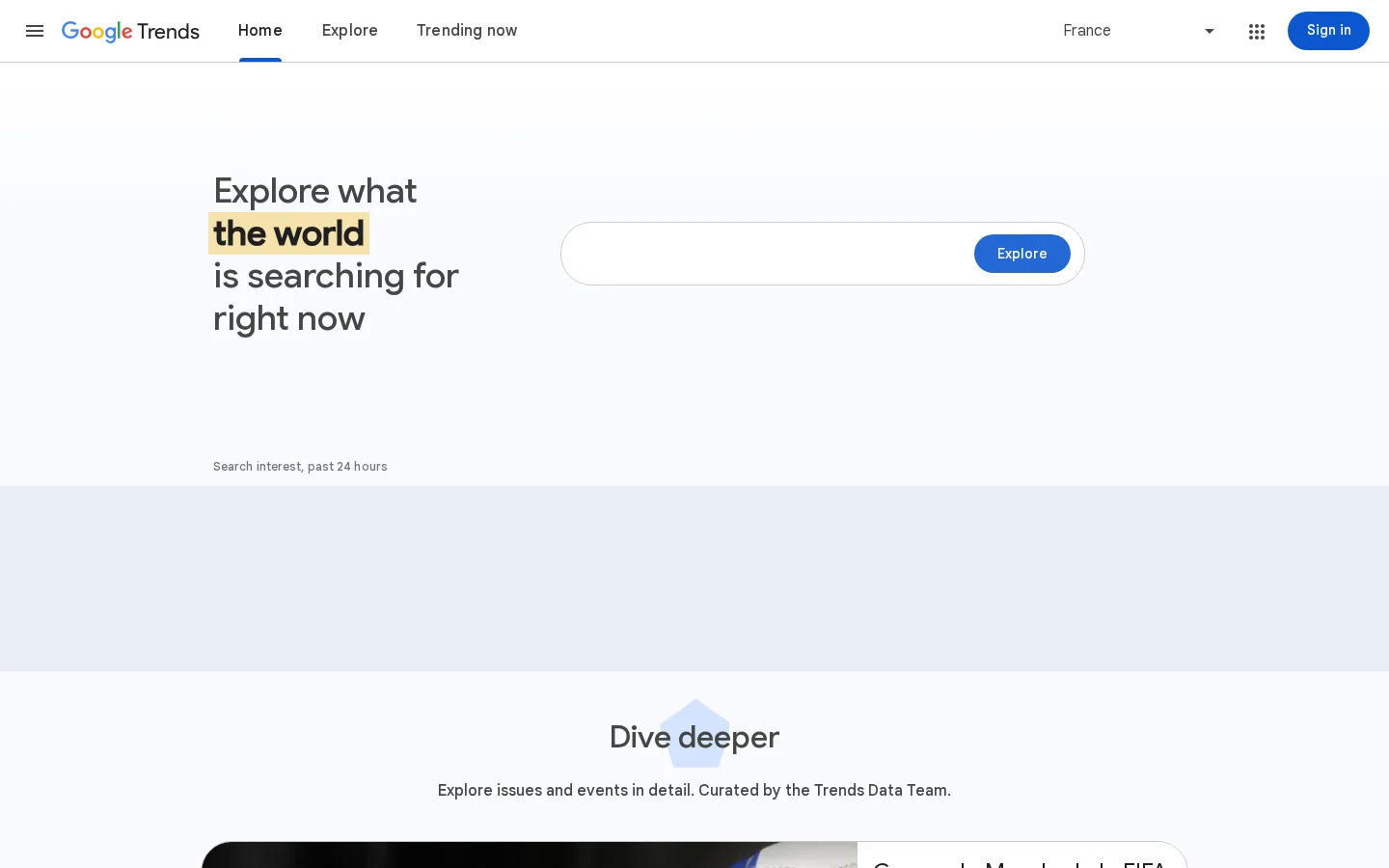
To find seasonal peaks, look at search data instead of relying on memory. In Google Trends you can compare a term's interest with the preceding period and with the same period a year earlier. The year-over-year comparison separates a real seasonal pattern from a one-off spike. The Google Trends help article on quick comparisons explains the comparison options.
Organize the calendar in three layers. The first holds fixed dates: trade shows, your financial calendar, public holidays and product release dates. The second holds the seasonal peaks you found in search data, such as a gift guide before the holiday season or a back-to-school page. The third holds always-on activity: the weekly newsletter, the monthly social series and the regular articles that keep the site moving. Fill the first layer, then the second, and let the third fill the gaps.
A page built for a seasonal query has to exist, be linked from your site and be crawled before the search peak. Otherwise the peak arrives while the page is still in review. The seasonal SEO guide covers how to plan these pages and update them each year, which is the part a yearly calendar usually forgets.
A calendar with a campaign every week has no room to react. Keep part of your capacity free, and mark those weeks as open in the calendar so nobody books them by accident. When something urgent appears, such as news in your sector or a competitor launch, the open slot is where it goes.
A shared spreadsheet is the cheapest way to start, a project tool adds reminders and ownership, and planning software adds links to your publishing channels and some automation. Choose by the number of people involved and the number of channels, not by the length of the feature list.
| Format | Best for | Strength | Limit |
|---|---|---|---|
| Shared spreadsheet | One to three people, one or two channels | Free, quick to edit, easy to filter and to copy into a deck | No reminders, weak on approvals, drifts out of date |
| Project management tool (Asana, ClickUp, Trello or Monday.com) | Teams with many tasks and approvals | Assignments, due-date reminders, subtasks | Calendar view is often secondary, and setup takes time |
| Editorial or social calendar | Teams whose work is mostly publishing | Posts linked to their channel, with preview and scheduling | Blind to email, paid and events work |
| Planning software with automation | Teams that publish blog articles on a schedule | Keyword to article to publication in one flow | Covers articles only, other channels stay in your main calendar |
If most of your calendar is a list of articles, planning software fits best. Sorank's AI content calendar fills the blog rows with keyword suggestions from the competitors you follow and from your own site, and you set the time zone and publishing time once. Each slot shows whether it is scheduled, generated or published. Articles can go to WordPress, Shopify, Webflow or Wix on their day, or land there as drafts for a last read.
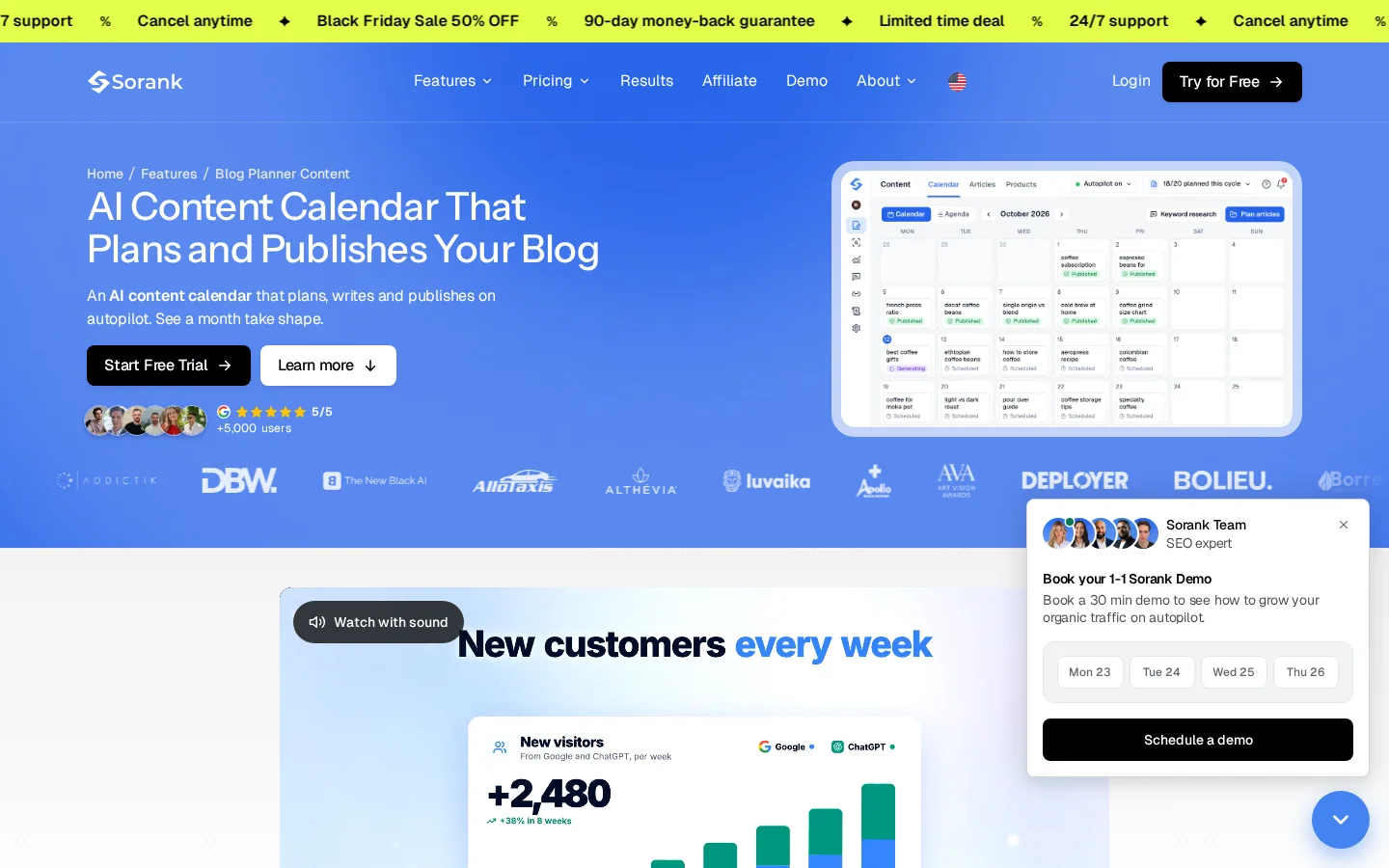
Keep the rest of the calendar in the tool your team already uses. A blog slot cannot tell you that the paid campaign for the same week is missing an approved image, so the cross-channel view still needs one place where every owner can see every row.
Review the calendar every week for the next four to six weeks, and once a quarter for the full plan. A calendar nobody updates within a week turns into a record of what was meant to happen, which is useless when a launch is at risk. The weekly review should take about thirty minutes and cover owners, statuses and dependencies.
A drifting calendar vs a working one
When a campaign points to a page you refresh, the date you publish on that page matters for search engines. Google's sitemap guide, "Build and submit a sitemap", says the lastmod value should reflect the date of the last significant update, and that Google uses it only when it is consistent and verifiable against the page's real last modification. In a June 26, 2023 post on the Google Search Central blog, Gary Illyes added that changing primary text, structured data or some links counts as significant, while a small edit to a sidebar or footer does not. Keep the calendar and the sitemap in agreement: when a row is marked as updated, the page's date changes with it, and only then.
Warning
Do not set every page's lastmod to today as a routine step. Illyes's post warns that inaccurate dates will eventually be ignored, which defeats the purpose of a calendar-driven update.
The most common calendar mistakes are overbooked weeks, tasks with no owner, dates with no lead time, blackout periods nobody marked, and a calendar that stops being updated. Each one shows up in the calendar itself if you know where to look, and each has a fix you can apply the same day.
| Mistake | How to spot it | How to fix it |
|---|---|---|
| Overbooked weeks | One owner appears in several launches in the same week | Move the least urgent launch, or split the rows across two people |
| Tasks with no owner | Empty owner cells in the sheet | Assign one name in the review, before the row is saved |
| Dates with no lead time | Review and launch fall on the same day | Give the review its own duration and build dates backward |
| Blackout periods unmarked | Due dates on holidays or during a planned absence | Add blackout rows and use the holiday list in your formulas |
| A calendar that drifts | Statuses older than a week | Fix the weekly review to a set day and time |
What it is: more work scheduled than the team can do in a week, usually because each campaign was planned in isolation. How to spot it: count the rows per owner per week, and look for weeks where one person appears in several launches at once. How to fix it: move the least urgent launch, or split the owner's rows across two people with a clear handover written into the dependency column.
What it is: a row that everyone assumes someone else will do. How to spot it: filter the owner column for blanks every Monday. How to fix it: do not save a row without a name. If the owner is unknown, the row is not ready for the calendar. It belongs in a backlog until someone takes it.
What it is: a launch on Friday with its copy due on Thursday. The dates look ordered, but there is no room for the review loop. How to spot it: a review row that starts and ends on the same day as the launch. How to fix it: give the review its own duration in working days, and build the due dates backward from the launch with the WORKDAY formula shown earlier.
What it is: a launch scheduled during a public holiday, a freeze before a fiscal close, or the week a key person is away. How to spot it: check every due date against your list of holidays and absences. How to fix it: add blackout rows so the blocked time is visible, and keep the holiday list in the named range your formulas use.
What it is: a calendar that was accurate in January and is fiction by March. How to spot it: statuses older than a week, and rows marked "in progress" for work that already shipped. How to fix it: put the weekly review on a fixed day and time, and make the status update part of finishing the task, not a separate chore.
A calendar is ready to share when every row passes the same checks and the team agrees that the dates are possible. Run through the list below before you send the calendar to anyone outside the core team, including leadership.
Pre-share checklist
The calendar is a means, so measure what it changes. Three signals are enough to start. The first is on-time delivery: the share of rows finished by their due date, read from the status history. The second is where delays happen, read from the comments and from the rows whose due dates move most often. The third is campaign impact, read from your analytics and filtered by the campaign names you put in the UTM tags.
| Signal | What it tells you | Where to read it |
|---|---|---|
| On-time delivery | Whether your lead times are realistic | Status history in your calendar tool |
| Most-delayed step | Which review loop or hand-off is the bottleneck | Rows whose due date moves more than once |
| Campaign traffic | Which activity drove visits and sign-ups | Analytics, filtered by UTM campaign name |
For the social side of the calendar, the social media marketing plan shows how to map posts to goals. Search and AI traffic belong in the same review, and the GEO / SEO dashboard in Sorank puts both in one view. Start with one quarter, run the weekly review for four weeks, and then change the calendar based on what the numbers show, not on what you hoped would happen.
A content calendar tracks the articles and posts you will publish and when. A marketing calendar covers every activity across channels, including email sends, paid campaigns, events and PR, and the dependencies between them.
Plan the year in broad layers and the quarter in detail, then keep the next four to six weeks at task level. Lead times for design, translation and approvals usually take longer than the team expects, so they need their own rows.
A shared spreadsheet is enough for one to three people working on one or two channels. Move to a project tool or planning software when several people need reminders, approvals or a direct link to your publishing channel.
We analyse your competitors, your website and your AI visibility to create a tailored content plan for free.
 Duplicate Content Checker
 Mobile-Friendly Test
 Website Speed Test
 Subdomain Finder
 Domain Age Checker
 CMS Detector
 Googlebot Simulator
 Nofollow Link Checker
 Meta Tag Checker
 Keyword Cannibalization Checker
 Keyword Intent Checker
 Keyword Extractor
 Google Ads Cost Calculator
 CPC Calculator
 Local Citation Finder
 Reddit Threads Finder
 Disavow File Generator
 Redirect Generator
 Canonical Tag Generator
 Passive Voice Checker
 Google Location Changer
 Google Review Calculator
 Google Review Link Generator
 Keyword Combiner
 Podcast Show Notes Generator
 AI Content Rewriter
 AI Text Humanizer
 ChatGPT Prompt Generator
 Twitter Thread Generator
 Tweet Generator
 Landing Page Copy Generator
 Google Ads Copy Generator
 Pinterest Pin Description Generator
 Anchor Text Generator
 Social Media Post Generator
 LinkedIn Post Generator
 Free AI Writer
 Review Response Generator
 LSI Keyword Generator
 YouTube Video Ideas Generator
 YouTube Tag Generator
 YouTube Description Generator
 Product Description Generator
 CTA Generator
 Blog Introduction Generator
 Conclusion Generator
 Hook Generator
 AI Content Brief Generator
 FAQ Schema Generator
 AI Blog Post Ideas Generator
 Structured Data Validator (Schema Validator)
 Alt Text Checker
 Internal Link Analyzer
 Backlink Challenge
 AI Meta Description Generator
 AI Blog Title Generator
 Google Indexability Checker
 AI Blog Outline Generator
 UTM Link Builder
 Keyword Clustering Tool
 Canonical Tag Checker
 XML Sitemap Generator
 Broken Link Checker
 AI SEO Title Generator
 Headline Analyzer
 SERP Preview Tool
 Redirect Checker
 Hreflang Tag Generator
 Heading Structure Analyzer
 HTTP Headers Checker
 Favicon Extractor
 SERP CTR Calculator
 SEO vs Paid Search Savings Calculator
 SEO Share of Voice Calculator
 SEO ROI Calculator
 SEO Traffic and Revenue Forecast Calculator
 SEO Budget Calculator
 SEO Break-Even Calculator
 SaaS SEO ROI Calculator
 ROAS Calculator
 Reading Time Calculator
 Ranking Gain Simulator
 Organic Traffic Value Calculator
 Organic Traffic Estimator and Website Traffic Checker
 LTV to CAC Ratio Calculator
 Local SEO ROI Calculator
 Link Building Cost Calculator
 Keyword Value Calculator
 Keyword Opportunity Score Calculator
 Keyword Density Calculator
 GEO ROI Calculator
 GEO Content Investment Calculator
 Ecommerce SEO ROI Calculator
 Customer Lifetime Value Calculator
 Customer Acquisition Cost Calculator
 CTR Calculator
 Cost Per Article Calculator
 Conversion Rate Calculator
 Content Marketing ROI Calculator
 ChatGPT Referral Traffic Estimator
 Bounce Rate Calculator
 Backlink ROI Calculator
 AI Visibility Score Calculator
 AI Traffic Value Calculator
 AI Share of Voice Calculator
 Cost of AI Invisibility Calculator
 AI Citation Rate Calculator
 llms.txt Validator
 AI Overview Checker and AI Overviews Rank Checker
 Robots.txt Checker
 AI SEO Audit
 LLM Readability Checker
 SearchGPT Readiness Checker
 Structured Data LLM Audit
 Website Crawlability AI Audit
 Why ChatGPT Is Not Recommending My Website
 Gemini Ranking Tool
 Perplexity Ranking Checker
 LLM Citation Checker
 Answer Engine Optimization Audit
 GEO Audit
 AI Search Visibility Test
 ChatGPT Visibility Checker
 llms.txt Generator
 URL Extractor
 Webpage to Markdown
 Sitemap Checker
 SERP Volatility Sensor
 Page Size Checker
 Word Counter
 Slug Generator
 Schema Generator
 Robots Generator
 OG Preview
 Meta Tags Generator
 Image Compressor
 Favicon Generator
 On-Page SEO Audit: SEO Checker and SEO Analyzer
 Backlink Analysis Tool
 Keyword Research Tool
 Domain Authority Checker
 “I tested Sorank on a real client site and it's insane. It does everything an agency would bill you $1500 a month for. It's going into production on that client now.”

 Guillaume Guersanguersanguillaume.com“We are an Ads agency and we wanted to get our SEO back on track once and for all. Sorank gave us a clear view of our site, helped us prioritize optimizations, and properly structure our content. The tool is easy to use, well designed for a team, and very practical for centralizing tracking without having to juggle multiple platforms. A very solid foundation to start fresh with our SEO.”
 Gaspard MadouiAds Agency
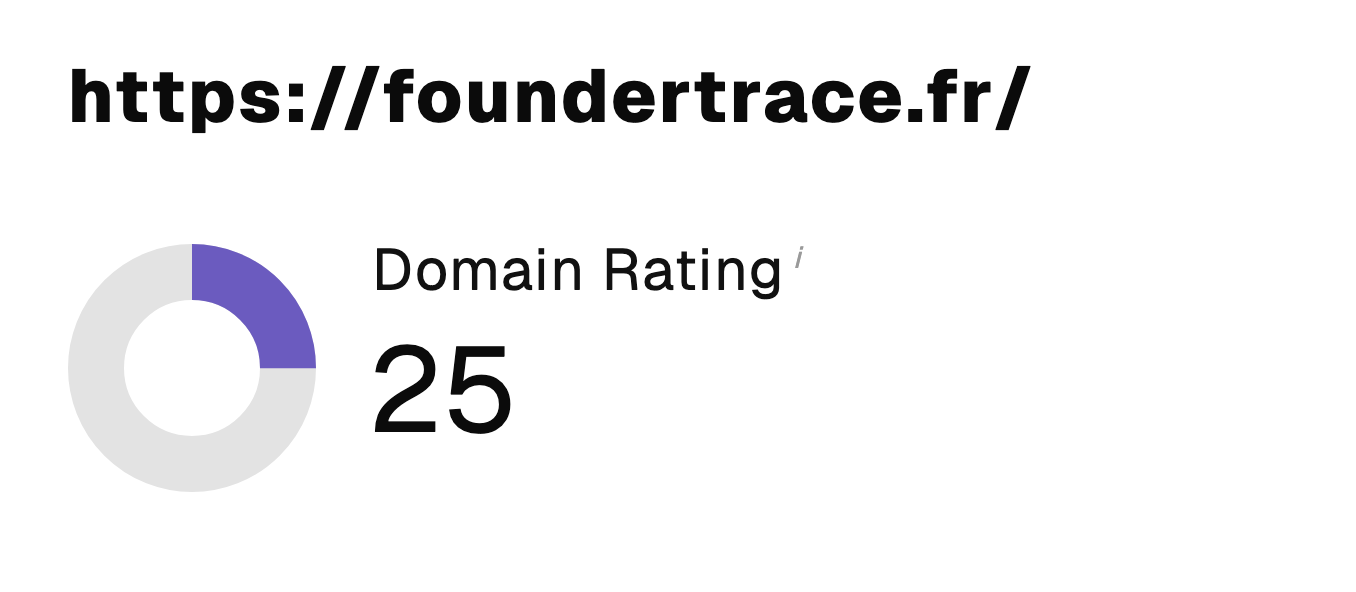 “I just let the Sorank software do its thing, and now my DR is 25 and my page is ranking higher.”
 Lucas Flandrefoundertrace.fr“I specialized in GEO thanks to Sorank. The GEO Leaderboard allows me to show my clients their position vs competitors on ChatGPT. It’s a real commercial differentiator.”
 MélanieSEO Freelance“Great service, works well for our website and helps us understand how to improve it to rank better on Google and elsewhere. Congrats, keep going, I recommend it.”
 Hugo T.E-commerce merchant