Preferences
Privacy is important to us, so you have the option of disabling certain types of storage that may not be necessary for the basic functioning of the website. Blocking categories may impact your experience on the website. More information

Privacy is important to us, so you have the option of disabling certain types of storage that may not be necessary for the basic functioning of the website. Blocking categories may impact your experience on the website. More information

How to add keywords to your website: map one keyword per page, place it in 9 spots (title, H1, URL, alt text...) and skip what Google ignores or penalizes.
Tools

In short
to add keywords to your website, first give each page one primary keyword and a few close variants (a keyword map), then place that keyword where Google reads it most: the title tag, the H1, the URL, the opening paragraph, one or two subheadings, image alt text and the anchors of internal links. Write the rest of the page naturally with synonyms and related terms. Skip the meta keywords tag, which Google does not use, and never repeat a phrase until it sounds unnatural, which Google treats as spam.
Want to go further? Ask
Quick quiz
How should you find the right keywords?
Sorank matches your answers


Test it for 3 days on your own site and see where you stand on Google, ChatGPT and the other AIs.
Start 3-day free trial3 days free, then stop whenever you want. 90-day results-or-refund guarantee.
Most guides on how to add keywords to your website stop at a list of HTML tags. The harder part comes before: deciding which page should rank for which search, so that your pages do not compete with each other. This guide covers both, with an example keyword map, a placement table, where the fields sit in the main website builders, and how to check the result in Search Console. Every rule below matches the official Google SEO Starter Guide (checked October 2026).
A keyword is the phrase a person types into Google or asks an AI assistant: "how to brew green tea", "plumber Bristol", "organic sencha 100g". Adding keywords means making sure each of your pages uses the words its future visitors use, in the places search engines read first. Google's starter guide puts it simply: think about the words a user might search for to find your content, and remember that an expert and a beginner often describe the same thing differently.
Google's language systems understand synonyms and related phrases, so you do not need every variant word for word. What you need is one clear topic per page, named explicitly in its main elements, and a body that answers the question behind the search. Keywords are the label on the page; the content is what Google and the AIs judge.
Start from a short list of seed keywords: your products, services, the problems you solve and, for a local business, your city. Then expand that list with four free sources:
For each keyword, note its monthly volume, its difficulty and above all its search intent: does the person want to learn, compare or buy? Intent decides which type of page can rank. A buying query needs a product or service page, and a "how to" query needs an article. If you need a full method to prioritize, our guide to building a keyword strategy walks through it.
Build a keyword map: a simple spreadsheet with one row per page, its primary keyword, two to five secondary keywords and its intent. The rule is one primary keyword per page, and one page per primary keyword. When two pages target the same search, Google has to choose between them and often ranks neither well, a problem known as keyword cannibalization.
Here is a keyword map for a small online tea shop:
| Page | Primary keyword | Secondary keywords | Intent |
|---|---|---|---|
| Home page | loose leaf tea online | buy loose leaf tea, online tea shop | Buy |
| Category: green tea | green loose leaf tea | japanese green tea, sencha, matcha | Compare and buy |
| Product: Kyoto sencha | organic sencha tea | sencha 100g, japanese sencha | Buy |
| Blog article | how to brew green tea | green tea water temperature, steeping time | Learn |
| Blog article | sencha vs matcha | difference between sencha and matcha | Compare |
| About page | brand name | tea importer, family business | Trust |
Two consequences appear immediately. First, some keywords have no page yet: that is your content plan, and new pages are the most reliable way to add keywords to a site. Second, informational keywords ("how to brew green tea") belong on articles, while commercial keywords belong on category and product pages.
Tip
Before creating a page for a keyword, search it on Google. If the top 10 shows only articles and you planned a product page (or the reverse), change the page type or pick another keyword.
Once a page has its keyword, place it in these nine spots. The table uses the article "how to brew green tea" from the map above.
| Element | What to do | Example |
|---|---|---|
| 1. Title tag | Primary keyword near the start, unique, about 50 to 60 characters | How to Brew Green Tea: Temperature, Time and Ratio |
| 2. Meta description | Keyword plus the answer and a benefit | Brew green tea at 70-80°C for 2 minutes... |
| 3. URL slug | Short, readable words, no dates or IDs | /blog/how-to-brew-green-tea |
| 4. H1 | Keyword stated plainly, close to the title tag | How to Brew Green Tea Properly |
| 5. Opening paragraph | Keyword and direct answer in the first two sentences | To brew green tea, heat water to 70-80°C... |
| 6. Subheadings (H2, H3) | Secondary keywords, often as questions | What water temperature for green tea? |
| 7. Body text | Synonyms, related terms, specific details | steeping, infusion, leaves, teapot |
| 8. Images | Descriptive filename and alt text | sencha-brewing-teapot.jpg, alt "Sencha leaves steeping in a glass teapot" |
| 9. Internal link anchors | Other pages link here with descriptive words | "our guide to brewing green tea" |
The title tag is the strongest on-page signal and the text people see as the blue link. Google's documentation on title links asks for descriptive, concise titles without repeated words or boilerplate, and explains that Google may rewrite the title using the H1, other headings or the anchors of links pointing to the page. Keep the title tag and H1 consistent so whatever Google displays still contains your keyword. Our guide to writing an H1 covers the details.
Google recommends words in URLs that are useful for users rather than random identifiers. Set the slug once, before publishing: changing it later requires a 301 redirect. In the first paragraph, state the keyword and answer the question in one or two sentences. This opening is what readers check first and what AI assistants most often quote.
Google's image SEO guidelines call alt text the most important attribute for describing an image, and give "Dalmatian puppy playing fetch" as a better alt than "puppy". Describe the image, and include the keyword only when it fits that description. See our full guide to image SEO. Then add the keyword where other pages link to this one: internal links with descriptive anchors tell Google what the target page is about, and Google lists link text among the sources it uses for title links.
Website builders do not have a single "keywords" field. You add keywords by editing the same elements in each page's SEO settings. Field names can move between product updates, but the locations below have been stable for years.
| Platform | Title tag and meta description | URL | Image alt text |
|---|---|---|---|
| WordPress | SEO plugin box under the editor (Yoast SEO, Rank Math) | Permalink in the post settings sidebar | Image block settings or Media Library |
| Shopify | "Search engine listing" section at the bottom of each product, collection, page or post | URL handle in the same section | Click the image in the product media, then add alt text |
| Wix | Page settings, SEO basics | URL slug in the same panel | Image settings, "What's in the image?" |
| Squarespace | Page settings, SEO tab | Page settings, General tab | Image block or file settings |
| Webflow | Page settings, SEO settings (CMS fields for collection pages) | Slug in page settings | Asset settings in the Assets panel |
On all of them, the H1 and the body are edited in the page itself, and the theme decides whether the page name becomes the H1. Check it once by viewing the page source or with a free browser extension.
Some advice still circulating comes from the early 2000s. These five practices waste time or hurt rankings:
Watch out
Read your page aloud. If a sentence exists only to repeat the keyword, delete it or rewrite it with a synonym. That test catches most stuffing faster than any tool.
Open the Search Console Performance report, filter on the page, and look at the Queries tab. It lists the searches that triggered your page, with impressions, clicks and average position. Allow a few weeks after publishing or editing, since Google needs to crawl the page again.
Three situations call for action:
For a step-by-step method on an existing page, read our guide to keyword optimization.
Yes, but differently. ChatGPT, Gemini and Perplexity break a question into several searches, then quote the passages that answer them best. A page gets cited when its headings match those sub-questions and the text under each one answers directly, with names, numbers and definitions an AI can lift. The placements above serve both channels: a keyword in the H1, a question as H2, and an answer in the first sentence below it.
The slowest part of the work is the research and the map. Sorank's keyword research module analyzes your site, finds the keywords you can win and groups them by silo with intent, volume and difficulty, so each keyword is assigned to one page.
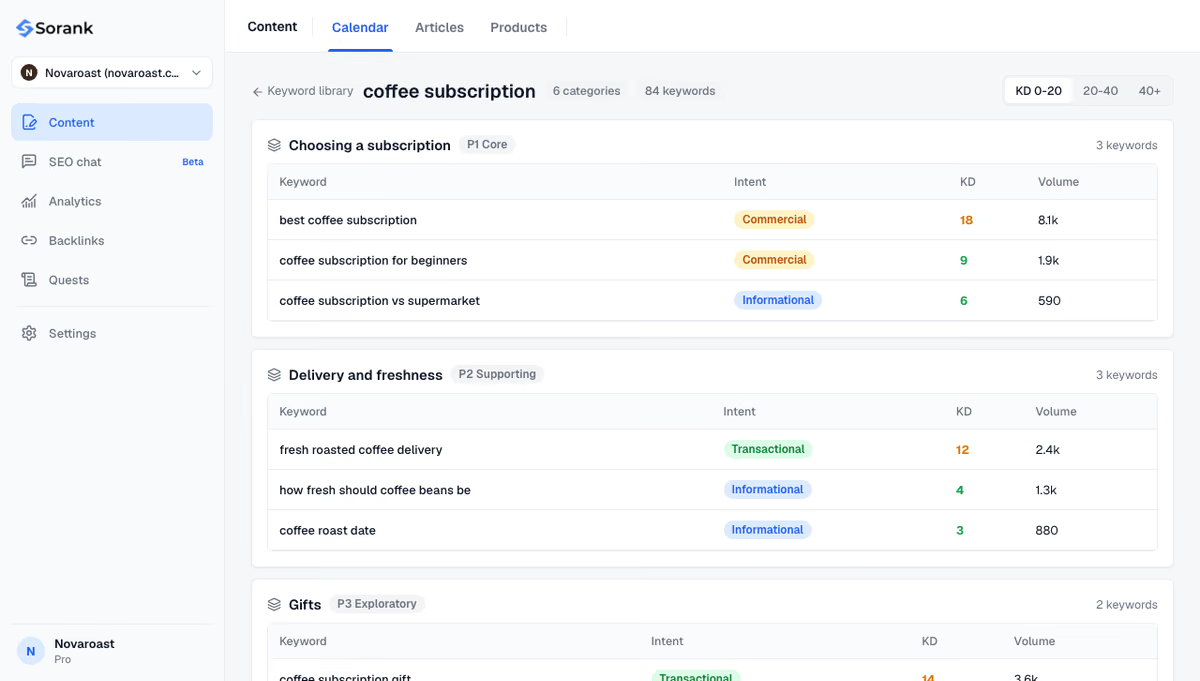
Sorank is our product: an SEO and GEO software that runs on autopilot. Its article generator then writes and publishes the missing pages with the keywords already placed in the title, H1, URL, headings and alt text, plus internal links.
Adding keywords to a website is a mapping job first and an editing job second. Give each page one primary keyword, place it in the title, H1, URL and opening, and let the rest of the text read naturally. Then create the pages your map shows are missing, and check Search Console every month. To find your keywords and fill those gaps automatically, start with Sorank's keyword research.

Use one primary keyword per page and two to five secondary keywords that are close variants or subtopics of it. A well-written page usually ranks for dozens of related searches without targeting them one by one. If two keywords need different answers, they need different pages.
Yes. Search Console, Google autocomplete and the "People also ask" box give keyword ideas for free, and every website builder lets you edit titles, meta descriptions, URLs and alt text at no cost. Paid tools mainly save time on volume, difficulty and grouping.
Google first has to crawl the edited page again, which can take from a few days to a few weeks. Changes on an existing page that already ranks can move it within weeks, while a new page on a new site usually needs two to four months to settle in the results.
We analyse your competitors, your website and your AI visibility to create a tailored content plan for free.
 AI Content Brief Generator
 FAQ Schema Generator
 AI Blog Post Ideas Generator
 Structured Data Validator (Schema Validator)
 Alt Text Checker
 Internal Link Analyzer
 Backlink Challenge
 AI Meta Description Generator
 AI Blog Title Generator
 Google Indexability Checker
 AI Blog Outline Generator
 UTM Link Builder
 Keyword Clustering Tool
 Canonical Tag Checker
 XML Sitemap Generator
 Broken Link Checker
 AI SEO Title Generator
 Headline Analyzer
 SERP Preview Tool
 Redirect Checker
 Hreflang Tag Generator
 Heading Structure Analyzer
 HTTP Headers Checker
 Favicon Extractor
 SERP CTR Calculator
 SEO vs Paid Search Savings Calculator
 SEO Share of Voice Calculator
 SEO ROI Calculator
 SEO Traffic and Revenue Forecast Calculator
 SEO Budget Calculator
 SEO Break-Even Calculator
 SaaS SEO ROI Calculator
 ROAS Calculator
 Reading Time Calculator
 Ranking Gain Simulator
 Organic Traffic Value Calculator
 Organic Traffic Estimator and Website Traffic Checker
 LTV to CAC Ratio Calculator
 Local SEO ROI Calculator
 Link Building Cost Calculator
 Keyword Value Calculator
 Keyword Opportunity Score Calculator
 Keyword Density Calculator
 GEO ROI Calculator
 GEO Content Investment Calculator
 Ecommerce SEO ROI Calculator
 Customer Lifetime Value Calculator
 Customer Acquisition Cost Calculator
 CTR Calculator
 Cost Per Article Calculator
 Conversion Rate Calculator
 Content Marketing ROI Calculator
 ChatGPT Referral Traffic Estimator
 Bounce Rate Calculator
 Backlink ROI Calculator
 AI Visibility Score Calculator
 AI Traffic Value Calculator
 AI Share of Voice Calculator
 Cost of AI Invisibility Calculator
 AI Citation Rate Calculator
 llms.txt Validator
 AI Overview Checker and AI Overviews Rank Checker
 Robots.txt Checker
 AI SEO Audit
 LLM Readability Checker
 SearchGPT Readiness Checker
 Structured Data LLM Audit
 Website Crawlability AI Audit
 Why ChatGPT Is Not Recommending My Website
 Gemini Ranking Tool
 Perplexity Ranking Checker
 LLM Citation Checker
 Answer Engine Optimization Audit
 GEO Audit
 AI Search Visibility Test
 ChatGPT Visibility Checker
 llms.txt Generator
 URL Extractor
 Webpage to Markdown
 Sitemap Checker
 SERP Volatility Sensor
 Page Size Checker
 Word Counter
 Slug Generator
 Schema Generator
 Robots Generator
 OG Preview
 Meta Tags Generator
 Image Compressor
 Favicon Generator
 On-Page SEO Audit: SEO Checker and SEO Analyzer
 Backlink Analysis Tool
 Keyword Research Tool
 Domain Authority Checker
THEY TRIED SORANK BEFORE YOU
 “I tested Sorank on a real client site and it's insane. It does everything an agency would bill you $1500 a month for. It's going into production on that client now.”
 Guillaume Guersanguersanguillaume.com“We are an Ads agency and we wanted to get our SEO back on track once and for all. Sorank gave us a clear view of our site, helped us prioritize optimizations, and properly structure our content. The tool is easy to use, well designed for a team, and very practical for centralizing tracking without having to juggle multiple platforms. A very solid foundation to start fresh with our SEO.”
 Gaspard MadouiAds Agency
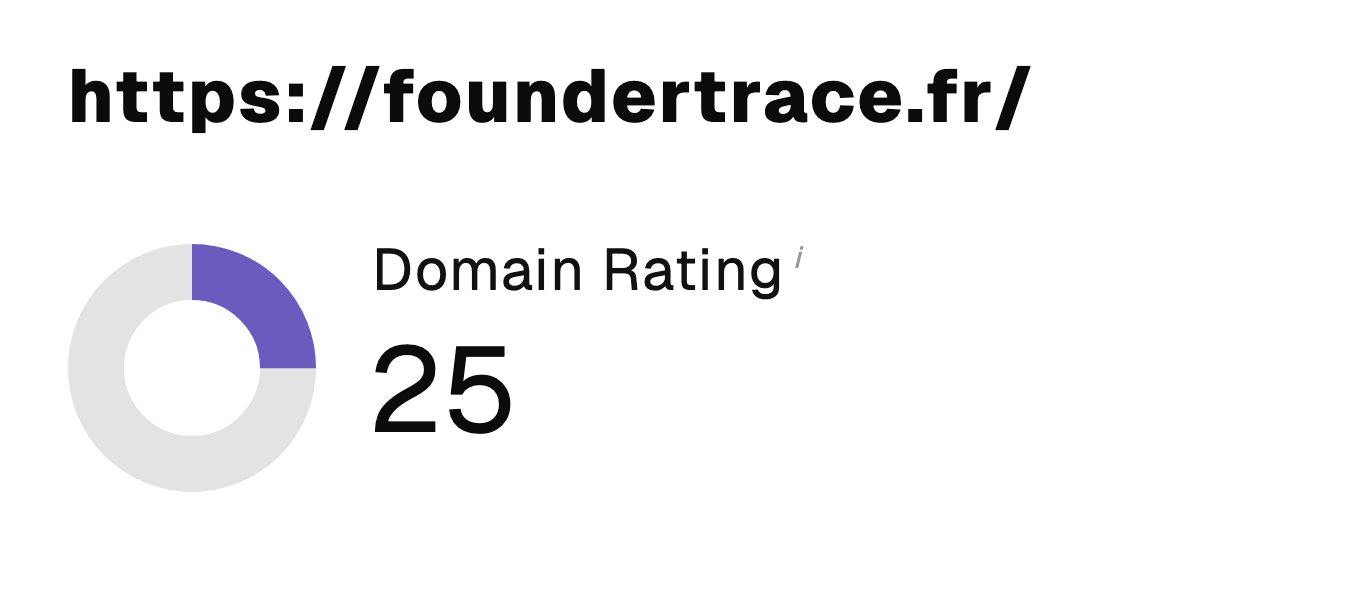 “I just let the Sorank software do its thing, and now my DR is 25 and my page is ranking higher.”
 Lucas Flandrefoundertrace.fr“I specialized in GEO thanks to Sorank. The GEO Leaderboard allows me to show my clients their position vs competitors on ChatGPT. It’s a real commercial differentiator.”
 MélanieSEO Freelance“Great service, works well for our website and helps us understand how to improve it to rank better on Google and elsewhere. Congrats, keep going, I recommend it.”
 Hugo T.E-commerce merchant