Preferences
Privacy is important to us, so you have the option of disabling certain types of storage that may not be necessary for the basic functioning of the website. Blocking categories may impact your experience on the website. More information
Privacy is important to us, so you have the option of disabling certain types of storage that may not be necessary for the basic functioning of the website. Blocking categories may impact your experience on the website. More information

Set up Google Ads for an online store in the right order: Merchant Center, conversion tracking, Shopping, then Performance Max. Formulas and common mistakes.
In short
Google Ads for an online store runs on three campaign families: Shopping, which shows your product catalogue; Search, which bids on the terms you choose; and Performance Max, which spreads budget across Google channels once it has conversion data. Build them in that order, after conversion tracking and your product feed work. If you launch first and fix later, you pay to learn what your data should have told you.
Want to go further? Ask
Quick quiz
Where should your online shop find its next customers?
Sorank matches your answers


Test it for 3 days on your own site and see where you stand on Google, ChatGPT and the other AIs.
Start 3-day free trial3 days free, then stop whenever you want. 90-day results guarantee, conditions apply.
A search campaign and a Shopping campaign start from different inputs. A search campaign starts from keywords you pick. A Shopping campaign starts from your product catalogue. That difference decides what you do first, what you pay for and where most of your work goes.
If you sell a few hundred products, it is tempting to build one Search campaign and call it done. That can work for a single service. For a store, it leaves most of the catalogue unused, and it misses the buyers who already know the product they want.
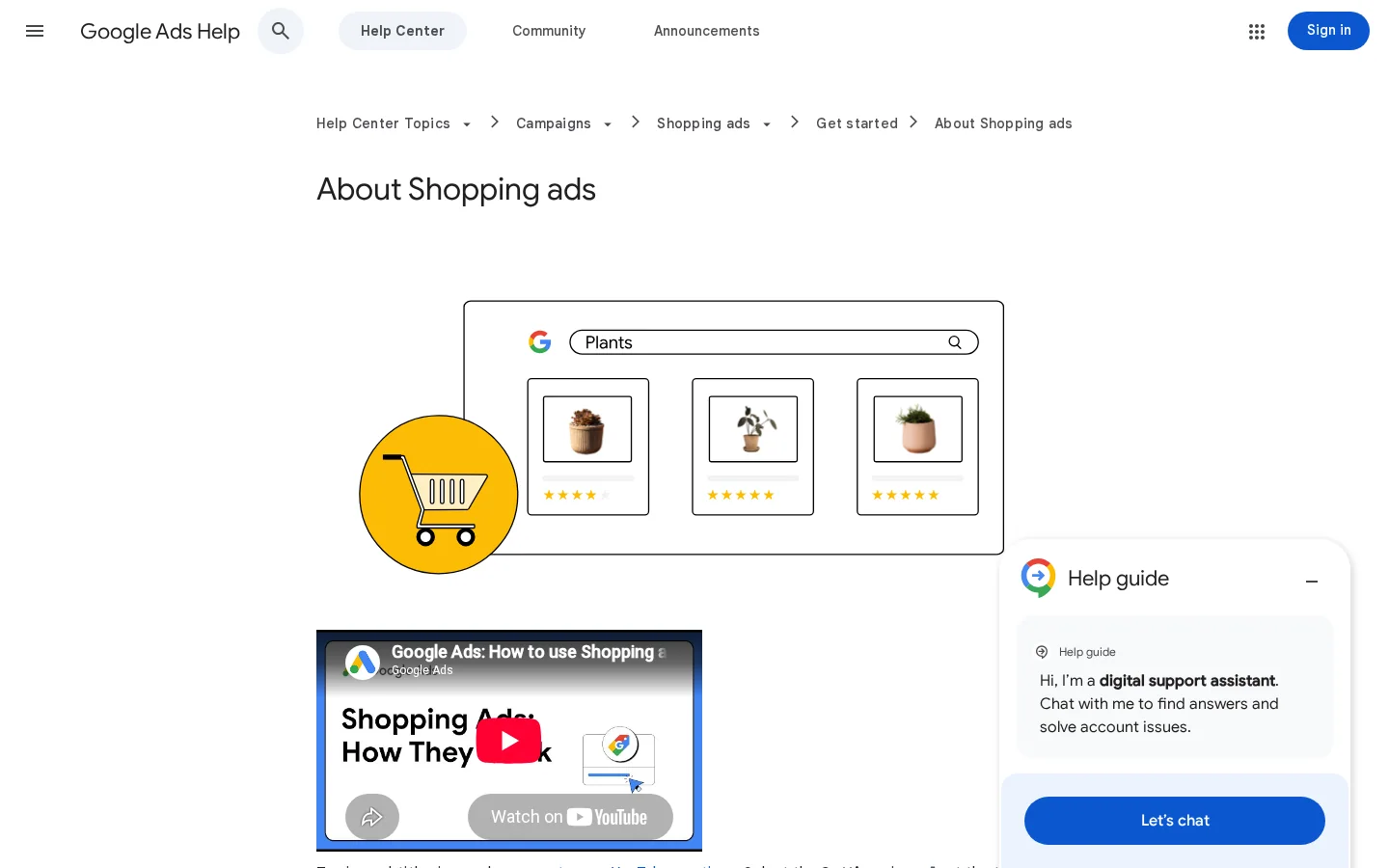
Google's help center says Shopping ads "use your existing Merchant Center product data (not keywords)" to decide how and where to show. Keywords do not trigger them. Google matches a search against the attributes in your feed, such as title, brand, product type and price. The result is an ad with your product image, price and store name, not a text ad you wrote for a keyword group.
Search ads vs Shopping ads: what drives the match
Source: Google Ads Help, About Shopping campaigns
Think of the budget as a ladder. Shopping comes first because it covers your whole catalogue with data you already have. Search comes next, for the terms that describe your category and that you can win with a clear offer. Performance Max comes last, because it learns from conversion history, and a new store has none. Each step depends on the one below. A Performance Max campaign on a store with no feed and no tracking has nothing solid to learn from.
This order also protects your budget. Shopping and Search give you a clear view of which product or term brought the sale. Performance Max spreads the budget across channels, so you see less detail about each click. You want that detail while you still learn.
Three things must work before any campaign: a Google Ads account linked to Merchant Center, a product feed that passes review, and conversion tracking that records real sales. If one of them is broken, the other two cannot tell you what is happening.
Merchant Center is where your products live for Google. You send a feed with one row per product, either as a file or through an integration from your platform. Google reads it, checks it against its policies, and approves or disapproves each item. The Merchant Center glossary entry explains the account in more detail.
Link the two accounts before you build anything. Google's help says Shopping campaigns use the product data in Merchant Center, so a Shopping campaign with no link has nothing to show. If you run Shopify, WooCommerce or BigCommerce, start with the Google channel your platform offers, then check the feed yourself. Platforms make mistakes, and the feed is what Google reads.
Google's bidding systems optimise toward the conversions you record. If you record the wrong thing, or nothing, the budget goes to whatever is cheapest to click. A store with broken tracking can look busy and still lose money. Test the tracking with a real order before you spend a single euro on a campaign you care about. The full setup is in our conversion tracking guide.
Before the first campaign

Google Ads offers several campaign types. Each one reaches people at a different point in their buying journey, and each one asks for different inputs from you. The common mistake is to pick the newest type because it sounds powerful. Below, every type is described with the same five points: what it is, when to use it, what it gives you, where it stops, and an example.
| Campaign type | What triggers it | Best for | Main limit |
|---|---|---|---|
| Search | Keywords you bid on | Clear buying terms | Work per keyword group |
| Shopping | Attributes in your product feed | Whole catalogue, direct sales | Feed quality decides the match |
| Performance Max | Goals, assets and audience signals | Scaling once conversions flow | Less detail on where ads ran |
| Demand Gen | Audiences and creative | New products and demand building | Lower immediate intent |
| Display remarketing | People who already visited | Recovering abandoned carts | Needs frequency control |
| Video | Audiences on YouTube | Demos and brand stories | Needs good video assets |
What it is: text ads that show on Google Search results when a query matches a keyword you bid on.
When to use it: when you know the terms buyers type, such as "waterproof trail running shoes", and you can write a precise offer for them.
What it gives you: full control of the terms, the headlines and the landing page. You can also measure cost and sales per keyword group. Use the ad copywriting guide to write the headlines.
Where it stops: each keyword group needs work. You cannot cover a large catalogue with a few keywords, and the list grows with every product.
Example: a store that sells trail shoes bids on "waterproof trail running shoes" with phrase match and sends the click to the men's waterproof range, not the homepage.
What it is: product ads built from your feed, with the image, title, price and store name.
When to use it: whenever you sell physical products with a clean feed. For most stores, this is the first campaign to launch.
What it gives you: coverage of the whole catalogue through product groups, and an ad format that shows the product before the click. Google says you pay per click, and you pay only when someone clicks an ad that leads to your site.
Where it stops: the feed sets the ceiling. If the titles are vague or the images are weak, the ads fail to match the right searches. You also control the wording only through the feed.
Example: a product group "Trail shoes, Men, Waterproof" holds the 12 best sellers in that range. The bid is higher on the margin-rich models and lower on the clearance models.
What it is: a goal-based campaign type. Google describes it as a way to access all Google Ads inventory from one campaign.
When to use it: once you have steady conversions, a feed, and a clear goal such as return on ad spend. It suits a store that already knows its best products and wants Google to find more buyers across channels.
What it gives you: reach across Search, Shopping, YouTube, Display and other channels from one budget. You give it text, images and videos, plus audience signals and a conversion goal with an optional ROAS or CPA target.
Where it stops: you see less about where each impression and click happened. Google also gives priority to Search campaigns that use exact match keywords. Keep your brand terms in a Search campaign with exact match, so your own brand is not handed to a different campaign.
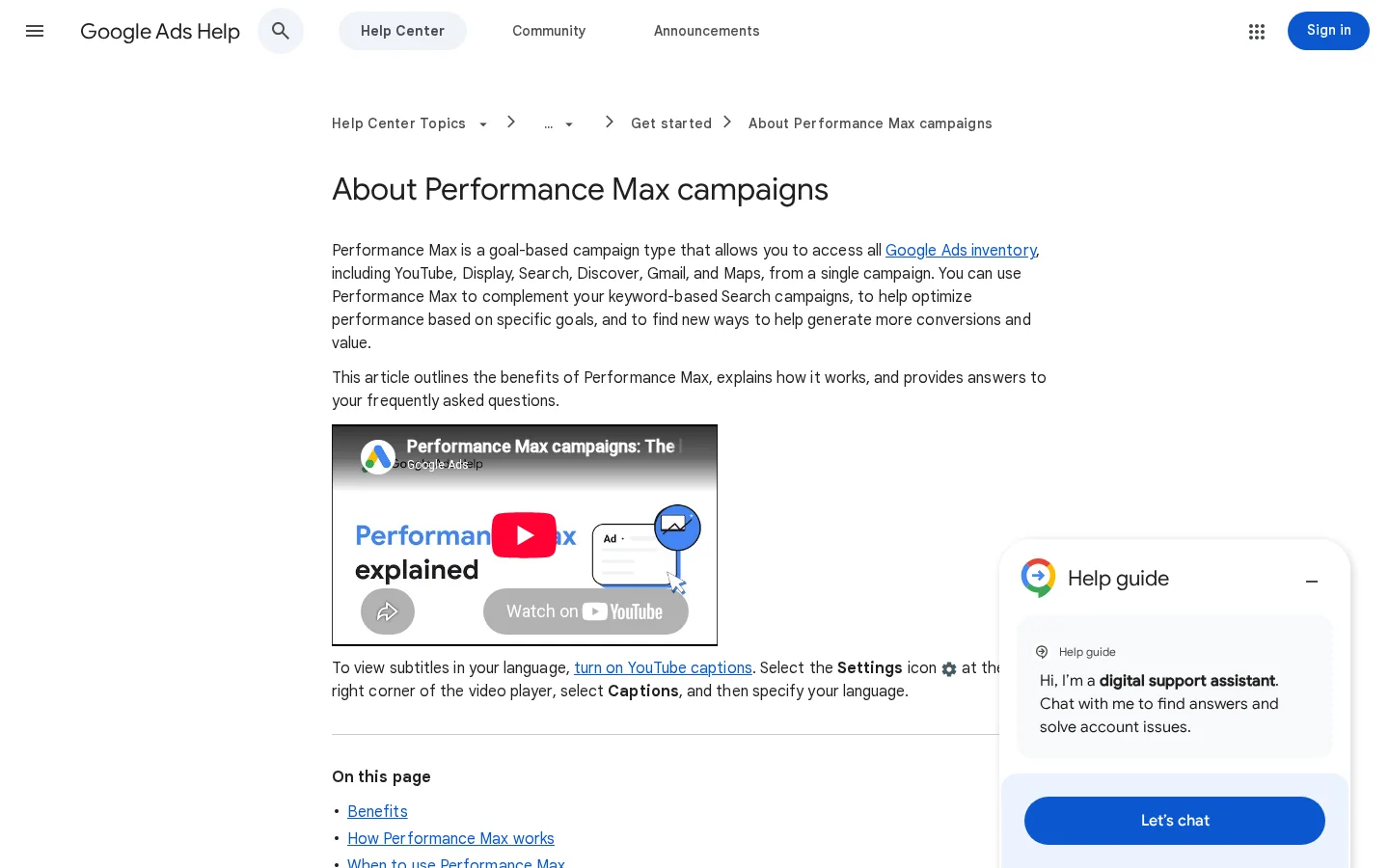
Example: keep "brand name" as an exact match keyword in Search. Run Performance Max for everything else, with a target ROAS set from your margin, not from a guess.
What it is: campaigns that reach people while they browse video and discovery placements, rather than while they search.
When to use it: a product launch, a visual range, or a brand that needs awareness before it can expect a direct sale.
What it gives you: early attention from people who would never type your category. Good creative does most of the work.
Where it stops: intent is lower, so direct sales are harder to get than from Search or Shopping. Judge it by assisted sales and the search volume it creates for your brand, not only by the last click.
Example: a new colour line of kitchen knives launched with short cooking clips, measured against branded search growth over the following month.
What it is: ads shown to people who already visited your site, viewed a product or left a cart.
When to use it: when you have a steady flow of visitors who do not buy on the first visit. Cart abandonment is the obvious case.
What it gives you: a second chance with people who already know you. The ad can show the exact product they viewed.
Where it stops: the audience is small by design, and too many impressions annoy people. Set frequency caps, and exclude people who have already bought.
Example: a visitor adds a jacket to the cart, leaves, and sees the same jacket in a display ad two days later, with the size they selected.
What it is: ads on YouTube and other video placements.
When to use it: when you have a product demo or a brand story worth watching, and you can make the video.
What it gives you: room to show how a product works, which a product title cannot do.
Where it stops: you need video assets. Without them, the campaign cannot run well, and a weak clip wastes budget.
Example: a 30-second video of the jacket in rain, linked to its product page, used as a discovery step before the remarketing ad.
Follow this order when you open a new store account. Each step checks the one before it, so the account stays clean from the start.
The five-step setup order
Check the currency and the time zone before you confirm the account. Changing them later is hard or impossible, so ask before you click. Set the budget from your margin and your expected conversion rate, not from a number you read in a forum. Our Google Ads cost guide shows how to set a first budget that gives you enough clicks to measure.
Open Merchant Center, check that your website is claimed and that the feed is live, then link the account to Google Ads from the Google Ads settings. Google's help says the link is required for Shopping. After linking, open the diagnostics page and read every disapproved product. Do not launch with a feed full of errors, because a product that is disapproved cannot show, and you will not know which products are missing from your results.
Place one real order, ideally a small item you can refund. Check that Google Ads records one purchase, with the right value, and that the order is not counted again when the thank-you page reloads. A duplicate purchase is the most common tracking error, and it makes your ROAS look better than it is. The next section covers the setup in detail.
Start with product groups for your best sellers. Choose them by margin and stock, not only by volume. A product that sells fast at a thin margin can lose money on every click. Group products by a clear attribute such as brand, type or category. Keep the first campaign small enough to read every week.
For the full feed, placements and campaign options, read our Google Shopping Ads guide. This article only covers the order in which to build.
Launch Performance Max once purchases arrive steadily and the feed is clean. Before you start, check that your brand terms sit in an exact match Search campaign. Google gives those Search campaigns priority over Performance Max, so the brand traffic stays where you can measure it. Then set the conversion goal, and only then add a ROAS target.
Google's bidding follows conversions. What you count as a conversion is a business decision, and the bidding follows it exactly. If you count a newsletter sign-up as a sale, the system will look for newsletter sign-ups, and it will spend your budget finding them.
Use the purchase as the primary conversion. It is the one that matches revenue. You can also track add-to-cart and form starts, but keep them out of bidding unless you know what each one is worth. Watch for duplicate counts, because a refreshed thank-you page can record the same order twice. A unique order ID stops that.
Check the value too. A purchase with a value of 0 teaches the bidding system nothing about revenue. If you use Target ROAS, the value must be the order total or the margin you choose, and it must be the same number on every order.
Enhanced conversions add hashed first-party data, such as email, to the conversions you already record. Google's help describes the data as hashed with the SHA256 algorithm before it reaches Google. It also describes two types: enhanced conversions for web, which match online conversions to signed-in Google accounts that engaged with your ads, and enhanced conversions for leads, which attribute offline sales that started as website leads. The full explanation is in our enhanced conversions guide.
| Set-up path | Where you configure it | Best when |
|---|---|---|
| Google tag | Directly on your site, through the Google tag | You manage a small number of tags yourself |
| Google Tag Manager | In your GTM container | You already run GTM for other tags |
| Google Ads API | Your own code or a connected platform | You have a developer and custom flows |
Google's help article on enhanced conversions for web using the Google tag lists the three paths. Google says it reports only privacy-safe conversions, and it links to its customer data policies. Consent rules depend on your country and your consent banner, so check them with your legal or compliance contact before you turn the feature on.
Bidding is how you tell Google what a conversion is worth to you. Revenue is the top line. Margin decides whether the sale is worth buying. A campaign can show a strong ROAS and still lose money if the margin is thin.
Return on ad spend (ROAS) is the revenue your ads bring back for each unit you spend. Break-even ROAS is the point where the ads pay for their own cost and nothing more. Write both down before you set any target.
ROAS = ad revenue / ad spend
Break-even ROAS = 1 / gross margin
Here is a worked example with a 40 percent gross margin and 500 spent on ads.
Gross margin: 40% (0.40)
Break-even ROAS = 1 / 0.40 = 2.5
Ad spend: 500
Ad revenue needed to break even = 500 x 2.5 = 1250
At a ROAS of 2.5, the ad cost is covered by the gross profit and nothing is left over. Below 2.5, the ads lose money. Above 2.5, the ads add to profit, but you still have to cover staff, rent and returns. The margin in the formula should already include shipping, payment fees and expected returns. If it does not, your break-even is lower than the real one.
Tip
Test your own margin and spend in our free ROAS calculator. It shows the break-even ROAS for your numbers before you set a target.
Each bidding strategy optimises a different thing. Pick the one that matches the data you have, not the one that sounds most automated.
| Strategy | What it optimises | Use it when | Watch for |
|---|---|---|---|
| Manual CPC | The bid you set per click | The first weeks, while you learn | Slow, and it needs daily attention |
| Maximize clicks | Clicks within your budget | You need traffic data quickly | Clicks are not sales |
| Maximize conversions | Conversions within your budget | Conversions arrive steadily | Can buy cheap, weak leads |
| Target CPA | Cost per conversion | You know the cost you can accept | Needs a stable conversion history |
| Target ROAS | Return on ad spend | You have correct conversion values and a margin target | Wrong values give wrong bids |
Change a strategy slowly. Each change makes the system learn again, so editing the target every day keeps the campaign in learning mode. Set a target, wait for enough conversions to read the result, then adjust by small steps.
In Shopping, the feed does what keywords do in Search. Every title, image and attribute decides when your product can match a search. That makes the feed the most valuable thing you maintain, and the one most stores neglect.
Google's product data specification marks the ID, title, description, link, image link, availability and price as required. Brand is required for new products, except movies, books and music recordings. The MPN is required only when a product has no manufacturer GTIN. The specification also sets the limits below.
Product data limits in Merchant Center
Source: Google Merchant Center help, product data specification (checked November 2026)
A product feed is a file with one row per product, and each column is an attribute. This is what one product looks like with example values:
id: SKU-1042
title: Waterproof Trail Running Shoe, Men, Blue, Size 42
link: https://www.example-store.com/shoes/trail-blue-42
image_link: https://www.example-store.com/img/trail-blue-42.jpg
price: 89.00 USD
availability: in_stock
brand: ExampleBrand
gtin: 4006381333931
Read the specification page yourself before you set up the feed, because it changes. Google's list of required attributes is the checklist that decides whether a product can show at all.
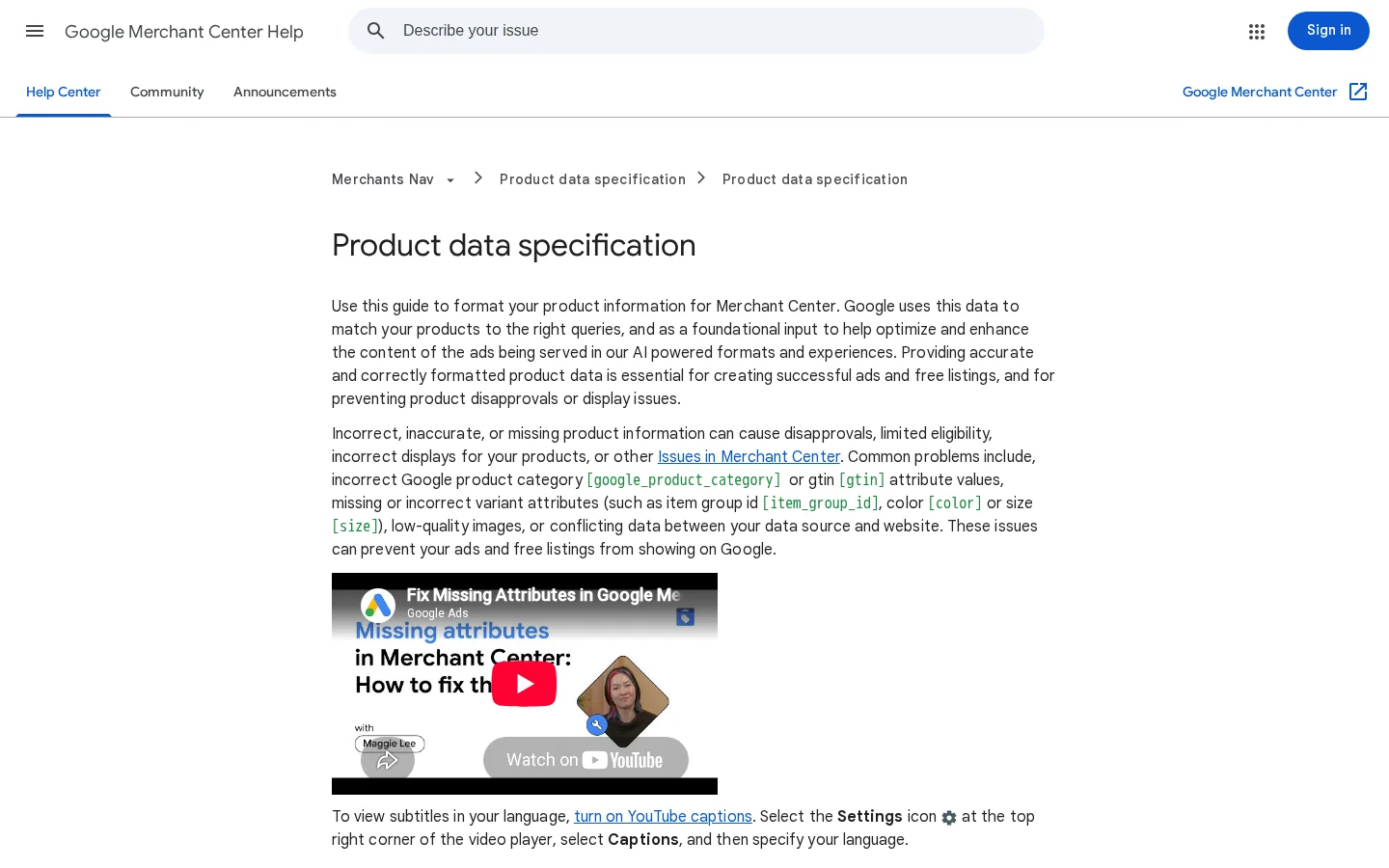
A GTIN is the barcode number of the product. Google calls it strongly recommended when you have one. Its rules are strict. It has up to 14 digits per value, spaces and dashes are ignored, and the checksum must be correct. Google accepts UPC-12, EAN-13, JAN, ISBN-13 and ITF-14 formats. Prefixes 02, 04 and 2 are restricted, and prefixes 98 to 99 are for coupons. Do not invent a GTIN to fill the field. Leave it empty when you have none, and use the MPN if the manufacturer gave you one.
Images need a minimum size of 500 by 500 pixels under new requirements that Google says are enforced from 31 January 2027. Accepted formats include JPEG, WebP, PNG, non-animated GIF, BMP and TIFF. Google says not to scale up a small image or to submit a thumbnail.
Warning
Check every product image before 31 January 2027. A small image that is accepted today can be disapproved after that date, and the product stops showing.
Availability takes one of four values: in_stock, out_of_stock, preorder or backorder. Price needs a number with a period as the decimal point, followed by the currency code, such as 15.00 USD. Google's rules also say that prices in the United States and Canada exclude tax, and that other countries include VAT or GST. A mismatch between the feed and the product page is a common reason for disapproval, so generate the feed from the same source as the site.
Each mistake below follows the same pattern: what it is, how to spot it in your account, and how to fix it. Work through them in the order given, because the earlier ones make the later ones easier to see.
What it is: campaigns start with no tracking, or with tracking that counts the wrong thing.
How to spot it: the conversion column stays at zero after a test order, or one order appears twice in the reports.
How to fix it: place a real test order, check the count and value, add a unique order ID to the thank-you page, and pause the campaign until the count is right.
What it is: titles that name the product type alone, so the feed cannot separate your item from the others.
How to spot it: your impressions come from broad searches you do not want, and the click-through rate stays low. Compare the titles in your feed against the search terms in the report.
How to fix it: put the brand, product type and the attribute that separates the item first, such as colour, size or material. Keep the title under 150 characters, and check the wording with a real buyer. The ecommerce product page guide covers the matching elements on the page itself.
Title in the feed: before and after
What it is: the GTIN, brand or MPN is empty even though the manufacturer provided it.
How to spot it: Merchant Center lists products with missing attributes in its diagnostics, and the product data for a brand you sell shows gaps.
How to fix it: pull the GTIN from the supplier's data sheet or packaging. Check the digits with a checksum tool before you upload. If the product truly has no GTIN, leave the field empty and use the MPN instead.
What it is: the feed says in stock while the page says sold out, or the feed price excludes tax when the page includes it.
How to spot it: Merchant Center shows disapprovals for mismatched values, and you see clicks on products that cannot be bought.
How to fix it: generate the feed from the same stock and price data that the product page uses. Refresh it often, at least daily for stores whose stock changes quickly. Check a sample of products by hand every week.
What it is: a Search campaign with broad match keywords that pulls in queries you do not sell, such as "free", "jobs" or "how to make".
How to spot it: the search terms report fills with queries that have no buying intent. Clicks rise, and sales do not.
How to fix it: add those queries as negative keywords, review the report every week, and use the negative keywords guide to build a starter list. The Quality Score guide explains why irrelevant ads cost more to show.
What it is: launching Performance Max before the store has conversion history, the feed is clean, or the goal is defined.
How to spot it: the budget is spent, the conversions stay low, and the campaign never settles. You see a learning state that does not end.
How to fix it: run Shopping first, let the conversions build, then add Performance Max with a clear goal. Keep your brand terms in exact match Search, so the campaign does not fight them.
After launch, the first week is about reading data, not changing it. Work through this list before you touch a bid.
First week checklist
After thirty days, run a full review with our Google Ads audit checklist. It covers structure, tracking and feed health in one pass.
Sorank does not run your paid campaigns. It works on the organic side of the same store. Our automated keyword research finds the queries your category can win without paying per click, and the GEO / SEO Dashboard shows Google and AI traffic in one view. That lets you see whether paid and organic traffic reach the same products.
There is no universal figure. Start from your margin and your break-even ROAS, then set a daily budget you can keep running long enough to read the conversion data. The Google Ads cost guide shows how to size a first test.
For Shopping campaigns, yes. Google says Shopping ads use your Merchant Center product data, so the two accounts must be linked. Search and Display campaigns do not need a feed, but a store gets the most from Shopping first.
A good ROAS depends on your gross margin. Break-even ROAS is 1 divided by the margin, so a 40 percent margin needs a ROAS of 2.5 just to cover the ad cost. Set your target above that number.
We analyse your competitors, your website and your AI visibility to create a tailored content plan for free.
 AI Content Brief Generator
 FAQ Schema Generator
 AI Blog Post Ideas Generator
 Structured Data Validator (Schema Validator)
 Alt Text Checker
 Internal Link Analyzer
 Backlink Challenge
 AI Meta Description Generator
 AI Blog Title Generator
 Google Indexability Checker
 AI Blog Outline Generator
 UTM Link Builder
 Keyword Clustering Tool
 Canonical Tag Checker
 XML Sitemap Generator
 Broken Link Checker
 AI SEO Title Generator
 Headline Analyzer
 SERP Preview Tool
 Redirect Checker
 Hreflang Tag Generator
 Heading Structure Analyzer
 HTTP Headers Checker
 Favicon Extractor
 SERP CTR Calculator
 SEO vs Paid Search Savings Calculator
 SEO Share of Voice Calculator
 SEO ROI Calculator
 SEO Traffic and Revenue Forecast Calculator
 SEO Budget Calculator
 SEO Break-Even Calculator
 SaaS SEO ROI Calculator
 ROAS Calculator
 Reading Time Calculator
 Ranking Gain Simulator
 Organic Traffic Value Calculator
 Organic Traffic Estimator and Website Traffic Checker
 LTV to CAC Ratio Calculator
 Local SEO ROI Calculator
 Link Building Cost Calculator
 Keyword Value Calculator
 Keyword Opportunity Score Calculator
 Keyword Density Calculator
 GEO ROI Calculator
 GEO Content Investment Calculator
 Ecommerce SEO ROI Calculator
 Customer Lifetime Value Calculator
 Customer Acquisition Cost Calculator
 CTR Calculator
 Cost Per Article Calculator
 Conversion Rate Calculator
 Content Marketing ROI Calculator
 ChatGPT Referral Traffic Estimator
 Bounce Rate Calculator
 Backlink ROI Calculator
 AI Visibility Score Calculator
 AI Traffic Value Calculator
 AI Share of Voice Calculator
 Cost of AI Invisibility Calculator
 AI Citation Rate Calculator
 llms.txt Validator
 AI Overview Checker and AI Overviews Rank Checker
 Robots.txt Checker
 AI SEO Audit
 LLM Readability Checker
 SearchGPT Readiness Checker
 Structured Data LLM Audit
 Website Crawlability AI Audit
 Why ChatGPT Is Not Recommending My Website
 Gemini Ranking Tool
 Perplexity Ranking Checker
 LLM Citation Checker
 Answer Engine Optimization Audit
 GEO Audit
 AI Search Visibility Test
 ChatGPT Visibility Checker
 llms.txt Generator
 URL Extractor
 Webpage to Markdown
 Sitemap Checker
 SERP Volatility Sensor
 Page Size Checker
 Word Counter
 Slug Generator
 Schema Generator
 Robots Generator
 OG Preview
 Meta Tags Generator
 Image Compressor
 Favicon Generator
 On-Page SEO Audit: SEO Checker and SEO Analyzer
 Backlink Analysis Tool
 Keyword Research Tool
 Domain Authority Checker
 “I tested Sorank on a real client site and it's insane. It does everything an agency would bill you $1500 a month for. It's going into production on that client now.”

 Guillaume Guersanguersanguillaume.com“We are an Ads agency and we wanted to get our SEO back on track once and for all. Sorank gave us a clear view of our site, helped us prioritize optimizations, and properly structure our content. The tool is easy to use, well designed for a team, and very practical for centralizing tracking without having to juggle multiple platforms. A very solid foundation to start fresh with our SEO.”
 Gaspard MadouiAds Agency
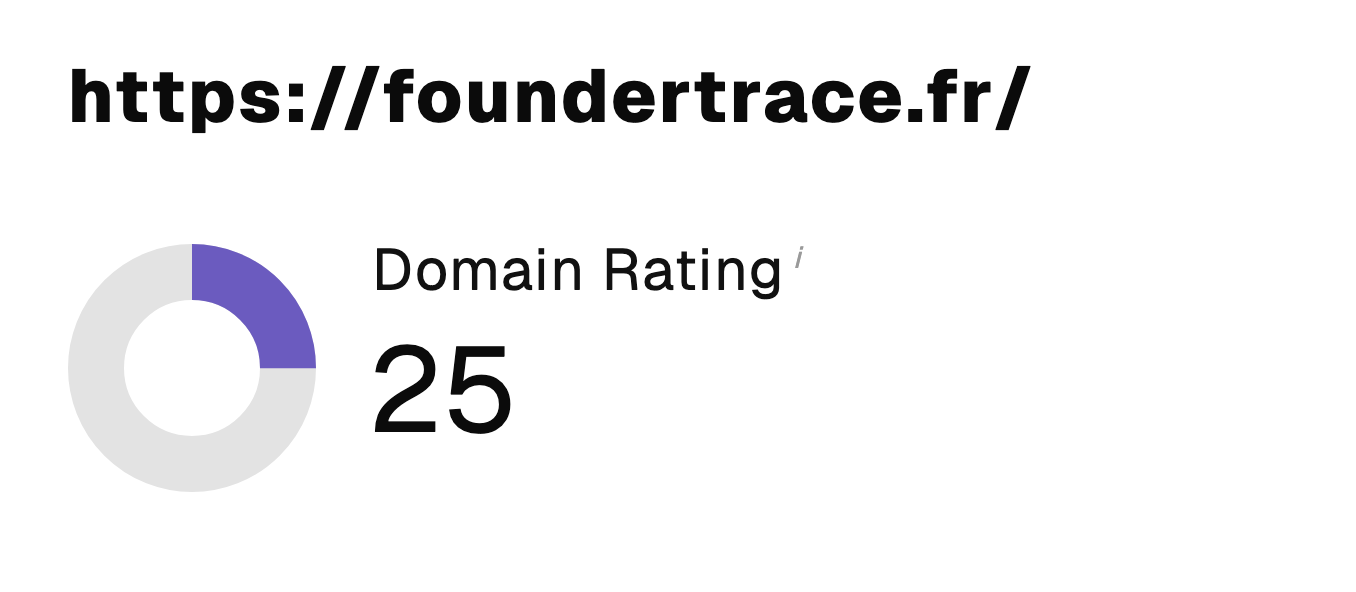 “I just let the Sorank software do its thing, and now my DR is 25 and my page is ranking higher.”
 Lucas Flandrefoundertrace.fr“I specialized in GEO thanks to Sorank. The GEO Leaderboard allows me to show my clients their position vs competitors on ChatGPT. It’s a real commercial differentiator.”
 MélanieSEO Freelance“Great service, works well for our website and helps us understand how to improve it to rank better on Google and elsewhere. Congrats, keep going, I recommend it.”
 Hugo T.E-commerce merchant