Preferences
Privacy is important to us, so you have the option of disabling certain types of storage that may not be necessary for the basic functioning of the website. Blocking categories may impact your experience on the website. More information

Privacy is important to us, so you have the option of disabling certain types of storage that may not be necessary for the basic functioning of the website. Blocking categories may impact your experience on the website. More information

PDF SEO: how Google indexes PDF files, how to set the title, tags, links and canonical, when an HTML page works better, and how AI assistants read PDFs.

Tools

In short
Google indexes PDF files and can rank them like web pages, as long as the text is real, selectable text (scans are read with OCR, password-protected files are not indexed). To optimize a PDF, fill in its Title metadata, give it a descriptive file name, structure it with tagged headings, add links and alt text, keep it light, and link to it from your HTML pages. When the content matters for traffic or for AI answers, publish it as an HTML page and point the PDF to that page with a canonical HTTP header.
Want to go further? Ask
Quick quiz
Is SEO right for you, and how should you start?
Sorank matches your answers


Test it for 3 days on your own site and see where you stand on Google, ChatGPT and the other AIs.
Start 3-day free trial3 days free, then stop whenever you want. 90-day results-or-refund guarantee.
PDF SEO is the set of steps that make a PDF file findable in Google and readable by AI assistants: real text, a clear title, structure, links and a sound decision about which version (PDF or HTML) should rank. Google lists the PDF format among the file types it can index, so a white paper, a price list or a user manual can bring traffic. It can also compete with your own pages, or stay invisible because of a scan or a missing title. This guide covers how Google processes PDFs, a 9-step optimization checklist, the cases where an HTML page works better, and how to measure the results.
Yes. Google has indexed PDFs since 2001. In its FAQ on PDFs in Google search results, Google states that it indexes the text of PDFs in any language, that it may run OCR on text embedded as images, and that the rule of thumb is simple: if you can copy and paste the text, Google can index it. Password-protected or encrypted files are excluded.
The same FAQ answers the other questions SEOs usually ask:
Size is rarely a problem: according to the Googlebot documentation (updated February 2026), Googlebot crawls the first 2MB of an HTML file but the first 64MB of a PDF file. In the results, a PDF shows a "PDF" label next to its title. To check whether a document is in the index, search site:yourdomain.com filetype:pdf or inspect its URL in Search Console. For pages that refuse to get in, the general method is in our guide to Google indexing.
A PDF can rank, but it starts with handicaps that an HTML page does not have:
| Criterion | PDF file | HTML page |
|---|---|---|
| Indexing by Google | Yes, if the text is selectable | Yes |
| Title shown in results | Title metadata or file name | Title tag |
| Mobile reading | Fixed layout, zoom needed | Responsive |
| Site navigation | None: the visitor leaves your menu | Menu, internal links, calls to action |
| Structured data, meta robots, link attributes | Not possible inside the file (HTTP headers only) | Yes |
| Analytics | No JavaScript tag: views are hard to measure | Full tracking |
| Updates | Re-export and re-upload | Edit in the CMS |
| Best use | Documents meant to be downloaded, printed or signed | Content meant to rank, convert and be cited |
The conclusion is practical: keep PDFs for documents people download (spec sheets, manuals, forms, reports to print) and publish content you want to rank as web pages.
Note
A PDF that ranks still sends the visitor to a dead end: no menu, no product link, no form. If one of your PDFs already gets traffic in Search Console, an HTML version with the same content and a link to the download usually converts better.
Export from Word, Google Docs or InDesign as a text PDF. If you only have a scan, run OCR (Acrobat's "Scan & OCR" tool, for example) and check the result: Google's OCR is a fallback, and a poor scan gives poor text. Avoid text drawn as vector outlines and decorative fonts.
This is the PDF equivalent of the title tag. In Acrobat: File > Properties > Description > Title. Write 50 to 60 characters with the main keyword at the start, then in the Initial View tab set "Show" to Document Title, so readers see it too. Without it, Google falls back on the file name or on a line of the document.
The file name becomes the URL: pdf-seo-checklist.pdf beats final_v3_2.pdf. Use lowercase words separated by hyphens and keep the same URL when you update the file, so links and rankings are preserved.
Fill in Subject (a one-sentence summary, which may be reused for the snippet), Author and the document language (Advanced > Reading Options in Acrobat). The Keywords field has no known effect on Google; leave it short.
A tagged PDF carries a structure (H1, H2, paragraphs, lists, tables) that screen readers, search engines and AI tools use to understand the hierarchy. In Word, tick "Document structure tags for accessibility" when saving as PDF; in Acrobat, use the accessibility tools to add tags automatically, then fix the order. One H1, logical H2s and short sections help both readers and parsers.
Inside the PDF, link to the relevant pages of your site with descriptive anchors: those links pass signals, and they bring readers back to your navigation. Outside, link to the PDF from at least one indexable HTML page with an anchor that describes the document. That anchor also feeds the title Google shows.
Add alternative text to charts and figures through the tags (Acrobat: set the alternate text on each figure). It helps accessibility and gives search engines and AI tools a text version of the visual. For images you want in Google Images, the rules of image SEO on an HTML page remain the reliable route.
Compress images, remove embedded fonts you do not need and save with Fast Web View (linearized PDF) so the first page displays before the whole file has downloaded. A 2MB brochure opens on a phone; a 40MB one gets abandoned.
Include PDFs you want indexed in your XML sitemap, do not block them in robots.txt, and check the HTTP headers they are served with: a stray noindex or a wrong canonical in the HTTP response headers cancels all the work above.
Many sites publish the same content twice: an article and its PDF version. Google recommends serving a single copy when possible. Otherwise, choose the version that should rank and tell Google with one of these two methods.
Option 1: point the PDF to the HTML page. A PDF cannot contain a link element, so the canonical tag goes in the HTTP header of the file. Google's documentation on consolidating duplicate URLs describes this rel="canonical" HTTP header for non-HTML documents such as PDFs. The header looks like this, with an absolute URL: Link: <https://www.example.com/guide/>; rel="canonical". Rankings and links then consolidate on the HTML page.
Option 2: keep the PDF out of the index. For order forms, internal documents or old versions, send an X-Robots-Tag: noindex header. Google's page on the robots meta tag and X-Robots-Tag gives the server rule; on Apache, for every PDF of the site: <Files ~ "\.pdf$"> Header set X-Robots-Tag "noindex" </Files>. Files already indexed drop out over time; the Removals tool in Search Console hides them faster. See our definition of noindex for the difference with robots.txt.
Watch out
Do not block a PDF in robots.txt if you want it removed from the index: Googlebot can no longer fetch the file, so it never sees the noindex header and the URL can stay in the results. Use the header alone, and block in robots.txt only once the file has dropped out.
Gated PDFs (behind a form) are a separate case: Google cannot see them at all. If the content should attract traffic, publish an open summary page and keep the full file behind the form, as described in our guide to gated content.
AI assistants that browse the web can open a PDF, but they work on extracted text split into passages. The same weaknesses that bother Google bother them more: a scan without OCR gives nothing, a two-column layout can mix sentences, headers and footers repeated on every page break paragraphs, and a 60-page file without headings is hard to quote precisely. AI crawlers also fetch HTML pages more often than downloadable files.
To be cited, the logic of optimizing content for AI answers applies: put the key content in an HTML page with a direct answer at the top, question-style headings, figures with their source and a table when things compare, then offer the PDF as a download. To see what an AI tool extracts from a page, convert it with our webpage to Markdown tool: if the text comes out clean and in the right order, a language model can quote it.
A PDF cannot run an analytics tag, so combine three sources:
With Sorank, the GEO and SEO dashboard brings your Search Console data into one view, so you can spot a PDF that collects impressions and deserves an HTML page.
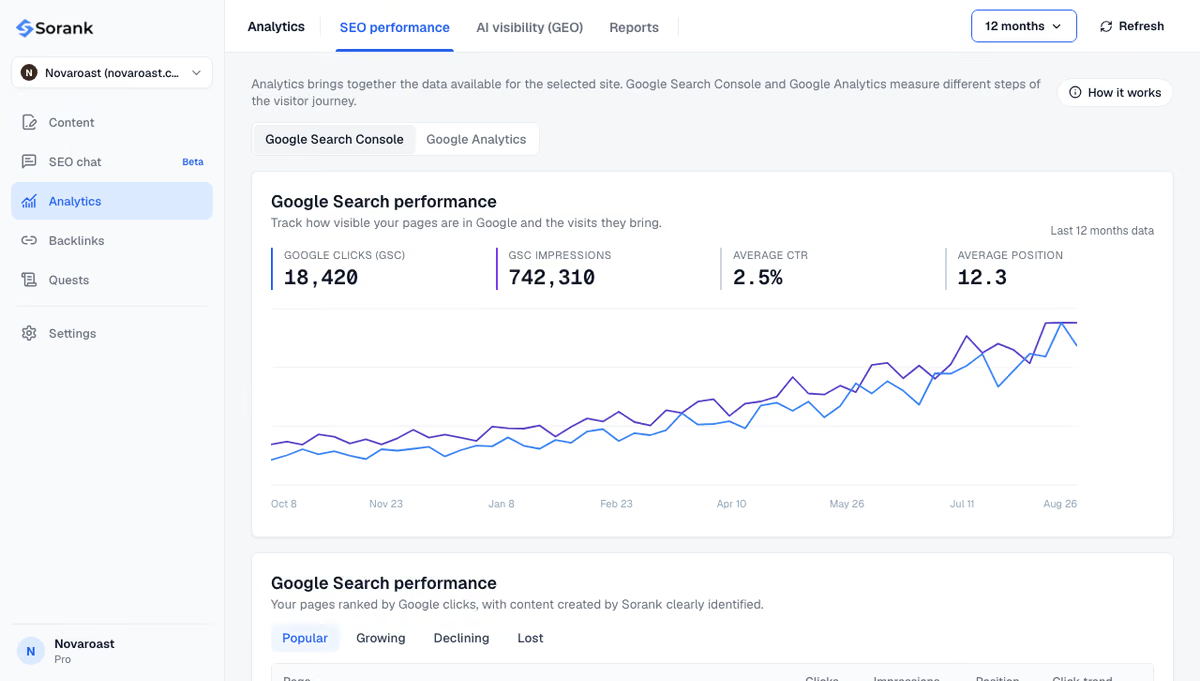
When an analysis shows that a topic covered only in a PDF has search demand, the SEO article generator turns the subject into a web page optimized for Google and for AI answers, published on your site in autopilot. Plans are on the pricing page, with a 3-day free trial.
Google indexes and ranks PDFs that contain real text, with a filled Title, a clear file name, tags, links and a reasonable size. That covers documents people download. For content that must bring traffic, leads and AI citations, the HTML page should be the version that ranks, with the PDF as a download linked to it through a canonical header. Start by listing your PDFs that already get impressions in Search Console: they are your quickest wins.

No, Google indexes PDFs and ranks them like web pages when they contain selectable text. Their limits are elsewhere: no site navigation, poor mobile reading, no structured data and hard-to-measure traffic. Use PDFs for documents people download and HTML pages for content you want to rank and convert.
Google may run OCR on text embedded as images, but the result depends on the scan quality. The reliable approach is to run OCR yourself before publishing and check that you can copy and paste the text. Password-protected or encrypted PDFs are not indexed.
Serve the file with an X-Robots-Tag: noindex HTTP header, set on your server. Leave it crawlable so Googlebot sees the header; the URL drops out over time. For a faster result, also submit the URL in the Removals tool of Google Search Console.
We analyse your competitors, your website and your AI visibility to create a tailored content plan for free.
 AI Content Brief Generator
 FAQ Schema Generator
 AI Blog Post Ideas Generator
 Structured Data Validator (Schema Validator)
 Alt Text Checker
 Internal Link Analyzer
 Backlink Challenge
 AI Meta Description Generator
 AI Blog Title Generator
 Google Indexability Checker
 AI Blog Outline Generator
 UTM Link Builder
 Keyword Clustering Tool
 Canonical Tag Checker
 XML Sitemap Generator
 Broken Link Checker
 AI SEO Title Generator
 Headline Analyzer
 SERP Preview Tool
 Redirect Checker
 Hreflang Tag Generator
 Heading Structure Analyzer
 HTTP Headers Checker
 Favicon Extractor
 SERP CTR Calculator
 SEO vs Paid Search Savings Calculator
 SEO Share of Voice Calculator
 SEO ROI Calculator
 SEO Traffic and Revenue Forecast Calculator
 SEO Budget Calculator
 SEO Break-Even Calculator
 SaaS SEO ROI Calculator
 ROAS Calculator
 Reading Time Calculator
 Ranking Gain Simulator
 Organic Traffic Value Calculator
 Organic Traffic Estimator and Website Traffic Checker
 LTV to CAC Ratio Calculator
 Local SEO ROI Calculator
 Link Building Cost Calculator
 Keyword Value Calculator
 Keyword Opportunity Score Calculator
 Keyword Density Calculator
 GEO ROI Calculator
 GEO Content Investment Calculator
 Ecommerce SEO ROI Calculator
 Customer Lifetime Value Calculator
 Customer Acquisition Cost Calculator
 CTR Calculator
 Cost Per Article Calculator
 Conversion Rate Calculator
 Content Marketing ROI Calculator
 ChatGPT Referral Traffic Estimator
 Bounce Rate Calculator
 Backlink ROI Calculator
 AI Visibility Score Calculator
 AI Traffic Value Calculator
 AI Share of Voice Calculator
 Cost of AI Invisibility Calculator
 AI Citation Rate Calculator
 llms.txt Validator
 AI Overview Checker and AI Overviews Rank Checker
 Robots.txt Checker
 AI SEO Audit
 LLM Readability Checker
 SearchGPT Readiness Checker
 Structured Data LLM Audit
 Website Crawlability AI Audit
 Why ChatGPT Is Not Recommending My Website
 Gemini Ranking Tool
 Perplexity Ranking Checker
 LLM Citation Checker
 Answer Engine Optimization Audit
 GEO Audit
 AI Search Visibility Test
 ChatGPT Visibility Checker
 llms.txt Generator
 URL Extractor
 Webpage to Markdown
 Sitemap Checker
 SERP Volatility Sensor
 Page Size Checker
 Word Counter
 Slug Generator
 Schema Generator
 Robots Generator
 OG Preview
 Meta Tags Generator
 Image Compressor
 Favicon Generator
 On-Page SEO Audit: SEO Checker and SEO Analyzer
 Backlink Analysis Tool
 Keyword Research Tool
 Domain Authority Checker
THEY TRIED SORANK BEFORE YOU
 “I tested Sorank on a real client site and it's insane. It does everything an agency would bill you $1500 a month for. It's going into production on that client now.”

 Guillaume Guersanguersanguillaume.com“We are an Ads agency and we wanted to get our SEO back on track once and for all. Sorank gave us a clear view of our site, helped us prioritize optimizations, and properly structure our content. The tool is easy to use, well designed for a team, and very practical for centralizing tracking without having to juggle multiple platforms. A very solid foundation to start fresh with our SEO.”
 Gaspard MadouiAds Agency
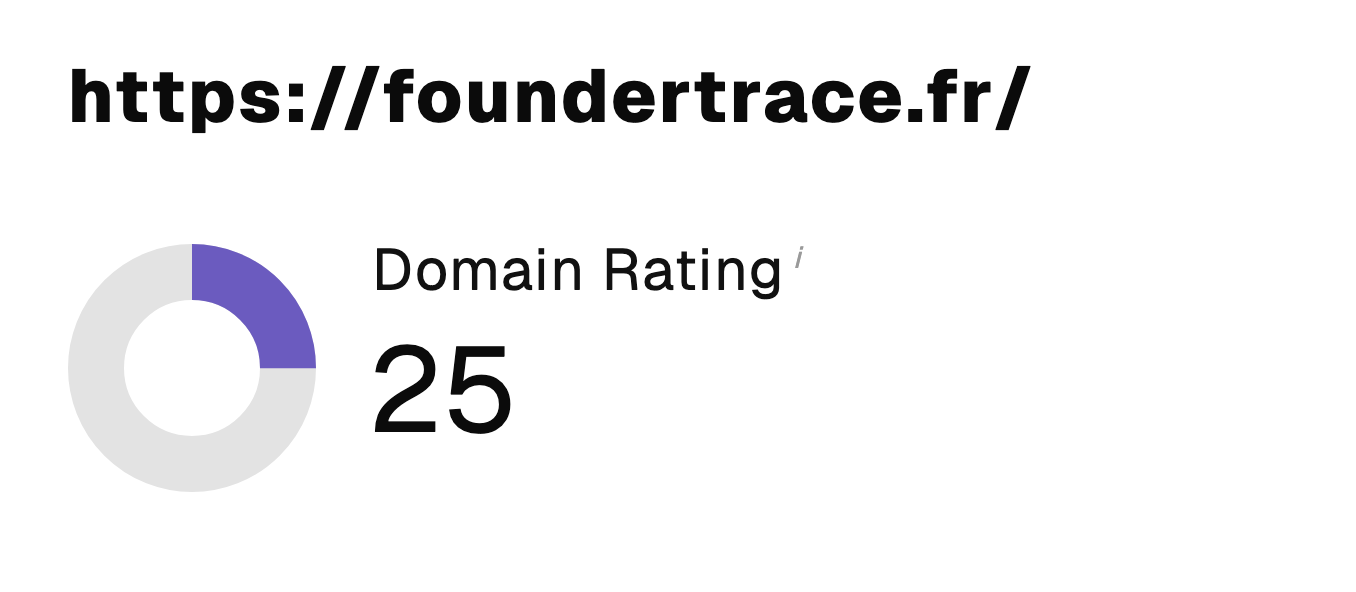 “I just let the Sorank software do its thing, and now my DR is 25 and my page is ranking higher.”
 Lucas Flandrefoundertrace.fr“I specialized in GEO thanks to Sorank. The GEO Leaderboard allows me to show my clients their position vs competitors on ChatGPT. It’s a real commercial differentiator.”
 MélanieSEO Freelance“Great service, works well for our website and helps us understand how to improve it to rank better on Google and elsewhere. Congrats, keep going, I recommend it.”
 Hugo T.E-commerce merchant