
Preferences
Privacy is important to us, so you have the option of disabling certain types of storage that may not be necessary for the basic functioning of the website. Blocking categories may impact your experience on the website. More information
Privacy is important to us, so you have the option of disabling certain types of storage that may not be necessary for the basic functioning of the website. Blocking categories may impact your experience on the website. More information

Get your job posts into Google for Jobs: required JobPosting fields, a full JSON-LD example, a step-by-step test and the mistakes that block listings.


In short
Google for Jobs shows job postings that live on web pages carrying JobPosting structured data, usually written as JSON-LD. To qualify, a page must show one real, public job, the markup must match what a visitor reads on that page, and the markup must stay accurate while the job is open. Get those three things right and your openings can appear in Google's job search. Get one wrong and Google can ignore the page.
Want to go further? Ask
Quick quiz
Is SEO right for you, and how should you start?
Sorank matches your answers


Test it for 3 days on your own site and see where you stand on Google, ChatGPT and the other AIs.
Start 3-day free trial3 days free, then stop whenever you want. 90-day results guarantee, conditions apply.
Google for Jobs is the job search that appears inside Google results when someone looks for a role, such as "warehouse jobs Lyon". It shows a box of openings with filters for location, contract type and date. The people who see it are candidates, so it is a real source of applications for employers and job boards alike.
Google does not read your job board's database or your applicant tracking system (ATS) directly. It reads web pages. A page that describes one job can carry a block of structured data, a machine-readable summary written with the schema.org vocabulary. Google's crawler reads that block, checks it against Google's rules, and decides whether the job can appear in the job search.
That is why the work sits in two places at once. The page must be a good public job page for a human. The structured data must describe that same page for a machine. If the two disagree, Google has a reason to ignore the page.
Every job that appears in the job search goes through the same four steps:
Google for Jobs launched in the United States, then reached France in June 2019. The timeline below comes from a 2021 guide by Jérôme Salomon for Oncrawl. Use it for context. The current rules come from Google's own documentation, which is updated more often than any blog post, including this one.
Google for Jobs, key dates in France
Source: Oncrawl, Google for Jobs and SEO, 2021
Google's documentation sorts JobPosting properties into two groups. Required properties must be present for the job to qualify. Recommended properties do not block eligibility, but they make the listing more complete and more accurate. The table gives the full list, with what goes in each field.
| Property | Status | What to put in it |
|---|---|---|
| title | Required | The job name only, with no codes, addresses, dates, salaries or company names |
| description | Required | The full job text a candidate can read, never identical to the title |
| datePosted | Required | The date the job was published |
| hiringOrganization | Required | The name of the company, or confidential for anonymous ads |
| jobLocation | Required | The full address of the workplace, except for fully remote jobs that have applicantLocationRequirements |
| validThrough | Recommended | The date after which the job is no longer valid |
| baseSalary | Recommended | The base salary the employer provides, not an estimate |
| employmentType | Recommended | The type of contract, such as FULL_TIME |
| identifier | Recommended | Your internal reference for the job |
| jobLocationType | Recommended | TELECOMMUTE, for fully remote jobs only |
| applicantLocationRequirements | Recommended | The countries that applicants may live in, for remote jobs |
| directApply | Recommended | Whether a candidate can apply directly from the job page |
Google's rule is that the JobPosting markup "must only be used on pages that contain a single job". Category pages, search results and career hubs listing twenty openings are out. Put the markup on the most specific page you have, which is the page of the job itself. Google also asks that the markup appear on the same page as the job description a candidate can read in the browser. Hidden text or markup pointing to another page does not count.
If the structured data vocabulary is new to you, start with our schema markup entry, which explains how markup is written. The rules below are the job-specific part.
The title is the job name and nothing more. Google's guidance says the title only corresponds to the job title and not to the job offer. Job codes, addresses, dates, salaries and company names do not belong there. Oncrawl's guide gives a clear case of what to avoid.
Example
Title that fails: POSITION TO BE FILLED IMMEDIATELY !!! NEAR AIRPORT. Title that passes: Warehouse employee, shipping and receiving. The second one tells a candidate what the job is, and nothing else.
The description is the job text itself. It cannot be the same string as the title. Give candidates what they need to decide: the duties, the working hours, the qualifications, the contract details and any training or experience required. Oncrawl's 2021 guide recommends simple HTML, such as paragraphs and lists, and warns against heading and emphasis tags inside the description. Treat that as a practical observation and test it on your own pages.
The hiringOrganization name must be the name of the company. Google's documentation says it must not be a specific hiring location. A city, a site name or a department is not a company. For anonymous ads, use the value confidential as the name.
The jobLocation field takes a full address, not a city. Oncrawl's example uses a street, a locality, a region, a postal code and a country. Fully remote jobs follow different rules, covered in the next subsection.
baseSalary must be the actual base salary the employer provides, not an estimate. Only employers can provide it, so a salary guessed by an aggregator does not qualify. The unitText value must be one of HOUR, DAY, WEEK, MONTH or YEAR, in capital letters, because the values are case-sensitive.
A job marked TELECOMMUTE must be fully remote, and the description must state that it is 100 percent remote. If applicants may live only in certain countries, say so in the description and list those countries in applicantLocationRequirements. For a remote job with that field present, jobLocation is not required.
Google's documentation says it does not allow expired job postings. A role is expired when it is closed or filled. Section 7 covers the three ways to handle that.
The refused list covers incomplete descriptions, fake or non-existent jobs, keyword stuffing, false location data, profanity and spammy text. It also covers disguised ads, including affiliate content presented as a job, postings with no way to apply, postings that require a login to see the details, and postings that ask the applicant to pay. Applicants offering their own services are not job postings either. A lead-generation page dressed up as a job is refused too, so keep every job page honest.

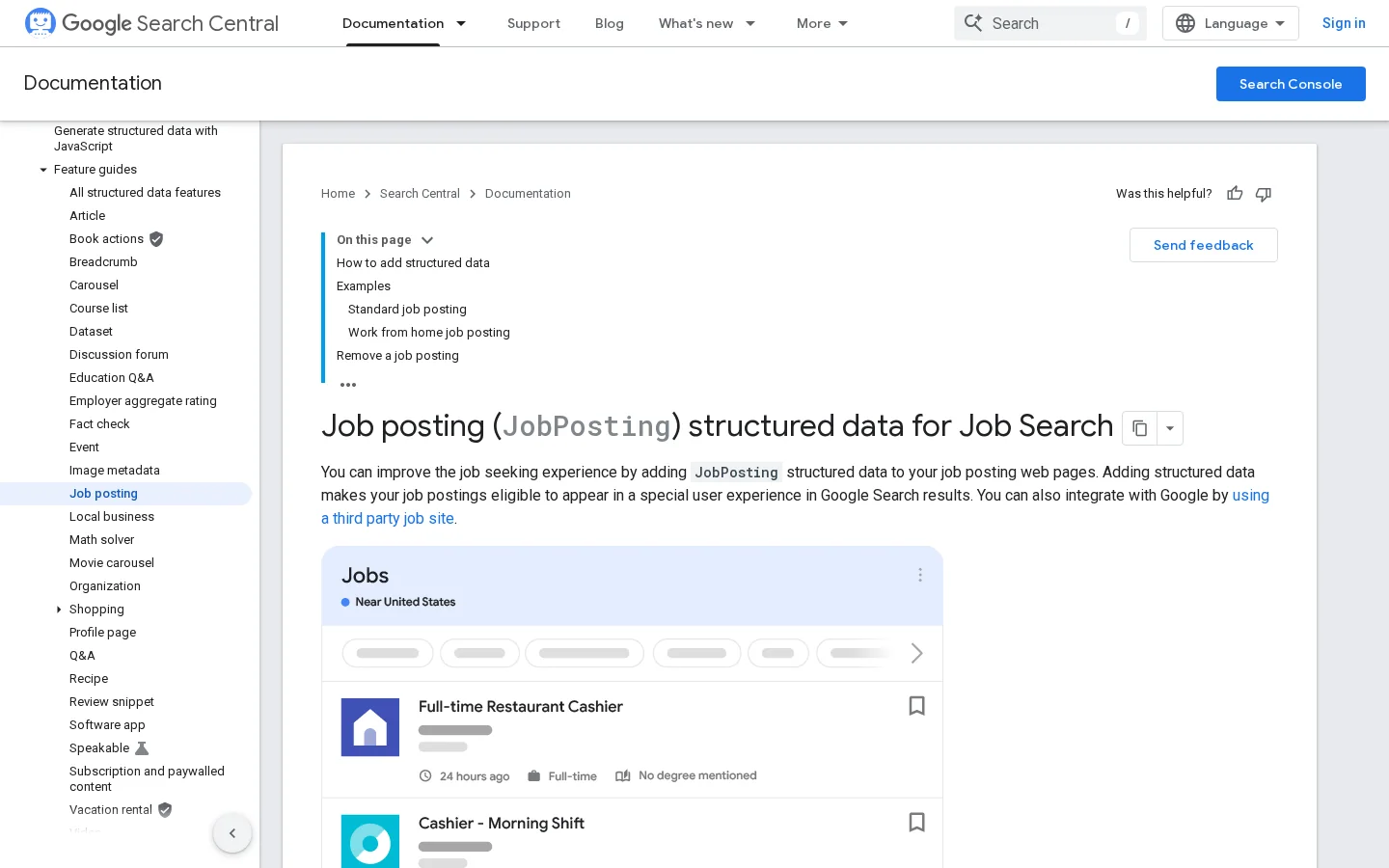
The markup goes in the page HTML, inside a script tag with the type application/ld+json. The example below uses placeholder data. Replace each value with your own, and make sure the visible page says the same thing.
<script type="application/ld+json">
{
  "@context": "https://schema.org",
  "@type": "JobPosting",
  "title": "Warehouse employee, shipping and receiving",
  "description": "We are hiring a warehouse employee for our Lyon site. You receive inbound goods, check them against purchase orders and prepare outbound shipments. Forklift experience is a plus. Day shift, Monday to Friday, 35 hours a week. Training on site during the first two weeks.",
  "identifier": {"@type": "PropertyValue", "name": "Acme Logistics", "value": "WH-2026-014"},
  "datePosted": "2026-11-03",
  "validThrough": "2026-12-31T23:59",
  "employmentType": "FULL_TIME",
  "directApply": true,
  "hiringOrganization": {"@type": "Organization", "name": "Acme Logistics", "sameAs": "https://www.acme-logistics.example"},
  "jobLocation": {"@type": "Place", "address": {"@type": "PostalAddress", "streetAddress": "12 Rue de la Gare", "addressLocality": "Lyon", "postalCode": "69002", "addressCountry": "FR"}},
  "baseSalary": {"@type": "MonetaryAmount", "currency": "EUR", "value": {"@type": "QuantitativeValue", "value": 2000, "unitText": "MONTH"}}
}
</script>
Read the block field by field, because each one does a different job:
Note
A single missing comma or quote breaks the whole JSON block, and then Google reads none of it. Paste the block into a JSON validator or the Rich Results Test before you publish. If the same company also keeps a local listing, the local business schema guide shows how to mark up the address the same way.
Your jobs can reach Google by three routes. They differ in who writes the markup, who keeps the traffic and where the risk sits. You can pick one route for all jobs, or mix routes if you use both a career site and a board. If you mix them, keep the title, location and dates identical everywhere, so Google does not see two conflicting versions of the same job.
Principle: your ATS or CMS template writes the JobPosting block on every job page of your site.
When to use it: you have a career site, you have a developer or an ATS that controls the template, and you want applications to stay on your domain.
Advantages: you control the markup and the page. Candidates apply on your site, not on someone else's.
Limits: someone must maintain the template and handle expiry. A broken template breaks every job at once.
Example: a logistics company adds the block to its job template, so each opening gets its own URL and its own markup.
Principle: you post the job on a board, and the board publishes the public job page with the markup.
When to use it: you have few openings or no developer, and you accept the board's page as the public job page for the role.
Advantages: you do no markup work, and the board handles many of the rules.
Limits: the board owns the page and most of the traffic. You depend on its quality and on how it handles expiry. Check its job page with the test in section 5.
Example: a two-person firm lists a role on a board whose job pages already carry JobPosting markup.
Principle: your ATS sends a structured feed of jobs to Google, or to a partner that publishes them.
When to use it: you have many openings that change often, and an ATS that supports a feed.
Advantages: updates and expiry can run automatically, which matters when hundreds of roles close each month.
Limits: I could not verify the current requirements for direct feeds in Google's documentation while writing this guide. Check Google's current documentation and your ATS vendor before you build on this route.
Example: a recruiting team with hundreds of open roles and frequent closures, where the feed removes expired jobs without manual work.
Your career page or a job board
| Route | Who writes the markup | Who keeps the traffic | Effort | Main risk |
|---|---|---|---|---|
| Own career page | You or your ATS template | You | Medium to high at setup | A broken template affects every job |
| Job board | The board | The board | Low | Its page quality and expiry handling |
| Feed or partner | Your ATS or partner | Depends on the partner | Medium | Requirements may change, so verify first |
Use this sequence for every new job, and for every job you already run. Each step is short. The detail follows the list.
Six steps from job ad to job search
Each job needs its own URL, so the job can be read on its own. Keep the URL stable. If you change the URL when you edit the job, Google sees a new page and an old one that has disappeared. Add the block after the page content is final, so the markup and the text are written from the same version.
Google's Rich Results Test accepts a public URL or a pasted code snippet. Test the live URL first, because it shows what Google sees. Then test a draft by pasting the code, and fix the errors before you publish.
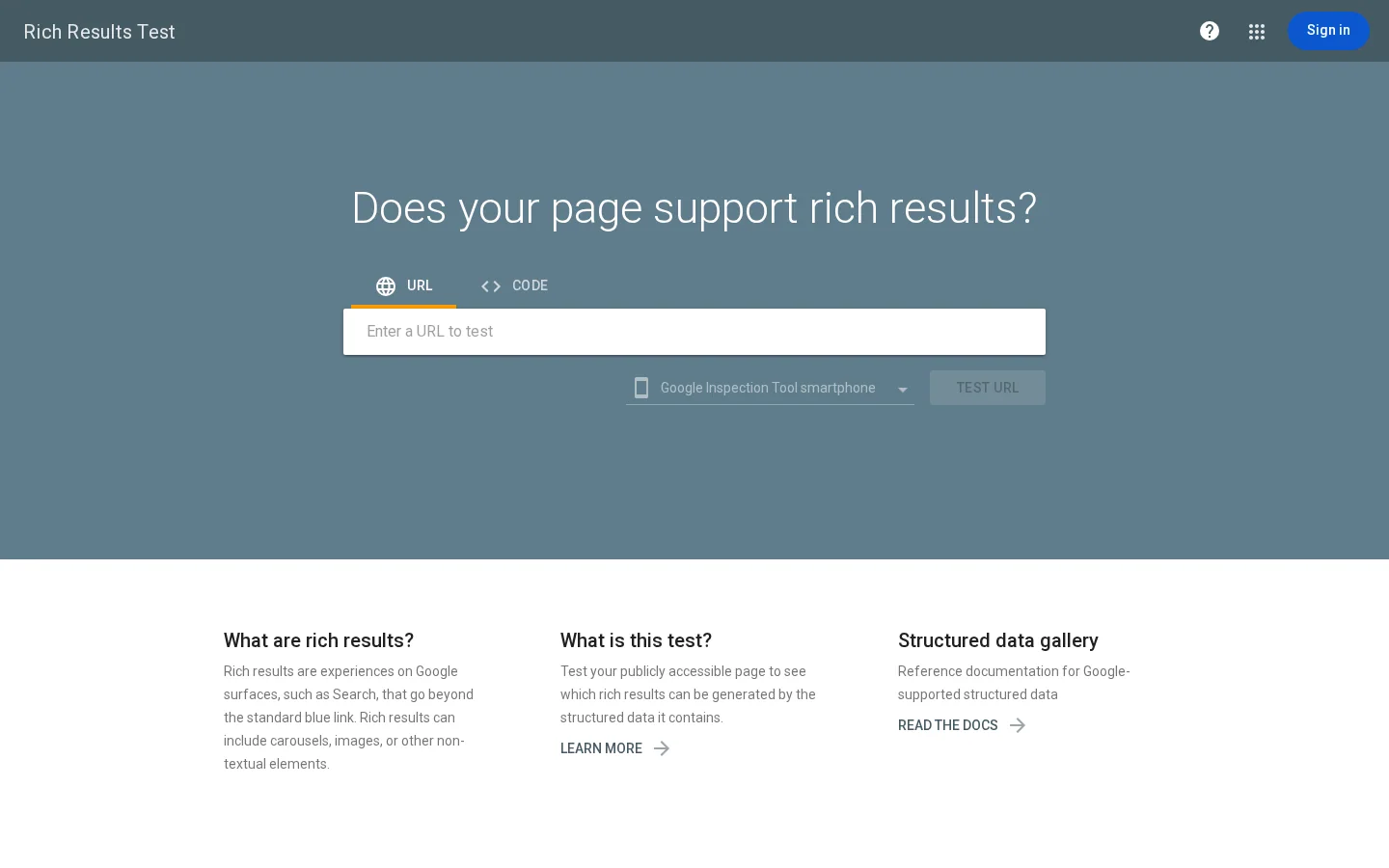
Read errors and warnings separately. An error on a required field means the job does not qualify. A warning on a recommended field means the listing is weaker than it could be. Fix errors first, then warnings, then run the test again on the live page.
A sitemap tells Google which pages exist and when they changed. Build it with our guide on how to create a sitemap, then send it through Search Console, as explained in how to submit a sitemap to Google. Section 7 explains the lastmod field.
If you already have job pages, audit them before you add anything new. Export every job URL from your sitemap, your ATS or a crawler. Then run the checks below on the title and description fields. The regex comes from the pattern set in Oncrawl's 2021 guide.
[A-Z]{6,}|[!*]|\d{4,}Run that pattern on the title field. It flags runs of six or more capital letters, the characters ! and *, and four digits in a row. Those are the signs of a title that is a sales line or a code. Expect some false positives, so read the flagged pages by hand.
For descriptions, measure the length of the text and sort the pages from shortest to longest. A threshold of 300 characters is a reasonable first cut, not a rule from Google. Read the shortest ten pages before you decide what to fix.
Rewrite a weak job page
Tip
Test the JSON-LD of any page or pasted code with our free structured data validator. Run it on the rewritten page before you publish, then run Google's Rich Results Test on the live URL.
Google re-crawls pages it knows have changed, and a sitemap is how it learns about them. Oncrawl's guide says Google re-crawls a page when its lastmod date is later than the last crawl. Each job page needs a sitemap entry that stays current:
<url>
  <loc>https://www.example.com/jobs/warehouse-lyon-wh-2026-014</loc>
  <lastmod>2026-11-03</lastmod>
</url>
Update lastmod whenever the job changes, such as a new salary, a new deadline or a corrected location. When the job closes, update the page too, not only the sitemap. A sitemap that says the page changed, while the page still reads "apply now", sends mixed signals.
Oncrawl's article also suggests pinging Google with the sitemap URL. Check that method against current documentation before you rely on it. Submitting the sitemap in Search Console is the route to use.
Google's documentation lists three options. Pick the one your system can run reliably, and apply it on the day the role closes.
| Option | What you do | What Google sees |
|---|---|---|
| Past validThrough | Set validThrough to the closing date, or to a past date | A job that the markup says is no longer valid |
| Remove the page | Return a 404 or 410 status for the job URL | A page that no longer exists |
| Remove the markup | Delete the JobPosting block, and keep the page as a closed notice | A page that is no longer a job posting |
Warning
Oncrawl's 2021 guide warns against expired ads that stay visible and keep ranking. Scrape your job pages for a filled or closed status text, and check which ones have no validThrough date. Those are the pages to fix first.
Most failed job listings have one of the mistakes below. Each entry says what the mistake is, how to spot it on your site, and how to fix it. The table summarizes the list.
| Mistake | How to spot it | How to fix it |
|---|---|---|
| Markup on a listing page | More than one JobPosting block on one URL | Keep the block on each job page only |
| Title with codes or capitals | The title regex in section 6 matches | Use the job name, and move codes into identifier |
| Description equal to the title, or too thin | Identical strings, or no duties or qualifications | Write the full job text in paragraphs and lists |
| Expired job still marked up | No validThrough, or a past date, on a page that still says apply | Use one of the three expiry options |
| Markup that differs from the page | A value in the markup that the page does not show | Show it on the page, or remove it from the markup |
| Remote job marked TELECOMMUTE by mistake | The description does not say 100 percent remote | Remove TELECOMMUTE, or state the rule and list the countries |
| Salary that is an estimate | No employer source for the figure | Remove baseSalary |
| Job behind a login | Full text only appears after sign-in, which a private window shows | Make the description public on the job page |
What it is: the careers hub or a category page carries JobPosting markup for many jobs at once. Google's rule is one job per page.
How to spot it: count the JobPosting blocks on each URL. More than one means the page is a list.
How to fix it: remove the block from the list page. Keep it on each job page, where the single job is shown in full.
What it is: job codes, addresses, dates, salaries or company names in the title, often in capital letters.
How to spot it: run the title regex from section 6 on the export.
How to fix it: rewrite the title as the job name. Move the reference into identifier, where it belongs.
What it is: the description repeats the title, or it is one line long with no duties, hours or qualifications.
How to spot it: compare the two strings, then sort by description length and read the shortest pages.
How to fix it: write the full job text. Cover the duties, the hours, the qualifications, the contract and any training.
What it is: the role is closed, but the page still carries open markup and an apply button.
How to spot it: look for pages with no validThrough date, or with a past date, that still show an apply action. Check the status text as well.
How to fix it: apply one of the three options from section 7 on the day the role closes.
What it is: the markup gives a salary, a city or a deadline that the visible page does not show. Google requires the markup to match the job description readers can see on the same page.
How to spot it: put the rendered page and the JSON-LD side by side, and compare each field.
How to fix it: show the value on the page, or remove it from the markup. Do not keep a value that exists only in your database.
What it is: the markup says TELECOMMUTE on a role that needs office days, or the role is remote but no countries are listed.
How to spot it: read the description for a clear statement that the job is 100 percent remote.
How to fix it: remove TELECOMMUTE if the role is not fully remote. If it is, state the rule in the text and list the countries in applicantLocationRequirements.
What it is: an aggregator or a job board adds a salary it guessed from market data.
How to spot it: there is no employer source for the figure.
How to fix it: remove baseSalary. Google allows that value only from the employer.
What it is: the full description appears only after the visitor signs in or fills a form. Google's documentation refuses postings that require a login to see the details.
How to spot it: open the job URL in a private window, with no account. If the text is missing, Google has the same problem.
How to fix it: publish the full description on the public job page, and keep the application form as a separate step.
Sorank runs SEO and GEO on autopilot for a site, which covers the articles that bring people to your pages. It does not replace the job postings themselves. Those still need your real duties, real salaries and real dates. Sorank is more useful for the content around hiring: guides, employer topics and the pages that explain your company. The AI blog article generator drafts and publishes that content on your schedule. If you are a recruiter, the recruiter page describes how Sorank helps recruiting firms rank on Google and get cited by ChatGPT.
Start with the page that brings in the most candidates, not with the whole site. Fix it, test it, then move to the next. Here is a plan you can run this week.
Plan for this week
No. Google reads job postings from web pages that carry JobPosting structured data. A page on your own career site can qualify if its markup is valid and the page shows one real job. A job board is one option, not a requirement.
Google's documentation requires a title, a description, a datePosted date, a hiringOrganization and a jobLocation. For a fully remote job with applicantLocationRequirements, jobLocation can be left out. The markup must match one public job page.
Set validThrough to a past date, return a 404 or 410 status for the job page, or remove the JobPosting markup. Google does not allow expired job postings, so do one of these on the day the role closes.
We analyse your competitors, your website and your AI visibility to create a tailored content plan for free.
 AI Content Brief Generator
 FAQ Schema Generator
 AI Blog Post Ideas Generator
 Structured Data Validator (Schema Validator)
 Alt Text Checker
 Internal Link Analyzer
 Backlink Challenge
 AI Meta Description Generator
 AI Blog Title Generator
 Google Indexability Checker
 AI Blog Outline Generator
 UTM Link Builder
 Keyword Clustering Tool
 Canonical Tag Checker
 XML Sitemap Generator
 Broken Link Checker
 AI SEO Title Generator
 Headline Analyzer
 SERP Preview Tool
 Redirect Checker
 Hreflang Tag Generator
 Heading Structure Analyzer
 HTTP Headers Checker
 Favicon Extractor
 SERP CTR Calculator
 SEO vs Paid Search Savings Calculator
 SEO Share of Voice Calculator
 SEO ROI Calculator
 SEO Traffic and Revenue Forecast Calculator
 SEO Budget Calculator
 SEO Break-Even Calculator
 SaaS SEO ROI Calculator
 ROAS Calculator
 Reading Time Calculator
 Ranking Gain Simulator
 Organic Traffic Value Calculator
 Organic Traffic Estimator and Website Traffic Checker
 LTV to CAC Ratio Calculator
 Local SEO ROI Calculator
 Link Building Cost Calculator
 Keyword Value Calculator
 Keyword Opportunity Score Calculator
 Keyword Density Calculator
 GEO ROI Calculator
 GEO Content Investment Calculator
 Ecommerce SEO ROI Calculator
 Customer Lifetime Value Calculator
 Customer Acquisition Cost Calculator
 CTR Calculator
 Cost Per Article Calculator
 Conversion Rate Calculator
 Content Marketing ROI Calculator
 ChatGPT Referral Traffic Estimator
 Bounce Rate Calculator
 Backlink ROI Calculator
 AI Visibility Score Calculator
 AI Traffic Value Calculator
 AI Share of Voice Calculator
 Cost of AI Invisibility Calculator
 AI Citation Rate Calculator
 llms.txt Validator
 AI Overview Checker and AI Overviews Rank Checker
 Robots.txt Checker
 AI SEO Audit
 LLM Readability Checker
 SearchGPT Readiness Checker
 Structured Data LLM Audit
 Website Crawlability AI Audit
 Why ChatGPT Is Not Recommending My Website
 Gemini Ranking Tool
 Perplexity Ranking Checker
 LLM Citation Checker
 Answer Engine Optimization Audit
 GEO Audit
 AI Search Visibility Test
 ChatGPT Visibility Checker
 llms.txt Generator
 URL Extractor
 Webpage to Markdown
 Sitemap Checker
 SERP Volatility Sensor
 Page Size Checker
 Word Counter
 Slug Generator
 Schema Generator
 Robots Generator
 OG Preview
 Meta Tags Generator
 Image Compressor
 Favicon Generator
 On-Page SEO Audit: SEO Checker and SEO Analyzer
 Backlink Analysis Tool
 Keyword Research Tool
 Domain Authority Checker
 “I tested Sorank on a real client site and it's insane. It does everything an agency would bill you $1500 a month for. It's going into production on that client now.”

 Guillaume Guersanguersanguillaume.com“We are an Ads agency and we wanted to get our SEO back on track once and for all. Sorank gave us a clear view of our site, helped us prioritize optimizations, and properly structure our content. The tool is easy to use, well designed for a team, and very practical for centralizing tracking without having to juggle multiple platforms. A very solid foundation to start fresh with our SEO.”
 Gaspard MadouiAds Agency
 “I just let the Sorank software do its thing, and now my DR is 25 and my page is ranking higher.”
 Lucas Flandrefoundertrace.fr“I specialized in GEO thanks to Sorank. The GEO Leaderboard allows me to show my clients their position vs competitors on ChatGPT. It’s a real commercial differentiator.”
 MélanieSEO Freelance“Great service, works well for our website and helps us understand how to improve it to rank better on Google and elsewhere. Congrats, keep going, I recommend it.”
 Hugo T.E-commerce merchant