Preferences
Privacy is important to us, so you have the option of disabling certain types of storage that may not be necessary for the basic functioning of the website. Blocking categories may impact your experience on the website. More information
Privacy is important to us, so you have the option of disabling certain types of storage that may not be necessary for the basic functioning of the website. Blocking categories may impact your experience on the website. More information

Learn which social media tasks to automate, the platform rules that can restrict your account, and a step-by-step setup that keeps your posts useful.


In short
Social media automation means letting software do the repeated work: queuing posts, sharing new articles when they go live, turning one piece of content into several posts, and drafting captions. Automate the calendar and the distribution. Keep the replies, the opinions and the judgment about what to say with a person. Check each network's rules before you connect anything, because the rules decide what your account can safely do.
Want to go further? Ask
Quick quiz
Which social network should you focus on?
Sorank matches your answers


Test it for 3 days on your own site and see where you stand on Google, ChatGPT and the other AIs.
Start 3-day free trial3 days free, then stop whenever you want. 90-day results guarantee, conditions apply.
When people hear "social media automation," they often picture a bot that posts for them while they sleep. That version exists, and it is the riskiest one. In practice, automation covers a range of jobs. Some are routine and safe to hand over. Others touch your audience directly and need a person.
Ask one question about each task: if the software gets it slightly wrong, what happens? A post that goes out an hour late costs you nothing. A reply that misreads a customer complaint stays public. The higher the cost of an error, the more human review the task needs.
Most of the time saved comes from three routine jobs: publishing from a calendar, sharing new content when it goes live, and cutting one piece of content into several posts. None of them needs a new idea. They need the same steps done on time, every time, and software does that well.
Topic choice, the opinion behind a post, and every reply to a real person stay human. Software can draft a reply to a comment, but a reply is a conversation. A bot that answers a frustrated customer with a cheerful template makes the problem worse, and the answer stays on the page for everyone to read.
| Job | Automate it? | Why |
|---|---|---|
| Queuing posts from a content calendar | Yes | Timing is mechanical once the plan exists. |
| Sharing a new article when it is published | Yes, with a check | Removes a manual step you tend to forget. Check the caption once. |
| Cutting one article into several posts | Yes, as a draft | Software can cut the text, but a person checks every claim. |
| Drafting captions with AI | Yes, as a draft | Speed is useful. Generic drafts are not. |
| Choosing topics and the message | No | Needs knowledge of your customers and your position. |
| Replying to comments and messages | Partly | Use it for acknowledgements, not for answers that need judgment. |
| Liking, following or commenting at scale | No | Platforms treat it as spam, and it can cost you the account. |
Use this table as the default. Change a row only after you have tested the change for a few weeks.
"Automation" hides at least five different methods. They differ in setup effort, in risk, and in what they are good for. Most teams should start with two of them, the scheduled queue and share-on-publish, and add the others later.
Principle: you write or approve posts ahead of time, and the tool publishes each one at a set time.
When to use it: you already write posts yourself and lose time publishing them one by one.
Advantages: steady timing, batch work in one session, and no gaps when your week fills up.
Limits: queued posts go stale. A post written three weeks ago can go out the day after a product change or a news story that makes it wrong. Review the queue at least once a week.
Example: on Monday you write ten posts for the week, check them against the current article list in 45 minutes, and set the times for Tuesday to Friday.
Principle: when a new article goes live, the tool creates a post with its title and link, then sends it, immediately or after a delay you choose.
When to use it: you publish often and forget to share. For a blog, this is the method that saves the most effort.
Advantages: no article goes unshared, and the share happens while the piece is fresh.
Limits: the caption is generic unless you write a template with variants. The image and the title come from the page metadata, so a weak title becomes a weak post. If you run old articles through the same trigger, you create bursts and repetition.
Example: an article goes live at 9:00. The tool posts to LinkedIn at 9:00 with the title, a one-sentence hook taken from the meta description, and the link.
Principle: one article becomes a short series: one post per main section, a carousel outline, or a short video script.
When to use it: you have long articles that get one share and then disappear from the feed.
Advantages: more reach from work you have already done, and each post can link back to the article.
Limits: a cut-up article reads like fragments. Each post needs a point of its own, not a sentence copied out of context.
Example: an article with six H2 sections gives six posts. Each post takes one finding from its section, states it in plain words, and links to the article.
Principle: a language model writes the caption or post for each network from the article, and a person edits it before it goes out.
When to use it: you need volume, and you have a voice guide the model can follow.
Advantages: the first draft takes seconds, and the model can adapt length and tone to each network.
Limits: drafts sound alike, and they can state claims the article does not support. A wrong number in a post reaches people before anyone notices it.
Example: you give the model the article, a 120-word limit and three rules. It returns a draft. You cut one adjective, check the figure against the text, and approve.
Principle: the tool watches for your brand name, your keywords or your competitors, and alerts you when something new appears.
When to use it: you want to reply quickly to a mention, or spot a complaint early.
Advantages: you see what people say without opening every network every day.
Limits: alerts are noisy. Tune the keywords first, or the alerts will pile up unread.
Principle: bots that like, follow, comment or send messages on your behalf, in volume.
Why not: platforms treat it as spam or unauthorized automation. LinkedIn's rules, covered in the platform section below, ban third-party bots and browser extensions outright. The account is the one asset you cannot rebuild quickly, so the short-term reach is never worth the risk.
| Method | Setup effort | Risk | Best for |
|---|---|---|---|
| Scheduled queue | Low | Low, but posts go stale | Steady publishing |
| Share on publish | Medium | Low to medium, generic captions | Blogs and news |
| Repurposing | Medium | Low, if each post has a point | Long articles |
| AI drafting | Low | Medium, unchecked claims | Volume with an editor |
| Listening and alerts | Medium | Low | Reputation and fast replies |
| Engagement at scale | Low | High, loss of the account | Nothing we would recommend |
If you need software to run the queue, compare the options in the best social media management tools before you buy. Compare them on the rules they follow, not only on price.

Start with one network and one trigger. Add more only after the first setup has run clean for two weeks. Most automation problems come from setting up five things at once and not knowing which one broke.
Setting up share-on-publish in six steps
Warning
Do not give a social account password to any tool. A tool that asks for your password can read everything in the account and act for you. Use the network's own sign-in screen, and revoke the access when you stop using the tool.
Each automated share needs a link you can measure. Add UTM parameters to the article URL before the tool sends it. The parameters tell your analytics where the visit came from and which campaign it belongs to.
https://www.example.com/blog/your-article?utm_source=linkedin&utm_medium=social&utm_campaign=blog-autoshareUse utm_source for the network, utm_medium=social for the channel, and one utm_campaign name for all automated shares. That lets you compare automated shares with manual ones in the same report. Keep the names lowercase and identical every time, because analytics tools often count "LinkedIn" and "linkedin" as two different sources.
Tip
Before the automation sends a link, check how it looks as a card. Paste the URL into the free Open Graph preview tool and fix the title and the image in your page metadata first. A missing image is the most common reason a shared link looks empty.
Share right after publishing if you want the link to be seen while the piece is new. Wait a few hours if you want to check the live page first, on mobile and on desktop. Pick one default and keep it for a month. Changing the delay every week makes your results impossible to read.
Publish one test article and watch what the tool does. Check the post text, the crop of the image, the link preview and the UTM parameters. Read the post as a stranger would, then wait for the analytics data before you move on. A setup that passes one test can still fail on a long title or on an article without an image, so test one of each.
Every network sets its own limits and bans. The rules matter more than any feature, because a restriction stops everything, including the work you do by hand. Read each rule before you connect a tool, and recheck it every few months, since networks change them.
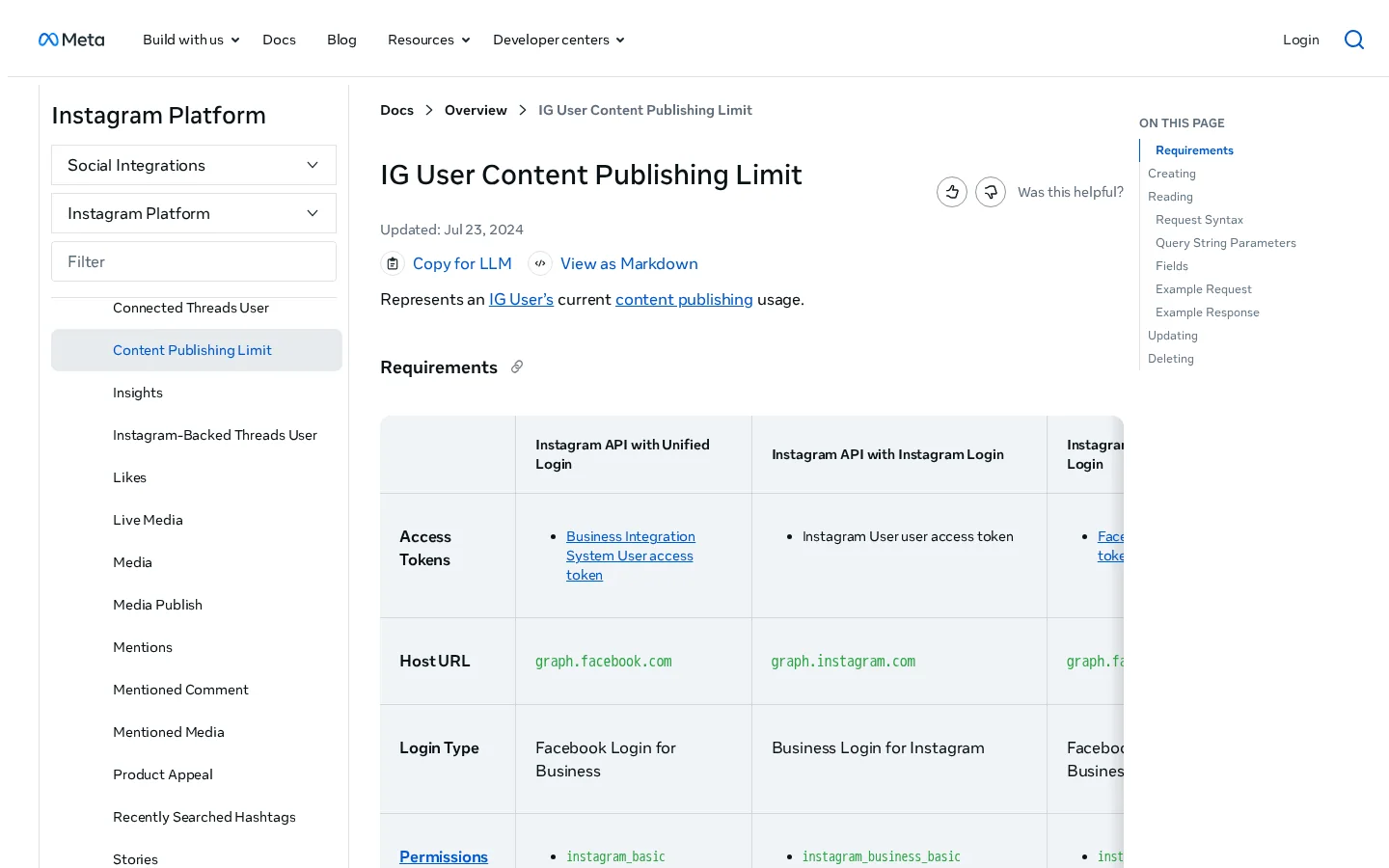
Instagram accounts that publish through Meta's API have a quota. Meta's reference for the IG User Content Publishing Limit currently sets the maximum at 50 containers in a window of 86400 seconds (24 hours), and it counts the containers created in the last 24 hours. The page does not say how a carousel counts, so test a carousel before you schedule a batch. You can check your usage with this request:
GET /<IG_USER_ID>/content_publishing_limitThe Instagram quota at a glance
Source: Meta for Developers, IG User Content Publishing Limit reference (no date shown on the page)
The limit is a ceiling, not a target. Spread posts across the day even when the quota allows more, and check the usage endpoint before a large batch so you do not hit the limit halfway through.
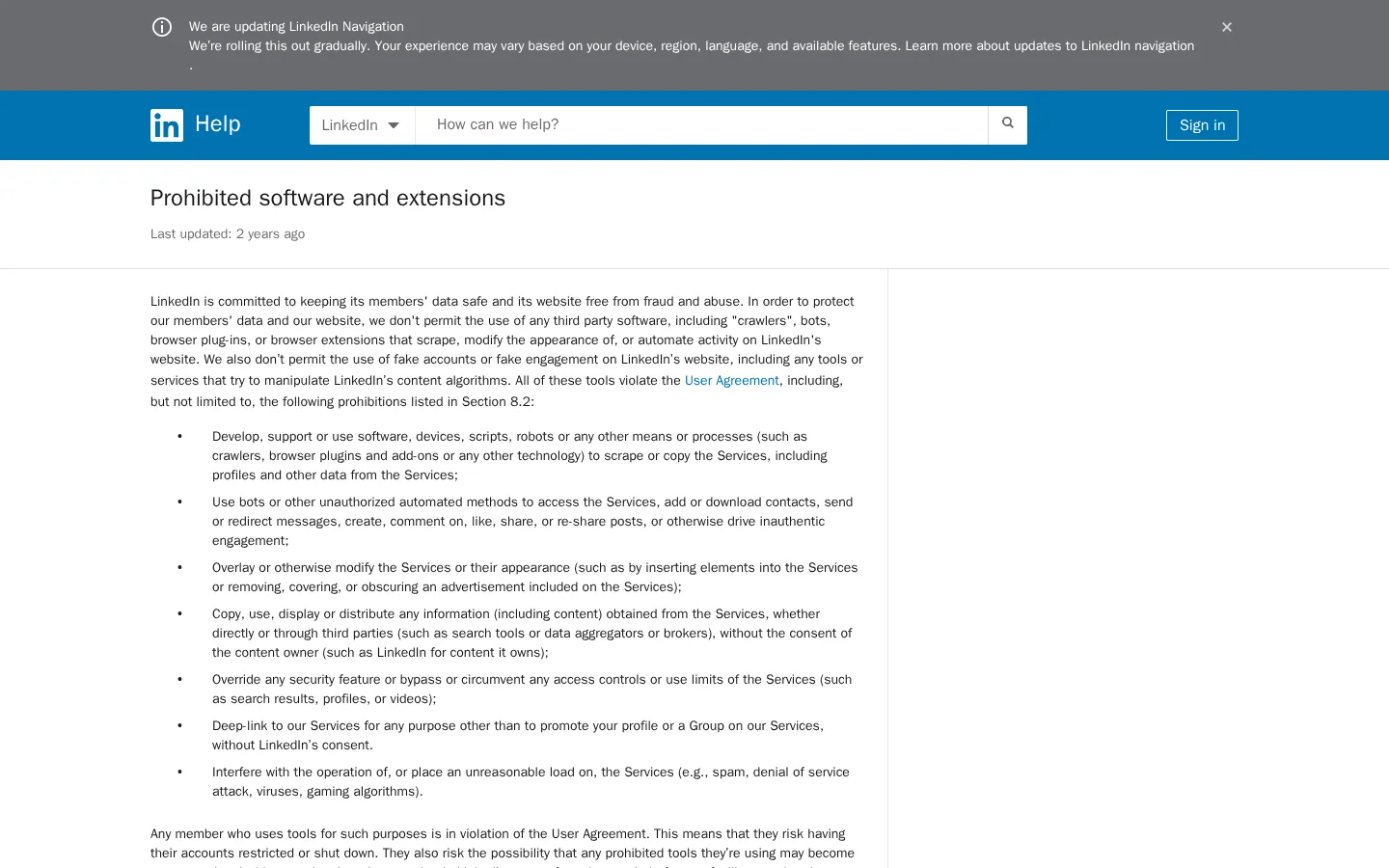
LinkedIn is the strictest of the common networks on automation. Its Help Center page on prohibited software and extensions says: "we don't permit the use of any third party software, including 'crawlers', bots, browser plug-ins, or browser extensions." It adds that anyone who uses such tools is in violation of the User Agreement and risks having their account restricted or shut down.
In practice, the question to ask a vendor is how the tool reaches LinkedIn. A tool that connects through an approved, official access is a different question from a browser extension that clicks, types and scrolls for you. Ask the vendor which one it is, and get the answer in writing. If the vendor cannot explain it, do not connect it to a company page or to your personal profile.
Beyond the named rules, networks react to patterns that look automated: the same text posted again and again, many posts in a short window, and posts whose only content is a link. You do not need the exact thresholds to avoid them. Vary the wording of your templates, spread posts across the day, and mix link posts with posts that stand on their own.
For LinkedIn specifically, compare the options in the best LinkedIn automation tools, then check each vendor's approach against the rules above before you buy.
The automated part of a caption is the boring part: the link, the date, the hashtag. The sentence that makes someone stop scrolling is not boring, and software does not know what is interesting in your article unless you tell it. Give the tool facts from the article and a voice to follow, not just a link.
Volume without value is also a risk for articles. Google's guidance on generative AI says that "using generative AI tools or other similar tools to generate many pages without adding value for users may violate" its spam policy on scaled content abuse, as the Google Search Central page on using generative AI content explains. The same logic applies to captions: a feed full of interchangeable lines teaches people to scroll past.
The same post, before and after editing
A good prompt gives the model the article, the length, the rules and one thing to avoid. Keep the template in a file, so every post follows the same rules. This one works as a starting point:
Write one LinkedIn post of 80 to 120 words about the article below. Open with one specific finding from the article. Use a number only if it appears in the article. No hashtags, no emojis, no buzzwords. End with one question to the reader.Write three to five caption variants for each type of article, then rotate them. Rotation keeps the feed from repeating one line, and it lets you learn which hook works. Do not write fifty variants of the same sentence. Readers notice the pattern, and the variants stop helping after a few.
Captions are only one piece of the plan, because the calendar decides which topic goes out and when. For a full method on building that calendar, read Social Media Content: Pillars, Formats, Calendar and Ideas That Work. For the AI use cases beyond drafting, read AI for Social Media Marketing. This article covers the setup and the rules, not those use cases.
Sorank is an SEO and GEO platform, and it does not publish to social networks. We say this plainly, because you would find out when you connect it. What Sorank automates is the blog side. Its blog planner fills a content calendar with keywords, writes each article on its day, and publishes it to your CMS, or sends it as a draft if you want to review it first.
The planner's own page puts it this way: "Set your time zone and publish time once. Each slot is written and published on its day, or sent as a draft." The destinations listed on the page are WordPress, Shopify, Webflow and Wix.
The social step comes after that. Once the article is live on your CMS, a share-on-publish trigger (method 2 above) or a social tool can post it. The chain works like this: the planner publishes the article, the trigger sends the post with UTM parameters, and analytics shows which automated shares brought visits.
Who does what in the chain
If you want the bigger picture on automated blogs, including what still ranks and where the risks sit, read Auto Blogging.
These six mistakes cost the most time or the account. Each one has the same three parts: what it is, how to spot it, and how to fix it.
What it is: a browser extension or script that likes, follows, comments or sends messages from your account.
How to spot it: the tool asks for your password, or it works by clicking inside a browser window while you are away.
How to fix it: remove it, then read the network's rules on third-party software. Keep only official connections. If the account is restricted, follow the network's appeal steps. Do not open a second account to get around the restriction.
What it is: the share trigger uses the same sentence for every post.
How to spot it: your feed shows the same line five times in a week, and nobody replies to it.
How to fix it: write three to five variants per article type and rotate them. Give the trigger a rule for which variant to use, so the choice does not depend on memory.
What it is: the article has no social image, or its title is weak, so the shared link shows a blank card or a generic one.
How to spot it: paste the URL into a link preview tool and look at the card. A missing image or a wrong title shows up at once.
How to fix it: set the Open Graph title, description and image in the page metadata, then preview the link again. Do this before the first automated share, not after.
What it is: the tool shares the whole archive on one day, to fill the feed.
How to spot it: twenty links to older pages in one hour, and no new content for the rest of the week.
How to fix it: share only new articles by default. For old content, schedule two or three a week, each with a caption written for today.
What it is: the model writes a figure, a date or a claim into the post that the article does not contain.
How to spot it: search each draft for numbers, dates and names, then check each one against the source article.
How to fix it: make human approval mandatory for any post that contains a figure, a date or a name. If a draft includes a number that is not in the article, delete it. Removing a number costs seconds. Correcting one after people have shared it costs much more.
What it is: a broken rule or a bad template keeps posting, and nobody looks at the queue for a week.
How to spot it: your last review is more than seven days old, or nobody can say which automations are active.
How to fix it: block 10 minutes each week to review the queue and the active rules. Keep one switch that pauses all automation at once, and test it once so you know it works before you need it.
Before you turn automation on
Automation makes it easy to post more and learn less. A dashboard full of impressions can hide the fact that nobody clicked. Track results by method, not by post, and compare methods over the same period.
| Metric | Where to look | What it tells you |
|---|---|---|
| Share of posts sent by automation | Your tool's report | How much of the feed depends on the rules |
| Clicks on UTM-tagged links | Your analytics | Whether the links work and reach people |
| Visits from social in the 7 days after publishing | Your analytics | Whether a share adds visitors to the article |
| Restrictions, warnings or failed posts | Network notices and tool logs | Whether a rule is being broken |
| Replies that need a human | Your inbox | Whether a person answers the people who reply |
Run one method for four weeks before you add the next one. Compare clicks per post, not total posts, between the automated shares and the manual ones. If a method brings no clicks after four weeks, look at the caption and the link preview before you blame the method.
If a metric drops for two weeks in a row and you cannot explain the drop, pause the method. Do not wait for the next report. A quick pause costs a few posts. A restriction can cost the account, and the audience that comes with it.
Pick one item from the list and finish it today. Setup problems grow when they wait.
Your first hour
For the strategy behind these posts, read Social Media Marketing Plan: 10 Steps, a Template and a Worked Example. That article covers the plan. This one covers the setup and the rules, so the two fit together.
Scheduling through a tool that uses the network's official access is the usual route. Bots and browser extensions that act on your account are not allowed, and LinkedIn says so in its Help Center. Check each network's rules before you connect a tool, and recheck them every few months.
Google does not ban AI content as such. Its guidance says that generating many pages without adding value may violate its spam policy on scaled content abuse. Use AI for drafts, then add what only you know, such as data, examples and your own view.
Meta's reference for the Instagram content publishing limit currently sets a quota of 50 containers in a 24-hour window. Check your usage with the content_publishing_limit endpoint before you schedule a large batch. Limits can change, so check the current documentation.
We analyse your competitors, your website and your AI visibility to create a tailored content plan for free.
 AI Content Brief Generator
 FAQ Schema Generator
 AI Blog Post Ideas Generator
 Structured Data Validator (Schema Validator)
 Alt Text Checker
 Internal Link Analyzer
 Backlink Challenge
 AI Meta Description Generator
 AI Blog Title Generator
 Google Indexability Checker
 AI Blog Outline Generator
 UTM Link Builder
 Keyword Clustering Tool
 Canonical Tag Checker
 XML Sitemap Generator
 Broken Link Checker
 AI SEO Title Generator
 Headline Analyzer
 SERP Preview Tool
 Redirect Checker
 Hreflang Tag Generator
 Heading Structure Analyzer
 HTTP Headers Checker
 Favicon Extractor
 SERP CTR Calculator
 SEO vs Paid Search Savings Calculator
 SEO Share of Voice Calculator
 SEO ROI Calculator
 SEO Traffic and Revenue Forecast Calculator
 SEO Budget Calculator
 SEO Break-Even Calculator
 SaaS SEO ROI Calculator
 ROAS Calculator
 Reading Time Calculator
 Ranking Gain Simulator
 Organic Traffic Value Calculator
 Organic Traffic Estimator and Website Traffic Checker
 LTV to CAC Ratio Calculator
 Local SEO ROI Calculator
 Link Building Cost Calculator
 Keyword Value Calculator
 Keyword Opportunity Score Calculator
 Keyword Density Calculator
 GEO ROI Calculator
 GEO Content Investment Calculator
 Ecommerce SEO ROI Calculator
 Customer Lifetime Value Calculator
 Customer Acquisition Cost Calculator
 CTR Calculator
 Cost Per Article Calculator
 Conversion Rate Calculator
 Content Marketing ROI Calculator
 ChatGPT Referral Traffic Estimator
 Bounce Rate Calculator
 Backlink ROI Calculator
 AI Visibility Score Calculator
 AI Traffic Value Calculator
 AI Share of Voice Calculator
 Cost of AI Invisibility Calculator
 AI Citation Rate Calculator
 llms.txt Validator
 AI Overview Checker and AI Overviews Rank Checker
 Robots.txt Checker
 AI SEO Audit
 LLM Readability Checker
 SearchGPT Readiness Checker
 Structured Data LLM Audit
 Website Crawlability AI Audit
 Why ChatGPT Is Not Recommending My Website
 Gemini Ranking Tool
 Perplexity Ranking Checker
 LLM Citation Checker
 Answer Engine Optimization Audit
 GEO Audit
 AI Search Visibility Test
 ChatGPT Visibility Checker
 llms.txt Generator
 URL Extractor
 Webpage to Markdown
 Sitemap Checker
 SERP Volatility Sensor
 Page Size Checker
 Word Counter
 Slug Generator
 Schema Generator
 Robots Generator
 OG Preview
 Meta Tags Generator
 Image Compressor
 Favicon Generator
 On-Page SEO Audit: SEO Checker and SEO Analyzer
 Backlink Analysis Tool
 Keyword Research Tool
 Domain Authority Checker
 “I tested Sorank on a real client site and it's insane. It does everything an agency would bill you $1500 a month for. It's going into production on that client now.”

 Guillaume Guersanguersanguillaume.com“We are an Ads agency and we wanted to get our SEO back on track once and for all. Sorank gave us a clear view of our site, helped us prioritize optimizations, and properly structure our content. The tool is easy to use, well designed for a team, and very practical for centralizing tracking without having to juggle multiple platforms. A very solid foundation to start fresh with our SEO.”
 Gaspard MadouiAds Agency
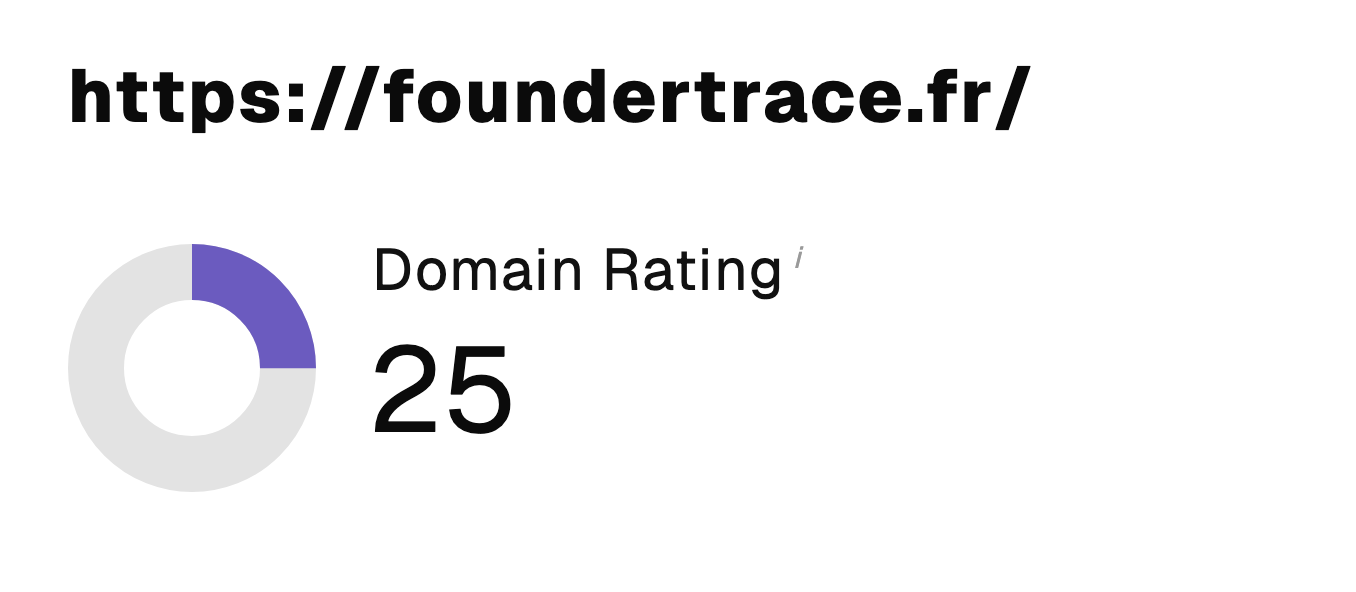 “I just let the Sorank software do its thing, and now my DR is 25 and my page is ranking higher.”
 Lucas Flandrefoundertrace.fr“I specialized in GEO thanks to Sorank. The GEO Leaderboard allows me to show my clients their position vs competitors on ChatGPT. It’s a real commercial differentiator.”
 MélanieSEO Freelance“Great service, works well for our website and helps us understand how to improve it to rank better on Google and elsewhere. Congrats, keep going, I recommend it.”
 Hugo T.E-commerce merchant