Preferences
Privacy is important to us, so you have the option of disabling certain types of storage that may not be necessary for the basic functioning of the website. Blocking categories may impact your experience on the website. More information

Privacy is important to us, so you have the option of disabling certain types of storage that may not be necessary for the basic functioning of the website. Blocking categories may impact your experience on the website. More information

Image sitemap guide: Google's official XML syntax, the 4 tags removed in 2022, when it helps (JavaScript, CDN, galleries) and how to create and submit one.

Tools

In short
An image sitemap is an XML sitemap that lists, for each page, the URLs of the images it contains, using Google's image extension (namespace http://www.google.com/schemas/sitemap-image/1.1). Only two image tags exist today: image:image and image:loc, with up to 1,000 images per page. You can add these tags to your existing sitemap or create a separate file. It is worth doing when Google may miss your images: galleries loaded by JavaScript, images on a CDN, or sites where images drive traffic (photography, e-commerce, real estate, recipes).
Want to go further? Ask
Quick quiz
Who should fix the technical side of your site?
Our advice for you
Choose which images to list is the right solution for you
Number 1 in this ranking, the best match for your answers.
Our advice for you
Check what your platform already generates is the right solution for you
Number 2 in this ranking, the best match for your answers.
Our advice for you
Write clean entries is the right solution for you
Number 3 in this ranking, the best match for your answers.
Our advice for you
Make the images crawlable is the right solution for you
Number 4 in this ranking, the best match for your answers.
An image sitemap is one of the few levers that tells Google directly which images matter on your site. Google's image sitemap documentation (last updated December 2025) sets the rules, and they became much simpler after 2022. Many guides still show tags that Google no longer reads. This one sticks to the official syntax, explains when a sitemap helps and when it changes nothing, and lists the mistakes that keep images out of the index.
An image sitemap is a standard XML sitemap extended with image entries. Each url element still points to a page, and inside it you list the images that appear on that page. Google uses the file as a discovery hint: in its Google Images best practices (updated March 2026), it explains that you can provide "the URL of images we might not have otherwise discovered by submitting an image sitemap."
Two points are often misunderstood:
Here is the format Google documents, with one page holding two images and a second page holding one:
<?xml version="1.0" encoding="UTF-8"?>
<urlset xmlns="http://www.sitemaps.org/schemas/sitemap/0.9"
    xmlns:image="http://www.google.com/schemas/sitemap-image/1.1">
  <url>
    <loc>https://example.com/sample1.html</loc>
    <image:image>
      <image:loc>https://example.com/image.jpg</image:loc>
    </image:image>
    <image:image>
      <image:loc>https://example.com/photo.jpg</image:loc>
    </image:image>
  </url>
  <url>
    <loc>https://example.com/sample2.html</loc>
    <image:image>
      <image:loc>https://example.com/picture.jpg</image:loc>
    </image:image>
  </url>
</urlset>
Each element has a precise role:
| Element | Status | Role |
|---|---|---|
| xmlns:image on urlset | Required | Declares the image namespace http://www.google.com/schemas/sitemap-image/1.1 |
| url and loc | Required | The page where the images appear (an indexable, canonical URL) |
| image:image | Required | Wraps one image; up to 1,000 per url element |
| image:loc | Required | The absolute URL of the image file; it may sit on another domain, such as a CDN |
The general sitemap limits still apply: Google's sitemap guide caps a single file at 50MB uncompressed or 50,000 URLs. A large catalogue with many images per page reaches the size limit faster, so split it and group the files in a sitemap index. The same guide notes that Google ignores priority and changefreq, and uses lastmod only when it is consistently accurate.
On May 6, 2022, Google announced in its "spring cleaning" post that it would stop supporting four image tags, effective August 6, 2022. Leaving them in a file causes no error, but they carry no value for Google.
| Removed tag | What it did | What to use instead |
|---|---|---|
| image:caption | Described the image | A visible caption and descriptive alt text on the page |
| image:title | Named the image | A descriptive file name and the text around the image |
| image:geo_location | Gave the place shown | Name the place in the caption or nearby text |
| image:license | Pointed to the license | IPTC photo metadata or image license structured data |
Tip
If your plugin or generator still writes image:title or image:caption, there is nothing to fix urgently. Put the effort into the alt text and captions on the page instead, since that is where Google and the AIs read the description.
For a small blog whose images sit in plain img elements, Google finds them by crawling the page and a dedicated sitemap adds little. The value grows when discovery is uncertain or when images bring business:
| You benefit from an image sitemap when | You can skip it when |
|---|---|
| Galleries, carousels or lightboxes load images with JavaScript | Images are standard img elements in the HTML |
| Images are served from a CDN or another domain | Images are on your own domain and pages are well linked |
| Images are a traffic source: photographers, online stores, real estate, recipes, travel | Images are decorative or stock photos used everywhere |
| You publish many new images every week | The site rarely changes |
| Search Console shows few image impressions despite many original images | Google Images already sends steady traffic |
JavaScript is the most common reason. If a slider only injects its images after a click or a swipe, Googlebot may never see them. Google's guide to lazy-loaded content asks that images load when they enter the viewport, without relying on scrolling or clicking, and that their URLs appear in the src attribute of the rendered HTML. Fix the rendering first (see our article on JavaScript SEO), then use the sitemap as a safety net.
Watch out
Google does not index CSS background images. Listing them in a sitemap will not change that: move the images that matter into img elements with descriptive alt text.
List original images that carry information: product photos, project photos, diagrams, infographics, recipe steps. Leave out icons, logos repeated on every page, spacers and generic stock photos. Run an alt text checker on the pages concerned at the same time: an image found without a description is hard to rank.
Open your sitemap and search for image:image. The default WordPress sitemap (wp-sitemap.xml) does not list images. Rank Math has an option to include images in its sitemaps, and Yoast SEO adds images found in post content. Shopify product sitemaps carry image entries, but merchants report that usually only the main product image appears, so stores with many photos per product often use an app or a custom file. For a custom site, generate a base file with an XML sitemap generator and add the image entries from your database or media library.
If the images sit on a CDN, Google recommends verifying that domain in Search Console as well. Check that robots.txt does not block the image folder or the CDN path with a robots.txt checker, and that the image URLs do not require cookies or a login.
Test the file with a sitemap checker to catch invalid XML, a missing namespace or broken URLs. Then submit it in Search Console (Indexing, then Sitemaps) and add a Sitemap: line in robots.txt. Our step-by-step guide on how to submit a sitemap to Google explains every status in the report.
| Mistake | Consequence | Fix |
|---|---|---|
| Missing xmlns:image declaration | Image tags are not recognised and the file reports parsing errors | Declare the namespace on urlset |
| Relative image URLs (/img/photo.jpg) | Entries are invalid | Use full https URLs |
| Image URLs that redirect or return 404 | Images are dropped | Regenerate the file after any media migration |
| Pages in noindex or blocked by robots.txt | Images on those pages lose their context | List only indexable pages |
| CDN path blocked in robots.txt | Google cannot fetch the files | Allow the image paths |
| Thumbnails listed instead of full images | Small, low-quality versions appear in results | List the largest useful version |
| Relying on removed tags for descriptions | The description is ignored | Write alt text and captions on the page |
To check the result, filter the Search Console performance report by search type "Image" a few weeks after submission and compare impressions on the pages concerned before and after.
Images are a search channel of their own: Google Images, Google Lens and visual search all start from images Google has discovered and indexed. For online stores, a product photo that appears in image results is a second way into the product page.
For ChatGPT, Gemini, Perplexity or Claude, the sitemap matters less than the words around the image. These assistants mostly read text: they understand an image through its alt text, its caption and the paragraph that explains it. The sitemap gets the image found; the text gets it understood and quoted. A chart with a clear caption and a sentence stating the key figure is far more likely to be reused in an AI answer than the same chart with an empty alt attribute.
This is the approach behind the Sorank article generator: each article is written for Google and the AIs, published with its images and their alt text, then sent to your WordPress, Shopify, Webflow or Wix site, whose sitemap picks it up automatically. To check the images and tags of any page in one click, install the free Sorank Chrome extension.
If your images live in clean img elements on well-linked pages, Google will find them without help, and your time is better spent on alt text, file names and compression. If they load with JavaScript, sit on a CDN or bring customers, an image sitemap with only image:image and image:loc is a quick, low-risk fix: list the original images, check that they are crawlable, then submit the file and watch image impressions in Search Console. To publish illustrated articles regularly without writing them by hand, see the Sorank plans, from $49 per month billed annually, with a 3-day free trial.

Not directly. An image sitemap helps Google discover images it might otherwise miss, especially those loaded by JavaScript or hosted on a CDN. Ranking then depends on the page context: alt text, file name, caption, surrounding text and the quality of the page itself.
Google treats both options the same way. Adding image tags to your existing sitemap is simpler on most sites. A separate image sitemap is handy on large sites because you can follow it on its own in the Search Console Sitemaps report.
Yes. Unlike page URLs in a regular sitemap, image URLs in image:loc can point to another domain, such as a CDN. Google recommends verifying that domain in Search Console too, and the image paths must not be blocked by robots.txt.
We analyse your competitors, your website and your AI visibility to create a tailored content plan for free.
 AI Content Brief Generator
 FAQ Schema Generator
 AI Blog Post Ideas Generator
 Structured Data Validator (Schema Validator)
 Alt Text Checker
 Internal Link Analyzer
 Backlink Challenge
 AI Meta Description Generator
 AI Blog Title Generator
 Google Indexability Checker
 AI Blog Outline Generator
 UTM Link Builder
 Keyword Clustering Tool
 Canonical Tag Checker
 XML Sitemap Generator
 Broken Link Checker
 AI SEO Title Generator
 Headline Analyzer
 SERP Preview Tool
 Redirect Checker
 Hreflang Tag Generator
 Heading Structure Analyzer
 HTTP Headers Checker
 Favicon Extractor
 SERP CTR Calculator
 SEO vs Paid Search Savings Calculator
 SEO Share of Voice Calculator
 SEO ROI Calculator
 SEO Traffic and Revenue Forecast Calculator
 SEO Budget Calculator
 SEO Break-Even Calculator
 SaaS SEO ROI Calculator
 ROAS Calculator
 Reading Time Calculator
 Ranking Gain Simulator
 Organic Traffic Value Calculator
 Organic Traffic Estimator and Website Traffic Checker
 LTV to CAC Ratio Calculator
 Local SEO ROI Calculator
 Link Building Cost Calculator
 Keyword Value Calculator
 Keyword Opportunity Score Calculator
 Keyword Density Calculator
 GEO ROI Calculator
 GEO Content Investment Calculator
 Ecommerce SEO ROI Calculator
 Customer Lifetime Value Calculator
 Customer Acquisition Cost Calculator
 CTR Calculator
 Cost Per Article Calculator
 Conversion Rate Calculator
 Content Marketing ROI Calculator
 ChatGPT Referral Traffic Estimator
 Bounce Rate Calculator
 Backlink ROI Calculator
 AI Visibility Score Calculator
 AI Traffic Value Calculator
 AI Share of Voice Calculator
 Cost of AI Invisibility Calculator
 AI Citation Rate Calculator
 llms.txt Validator
 AI Overview Checker and AI Overviews Rank Checker
 Robots.txt Checker
 AI SEO Audit
 LLM Readability Checker
 SearchGPT Readiness Checker
 Structured Data LLM Audit
 Website Crawlability AI Audit
 Why ChatGPT Is Not Recommending My Website
 Gemini Ranking Tool
 Perplexity Ranking Checker
 LLM Citation Checker
 Answer Engine Optimization Audit
 GEO Audit
 AI Search Visibility Test
 ChatGPT Visibility Checker
 llms.txt Generator
 URL Extractor
 Webpage to Markdown
 Sitemap Checker
 SERP Volatility Sensor
 Page Size Checker
 Word Counter
 Slug Generator
 Schema Generator
 Robots Generator
 OG Preview
 Meta Tags Generator
 Image Compressor
 Favicon Generator
 On-Page SEO Audit: SEO Checker and SEO Analyzer
 Backlink Analysis Tool
 Keyword Research Tool
 Domain Authority Checker
THEY TRIED SORANK BEFORE YOU
 “I tested Sorank on a real client site and it's insane. It does everything an agency would bill you $1500 a month for. It's going into production on that client now.”

 Guillaume Guersanguersanguillaume.com“We are an Ads agency and we wanted to get our SEO back on track once and for all. Sorank gave us a clear view of our site, helped us prioritize optimizations, and properly structure our content. The tool is easy to use, well designed for a team, and very practical for centralizing tracking without having to juggle multiple platforms. A very solid foundation to start fresh with our SEO.”
 Gaspard MadouiAds Agency
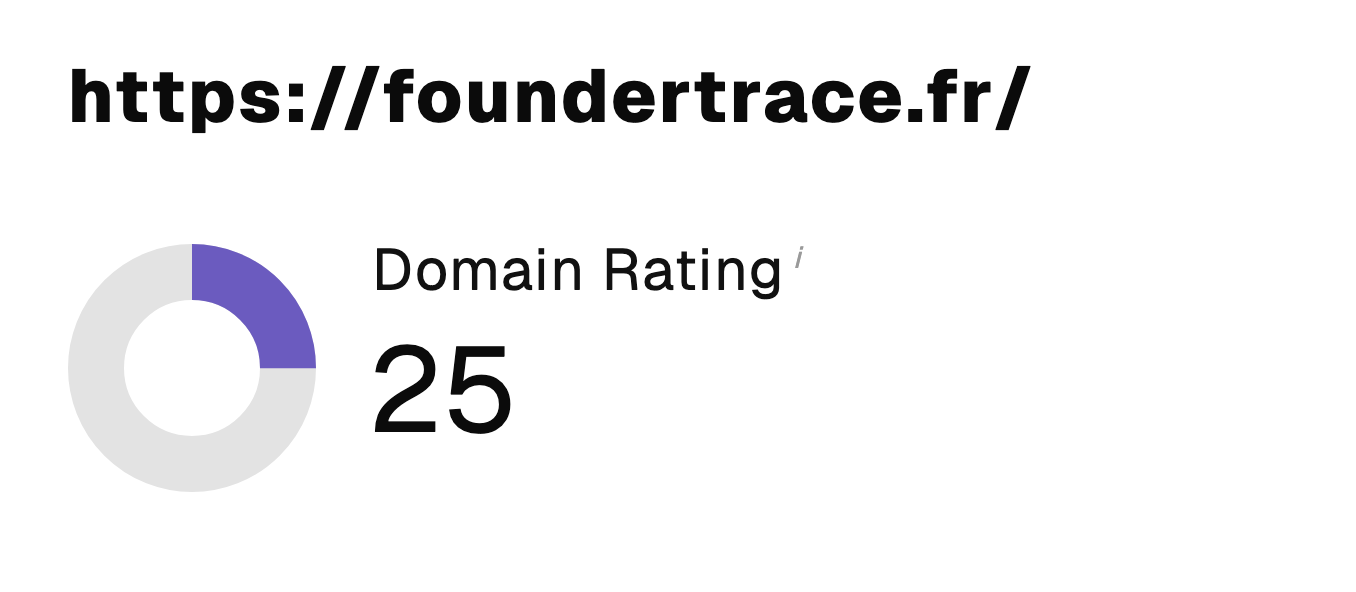 “I just let the Sorank software do its thing, and now my DR is 25 and my page is ranking higher.”
 Lucas Flandrefoundertrace.fr“I specialized in GEO thanks to Sorank. The GEO Leaderboard allows me to show my clients their position vs competitors on ChatGPT. It’s a real commercial differentiator.”
 MélanieSEO Freelance“Great service, works well for our website and helps us understand how to improve it to rank better on Google and elsewhere. Congrats, keep going, I recommend it.”
 Hugo T.E-commerce merchant