
Preferences
Privacy is important to us, so you have the option of disabling certain types of storage that may not be necessary for the basic functioning of the website. Blocking categories may impact your experience on the website. More information
Privacy is important to us, so you have the option of disabling certain types of storage that may not be necessary for the basic functioning of the website. Blocking categories may impact your experience on the website. More information

An .htaccess file configures Apache folder by folder. Learn where it is, how to write redirects, HTTPS and error rules, and the mistakes that hurt SEO.








Founder Sorank, 7+ years in SEO.
Summary
An .htaccess file is a plain-text configuration file that the Apache web server reads in a directory to change its behavior for that folder and its subfolders, without editing the main server configuration. Site owners use it for redirects, HTTPS enforcement, custom error pages, access restrictions and caching rules.
Want to go further? Ask
The .htaccess file (short for "hypertext access") is how you give Apache instructions when you cannot touch the server itself. On shared hosting, it is often the only lever you have: you drop a few lines in a text file, upload it, and Apache applies them on the next request. For SEO, it is where most redirects, HTTPS rules and canonical host rules live on Apache sites.
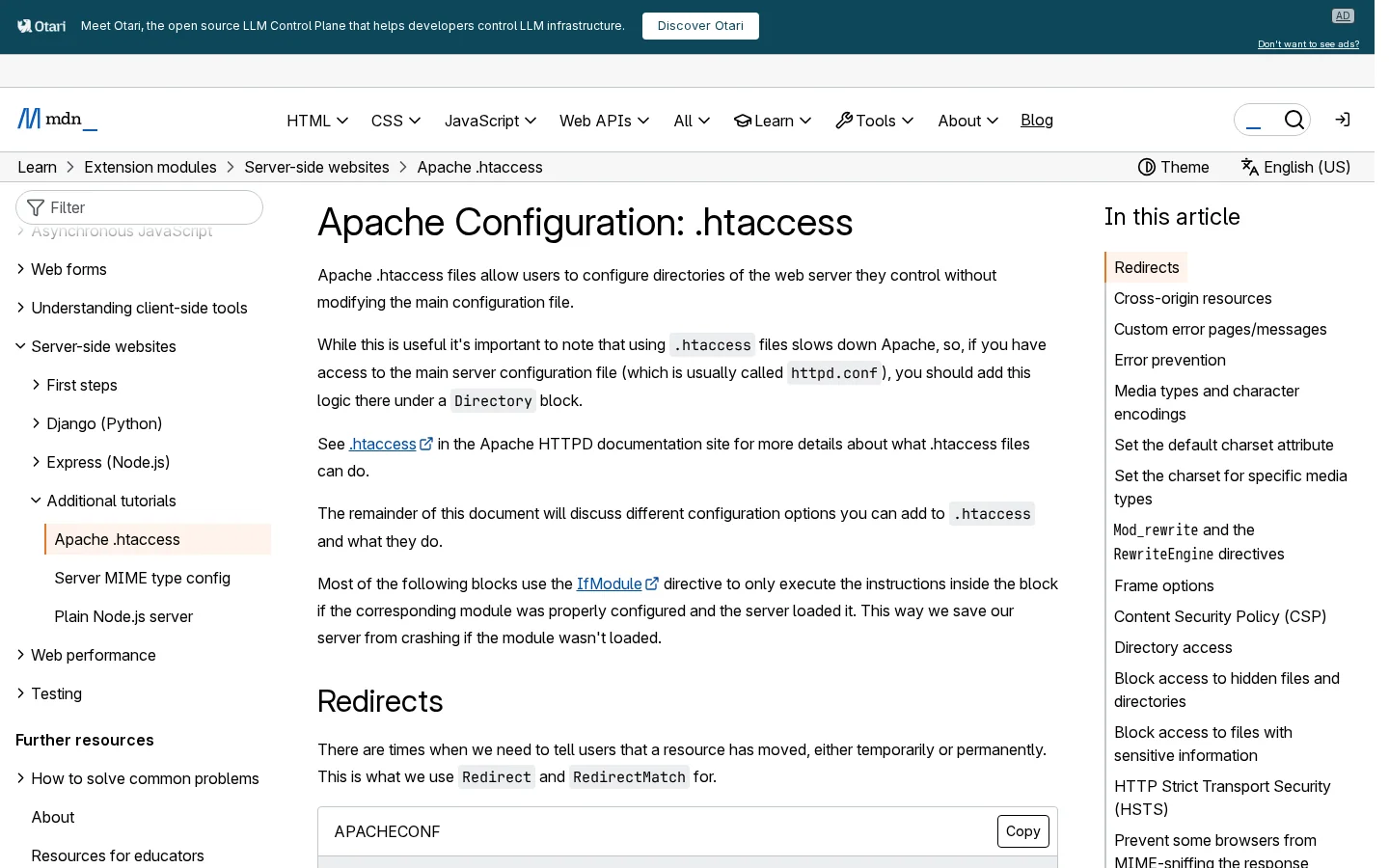
An .htaccess file is used to change how Apache serves the files of one directory. MDN describes it as a way to "configure directories of the web server they control without modifying the main configuration file" (MDN Web Docs, Apache configuration: .htaccess). The most common jobs are:
/index.php?p=42 into a clean address. WordPress uses this for its permalinks.The main .htaccess file sits in the root folder of your site, usually public_html or www, next to index.php or index.html. Its rules apply to that folder and to every subfolder below it. You can add another .htaccess file in a subfolder, for example /wp-admin/, and its rules apply only there.
The name starts with a dot, so most file managers and FTP clients hide it. Turn on "show hidden files" (in cPanel File Manager, it is in Settings) to see it. If there is no file, you can create one: a plain-text file named exactly .htaccess, with no extension.
Apache reads .htaccess files at request time, not at startup. Each time a visitor or a bot asks for a page, Apache looks for an .htaccess file in the requested folder and in each parent folder, then applies the rules it finds. That is why a change works instantly, with no restart.
It is also why the file has a cost. MDN notes that "using .htaccess files slows down Apache", and recommends putting the same logic in the main configuration file (usually httpd.conf) inside a Directory block when you have access to it. The server administrator also decides what an .htaccess file may change, with the AllowOverride setting. If your rules seem ignored, that setting is the first thing to ask your host about.
| .htaccess file | Main server configuration | |
|---|---|---|
| Who can edit it | Anyone with FTP or file manager access | The server administrator |
| When changes apply | On the next request | After a server reload |
| Scope | One folder and its subfolders | The whole server or any block you define |
| Speed | Read on every request | Read once at startup |
| Typical use | Shared hosting, CMS rules | VPS, dedicated servers |
No. The .htaccess file is an Apache feature, and servers compatible with it (such as LiteSpeed) read it too. Nginx does not: its rules go into the server configuration. Managed platforms like Shopify, Wix or Vercel do not give you an .htaccess file either; you set redirects in their dashboard or config file. Before you edit anything, check which server you run, for example with the free HTTP headers checker, which shows the Server response header when the host sends it.
For a single page, use the Redirect directive from Apache's mod_alias module. Google Search Central gives these two lines as the simplest form of server-side redirect (Google Search Central, Redirects and Google Search):
Redirect permanent "/old" "https://example.com/new"
Redirect temp "/two-old" "https://example.com/two-new"
The first is permanent (301), the second temporary (302). The same page explains why the choice matters: Google treats a permanent redirect as a signal that the target should be the canonical URL and shows the target in results, while a temporary redirect keeps the source page in results. Our complete guide to 301, 302, 307 and 308 redirects covers each case.
For patterns, use mod_rewrite. This rule from MDN sends every HTTP request to its HTTPS version:
RewriteEngine On
RewriteCond %{HTTPS} !=on
RewriteRule ^/?(.*) https://%{SERVER_NAME}/$1 [R,L]
The [R] flag alone returns a 302. For a permanent move to HTTPS, write [R=301,L]. You also need a valid SSL certificate on the domain before you force HTTPS, or visitors land on a browser warning.
Tip
You have dozens of old URLs to move? Paste the old and new addresses into Sorank's free redirect generator: it writes the Apache rules for your .htaccess and flags loops and chains before you go live.
Beyond redirects, four snippets cover most needs. Each one goes in the .htaccess file of the folder it should apply to.
The ErrorDocument directive tells Apache which page to show for an error code:
ErrorDocument 404 /errors/404.html
ErrorDocument 500 /errors/500.html
Use a local path, not a full https:// address: with a full URL, Apache redirects the visitor and the error page no longer returns the real error code.
To lock a staging folder, point Apache to a password file stored outside the public folder:
AuthType Basic
AuthName "Restricted area"
AuthUserFile /home/user/.htpasswd
Require valid-userOn Apache 2.4, Require controls who gets in. Require all denied blocks a whole folder; Require not ip 203.0.113.5 inside a RequireAll block bans one address.
MDN's example compresses text responses with AddOutputFilterByType DEFLATE and sets browser cache lifetimes with mod_expires, for example ExpiresByType text/css "access plus 1 year". Both help page speed, as long as the modules are enabled on your server.
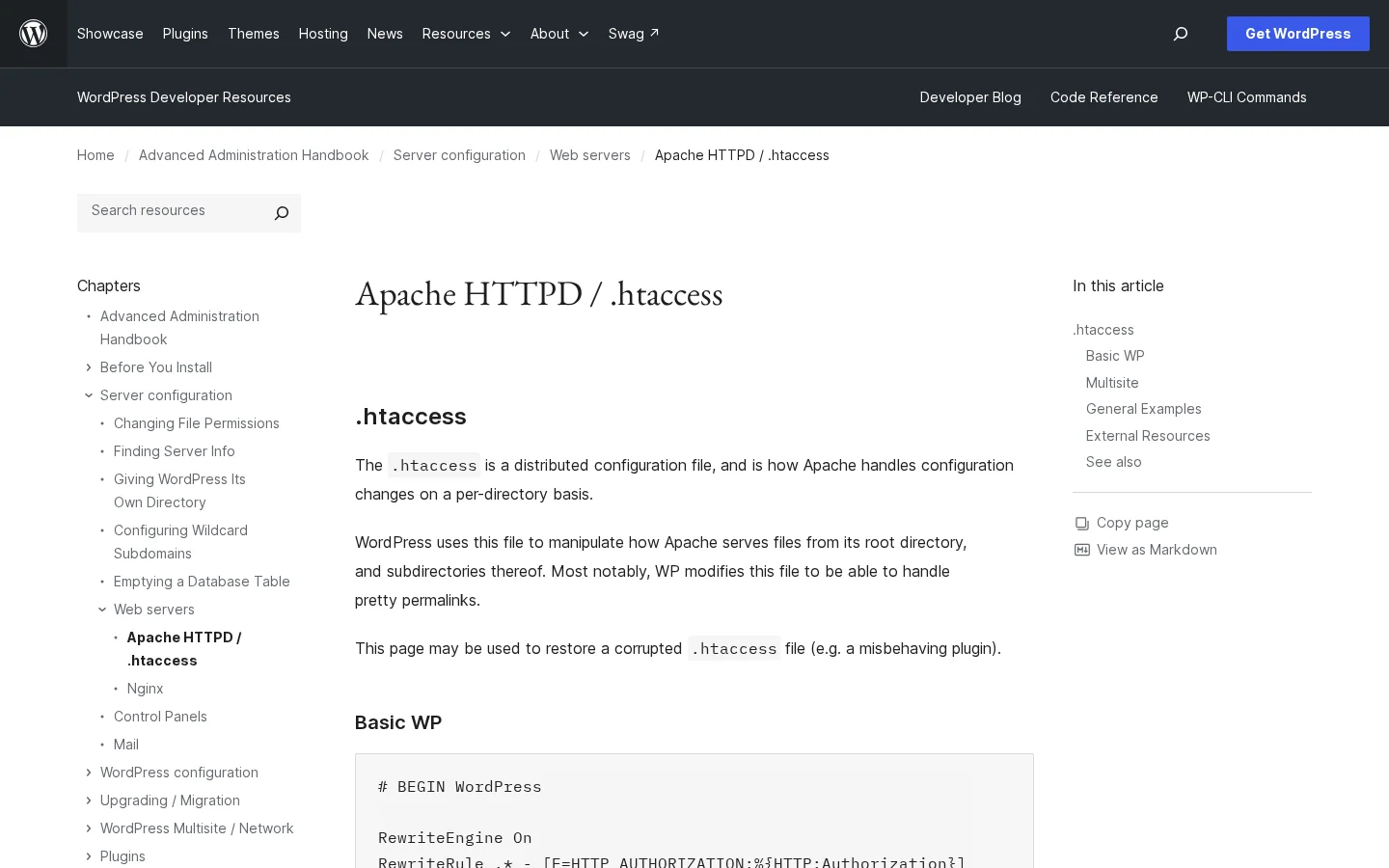
WordPress writes its own block into the .htaccess file to handle pretty permalinks. The WordPress developer documentation calls the file "a distributed configuration file" and publishes the default block to restore a corrupted one (WordPress Developer Resources, Apache HTTPD / .htaccess):
# BEGIN WordPress
RewriteEngine On
RewriteRule .* - [E=HTTP_AUTHORIZATION:%{HTTP:Authorization}]
RewriteBase /
RewriteRule ^index\.php$ - [L]
RewriteCond %{REQUEST_FILENAME} !-f
RewriteCond %{REQUEST_FILENAME} !-d
RewriteRule . /index.php [L]
# END WordPress
In plain words: if the requested file or folder does not exist, WordPress's index.php handles the request. WordPress may rewrite everything between the BEGIN and END markers when you save permalinks, so put your own rules above that block, never inside it.
One wrong character in .htaccess can take the whole site down. These are the mistakes that hurt SEO most often.
[R] without a code, or Redirect temp, keeps the old page in Google's results. Spot it in the checker's status codes. Fix it with [R=301,L] or Redirect permanent.AllowOverride is set to None, nothing happens. Spot it when a test redirect does not fire. Fix it in the server configuration or the host's dashboard.[L] flag stops the run. A specific redirect placed after the WordPress block never fires. Move it above.Warning
Download a copy of your .htaccess file before every edit. If the site breaks, uploading the copy restores it in seconds.
On an Apache site, the .htaccess file decides what search engines and AI crawlers receive when they request a URL. Clean 301 redirects pass old URLs to their new address, which is what Google uses to pick the canonical version during a redesign or a move to HTTPS (see our HTTPS and SEO migration guide). Fast, single-hop responses save crawl budget on large sites. And a stray blocking rule can hide your pages from the AI assistants that answer your customers' questions, even when your content is the best on the topic.
Sorank's GEO optimization tracks whether ChatGPT, Claude and Gemini recommend your brand, so a sudden drop after a server change shows up in the same place as your Google traffic.
The .htaccess file is Apache's per-folder settings file: redirects, HTTPS, error pages, access rules and caching, applied on the next request without a restart. Keep it short, back it up before each edit, use 301 for permanent moves, and test every change with a redirect checker. If you run Nginx or a hosted platform, the same rules exist, but they live in another place.
Sources
Look in the root folder of your site, usually public_html or www, next to index.php. The name starts with a dot, so turn on the option to show hidden files in your file manager or FTP client. If it is not there, you can create a plain-text file named .htaccess with no extension.
Yes. A single syntax error usually makes Apache return a 500 Internal Server Error on every page of the folder. Keep a copy of the file before each edit, and upload it again if the site breaks.
No. The .htaccess file is an Apache feature, also read by compatible servers such as LiteSpeed. On Nginx, redirects and access rules go into the server configuration, and on hosted platforms they are set in the dashboard.
 “I tested Sorank on a real client site and it's insane. It does everything an agency would bill you $1500 a month for. It's going into production on that client now.”

 Guillaume Guersanguersanguillaume.com“We are an Ads agency and we wanted to get our SEO back on track once and for all. Sorank gave us a clear view of our site, helped us prioritize optimizations, and properly structure our content. The tool is easy to use, well designed for a team, and very practical for centralizing tracking without having to juggle multiple platforms. A very solid foundation to start fresh with our SEO.”
 Gaspard MadouiAds Agency
 “I just let the Sorank software do its thing, and now my DR is 25 and my page is ranking higher.”
 Lucas Flandrefoundertrace.fr“I specialized in GEO thanks to Sorank. The GEO Leaderboard allows me to show my clients their position vs competitors on ChatGPT. It’s a real commercial differentiator.”
 MélanieSEO Freelance“Great service, works well for our website and helps us understand how to improve it to rank better on Google and elsewhere. Congrats, keep going, I recommend it.”
 Hugo T.E-commerce merchant