
Preferences
Privacy is important to us, so you have the option of disabling certain types of storage that may not be necessary for the basic functioning of the website. Blocking categories may impact your experience on the website. More information

Privacy is important to us, so you have the option of disabling certain types of storage that may not be necessary for the basic functioning of the website. Blocking categories may impact your experience on the website. More information

Follow these steps to create a blog collection on your Webflow site and connect it to Sorank so articles are published directly to your CMS.
Open your Webflow Designer. Click CMS in the top navigation bar. Click the + button next to "CMS Collections". Select Create collection.
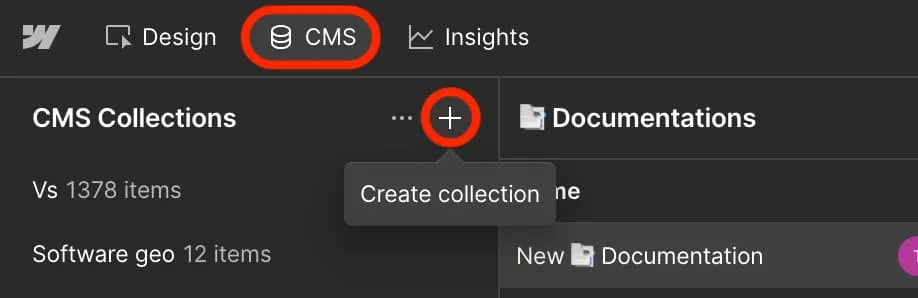
In the "New Collection" dialog, click the Blog Posts template. Set the Collection Name to Blog. The URL becomes /blog automatically. Click Create Collection.
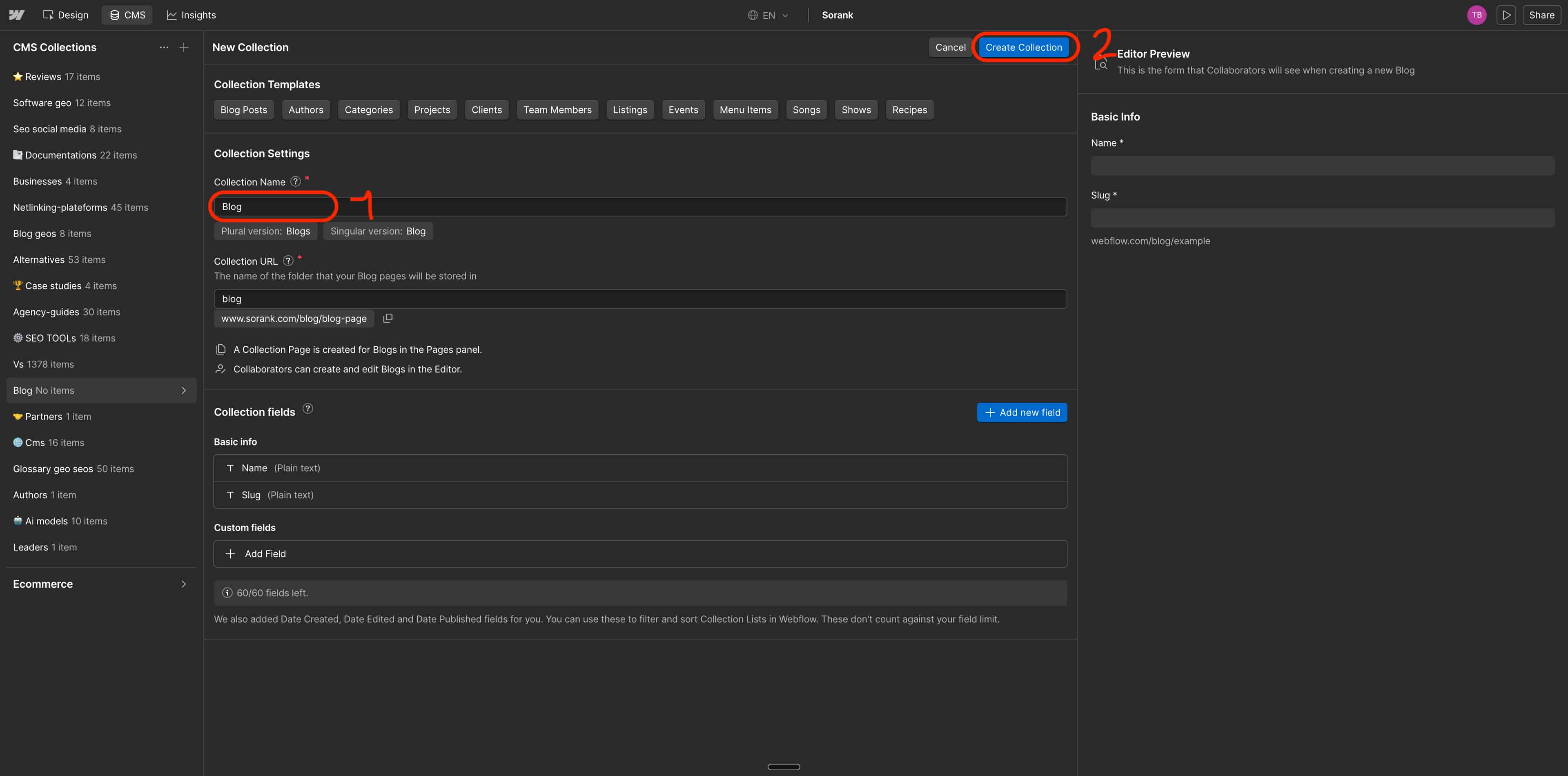
⚠️ The collection name must be exactly Blog. Sorank uses this name to identify your collection.
Click + Add new field. You need to create 3 custom fields one by one.
Click + Add new field. Select Rich text. Name it Post body. Click Save Field.


Click + Add new field again. Select Image. Name it Image. Click Save Field.

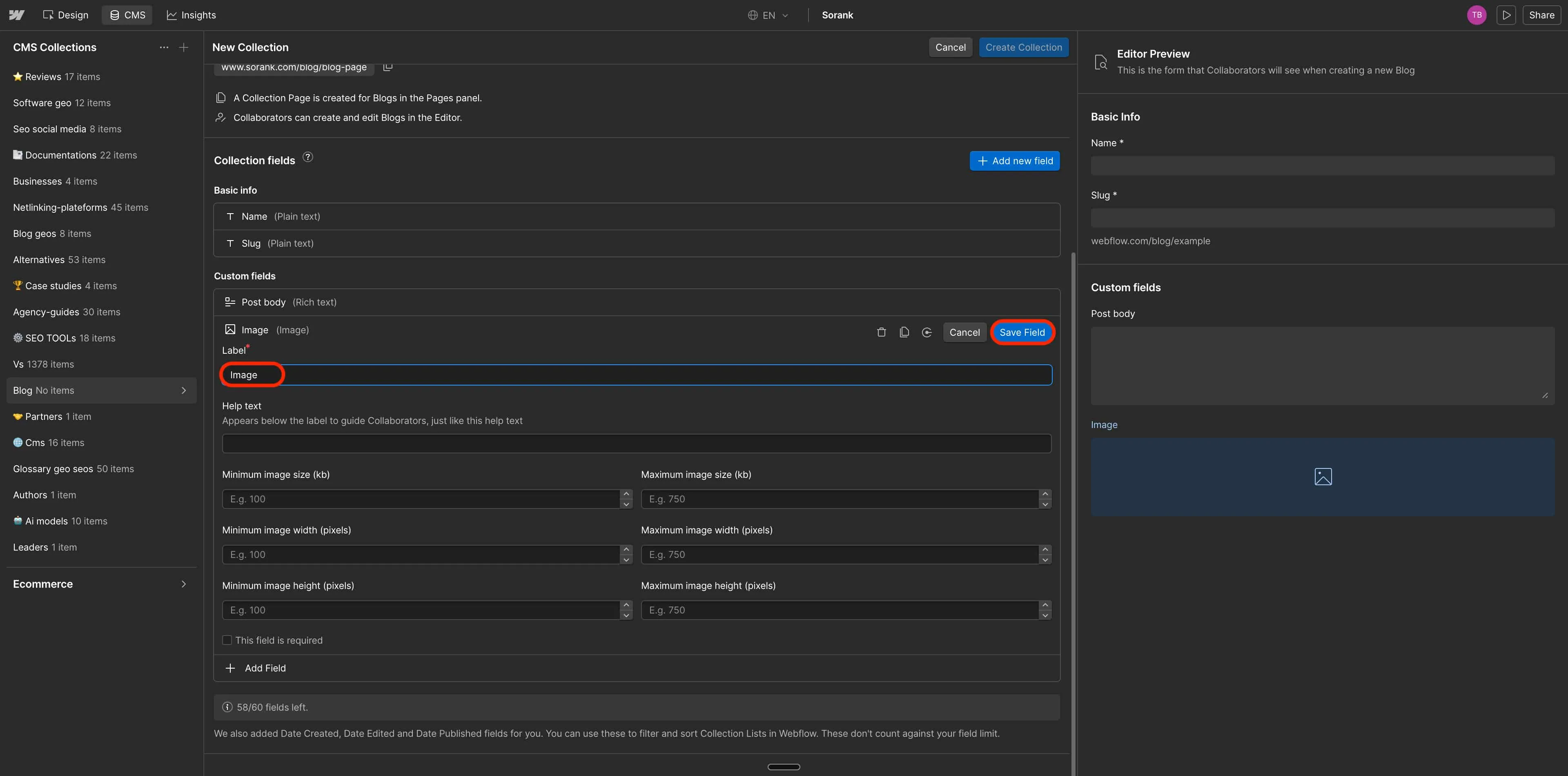
Click + Add new field again. Select Plain text. Name it Metadescription. Set the text field type to Multiple line. Click Save Field.

Click Save Collection. The fields Name and Slug are created by default. Do not delete them.
Click the Pages icon in the top-left of the Designer. Under "CMS collection pages", click Blog geos Template. In the right panel, go to Settings. Scroll down to SEO settings.
.webp)
Click + Add field and select Name.
Click + Add field and select META SEO. Click Save.
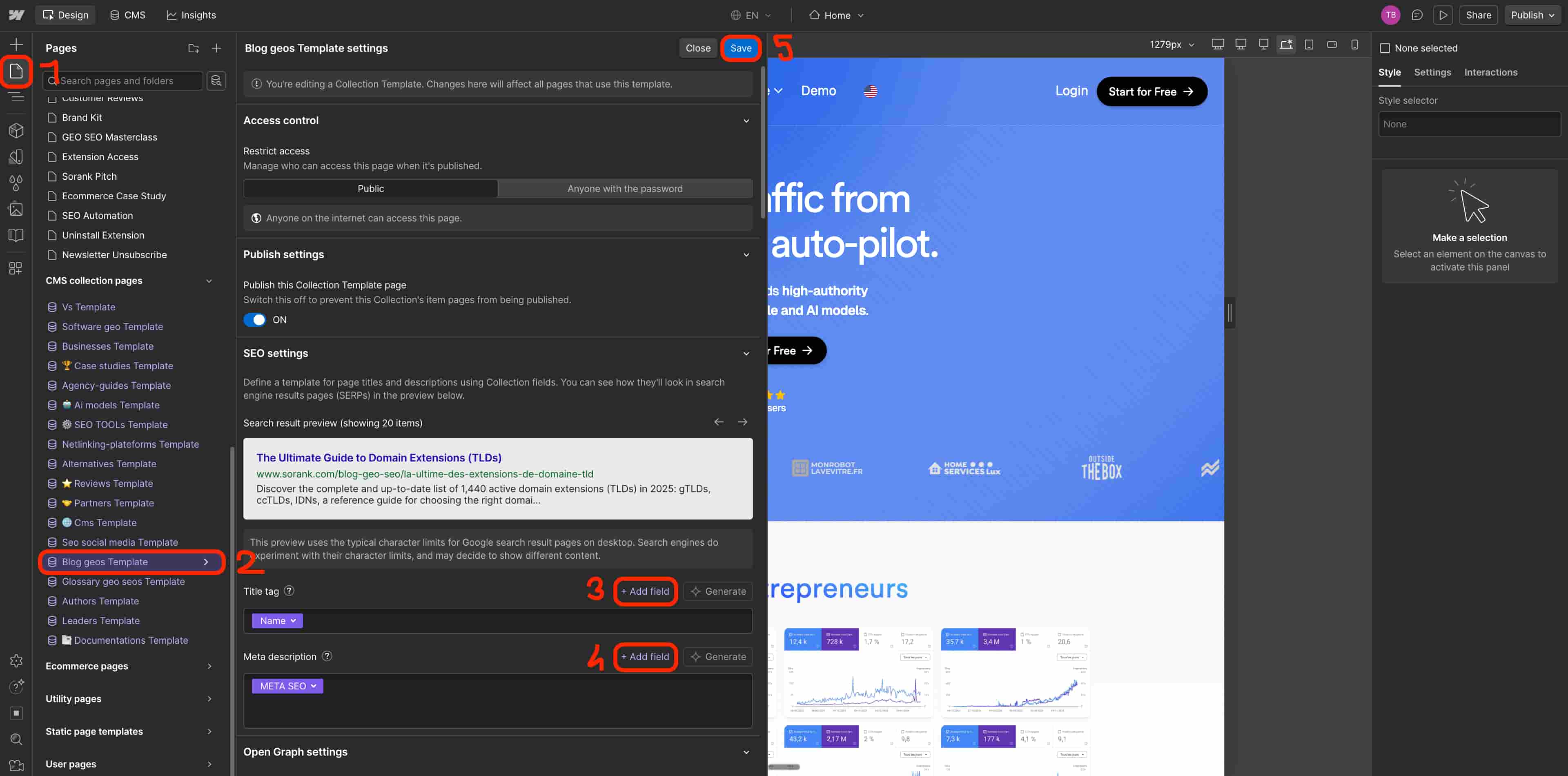
This ensures every article Sorank publishes gets its own unique title and meta description in Google search results.
Click Publish in the top-right corner of the Designer. Select your live domain and confirm. Your blog collection is now live and ready to receive articles from Sorank.
Go to your Sorank account. Click Publish on any article, or go to Settings > Integration. Click Webflow then Connect your CMS. Authorize Sorank to access your Webflow account. Select your Blog collection. Map each Sorank field to the corresponding Webflow field. Click Confirm setup.
Every article you generate in Sorank can now be published directly to your Webflow blog in one click, with images, meta tags, and slug included.

























.webp)
.webp)










.svg)
.svg)