

Connection issue? How to clear cookies and site data for Sorank
If you are having trouble linking your Google Search Console or Google Analytics 4 (GA4) accounts, or if you are experiencing a persistent login bug, the most effective solution is often to clear the cookies and site data specifically for our application. This process “refreshes” the connection between your browser and Sorank without affecting your data on other websites.Step-by-step guide to clearing cookies in Google Chrome
Based on the settings displayed in our application interface, here is how to perform a clean reset of your session: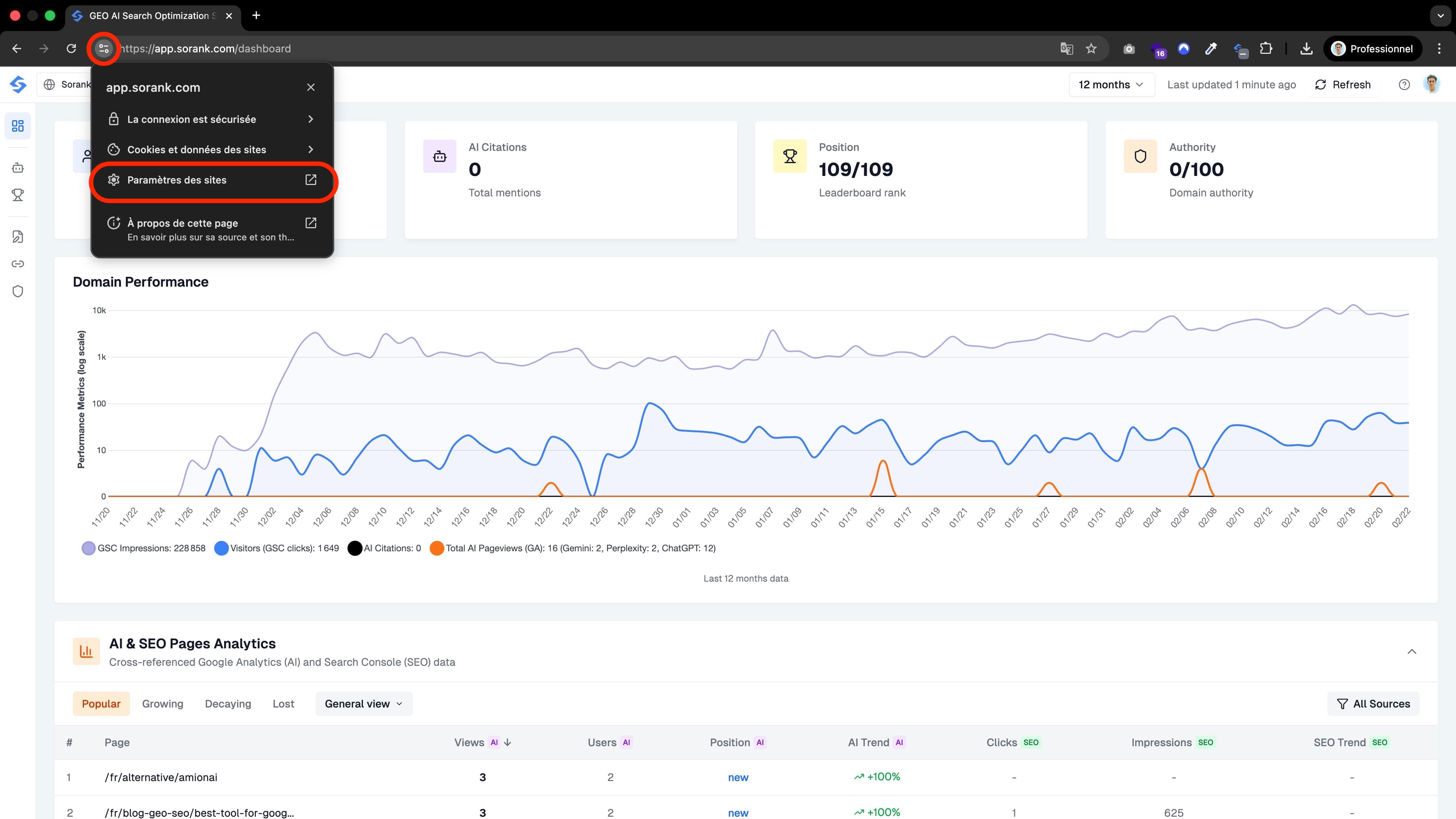
1. Open site settings
From the Sorank application, look at your browser’s address bar. Click the settings icon (or the padlock) next to the URL, or navigate tochrome://settings/content/siteDetails?site=https%3A%2F%2Fapp.sorank.com.
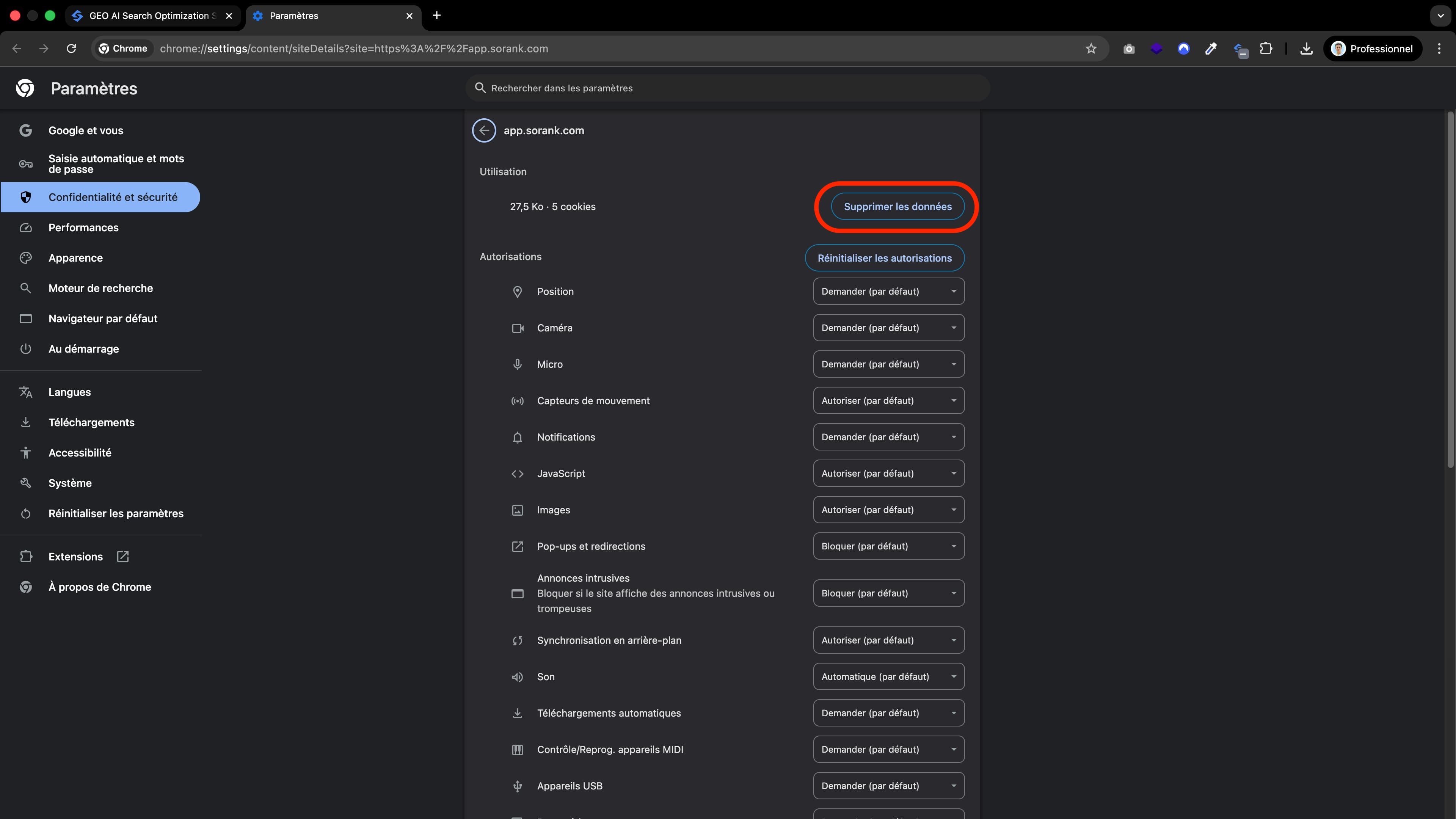
2. Click “Clear data”
Click the button labeled “Clear data”.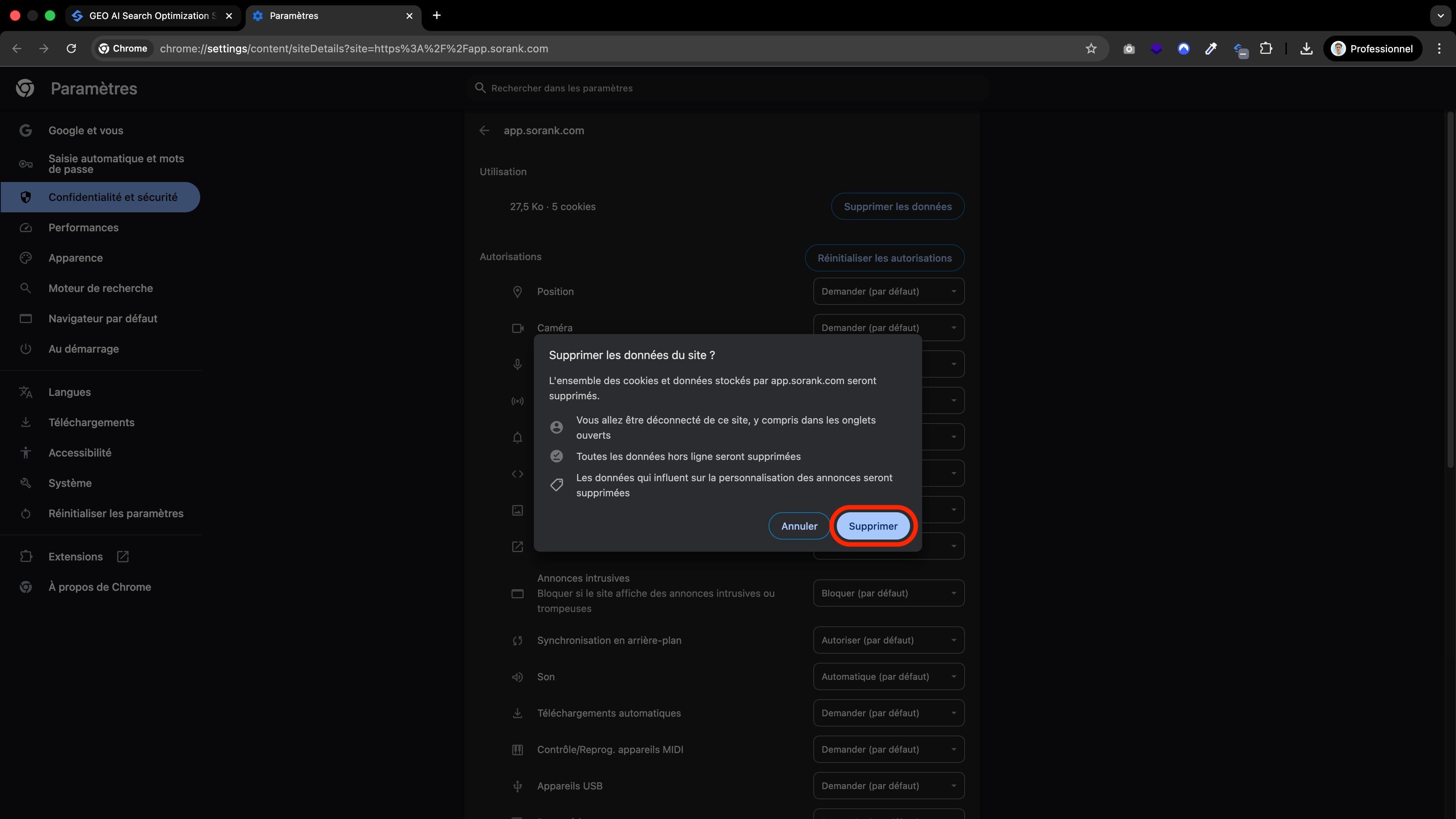
3. Confirm the action
A pop-up window will appear titled “Clear site data?”. It will inform you that:- You will be signed out of the site.
- Offline data will be cleared.
- Ad personalization cookies will be deleted.