

Open the SEO chat
Click SEO chat in the main menu. You can also open it from the keyword library with Refine with the SEO chat, from the content calendar with Keyword research, and from the articles list. The chat works on the site selected in Sorank, and each site has its own conversations. Click Back to Sorank to return to the app.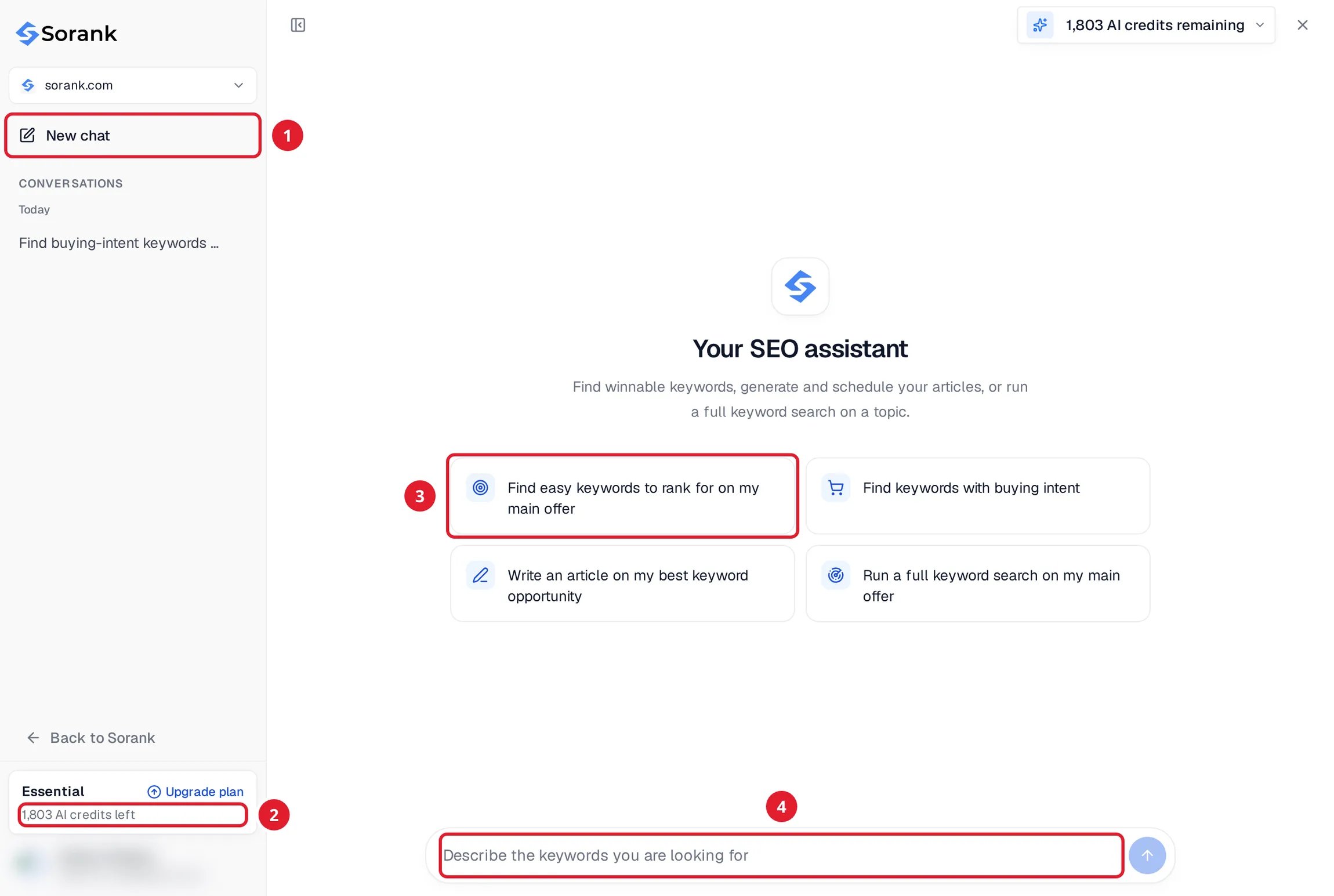
- New chat starts a conversation. Your previous conversations are listed below it.
- Your AI credit balance.
- Suggested requests to get started quickly.
- The message field: describe the keywords you are looking for.
Ask for keywords
Write what you need in plain words, for example:- “Find buying-intent keywords for my main offer.”
- “Find easy keywords I can rank for quickly.”
- “Which questions do my customers ask about this topic?”
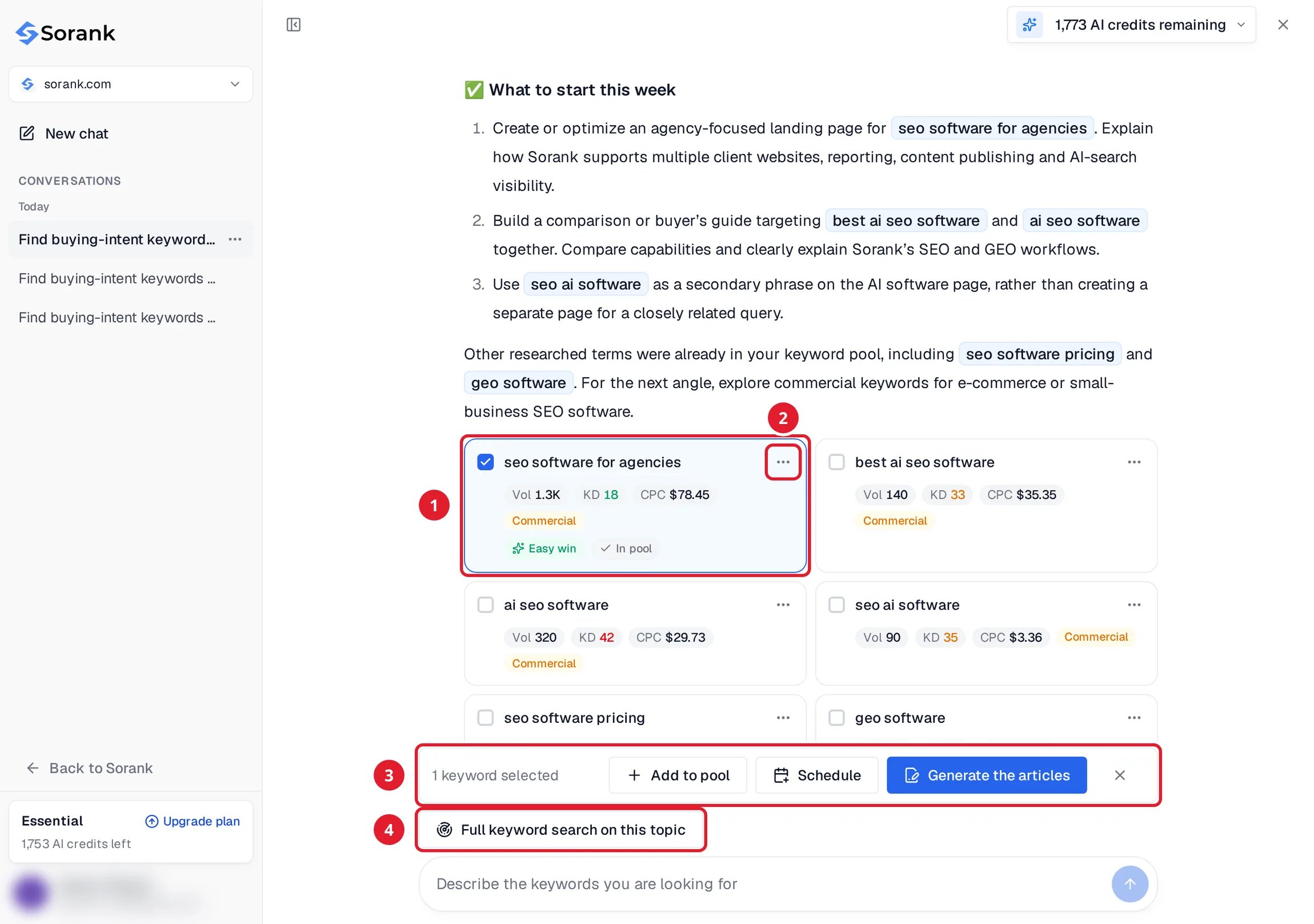
- A keyword card. Tick it to select the keyword.
- The card menu, to act on this keyword only.
- The selection bar, to act on every selected keyword at once.
- Full keyword search on this topic prepares a complete keyword search on the subject of the conversation.
Use the keywords
Actions you confirm
When you ask the assistant to do something for you, such as running a full keyword search, generating articles or scheduling keywords, it prepares an action card. Nothing runs until you confirm it.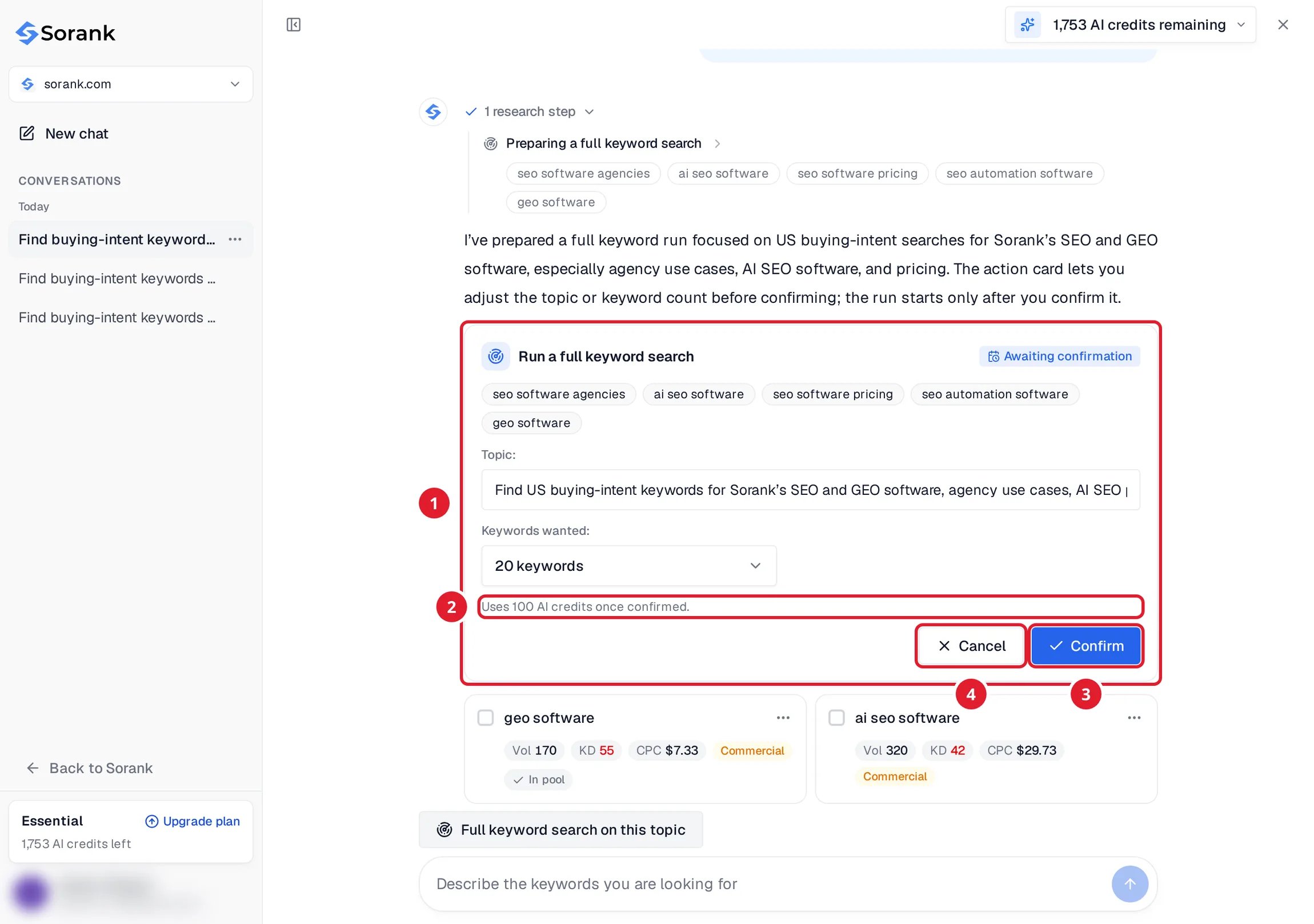
- The prepared action. For a full keyword search, you can edit the topic and the number of keywords you want.
- What the action uses once confirmed.
- Confirm runs the action.
- Cancel discards it.
AI credits
Keyword research in the chat and full keyword searches use AI credits. Your balance is shown at the top of the chat and in its sidebar, and the cost of an action is shown before you confirm it. Generating articles from the chat uses your article quota, not AI credits. When your balance is too low, the chat tells you and stops sending new messages until you top up or your credits renew.Manage your conversations
- Conversations are grouped by date in the sidebar. Click one to reopen it.
- Open the … menu of a conversation to delete it. Keywords you already added to your pool stay there.
- When you switch to another site, the chat shows that site’s conversations.
Good to know
- The chat uses search data for the language and market of your site. Check them in Language and market.
- If comparison articles are turned off for your site, the chat does not suggest keywords that name a competitor. See the editorial strategy.
- The number of messages per day is limited. If you reach the limit, you can chat again the next day.
- Collaborators can use the chat on the sites they work on. Credits are taken from the balance of the site.