

Create a report
- Open Analytics in the main menu, then the Reports tab.
- Choose the Month. Only complete months are offered.
- Choose the Report language.
- Click Create report.
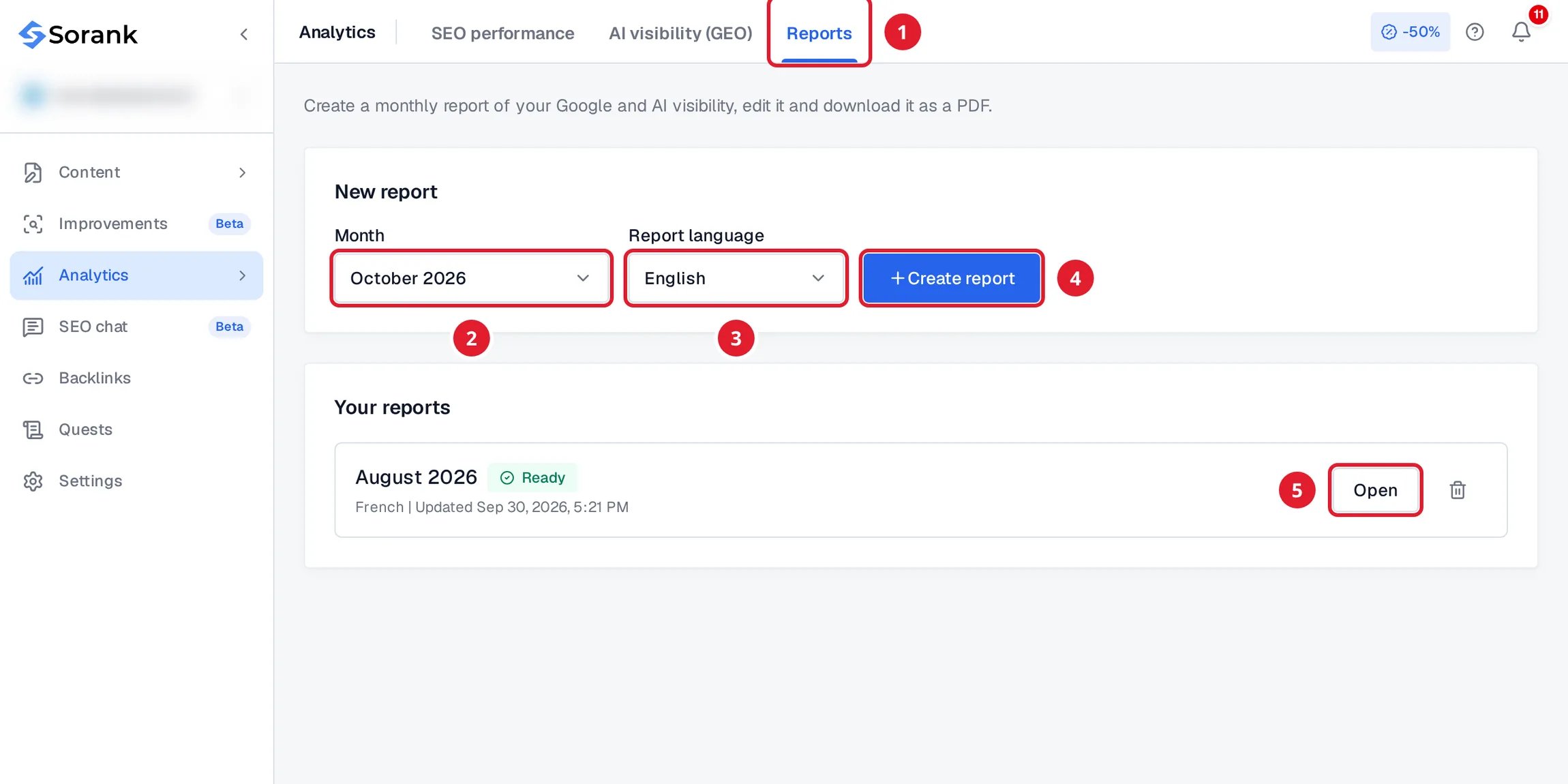
- The Reports tab, in Analytics.
- The month of the report.
- The language of the report.
- Create report.
- Open an existing report.
What a report contains
A slide needs its data source. Without Search Console or Google Analytics, for example, the matching slides move to Slides not included, each with a button to fix it.
Edit and download
- Edit the title and the commentary of each slide. Your changes are saved automatically.
- Choose for each slide whether it is Shown in PDF or Hidden from PDF. The cover is always included.
- Change the language of the report. Sorank can rewrite the commentaries in the new language.
- In Visual identity, set the logo and the brand color used by every report of the site.
- Regenerate recalculates the report with the latest data.
- Download PDF saves the report on your computer, ready to send.
Good to know
- Reports are not sent by email. Download the PDF and share it with your team or your clients.
- Each site has its own reports. Delete a report with the bin icon next to it.
- Reports are included in some plans. If yours does not include them, the page shows the plans that do.