

Open the gallery
Open Settings in the main menu, then Images. The Image gallery card shows how many images you use and the capacity of your plan.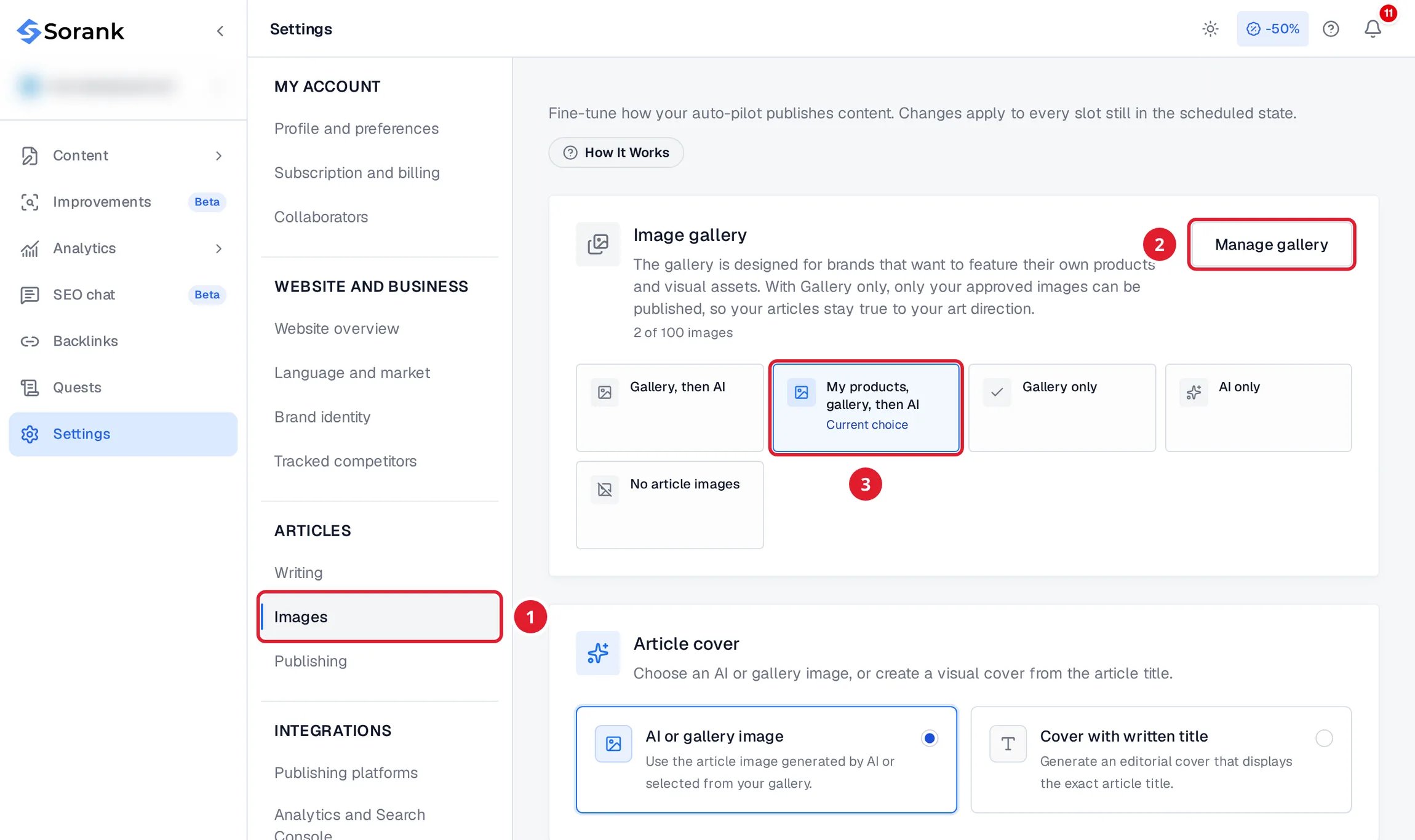
- Images in the settings menu.
- Manage gallery opens your gallery.
- The default image source of your articles.
Add your images
- Click Manage gallery.
- Click Import images and choose your files: JPEG, PNG, WebP or HEIC.
- Sorank compresses large files and analyzes each image to understand what it shows.
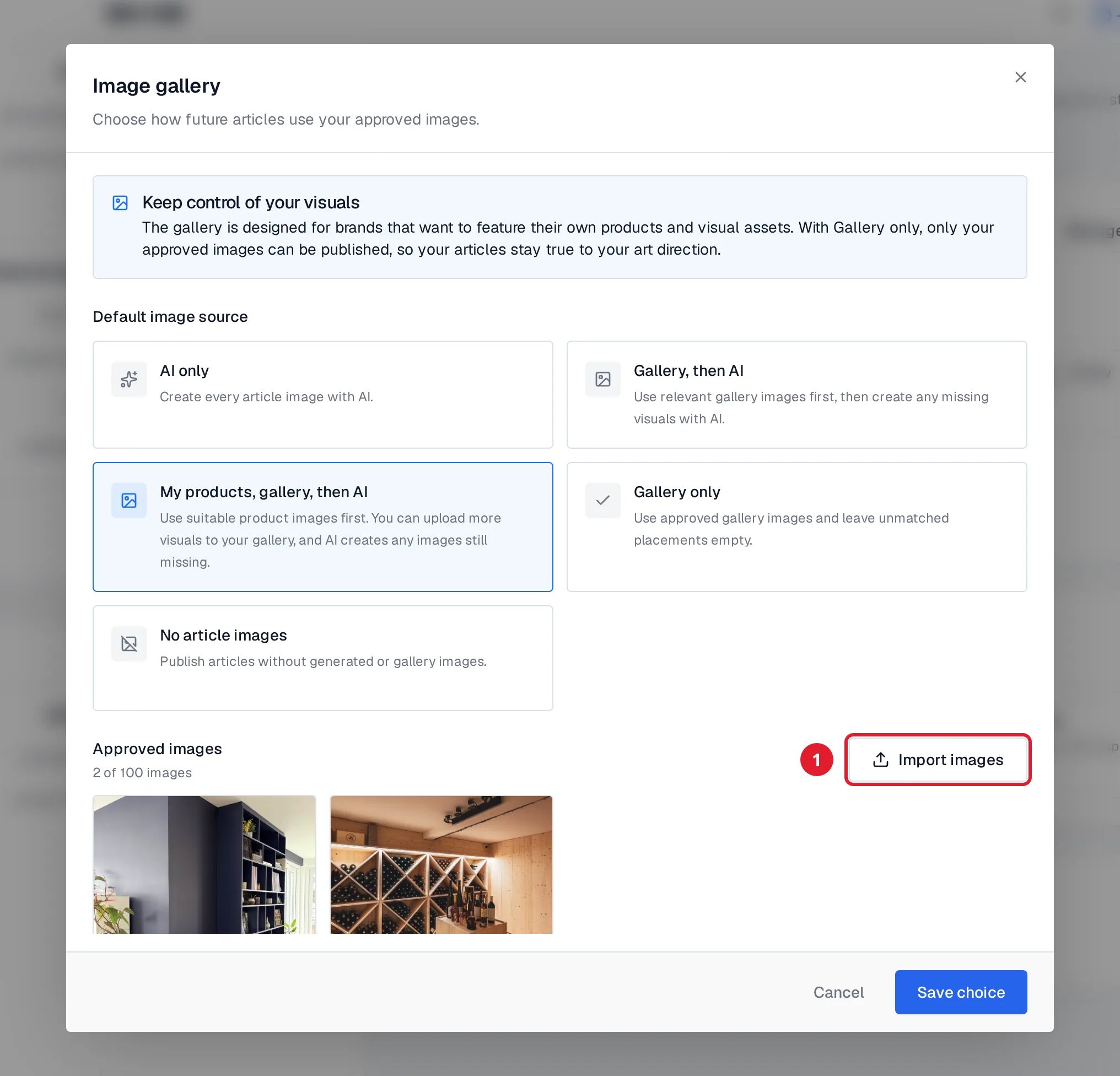
- Import images adds visuals to your gallery.
Choose where article images come from
Click Save choice to apply the source to upcoming articles. You can also pick a different source for one article with Image source for this article in the generation form.
Article covers
The cover is set separately in Article cover. Choose an AI or gallery image, or a Cover with written title that shows the exact title of the article.Good to know
- Sorank chooses the image that matches each section. The same image is not repeated in one article.
- Deleting an image or changing the source only affects future articles. Published articles keep their images.
- More about images in generate articles.