
قبل البدء
يجب أن يستوفي موقع Webflow المتطلبات التالية:- انشر الموقع علنًا مرة واحدة على الأقل.
- أنشئ مجموعة CMS باسم Blog Posts.
- اربط SEO Title وMeta Description بحقول CMS المقابلة في Webflow Designer.
الخطوة 1: فتح قسم تطوير تطبيقات Webflow
انتقل إلى لوحة تحكم Webflow. افتح Apps & Integrations، واختر Develop، ثم انقر على Create an App.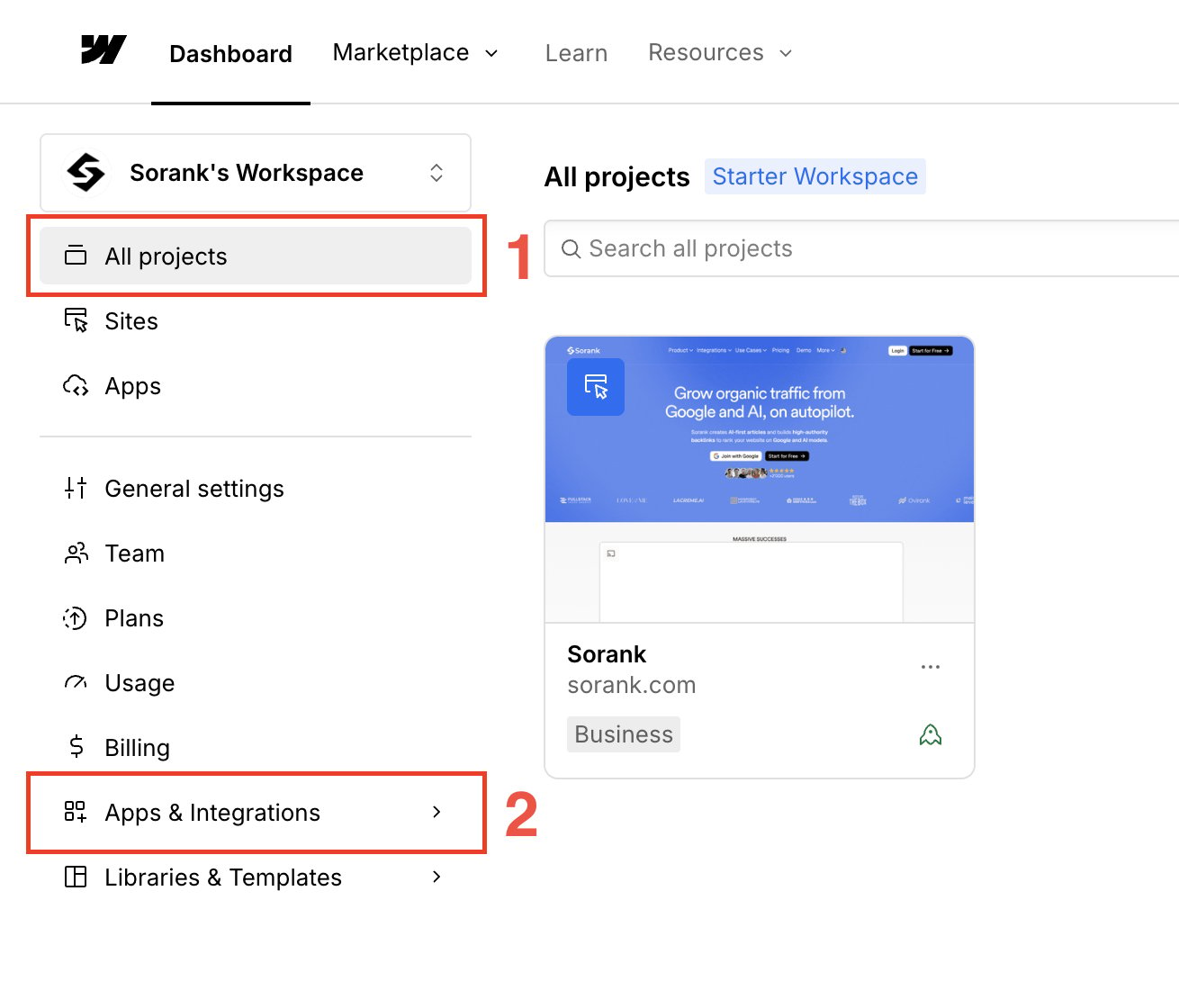
الخطوة 2: إنشاء التطبيق
في App Development، انقر على Create an App.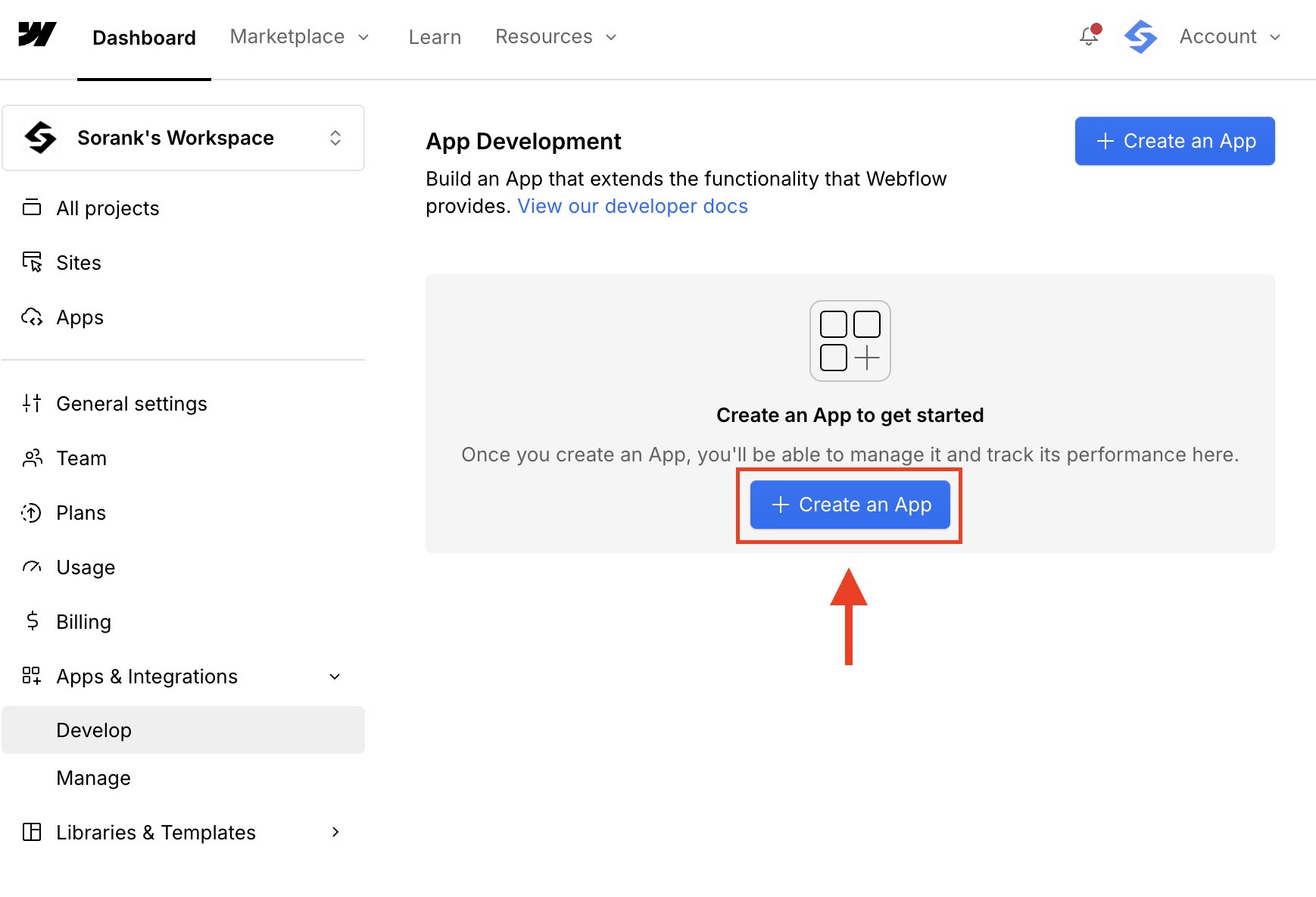
الخطوة 3: إدخال معلومات التطبيق
أدخل App name وDescription وApp homepage URL. يمكنك استخدام عنوان موقعك الإلكتروني كعنوان للصفحة الرئيسية. انقر على Continue.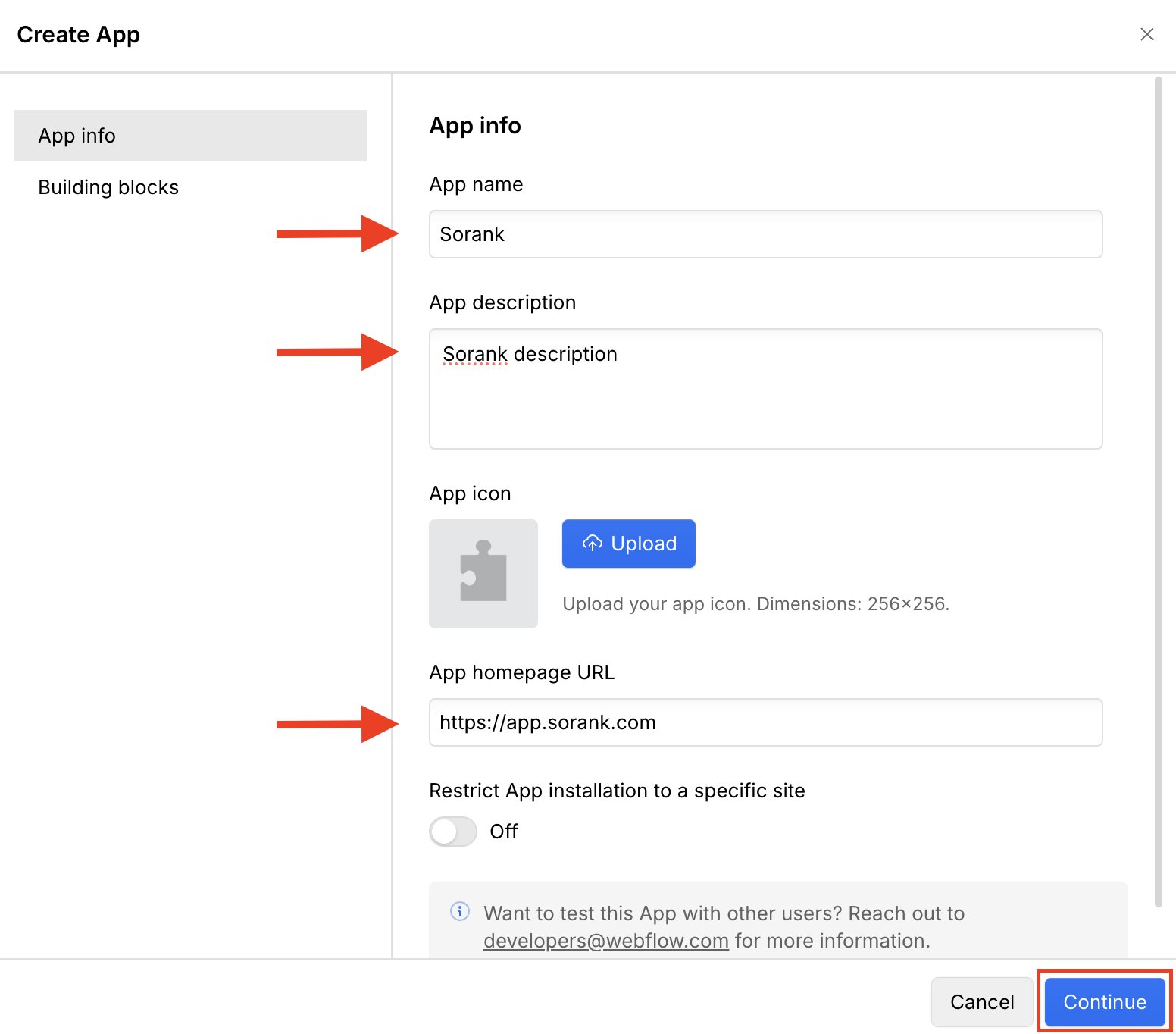
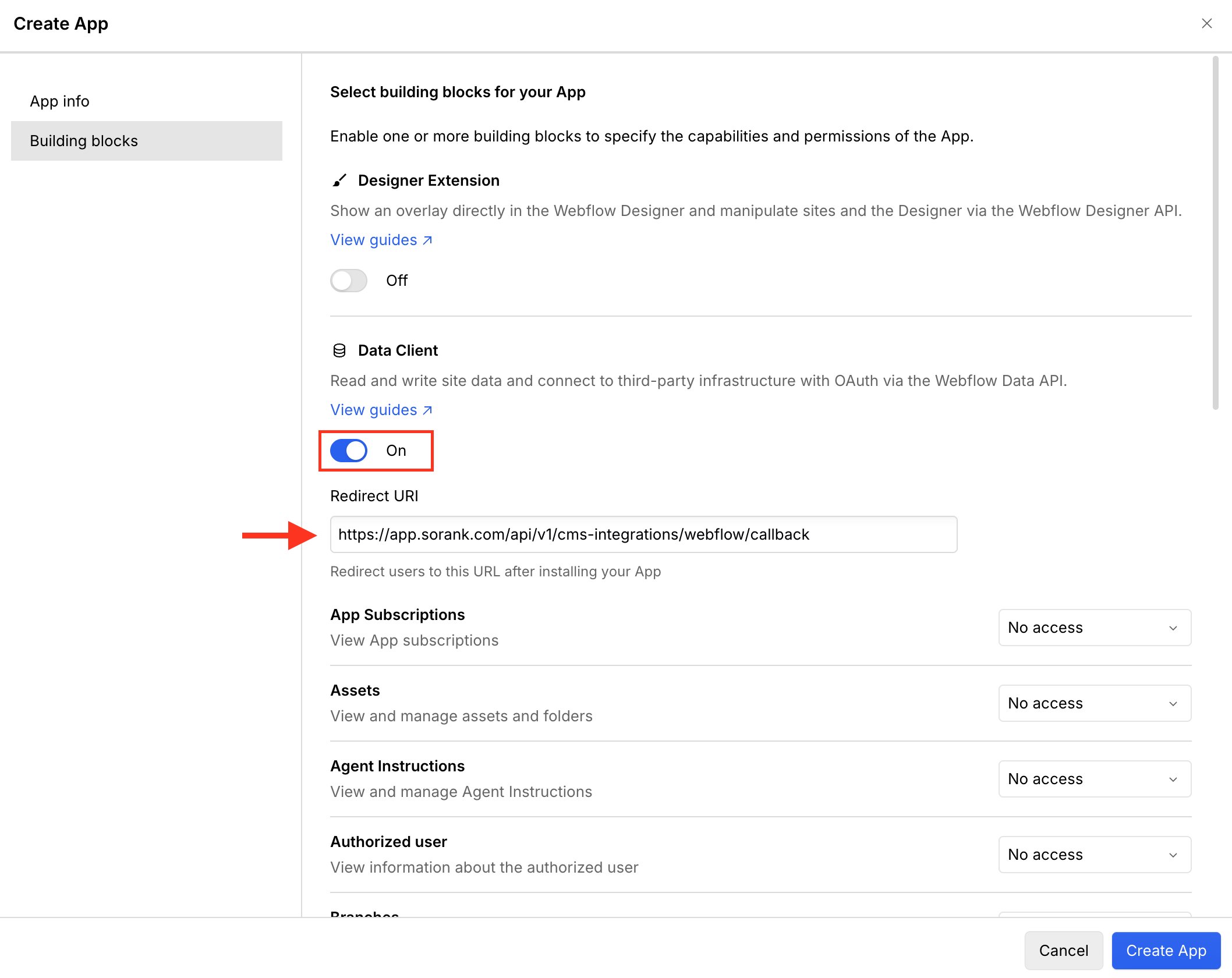
الخطوة 4: تفعيل Data Client وإضافة URI لإعادة التوجيه
افتح Building blocks وفعّل Data Client. انسخ URI لإعادة التوجيه الظاهر في دليل Sorank، ثم الصقه في Redirect URI. بالنسبة إلى تطبيق Sorank في بيئة الإنتاج، يكون URI كما يلي:https://app.sorank.com/api/v1/cms-integrations/webflow/callback
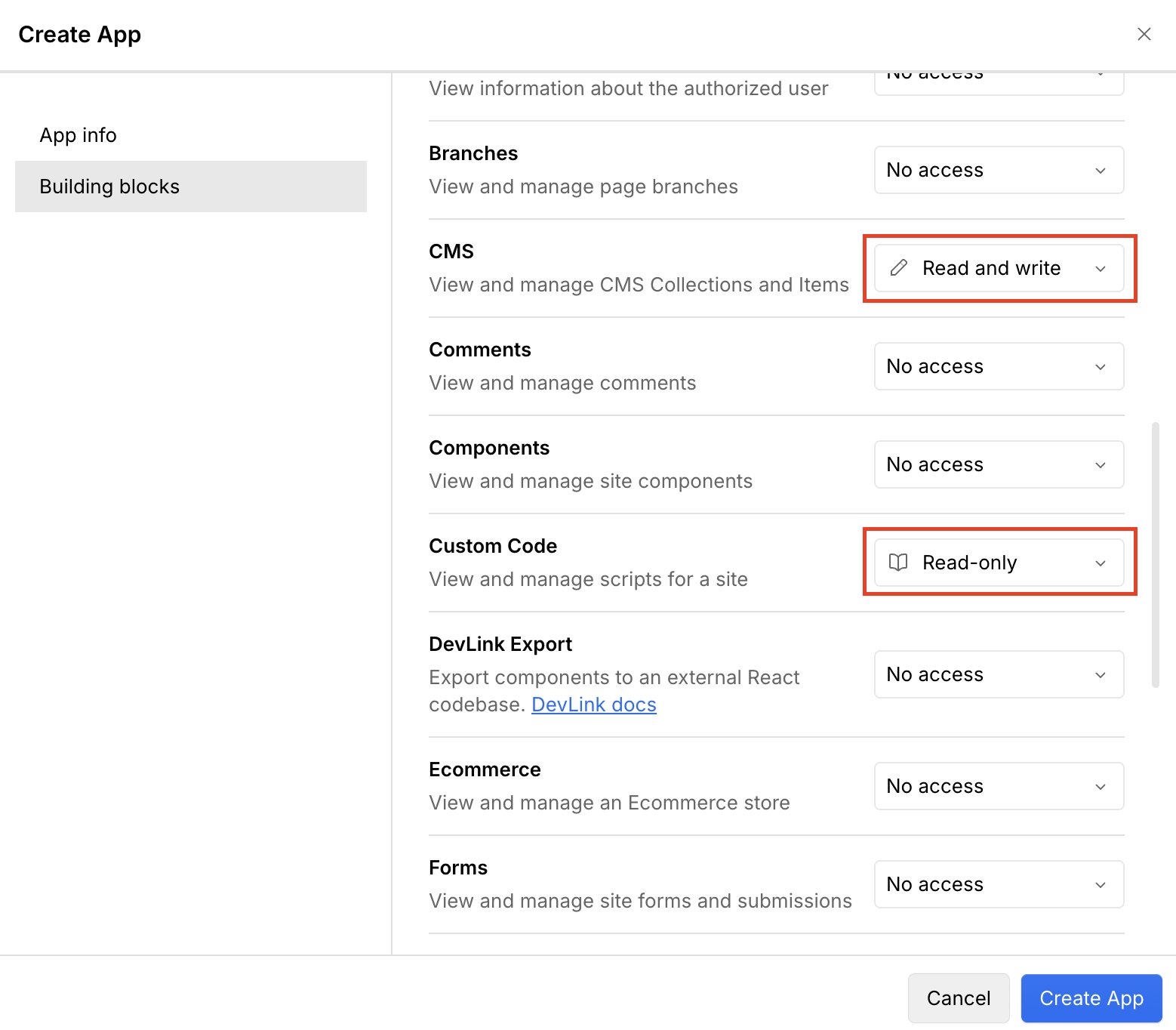
الخطوة 5: ضبط أذونات CMS وCustom Code
اضبط الأذونات التالية:- CMS: Read and write
- Custom Code: Read-only
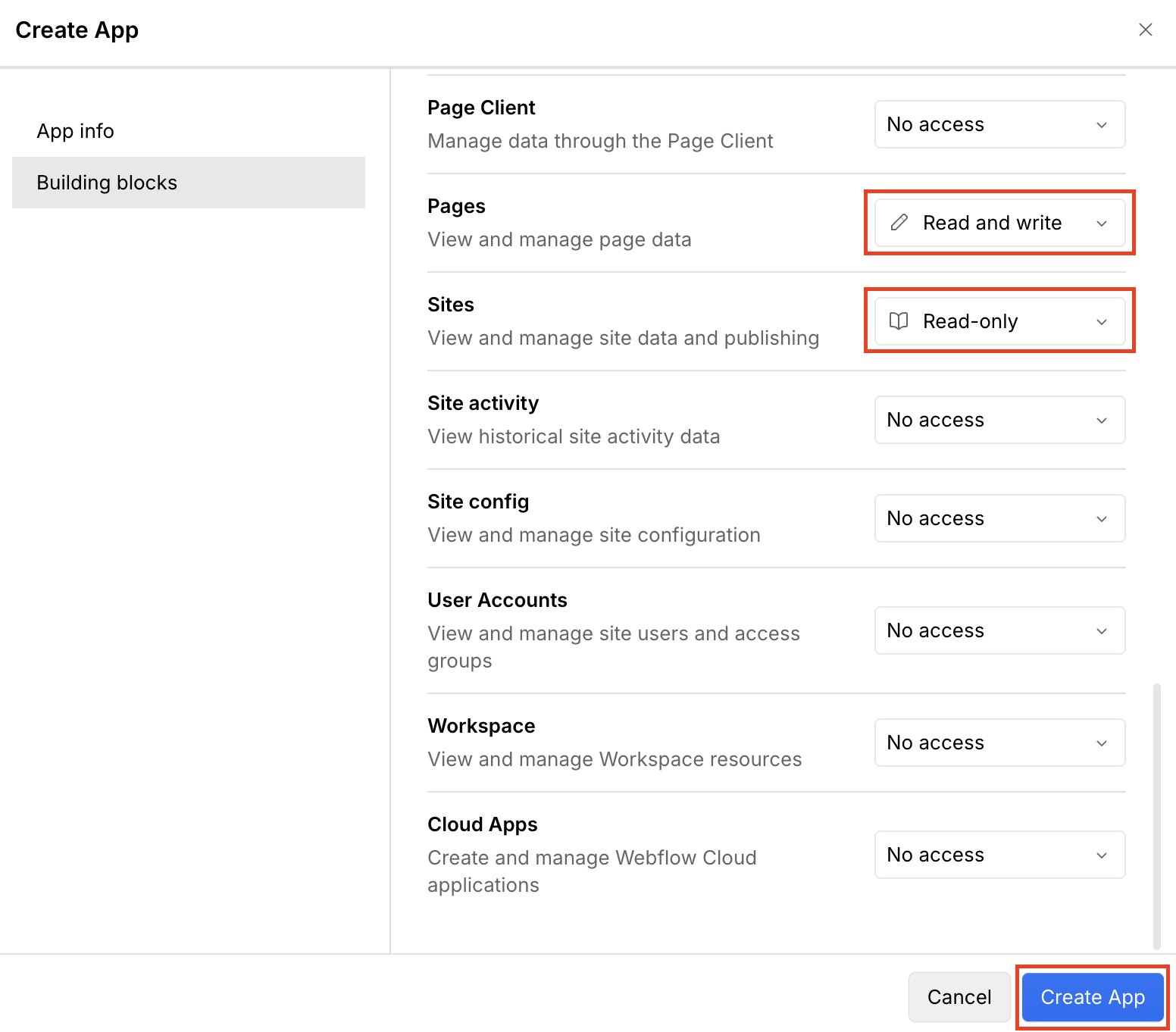
الخطوة 6: ضبط أذونات Pages وSites
اضبط الأذونات التالية:- Pages: Read and write
- Sites: Read-only
الخطوة 7: تعديل التطبيق
في App Development، افتح قائمة التطبيق وانقر على Edit App.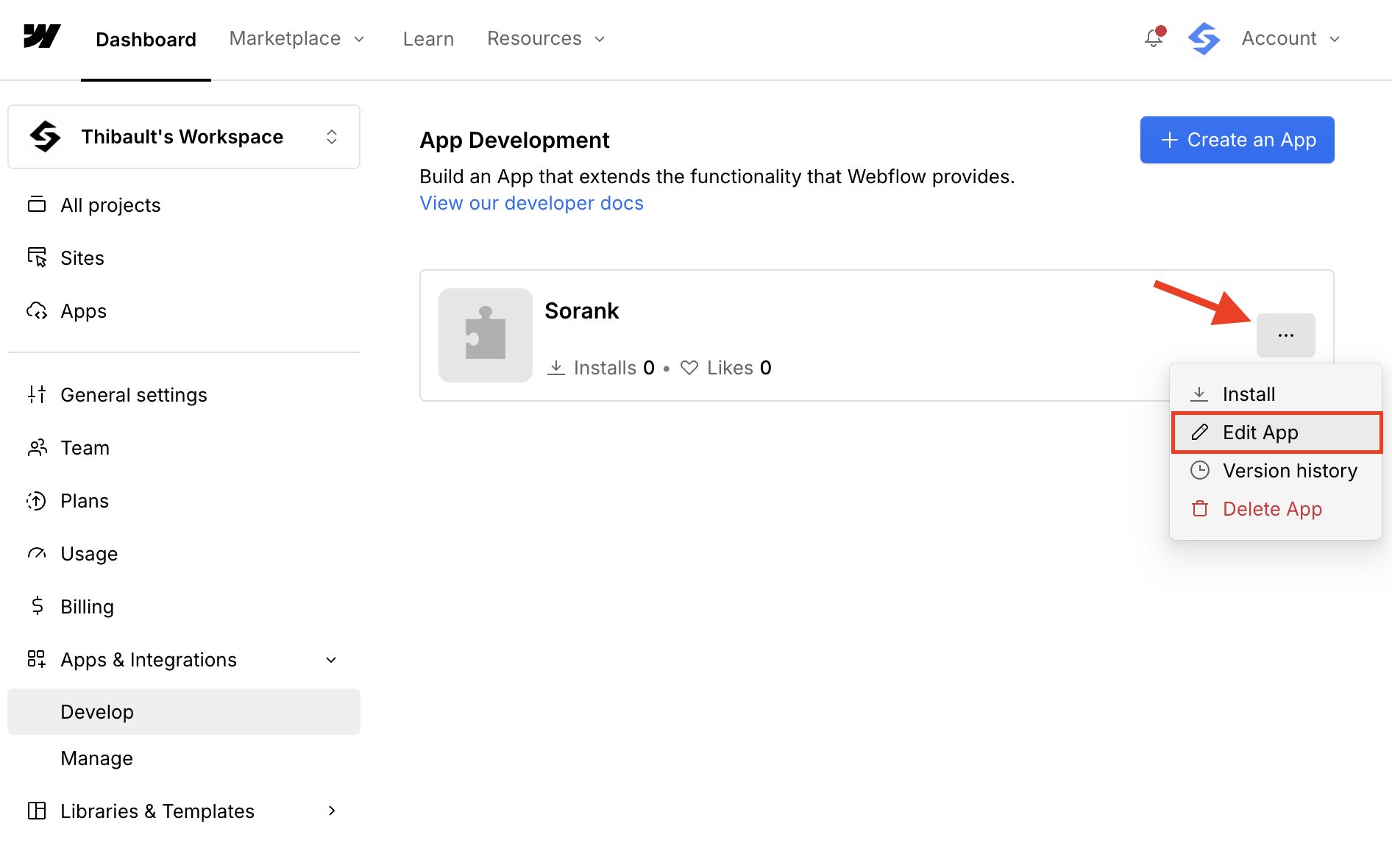
الخطوة 8: نسخ بيانات الاعتماد
افتح Building blocks. انسخ Client ID، ثم أظهر Client Secret وانسخه. حافظ على سرية Client Secret.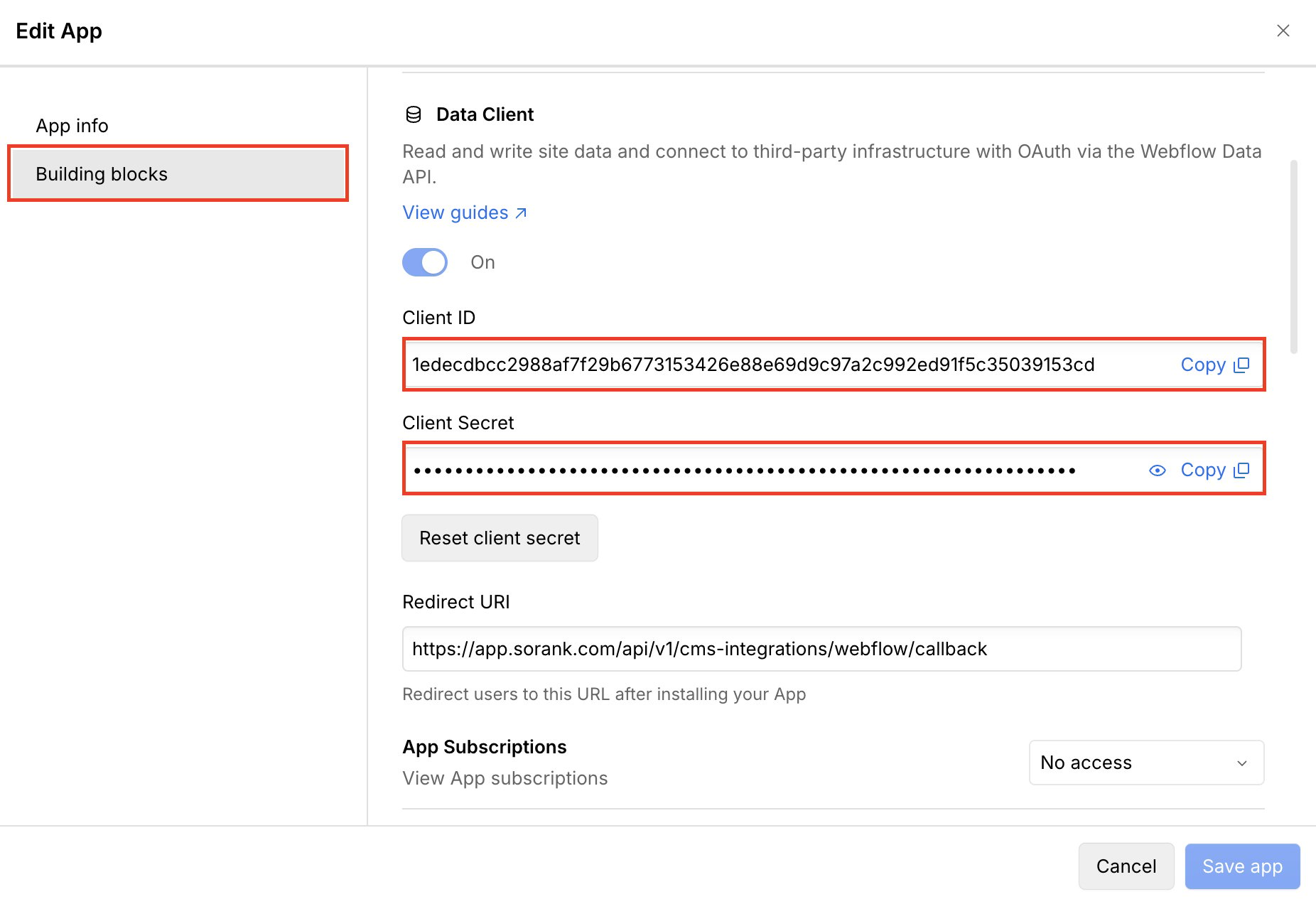
الخطوة 9: ربط Webflow بـ Sorank
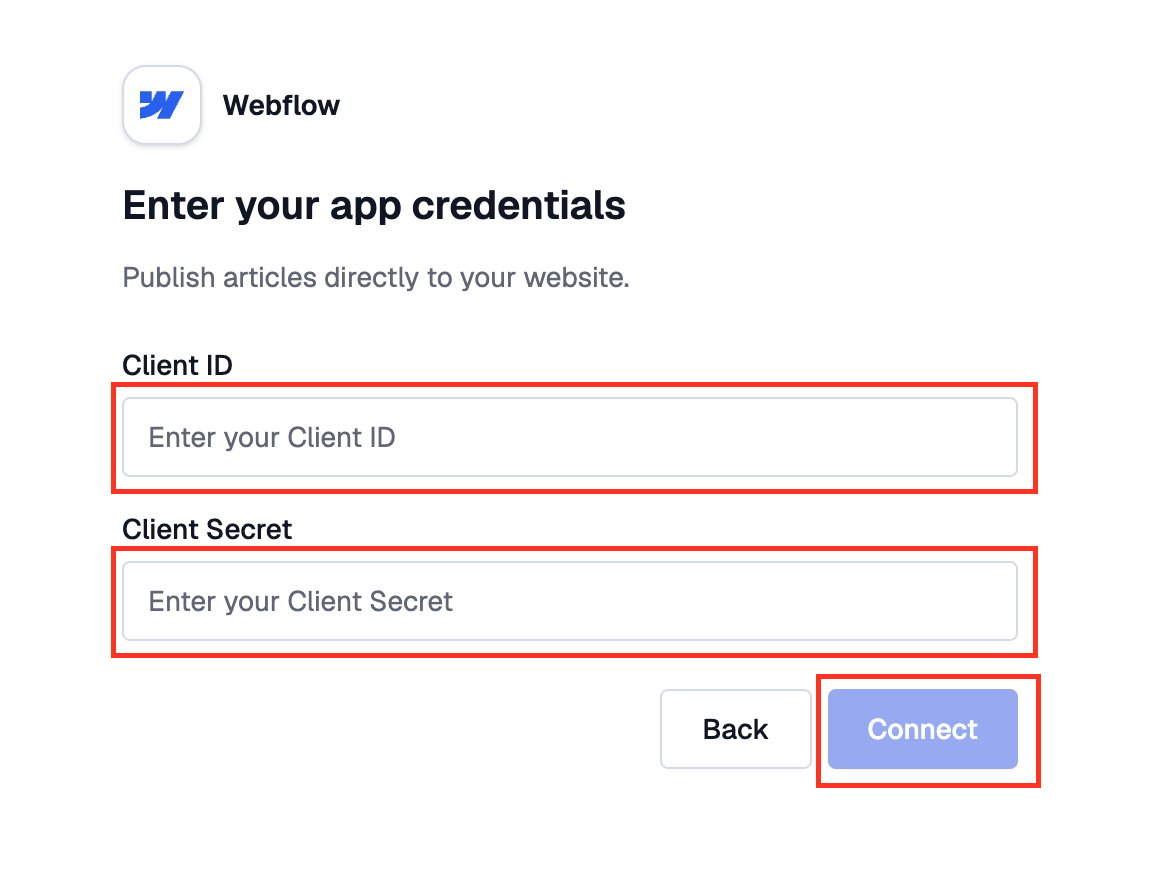
عُد إلى Sorank. الصق Client ID وClient Secret، ثم انقر على Connect.