
העדפות

הפרטיות חשובה לנו, ולכן יש לך אפשרות להשבית סוגים מסוימים של אחסון שייתכן שאינם נחוצים לתפקוד הבסיסי של האתר. חסימת קטגוריות עלולה להשפיע על חווית השימוש שלך באתר. מידע נוסף

קבל את כל קובצי ה-Cookie

Connect WordPress.com to Sorank

אתה כאן
כל המדריכים
צריך עזרה?
WordPress.com

Open the Integrations page in Sorank

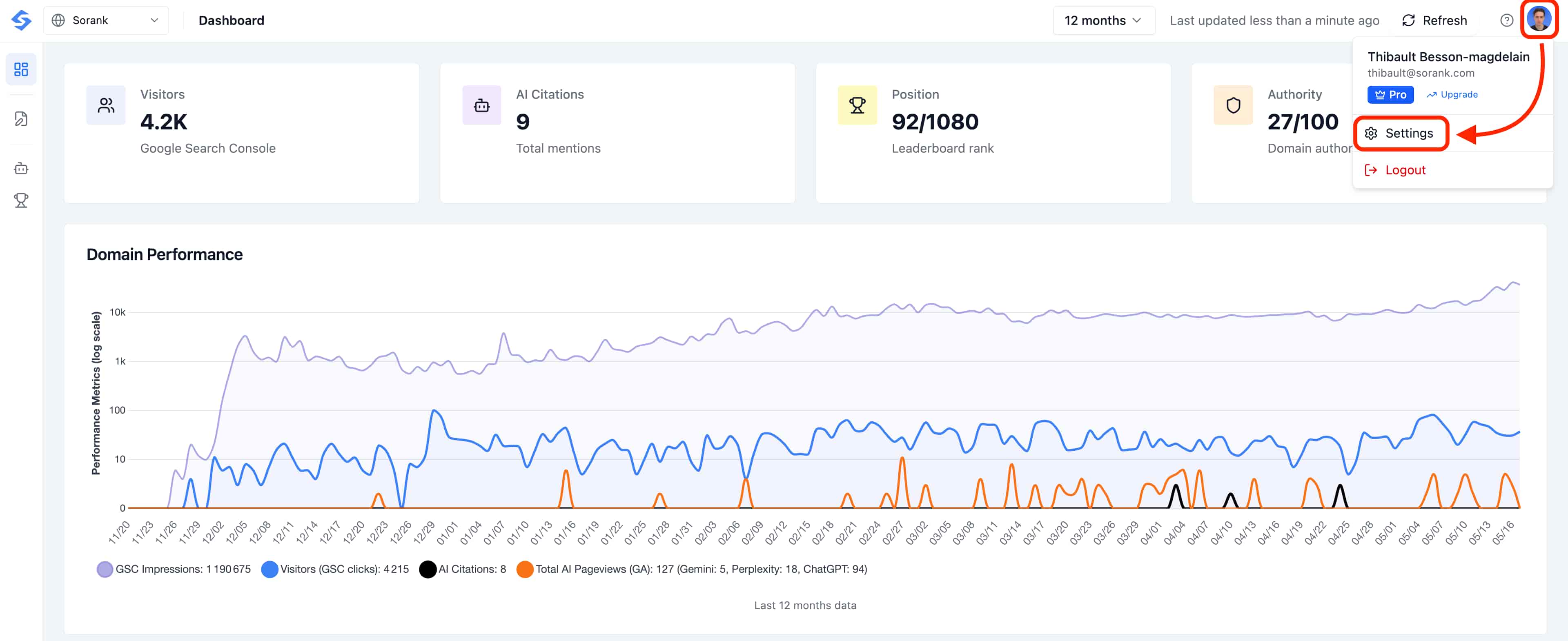
Before connecting your CMS, head to the Integrations page in Sorank. Click your profile avatar in the top-right corner of the dashboard, then select Settings.

Open Settings from the profile menu

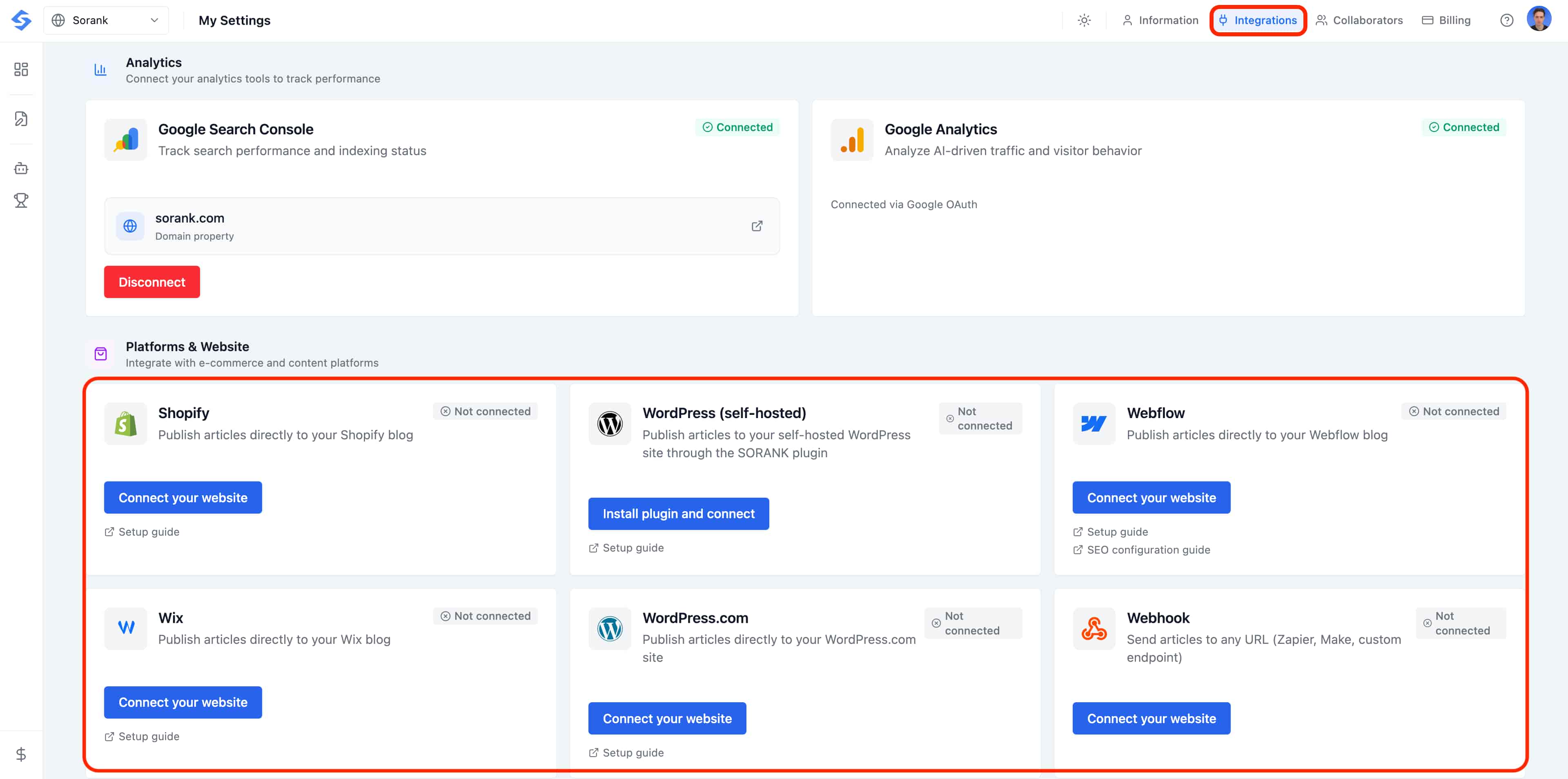
In the Settings page, click the Integrations tab at the top. This is where every CMS connector lives.

Open the Integrations tab in Settings

Is your site hosted on WordPress.com and you want to publish articles automatically? Connect your WordPress.com account to Sorank in seconds.

WordPress.org or WordPress.com?

  • WordPress.org: you host your site independently with a hosting provider (Bluehost, Hostinger, etc.). Use the "WordPress" integration.
  • WordPress.com: your site is created and hosted directly on the WordPress.com platform. Use the "WordPress.com" integration.

These two options are managed by different entities. Make sure you choose the right one.

Connect WordPress.com to Sorank

  1. Go to Settings > Integration on Sorank.
  2. Click WordPress.com > Connect.
  3. Accept the first access authorization.
  4. Select the desired blog category and confirm.
  5. Accept the second authorization by clicking Approved.

Publish an Article

Go to SEO Article on Sorank, click Publish and confirm.

Adjust the Layout

If the layout doesn't suit you, open the article in the WordPress editor. Select the body text and click Convert to Block to adapt the content to the page width.