
לפני שמתחילים
אתר Webflow שלכם חייב לעמוד בדרישות הבאות:- פרסמו את האתר באופן מקוון לפחות פעם אחת.
- צרו אוסף CMS בשם Blog Posts.
- קשרו את SEO Title ואת Meta Description לשדות ה-CMS המתאימים ב-Webflow Designer.
שלב 1: פתיחת פיתוח האפליקציות של Webflow
עברו אל לוח הבקרה של Webflow. פתחו את Apps & Integrations, בחרו Develop ולחצו על Create an App.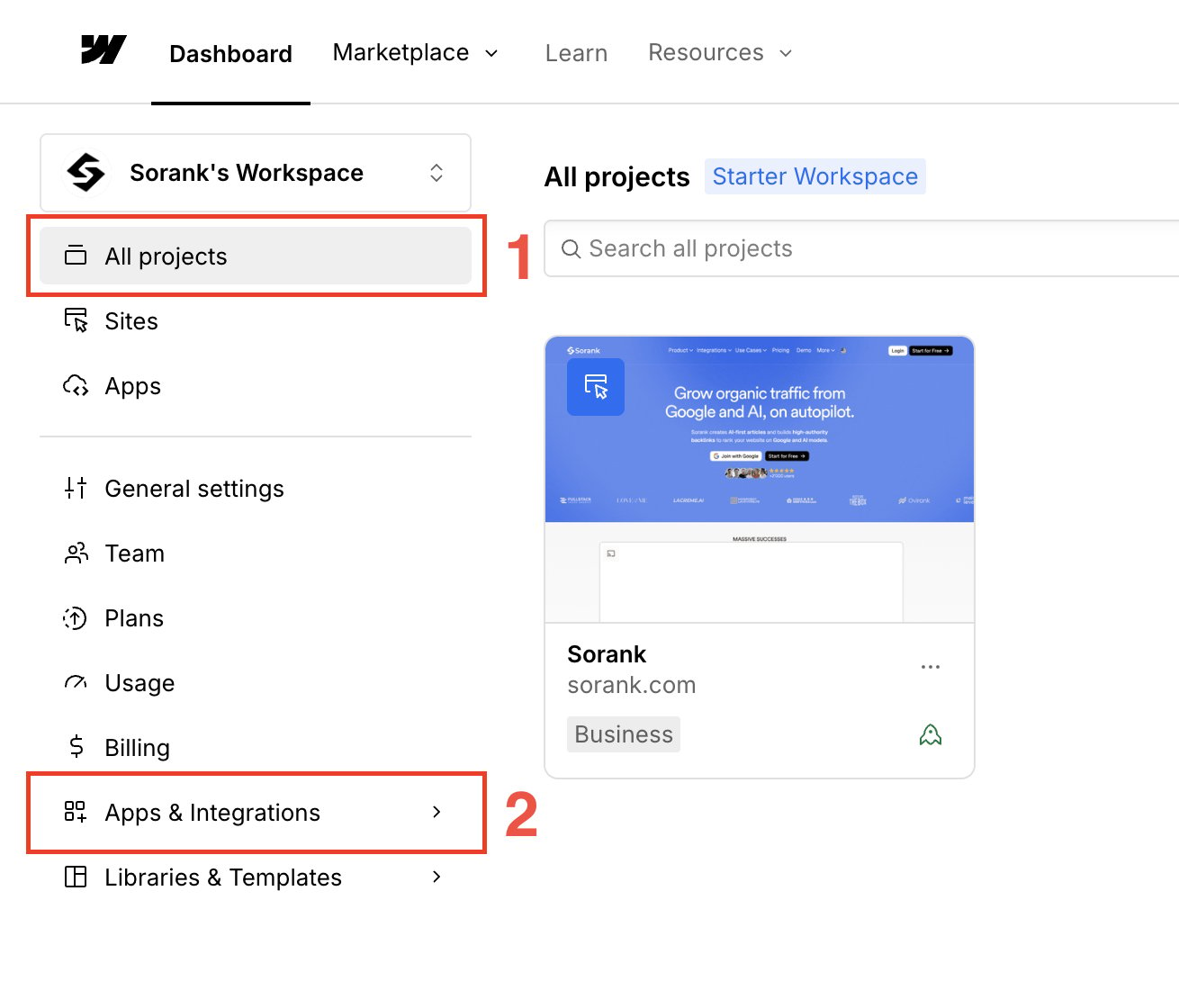
שלב 2: יצירת האפליקציה
ב-App Development, לחצו על Create an App.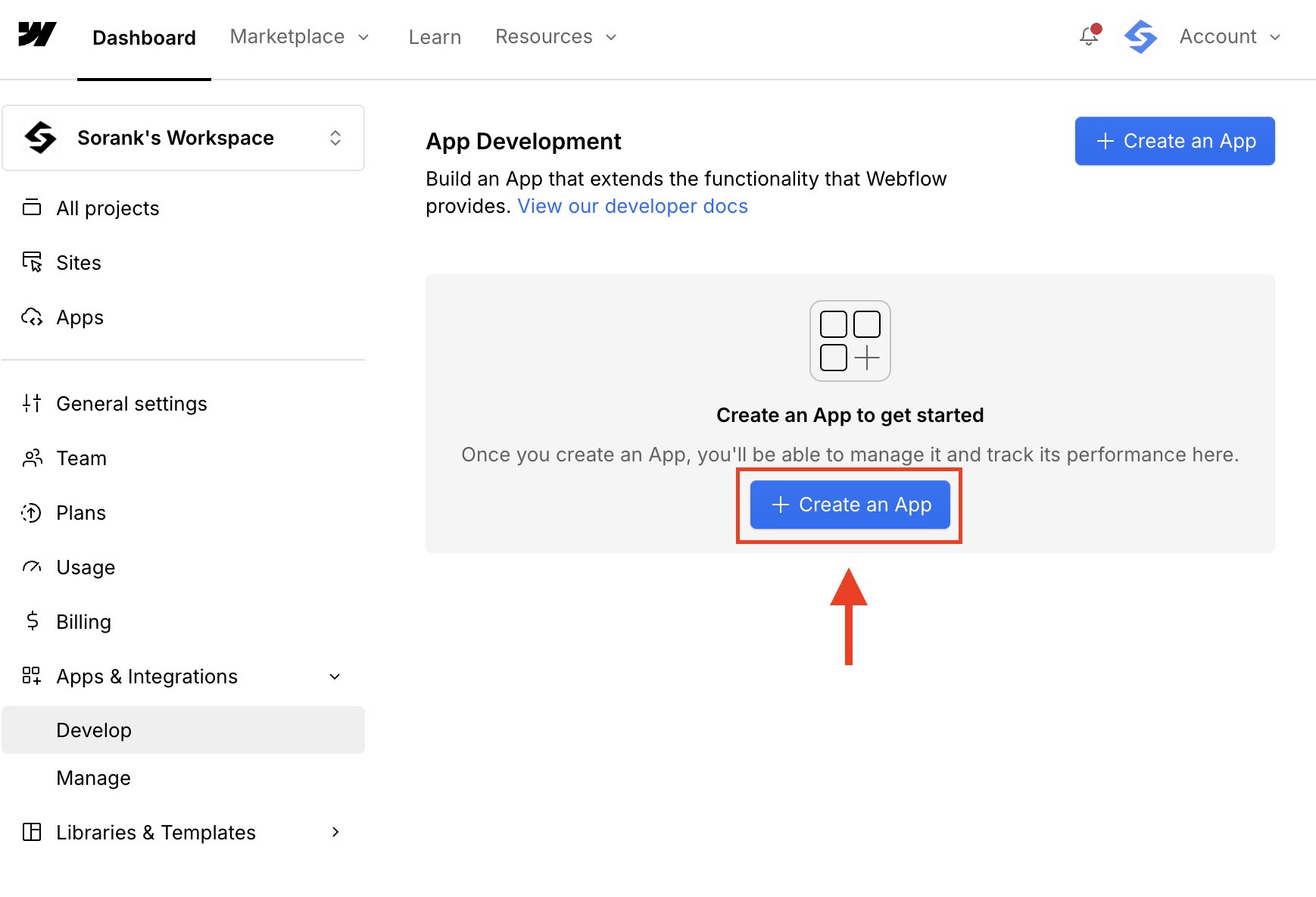
שלב 3: הזנת פרטי האפליקציה
הזינו App name, Description ו-App homepage URL. אפשר להשתמש בכתובת האתר שלכם ככתובת דף הבית. לחצו על Continue.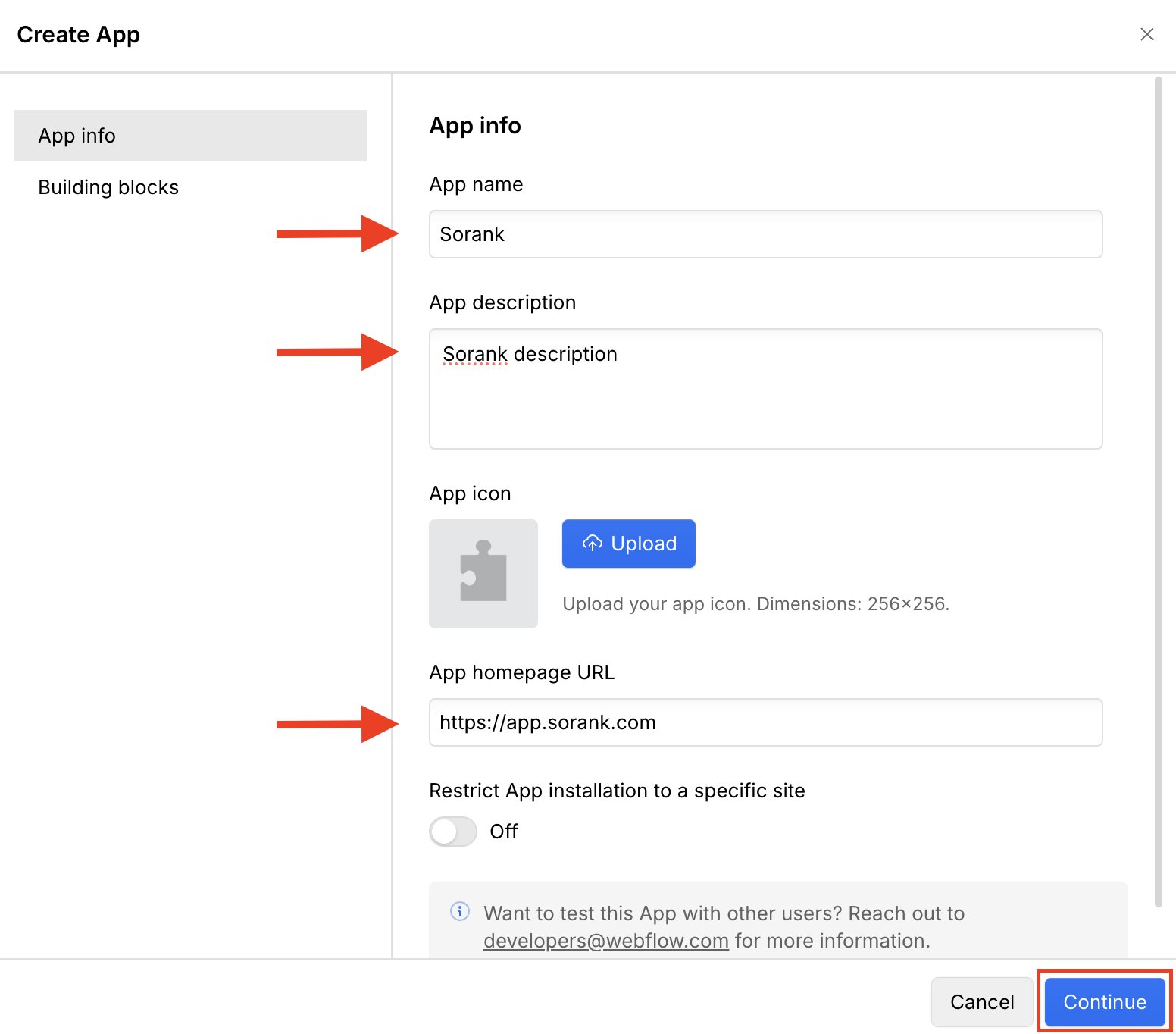
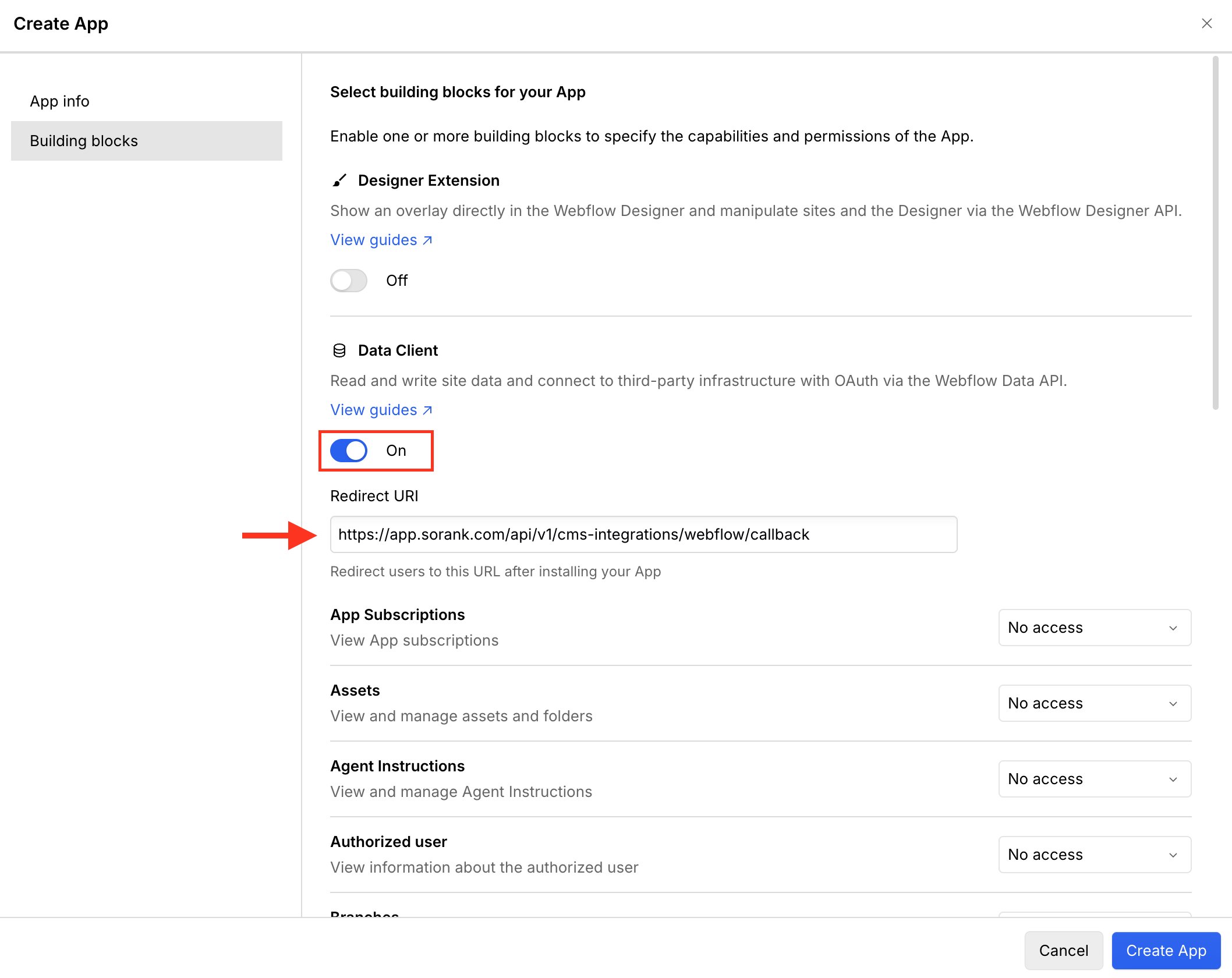
שלב 4: הפעלת Data Client והוספת URI להפניה
פתחו את Building blocks והפעילו את Data Client. העתיקו את ה-URI להפניה שמוצג במדריך של Sorank והדביקו אותו בשדה Redirect URI. עבור אפליקציית Sorank בסביבת הייצור, ה-URI הוא:https://app.sorank.com/api/v1/cms-integrations/webflow/callback
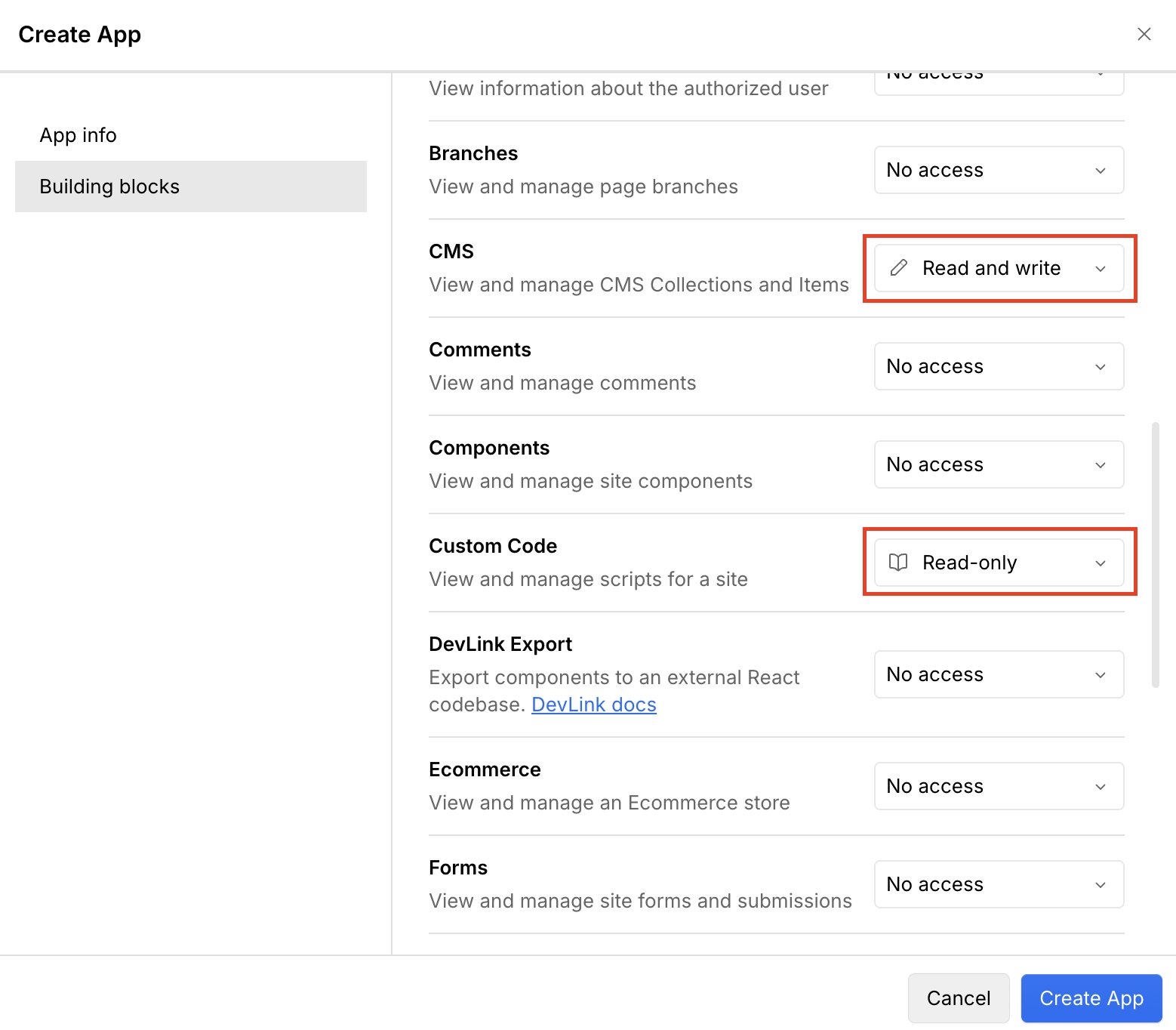
שלב 5: הגדרת הרשאות CMS ו-Custom Code
הגדירו את ההרשאות הבאות:- CMS: Read and write
- Custom Code: Read-only
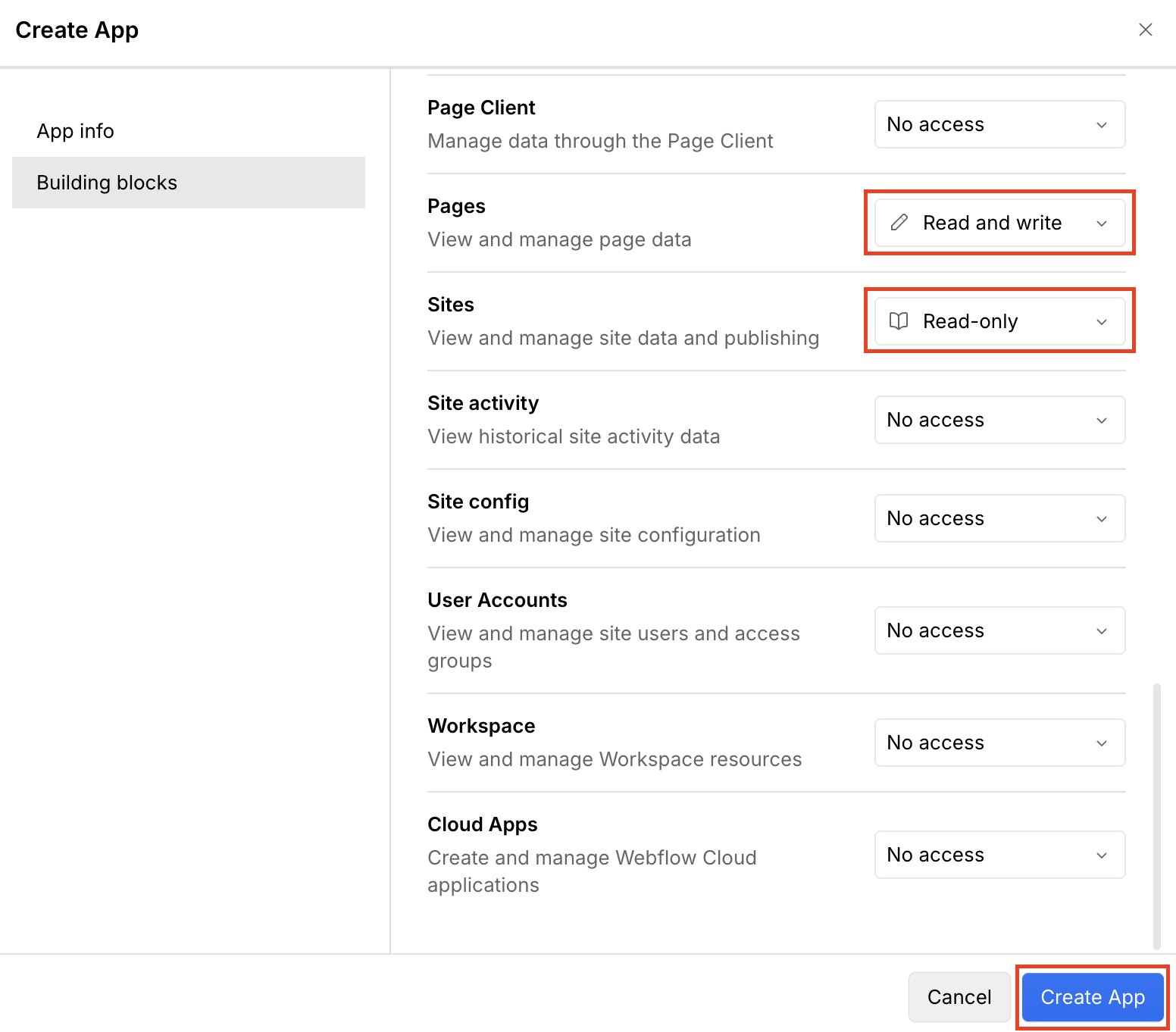
שלב 6: הגדרת הרשאות Pages ו-Sites
הגדירו את ההרשאות הבאות:- Pages: Read and write
- Sites: Read-only
שלב 7: עריכת האפליקציה
ב-App Development, פתחו את תפריט האפליקציה ולחצו על Edit App.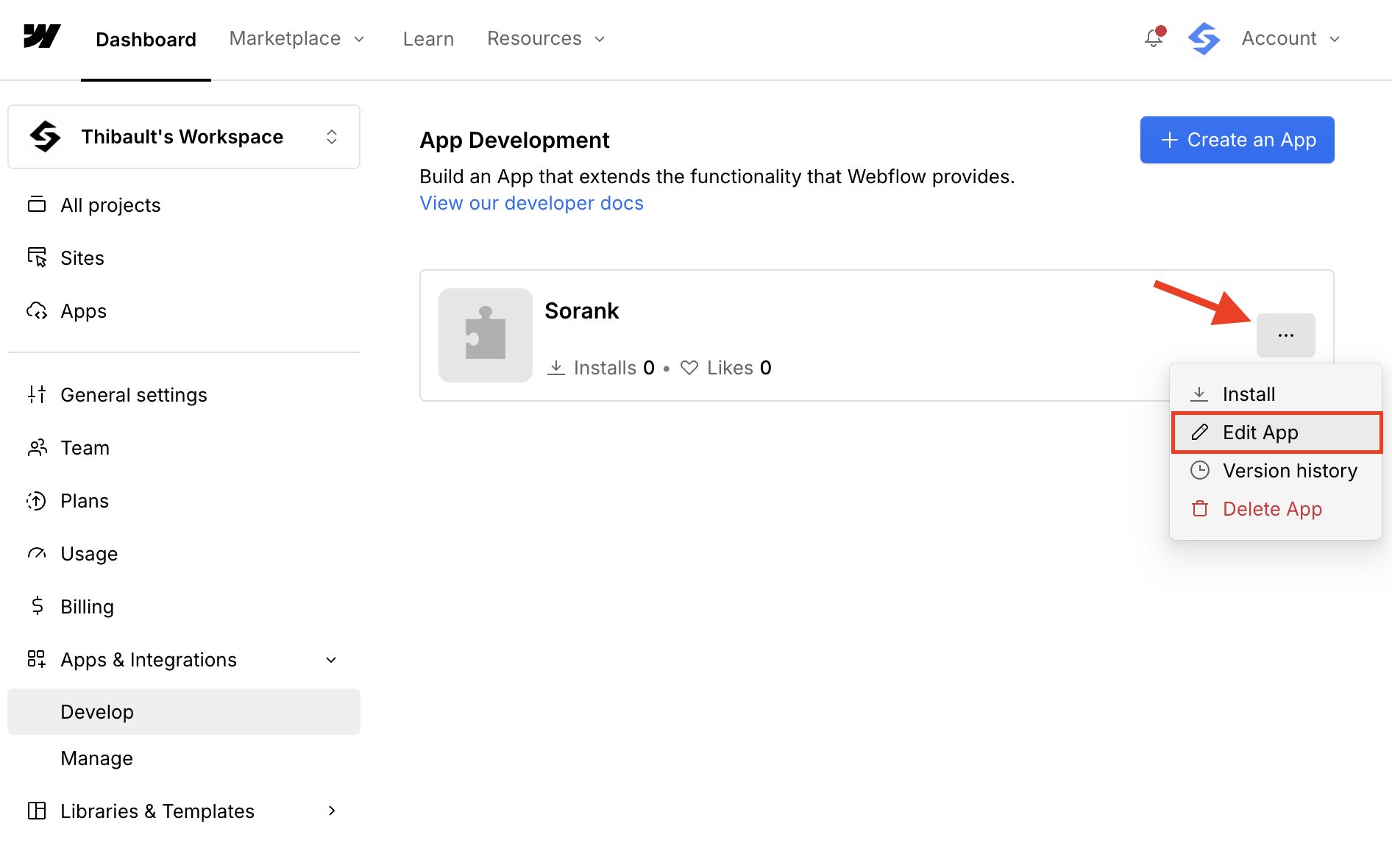
שלב 8: העתקת פרטי הגישה
פתחו את Building blocks. העתיקו את ה-Client ID, ולאחר מכן הציגו והעתיקו את ה-Client Secret. שמרו את ה-Client Secret בסוד.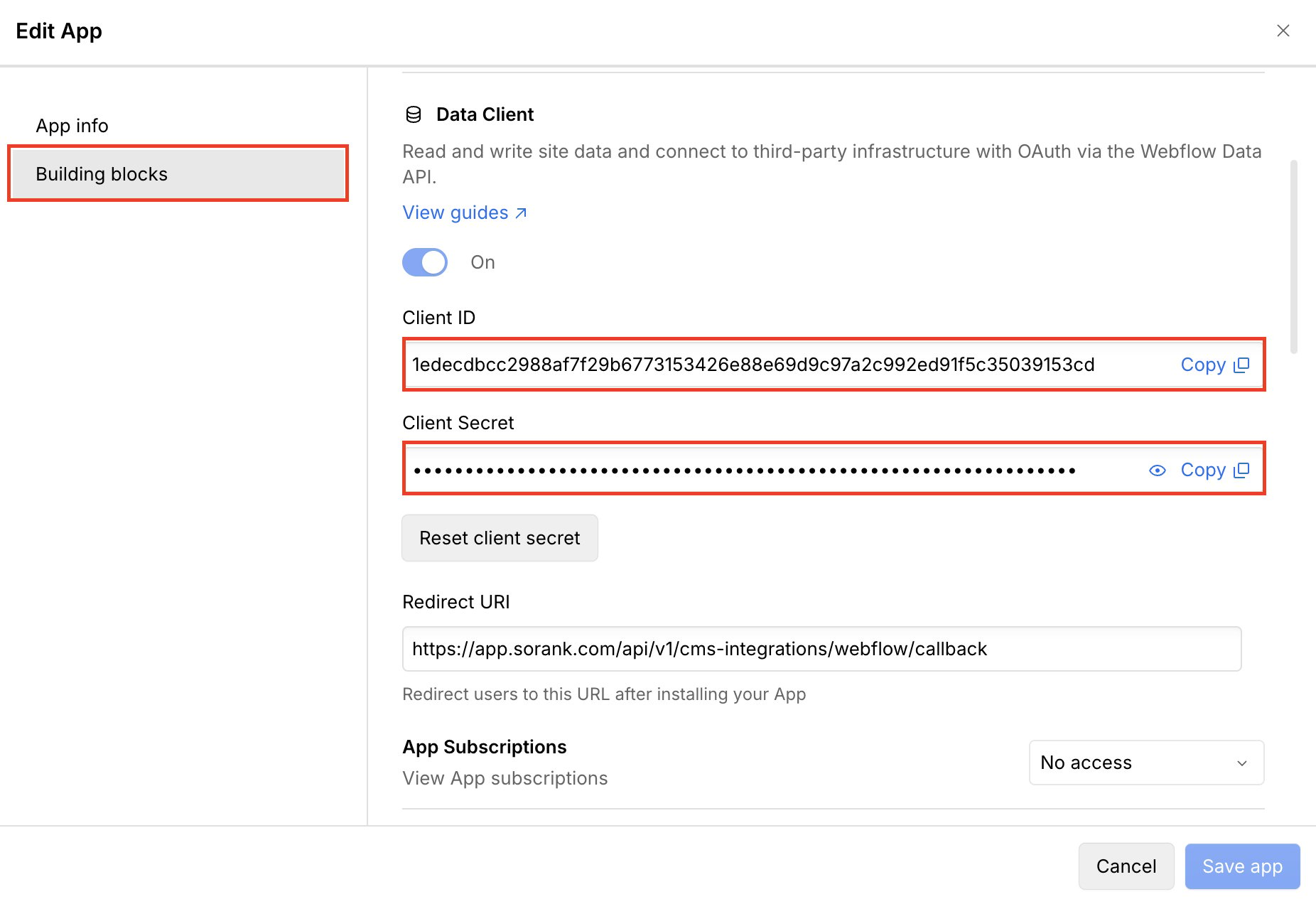
שלב 9: חיבור Webflow ל-Sorank
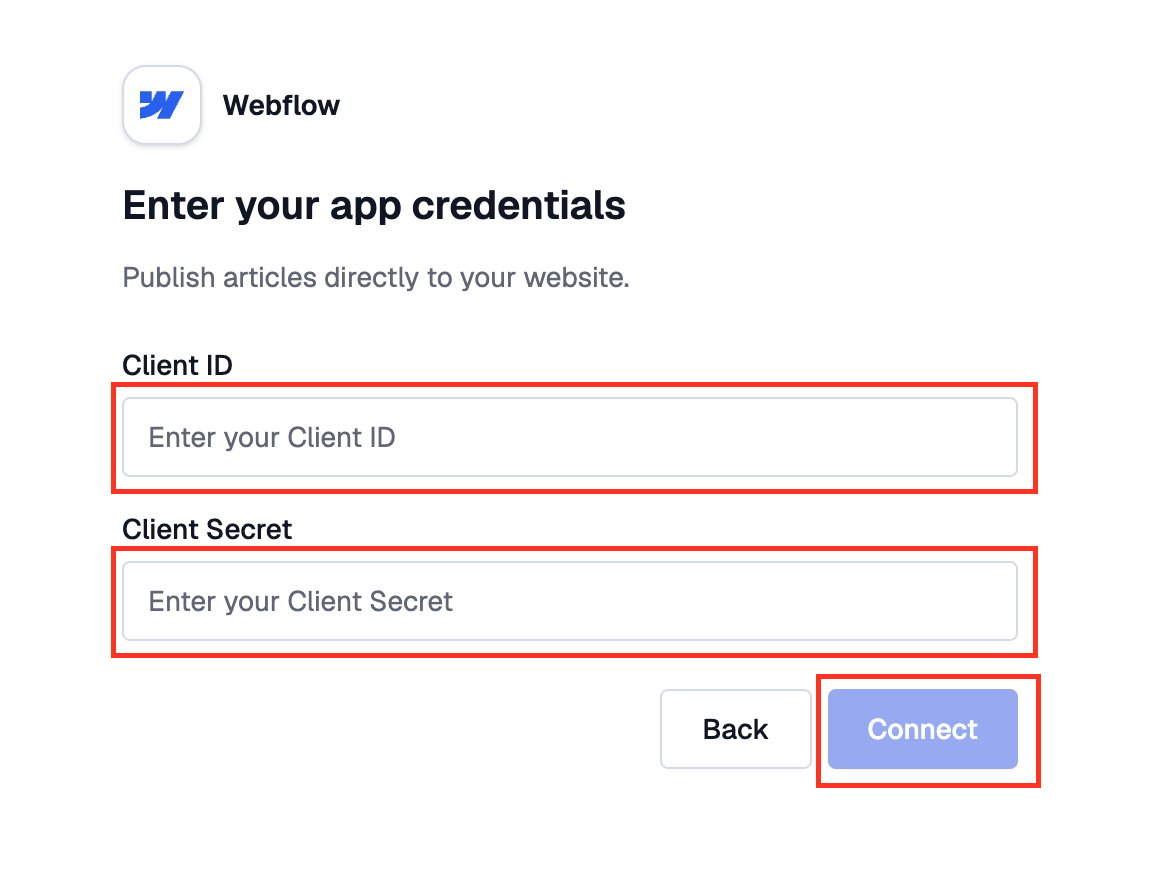
חזרו ל-Sorank. הדביקו את ה-Client ID ואת ה-Client Secret, ולאחר מכן לחצו על Connect.