> ## Documentation Index
> Fetch the complete documentation index at: https://sorank.com/llms.txt
> Use this file to discover all available pages before exploring further.
# Invoices
> Doc Sorank - Where to find Sorank invoices
Follow these steps to access your billing history and download invoices from your Sorank account.
## Step 1: Open your Settings
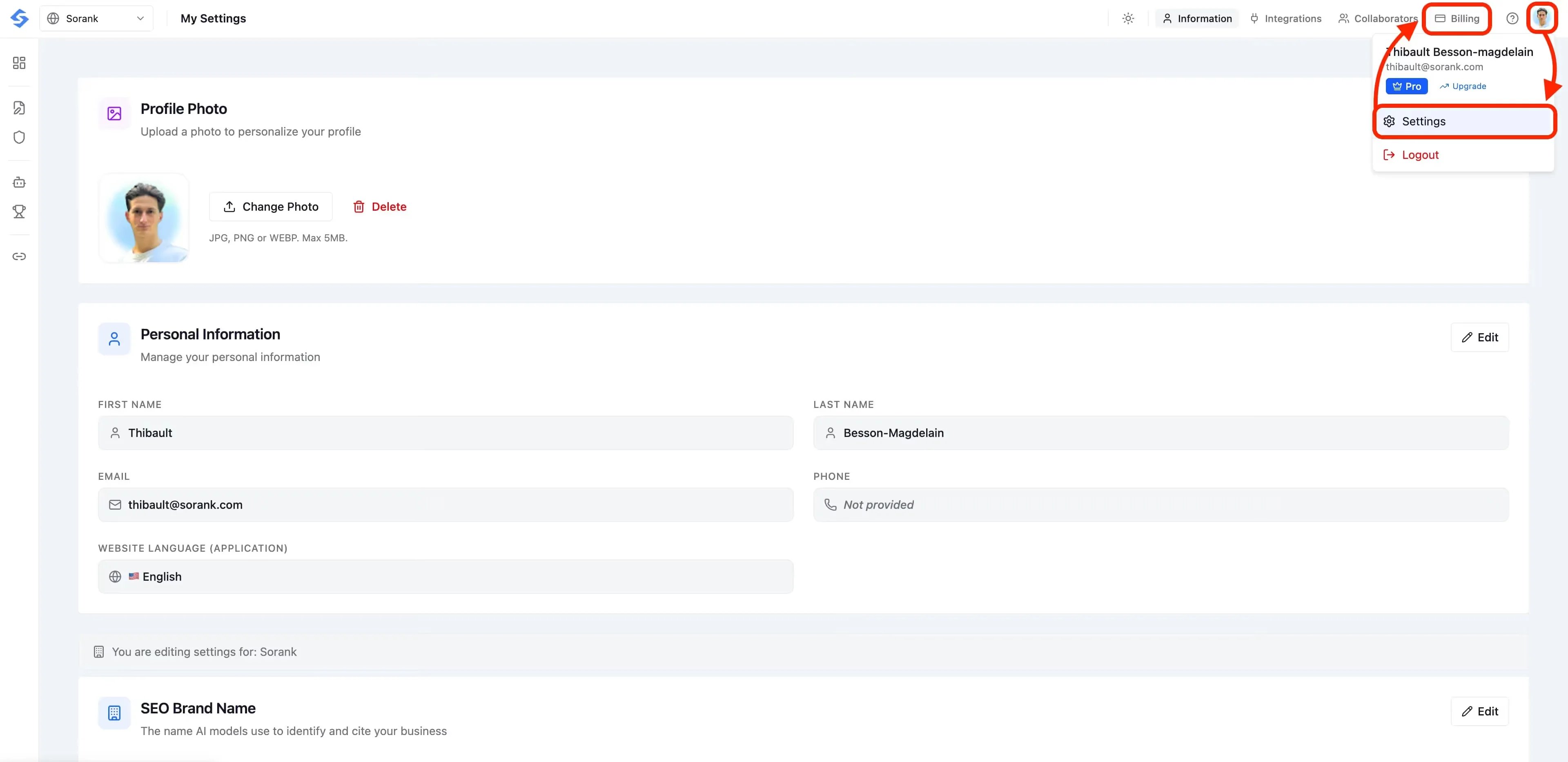
Click on your **profile icon** in the top-right corner of the screen, then select **Settings** from the dropdown menu.
In the Settings page, click the **Billing** tab in the top navigation bar.
 ## Step 3: Scroll down to Payment History
You'll see an overview of your current plan, next billing date, and payment method.
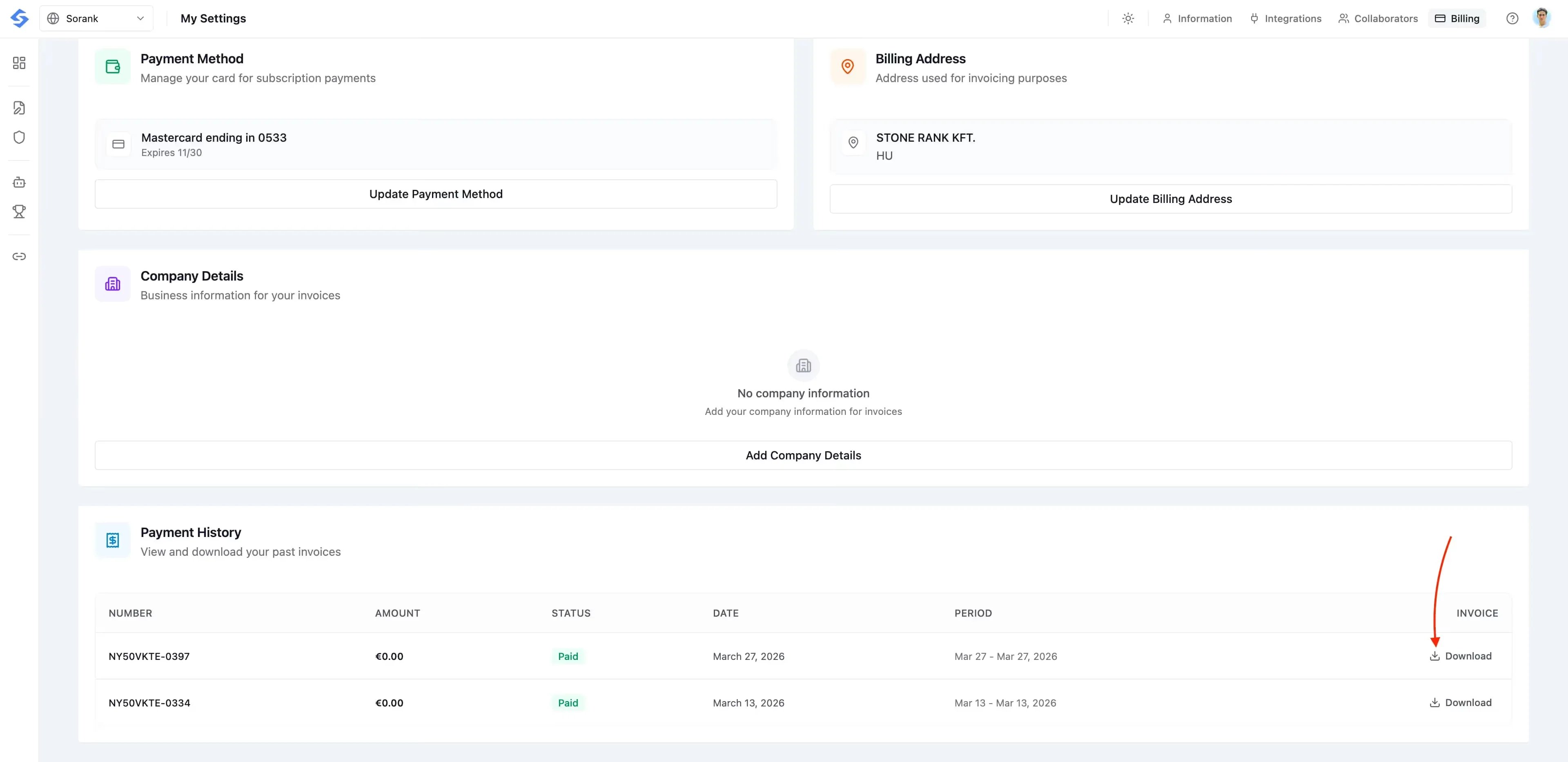
Scroll down past the Payment Method, Billing Address, and Company Details sections until you reach the **Payment History** table.
This table lists all your past invoices with their number, amount, status, date, and billing period.
## Step 3: Scroll down to Payment History
You'll see an overview of your current plan, next billing date, and payment method.
Scroll down past the Payment Method, Billing Address, and Company Details sections until you reach the **Payment History** table.
This table lists all your past invoices with their number, amount, status, date, and billing period.
 ## Step 4: Download your invoice
Click the **Download** button on the right side of the invoice you need. The PDF will be saved to your computer.
That's it, you're done!
## Step 4: Download your invoice
Click the **Download** button on the right side of the invoice you need. The PDF will be saved to your computer.
That's it, you're done!