> ## Documentation Index
> Fetch the complete documentation index at: https://sorank.com/llms.txt
> Use this file to discover all available pages before exploring further.
# Connect Wix to Sorank
> Doc Sorank - Wix
## Open the Integrations page in Sorank
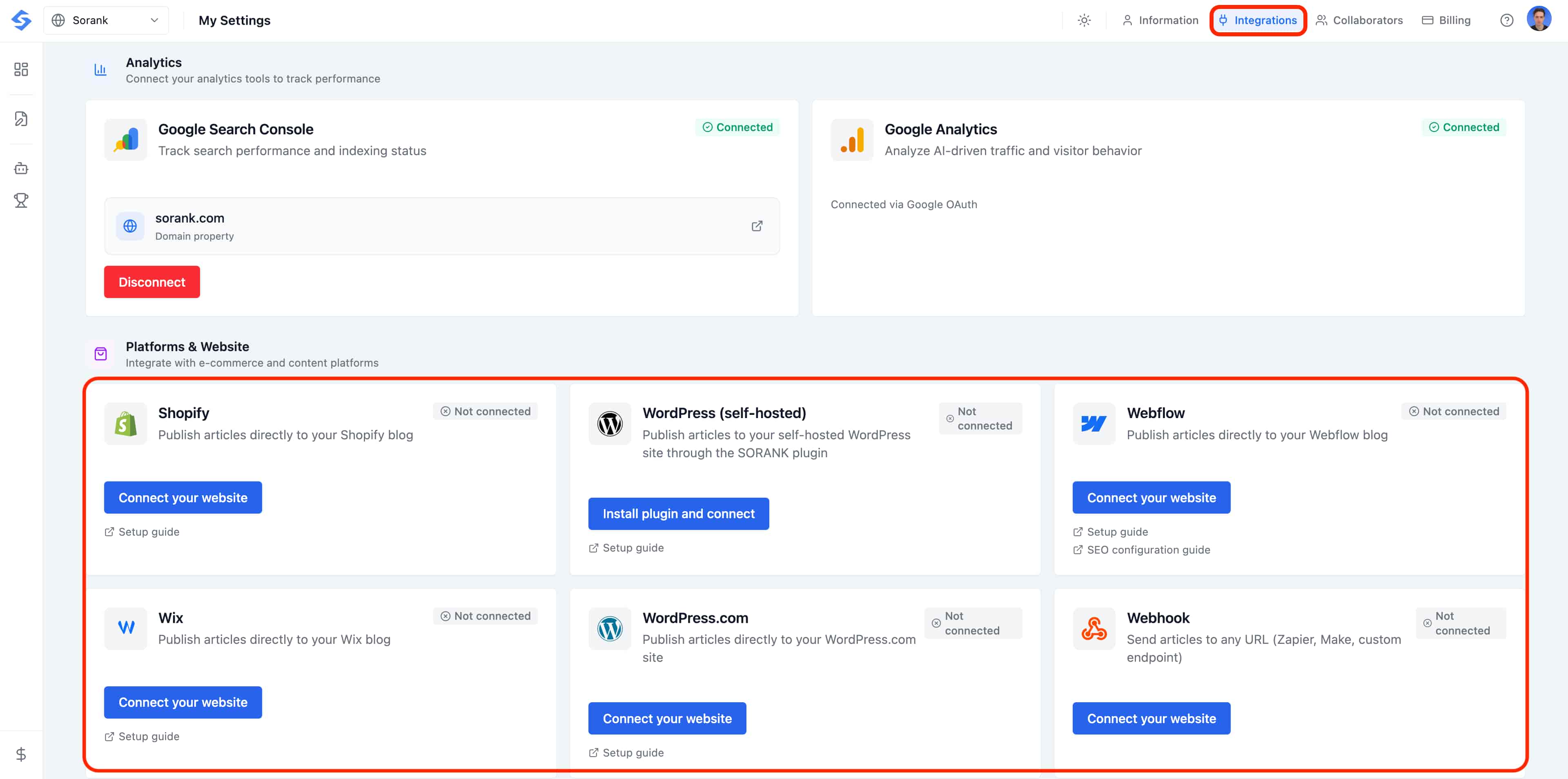
Before connecting your CMS, head to the **Integrations** page in Sorank. Click your **profile avatar** in the top-right corner of the dashboard, then select **Settings**.
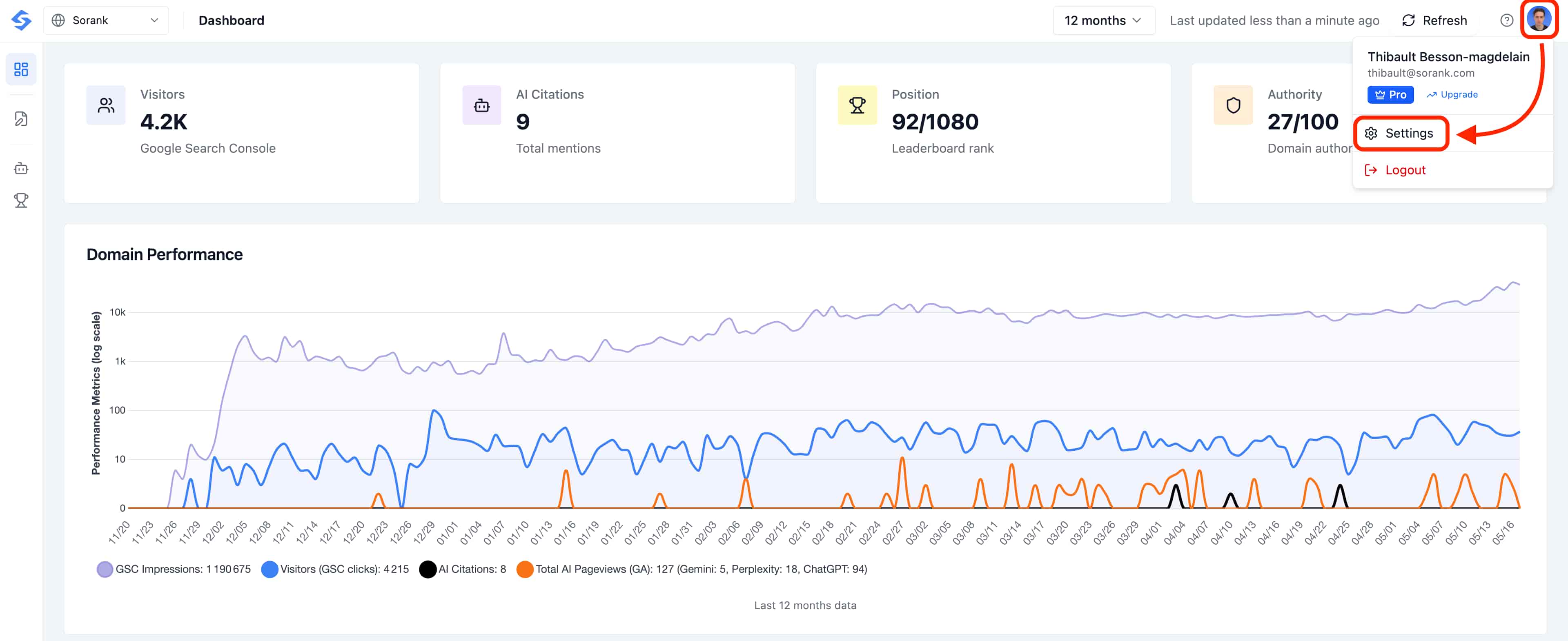
 In the Settings page, click the **Integrations** tab at the top. This is where every CMS connector lives.
 Want to automatically publish your blog posts on Wix without any hassle? Connect your Wix site to Sorank in a few clicks to **save time and boost your SEO**.
## Connect Wix to Sorank
1. Go to your Sorank account.
2. Click **Publish** or go to **Settings > Integration**.
3. Click **Connect Wix**.
4. Install the Sorank app directly on Wix by clicking **Add**.
## Set Up Your Blog
1. Select the **blog** on your Wix site.
2. Click **Continue**, accept and add the application.
3. Verify in **Settings > Integration** that the connection is established.
## Publish an Article
Go to **SEO Article** on Sorank, click **Publish** and confirm. Your article will be published with all content: images, links, tables, and FAQ.
Want to automatically publish your blog posts on Wix without any hassle? Connect your Wix site to Sorank in a few clicks to **save time and boost your SEO**.
## Connect Wix to Sorank
1. Go to your Sorank account.
2. Click **Publish** or go to **Settings > Integration**.
3. Click **Connect Wix**.
4. Install the Sorank app directly on Wix by clicking **Add**.
## Set Up Your Blog
1. Select the **blog** on your Wix site.
2. Click **Continue**, accept and add the application.
3. Verify in **Settings > Integration** that the connection is established.
## Publish an Article
Go to **SEO Article** on Sorank, click **Publish** and confirm. Your article will be published with all content: images, links, tables, and FAQ.