> ## Documentation Index
> Fetch the complete documentation index at: https://sorank.com/llms.txt
> Use this file to discover all available pages before exploring further.
# Article editor
> Review sources, metadata, content and images before an article goes live.
Review sources, metadata, content and images before an article goes live.
Once generation is complete, the article status will change to **Completed**. Click **Edit** to open the full article editor, where you can review every part of the AI-generated content before sending it live.
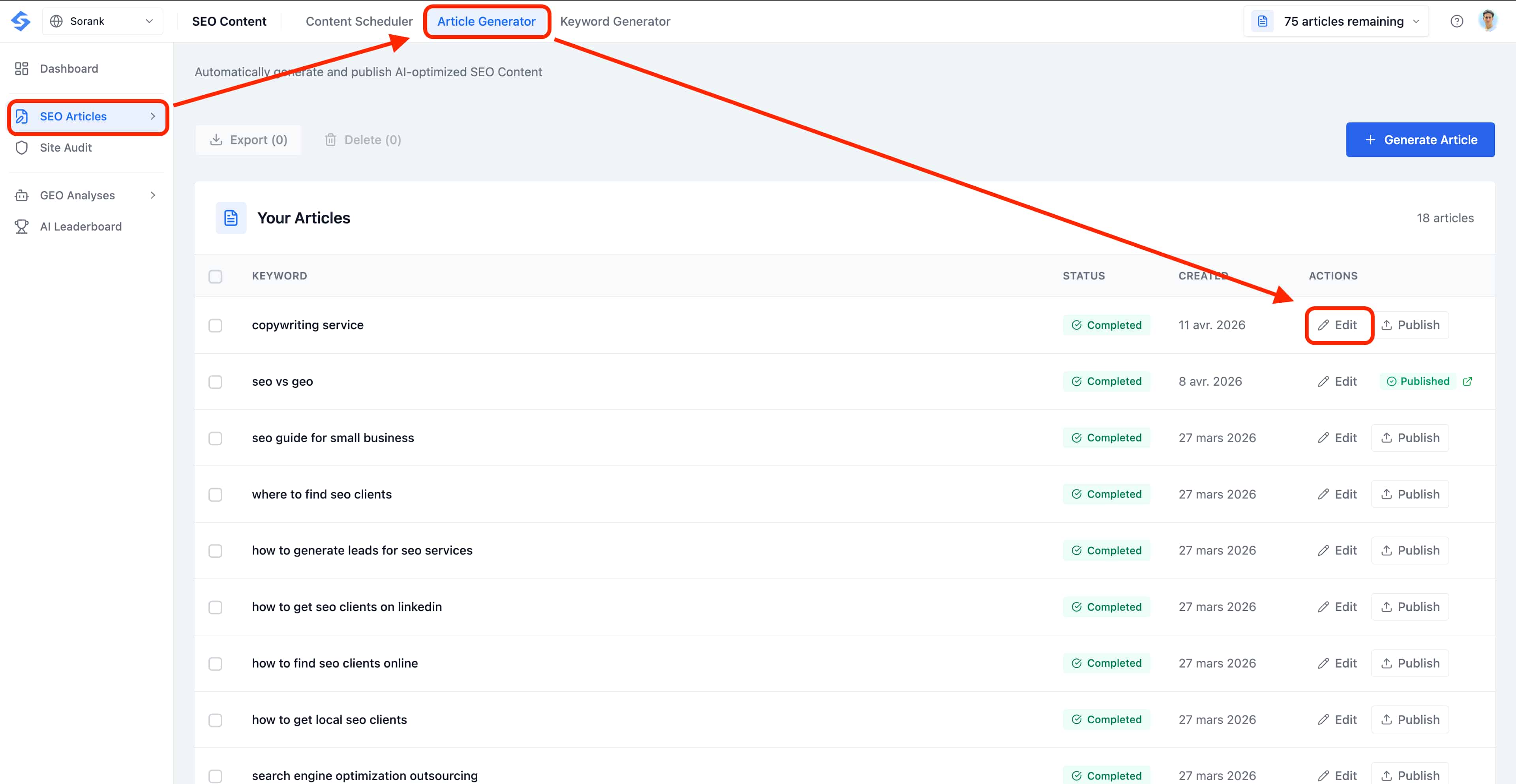 The editor is split into three working zones: the **Competitor Analysis** at the top, the **Generated Meta Tags** in the middle, and the **Article Content** at the bottom. You can navigate between them freely, and any change you make is saved as a draft until you publish.
### Competitor Analysis
At the top of the editor, you'll find the **Competitor Analysis** section. This shows you exactly what the AI studied before writing your article, so you can audit the sources and double-check the data behind every recommendation.
The editor is split into three working zones: the **Competitor Analysis** at the top, the **Generated Meta Tags** in the middle, and the **Article Content** at the bottom. You can navigate between them freely, and any change you make is saved as a draft until you publish.
### Competitor Analysis
At the top of the editor, you'll find the **Competitor Analysis** section. This shows you exactly what the AI studied before writing your article, so you can audit the sources and double-check the data behind every recommendation.
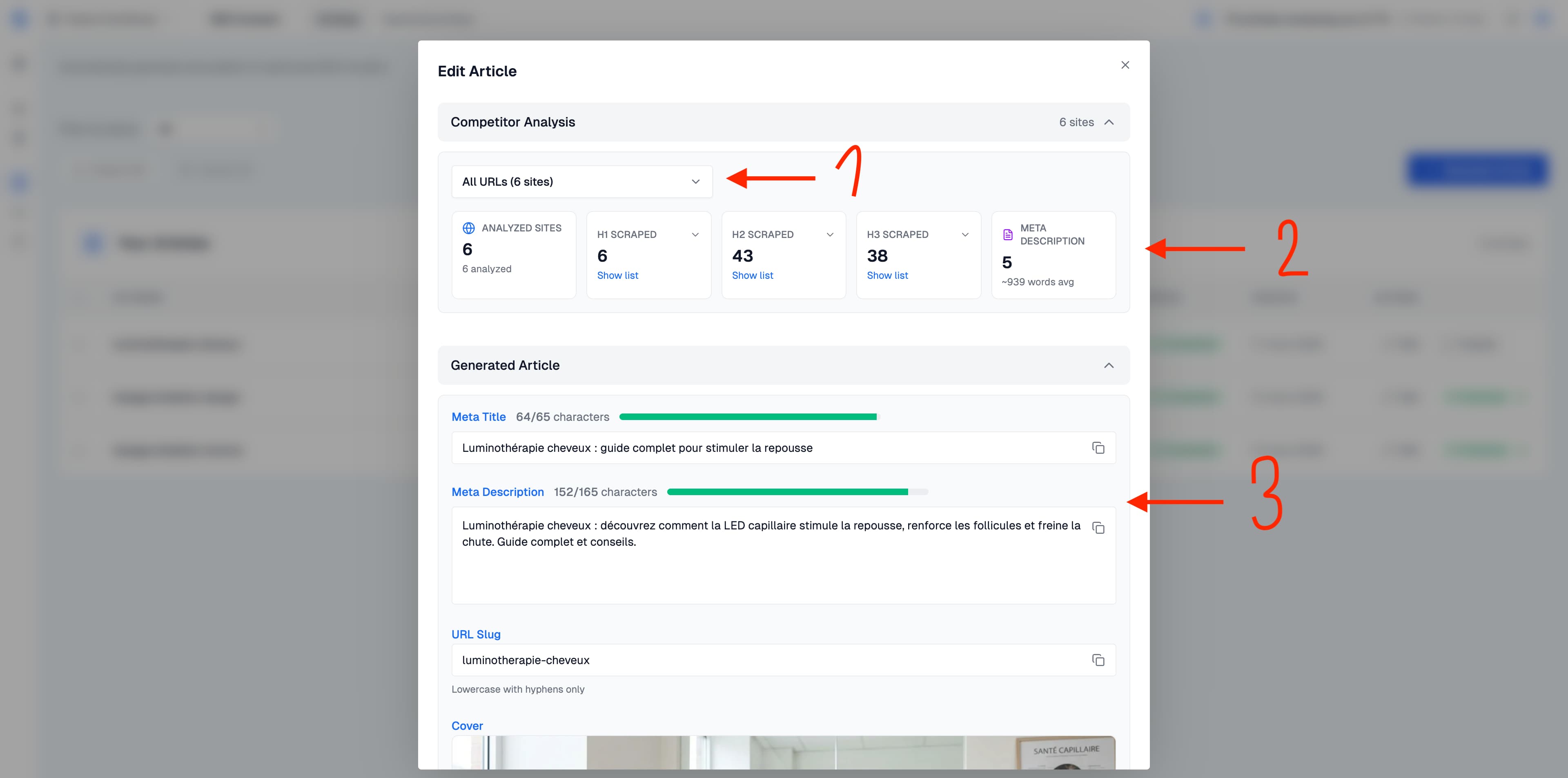 * The **All URLs** dropdown shows which competitor pages were analyzed. You can filter to see the data from individual competitors.
* The **Scraped data** section reveals that the AI analyzed 6 competitor sites, scraped their H1, H2, H3 headings and meta descriptions to understand the content landscape and structure its article accordingly.
### Generated Meta Tags
Below the competitor analysis, you'll see the generated SEO elements:
* **Meta Title**, optimized for length (shown with a character count and progress bar, e.g. 64/65 characters).
* **Meta Description**, a compelling summary targeting 120 to 165 characters for optimal display in search results.
* **URL Slug**, a clean, lowercase, hyphenated URL path ready for publishing.
* **Cover Image**, an AI-generated cover image tailored to your article topic.
All of these fields are editable. You can adjust anything before publishing, and a quick tweak here is often what makes the difference between a click and a scroll-past in the SERPs.
### Edit your Article Content
The article body opens in a full **rich-text editor** built for SEO writers. You can rewrite any paragraph, restructure the outline, polish the tone or fact-check a claim, all directly inside the page, without ever leaving Sorank.
* The **All URLs** dropdown shows which competitor pages were analyzed. You can filter to see the data from individual competitors.
* The **Scraped data** section reveals that the AI analyzed 6 competitor sites, scraped their H1, H2, H3 headings and meta descriptions to understand the content landscape and structure its article accordingly.
### Generated Meta Tags
Below the competitor analysis, you'll see the generated SEO elements:
* **Meta Title**, optimized for length (shown with a character count and progress bar, e.g. 64/65 characters).
* **Meta Description**, a compelling summary targeting 120 to 165 characters for optimal display in search results.
* **URL Slug**, a clean, lowercase, hyphenated URL path ready for publishing.
* **Cover Image**, an AI-generated cover image tailored to your article topic.
All of these fields are editable. You can adjust anything before publishing, and a quick tweak here is often what makes the difference between a click and a scroll-past in the SERPs.
### Edit your Article Content
The article body opens in a full **rich-text editor** built for SEO writers. You can rewrite any paragraph, restructure the outline, polish the tone or fact-check a claim, all directly inside the page, without ever leaving Sorank.
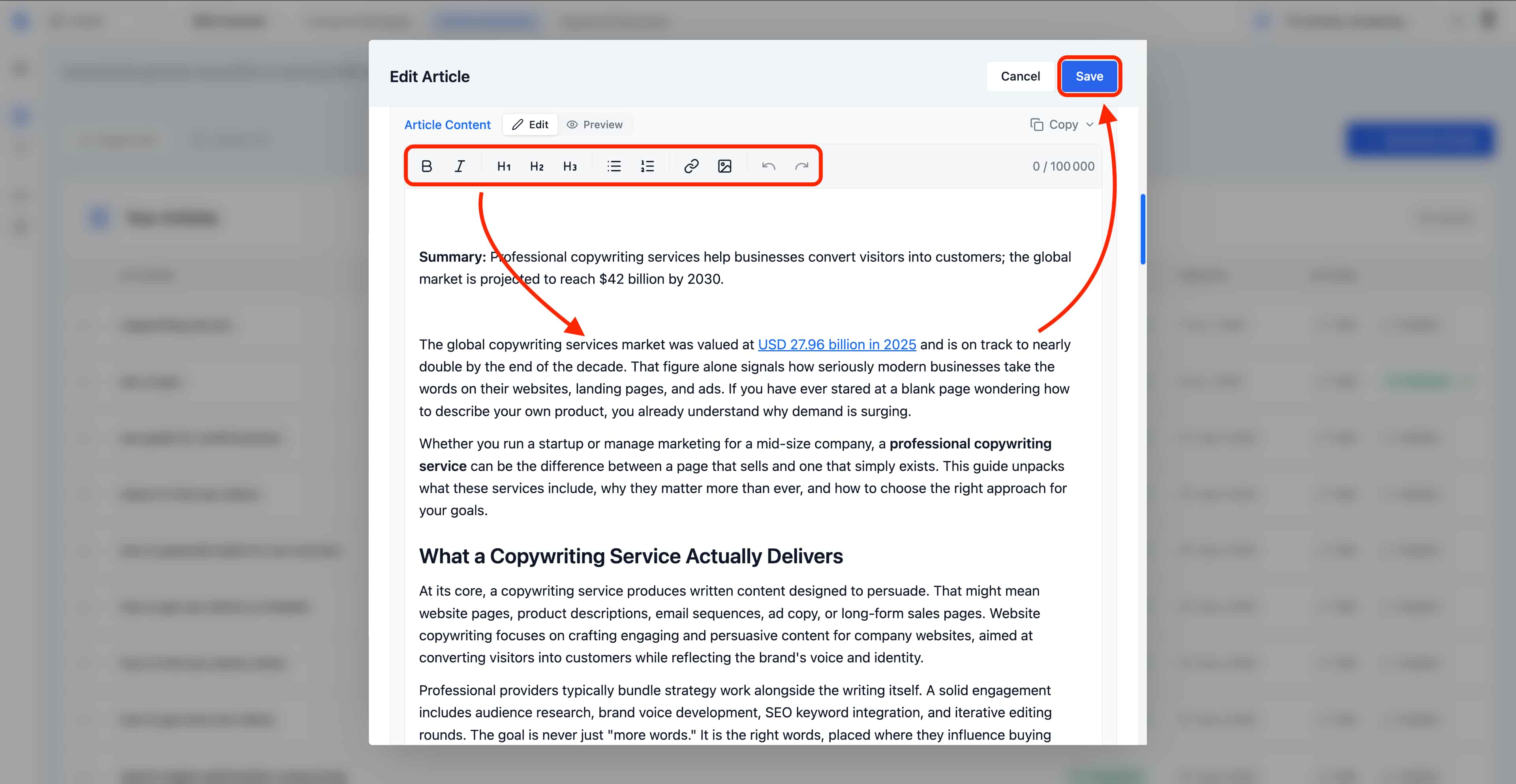 The toolbar above the content gives you everything you need to format the article exactly as you want it published:
* **Text formatting**: bold, italic, and inline links to add citations or internal links to your other pages.
* **Heading levels**: H1, H2 and H3 to keep a clean semantic structure that search engines can crawl.
* **Lists**: ordered and unordered lists to break down steps, features or comparisons.
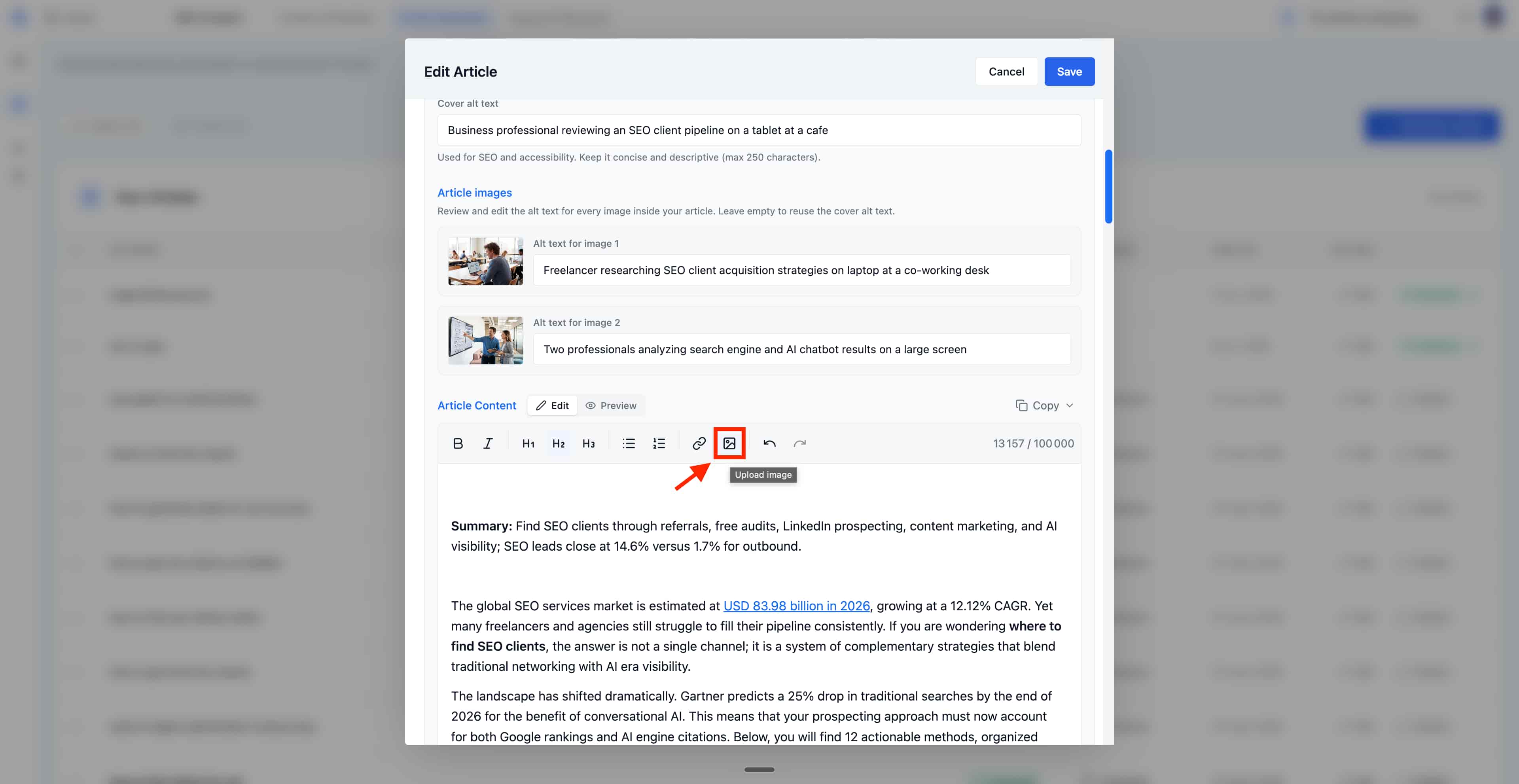
* **Inline images**: insert additional visuals between paragraphs to illustrate a point or break up long sections.
Use the **Edit** / **Preview** toggle at the top of the editor to switch between the writing view and a clean reading view that mirrors how the article will look on your live site. When you're happy with the result, the **Copy** button exports the full content (HTML or plain text) so you can paste it anywhere outside Sorank.
Articles can be up to **100,000 characters** long, which is more than enough room for in-depth pillar pages, comparison guides or long-form tutorials.
### How to Change Images in Your Articles
Your articles come with AI-generated images, but you can easily customize them to match your brand or preferences. The cover image and inline images can be edited directly in the article editor.
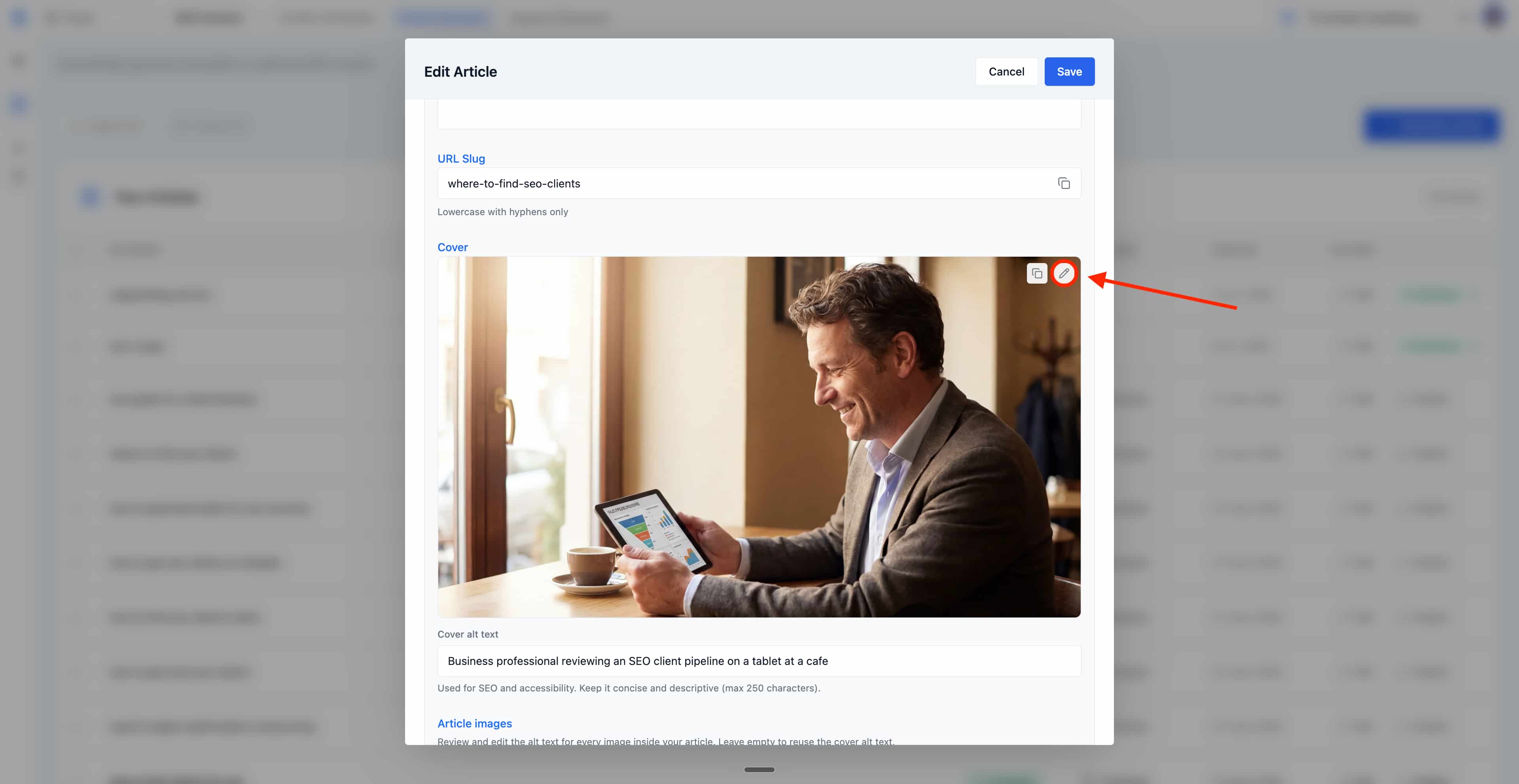
For the **cover image**, simply hover over it and click the edit icon (pencil button) in the top-right corner to swap it out.
The toolbar above the content gives you everything you need to format the article exactly as you want it published:
* **Text formatting**: bold, italic, and inline links to add citations or internal links to your other pages.
* **Heading levels**: H1, H2 and H3 to keep a clean semantic structure that search engines can crawl.
* **Lists**: ordered and unordered lists to break down steps, features or comparisons.
* **Inline images**: insert additional visuals between paragraphs to illustrate a point or break up long sections.
Use the **Edit** / **Preview** toggle at the top of the editor to switch between the writing view and a clean reading view that mirrors how the article will look on your live site. When you're happy with the result, the **Copy** button exports the full content (HTML or plain text) so you can paste it anywhere outside Sorank.
Articles can be up to **100,000 characters** long, which is more than enough room for in-depth pillar pages, comparison guides or long-form tutorials.
### How to Change Images in Your Articles
Your articles come with AI-generated images, but you can easily customize them to match your brand or preferences. The cover image and inline images can be edited directly in the article editor.
For the **cover image**, simply hover over it and click the edit icon (pencil button) in the top-right corner to swap it out.
 For all other images embedded within your article content, place your cursor in the text editor and delete them just as you would delete regular text: select the image and press delete.
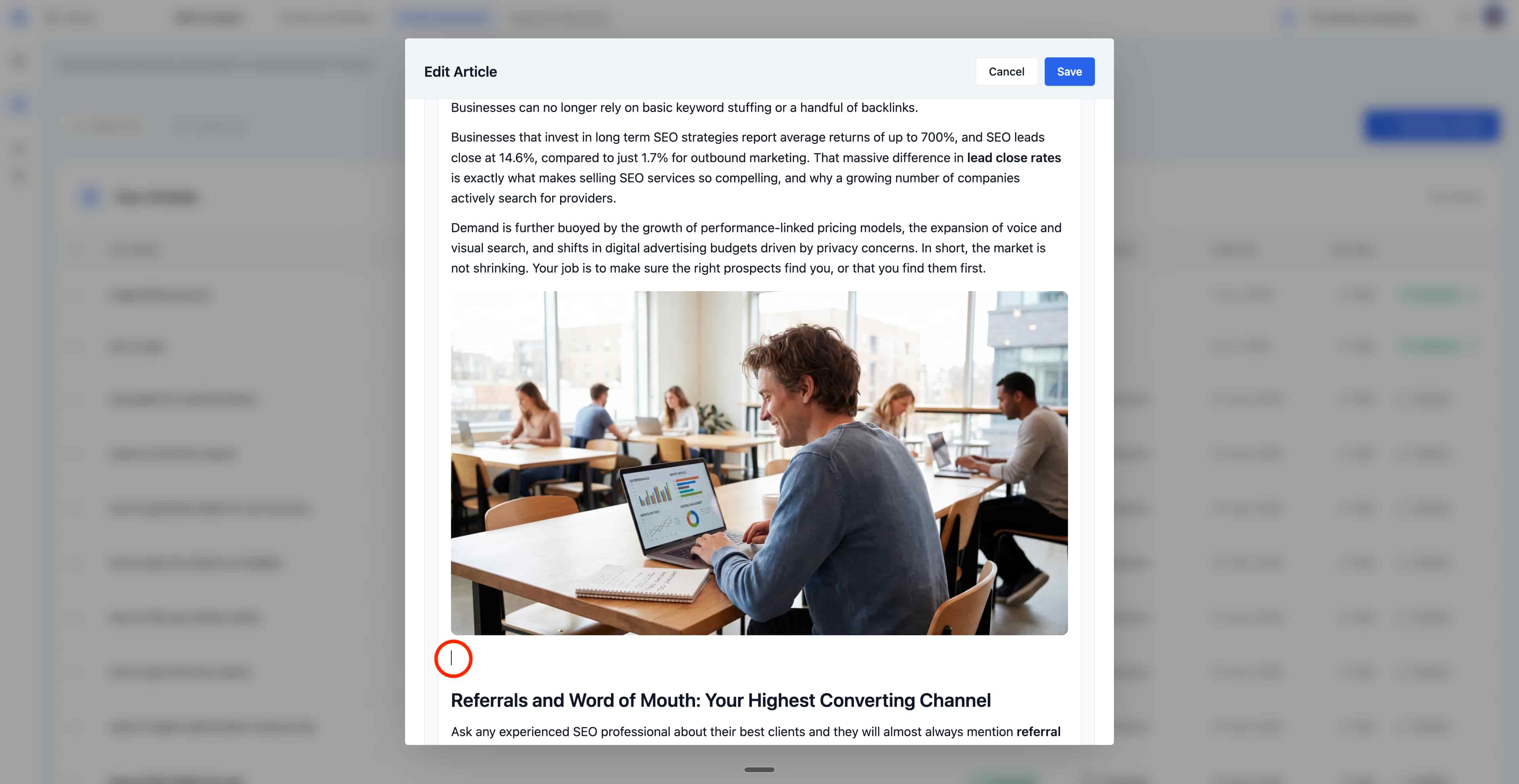 Once removed, you can upload a new image using the image upload button in the formatting toolbar, or leave the space empty to let the AI-generated image serve as your article illustration.